> ## Documentation Index
> Fetch the complete documentation index at: https://docs.decoart.com/llms.txt
> Use this file to discover all available pages before exploring further.
# Accounts Payable Submodule
## Overview
The **Accounting → Accounts Payable** submodule provides comprehensive tools for managing vendor invoices, payments, and accounts payable operations within DASH. The system integrates with purchase orders and receiving records to create complete audit trails from purchase request through payment.
This submodule is used by accounting personnel, finance managers, and operations staff who need to process vendor invoices, track payments, manage payment workflows, and maintain accurate accounts payable records.
The Accounts Payable (A/P) submodule provides several tabs for managing A/P operations:
* **Dashboard**: Overview of current A/P status and key metrics.
* **Open A/P**: View and manage outstanding payables.
* **Invoices**: Process and manage vendor invoices with PDF upload capability.
* **Debit/Credit Memos**: Handle adjustments and corrections.
* **Payments**: Process payment batches and manage payment methods.
* **A/P Aging**: Monitor aging of outstanding payables.
* **A/P Payment Forecast**: Plan future payment requirements.
* **PO Receipts no Invoice**: Track received goods awaiting invoices.
* **Freight Accrual**: Accrue freight-out expense for shipments not yet invoiced by their carrier.
* **Payment History**: Review completed payment transactions.
* **Prepayments**: Manage advance payments to vendors.
## Dashboard
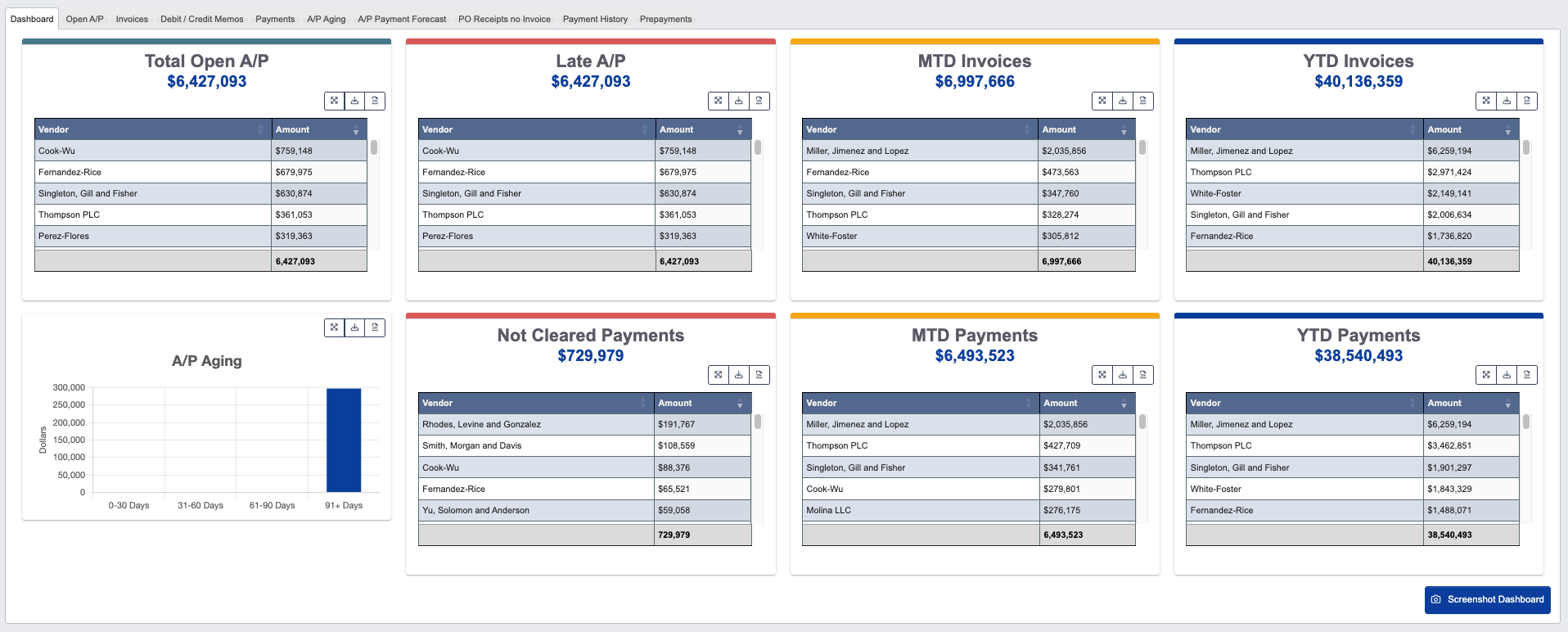 The Dashboard provides a high-level overview of your accounts payable status and key performance metrics.
**Available Actions:**
* Click `Screenshot Dashboard` to capture the current dashboard view for reporting or documentation purposes.
**This view is useful for:** Finance managers to quickly assess A/P status and identify areas requiring attention.
## Open A/P
The Dashboard provides a high-level overview of your accounts payable status and key performance metrics.
**Available Actions:**
* Click `Screenshot Dashboard` to capture the current dashboard view for reporting or documentation purposes.
**This view is useful for:** Finance managers to quickly assess A/P status and identify areas requiring attention.
## Open A/P
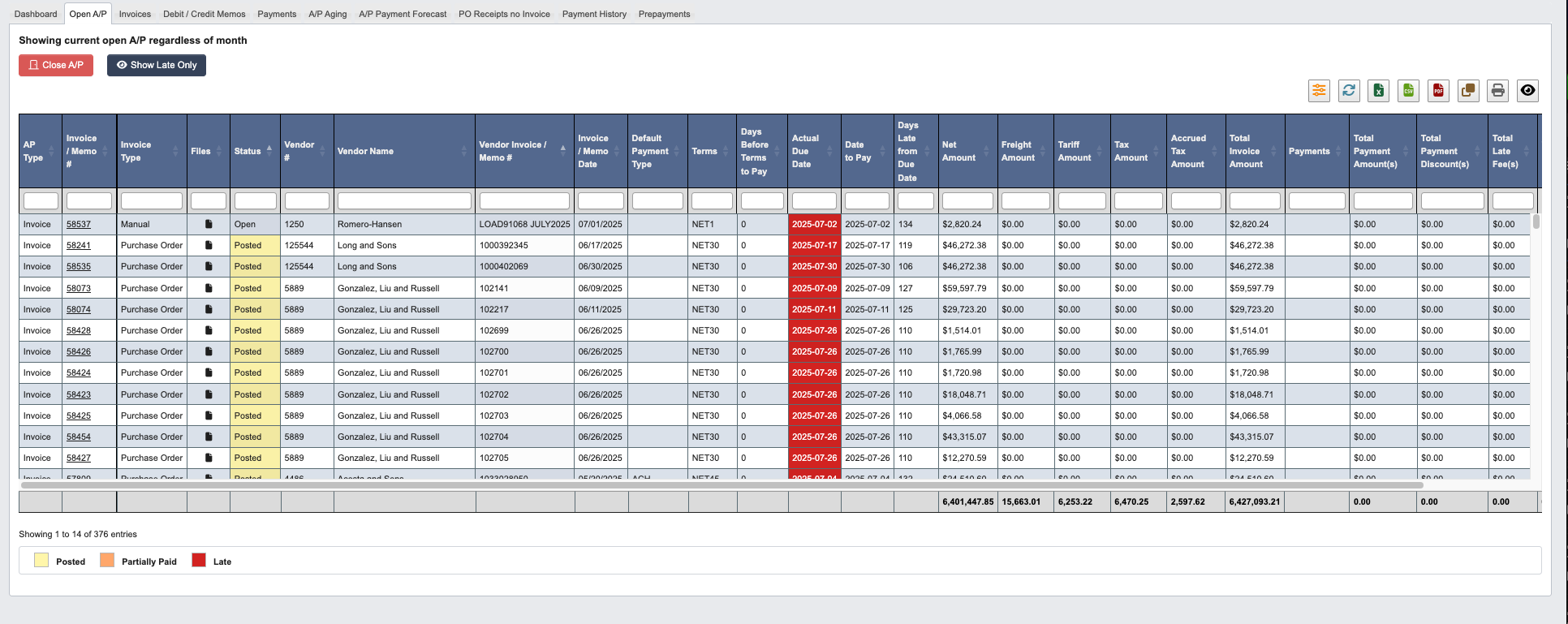 The Open A/P tab displays all current outstanding payables regardless of the month they were created.
**Available Actions:**
* Click `Close A/P` to mark selected payables as closed.
* Click `Show Late Only` to filter and display only overdue payables.
**This view is useful for:** Daily A/P management and identifying overdue payments that require immediate attention.
## Invoices
The Open A/P tab displays all current outstanding payables regardless of the month they were created.
**Available Actions:**
* Click `Close A/P` to mark selected payables as closed.
* Click `Show Late Only` to filter and display only overdue payables.
**This view is useful for:** Daily A/P management and identifying overdue payments that require immediate attention.
## Invoices
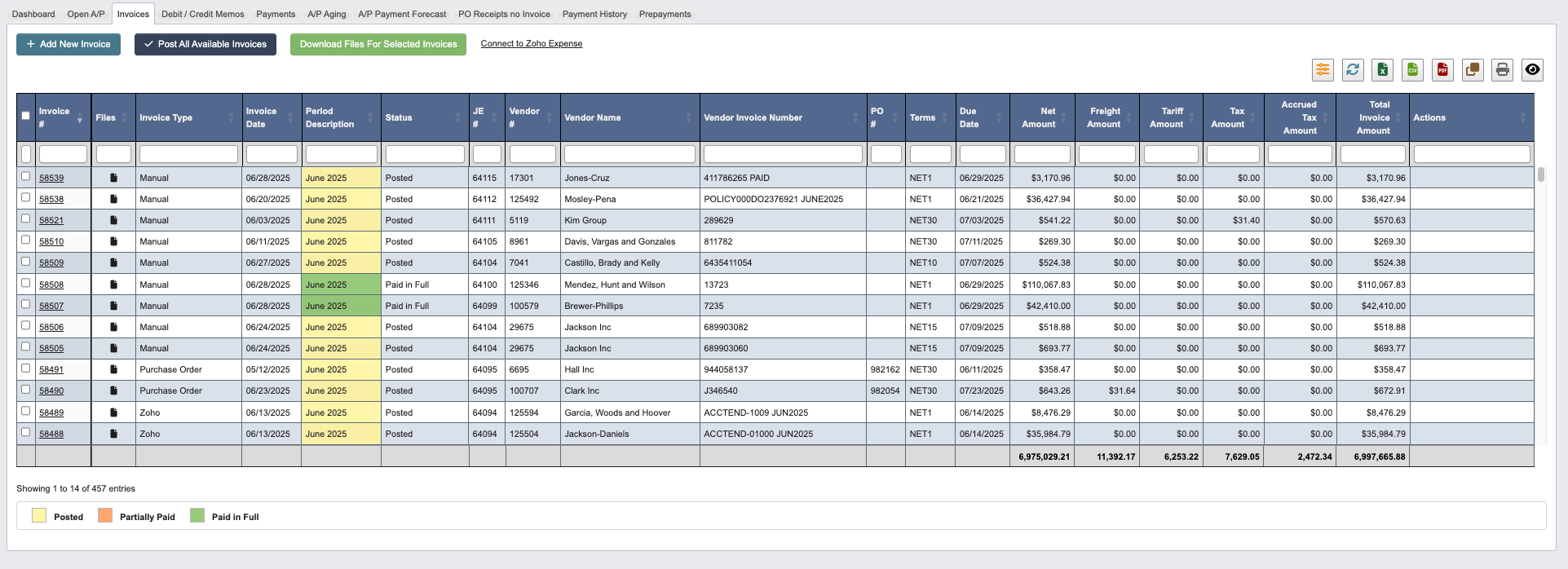 The Invoices tab is where you process vendor invoices and manage the invoice workflow.
**Available Actions:**
* Click `+ Add New Invoice` to begin processing a new vendor invoice.
* Click `Post All Available Invoices` to process all ready invoices in batch.
* Select invoices using checkboxes, then click `Download Files For Selected Invoices` to retrieve associated documents.
* Use `Connect to Zoho Expense` link for integration with expense management systems.
**This process is useful for:** Accounting staff to efficiently process multiple invoices and maintain proper documentation with PDF uploads correlated to DASH purchase orders.
### Manual Accounting Period Override
When you create a `Manual` A/P invoice, DASH normally derives the accounting period from the `Invoice Date`. If the invoice date belongs to an earlier period but today's calendar date is already in a later A/P period, DASH shows an `Accounting Period` override field beneath `Invoice Date`.
The Invoices tab is where you process vendor invoices and manage the invoice workflow.
**Available Actions:**
* Click `+ Add New Invoice` to begin processing a new vendor invoice.
* Click `Post All Available Invoices` to process all ready invoices in batch.
* Select invoices using checkboxes, then click `Download Files For Selected Invoices` to retrieve associated documents.
* Use `Connect to Zoho Expense` link for integration with expense management systems.
**This process is useful for:** Accounting staff to efficiently process multiple invoices and maintain proper documentation with PDF uploads correlated to DASH purchase orders.
### Manual Accounting Period Override
When you create a `Manual` A/P invoice, DASH normally derives the accounting period from the `Invoice Date`. If the invoice date belongs to an earlier period but today's calendar date is already in a later A/P period, DASH shows an `Accounting Period` override field beneath `Invoice Date`.
 * Leave `Accounting Period` blank to keep the default date-based period assignment.
* Use the override only when you need the invoice to post into the currently available later period while preserving the original vendor invoice date.
* The dropdown is limited to the current calendar month period that is one step ahead of the currently open A/P period.
* Saved invoices that use this override are flagged in the `Period Override` column, and existing invoices show a `Manual Period Override` alert when reopened.
### Linked Debit / Credit Memos
When you open a saved invoice, a `Debit / Credit Memos` section (between `Payments` and `Files`) lists every memo line linked to that invoice, including the memo type, status, reason, and amount.
* Leave `Accounting Period` blank to keep the default date-based period assignment.
* Use the override only when you need the invoice to post into the currently available later period while preserving the original vendor invoice date.
* The dropdown is limited to the current calendar month period that is one step ahead of the currently open A/P period.
* Saved invoices that use this override are flagged in the `Period Override` column, and existing invoices show a `Manual Period Override` alert when reopened.
### Linked Debit / Credit Memos
When you open a saved invoice, a `Debit / Credit Memos` section (between `Payments` and `Files`) lists every memo line linked to that invoice, including the memo type, status, reason, and amount.
 * Click a `Memo #` to open the memo.
* If the invoice was created from a purchase order, the same memos also appear in the purchase order's `Debit / Credit Memos` section.
## Debit / Credit Memos
* Click a `Memo #` to open the memo.
* If the invoice was created from a purchase order, the same memos also appear in the purchase order's `Debit / Credit Memos` section.
## Debit / Credit Memos
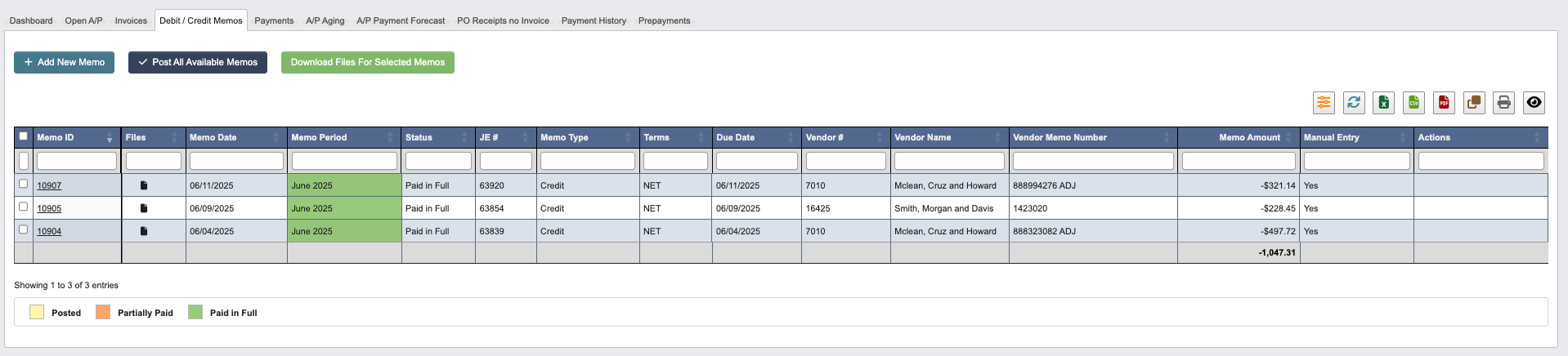 Handle vendor adjustments, returns, and corrections through the Debit/Credit Memos tab.
**Available Actions:**
* Click `+ Add New Memo` to create adjustments for vendor accounts.
* Click `Post All Available Memos` to process all ready memos in batch.
* Select memos using checkboxes, then click `Download Files For Selected Memos` to retrieve supporting documentation
**This function is useful for:** Handling vendor credits, returns, and account adjustments while maintaining proper audit trails.
### Linking Memos to Invoices
Each memo line has an `Invoice #` dropdown listing the vendor's A/P invoices; some reason codes require an invoice reference. Linking a memo line to an invoice makes the memo visible in two additional places:
* On the invoice itself, in its `Debit / Credit Memos` section.
* On the purchase order the invoice was created from, in the PO's `Debit / Credit Memos` section.
## Payments
Handle vendor adjustments, returns, and corrections through the Debit/Credit Memos tab.
**Available Actions:**
* Click `+ Add New Memo` to create adjustments for vendor accounts.
* Click `Post All Available Memos` to process all ready memos in batch.
* Select memos using checkboxes, then click `Download Files For Selected Memos` to retrieve supporting documentation
**This function is useful for:** Handling vendor credits, returns, and account adjustments while maintaining proper audit trails.
### Linking Memos to Invoices
Each memo line has an `Invoice #` dropdown listing the vendor's A/P invoices; some reason codes require an invoice reference. Linking a memo line to an invoice makes the memo visible in two additional places:
* On the invoice itself, in its `Debit / Credit Memos` section.
* On the purchase order the invoice was created from, in the PO's `Debit / Credit Memos` section.
## Payments
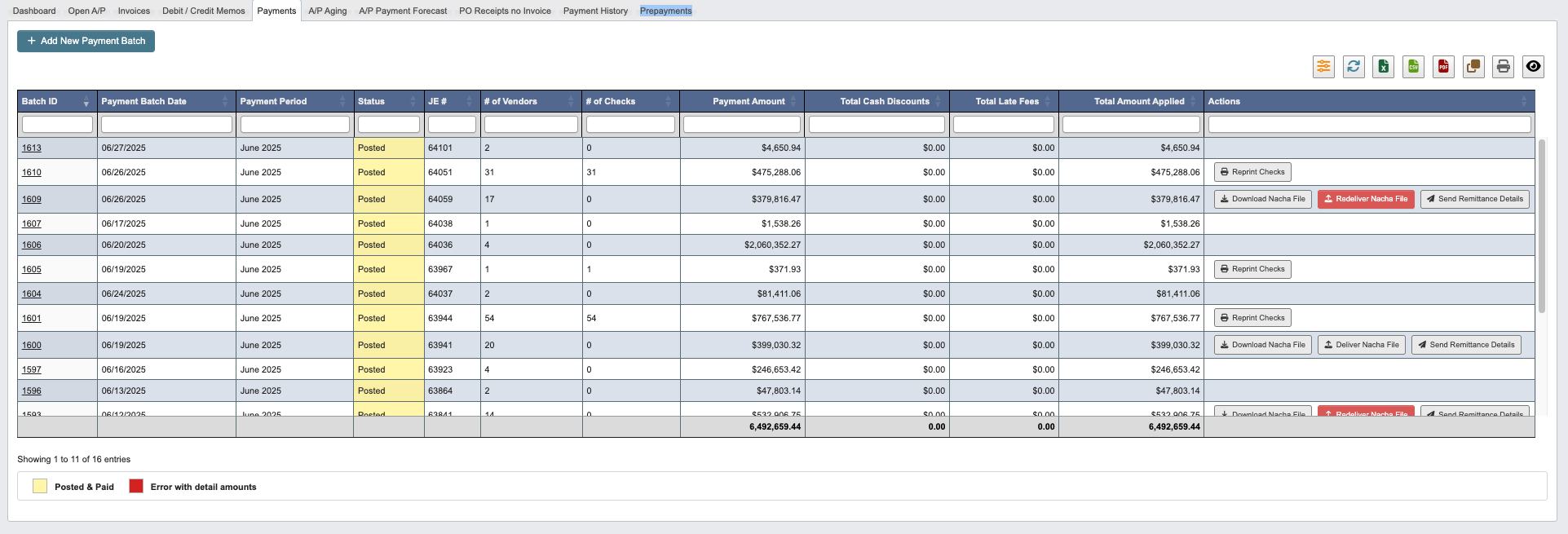 The Payments tab manages payment processing and vendor payment methods.
**Available Actions:**
* Click `+ Add New Payment Batch` to initiate payment processing for selected vendors.
### Payment Actions
The Actions column provides several payment management options:
* `Reprint Checks`: Generate replacement checks for lost or damaged payments.
* `Download Nacha File`: Retrieve ACH payment files for electronic transfers.
* `Redeliver Nacha File:` Resend ACH files to banking systems.
* `Send Remittance Details`: Transmit payment details to vendors.
**This process is useful for:** Managing various payment methods including checks and electronic transfers while maintaining proper vendor communication.
## A/P Aging
The Payments tab manages payment processing and vendor payment methods.
**Available Actions:**
* Click `+ Add New Payment Batch` to initiate payment processing for selected vendors.
### Payment Actions
The Actions column provides several payment management options:
* `Reprint Checks`: Generate replacement checks for lost or damaged payments.
* `Download Nacha File`: Retrieve ACH payment files for electronic transfers.
* `Redeliver Nacha File:` Resend ACH files to banking systems.
* `Send Remittance Details`: Transmit payment details to vendors.
**This process is useful for:** Managing various payment methods including checks and electronic transfers while maintaining proper vendor communication.
## A/P Aging
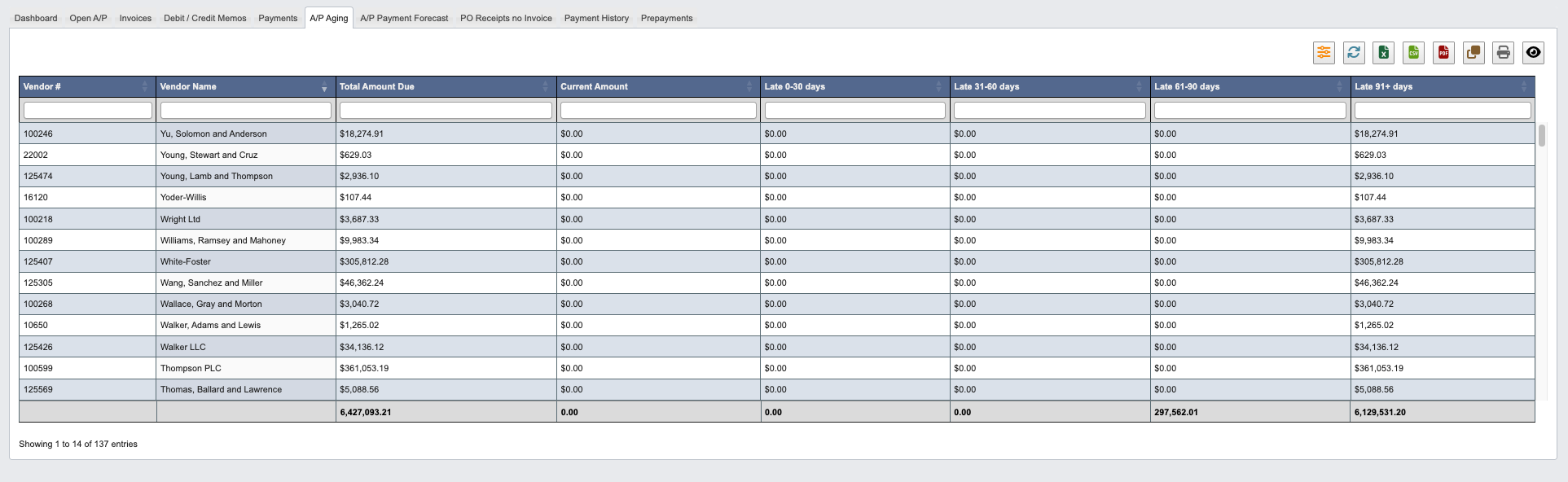 The A/P Aging tab provides visibility into the age of outstanding payables, helping prioritize payments and manage cash flow.
**This report is useful for:** Finance managers to monitor payment timing, identify overdue accounts, and manage vendor relationships effectively.
## A/P Payment Forecast
The A/P Aging tab provides visibility into the age of outstanding payables, helping prioritize payments and manage cash flow.
**This report is useful for:** Finance managers to monitor payment timing, identify overdue accounts, and manage vendor relationships effectively.
## A/P Payment Forecast
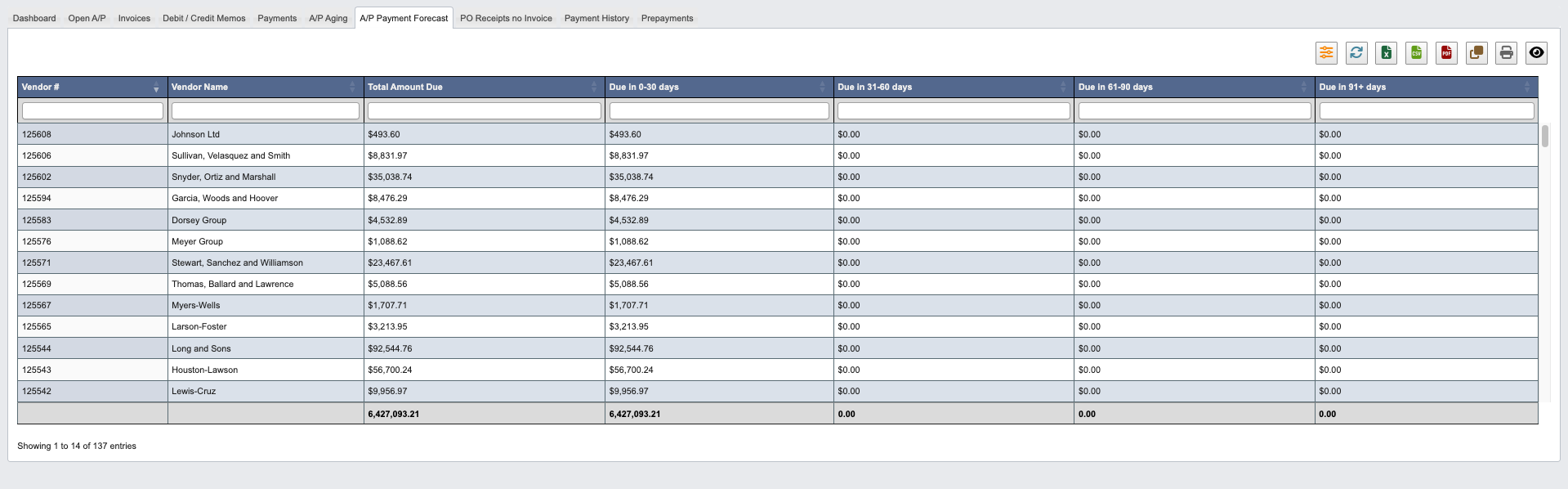 The A/P Payment Forecast tab helps plan future cash flow requirements by projecting upcoming payment obligations.
**This forecast is useful for:** Cash flow planning and ensuring adequate funds are available for upcoming vendor payments.
## PO Receipts no Invoice
The A/P Payment Forecast tab helps plan future cash flow requirements by projecting upcoming payment obligations.
**This forecast is useful for:** Cash flow planning and ensuring adequate funds are available for upcoming vendor payments.
## PO Receipts no Invoice
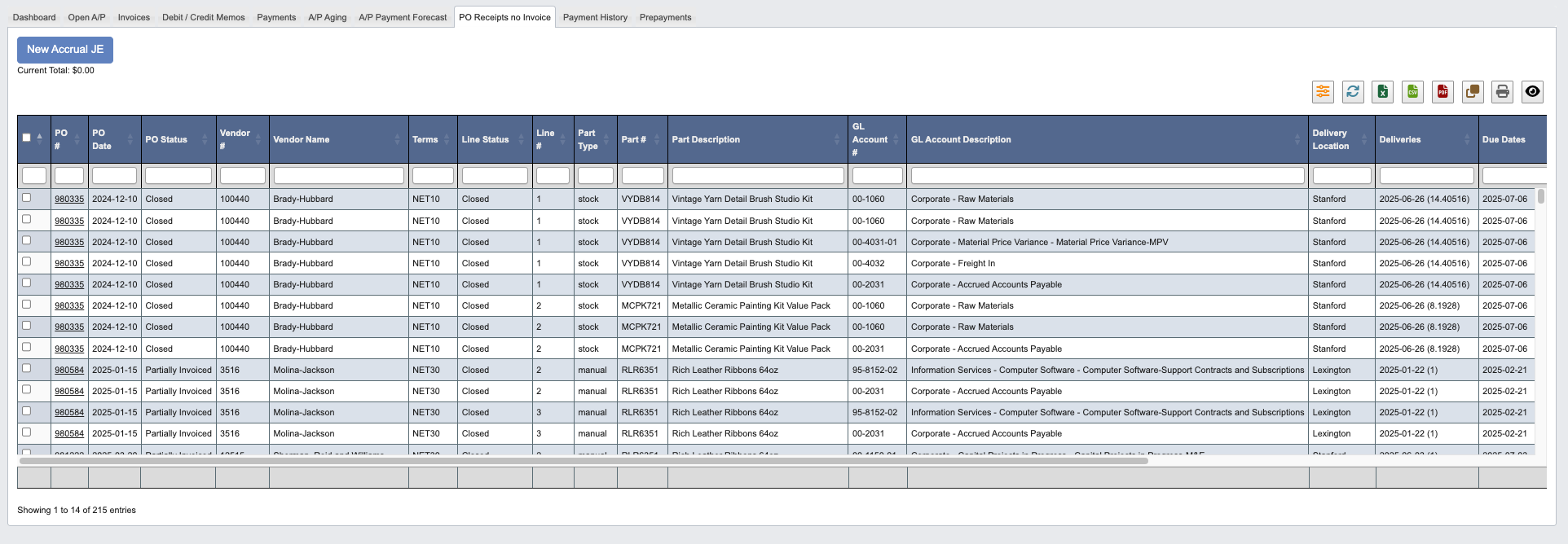 This tab tracks goods that have been received but for which vendor invoices have not yet been processed.
**Available Actions:**
* Click `New Accrual JE` to create journal entries for accrual purposes. First, select items in the datatable using the checkbox or by clicking on a row.
**This view is useful for:** Month-end accruals and ensuring all received goods are properly accounted for in financial statements.
## Freight Accrual
This tab tracks goods that have been received but for which vendor invoices have not yet been processed.
**Available Actions:**
* Click `New Accrual JE` to create journal entries for accrual purposes. First, select items in the datatable using the checkbox or by clicking on a row.
**This view is useful for:** Month-end accruals and ensuring all received goods are properly accounted for in financial statements.
## Freight Accrual
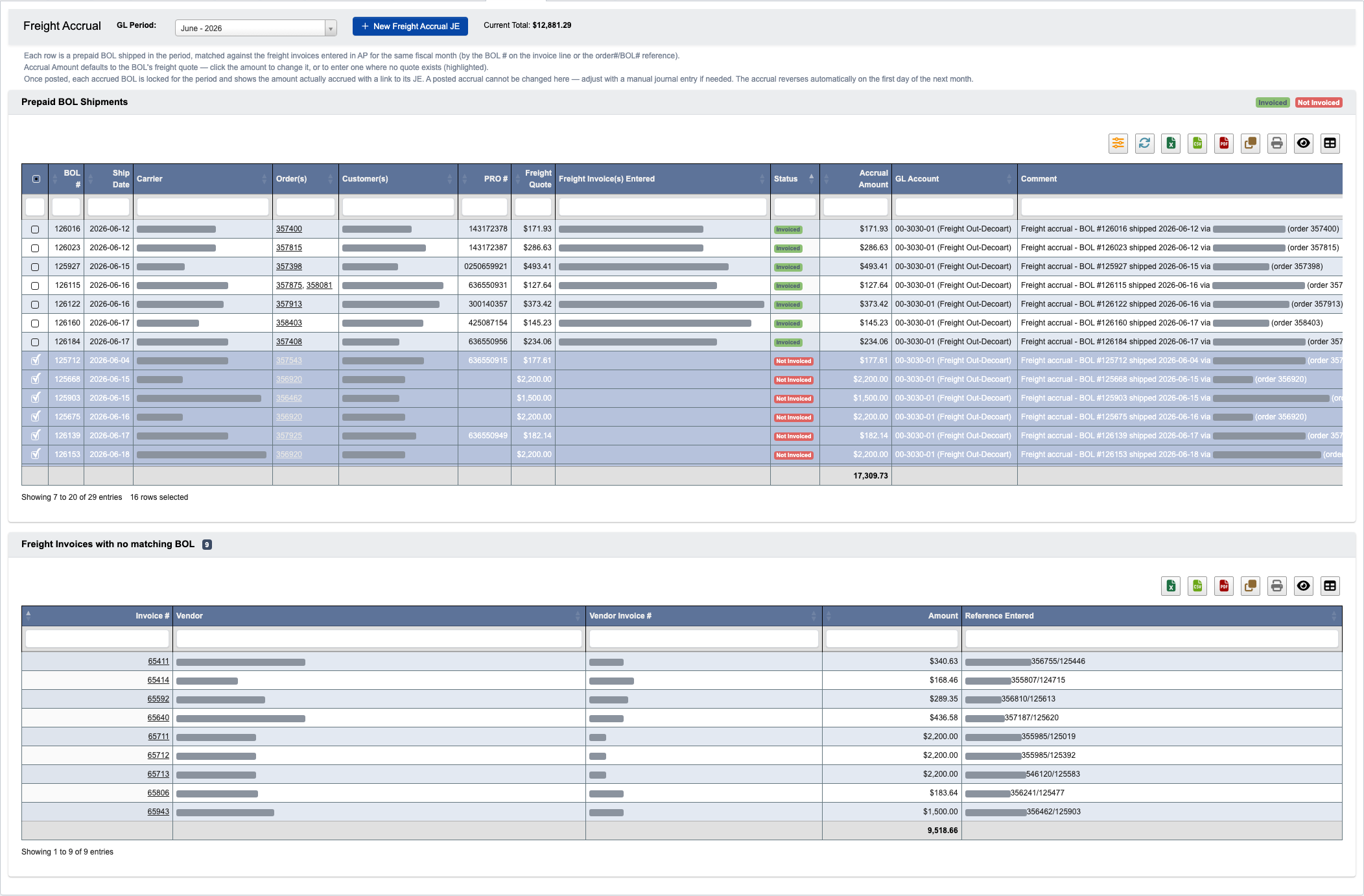 The Freight Accrual tab automates the month-end freight-out accrual. Each row is a **prepaid bill of lading** shipped in the fiscal month — the truck shipments the company pays freight on (parcel shipments and collect/third-party freight are excluded automatically). DASH matches every BOL against the freight invoices entered in AP for the same fiscal month and pre-selects the ones with no invoice so you can accrue them in one journal entry.
### How invoices match to BOLs
A freight invoice line counts as covering a BOL when either:
* The invoice line's `BOL #` field points at the BOL (see [Linking freight invoices to BOLs](#linking-freight-invoices-to-bols) below), or
* The line's Item #, description, or comment contains the `order#/BOL#` reference convention (for example `DOLLARAMA - 353027/123862`), matched by the BOL number's last digits. This keeps history and existing entry habits working without any change.
Freight-coded invoice lines whose reference matches no BOL in the period are listed under the grid in **Freight invoices with no matching BOL this period**, so a mistyped reference or forgotten BOL pick is visible instead of silently ignored. Click the invoice number to open it.
### Reviewing a fiscal month
1. Choose the `GL Period` to accrue. It defaults to the current open GL period, and the grid reloads whenever you pick a different month.
2. Each row shows the BOL number (last six digits), ship date, carrier, the order(s) and customer(s) on the BOL, the PRO number, and the quoted freight amount.
3. The `Status` column shows `Invoiced` (with the matching vendor invoice and amount in `Freight Invoice(s) Entered`) or `Not Invoiced`. Once you post an accrual, the covered BOLs also show an `Accrued` badge with a link to the journal entry.
4. `Not Invoiced` BOLs arrive pre-selected. BOLs with no freight quote are never pre-selected — their `Accrual Amount` cell is highlighted yellow until you enter an amount manually.
5. Use the filter button to hide invoiced and already-accrued BOLs.
Because one order can ship on several BOLs, each BOL is matched and accrued independently: if two of an order's three BOLs were invoiced this month, only the third shows `Not Invoiced` and gets accrued.
### Setting accrual amounts
The `Accrual Amount` column defaults to each BOL's freight quote and can be edited directly in the grid — click the cell and type the amount. The `Current Total` above the grid always reflects the selected rows' accrual amounts.
### Posting the accrual
The Freight Accrual tab automates the month-end freight-out accrual. Each row is a **prepaid bill of lading** shipped in the fiscal month — the truck shipments the company pays freight on (parcel shipments and collect/third-party freight are excluded automatically). DASH matches every BOL against the freight invoices entered in AP for the same fiscal month and pre-selects the ones with no invoice so you can accrue them in one journal entry.
### How invoices match to BOLs
A freight invoice line counts as covering a BOL when either:
* The invoice line's `BOL #` field points at the BOL (see [Linking freight invoices to BOLs](#linking-freight-invoices-to-bols) below), or
* The line's Item #, description, or comment contains the `order#/BOL#` reference convention (for example `DOLLARAMA - 353027/123862`), matched by the BOL number's last digits. This keeps history and existing entry habits working without any change.
Freight-coded invoice lines whose reference matches no BOL in the period are listed under the grid in **Freight invoices with no matching BOL this period**, so a mistyped reference or forgotten BOL pick is visible instead of silently ignored. Click the invoice number to open it.
### Reviewing a fiscal month
1. Choose the `GL Period` to accrue. It defaults to the current open GL period, and the grid reloads whenever you pick a different month.
2. Each row shows the BOL number (last six digits), ship date, carrier, the order(s) and customer(s) on the BOL, the PRO number, and the quoted freight amount.
3. The `Status` column shows `Invoiced` (with the matching vendor invoice and amount in `Freight Invoice(s) Entered`) or `Not Invoiced`. Once you post an accrual, the covered BOLs also show an `Accrued` badge with a link to the journal entry.
4. `Not Invoiced` BOLs arrive pre-selected. BOLs with no freight quote are never pre-selected — their `Accrual Amount` cell is highlighted yellow until you enter an amount manually.
5. Use the filter button to hide invoiced and already-accrued BOLs.
Because one order can ship on several BOLs, each BOL is matched and accrued independently: if two of an order's three BOLs were invoiced this month, only the third shows `Not Invoiced` and gets accrued.
### Setting accrual amounts
The `Accrual Amount` column defaults to each BOL's freight quote and can be edited directly in the grid — click the cell and type the amount. The `Current Total` above the grid always reflects the selected rows' accrual amounts.
### Posting the accrual
 1. Select or deselect BOLs with the checkboxes until the `Current Total` matches what you want to accrue.
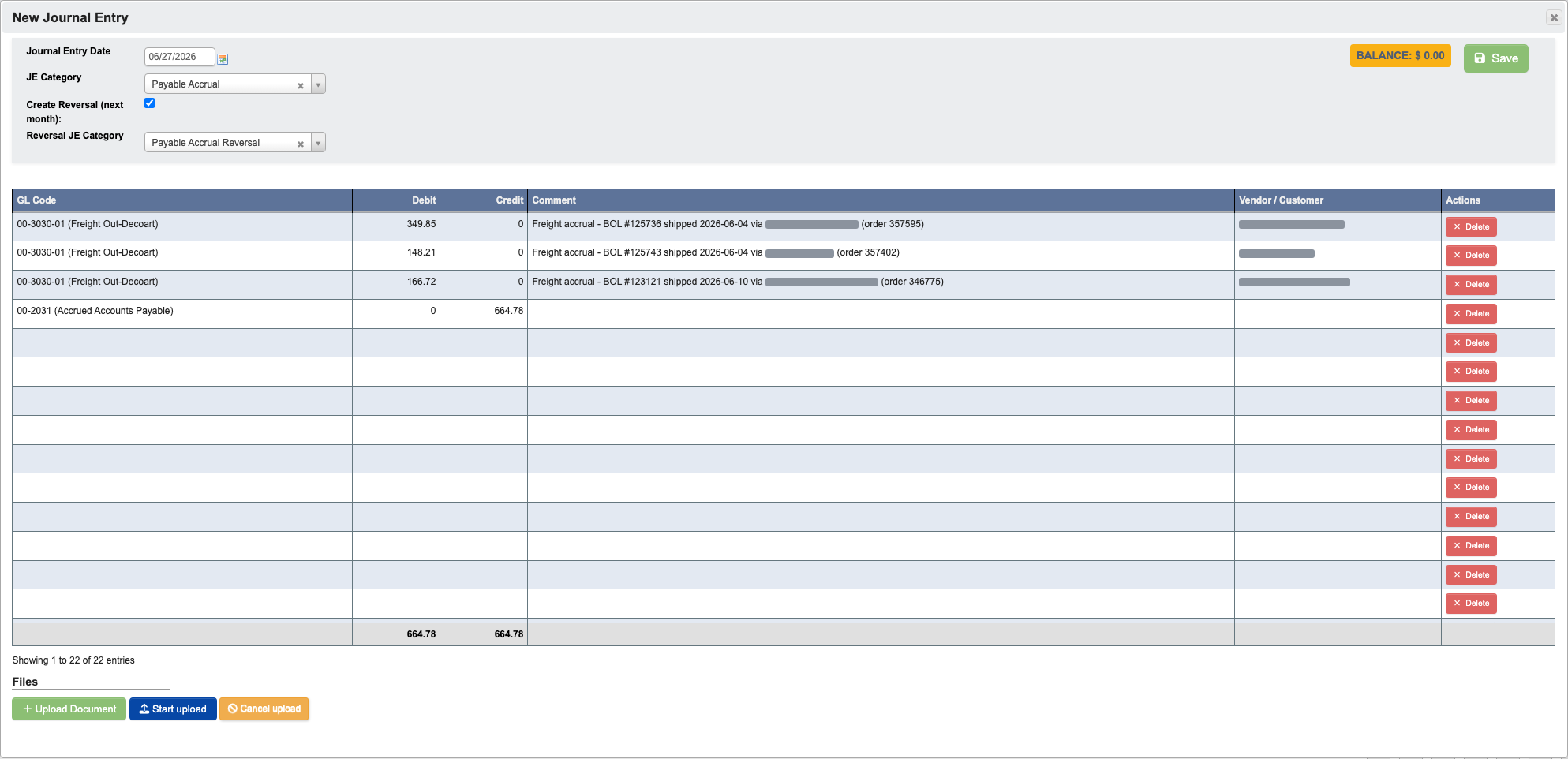
2. Click `New Freight Accrual JE`. The standard journal-entry grid opens pre-filled with one freight-out expense debit per BOL (using the order's freight-out GL account — when a BOL covers several orders, the full quoted amount goes on one line coded to the first order's account, and the comment lists every order) and a single balancing credit to the Accrued Accounts Payable account — the same accounts and `Payable Accrual` / `Payable Accrual Reversal` JE categories used by the PO Receipts no Invoice accrual. Amounts and accounts remain editable in the JE grid.
3. The JE date is the last day of the selected period, and `Create Reversing Entry` is pre-checked: posting also books the automatic reversal on the first day of the following period.
4. Review and save the journal entry.
DASH records which BOLs each accrual JE covered. Re-opening the same period shows those BOLs as `Accrued` — with the posted amount and a link to the JE — and they can no longer be selected, edited, or accrued a second time in the same month. A posted accrual cannot be changed from this tab; adjust it with a manual journal entry if needed. The accrual reverses automatically at the start of the next month, so the new month always starts fresh.
Because each accrual auto-reverses at the start of the next month, a BOL that is still uninvoiced next month simply gets accrued again — the new month starts fresh and nets to a single open accrual.
### Linking freight invoices to BOLs
1. Select or deselect BOLs with the checkboxes until the `Current Total` matches what you want to accrue.
2. Click `New Freight Accrual JE`. The standard journal-entry grid opens pre-filled with one freight-out expense debit per BOL (using the order's freight-out GL account — when a BOL covers several orders, the full quoted amount goes on one line coded to the first order's account, and the comment lists every order) and a single balancing credit to the Accrued Accounts Payable account — the same accounts and `Payable Accrual` / `Payable Accrual Reversal` JE categories used by the PO Receipts no Invoice accrual. Amounts and accounts remain editable in the JE grid.
3. The JE date is the last day of the selected period, and `Create Reversing Entry` is pre-checked: posting also books the automatic reversal on the first day of the following period.
4. Review and save the journal entry.
DASH records which BOLs each accrual JE covered. Re-opening the same period shows those BOLs as `Accrued` — with the posted amount and a link to the JE — and they can no longer be selected, edited, or accrued a second time in the same month. A posted accrual cannot be changed from this tab; adjust it with a manual journal entry if needed. The accrual reverses automatically at the start of the next month, so the new month always starts fresh.
Because each accrual auto-reverses at the start of the next month, a BOL that is still uninvoiced next month simply gets accrued again — the new month starts fresh and nets to a single open accrual.
### Linking freight invoices to BOLs
 Invoice line items have an optional `BOL #` column. When entering a freight invoice, click the cell and type the last digits of the BOL number from the carrier's invoice — DASH looks up the matching bill of lading (showing its carrier and ship date to confirm) and stores the link. Linked invoices match their BOL on the Freight Accrual tab exactly, with no reliance on the text reference, so prefer picking the BOL whenever the invoice covers one.
## Payment History
Invoice line items have an optional `BOL #` column. When entering a freight invoice, click the cell and type the last digits of the BOL number from the carrier's invoice — DASH looks up the matching bill of lading (showing its carrier and ship date to confirm) and stores the link. Linked invoices match their BOL on the Freight Accrual tab exactly, with no reliance on the text reference, so prefer picking the BOL whenever the invoice covers one.
## Payment History
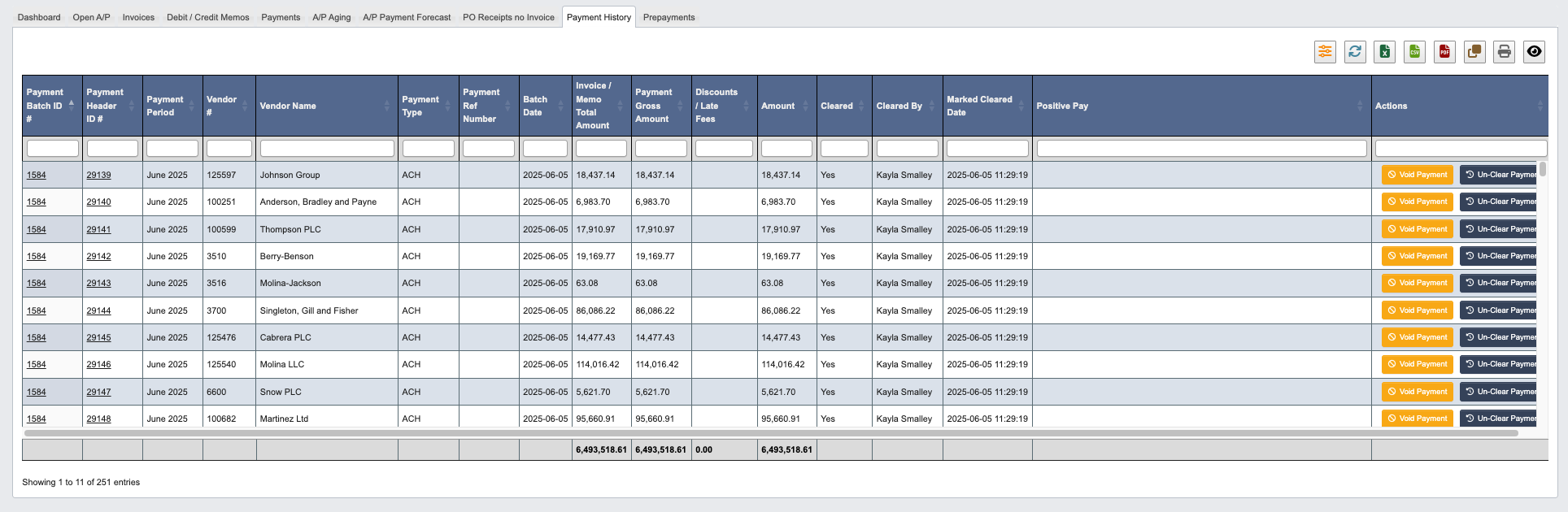 The Payment History tab provides a complete record of all processed payments.
Electronic payment types configured for automatic clearing are marked cleared when the payment batch is posted. Their cleared timestamp is based on the payment batch date plus the configured clearing delay for that payment type.
### Payment History Actions
The Actions column provides options for payment corrections:
* `Resend Remittance for Payment #...`: Send the remittance details email again for the selected vendor payment.
* `Void Payment`: Cancel a payment that was processed in error
* `Un-Clear Payment`: Reverse the clearing status of a payment
**This history is useful for:** Auditing payment activity, resolving vendor disputes, and maintaining accurate payment records.
## Prepayments
The Payment History tab provides a complete record of all processed payments.
Electronic payment types configured for automatic clearing are marked cleared when the payment batch is posted. Their cleared timestamp is based on the payment batch date plus the configured clearing delay for that payment type.
### Payment History Actions
The Actions column provides options for payment corrections:
* `Resend Remittance for Payment #...`: Send the remittance details email again for the selected vendor payment.
* `Void Payment`: Cancel a payment that was processed in error
* `Un-Clear Payment`: Reverse the clearing status of a payment
**This history is useful for:** Auditing payment activity, resolving vendor disputes, and maintaining accurate payment records.
## Prepayments
 The Prepayments tab manages advance payments made to vendors before goods or services are received.
**This function is useful for:** Managing deposits, advance payments, and ensuring proper accounting treatment of prepaid expenses.
The Prepayments tab manages advance payments made to vendors before goods or services are received.
**This function is useful for:** Managing deposits, advance payments, and ensuring proper accounting treatment of prepaid expenses.