> ## Documentation Index
> Fetch the complete documentation index at: https://docs.decoart.com/llms.txt
> Use this file to discover all available pages before exploring further.
# Fixed Assets Submodule
## Overview
The **Accounting → Fixed Assets** submodule provides comprehensive tools for managing company assets, depreciation schedules, and asset lifecycle tracking within DASH. The system supports various depreciation methods and integrates with general ledger accounts for proper financial statement presentation.
This submodule is used by accounting personnel, finance managers, operations staff, and auditors who need to track capital expenditures, manage asset depreciation, and maintain compliance with accounting standards and tax regulations.
The Fixed Assets submodule provides several tabs for managing asset operations:
* **Fixed Assets**: Record and manage individual assets with depreciation tracking.
* **Asset Groups**: Organize assets into logical groupings for reporting and management.
* **Asset Types**: Define categories of assets with specific characteristics.
* **Asset Attributes**: Configure custom attributes for detailed asset tracking.
## Fixed Assets
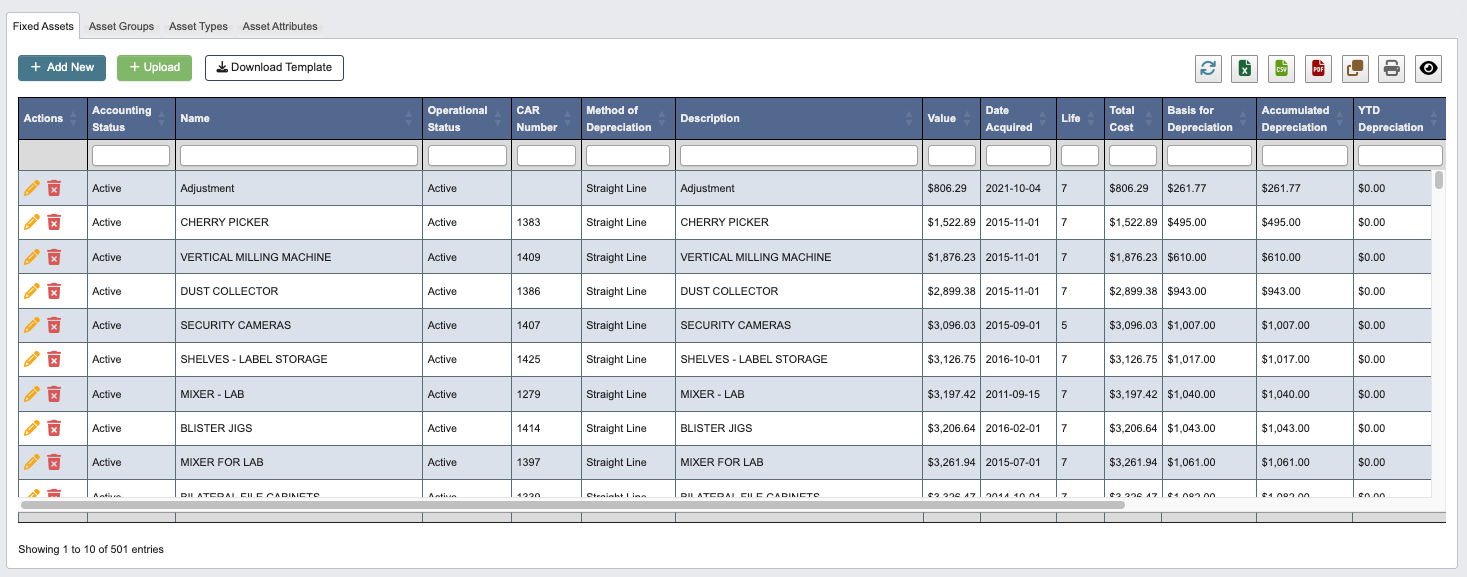 The Fixed Assets section is the main area for recording and managing individual company assets.
**Available Actions:**
* Click `+ Upload` to import multiple assets from a spreadsheet.
* Click `Download Template` to get the proper format for bulk asset uploads.
**This process is useful for:** Initial system setup, annual asset additions, or when acquiring multiple assets that need to be recorded efficiently.
### Pending Assets from Completed CAR Numbers
When a CAR number receives an `Actual Completion` date on the [Accounting Maintenance](/accounting/maintenance#car-numbers) screen, DASH automatically creates a fixed asset entry for it with a `Pending` accounting status and posts the CAR's capital projects Journal Entry in the same step. The entry starts with the CAR's description, GL code, completion date (as the date acquired), and actual expense (as the total cost, using the manually adjusted amount when one was entered on the CAR).
The Fixed Assets section is the main area for recording and managing individual company assets.
**Available Actions:**
* Click `+ Upload` to import multiple assets from a spreadsheet.
* Click `Download Template` to get the proper format for bulk asset uploads.
**This process is useful for:** Initial system setup, annual asset additions, or when acquiring multiple assets that need to be recorded efficiently.
### Pending Assets from Completed CAR Numbers
When a CAR number receives an `Actual Completion` date on the [Accounting Maintenance](/accounting/maintenance#car-numbers) screen, DASH automatically creates a fixed asset entry for it with a `Pending` accounting status and posts the CAR's capital projects Journal Entry in the same step. The entry starts with the CAR's description, GL code, completion date (as the date acquired), and actual expense (as the total cost, using the manually adjusted amount when one was entered on the CAR).
 Edit the pending asset to fill in the remaining details - the asset group, type, depreciation method, life, and basis for depreciation - and change its `Accounting Status` from `Pending` when the asset is ready to depreciate.
### Adding New Assets
1. Click `+ Add New` to create a new fixed asset record.
Edit the pending asset to fill in the remaining details - the asset group, type, depreciation method, life, and basis for depreciation - and change its `Accounting Status` from `Pending` when the asset is ready to depreciate.
### Adding New Assets
1. Click `+ Add New` to create a new fixed asset record.
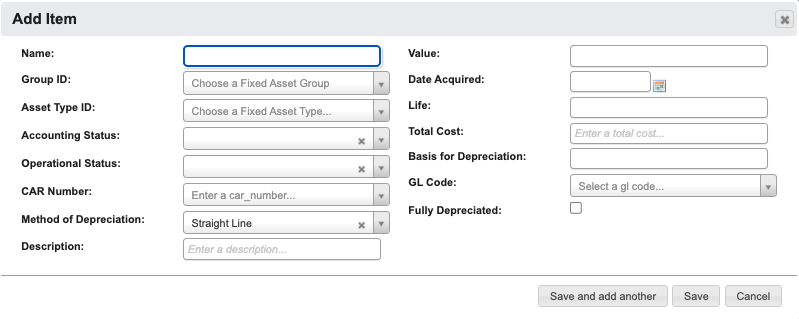 2. Complete the asset information form with the following required and optional fields:
* `Name`: Descriptive name for the asset.
* `Group ID`: Select the appropriate asset group for organizational purposes.
* `Asset Type ID`: Choose the asset type that defines the asset category.
* `Accounting Status`: Whether the asset accounting status is pending, active, or disposed.
* `Operational Status`: Whether the asset operational status is active or inactive.
* `CAR Number`: Enter the Capital Appropriation Request number.
* `Method of Depreciation`: Choose from available depreciation methods.
* `Description`: Detailed description of the asset.
* `Value`: Asset value.
* `Date Acquired`: Date when the asset was purchased or placed in service.
* `Life`: Expected useful life of the asset in years.
* `Total Cost`: Original acquisition cost including all setup expenses.
* `Basis for Depreciation`: Amount subject to depreciation.
* `GL Code`: General ledger account code for proper financial statement classification.
* `Fully Depreciated`: Checkbox to indicate if the asset is fully depreciated.
3. Choose your save option:
* Click `Save and add another` to save the current asset and immediately create another.
* Click `Save` to save the asset and return to the main list.
* Click `Cancel` to discard changes.
## Asset Groups
2. Complete the asset information form with the following required and optional fields:
* `Name`: Descriptive name for the asset.
* `Group ID`: Select the appropriate asset group for organizational purposes.
* `Asset Type ID`: Choose the asset type that defines the asset category.
* `Accounting Status`: Whether the asset accounting status is pending, active, or disposed.
* `Operational Status`: Whether the asset operational status is active or inactive.
* `CAR Number`: Enter the Capital Appropriation Request number.
* `Method of Depreciation`: Choose from available depreciation methods.
* `Description`: Detailed description of the asset.
* `Value`: Asset value.
* `Date Acquired`: Date when the asset was purchased or placed in service.
* `Life`: Expected useful life of the asset in years.
* `Total Cost`: Original acquisition cost including all setup expenses.
* `Basis for Depreciation`: Amount subject to depreciation.
* `GL Code`: General ledger account code for proper financial statement classification.
* `Fully Depreciated`: Checkbox to indicate if the asset is fully depreciated.
3. Choose your save option:
* Click `Save and add another` to save the current asset and immediately create another.
* Click `Save` to save the asset and return to the main list.
* Click `Cancel` to discard changes.
## Asset Groups
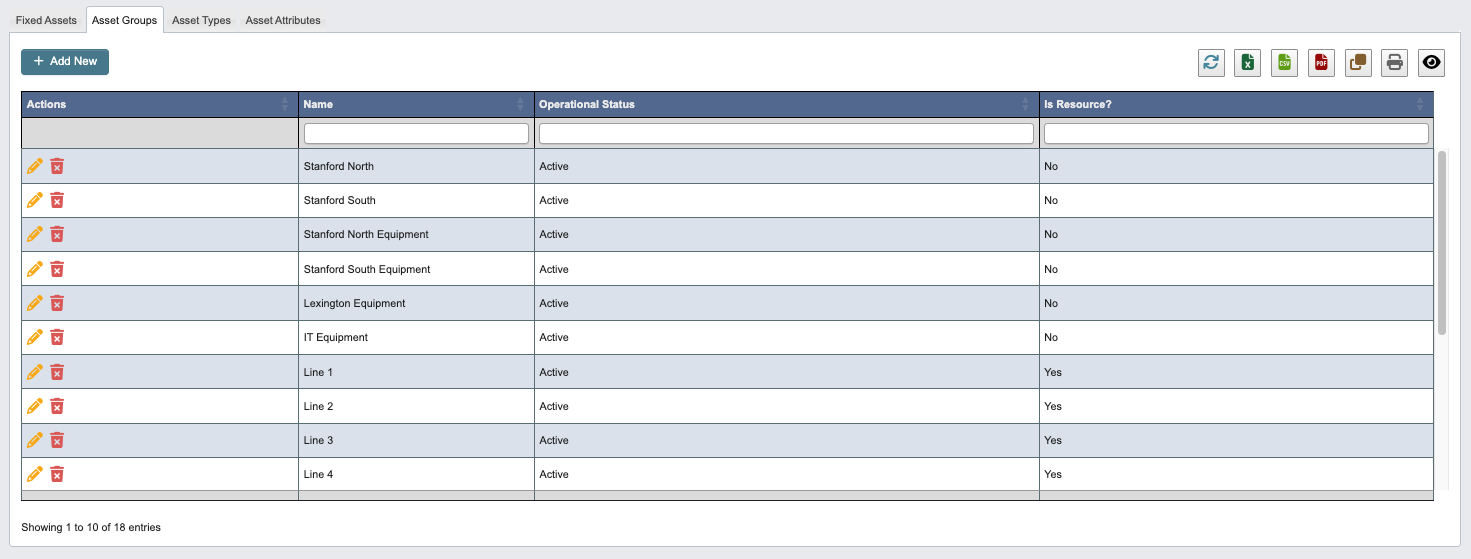 Asset Groups help organize assets into logical categories for reporting and management purposes.
**This function is useful for:** Organizing assets by department, location, or function to facilitate reporting and management oversight.
### Creating New Asset Groups
Asset Groups help organize assets into logical categories for reporting and management purposes.
**This function is useful for:** Organizing assets by department, location, or function to facilitate reporting and management oversight.
### Creating New Asset Groups
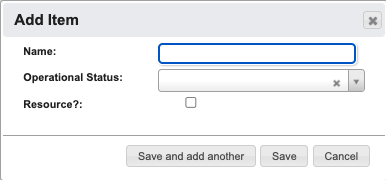 1. Click `+ Add New` to create a new asset group
2. Configure the group settings:
* `Name`: Descriptive name for the asset group.
* `Operational Status`: Choose active or Inactive.
* `Resource?`: Indicate if assets in this group are considered operational resources.
3. Choose your save option:
* Click `Save and add another` to save the current group and create another.
* Click `Save` to save the group and return to the main list.
* Click `Cancel` to discard changes.
## Asset Types
1. Click `+ Add New` to create a new asset group
2. Configure the group settings:
* `Name`: Descriptive name for the asset group.
* `Operational Status`: Choose active or Inactive.
* `Resource?`: Indicate if assets in this group are considered operational resources.
3. Choose your save option:
* Click `Save and add another` to save the current group and create another.
* Click `Save` to save the group and return to the main list.
* Click `Cancel` to discard changes.
## Asset Types
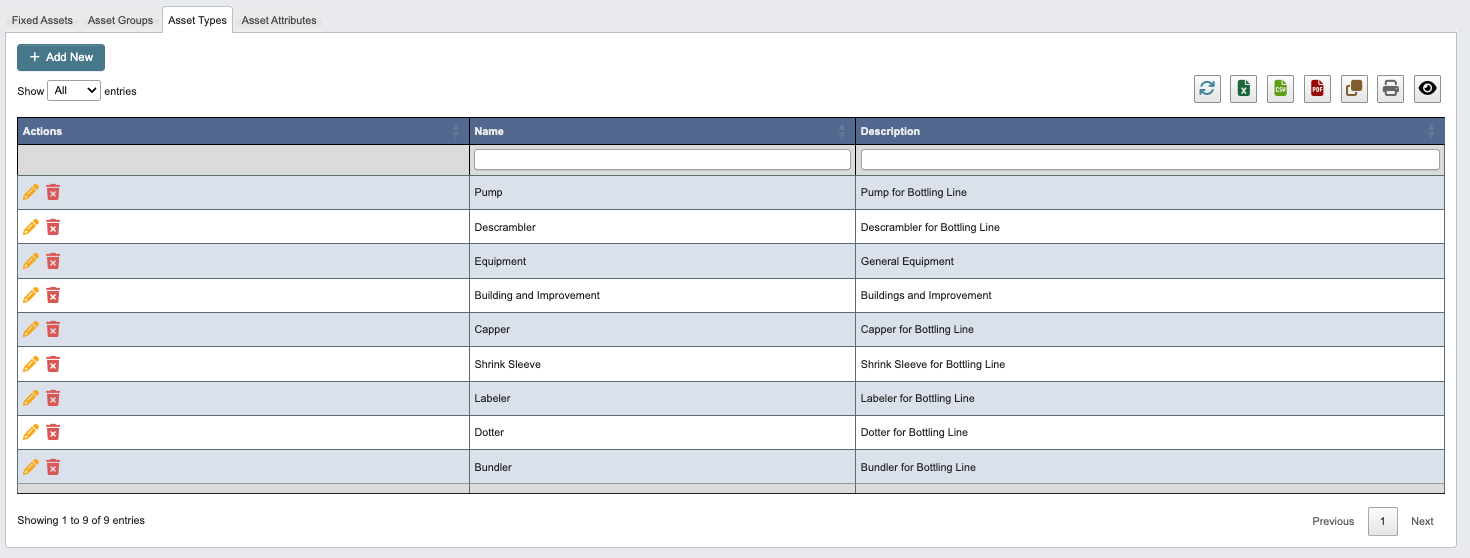 Asset Types define categories of assets with specific characteristics and depreciation rules.
**This function is useful for:** Standardizing asset categories, ensuring consistent depreciation treatment, and facilitating accurate financial reporting.
### Creating New Asset Types
1. Click `+ Add New` to create a new asset type
Asset Types define categories of assets with specific characteristics and depreciation rules.
**This function is useful for:** Standardizing asset categories, ensuring consistent depreciation treatment, and facilitating accurate financial reporting.
### Creating New Asset Types
1. Click `+ Add New` to create a new asset type
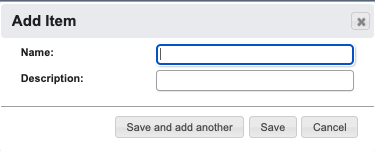 2. Define the asset type:
* `Name`: Asset type name.
* `Description`: Detailed description of what assets belong to this type.
3. Choose your save option:
* Click `Save and add another` to save the current type and create another
* Click `Save` to save the type and return to the main list
* Click `Cancel` to discard changes
## Asset Attributes
2. Define the asset type:
* `Name`: Asset type name.
* `Description`: Detailed description of what assets belong to this type.
3. Choose your save option:
* Click `Save and add another` to save the current type and create another
* Click `Save` to save the type and return to the main list
* Click `Cancel` to discard changes
## Asset Attributes
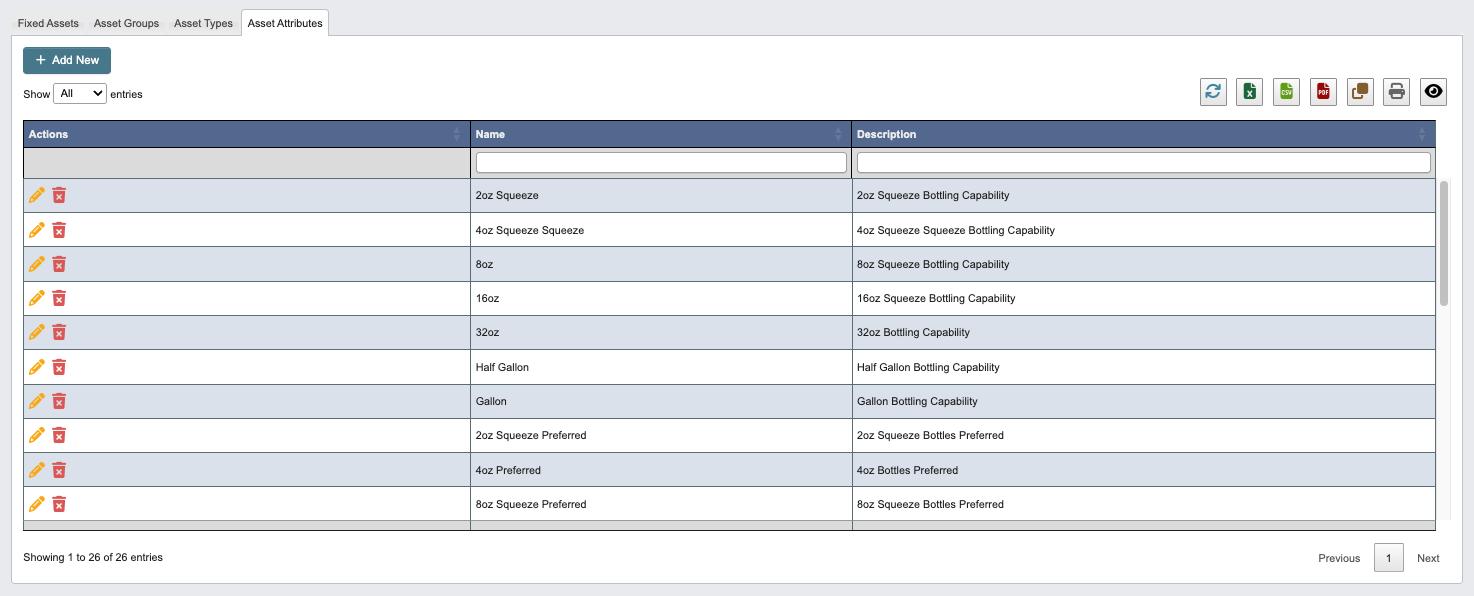 Asset Attributes allow you to define custom fields for tracking specific asset characteristics.
**This function is useful for:** Tracking asset-specific information like serial numbers, warranty details, maintenance schedules, or location assignments.
### Creating New Asset Attributes
1. Click `+ Add New` to create a new asset attribute
Asset Attributes allow you to define custom fields for tracking specific asset characteristics.
**This function is useful for:** Tracking asset-specific information like serial numbers, warranty details, maintenance schedules, or location assignments.
### Creating New Asset Attributes
1. Click `+ Add New` to create a new asset attribute
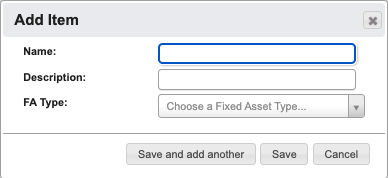 2. Configure the attribute:
* `Name`: Attribute name.
* `Description`: Explanation of what this attribute tracks.
* `FA Type`: Associate the attribute with specific fixed asset types.
3. Choose your save option:
* Click `Save and add another` to save the current attribute and create another.
* Click `Save` to save the attribute and return to the main list.
* Click `Cancel` to discard changes.
2. Configure the attribute:
* `Name`: Attribute name.
* `Description`: Explanation of what this attribute tracks.
* `FA Type`: Associate the attribute with specific fixed asset types.
3. Choose your save option:
* Click `Save and add another` to save the current attribute and create another.
* Click `Save` to save the attribute and return to the main list.
* Click `Cancel` to discard changes.