> ## Documentation Index
> Fetch the complete documentation index at: https://docs.decoart.com/llms.txt
> Use this file to discover all available pages before exploring further.
# Material Handler - Tutorial: Lookup a Part or Location
## Overview
This tutorial helps you manage inventory tied to a specific **Part** or **Location** in the DASH **Inventory → Material Handler** submodule.
You can choose whether to lookup:
* A specific **Part**, and its associated location, license plate information, and quantity.
* From here you can manage license plate information or start an inventory cycle count.
* A specific **Location** and all its Parts, license plate information, and quantities.
* From here you can manage license plate information or mass move license plates to a new location.
## What Is a Cycle Count?
A **Cycle Count** is a manual inventory validation step used to confirm whether the system's recorded quantities match what’s physically available. When a cycle count is completed, any discrepancies between recorded and actual values will trigger an **inventory adjustment** in the system to create the correction transaction.
Cycle counts **must touch every license plate in the table** before they can be completed.
## Lookup a Part
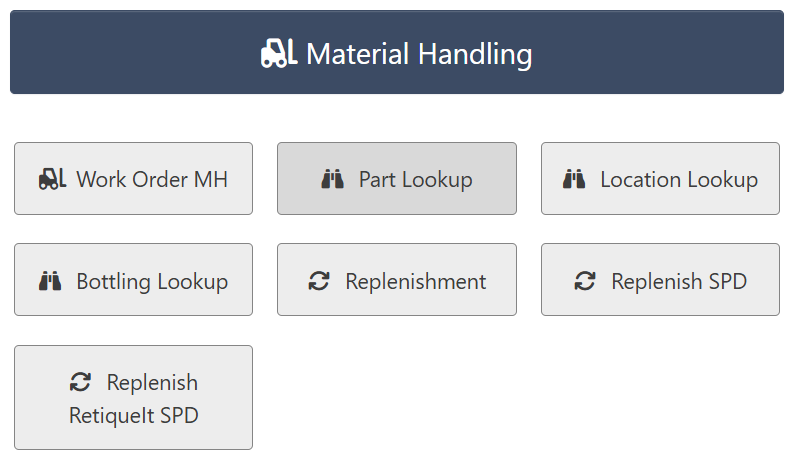
1. From the **Inventory** → **Material Handler** submodule, click on the `Part Lookup` button.
 2. Choose whether to lookup by `Part Number` or `License Plate`.
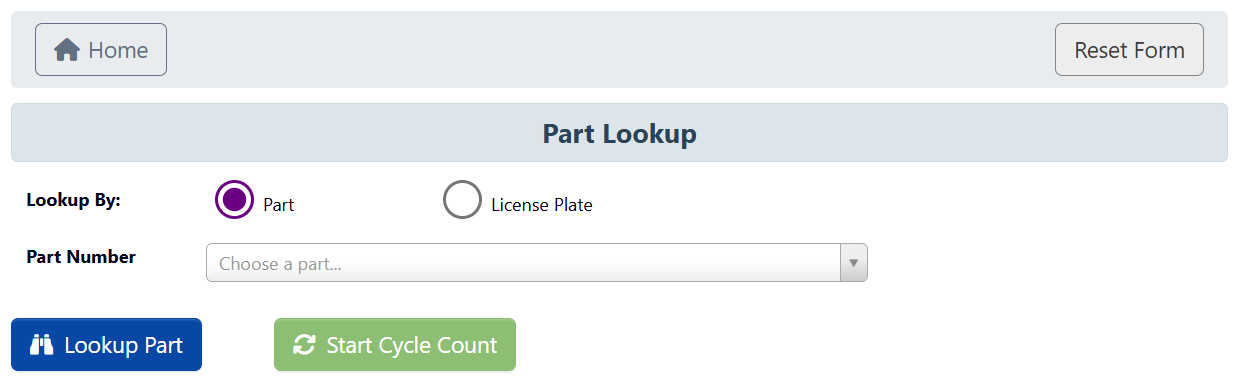 1. If Part Number: Choose a Part in the dropdown menu and click `Lookup Part`.
2. If License Plate: Scan the `License Plate #` (or enter manually) and click `Lookup Part`.
NOTE: This will lookup *all* instances of the **Part** associated with that license plate, even Part instances with different license plates.
3. You should see a table of all information pertaining to that **Part** appear. From here you have the following features available:
1. `Plate`: Click this for a specific license plate to go to the License Info page.
1. If Part Number: Choose a Part in the dropdown menu and click `Lookup Part`.
2. If License Plate: Scan the `License Plate #` (or enter manually) and click `Lookup Part`.
NOTE: This will lookup *all* instances of the **Part** associated with that license plate, even Part instances with different license plates.
3. You should see a table of all information pertaining to that **Part** appear. From here you have the following features available:
1. `Plate`: Click this for a specific license plate to go to the License Info page.
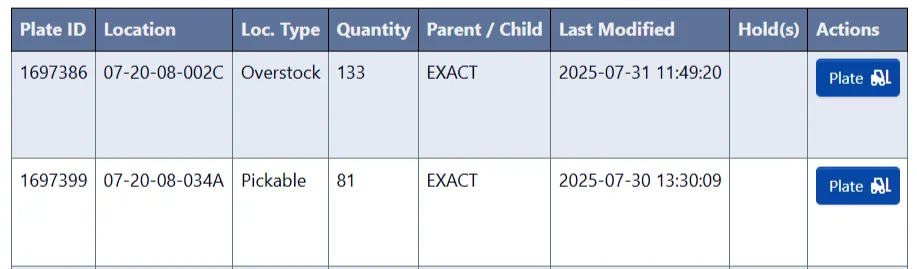 1. Follow [Tutorial: Manage a License Plate](/inventory/material-handler-tutorial-manage-a-license-plate) (skipping the prerequisite step) to learn how to manage specific license plates.
2. `Start Cycle Count`: Initiate a manual inventory count for that part:
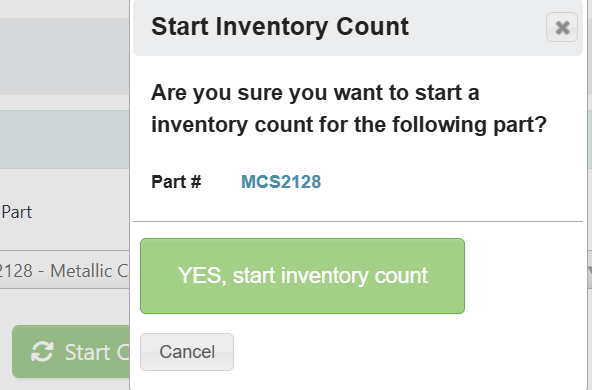
1. Click `Start Cycle Count`, then confirm by clicking `YES, start inventory count` in the popup.
1. Follow [Tutorial: Manage a License Plate](/inventory/material-handler-tutorial-manage-a-license-plate) (skipping the prerequisite step) to learn how to manage specific license plates.
2. `Start Cycle Count`: Initiate a manual inventory count for that part:
1. Click `Start Cycle Count`, then confirm by clicking `YES, start inventory count` in the popup.
 2. The table will display each license plate and its expected quantity.
3. For each row:
2. The table will display each license plate and its expected quantity.
3. For each row:
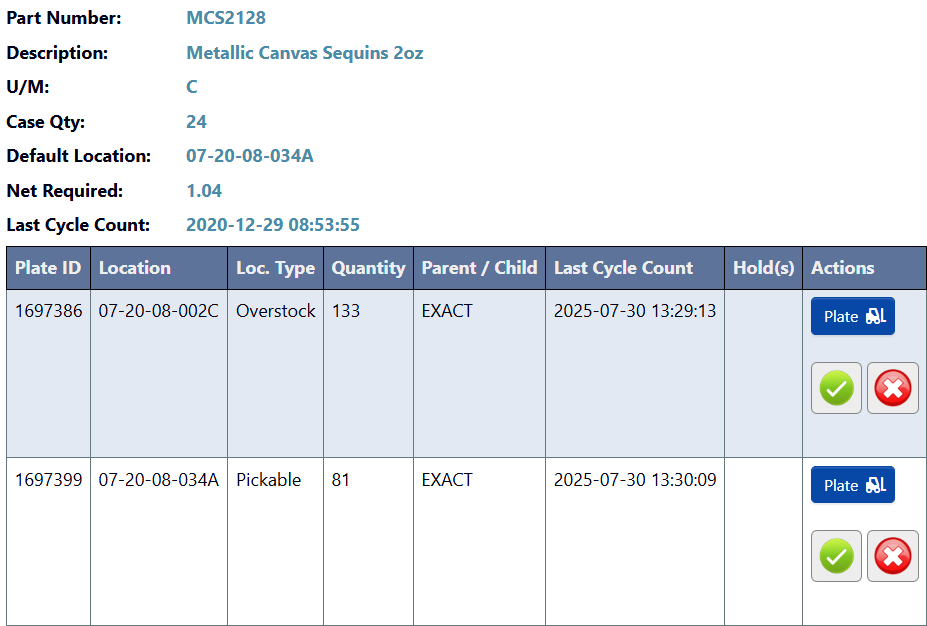 * If the quantity is **correct**, click the `✓` (checkmark) button, then confirm with `Yes`.
* If the quantity is **incorrect**, click the `X` button, enter the **corrected quantity**, and click `Yes`.
4. Repeat for all rows - you must respond to each license plate.
5. When all plates are addressed, click End Cycle Count. This finalizes the count and triggers any necessary inventory adjustment transactions.
* If the quantity is **correct**, click the `✓` (checkmark) button, then confirm with `Yes`.
* If the quantity is **incorrect**, click the `X` button, enter the **corrected quantity**, and click `Yes`.
4. Repeat for all rows - you must respond to each license plate.
5. When all plates are addressed, click End Cycle Count. This finalizes the count and triggers any necessary inventory adjustment transactions.
 ## Lookup a Location
1. From the **Inventory** → **Material Handler** submodule, click on the `Location Lookup` button.
## Lookup a Location
1. From the **Inventory** → **Material Handler** submodule, click on the `Location Lookup` button.
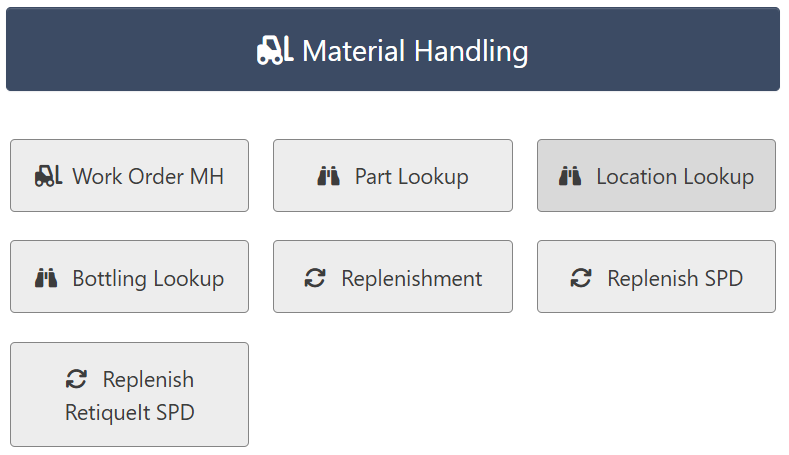 2. Scan or enter the alphanumeric `Location ID` and click `Lookup Location`.
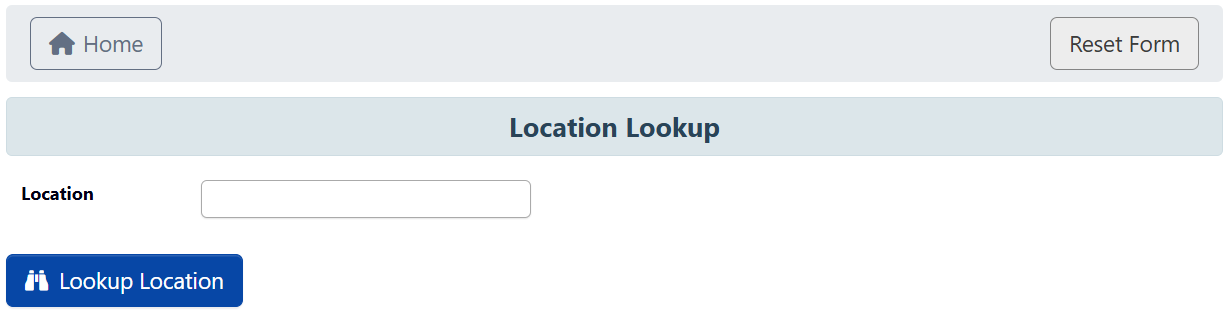 3. You should see a table of all information pertaining to that Part appear. From here you have the following features available:
1. `Plate`: Click this for a specific license plate to go to the License Info page.
3. You should see a table of all information pertaining to that Part appear. From here you have the following features available:
1. `Plate`: Click this for a specific license plate to go to the License Info page.
 1. Follow [Tutorial: Manage a License Plate](/inventory/material-handler-tutorial-manage-a-license-plate) (skipping the prerequisite step) to learn how to manage specific license plates.
2. `Mass Move`: Use this to move several license plates at once to a new location.
1. First, select all License Plates you want to Mass Move (or click `Select All` to highlight all of them).
1. Follow [Tutorial: Manage a License Plate](/inventory/material-handler-tutorial-manage-a-license-plate) (skipping the prerequisite step) to learn how to manage specific license plates.
2. `Mass Move`: Use this to move several license plates at once to a new location.
1. First, select all License Plates you want to Mass Move (or click `Select All` to highlight all of them).
 2. Click `Mass Move`, then scan or enter the **new Location ID** that you want to move all the highlighted license plate information to.
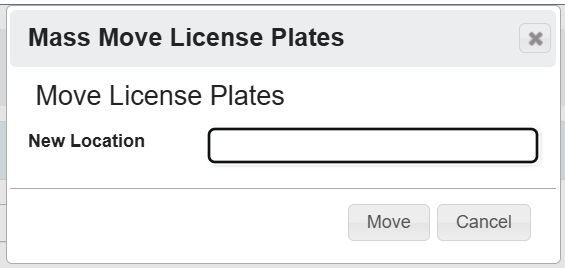 3. Click `Move` to confirm the move.