> ## Documentation Index
> Fetch the complete documentation index at: https://docs.decoart.com/llms.txt
> Use this file to discover all available pages before exploring further.
# Manage Freight Carriers Submodule
## Overview
The **Miscellaneous → Manage Freight Carriers** submodule lets you view and manage freight carrier records used for shipping and logistics operations. This submodule helps maintain carrier information, contact details, and addresses for coordinating shipments and freight services.
## Active Freight Carriers
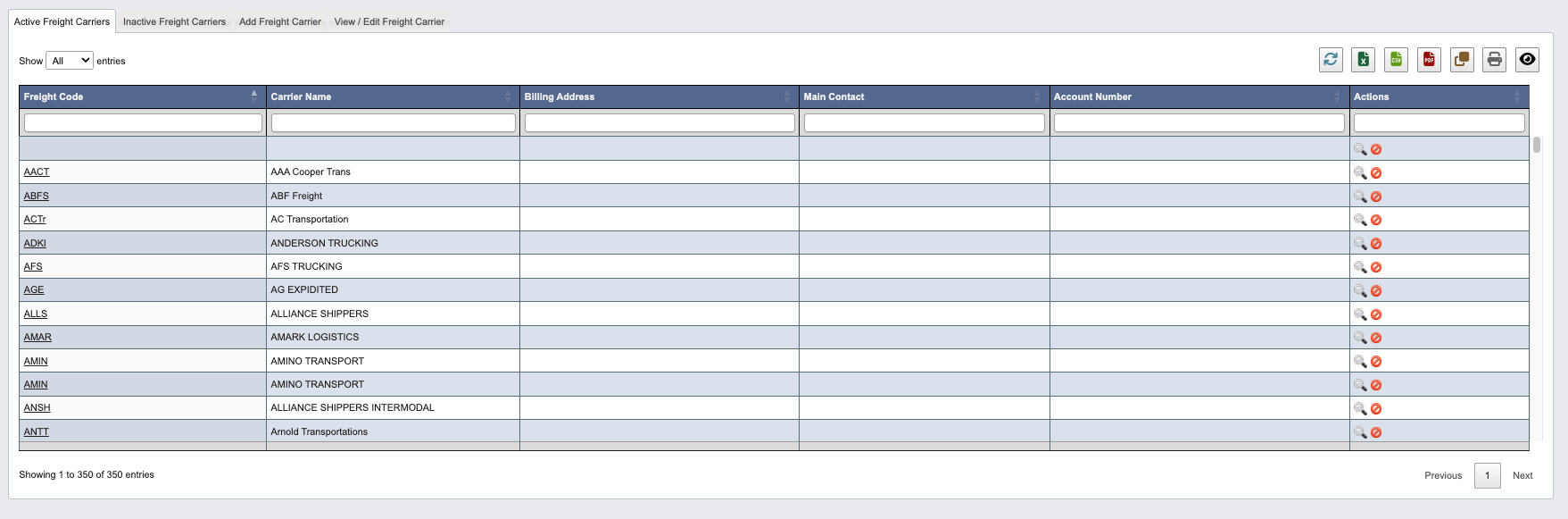 The Active Freight Carriers tab displays a table of all currently active freight carriers in the system.
Within this table, you can:
* Click on column headers to sort the data in ascending or descending order.
* Use the Actions column to view or deactivate freight carriers:
* `View` (magnifying glass icon): View detailed freight carrier information
* `Deactivate` (red "no" button): Mark the freight carrier as inactive.
## Inactive Freight Carriers
The Active Freight Carriers tab displays a table of all currently active freight carriers in the system.
Within this table, you can:
* Click on column headers to sort the data in ascending or descending order.
* Use the Actions column to view or deactivate freight carriers:
* `View` (magnifying glass icon): View detailed freight carrier information
* `Deactivate` (red "no" button): Mark the freight carrier as inactive.
## Inactive Freight Carriers
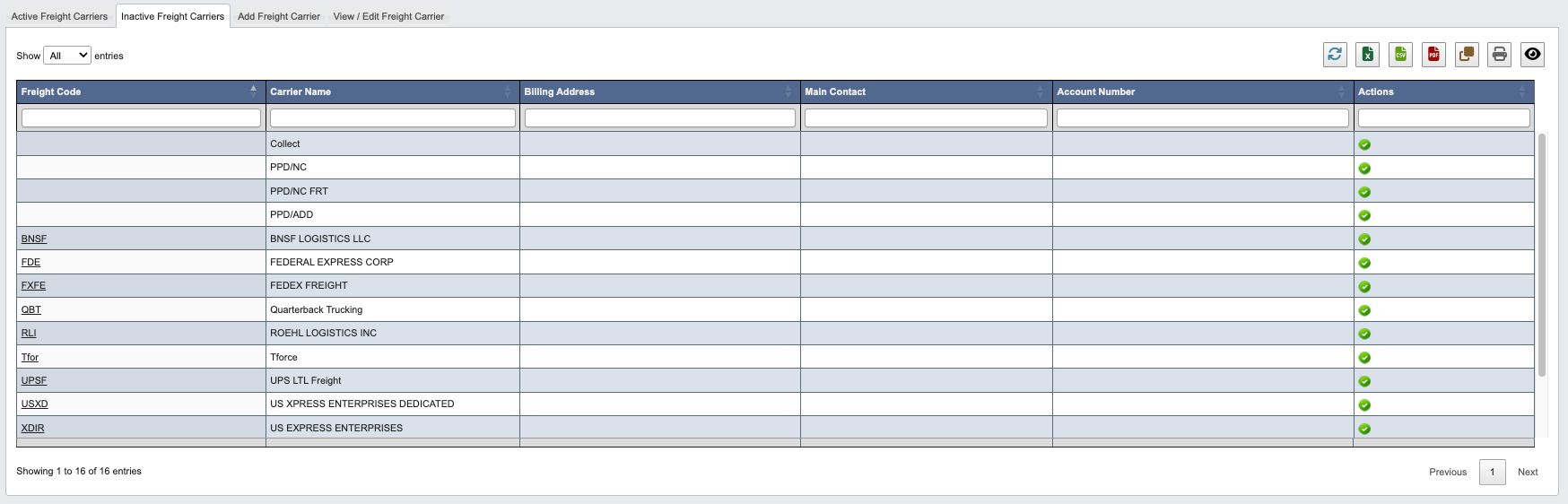 The Inactive Freight Carriers tab displays a table of freight carriers that have been marked as inactive but are preserved for reference.
Within this table, you can:
* Click on column headers to sort the data in ascending or descending order.
* Use the Actions column to reactivate freight carriers:
* `Reactivate` (green check button): Mark the freight carrier as active again.
## Add Freight Carrier
The Inactive Freight Carriers tab displays a table of freight carriers that have been marked as inactive but are preserved for reference.
Within this table, you can:
* Click on column headers to sort the data in ascending or descending order.
* Use the Actions column to reactivate freight carriers:
* `Reactivate` (green check button): Mark the freight carrier as active again.
## Add Freight Carrier
 Use this tab to create new freight carrier records in the system.
1. Fill in the required freight carrier details:
* `Freight Code`: Freight Carriers standard SCAC code.
* `Description`: Enter the freight carrier's company name or description.
* `Account Number`: Enter your account number with this freight carrier.
2. Click `Save` to create the new freight carrier record, which will be added to the `Active Freight` Carriers table.
## View / Edit Freight Carrier
Use this tab to create new freight carrier records in the system.
1. Fill in the required freight carrier details:
* `Freight Code`: Freight Carriers standard SCAC code.
* `Description`: Enter the freight carrier's company name or description.
* `Account Number`: Enter your account number with this freight carrier.
2. Click `Save` to create the new freight carrier record, which will be added to the `Active Freight` Carriers table.
## View / Edit Freight Carrier
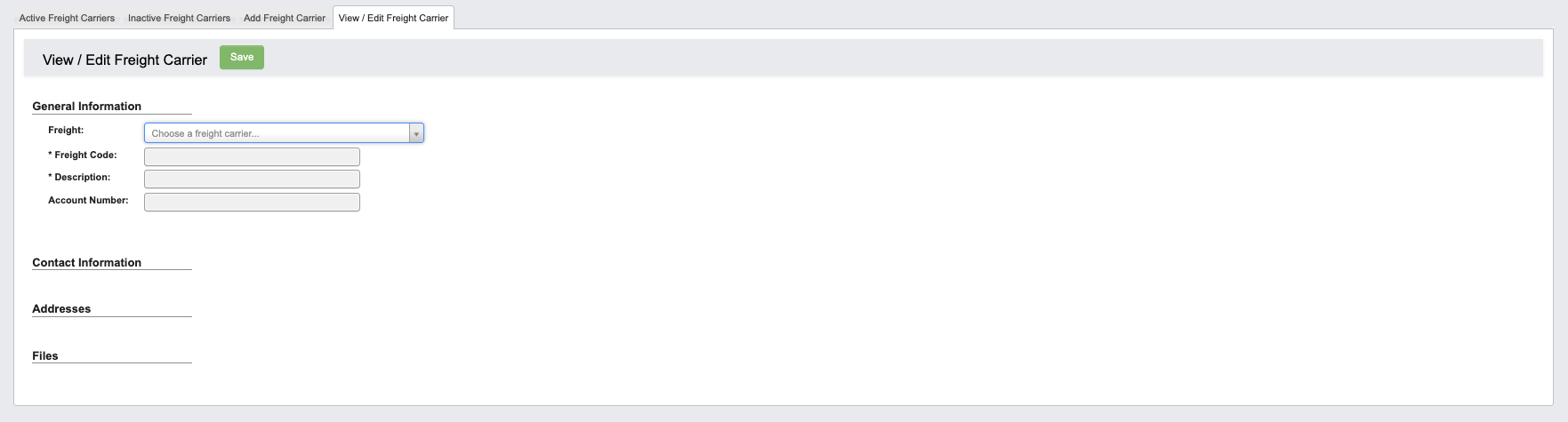 Use this tab to view and modify existing freight carrier information.
### Step 1: Select a Freight Carrier
1. Choose a `Freight` carrier from the dropdown menu.
2. The freight carrier's information will be displayed.
### Step 2: Edit Freight Carrier Information
Use this tab to view and modify existing freight carrier information.
### Step 1: Select a Freight Carrier
1. Choose a `Freight` carrier from the dropdown menu.
2. The freight carrier's information will be displayed.
### Step 2: Edit Freight Carrier Information
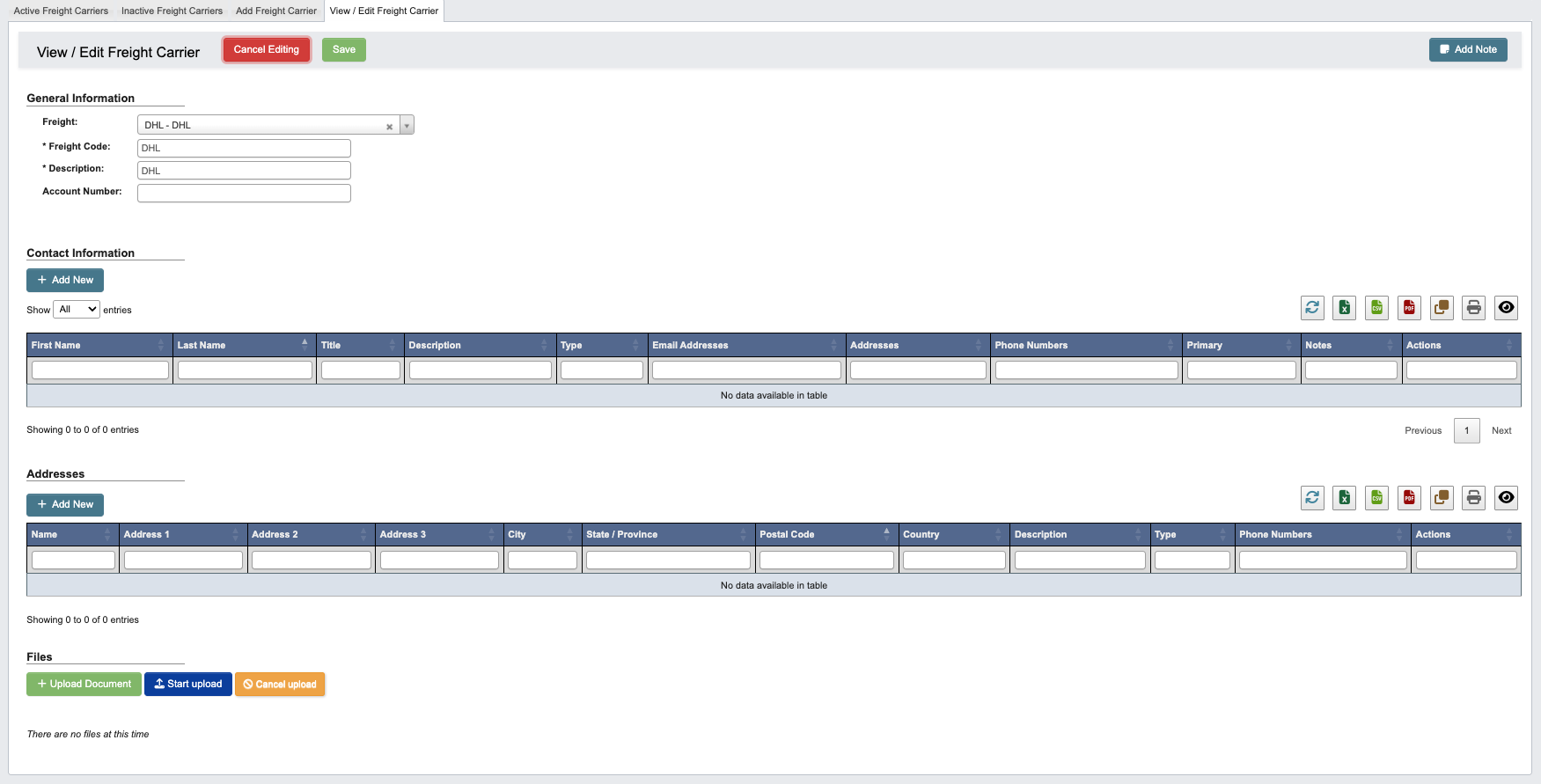 Once you’ve pulled up a freight carrier, you can edit it with the following features located in the toolbar:
* `Edit`: Enter edit mode and modify freight carrier details.
* Once in edit view the following buttons will be available:
* `Cancel Editing`: Cancel editing.
* `Save`: Save your changes.
* Click `Add Note` to attach comments or notes to the freight carrier record. You can optionally choose an expiration date for the note.
### Add Contact Information
Once you’ve pulled up a freight carrier, you can edit it with the following features located in the toolbar:
* `Edit`: Enter edit mode and modify freight carrier details.
* Once in edit view the following buttons will be available:
* `Cancel Editing`: Cancel editing.
* `Save`: Save your changes.
* Click `Add Note` to attach comments or notes to the freight carrier record. You can optionally choose an expiration date for the note.
### Add Contact Information
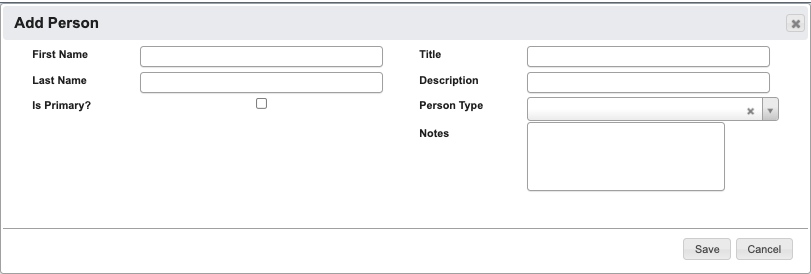 When editing the freight carrier page, you can add new contact information.
1. Click `+ Add new` button in the Contact Information section.
2. Fill in the required and optional fields in the form. For a full list of field definitions, see the [Vendor Fields](/purchase-orders/purchase-orders-vendor-reference) reference page.
3. Click `Save` to add the contact or `Cancel` to discard
### Add Address
To add address information for the freight carrier:
When editing the freight carrier page, you can add new contact information.
1. Click `+ Add new` button in the Contact Information section.
2. Fill in the required and optional fields in the form. For a full list of field definitions, see the [Vendor Fields](/purchase-orders/purchase-orders-vendor-reference) reference page.
3. Click `Save` to add the contact or `Cancel` to discard
### Add Address
To add address information for the freight carrier:
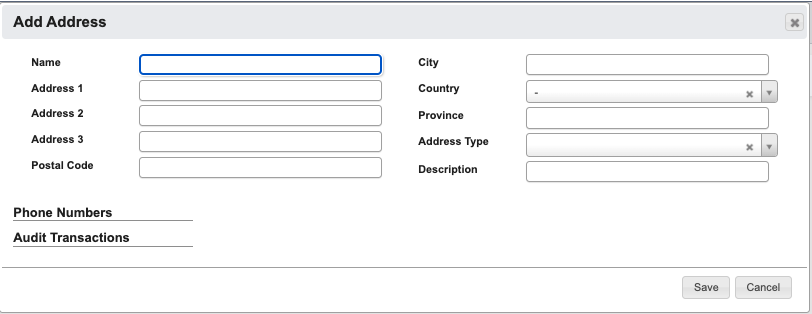 1. Click `+ Add new` in the Addresses section
2. Fill in the required and optional fields in the form. For a full list of field definitions, see the [Vendor Fields](/purchase-orders/purchase-orders-vendor-reference) reference page.
3. Click `Save` to add the address or `Cancel` to discard
### File Management
The File section allows you to manage documents associated with the freight carrier:
1. Click `+ Upload Document` under “Files” to open a file browser and select the document you want to attach.
2. Click `Start upload` to begin uploading.
3. Click `Cancel upload` if you need to cancel the upload.
1. Click `+ Add new` in the Addresses section
2. Fill in the required and optional fields in the form. For a full list of field definitions, see the [Vendor Fields](/purchase-orders/purchase-orders-vendor-reference) reference page.
3. Click `Save` to add the address or `Cancel` to discard
### File Management
The File section allows you to manage documents associated with the freight carrier:
1. Click `+ Upload Document` under “Files” to open a file browser and select the document you want to attach.
2. Click `Start upload` to begin uploading.
3. Click `Cancel upload` if you need to cancel the upload.