> ## Documentation Index
> Fetch the complete documentation index at: https://docs.decoart.com/llms.txt
> Use this file to discover all available pages before exploring further.
# Reports Submodule
## Overview
The **Order Reports** submodule lets you analyze orders, drilling into information such as what’s open (and where), what’s been short-shipped or cancelled, and how today’s activity compares to prior periods. It’s useful for daily operations (picking, expediting), customer service (promising ship dates), and finance (invoicing/shortage review). Several reports here also tie directly into loss-of-sales analysis and shortage tracking that teams review regularly.
## Report Options
Each tab shows a different slice of order data and supports required/optional filters:
* **Cancelled**: List of cancelled orders.
* **Backorders**: List of open backorders.
* **Price Overrides**: Orders with price changes.
* **History**: Order history by order/release/ship/invoice dates.
* **Comp. Summary**: Compare orders released between two date ranges.
* **Part Summary**: Line items from Invoiced or Open Orders.
* **Invoiced Short**: Invoiced orders shipped short.
* **Open Orders w/ Locations**: Open orders in a ship date window with locations.
* **Manufacturing Requirements**: Component needs from open orders.
* **Purchasing Requirements:** Buy list for open orders.
* **Open Orders by Part**: Open demand lines by part.
* **Inv. Summary**: Invoicing totals for a selected period.
* **Sales Analysis**: Sales comparisons by customer/channel/product.
* **Forecast Accuracy**: Forecast vs. actual orders by period.
## How to Generate a Report
Some reports contain both **Required Filters** and **Optional Filters**. A report will not generate until you fill in all required filters.
### Generate a Cancelled report
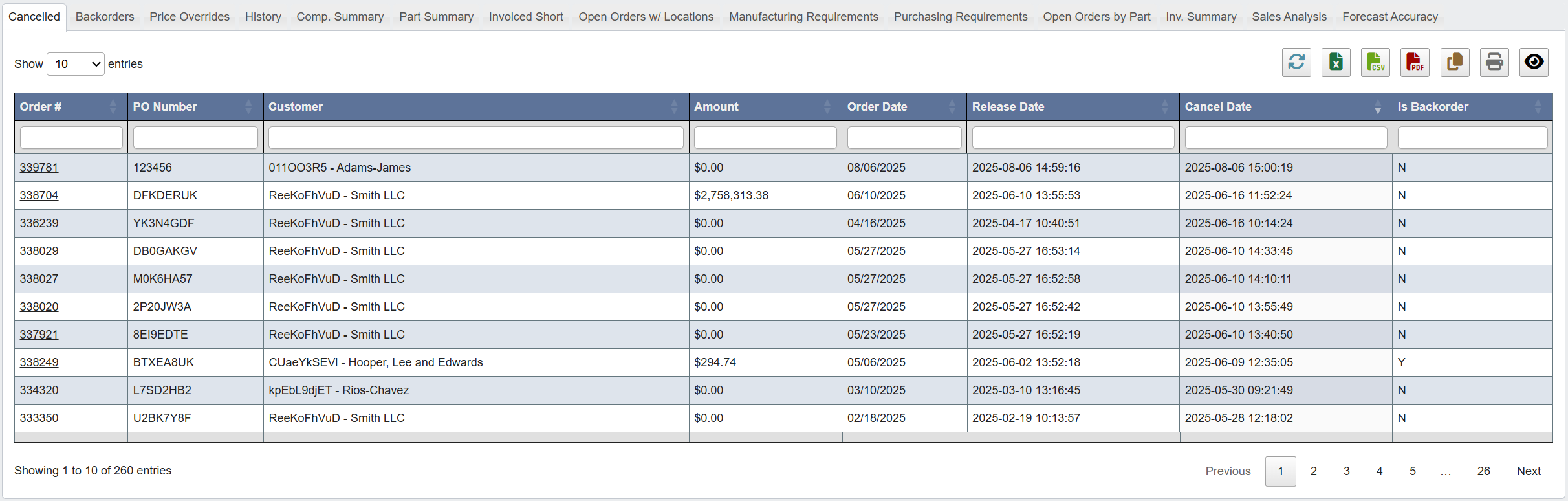 To view cancelled orders:
1. Click the `Cancelled` tab.
2. Set the required filters:
**Column Filters**: Enter values under each header to narrow results, or leave blank to view all.
3. (Optional): Sort by **Cancel Date** or **Amount**.
4. Click `Generate Report`.
**This report is useful for:** Customer Service and Sales Ops to review cancellation trends and follow up on large cancellations.
### Generate a Backorders report
To view cancelled orders:
1. Click the `Cancelled` tab.
2. Set the required filters:
**Column Filters**: Enter values under each header to narrow results, or leave blank to view all.
3. (Optional): Sort by **Cancel Date** or **Amount**.
4. Click `Generate Report`.
**This report is useful for:** Customer Service and Sales Ops to review cancellation trends and follow up on large cancellations.
### Generate a Backorders report
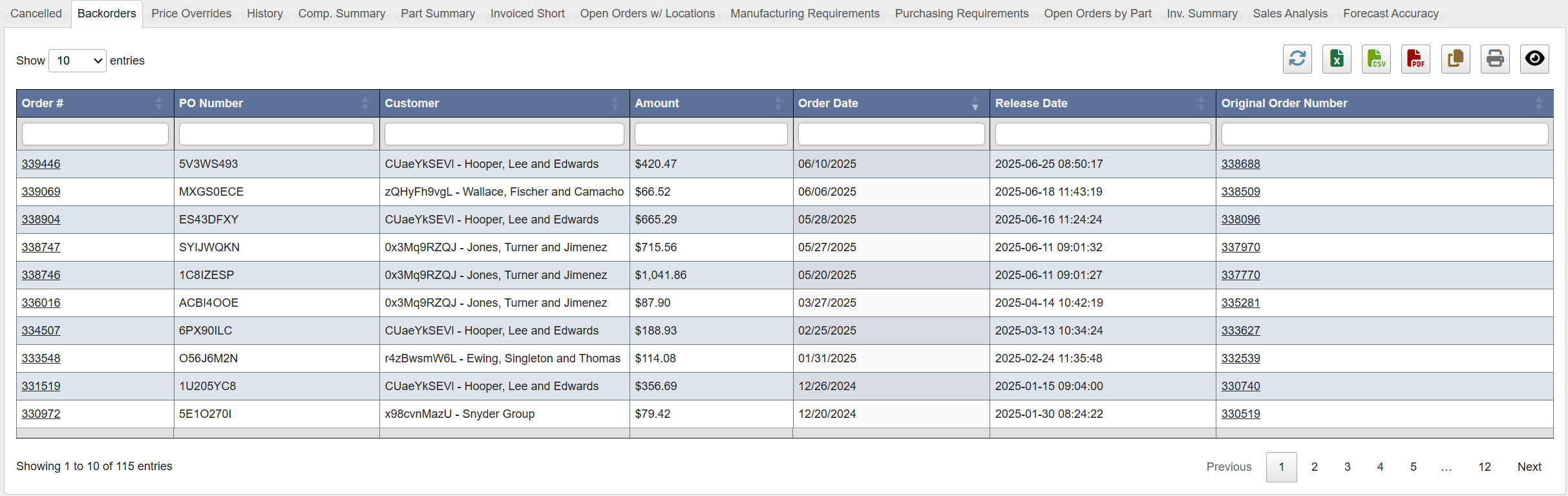 To view all open backorders:
1. Click the `Backorders` tab.
2. Set the required filters:
**Customer**: Select or enter customer name
**PO**: Enter purchase order number
**Order #**: Enter order number
3. (Optional): Sort by **Release Date** or **Amount**.
4. Click `Generate Report`.
**This report is useful for:** Daily stand-ups with Purchasing/Production to unblock constrained items and communicate ETAs.
### Generate a Price Overrides report
To view all open backorders:
1. Click the `Backorders` tab.
2. Set the required filters:
**Customer**: Select or enter customer name
**PO**: Enter purchase order number
**Order #**: Enter order number
3. (Optional): Sort by **Release Date** or **Amount**.
4. Click `Generate Report`.
**This report is useful for:** Daily stand-ups with Purchasing/Production to unblock constrained items and communicate ETAs.
### Generate a Price Overrides report
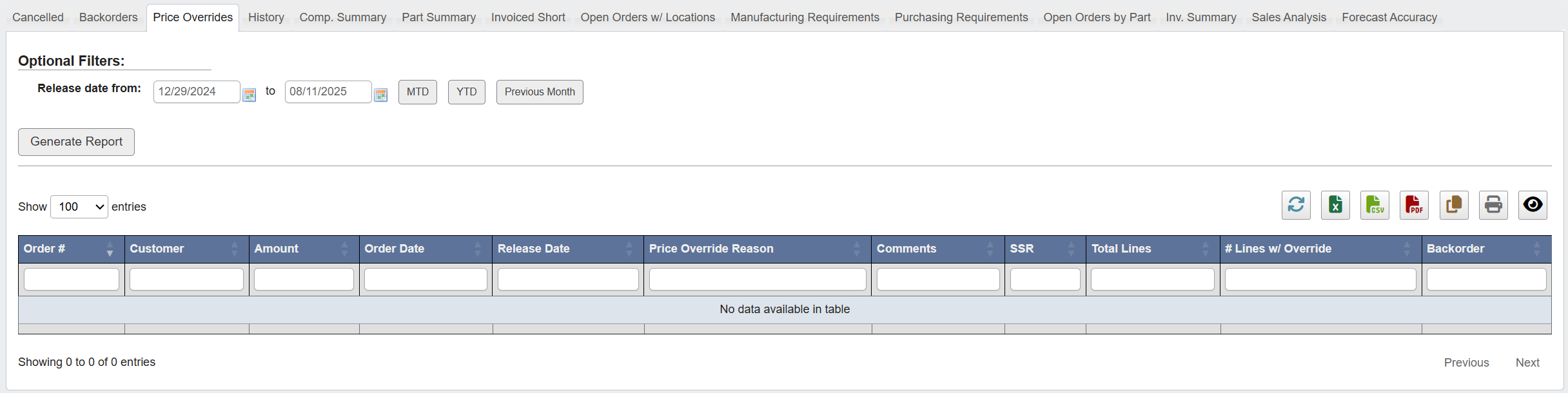 To view orders with price changes in a date range:
1. Click the `Price Overrides` tab.
2. Set the required filters:
**Release Date From/To**: Select a date range (quick options: MTD, YTD, Previous Month).
3. Click `Generate Report`.
**This report is useful for:** Finance to audit unusual discounts/adjustments over a period.
### Generate a History report
To view orders with price changes in a date range:
1. Click the `Price Overrides` tab.
2. Set the required filters:
**Release Date From/To**: Select a date range (quick options: MTD, YTD, Previous Month).
3. Click `Generate Report`.
**This report is useful for:** Finance to audit unusual discounts/adjustments over a period.
### Generate a History report
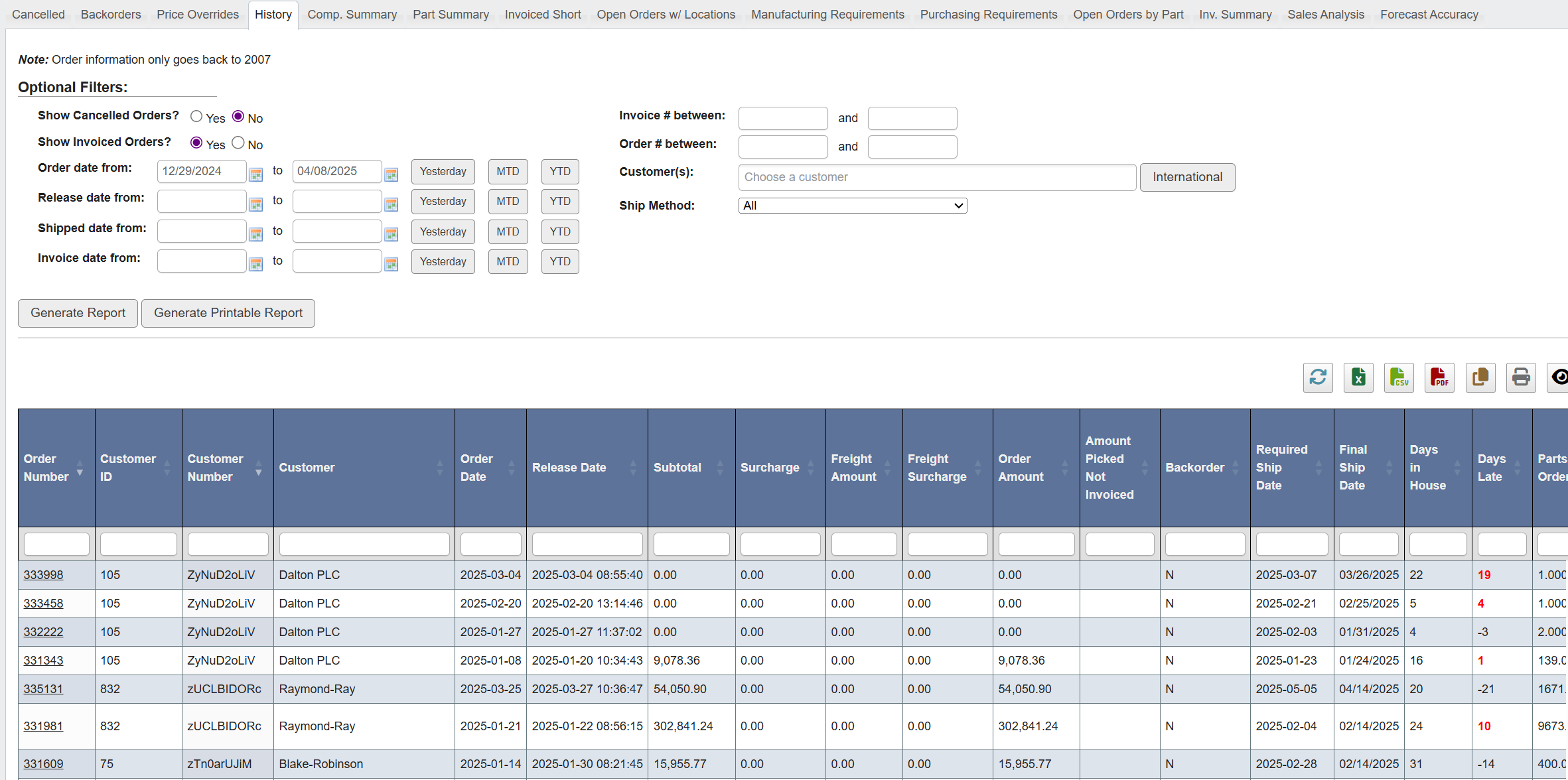 To view historical order data:
1. Click the `History` tab.
2. Set the required filters:
**Show Cancelled Orders**: Yes/No
**Show Invoiced Orders**: Yes/No
**Order/Release/Shipped/Invoice Date From/To**: Enter date ranges or use quick options (Yesterday, MTD, YTD)
3. (Optional): Filter by **Customer(s)**, **Ship Method**, **Invoice # Between**, **Order # Between**.
4. Click `Generate Report`.
**This report is useful for:** Audits and customer escalations where you need a precise timeline of an order.
### Generate a Comp. Summary (Comparative Order Summary) report
To view historical order data:
1. Click the `History` tab.
2. Set the required filters:
**Show Cancelled Orders**: Yes/No
**Show Invoiced Orders**: Yes/No
**Order/Release/Shipped/Invoice Date From/To**: Enter date ranges or use quick options (Yesterday, MTD, YTD)
3. (Optional): Filter by **Customer(s)**, **Ship Method**, **Invoice # Between**, **Order # Between**.
4. Click `Generate Report`.
**This report is useful for:** Audits and customer escalations where you need a precise timeline of an order.
### Generate a Comp. Summary (Comparative Order Summary) report
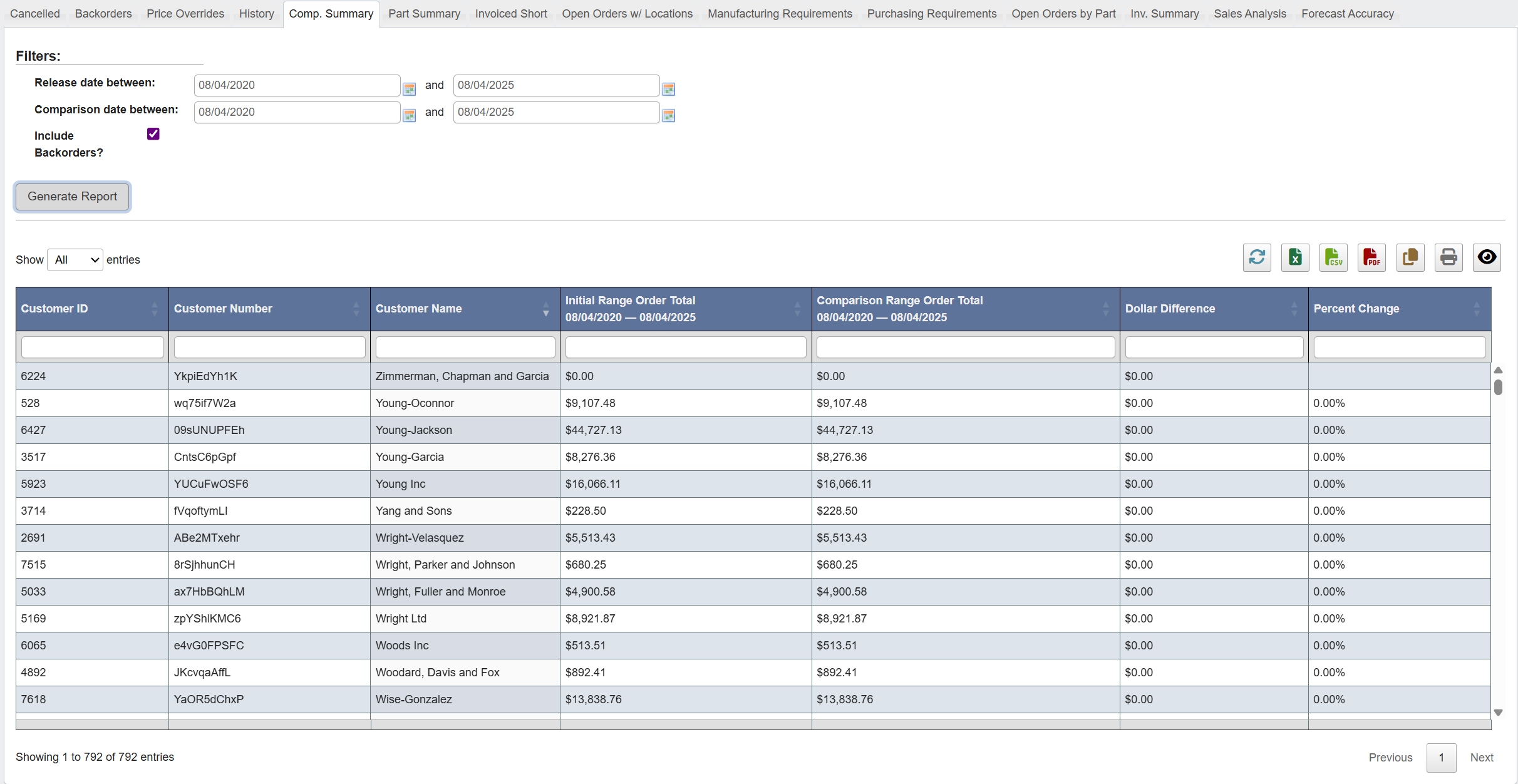 To compare orders released in two time periods:
1. Click the `Comp. Summary` tab.
2. Set the required filters:
**Release Date Between**: Primary date range
**Comparison Date Between**: Comparison date range
3. (Optional): Select **Include Backorders**.
4. Click `Generate Report`.
**This report is useful for:** Period-over-period trend checks (e.g., this month vs. same month last year).
### Generate a Part Summary report
To compare orders released in two time periods:
1. Click the `Comp. Summary` tab.
2. Set the required filters:
**Release Date Between**: Primary date range
**Comparison Date Between**: Comparison date range
3. (Optional): Select **Include Backorders**.
4. Click `Generate Report`.
**This report is useful for:** Period-over-period trend checks (e.g., this month vs. same month last year).
### Generate a Part Summary report
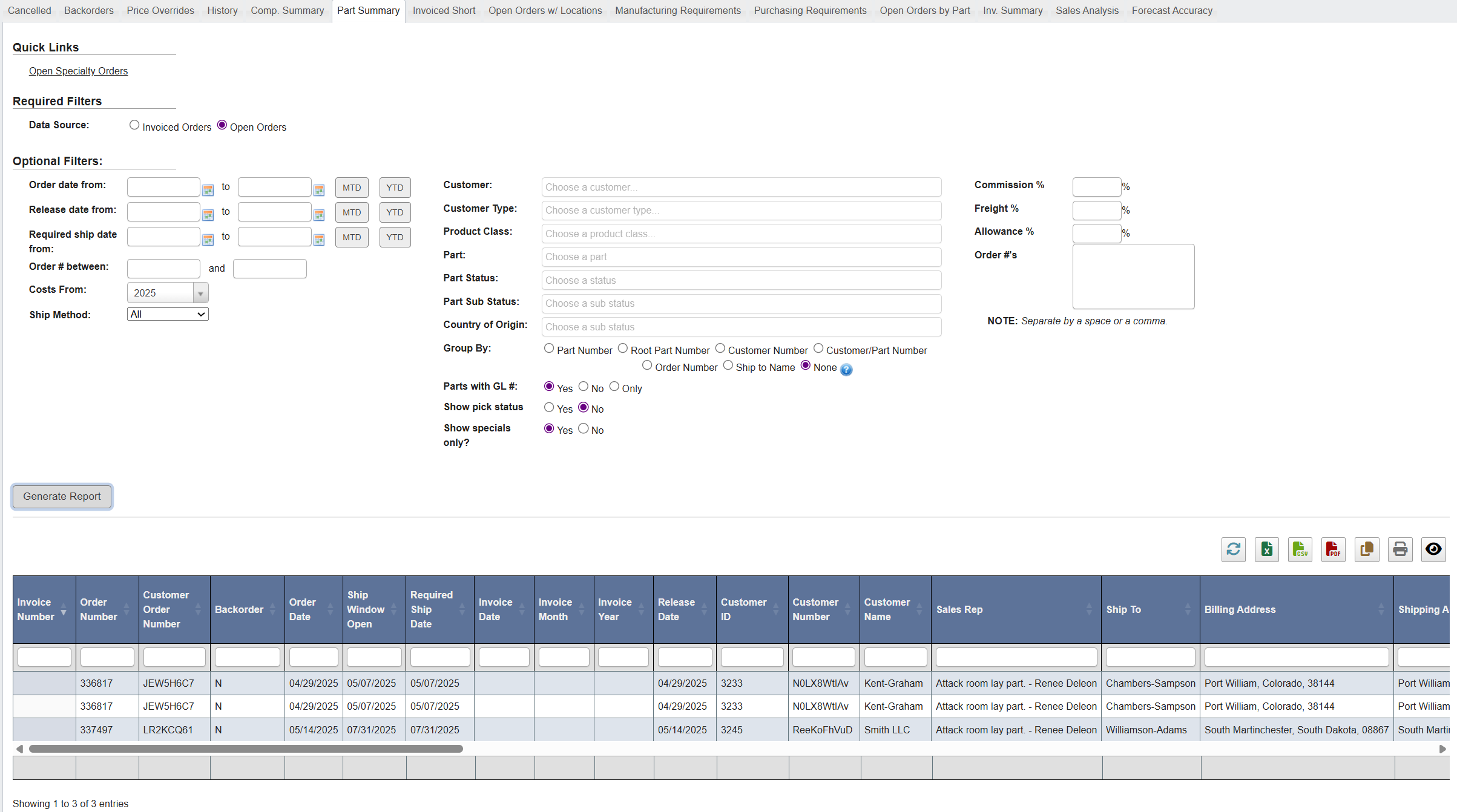 To analyze invoiced or open order lines by grouping:
1. Click the `Part Summary` tab.
2. Pick **Data Source**: Choose either **Invoiced Orders** (for post-shipment analysis) or **Open Orders** (for current pipeline).
3. (Optional) Add any date filters (**Order/Release/Invoice/Required ship date**) using **MTD/YTD** shortcuts.
4. (Optional) Choose **Group By**: This feature filters and organizes your report based on a specific attribute, significantly changing the output. The options are:
1. `Part Number`: Groups lines by individual part number.
2. `Root Part Number`: Consolidates by the parent/root part, combining WIP or variant part numbers under one root.
3. `Customer Number`: Groups all lines by customer number, aggregating all their orders.
4. `Customer/Part Number`: Breaks down by customer and part, showing exactly what each customer ordered per part.
5. `Order Number`: Displays each order as a group, with order details and shipment status.
6. `Ship to Name`: Groups by the delivery location or name where goods are shipped.
7. `None`: Shows every order line individually, ungrouped. Useful for detailed line-level analysis.
5. (Optional) Narrow scope by filling in the following attributes:
* **Customer, Product, and Part information:** These fields are located on the right side of “Optional Filters” and include:
* `Customer`: Select a specific customer account.
* `Customer Type`: Filter by type (e.g., distributor, OEM).
* `Product Class`: Restrict to a product family or category.
* `Part`: Choose a specific part number.
* `Part Status, Sub-status`: Filter by lifecycle status (e.g., active, obsolete) and sub-status.
* `Country of Origin`: Filter by manufacturing origin.
* **Order ID information:** These fields include
* `Order #s`: Copy and paste in the list of Order #s you want to report on. Located at the bottom of the screen.
* `Invoice # between`: Located on the left side of “Optional Filters”.
* `Order # between`: Located on the left side of “Optional Filters”.
* Percentage Cost information, located at the bottom of screen, such as:
* `Commission %`: Apply commission factor for margin analysis.
* `Freight %`: Add freight cost as a percent.
* `Allowance %`: Apply discount/allowance factor.
* Additional fields such as `Costs From` (year) and `Ship Method`, located on the left side of “Optional Filters”
6. (Optional) Set additional report parameters such as:
1. `Parts with GL #` (Yes/No/Only): Include/exclude or limit to parts tied to GL accounts.
* `Roll up backorders & multiple invoices`: Consolidates quantities and invoices into one line.
* `Show pick status`: Adds whether lines have been picked in warehouse.
* `Show specials only`: Filters to show only promotional/special order lines.
7. Click `Generate Report`.
**This report is useful for:** Deep analysis (e.g., “open demand by root part across customers” or “invoiced lines with GL mapping”).
### Generate an Invoiced Short report
To analyze invoiced or open order lines by grouping:
1. Click the `Part Summary` tab.
2. Pick **Data Source**: Choose either **Invoiced Orders** (for post-shipment analysis) or **Open Orders** (for current pipeline).
3. (Optional) Add any date filters (**Order/Release/Invoice/Required ship date**) using **MTD/YTD** shortcuts.
4. (Optional) Choose **Group By**: This feature filters and organizes your report based on a specific attribute, significantly changing the output. The options are:
1. `Part Number`: Groups lines by individual part number.
2. `Root Part Number`: Consolidates by the parent/root part, combining WIP or variant part numbers under one root.
3. `Customer Number`: Groups all lines by customer number, aggregating all their orders.
4. `Customer/Part Number`: Breaks down by customer and part, showing exactly what each customer ordered per part.
5. `Order Number`: Displays each order as a group, with order details and shipment status.
6. `Ship to Name`: Groups by the delivery location or name where goods are shipped.
7. `None`: Shows every order line individually, ungrouped. Useful for detailed line-level analysis.
5. (Optional) Narrow scope by filling in the following attributes:
* **Customer, Product, and Part information:** These fields are located on the right side of “Optional Filters” and include:
* `Customer`: Select a specific customer account.
* `Customer Type`: Filter by type (e.g., distributor, OEM).
* `Product Class`: Restrict to a product family or category.
* `Part`: Choose a specific part number.
* `Part Status, Sub-status`: Filter by lifecycle status (e.g., active, obsolete) and sub-status.
* `Country of Origin`: Filter by manufacturing origin.
* **Order ID information:** These fields include
* `Order #s`: Copy and paste in the list of Order #s you want to report on. Located at the bottom of the screen.
* `Invoice # between`: Located on the left side of “Optional Filters”.
* `Order # between`: Located on the left side of “Optional Filters”.
* Percentage Cost information, located at the bottom of screen, such as:
* `Commission %`: Apply commission factor for margin analysis.
* `Freight %`: Add freight cost as a percent.
* `Allowance %`: Apply discount/allowance factor.
* Additional fields such as `Costs From` (year) and `Ship Method`, located on the left side of “Optional Filters”
6. (Optional) Set additional report parameters such as:
1. `Parts with GL #` (Yes/No/Only): Include/exclude or limit to parts tied to GL accounts.
* `Roll up backorders & multiple invoices`: Consolidates quantities and invoices into one line.
* `Show pick status`: Adds whether lines have been picked in warehouse.
* `Show specials only`: Filters to show only promotional/special order lines.
7. Click `Generate Report`.
**This report is useful for:** Deep analysis (e.g., “open demand by root part across customers” or “invoiced lines with GL mapping”).
### Generate an Invoiced Short report
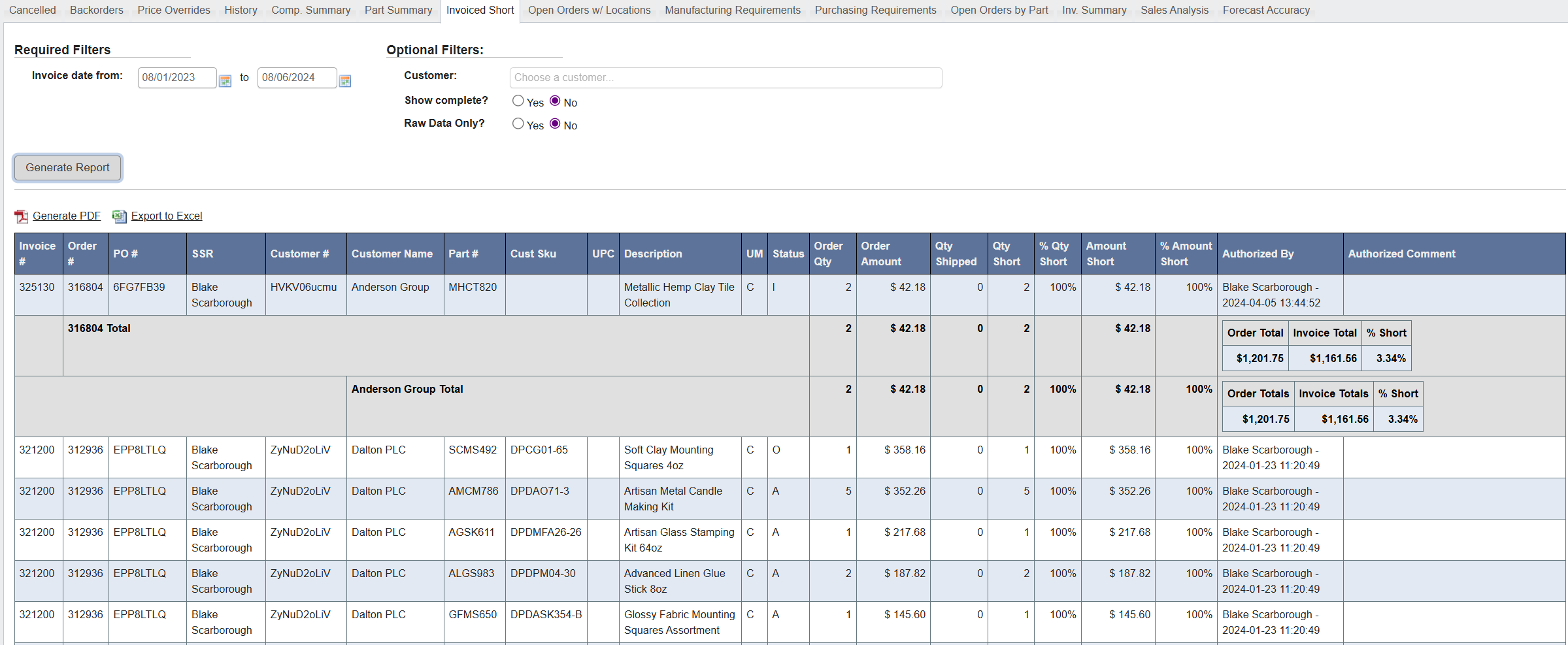 **To view invoiced orders that shipped short:**
1. Click the `Invoiced Short` tab.
2. Set the required filters:
**Invoice Date From/To**: Select date range
3. (Optional): **Customer**, **Show Complete?**, **Raw Data Only?**
4. Click `Generate Report`.
**This report is useful for:** Post-shipment shortage analysis and loss-of-sales categorization (e.g., raw material shortages, capacity, etc.).
### Generate an Open Orders w/ Locations report
**To view invoiced orders that shipped short:**
1. Click the `Invoiced Short` tab.
2. Set the required filters:
**Invoice Date From/To**: Select date range
3. (Optional): **Customer**, **Show Complete?**, **Raw Data Only?**
4. Click `Generate Report`.
**This report is useful for:** Post-shipment shortage analysis and loss-of-sales categorization (e.g., raw material shortages, capacity, etc.).
### Generate an Open Orders w/ Locations report
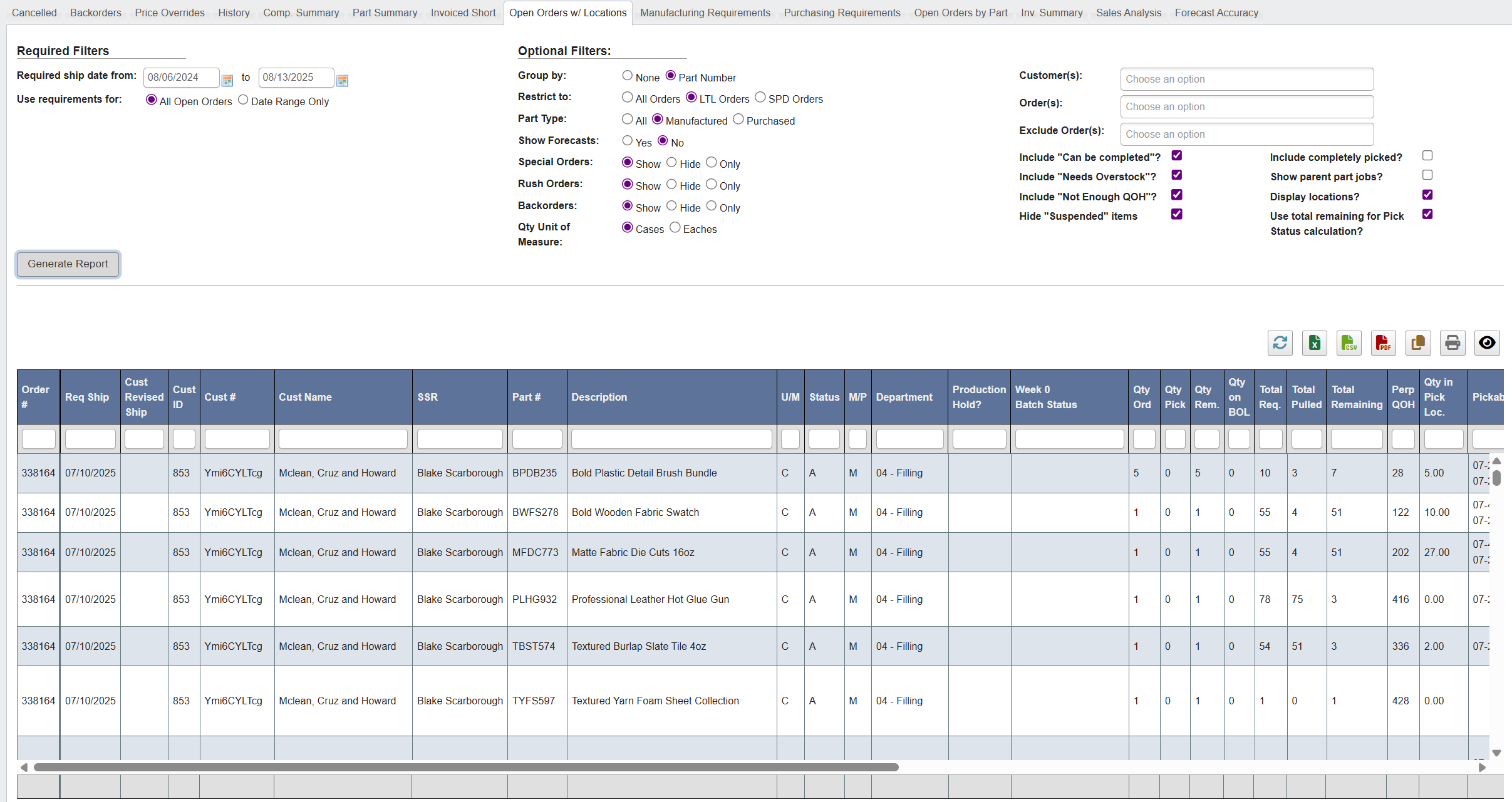 To view open orders with bin/slot locations:
1. Click the `Open Orders w/ Locations` tab.
2. Under **Required Filters**, set **Required ship date from…to** and choose **Use requirements for**:
* **All Open Orders** (full backlog) or **Date Range Only** (strict window).
3. (Optional) Configure:
* **Group by**: **None** or **Part Number**.
* **Restrict to**: **All Orders**, **LTL Orders**, or **SPD Orders**.
* **Part Type**: **All / Manufactured / Purchased**.
* **Show Forecasts**: **Yes/No**.
* **Special Orders / Rush Orders / Backorders**: **Show / Hide / Only**.
* **Qty Unit of Measure**: **Cases / Eaches**.
* Right-hand options: limit by **Customer(s)** or **Order(s)**, **Exclude Order(s)**; include flags like **“Can be completed?”**, **“Needs Overstock?”**, **“Not Enough QOH?”**; hide **“Suspended”**; and toggles for **Include completely picked?**, **Show parent part jobs?**, **Display locations?**, **Use total remaining for Pick Status calculation?**
4. Click `Generate Report`.
**This report is useful for:** Pick planning, staging, and “can we ship it?” conversations. The locations toggle is particularly helpful for floor teams.
### Generate a Manufacturing Requirements report
To view open orders with bin/slot locations:
1. Click the `Open Orders w/ Locations` tab.
2. Under **Required Filters**, set **Required ship date from…to** and choose **Use requirements for**:
* **All Open Orders** (full backlog) or **Date Range Only** (strict window).
3. (Optional) Configure:
* **Group by**: **None** or **Part Number**.
* **Restrict to**: **All Orders**, **LTL Orders**, or **SPD Orders**.
* **Part Type**: **All / Manufactured / Purchased**.
* **Show Forecasts**: **Yes/No**.
* **Special Orders / Rush Orders / Backorders**: **Show / Hide / Only**.
* **Qty Unit of Measure**: **Cases / Eaches**.
* Right-hand options: limit by **Customer(s)** or **Order(s)**, **Exclude Order(s)**; include flags like **“Can be completed?”**, **“Needs Overstock?”**, **“Not Enough QOH?”**; hide **“Suspended”**; and toggles for **Include completely picked?**, **Show parent part jobs?**, **Display locations?**, **Use total remaining for Pick Status calculation?**
4. Click `Generate Report`.
**This report is useful for:** Pick planning, staging, and “can we ship it?” conversations. The locations toggle is particularly helpful for floor teams.
### Generate a Manufacturing Requirements report
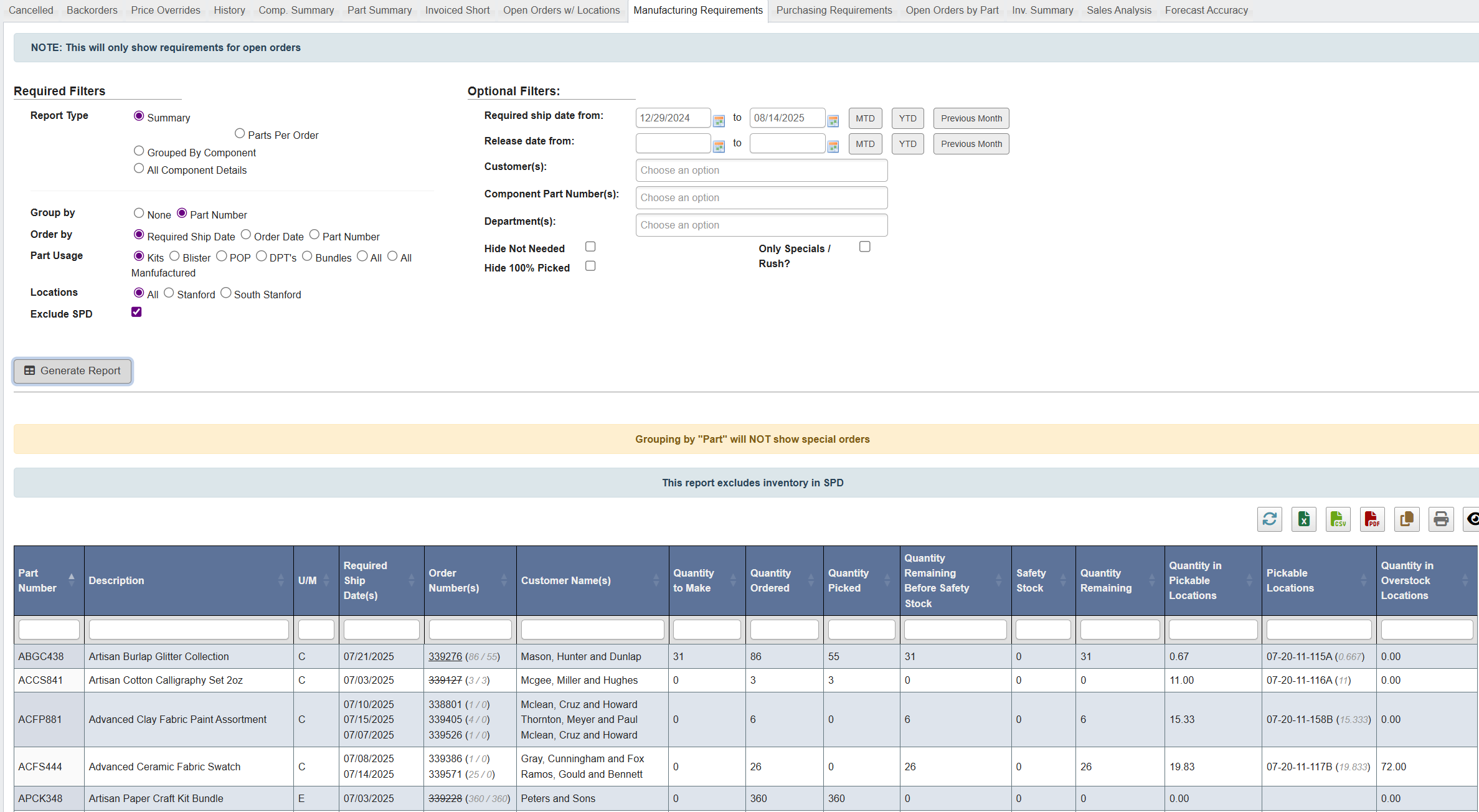 To view component requirements from open orders:
1. Click the `Manufacturing Requirements` tab.
2. Choose **Report Type**:
* **Summary**,
* **Parts Per Order**,
* **Grouped By Component**,
* **All Component Details**.
3. (Optional) **Group by** (**None** / **Part Number**), **Order by** (**Required Ship Date / Order Date / Part Number**).
4. Choose **Part Usage** (e.g., **Kits**, **Blister**, **POP**, **DPT’s**, **Bundles**, **All**).
5. Limit **Locations** (**All / Stanford / South Stanford**); toggle **Show Locations** and **Exclude SPD**.
6. Set **Optional Filters**: **Required ship date** and **Release date** ranges (with **MTD/YTD/Previous Month** shortcuts), **Customer(s)**, **Kit Part Number(s)**, **Department(s)**; hide **Not Needed** and/or **100% Picked**; **Only Specials/Rush?**
7. Click `Generate Report`.
**This report is useful for:** Exploding open orders into make/buy requirements and hiding noise like already-picked or not-needed lines.
### Generate a Purchasing Requirements report
To view component requirements from open orders:
1. Click the `Manufacturing Requirements` tab.
2. Choose **Report Type**:
* **Summary**,
* **Parts Per Order**,
* **Grouped By Component**,
* **All Component Details**.
3. (Optional) **Group by** (**None** / **Part Number**), **Order by** (**Required Ship Date / Order Date / Part Number**).
4. Choose **Part Usage** (e.g., **Kits**, **Blister**, **POP**, **DPT’s**, **Bundles**, **All**).
5. Limit **Locations** (**All / Stanford / South Stanford**); toggle **Show Locations** and **Exclude SPD**.
6. Set **Optional Filters**: **Required ship date** and **Release date** ranges (with **MTD/YTD/Previous Month** shortcuts), **Customer(s)**, **Kit Part Number(s)**, **Department(s)**; hide **Not Needed** and/or **100% Picked**; **Only Specials/Rush?**
7. Click `Generate Report`.
**This report is useful for:** Exploding open orders into make/buy requirements and hiding noise like already-picked or not-needed lines.
### Generate a Purchasing Requirements report
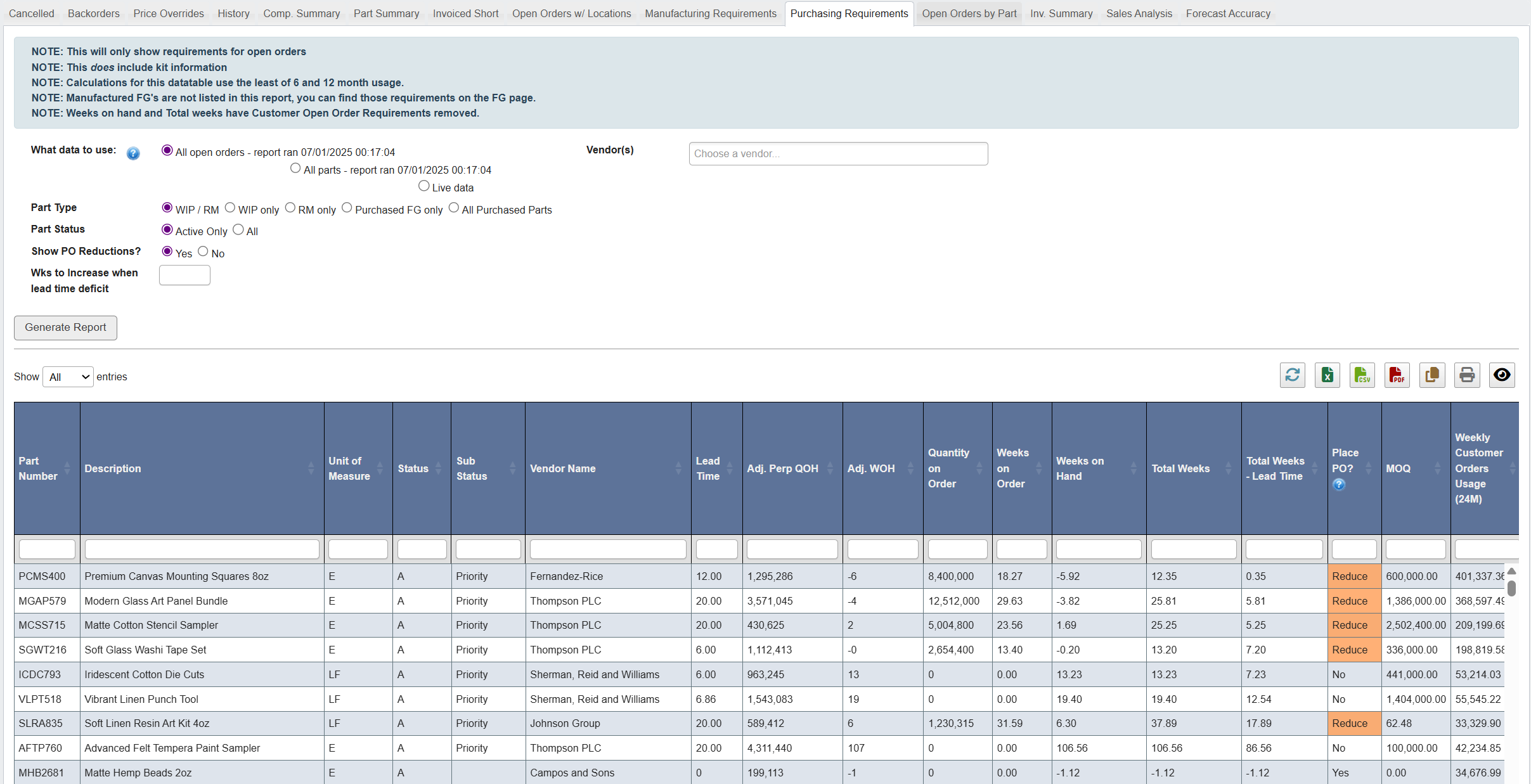 To view purchasing requirements for open orders and kits:
1. Click the `Purchasing Requirements` tab.
2. Set the required filters:
**What Data to Use**: All Open Orders, All Parts, or Live Data
**Part Type**: WIP/RM, WIP Only, RM Only, Purchased FG Only, or All Purchased Parts
**Part Status**: Active Only or All
**Show PO Reductions**: Yes/No
3. (Optional): Filter by **Vendor(s)** and enter **Wks to Increase When Lead Time Deficit**.
4. Click `Generate Report`.
**This report is useful for:** Purchasing teams to identify and prioritize materials that need ordering for open orders and kits, factoring in usage trends, lead times, and available stock. It helps avoid shortages, optimize vendor orders, and plan buys based on actual demand.
### Generate an Open Orders by Part report
To view purchasing requirements for open orders and kits:
1. Click the `Purchasing Requirements` tab.
2. Set the required filters:
**What Data to Use**: All Open Orders, All Parts, or Live Data
**Part Type**: WIP/RM, WIP Only, RM Only, Purchased FG Only, or All Purchased Parts
**Part Status**: Active Only or All
**Show PO Reductions**: Yes/No
3. (Optional): Filter by **Vendor(s)** and enter **Wks to Increase When Lead Time Deficit**.
4. Click `Generate Report`.
**This report is useful for:** Purchasing teams to identify and prioritize materials that need ordering for open orders and kits, factoring in usage trends, lead times, and available stock. It helps avoid shortages, optimize vendor orders, and plan buys based on actual demand.
### Generate an Open Orders by Part report
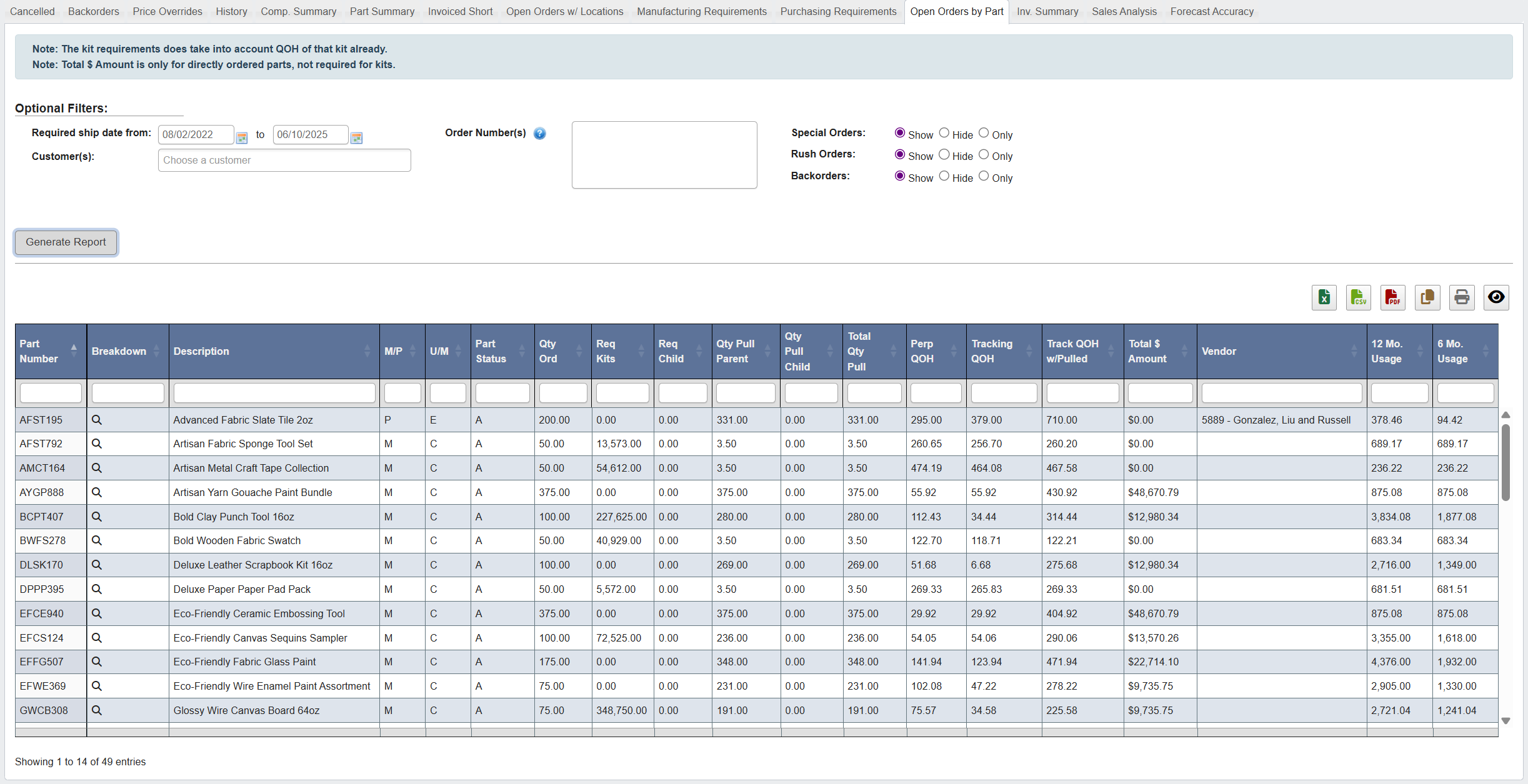 **To view open demand lines by part:**
1. Click the `Open Orders by Part` tab.
2. Set the required filters:
**Date Range**: Required Ship Date or other relevant date
3. (Optional): Filter by **Customer** or **Part**.
4. Click `Generate Report`.
**This report is useful for:** Demand rollups for a single part across customers and orders.
### Generate an Invoice Summary report
**To view open demand lines by part:**
1. Click the `Open Orders by Part` tab.
2. Set the required filters:
**Date Range**: Required Ship Date or other relevant date
3. (Optional): Filter by **Customer** or **Part**.
4. Click `Generate Report`.
**This report is useful for:** Demand rollups for a single part across customers and orders.
### Generate an Invoice Summary report
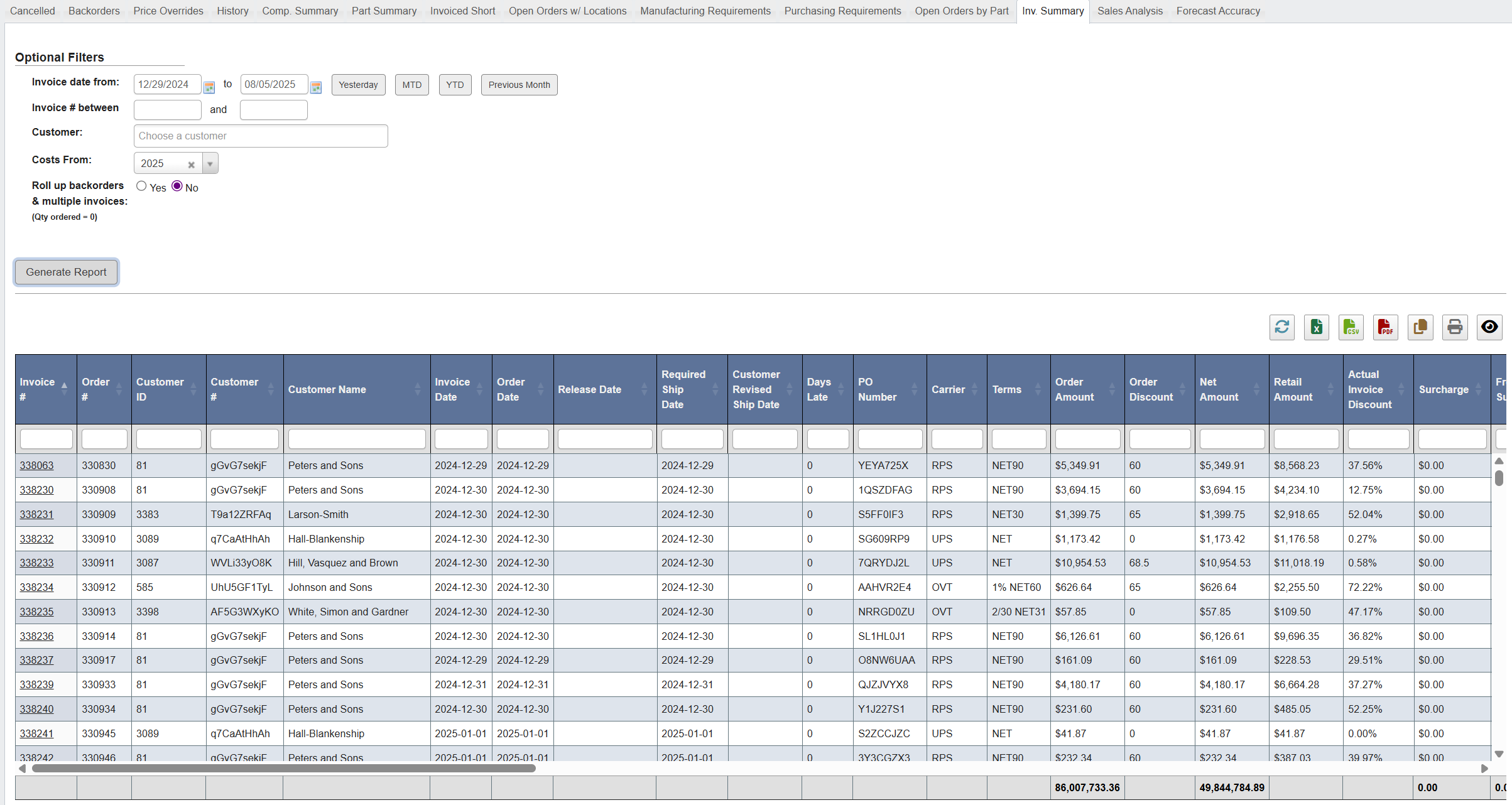 To view invoice totals and shortage details:
1. Click the `Invoice Summary` tab.
2. Set the required filters:
**Invoice Date From/To**: Select date range
3. (Optional): Filter by **Customer**, toggle shortage views (**Invoices with Shortages**, **Invoices with Shortages & QOH Available**).
4. Click `Generate Report`.
**This report is useful for:** Finance/Operations retrospectives and process improvement.
### Generate a Sales Analysis report
To view invoice totals and shortage details:
1. Click the `Invoice Summary` tab.
2. Set the required filters:
**Invoice Date From/To**: Select date range
3. (Optional): Filter by **Customer**, toggle shortage views (**Invoices with Shortages**, **Invoices with Shortages & QOH Available**).
4. Click `Generate Report`.
**This report is useful for:** Finance/Operations retrospectives and process improvement.
### Generate a Sales Analysis report
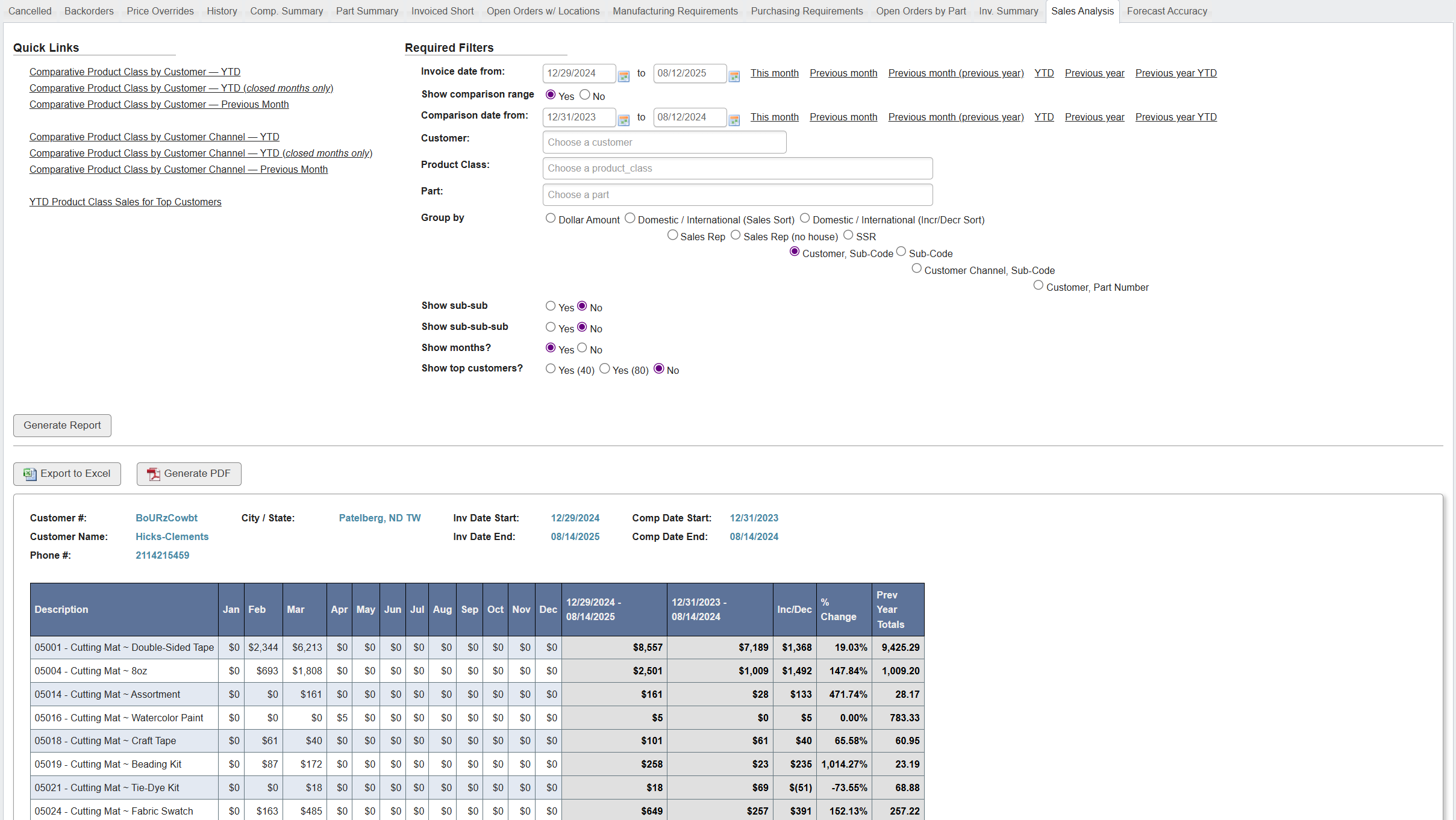 To compare sales performance across customers, channels, or products:
1. Click the `Sales Analysis` tab.
2. Choose the **Invoice Date Range** using the `Invoice date from / to` fields:
1. Shortcuts include **This month, Previous month, Previous year, YTD, Previous year YTD**, etc.
2. (Optional) Toggle `Show comparison range`: Benchmark one period against another by using **Comparison date from / to** plus shortcuts (This month, Previous month, YTD, etc.).
3. Choose **Group By**: This significantly alters report structure by defining aggregation:
1. `Dollar Amount`: Groups orders by sale values (in ranges) in stacked tables.
2. `Domestic / International (Sales Sort)`: Groups results by domestic vs. international sales.
3. `Domestic / International (Incr/Decr Sort)`: Adds growth/decline logic, highlighting where sales are increasing or decreasing.
4. `Sales Rep`: Groups by assigned sales representative.
5. `Sales Rep (no house)`: Same as above, but excludes house accounts.
6. `SSR`: Groups by Senior Sales Rep or supervisory sales role.
7. `Customer, Sub-Code`: Groups first by customer, then shows each corresponding product code’s sale activity over the period. This is useful for tracking a customer’s activity over time.
8. `Sub-Code`: Groups first by product sub-code classification, and shows sale activity over the period.
9. `Customer Channel, Sub-Code`: Groups first by customer channel, then shows each corresponding product code’s sale activity over the period.
10. `Customer, Part Number`: Similar to **Customer, Sub-Code**, this groups first by customer, then shows each corresponding Part’s sale activity over the period.
4. (Optional) Narrow scope using filters:
1. `Customer`: Select a specific customer account for focused reporting.
2. `Product Class`: Restrict to a family/category of products.
3. `Part`: Choose an individual part number if drilling into a single item.
5. (Optional) Configure additional display parameters:
1. `Show sub-sub`: Expands the hierarchy to show one more level down in product classification.
2. `Show sub-sub-sub`: Expands even further into detailed product classification levels.
3. `Show months?`: Toggles monthly breakdowns across the report.
4. `Show top customers?`: Focus on key customers only. Options:
1. **Yes (40)**: Top 40 customers.
2. **Yes (80)**: Top 80 customers.
3. **No**: Include all customers.
6. Click `Generate Report` to run the analysis.
**This report is useful for:** Sales leadership and account managers to track growth or decline trends, evaluate account performance year-over-year, and identify product or customer segments driving changes.
Clicking on any of the **Quick Links** at the top will automatically populate the filters to match the link’s parameters (e.g., “YTD Product Class Sales for Top Customers” sets the date range and grouping automatically).
### Generate a Forecast Accuracy report
To compare sales performance across customers, channels, or products:
1. Click the `Sales Analysis` tab.
2. Choose the **Invoice Date Range** using the `Invoice date from / to` fields:
1. Shortcuts include **This month, Previous month, Previous year, YTD, Previous year YTD**, etc.
2. (Optional) Toggle `Show comparison range`: Benchmark one period against another by using **Comparison date from / to** plus shortcuts (This month, Previous month, YTD, etc.).
3. Choose **Group By**: This significantly alters report structure by defining aggregation:
1. `Dollar Amount`: Groups orders by sale values (in ranges) in stacked tables.
2. `Domestic / International (Sales Sort)`: Groups results by domestic vs. international sales.
3. `Domestic / International (Incr/Decr Sort)`: Adds growth/decline logic, highlighting where sales are increasing or decreasing.
4. `Sales Rep`: Groups by assigned sales representative.
5. `Sales Rep (no house)`: Same as above, but excludes house accounts.
6. `SSR`: Groups by Senior Sales Rep or supervisory sales role.
7. `Customer, Sub-Code`: Groups first by customer, then shows each corresponding product code’s sale activity over the period. This is useful for tracking a customer’s activity over time.
8. `Sub-Code`: Groups first by product sub-code classification, and shows sale activity over the period.
9. `Customer Channel, Sub-Code`: Groups first by customer channel, then shows each corresponding product code’s sale activity over the period.
10. `Customer, Part Number`: Similar to **Customer, Sub-Code**, this groups first by customer, then shows each corresponding Part’s sale activity over the period.
4. (Optional) Narrow scope using filters:
1. `Customer`: Select a specific customer account for focused reporting.
2. `Product Class`: Restrict to a family/category of products.
3. `Part`: Choose an individual part number if drilling into a single item.
5. (Optional) Configure additional display parameters:
1. `Show sub-sub`: Expands the hierarchy to show one more level down in product classification.
2. `Show sub-sub-sub`: Expands even further into detailed product classification levels.
3. `Show months?`: Toggles monthly breakdowns across the report.
4. `Show top customers?`: Focus on key customers only. Options:
1. **Yes (40)**: Top 40 customers.
2. **Yes (80)**: Top 80 customers.
3. **No**: Include all customers.
6. Click `Generate Report` to run the analysis.
**This report is useful for:** Sales leadership and account managers to track growth or decline trends, evaluate account performance year-over-year, and identify product or customer segments driving changes.
Clicking on any of the **Quick Links** at the top will automatically populate the filters to match the link’s parameters (e.g., “YTD Product Class Sales for Top Customers” sets the date range and grouping automatically).
### Generate a Forecast Accuracy report
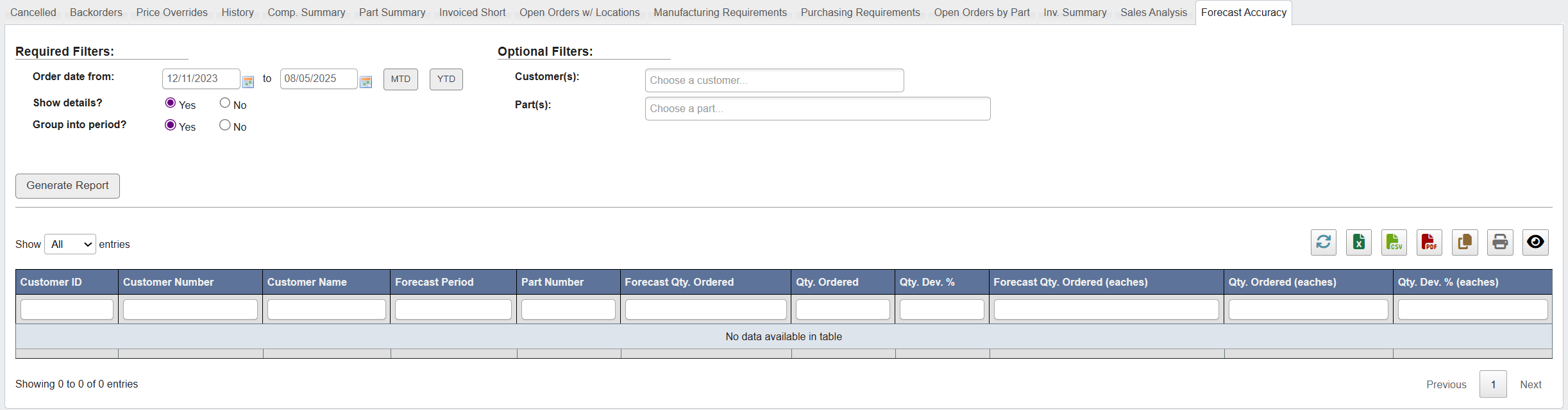 To compare forecast orders with actual orders:
1. Click the `Forecast Accuracy` tab.
2. Set the required filters:
**Customer**: Select customer
**Order Date From/To**: Select date range
3. (Optional): Toggle **Show Details** or **Group Into Period**.
4. Click `Generate Report`.
**This report is useful for:** Validating forecast discipline and aligning production/purchasing to true demand.
To compare forecast orders with actual orders:
1. Click the `Forecast Accuracy` tab.
2. Set the required filters:
**Customer**: Select customer
**Order Date From/To**: Select date range
3. (Optional): Toggle **Show Details** or **Group Into Period**.
4. Click `Generate Report`.
**This report is useful for:** Validating forecast discipline and aligning production/purchasing to true demand.