> ## Documentation Index
> Fetch the complete documentation index at: https://docs.decoart.com/llms.txt
> Use this file to discover all available pages before exploring further.
# Formula Comparison
## Overview
The Formula Comparison feature allows you to analyze multiple formula versions side-by-side to understand changes, evolution, and differences between formulations.
### Adding Formulas for Comparison
1. With your first formula loaded, click the “Scale” button to access comparison options.
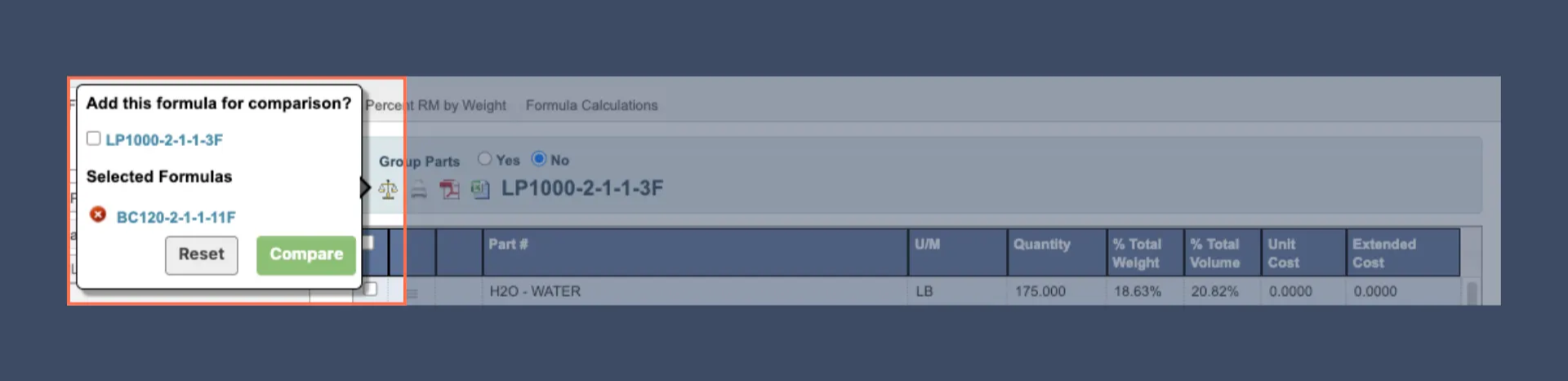
 2. A pop-up will appear asking if you want to “Add this formula for comparison.” Check the box to include the currently loaded formula in your comparison set.
 1. To add more formulas to your comparison:
1. Navigate to another formula using the View Formula process.
2. Repeat the process to add it to your comparison list.
2. Manage you comparison list:
1. To remove a formula from the comparison list, click the red “x” button next to the formula.
2. To clear all formulas from the comparison list, click the `Reset` button.
3. Once you have selected your formulas, click `Compare` to detailed comparison view.
1. To add more formulas to your comparison:
1. Navigate to another formula using the View Formula process.
2. Repeat the process to add it to your comparison list.
2. Manage you comparison list:
1. To remove a formula from the comparison list, click the red “x” button next to the formula.
2. To clear all formulas from the comparison list, click the `Reset` button.
3. Once you have selected your formulas, click `Compare` to detailed comparison view.
 ### Understanding Comparison Results
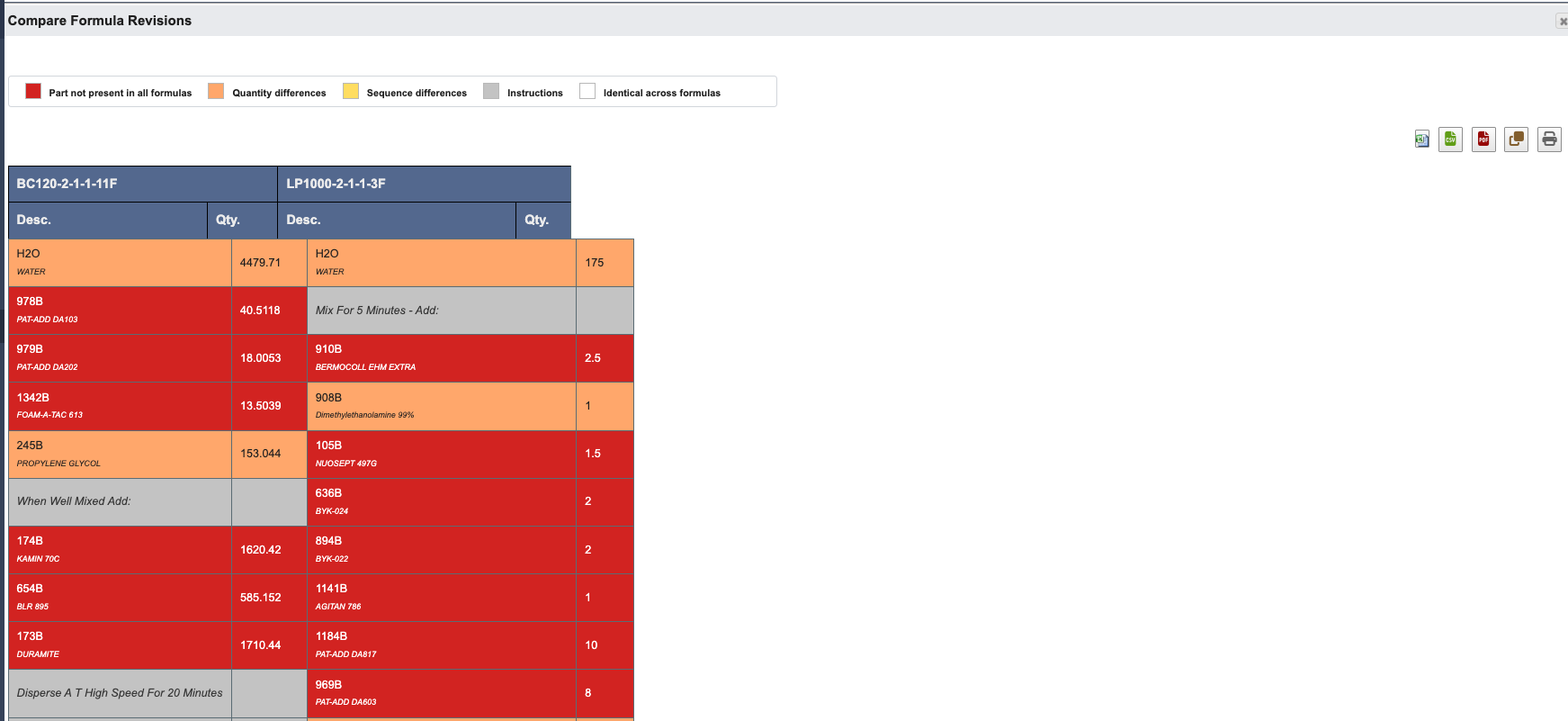
The comparison results use a color-coding system to highlight different types of changes between formulas:
* `Red`: Parts that are not present in all formulas.
* `Orange`: Same material used in multiple formulas but with different quantities.
* `Yellow`: Same parts but in different order within the formula sequence.
* `Grey`: Processing instructions and messages.
* `White`: Identical materials with the same quantities.
### Understanding Comparison Results
The comparison results use a color-coding system to highlight different types of changes between formulas:
* `Red`: Parts that are not present in all formulas.
* `Orange`: Same material used in multiple formulas but with different quantities.
* `Yellow`: Same parts but in different order within the formula sequence.
* `Grey`: Processing instructions and messages.
* `White`: Identical materials with the same quantities.