> ## Documentation Index
> Fetch the complete documentation index at: https://docs.decoart.com/llms.txt
> Use this file to discover all available pages before exploring further.
# Formula Controls
## Overview
The Formula Controls section provides tools for scaling formulas to different batch sizes, changing how information is displayed, and converting units of measure. These controls allow you to manipulate formula data, compare versions, and maintain version control.
## Formula Modification
Once you have a formula loaded, you can modify various aspects of the formulation:
* **Add Parts**: Click on blank lines to add new raw materials.
* **Modify Quantities**: Update existing part amounts.
* **Add Instructions**: Include processing messages and notes.
* **Drag and Drop**: Reorder parts by dragging to new positions.
* **Delete Items**: Drag parts to trash icon to remove.
## Group Parts Toggle
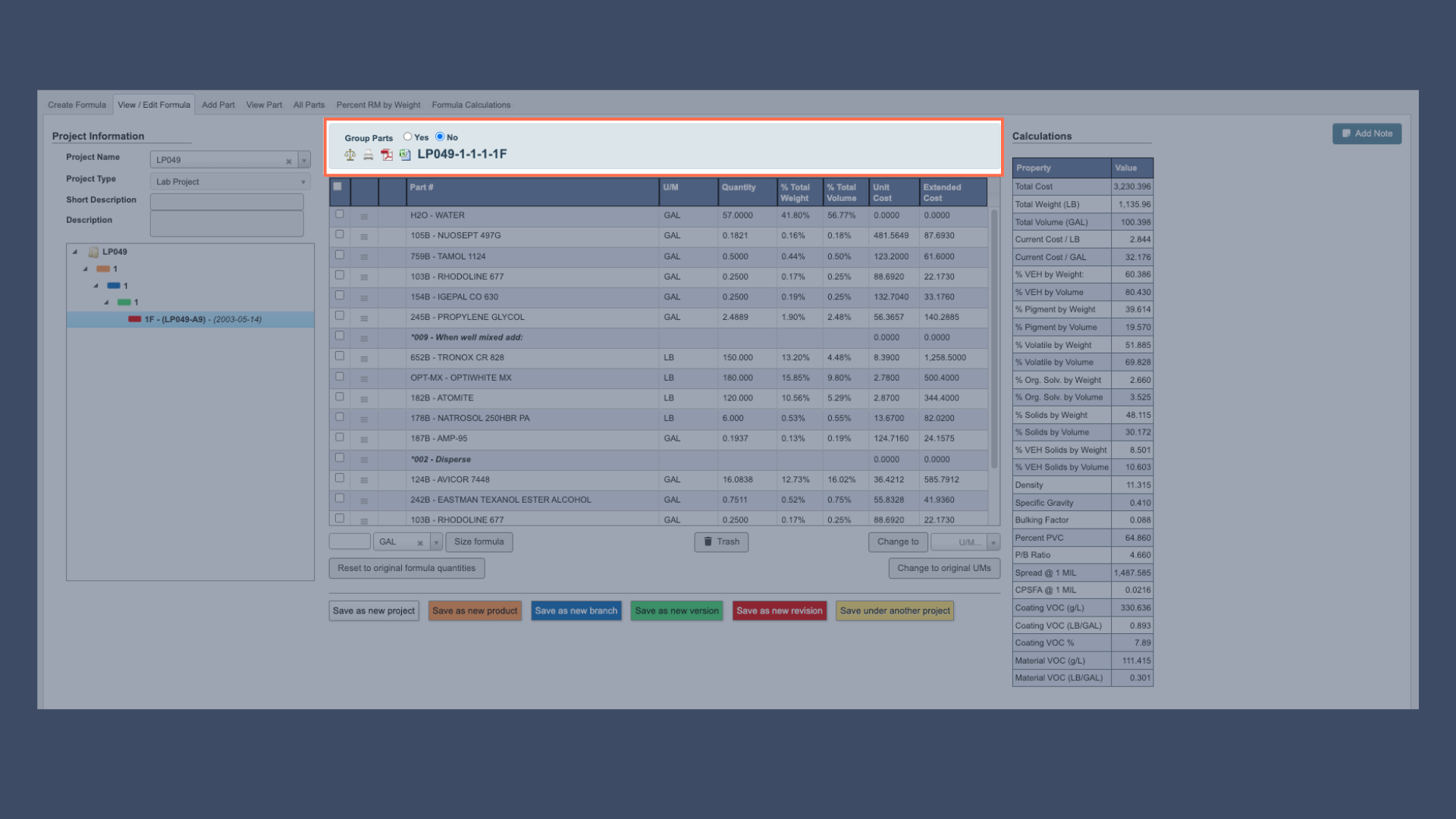 The Group Parts toggle consolidates identical materials that appear multiple times in a formula, displaying them as a single entry with the total quantity. This is useful for quickly determining the overall percentage of components like water or solvents that are added at different stages.
To compare multiple formulas see the [Formula Comparison](/part-information/formula-reference/formula-comparison) page for more details.
## Scaling Functions
The scaling functions allow you to adjust formula quantities while maintaining proper proportions:
* `Size Formula`: Scale entire formula to target quantity.
* `Size Formula & Save`: Scale and immediately save the formula.
* `Reset to Original Quantities`: Return to original formula proportions.
### Scaling Function Example:
If your current formula creates `34 gal` of product and you need to scale it to `100 gallons` of product:
The Group Parts toggle consolidates identical materials that appear multiple times in a formula, displaying them as a single entry with the total quantity. This is useful for quickly determining the overall percentage of components like water or solvents that are added at different stages.
To compare multiple formulas see the [Formula Comparison](/part-information/formula-reference/formula-comparison) page for more details.
## Scaling Functions
The scaling functions allow you to adjust formula quantities while maintaining proper proportions:
* `Size Formula`: Scale entire formula to target quantity.
* `Size Formula & Save`: Scale and immediately save the formula.
* `Reset to Original Quantities`: Return to original formula proportions.
### Scaling Function Example:
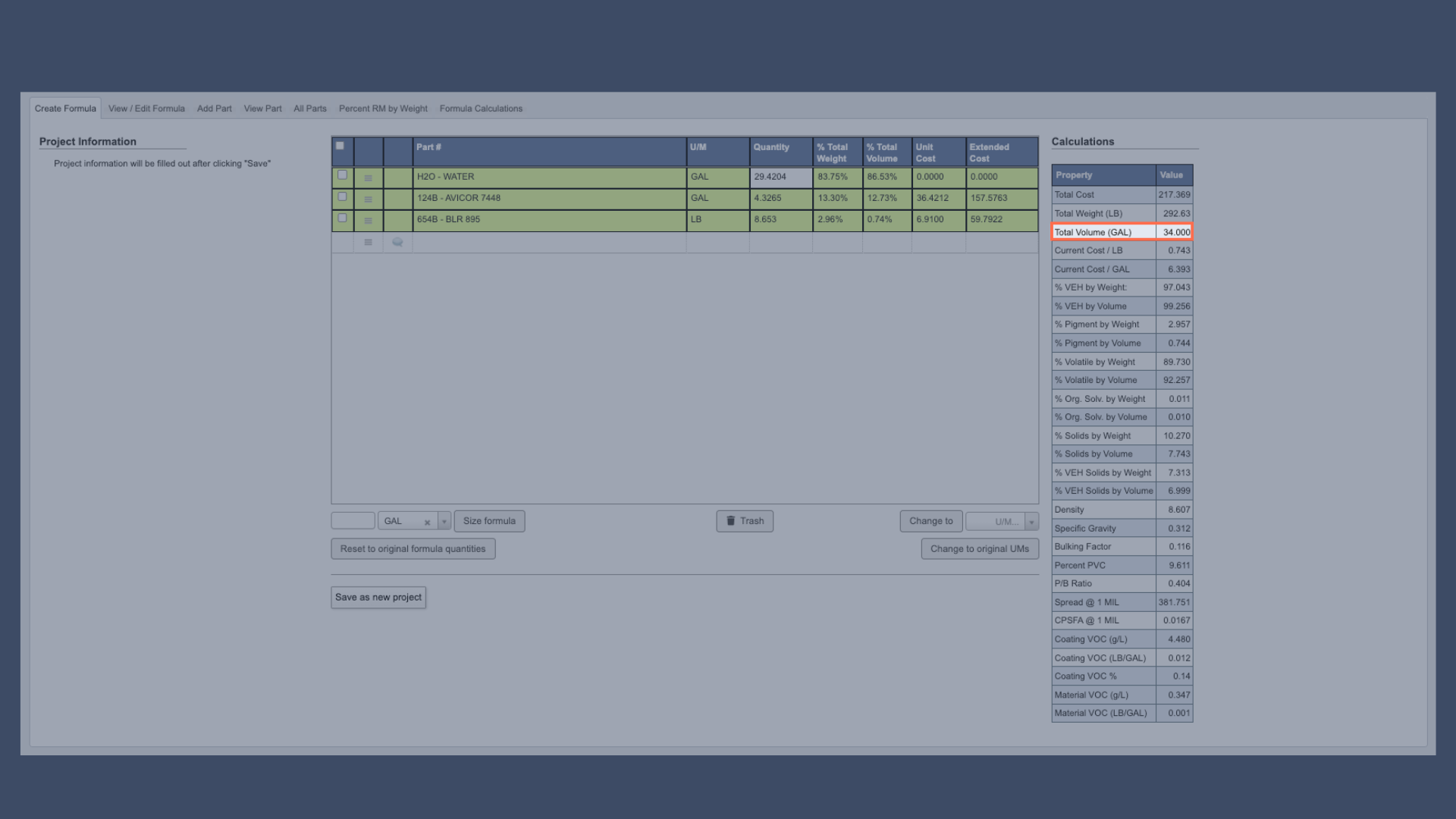
If your current formula creates `34 gal` of product and you need to scale it to `100 gallons` of product:
 1. Enter `100` in the text box.
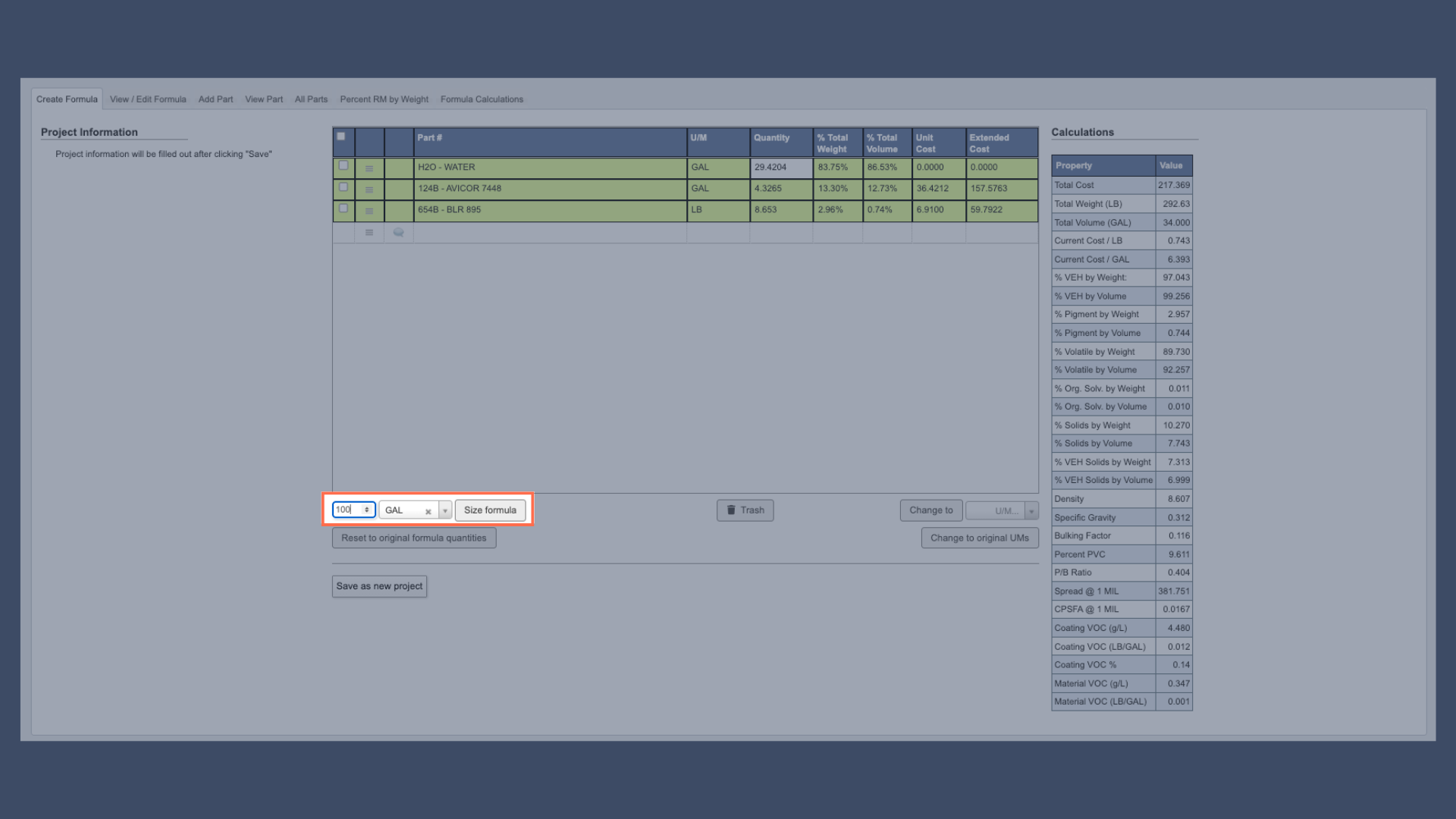 2. Ensure the unit of measure is set to `gallons`.
3. Click `Size Formula`.
4. The system will automatically calculated all new quantities. You can see that the Total Volume is now `100` and all other values have been updated accordingly.
2. Ensure the unit of measure is set to `gallons`.
3. Click `Size Formula`.
4. The system will automatically calculated all new quantities. You can see that the Total Volume is now `100` and all other values have been updated accordingly.
.png?fit=max&auto=format&n=ISBX2Qx1O-o5MBId&q=85&s=e7fb07a4976204bbd2a4f7298cf3facb) To revert changes, click `Reset to Original Quantities`.
## Unit of Measure Management
The unit of measure management functions help standardize measurements across your formula:
* `Change To`: Convert all quantities to same unit of measure (`u/m`). This is useful for converting between lab (volumetric) and production (gravimetric) units.
* `Change to Original UMs`: Revert to default unit of measures for each part.
### Unit of Measure Example:
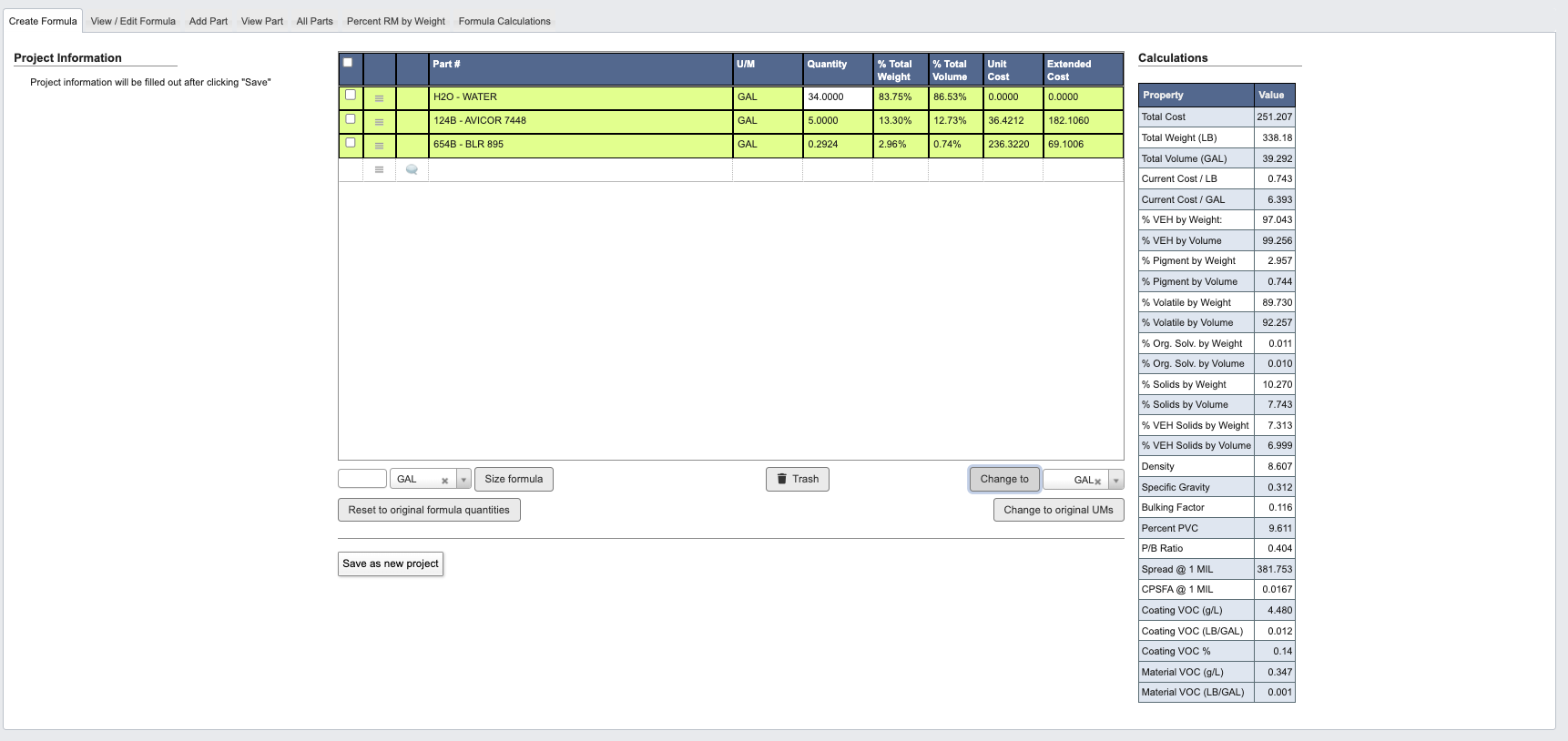
If your current formula has some quantities in `gal` and some in `lb`, you can use `Change to` to convert all the `u/m` to the same type (gravimetric or volumetric.) This is important because the default `u/m` for any part is determined by the settings configured for that `part #`.
To revert changes, click `Reset to Original Quantities`.
## Unit of Measure Management
The unit of measure management functions help standardize measurements across your formula:
* `Change To`: Convert all quantities to same unit of measure (`u/m`). This is useful for converting between lab (volumetric) and production (gravimetric) units.
* `Change to Original UMs`: Revert to default unit of measures for each part.
### Unit of Measure Example:
If your current formula has some quantities in `gal` and some in `lb`, you can use `Change to` to convert all the `u/m` to the same type (gravimetric or volumetric.) This is important because the default `u/m` for any part is determined by the settings configured for that `part #`.
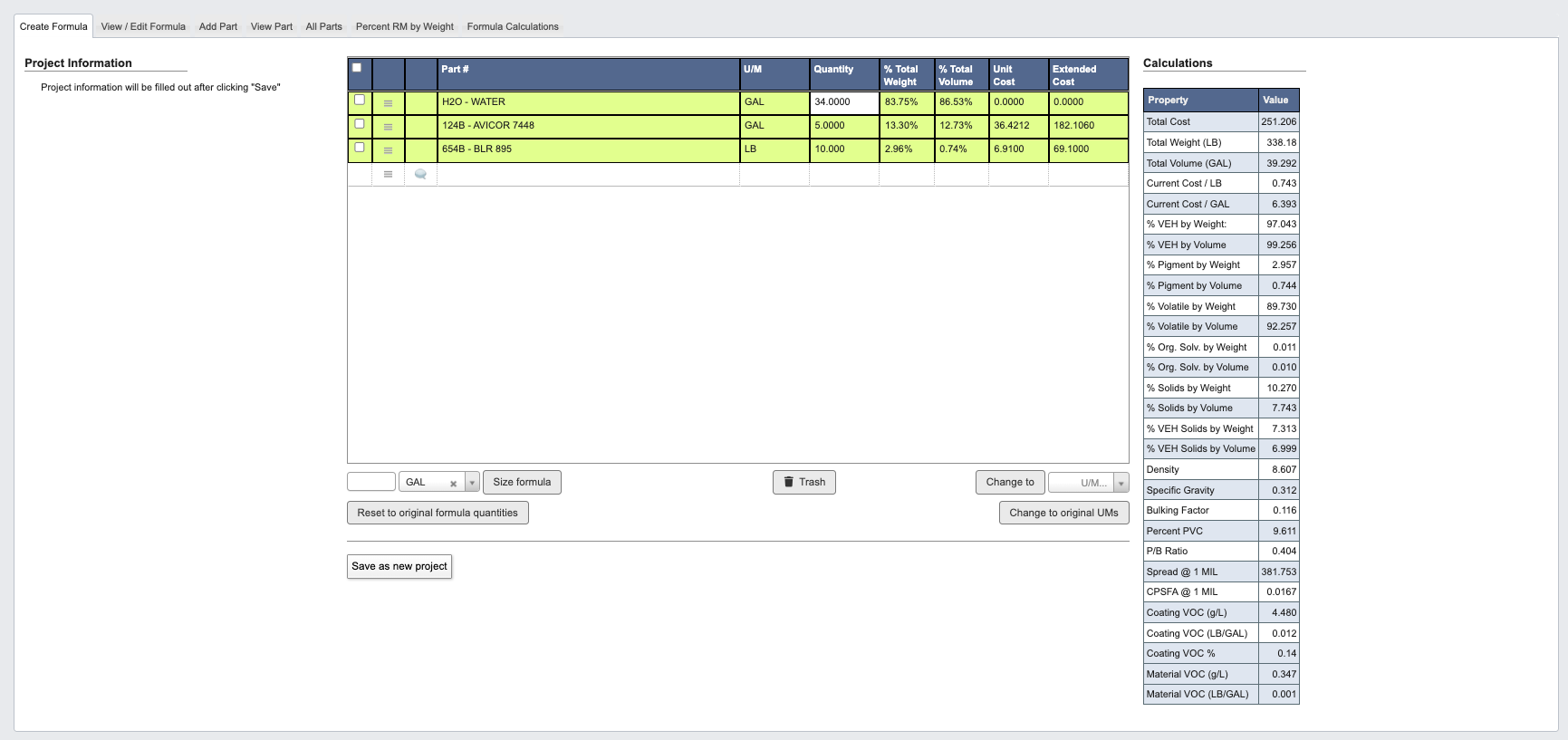 The image above shows a formula with mixed units (`gal` and `lb`). The image below shows the same formula after using `Change to` and converting all units to `gal`. Notice that all units are now consistently in gallons.