> ## Documentation Index
> Fetch the complete documentation index at: https://docs.decoart.com/llms.txt
> Use this file to discover all available pages before exploring further.
# Understand View / Edit Formula
## Overview
The View / Edit Formula interface is organized into a comprehensive three-panel layout with additional specification details at the bottom.
### Left Side: Project Information
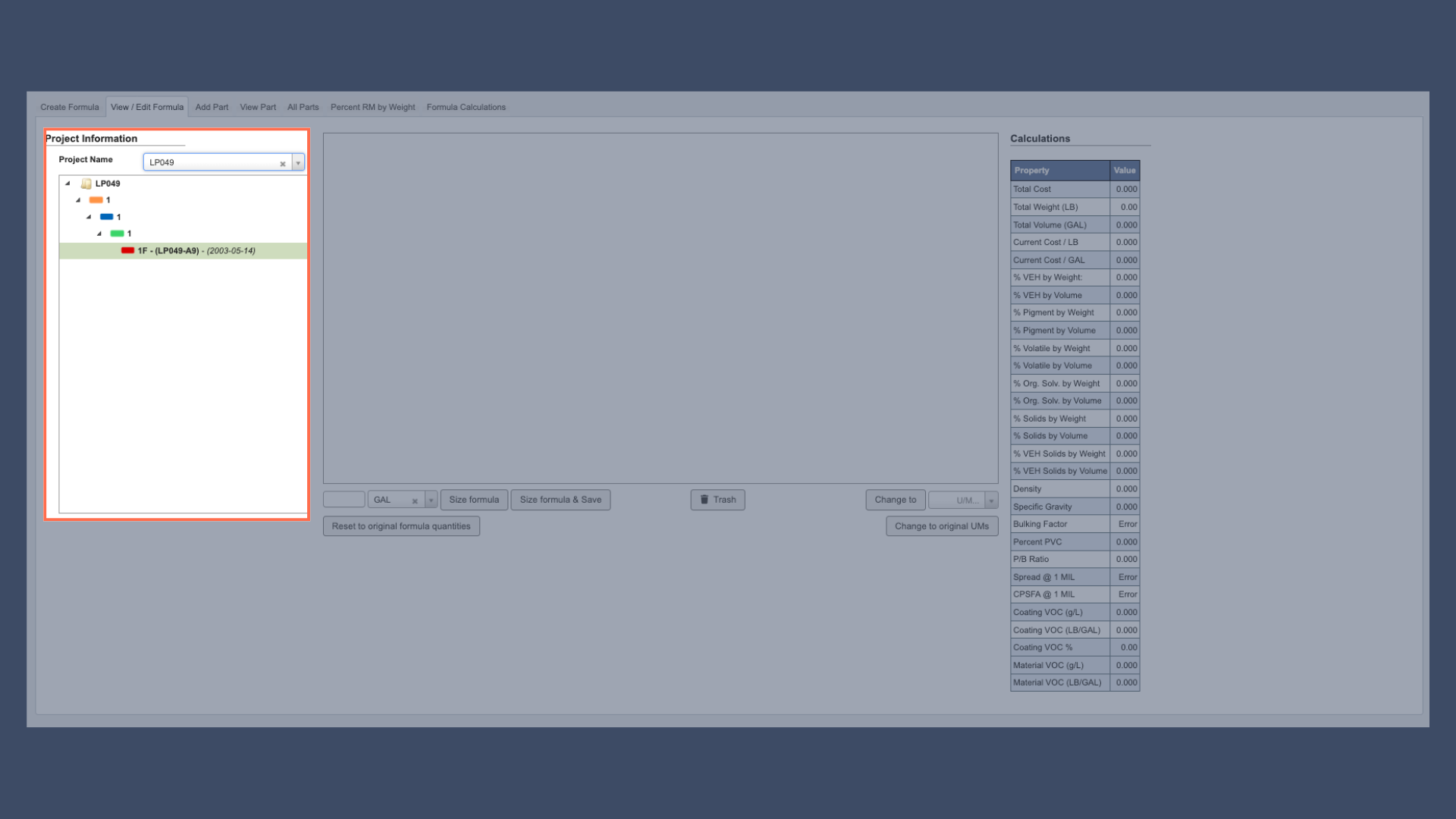 The left side displays project information including the hierarchical project structure, formula classification details, and creation/modification timestamps that help track the formula's development history.
Projects are organized in a hierarchical structure with color-coded levels:
* **White/Folder**: Top-level projects/folders.
* **Orange**: Products (second level).
* **Blue**: Branches (third level).
* **Green**: Versions (fourth level).
* **Red**: Revisions (fifth level).
### Middle: Formula Table
The left side displays project information including the hierarchical project structure, formula classification details, and creation/modification timestamps that help track the formula's development history.
Projects are organized in a hierarchical structure with color-coded levels:
* **White/Folder**: Top-level projects/folders.
* **Orange**: Products (second level).
* **Blue**: Branches (third level).
* **Green**: Versions (fourth level).
* **Red**: Revisions (fifth level).
### Middle: Formula Table
.png?fit=max&auto=format&n=Ck7ztE-Qr8f4TbSY&q=85&s=8c1f3e5b333ac5315fdd46f734225110) The middle section contains the main formula table showing the complete part list with quantities, processing instructions and messages, and unit of measure specifications for each component.
### Right Side: Calculations Table
The middle section contains the main formula table showing the complete part list with quantities, processing instructions and messages, and unit of measure specifications for each component.
### Right Side: Calculations Table
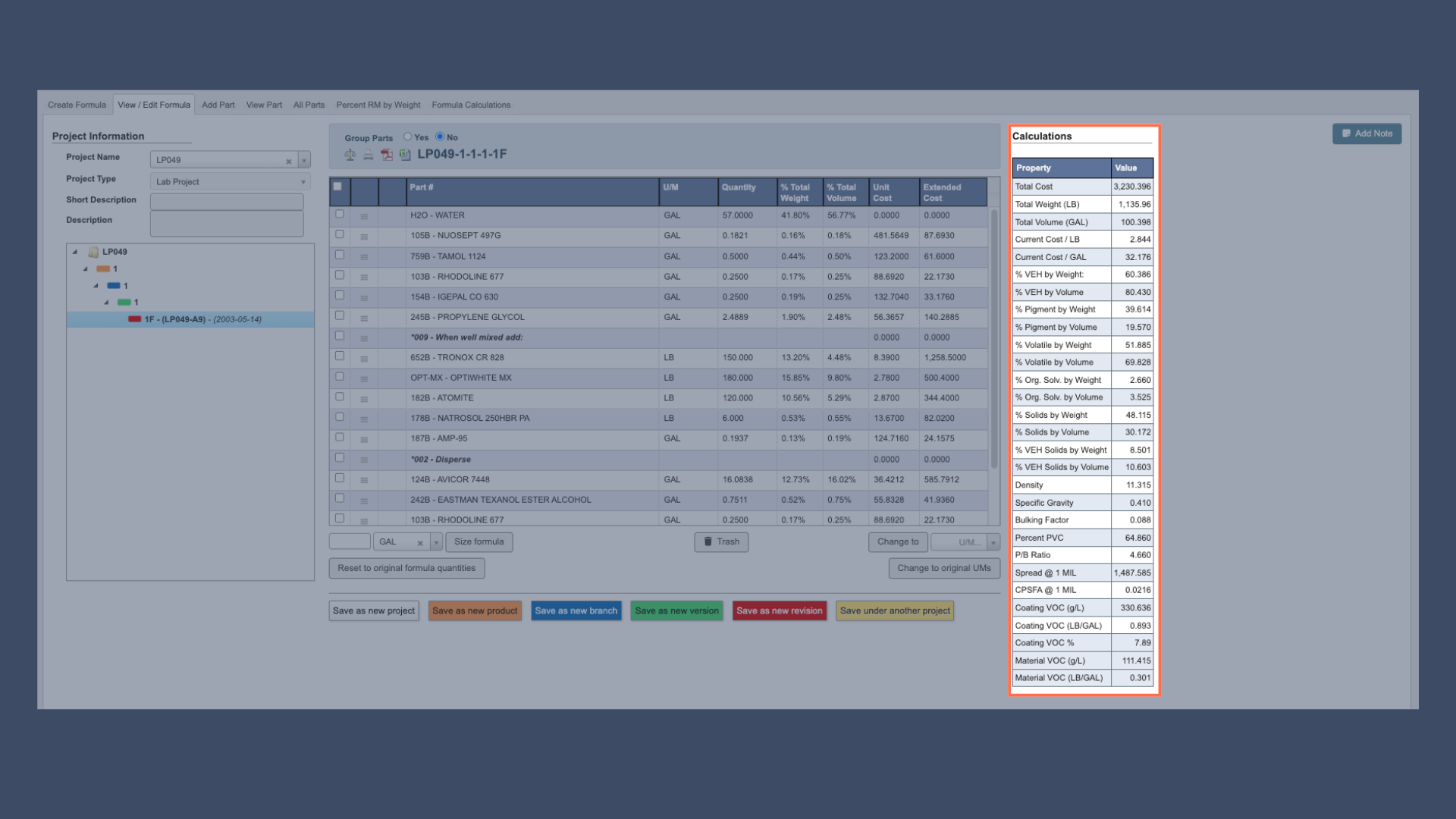 The right side features an auto-populated calculations table that dynamically updates to show cost calculations, physical property calculations, percentage breakdowns, and total volume and weight as you modify the formula.
### Bottom: Project Specifications
The right side features an auto-populated calculations table that dynamically updates to show cost calculations, physical property calculations, percentage breakdowns, and total volume and weight as you modify the formula.
### Bottom: Project Specifications
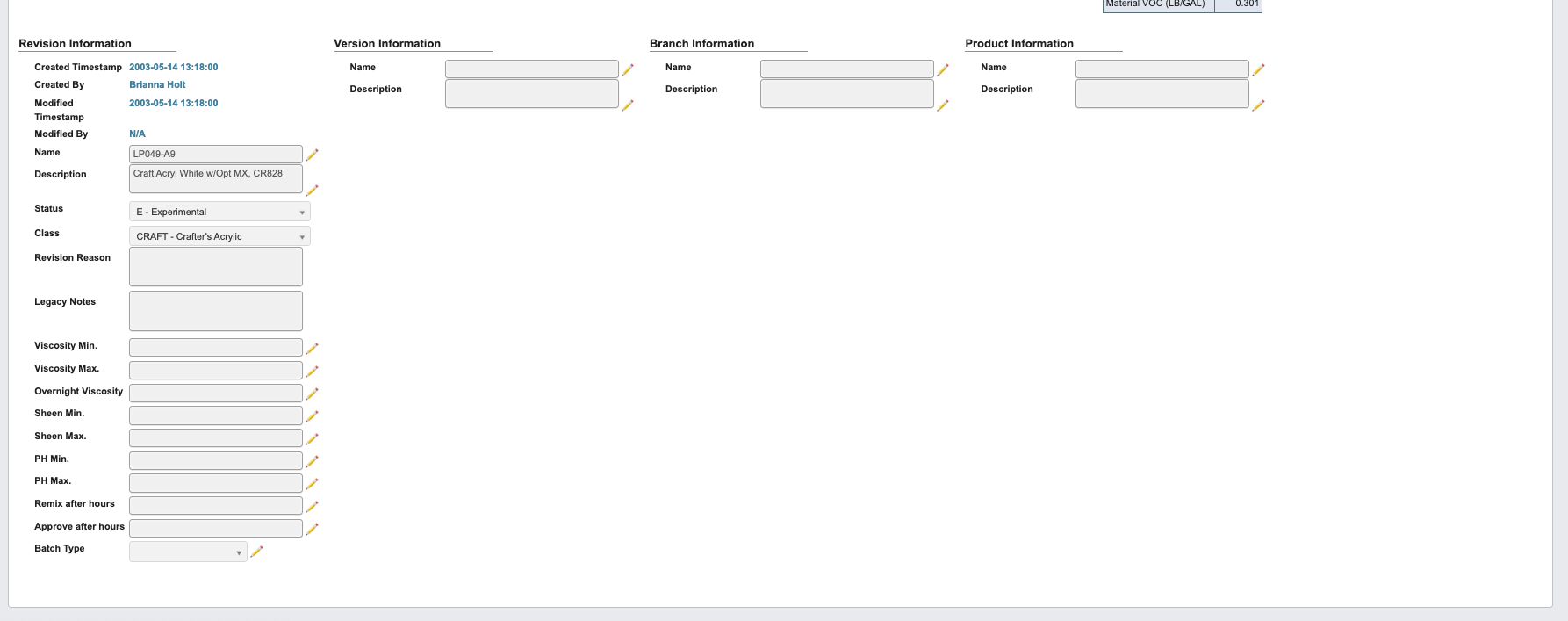 At the bottom of the interface, you'll find the project specifications section containing quality control parameters such as viscosity, pH, and sheen ranges, with editable fields clearly marked by pencil icons that allow you to update production specifications without creating new formula revisions.