> ## Documentation Index
> Fetch the complete documentation index at: https://docs.decoart.com/llms.txt
> Use this file to discover all available pages before exploring further.
# Manage Holds Submodule
## Overview
The **Part Information → Manage Holds** submodule lets you view and manage quality holds on materials and finished goods. This page explains common hold information fields and provides tutorials for managing hold records.
The submodule contains the following tabs:
* **View / Edit Hold**: Manage existing hold information and release holds when quality issues are resolved.
* **Add Hold**: Create a new hold record when quality issues are identified.
* **Active Holds**: View holds currently preventing items from being used in the system.
* **Expired Holds**: View holds that have exceeded their intended duration and may need cleanup.
* **Deactivated Holds**: View historical hold records that have been resolved and released.
## Understand Hold Information
Each hold record is broken into sections that group related information. Below is a guide to each section and some of the fields within it that have special behaviors or system-wide effects.
Depending on your role and permissions, you may not see all of these tabs or have access to all hold management functions.
### General Information
This section captures the core information about the quality issue and affected items.
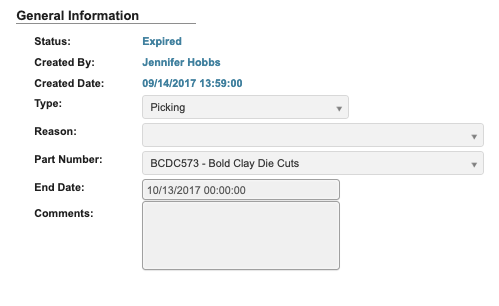 * `Status`: Indicates whether the hold is Active, Expired or Deactivated. Active holds prevent the associated part or material from being used.
* `Created By`: The user who initiated the hold.
* `Type`: Defines the nature of the hold, such as Dispersion, FG Production, Order Entry, Picking, Purchasing, or Raw Material.
* `Reason`: Explains the issue prompting the hold, the reasons vary depending on the `Type` of hold.
* `Part Number`: Identifies the specific part on hold.
* `End Date`: Operational expiration date for the hold, after this date the hold will appear in the **Expired Holds** tab for review.
* `Comments`: Additional notes or comments about this hold.
### Customer Restrictions
This section defines whether the hold applies to all customers or only to specific groups.
* `Status`: Indicates whether the hold is Active, Expired or Deactivated. Active holds prevent the associated part or material from being used.
* `Created By`: The user who initiated the hold.
* `Type`: Defines the nature of the hold, such as Dispersion, FG Production, Order Entry, Picking, Purchasing, or Raw Material.
* `Reason`: Explains the issue prompting the hold, the reasons vary depending on the `Type` of hold.
* `Part Number`: Identifies the specific part on hold.
* `End Date`: Operational expiration date for the hold, after this date the hold will appear in the **Expired Holds** tab for review.
* `Comments`: Additional notes or comments about this hold.
### Customer Restrictions
This section defines whether the hold applies to all customers or only to specific groups.
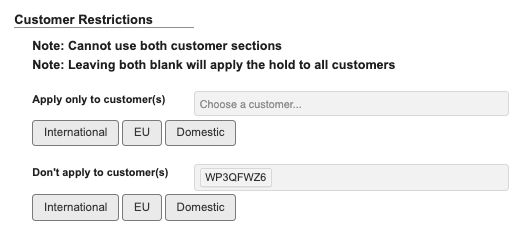 * `Apply only to customer(s)`: Restricts the hold so that it only applies to selected customers. All other customers can still receive or use the item.
* `Don't apply to customer(s)`: Excludes selected customers from the hold, allowing their orders to proceed normally.
The following buttons populate customer groups based on region:
* `International`: Adds all customers outside the U.S.
* `EU`: Adds all European Union customers.
* `Domestic`: Adds all U.S. based customers.
### Pallet Restrictions
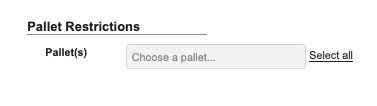
This section limits the hold to specific pallets.
* `Apply only to customer(s)`: Restricts the hold so that it only applies to selected customers. All other customers can still receive or use the item.
* `Don't apply to customer(s)`: Excludes selected customers from the hold, allowing their orders to proceed normally.
The following buttons populate customer groups based on region:
* `International`: Adds all customers outside the U.S.
* `EU`: Adds all European Union customers.
* `Domestic`: Adds all U.S. based customers.
### Pallet Restrictions
This section limits the hold to specific pallets.
 ### Transactions
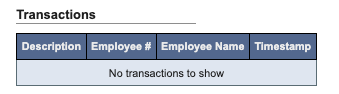
The section shows all changes, who made them, and when.
### Transactions
The section shows all changes, who made them, and when.
 ## View / Edit Hold
From within the View / Edit Hold tab, you can explore and manage existing hold information.
### Step 1: Pull up a hold
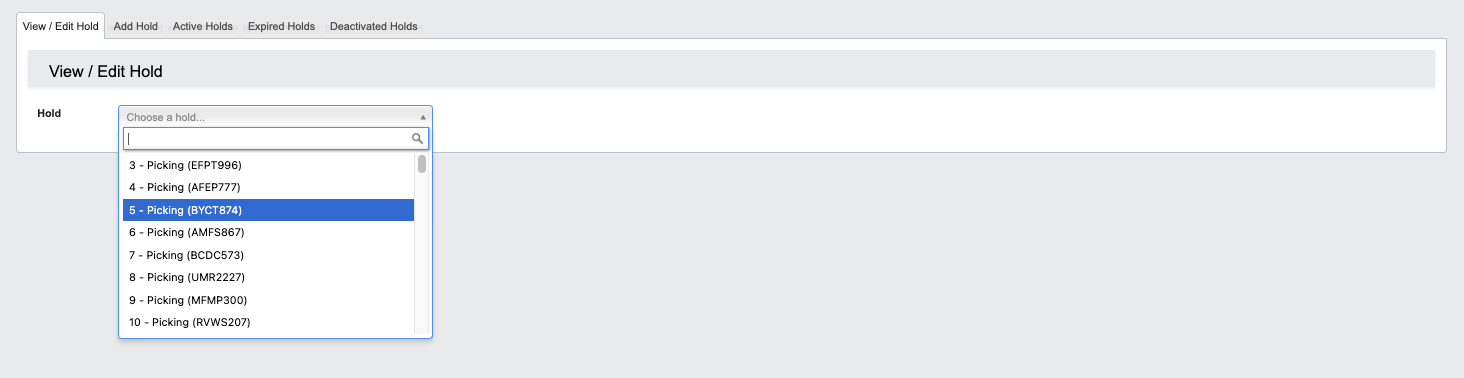
1. From the Part Information → Manage Holds submodule, click on the `View / Edit Hold` tab.
2. Click the dropdown menu next to the Hold field.
3. Enter the hold number you’re looking for, then click to select it.
4. You can now view the hold details, including status, type, reason and part number.
## View / Edit Hold
From within the View / Edit Hold tab, you can explore and manage existing hold information.
### Step 1: Pull up a hold
1. From the Part Information → Manage Holds submodule, click on the `View / Edit Hold` tab.
2. Click the dropdown menu next to the Hold field.
3. Enter the hold number you’re looking for, then click to select it.
4. You can now view the hold details, including status, type, reason and part number.
 ## Step 2: Use the toolbar to manage a hold.
Once you’ve pulled up a hold, you can manage it with the following features located in the toolbar:
## Step 2: Use the toolbar to manage a hold.
Once you’ve pulled up a hold, you can manage it with the following features located in the toolbar:
 * `Edit`: Edit the hold information.
* Once in the edit view:
* `Edit`: Edit the hold information.
* Once in the edit view:
 * Click `Cancel Editing` to cancel editing.
* Click `Determine Impact` to save your changes.
* `Release Hold`: Release the hold.
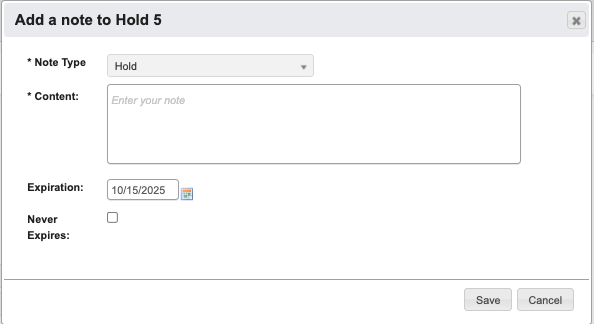
* `Add Note`: Attaches a comment to the hold. You can optionally choose an expiration date for the note.
* Click `Cancel Editing` to cancel editing.
* Click `Determine Impact` to save your changes.
* `Release Hold`: Release the hold.
* `Add Note`: Attaches a comment to the hold. You can optionally choose an expiration date for the note.
 ## Add Hold
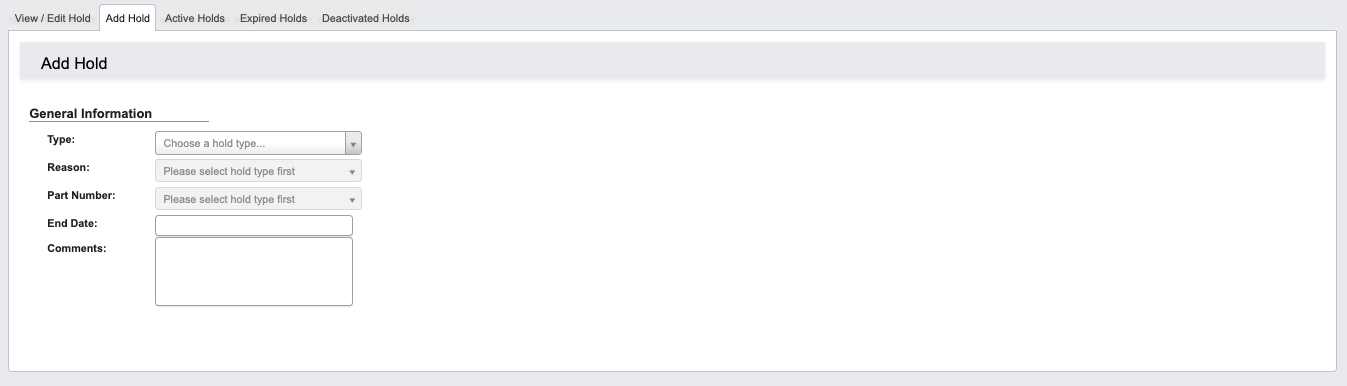 1. From the Part Information → Manage Holds submodule, click on the `Add Hold` tab.
2. Choose a `Type` from the drop down.
3. Choose a `Reason` from the drop down.
4. Choose a `Part Number` from the drop down.
5. (Optional) Add an `End Date`
6. Add a `Comment`
7. Click `Determine Impact` and then `Save` to create the hold.
The **Determine Impact** button analyzes where the affected part is currently used or referenced in the system. Depending on the **Hold Type**, this may include:
* **Pallets** containing the held material
* **Bottling Jobs**, **Batch Tickets**, or **Work Orders** that depend on the part
* **Orders** that may already be in process or picked
This preview helps you understand the full scope of the hold before it’s saved, allowing you to plan appropriate follow-up actions.
## Active Holds
From the Part Information → Manage Holds submodule, click on the `Active Holds` tab. This contains a table of active holds.
1. From the Part Information → Manage Holds submodule, click on the `Add Hold` tab.
2. Choose a `Type` from the drop down.
3. Choose a `Reason` from the drop down.
4. Choose a `Part Number` from the drop down.
5. (Optional) Add an `End Date`
6. Add a `Comment`
7. Click `Determine Impact` and then `Save` to create the hold.
The **Determine Impact** button analyzes where the affected part is currently used or referenced in the system. Depending on the **Hold Type**, this may include:
* **Pallets** containing the held material
* **Bottling Jobs**, **Batch Tickets**, or **Work Orders** that depend on the part
* **Orders** that may already be in process or picked
This preview helps you understand the full scope of the hold before it’s saved, allowing you to plan appropriate follow-up actions.
## Active Holds
From the Part Information → Manage Holds submodule, click on the `Active Holds` tab. This contains a table of active holds.
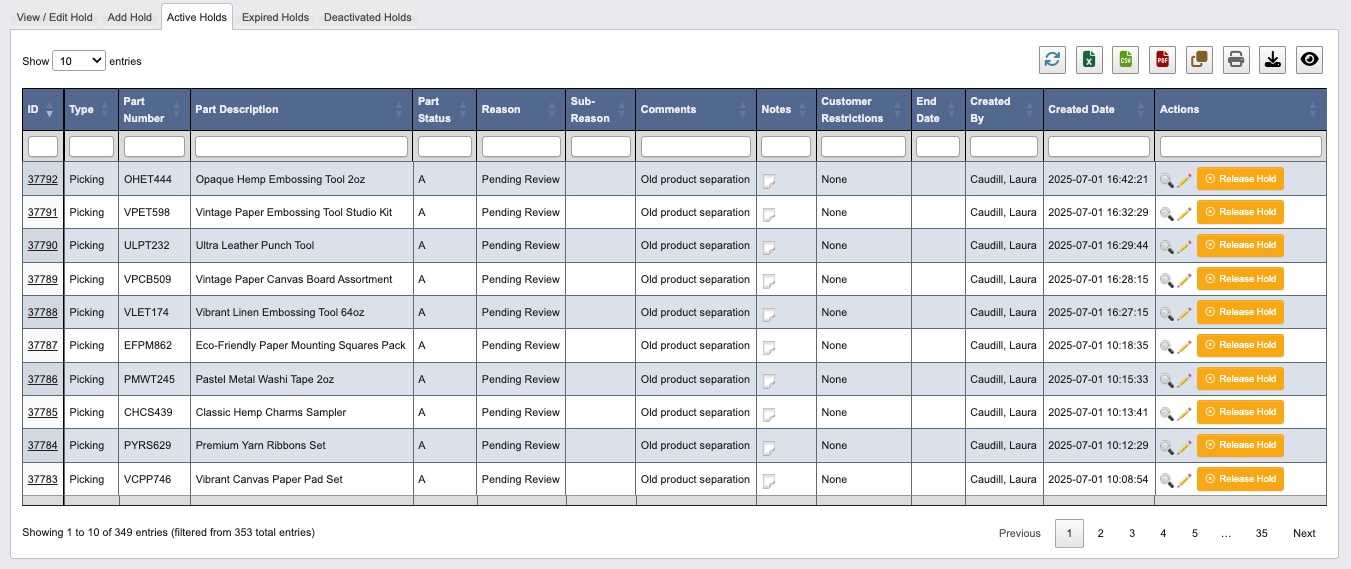 Within the tab, you can:
* Click on an attribute heading (such as ID) to sort in ascending order. Click again to sort in descending order.
* Click on a hold ID to view or manage the associated hold in the `View / Edit Hold` tab.
* Refresh, export, print, or filter data with the toolbar.
* Release holds
### How to release a hold
1. Scroll to the far right of the table and find the `Actions` column.
2. Click the `Release Hold` button.
3. Click “YES, deactivate” when prompted.
## Expired Holds
Within the tab, you can:
* Click on an attribute heading (such as ID) to sort in ascending order. Click again to sort in descending order.
* Click on a hold ID to view or manage the associated hold in the `View / Edit Hold` tab.
* Refresh, export, print, or filter data with the toolbar.
* Release holds
### How to release a hold
1. Scroll to the far right of the table and find the `Actions` column.
2. Click the `Release Hold` button.
3. Click “YES, deactivate” when prompted.
## Expired Holds
 The **Expired Holds** tab shows all the expired holds for a given date or range.
1. Click the `Expired Holds` tab.
2. Enter the **Expired date from** range.
3. Click `Generate Report`.
## Deactivated Holds
The **Expired Holds** tab shows all the expired holds for a given date or range.
1. Click the `Expired Holds` tab.
2. Enter the **Expired date from** range.
3. Click `Generate Report`.
## Deactivated Holds
 The **Deactivated Holds** tab shows all the deactivated holds for a given date or range.
1. Click the `Deactivated Holds` tab.
2. Enter the **Deactivated date from** range.
3. Click `Generate Report`.
The **Deactivated Holds** tab shows all the deactivated holds for a given date or range.
1. Click the `Deactivated Holds` tab.
2. Enter the **Deactivated date from** range.
3. Click `Generate Report`.