> ## Documentation Index
> Fetch the complete documentation index at: https://docs.decoart.com/llms.txt
> Use this file to discover all available pages before exploring further.
# Manage Product Classes Submodule
## Overview
The **Part Information → Manage Product Classes** submodule lets you view and manage product class records used across the DASH system for pricing, categorization, and reporting.
The submodule contains the following tabs:
* **Active Product Classes**: View product classes that are currently in use for pricing and categorization.
* **Inactive Product Classes**: View product class records that are no longer in use but preserved for historical reference.
* **Add Product Class**: Create a new product class record and save it in the database for use across DASH.
* **View / Edit Product Class**: Manage your existing product class information.
See the [Manage Formula Reference page](/part-information/manage-formula-reference) to learn more about product class sub-codes.
## Active Product Classes
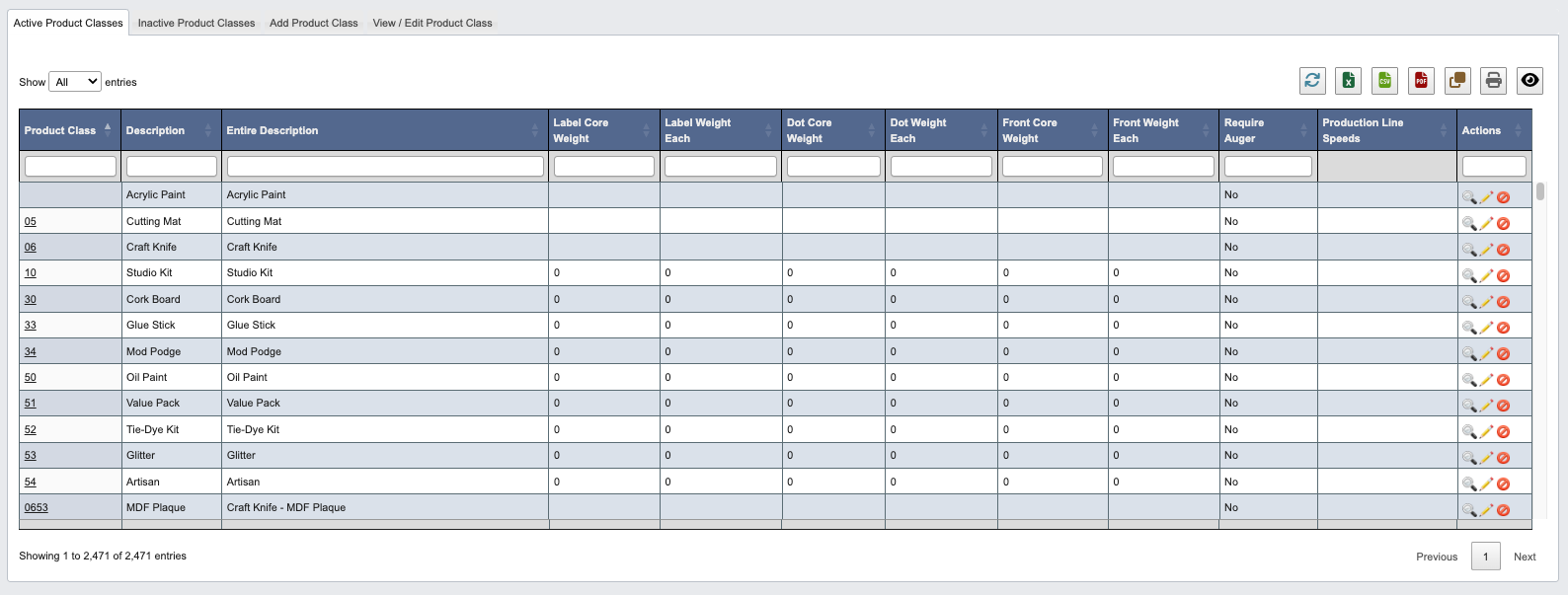
From the Part Information → Manage Product Classes submodule, click on the `Active Product Classes` tab. This contains a table of summarized product class records for every "active" product class.
Within this tab, you can:
* Click on an attribute heading (such as Product Class) to sort in ascending order. Click again to sort in descending order.
* Click on a Product Class Code to view or manage the associated product class records in the `View / Edit Product Class` tab.
* Refresh, export, print, or filter data with the toolbar.
### How to deactivate a product class
1. Scroll to the far right of the table and find the `Actions` column.
2. Click the `Deactivate Product Class` (red “no”) button.
3. Click “Deactivate Product Class” when prompted.
 ## Inactive Product Classes
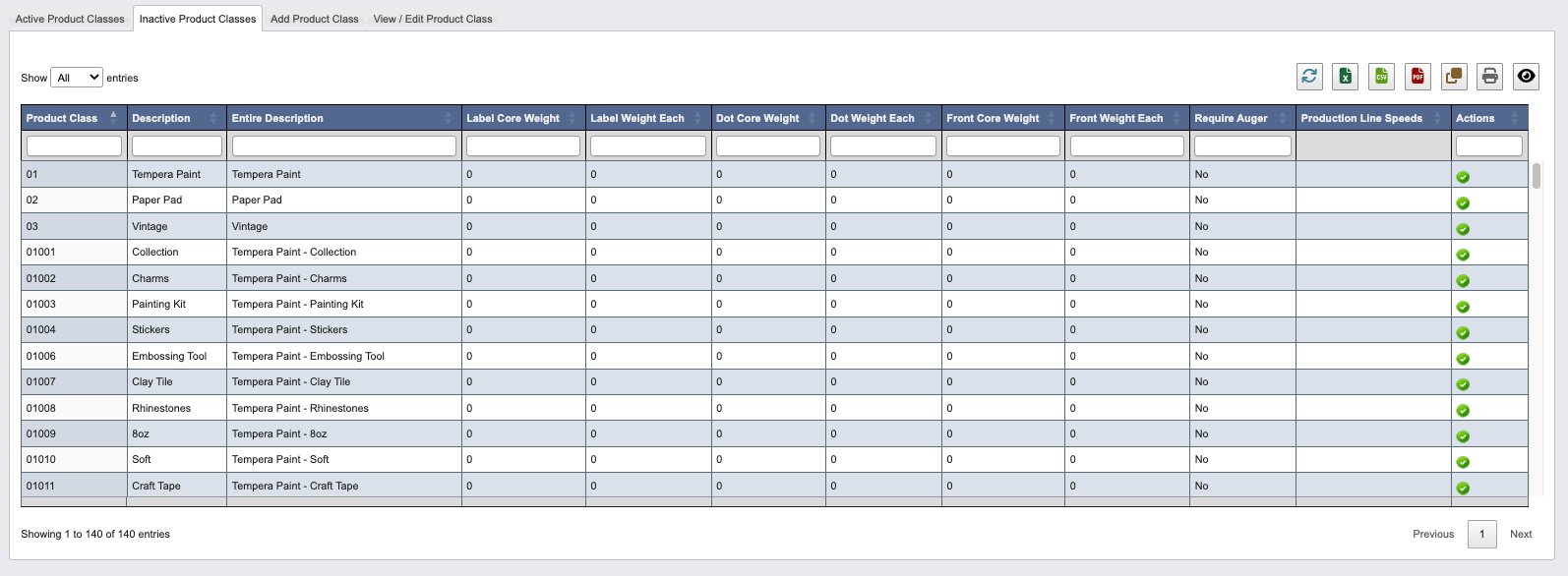
From the Part Information → Manage Product Classes submodule, click on the `Inactive Product Classes` tab. This contains a table of summarized product class records for every "inactive" product class.
Within this tab, you can:
* Click on an attribute heading (such as Product Class) to sort in ascending order. Click again to sort in descending order.
* Refresh, export, print, or filter data with the toolbar.
### How to mark a product class as active
1. Scroll to the far right of the table and find the `Actions` column.
2. Click the `Activate Product Class` (green "checkmark") button.
3. Click "Activate Product Class" when prompted.
## Inactive Product Classes
From the Part Information → Manage Product Classes submodule, click on the `Inactive Product Classes` tab. This contains a table of summarized product class records for every "inactive" product class.
Within this tab, you can:
* Click on an attribute heading (such as Product Class) to sort in ascending order. Click again to sort in descending order.
* Refresh, export, print, or filter data with the toolbar.
### How to mark a product class as active
1. Scroll to the far right of the table and find the `Actions` column.
2. Click the `Activate Product Class` (green "checkmark") button.
3. Click "Activate Product Class" when prompted.
 ## Add Product Class
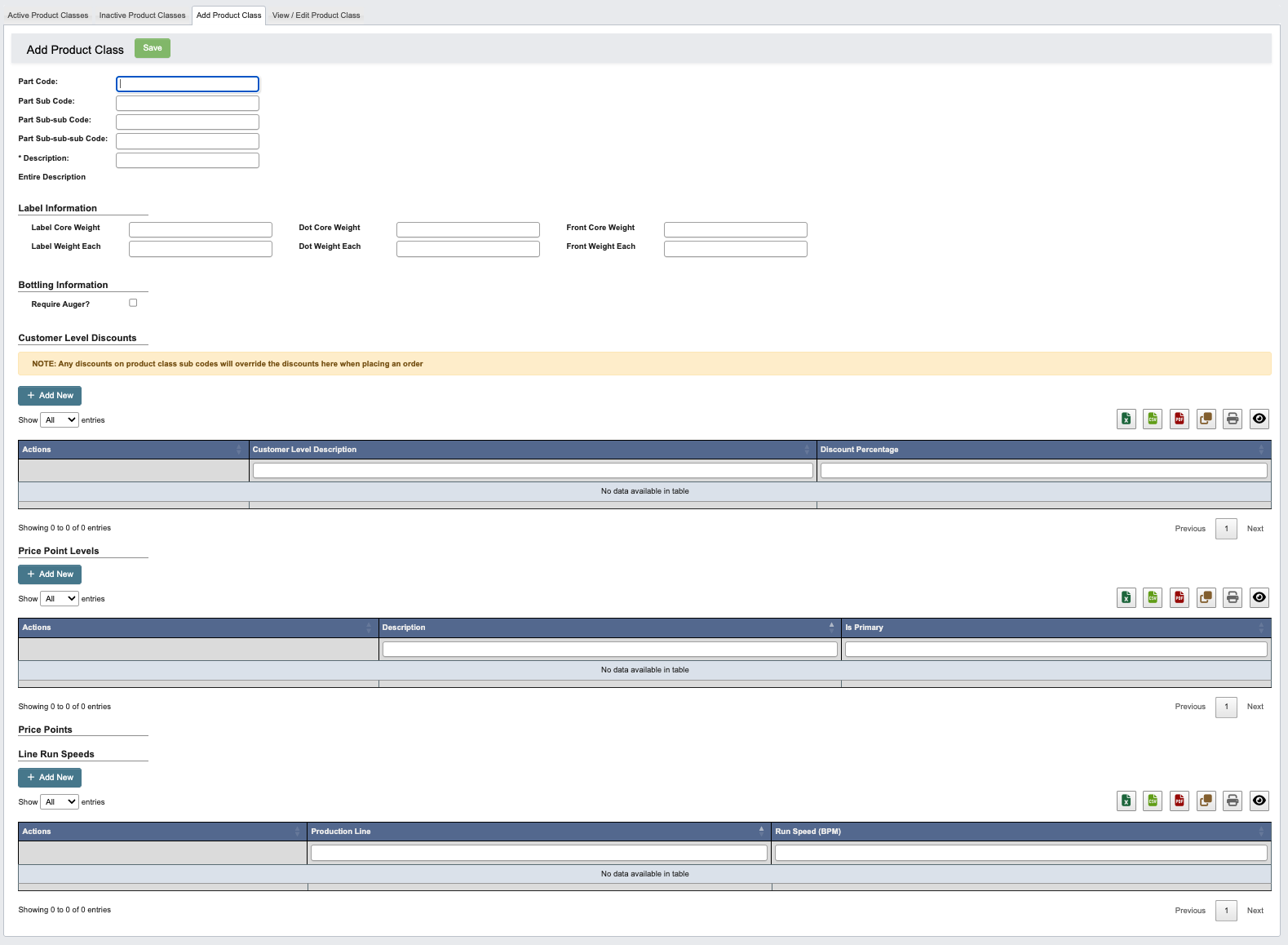
From the Part Information → Manage Product Classes submodule, click on the `Add Product Class` tab. Here you can add a new Product Class.
## Add Product Class
From the Part Information → Manage Product Classes submodule, click on the `Add Product Class` tab. Here you can add a new Product Class.
 ## View / Edit Product Class
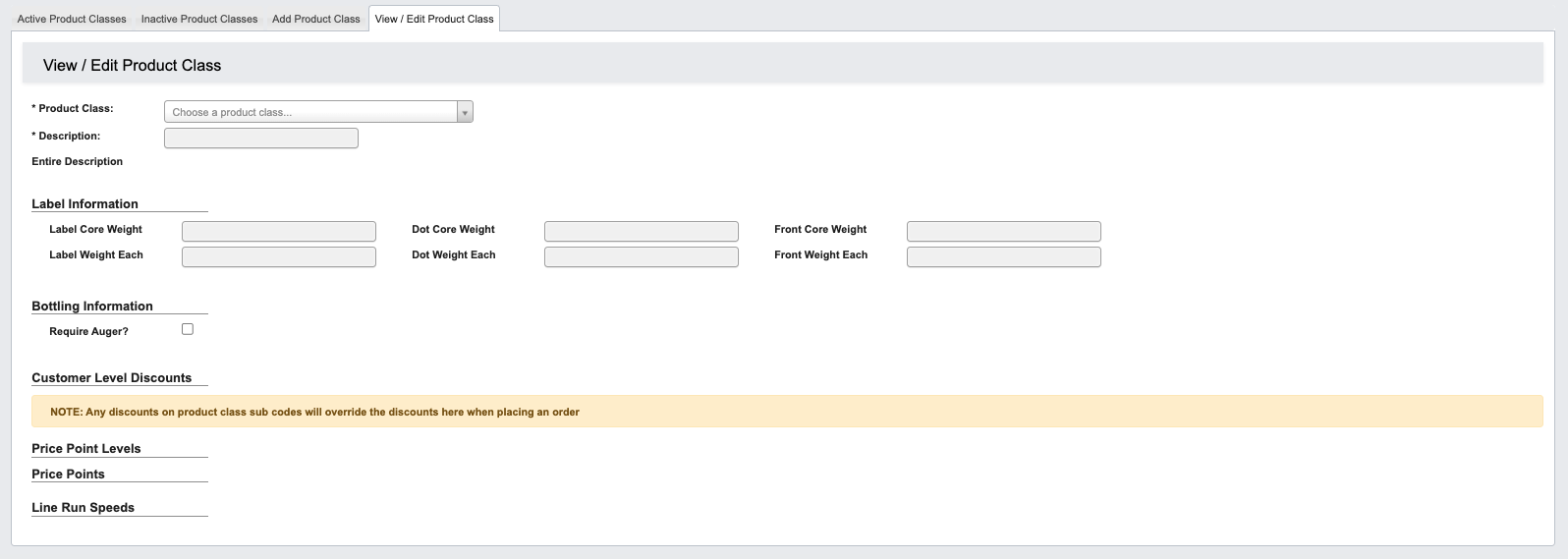
From within the View / Edit Product Class tab, you can explore and manage existing product class information.
## View / Edit Product Class
From within the View / Edit Product Class tab, you can explore and manage existing product class information.
 ### Step 1: Pull up a product class record
1. From the Part Information → Manage Product Classes submodule, click on the `View / Edit Product Class` tab.
2. Click the dropdown menu next to the Product Class field.
3. Enter the product class code or name you're looking for, then click to select it.
4. You can now view that product class's label, bottling, price point and line run speed information.
### Step 2: Use the toolbar to manage a product class record
Once you've pulled up a product class record, you can manage the information with the following features located in the toolbar:
* `Edit`: Edit product class information. Once in the edit view:
* Click `Cancel Editing` to cancel editing.
* Click `Save` to save your changes.
### Brand Color
Use the **Brand Color** field to mark a top-level (2-character) product class as a brand and give it a color. While editing, type a hex value such as `#c2e76b` or pick one with the color swatch next to the field. Leave the field blank if the class is not a brand.
### Step 1: Pull up a product class record
1. From the Part Information → Manage Product Classes submodule, click on the `View / Edit Product Class` tab.
2. Click the dropdown menu next to the Product Class field.
3. Enter the product class code or name you're looking for, then click to select it.
4. You can now view that product class's label, bottling, price point and line run speed information.
### Step 2: Use the toolbar to manage a product class record
Once you've pulled up a product class record, you can manage the information with the following features located in the toolbar:
* `Edit`: Edit product class information. Once in the edit view:
* Click `Cancel Editing` to cancel editing.
* Click `Save` to save your changes.
### Brand Color
Use the **Brand Color** field to mark a top-level (2-character) product class as a brand and give it a color. While editing, type a hex value such as `#c2e76b` or pick one with the color swatch next to the field. Leave the field blank if the class is not a brand.
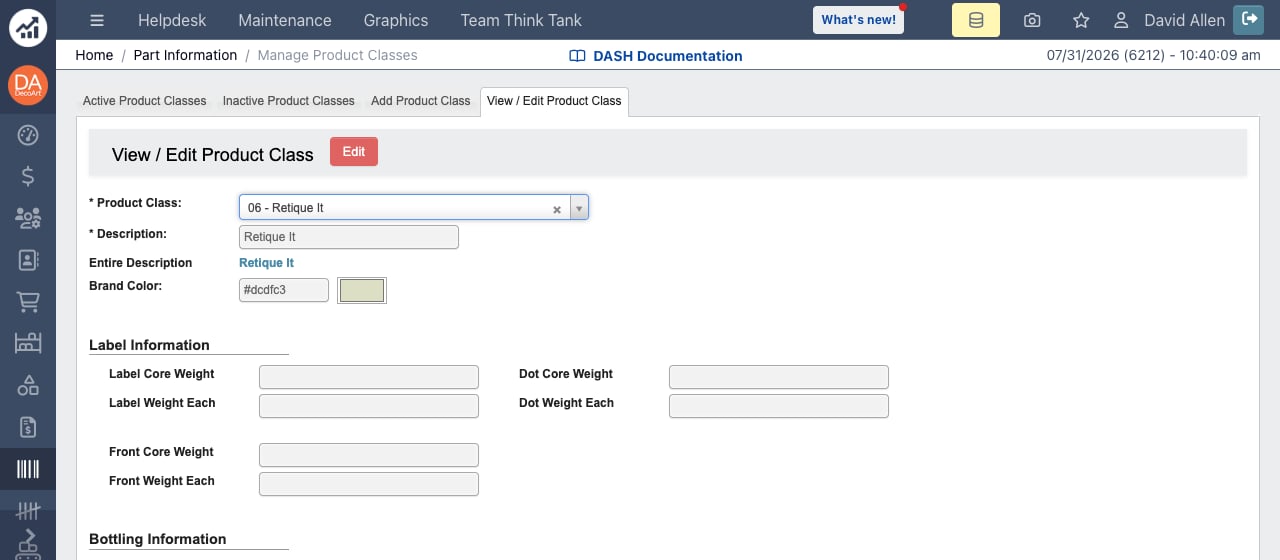 DASH uses the brand color anywhere the product class is color-coded:
* The selector pick screen shows per-brand open-order counts on channel buttons; only classes with a Brand Color are counted as brands. See [Order Picking](/order-processing/order-picking).
* The Active Product Classes tab shows each class's color in the Brand Color column.
DASH uses the brand color anywhere the product class is color-coded:
* The selector pick screen shows per-brand open-order counts on channel buttons; only classes with a Brand Color are counted as brands. See [Order Picking](/order-processing/order-picking).
* The Active Product Classes tab shows each class's color in the Brand Color column.