> ## Documentation Index
> Fetch the complete documentation index at: https://docs.decoart.com/llms.txt
> Use this file to discover all available pages before exploring further.
# Production Capture Reference
## Employee Information Card
* `Line`: This field is automatically populated based on your physical production line location.
* `Shift`: Automatically populated with the current shift number.
* `Operator`: Enter the employee ID number for the operator.
* `Packer`: Enter the employee ID number for the packer.
* Click `Add Packer` to include additional packers if needed.
* Use the `Remove Packer` (red "x") button to remove packers as needed.
### Employee Card: Binoculars Icon
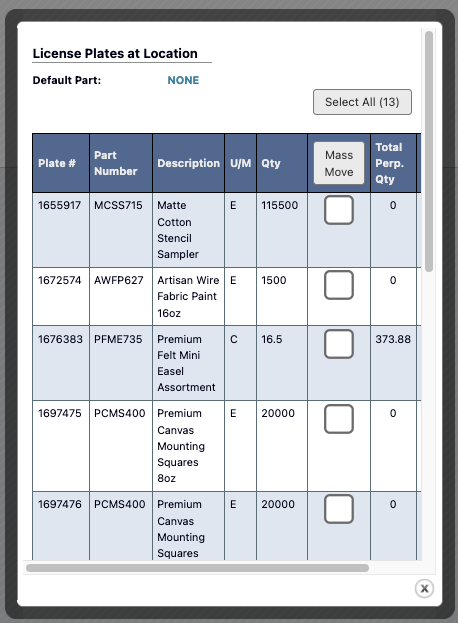
Click the `binoculars` icon next to the `Line` field to view license plates by location.
* This shows what pallets are currently at your production line.
* Use `Select All` or click individual checkboxes to select plates.
* Click the white boxes in the `Mass Move` column to relocate selected `Plate #` to a `New Location`.
 ## Bottling Job Information Card
* `# of Pumps Used`: Number of pumps for bottling job.
* `Batch #`: Batch number from production schedule, triggers bottling job popup.
* `Bottling Job #`: Specific job selection, auto-populated after batch number entry.
* `Pallet # on Barrel`: Pallet identification.
* `Scan new WIP Pallet`: Click to add additional WIP pallets to the job.
* `Previous Pallet Label`: Previous pallet reference, optional entry for continuity tracking.
## Setup Time
During the setup time, the following activities and information are available:
* **Comments**: Leave notes about the bottling job.
* **Other Bottling Jobs on Batch**: View other bottling jobs for the current batch.
* **Special Instructions**: Access job-specific instructions.
* **Pallet Information**: Review pallet details.
* **Part Information**: Access part specifications and details.
* **Manufacturing Documents**: View relevant manufacturing documents.
* **Status Information**: Monitor current job status.
* **Production Quantities**: Use `+ Add Qty` to add quantities as bottles are completed.
* **Time Tracking**: Monitor time spent on bottling job activities.
* Use the`Downtime` button to record downtime.
* Use the `End Run` button to end the production run.
## Periodic Checks
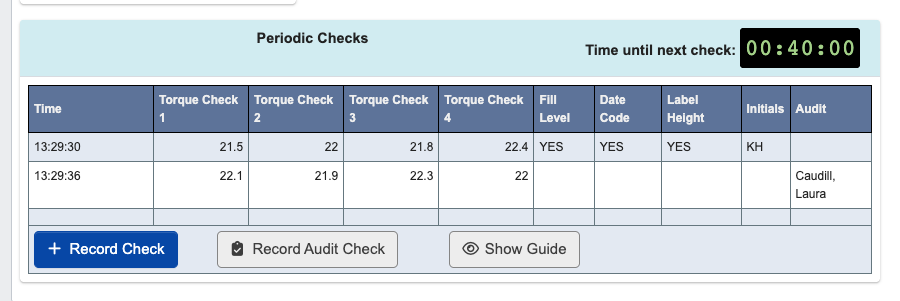
Once a run is in running time, the `Periodic Checks` card records lid torque readings along with fill level, date code, and label height. The `Time until next check` countdown shows when the next routine check is due: 15 minutes after the run starts, then once per hour.
## Bottling Job Information Card
* `# of Pumps Used`: Number of pumps for bottling job.
* `Batch #`: Batch number from production schedule, triggers bottling job popup.
* `Bottling Job #`: Specific job selection, auto-populated after batch number entry.
* `Pallet # on Barrel`: Pallet identification.
* `Scan new WIP Pallet`: Click to add additional WIP pallets to the job.
* `Previous Pallet Label`: Previous pallet reference, optional entry for continuity tracking.
## Setup Time
During the setup time, the following activities and information are available:
* **Comments**: Leave notes about the bottling job.
* **Other Bottling Jobs on Batch**: View other bottling jobs for the current batch.
* **Special Instructions**: Access job-specific instructions.
* **Pallet Information**: Review pallet details.
* **Part Information**: Access part specifications and details.
* **Manufacturing Documents**: View relevant manufacturing documents.
* **Status Information**: Monitor current job status.
* **Production Quantities**: Use `+ Add Qty` to add quantities as bottles are completed.
* **Time Tracking**: Monitor time spent on bottling job activities.
* Use the`Downtime` button to record downtime.
* Use the `End Run` button to end the production run.
## Periodic Checks
Once a run is in running time, the `Periodic Checks` card records lid torque readings along with fill level, date code, and label height. The `Time until next check` countdown shows when the next routine check is due: 15 minutes after the run starts, then once per hour.
 ### Record Check
Click `Record Check` to record the operator's routine check. This is the scheduled check the countdown tracks, and it can only be opened within 20 minutes of the next due time.
* Enter all four `Torque Value` readings.
* Confirm `Fill level`, `Date Code`, and `Label Height` match the standard. If any of these is not checked, a comment explaining why is required.
* Scan the label UPC when the part has one.
* Enter the initials of a logged-in employee on the run.
Submitting resets the countdown to the next hourly check.
### Record Audit Check
Click `Record Audit Check` to record a lid torque spot check outside the routine schedule. Use this when a supervisor or coordinator audits the line rather than the operator performing their scheduled check.
### Record Check
Click `Record Check` to record the operator's routine check. This is the scheduled check the countdown tracks, and it can only be opened within 20 minutes of the next due time.
* Enter all four `Torque Value` readings.
* Confirm `Fill level`, `Date Code`, and `Label Height` match the standard. If any of these is not checked, a comment explaining why is required.
* Scan the label UPC when the part has one.
* Enter the initials of a logged-in employee on the run.
Submitting resets the countdown to the next hourly check.
### Record Audit Check
Click `Record Audit Check` to record a lid torque spot check outside the routine schedule. Use this when a supervisor or coordinator audits the line rather than the operator performing their scheduled check.
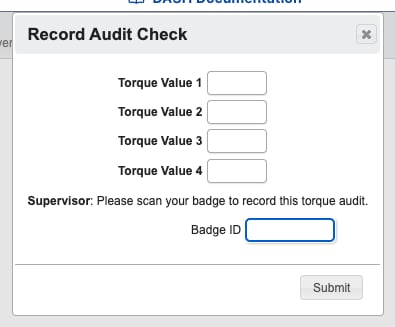 * An audit can be recorded at any time; it is not restricted by the countdown.
* Only the four `Torque Value` readings are captured. Fill level, date code, and label height are not part of an audit and stay blank on the recorded row.
* The auditor scans their `Badge ID` instead of entering initials. Only employees with the bottling line supervisor privilege are accepted; any other badge is rejected with an authorization error. Once accepted, the dialog shows `Audited by` with the auditor's name.
Audit rows appear in the `Periodic Checks` table with the auditor's name in the `Audit` column, both during the run and on the `View Bottling Job` run detail.
A passing audit does not reset the operator's countdown, so the routine check is still due at its scheduled time. If an audit records a torque reading below the requirement, the line is forced into an immediate re-check just as a failed routine check would be.
## Downtime Recording
The downtime phase captures non-productive time with detailed categorization.
1. Click `Downtime` to record periods when production is not active, including reasons for downtime and duration.
* An audit can be recorded at any time; it is not restricted by the countdown.
* Only the four `Torque Value` readings are captured. Fill level, date code, and label height are not part of an audit and stay blank on the recorded row.
* The auditor scans their `Badge ID` instead of entering initials. Only employees with the bottling line supervisor privilege are accepted; any other badge is rejected with an authorization error. Once accepted, the dialog shows `Audited by` with the auditor's name.
Audit rows appear in the `Periodic Checks` table with the auditor's name in the `Audit` column, both during the run and on the `View Bottling Job` run detail.
A passing audit does not reset the operator's countdown, so the routine check is still due at its scheduled time. If an audit records a torque reading below the requirement, the line is forced into an immediate re-check just as a failed routine check would be.
## Downtime Recording
The downtime phase captures non-productive time with detailed categorization.
1. Click `Downtime` to record periods when production is not active, including reasons for downtime and duration.
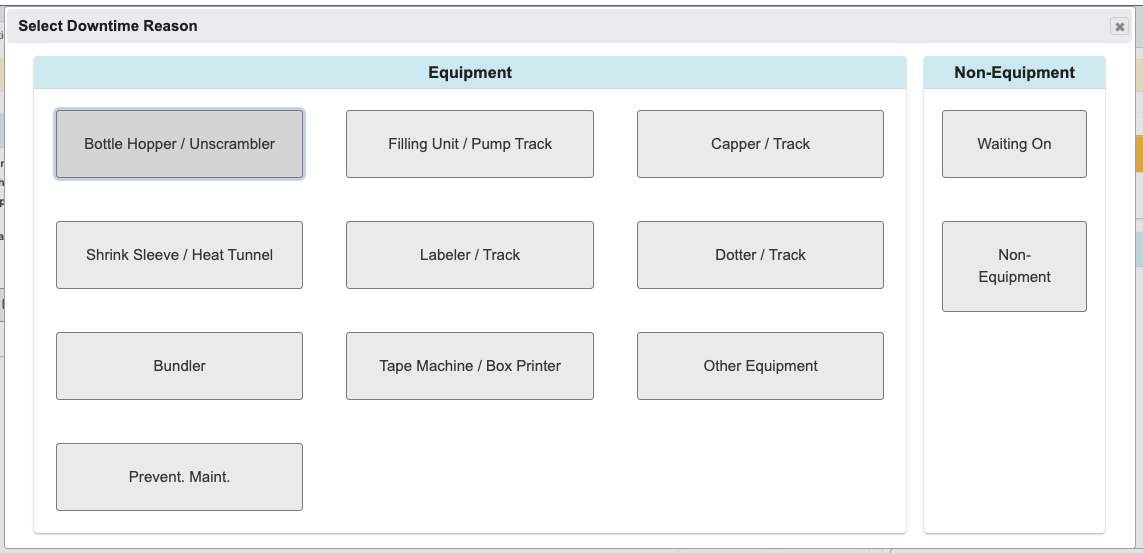 2. Choose a downtime reason. All options allow you to add comments for additional detail:
* Equipment: Select this if the downtime is caused by an equipment issue. Choose the specific reason and add comments as needed.
* Non-Equipment: Select this if the downtime is not equipment-related.
* Waiting On: Use this when production is paused due to other personnel, materials, or dependencies.
* Non-Equipment: Use this for breaks, cleanup, clearing tables, lunch, meetings, spills, or other non-equipment activities.
2. Choose a downtime reason. All options allow you to add comments for additional detail:
* Equipment: Select this if the downtime is caused by an equipment issue. Choose the specific reason and add comments as needed.
* Non-Equipment: Select this if the downtime is not equipment-related.
* Waiting On: Use this when production is paused due to other personnel, materials, or dependencies.
* Non-Equipment: Use this for breaks, cleanup, clearing tables, lunch, meetings, spills, or other non-equipment activities.