> ## Documentation Index
> Fetch the complete documentation index at: https://docs.decoart.com/llms.txt
> Use this file to discover all available pages before exploring further.
# Manage Purchase Orders Submodule
## Overview
The **Purchase Orders → Manage Purchase Orders** submodule is where buyers and requesters create, review, approve, send, and track purchase orders (POs). It supports two common flows:
* **Raw materials on a BOM** (buyers create a PO directly here).
* **Expense items** (requesters submit a **Request PO** for approval, then Purchasing reviews/approves).
This module helps buyers, requesters, and approvers manage the full PO lifecycle while giving operations and finance teams visibility into purchasing trends.
## Dashboard (Analysis & Trends)
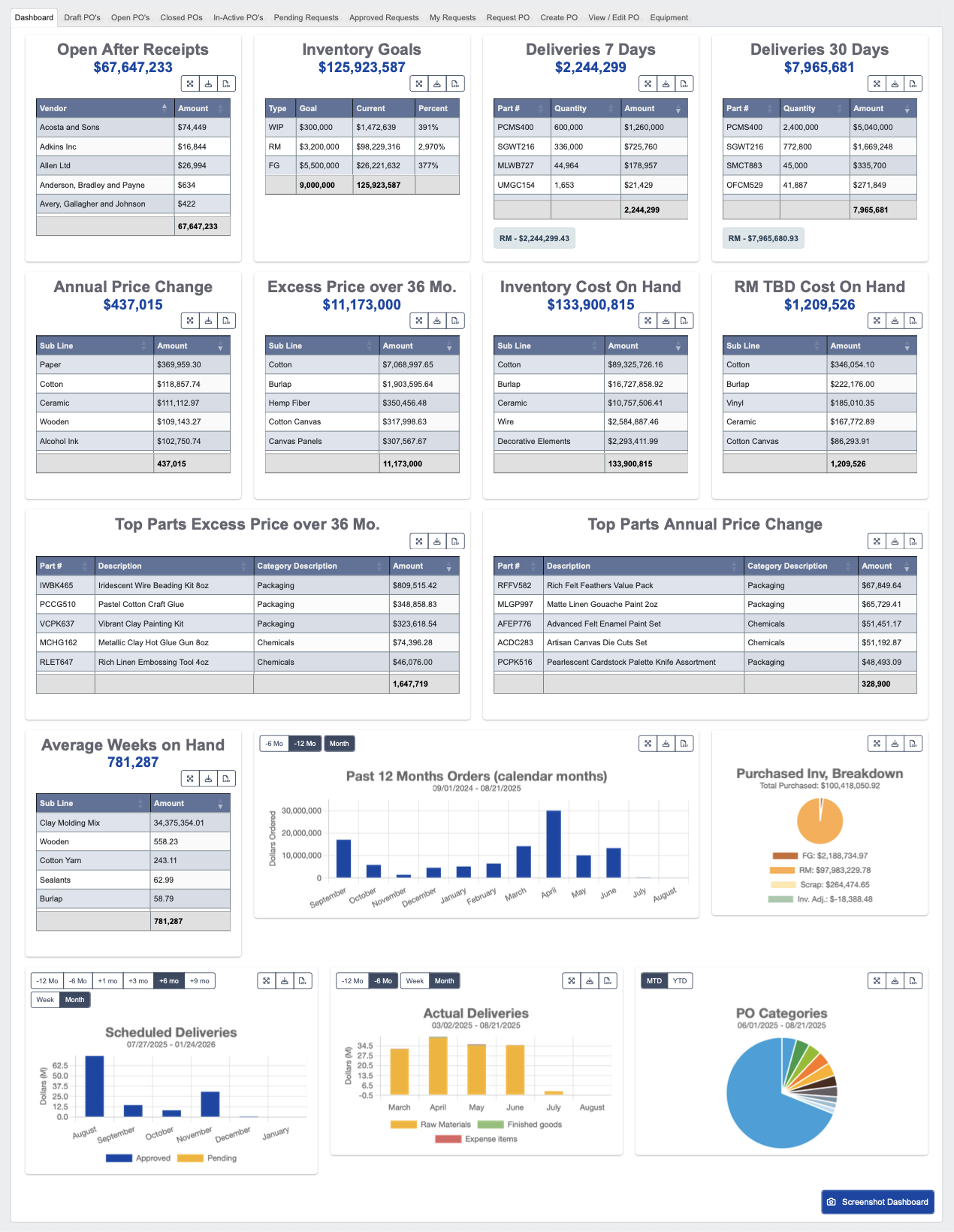 The dashboard gives you a quick look at purchasing activity and risk using a variety of widgets. Its features include:
### Table Widgets
* **Open After Receipts**: Shows the value of purchase orders that are still open after some items have already been received.
* This is a quick way to see what you still need to follow up on with the vendor.
* **Inventory Goals**: Shows overall inventory goals.
* This is mostly a reference point, not something you’ll use every day.
* **Deliveries 7 Days**: Shows what is scheduled to be delivered in the next week, including dollar amounts and material types.
* This is useful when deciding which orders to push through faster or hold off on.
* **Deliveries 30 Days**: Shows what is expected to arrive in the next 30 days.
* This gives you a good view of near-term inbound inventory.
* **Annual Price Change**: Shows how prices have changed over the past year by category.
* Use this to spot large increases and understand which areas may need attention in future purchases.
* **Excess Price over 36 Mo.**: Highlights items that have created extra cost over the last three years.
* This is helpful for identifying where savings opportunities may exist.
* **Inventory Cost on Hand**: Shows where your current inventory dollars are sitting, broken down by area or category.
* This helps you see where the money is tied up.
* **RM TBD Cost on Hand**: Shows how many dollars are tied up in raw materials marked “to be discontinued.” These items cannot be reordered until they are re-activated.
* **Top Parts Excess Price over 36 Mo.**: Lists the specific parts that are driving the excess cost shown in the 36-month chart.
* **Top Parts Annual Price Change**: Shows the parts that have had the biggest annual price changes.
* This is useful for deciding whether to renegotiate pricing or look for substitutes.
* **Average Weeks on Hand**: Shows how many weeks of supply you have on hand, broken out by sub line.
### Chart Widgets
* **Past 12 Months Orders (calendar months)**: Shows what was purchased each month over the last year.
* This is useful for spotting buying patterns or spikes.
* **Purchased Inv, Breakdown**: Shows a pie breakdown of your purchased spend, split into categories like raw materials, finished goods, scrap, and adjustments.
* This helps you see where most of your money is going.
* **Scheduled Deliveries**: Shows future deliveries by week or month. Approved deliveries show in blue, pending deliveries show in yellow.
* Use this to see what’s coming in over the lead-time period.
* **Actual Deliveries**: Shows what has actually been received over time.
* Use this to compare received deliveries against scheduled deliveries, and check if things came in as expected.
* **PO Categories**: This chart shows the mix of purchase orders by type or material. It’s a quick view of where orders are concentrated.
### Navigation
Navigating the **Manage Purchase Orders Dashboard** is similar to navigating the overall Dash Dashboard: [Navigate the DASH Interface](/getting-started/navigating-the-dash-interface)
* All widgets let you expand their size, download the widget, or export data as a CSV. Chart widgets download as a PNG image, and table widgets download as an Excel file.
The dashboard gives you a quick look at purchasing activity and risk using a variety of widgets. Its features include:
### Table Widgets
* **Open After Receipts**: Shows the value of purchase orders that are still open after some items have already been received.
* This is a quick way to see what you still need to follow up on with the vendor.
* **Inventory Goals**: Shows overall inventory goals.
* This is mostly a reference point, not something you’ll use every day.
* **Deliveries 7 Days**: Shows what is scheduled to be delivered in the next week, including dollar amounts and material types.
* This is useful when deciding which orders to push through faster or hold off on.
* **Deliveries 30 Days**: Shows what is expected to arrive in the next 30 days.
* This gives you a good view of near-term inbound inventory.
* **Annual Price Change**: Shows how prices have changed over the past year by category.
* Use this to spot large increases and understand which areas may need attention in future purchases.
* **Excess Price over 36 Mo.**: Highlights items that have created extra cost over the last three years.
* This is helpful for identifying where savings opportunities may exist.
* **Inventory Cost on Hand**: Shows where your current inventory dollars are sitting, broken down by area or category.
* This helps you see where the money is tied up.
* **RM TBD Cost on Hand**: Shows how many dollars are tied up in raw materials marked “to be discontinued.” These items cannot be reordered until they are re-activated.
* **Top Parts Excess Price over 36 Mo.**: Lists the specific parts that are driving the excess cost shown in the 36-month chart.
* **Top Parts Annual Price Change**: Shows the parts that have had the biggest annual price changes.
* This is useful for deciding whether to renegotiate pricing or look for substitutes.
* **Average Weeks on Hand**: Shows how many weeks of supply you have on hand, broken out by sub line.
### Chart Widgets
* **Past 12 Months Orders (calendar months)**: Shows what was purchased each month over the last year.
* This is useful for spotting buying patterns or spikes.
* **Purchased Inv, Breakdown**: Shows a pie breakdown of your purchased spend, split into categories like raw materials, finished goods, scrap, and adjustments.
* This helps you see where most of your money is going.
* **Scheduled Deliveries**: Shows future deliveries by week or month. Approved deliveries show in blue, pending deliveries show in yellow.
* Use this to see what’s coming in over the lead-time period.
* **Actual Deliveries**: Shows what has actually been received over time.
* Use this to compare received deliveries against scheduled deliveries, and check if things came in as expected.
* **PO Categories**: This chart shows the mix of purchase orders by type or material. It’s a quick view of where orders are concentrated.
### Navigation
Navigating the **Manage Purchase Orders Dashboard** is similar to navigating the overall Dash Dashboard: [Navigate the DASH Interface](/getting-started/navigating-the-dash-interface)
* All widgets let you expand their size, download the widget, or export data as a CSV. Chart widgets download as a PNG image, and table widgets download as an Excel file.
 * Some let you filter by time period:

 * `-12 Mo` - past 12 months
* `-6 Mo` - past 6 months
* `+1 mo` - upcoming month
* `+3 mo` - upcoming 3 months
* `+6 mo` - upcoming 6 months
* `+9 mo` - upcoming 9 months
* `MTD` - month-to-date
* `YTD` - year-to-date
**Time unit filter**:
* `-12 Mo` - past 12 months
* `-6 Mo` - past 6 months
* `+1 mo` - upcoming month
* `+3 mo` - upcoming 3 months
* `+6 mo` - upcoming 6 months
* `+9 mo` - upcoming 9 months
* `MTD` - month-to-date
* `YTD` - year-to-date
**Time unit filter**:
 * `Week` - view data week-by-week
* `Month` - view data month-by-month
## What You Can Do
The **Manage Purchase Orders** submodule contains several other tabs that let you manage POs and related information throughout their lifecycle.
### Draft PO’s
* `Week` - view data week-by-week
* `Month` - view data month-by-month
## What You Can Do
The **Manage Purchase Orders** submodule contains several other tabs that let you manage POs and related information throughout their lifecycle.
### Draft PO’s
 The **Draft PO’s** tab shows all POs that are saved as Drafts. This is handy if you want to save a PO without submitting it.
While they’re here, you can come back and edit them until you’re ready to submit them.
### Open PO’s
The **Draft PO’s** tab shows all POs that are saved as Drafts. This is handy if you want to save a PO without submitting it.
While they’re here, you can come back and edit them until you’re ready to submit them.
### Open PO’s
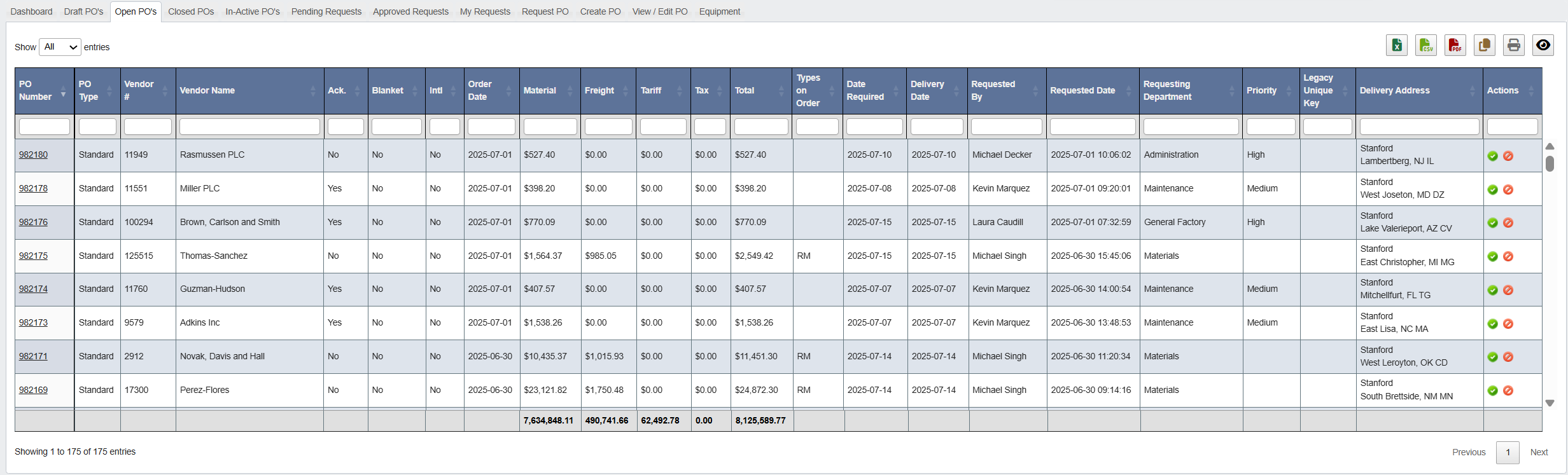 The Open POs tab shows all purchase orders that have not yet been delivered in full or manually closed out.
Here, you can acknowledge supplier confirmation (optional):
1. Click on a **`PO number`**.
2. Click **`Edit`**.
The Open POs tab shows all purchase orders that have not yet been delivered in full or manually closed out.
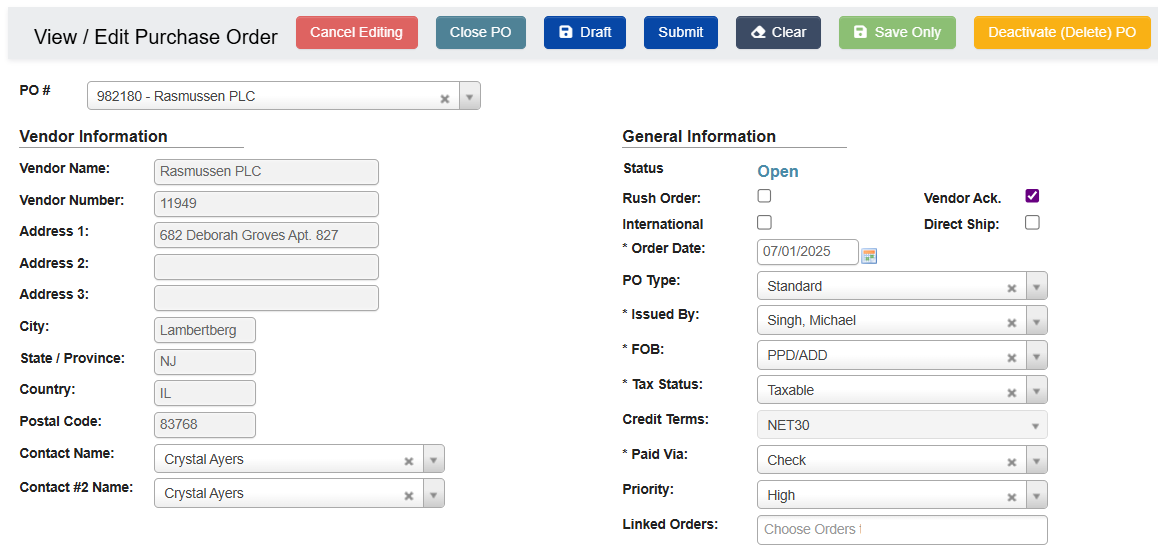
Here, you can acknowledge supplier confirmation (optional):
1. Click on a **`PO number`**.
2. Click **`Edit`**.
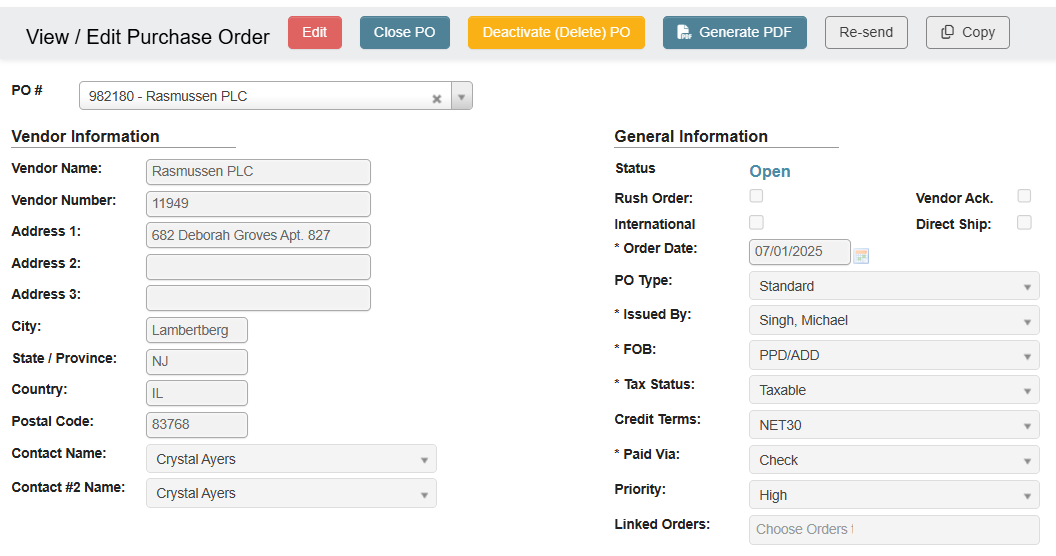 3. Check the box under **`Vendor Ack.`**.
 ### Closed POs
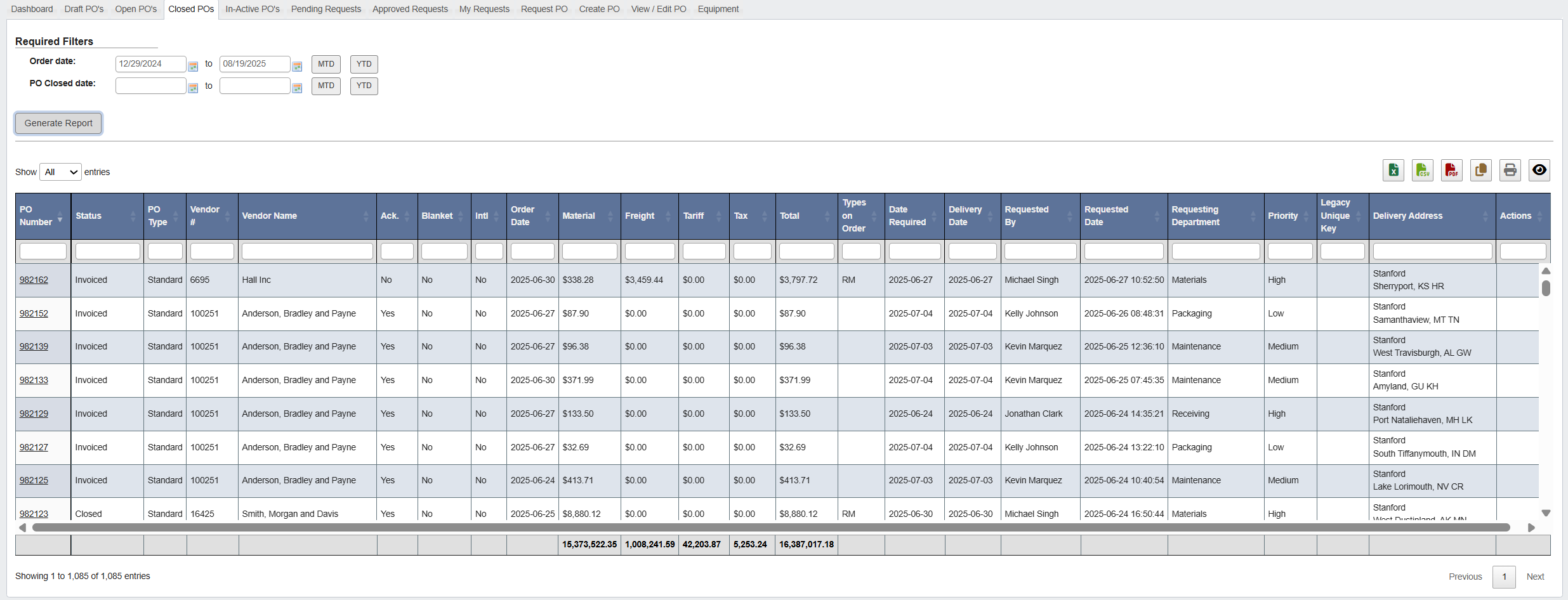 The **Closed POs** tab shows all historical, fully received or manually closed POs. Use the date range picker to retrieve results (you have to select at least one date range, either **Order date** or **PO Closed date**).
### Inactive PO’s
The **Closed POs** tab shows all historical, fully received or manually closed POs. Use the date range picker to retrieve results (you have to select at least one date range, either **Order date** or **PO Closed date**).
### Inactive PO’s
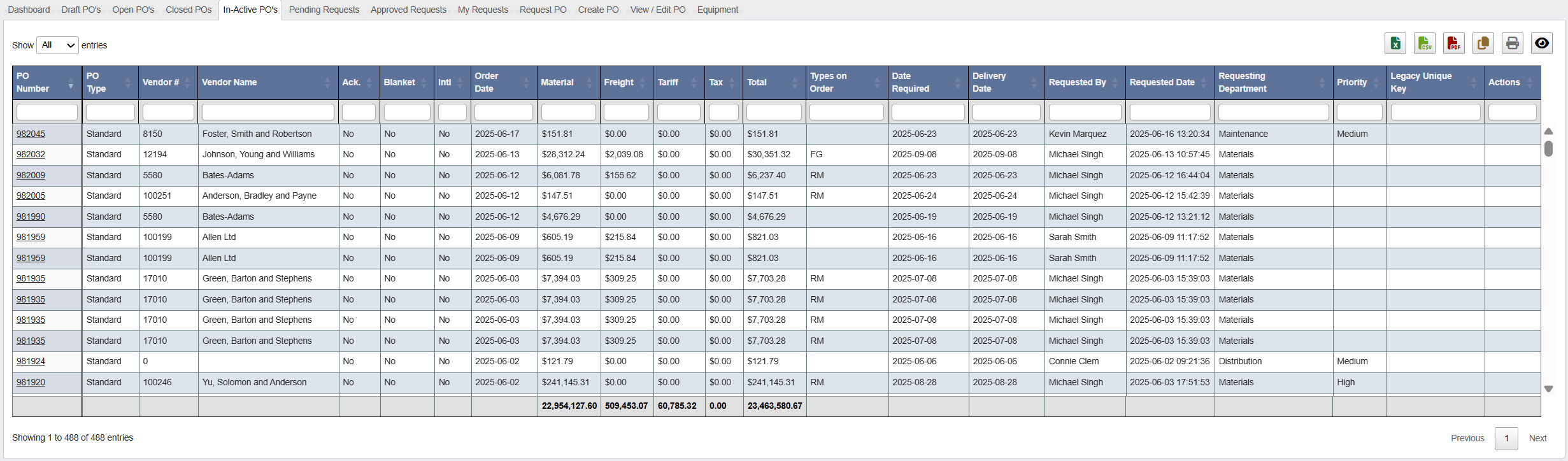 The **In-Active PO’s** tab shows all deactivated POs. Note that buyers can **deactivate** from the PO view, but only IT can **reactivate** if something was removed in error.
### Pending Requests
The **In-Active PO’s** tab shows all deactivated POs. Note that buyers can **deactivate** from the PO view, but only IT can **reactivate** if something was removed in error.
### Pending Requests
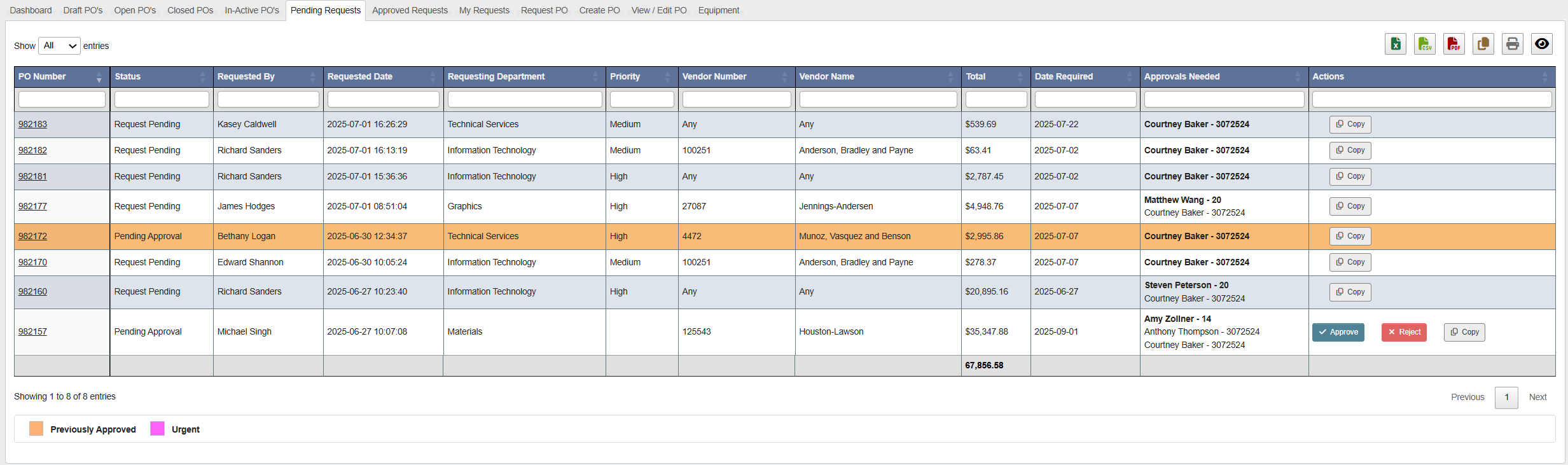 The **Pending Requests** tab contains a queue of POs awaiting approval. Buyers and approvers should review this tab regularly. From it, you keep track of PO status, approver routing, and history of changes.
Once approved, items move to the **Approved Requests** tab.
### Approved Requests
The **Pending Requests** tab contains a queue of POs awaiting approval. Buyers and approvers should review this tab regularly. From it, you keep track of PO status, approver routing, and history of changes.
Once approved, items move to the **Approved Requests** tab.
### Approved Requests
 These are requests that have been **approved** but **not yet sent** to suppliers.
To email the PO to the supplier:
* Click on the **PO Number** to open the PO.
* Click **Edit**.
These are requests that have been **approved** but **not yet sent** to suppliers.
To email the PO to the supplier:
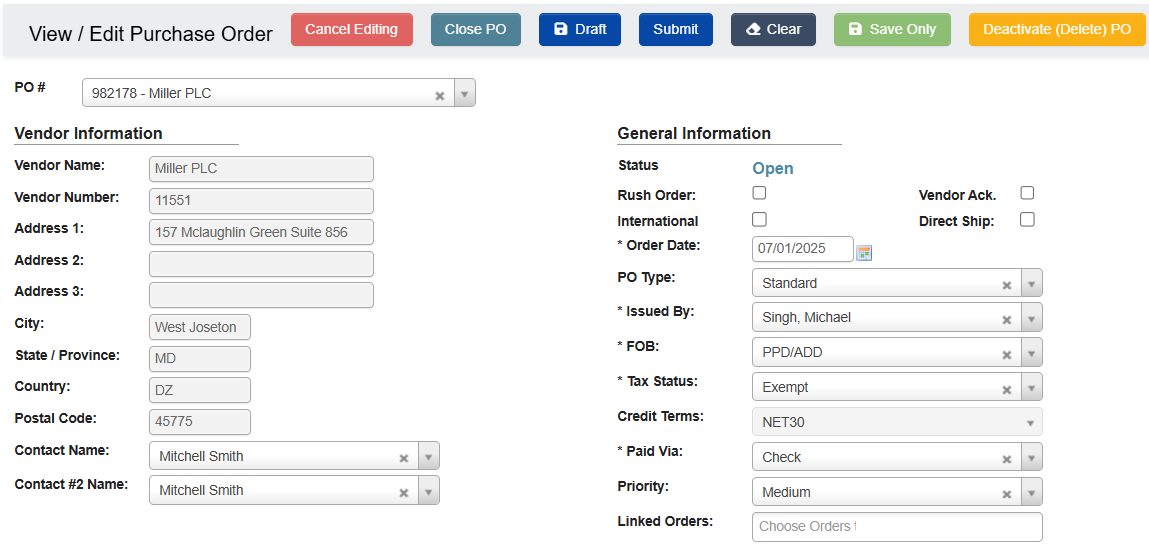
* Click on the **PO Number** to open the PO.
* Click **Edit**.
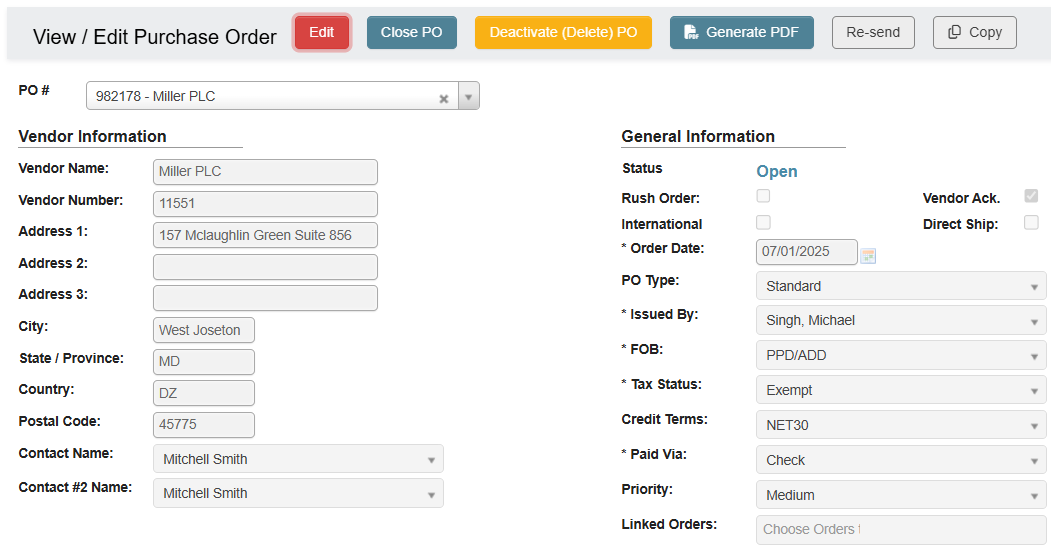 * Click **Submit**.
 ### My Requests
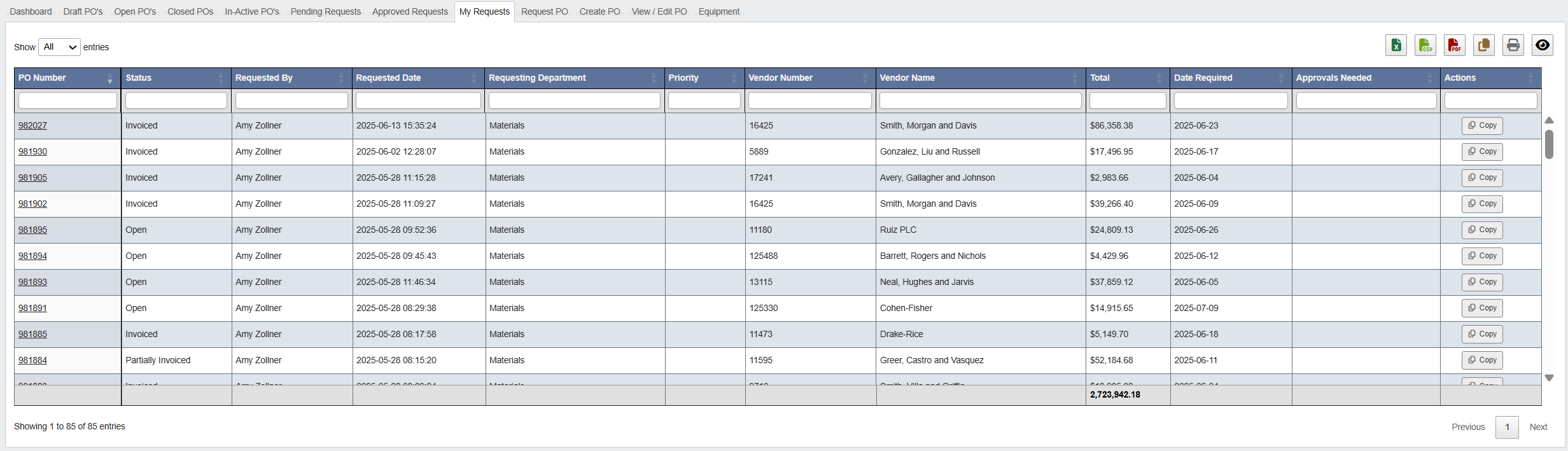 The **My Requests** tab shows a list of expense purchases that you’ve requested. It is mainly useful for occasional requesters to find their own submissions (e.g., “what did I order last year?”).
### Request PO (expense items)
The **My Requests** tab shows a list of expense purchases that you’ve requested. It is mainly useful for occasional requesters to find their own submissions (e.g., “what did I order last year?”).
### Request PO (expense items)
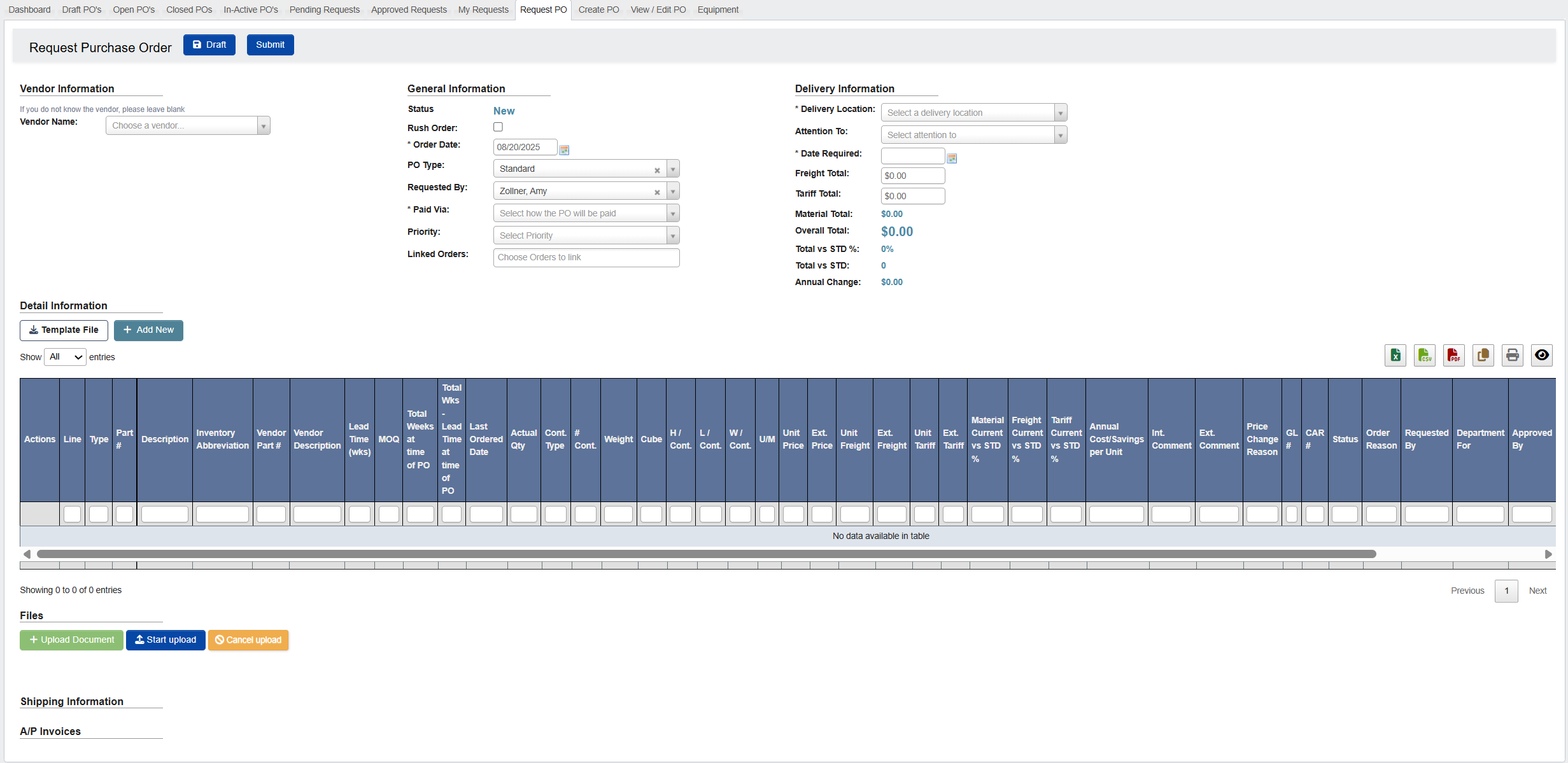 This tab is used for **non-BOM expense** purchases (e.g., office or maintenance supplies). You will notice that the form is shorter than the form for a raw material PO.
When submitted, an email goes to the requester’s supervisor for approval. After that, it appears in the **Pending Requests** tab for review/approval.
To learn how to request a PO, follow this tutorial: [Purchase Orders - Tutorial: Request a Purchase Order](/purchase-orders//purchase-orders-tutorial-request-a-purchase-order)
### Create PO
This tab is used for **non-BOM expense** purchases (e.g., office or maintenance supplies). You will notice that the form is shorter than the form for a raw material PO.
When submitted, an email goes to the requester’s supervisor for approval. After that, it appears in the **Pending Requests** tab for review/approval.
To learn how to request a PO, follow this tutorial: [Purchase Orders - Tutorial: Request a Purchase Order](/purchase-orders//purchase-orders-tutorial-request-a-purchase-order)
### Create PO
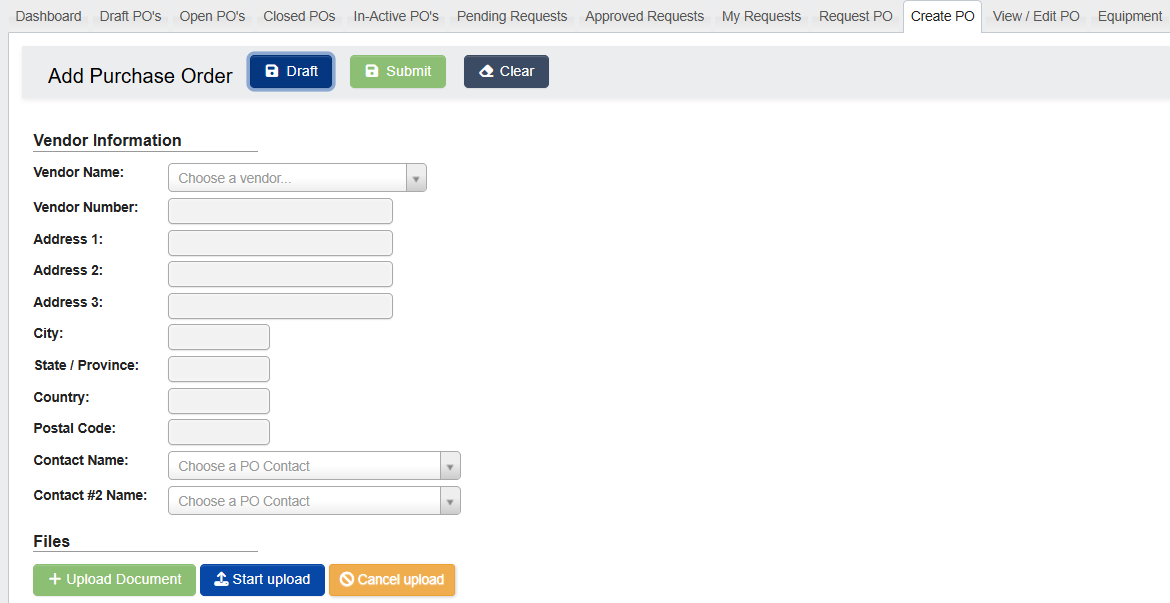 The **Create PO** tab is where you make a new purchase order.
Follow this tutorial to create a PO: [Purchase Orders - Tutorial: Create a Purchase Order (PO)](/purchase-orders/purchase-orders-tutorial-create-a-purchase-order)
Once saved, the PO moves into the purchasing workflow so it can be tracked, approved, and sent to the supplier.
### View / Edit PO
The **Create PO** tab is where you make a new purchase order.
Follow this tutorial to create a PO: [Purchase Orders - Tutorial: Create a Purchase Order (PO)](/purchase-orders/purchase-orders-tutorial-create-a-purchase-order)
Once saved, the PO moves into the purchasing workflow so it can be tracked, approved, and sent to the supplier.
### View / Edit PO
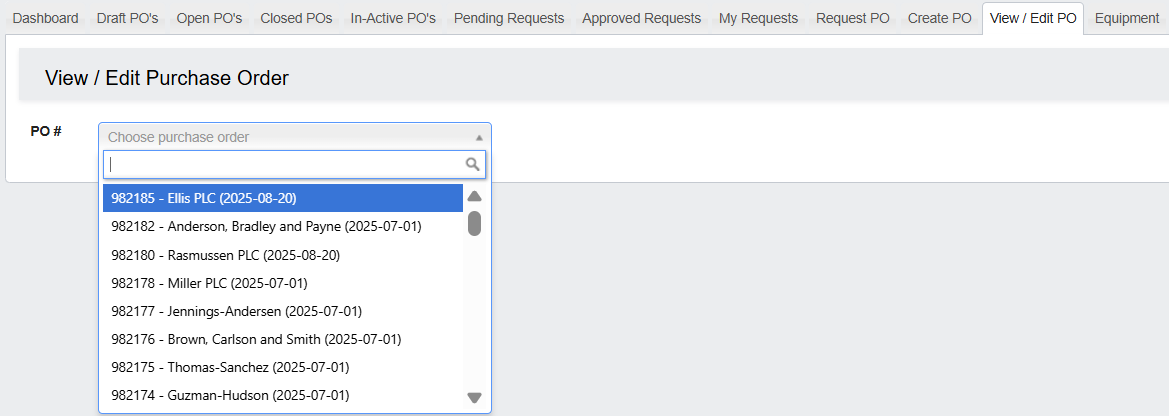 From the **View / Edit PO** tab, you can open any PO to review its history, edit fields (permissions permitting), acknowledge confirmation, apply rush flags, **bulk close or reopen selected line items** on open POs from the Detail Information table, or **send/resend** to supplier from the Approved state.
Follow this tutorial to view/edit a PO: [Purchase Orders - Tutorial: View / Edit a Purchase Order](/purchase-orders/purchase-orders-tutorial-view-edit-a-purchase-order)
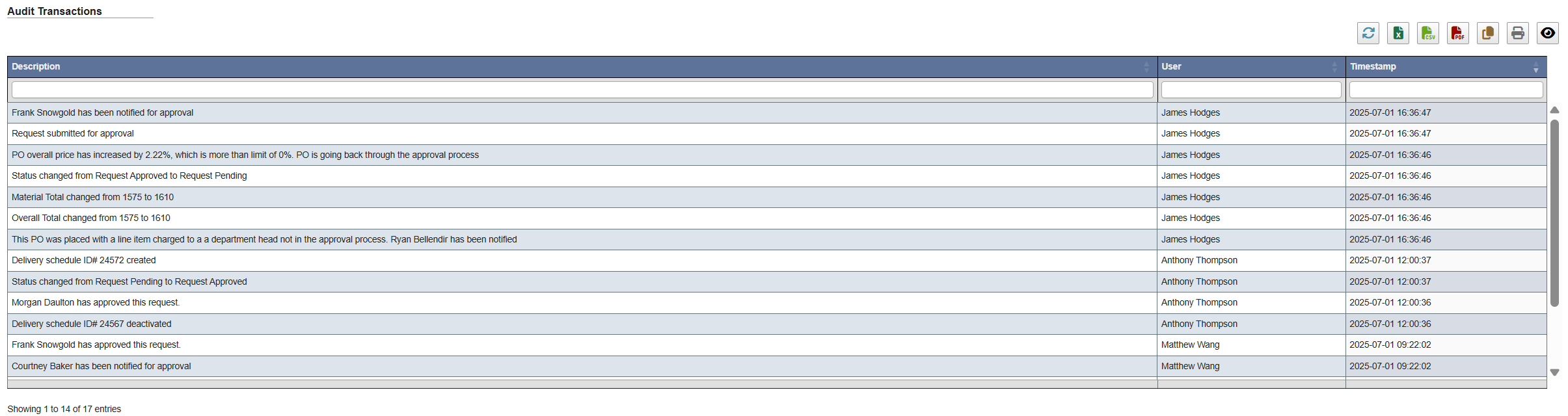
The **Audit Transactions** at the bottom shows all changes, who made them, and when.
From the **View / Edit PO** tab, you can open any PO to review its history, edit fields (permissions permitting), acknowledge confirmation, apply rush flags, **bulk close or reopen selected line items** on open POs from the Detail Information table, or **send/resend** to supplier from the Approved state.
Follow this tutorial to view/edit a PO: [Purchase Orders - Tutorial: View / Edit a Purchase Order](/purchase-orders/purchase-orders-tutorial-view-edit-a-purchase-order)
The **Audit Transactions** at the bottom shows all changes, who made them, and when.
 ### Equipment
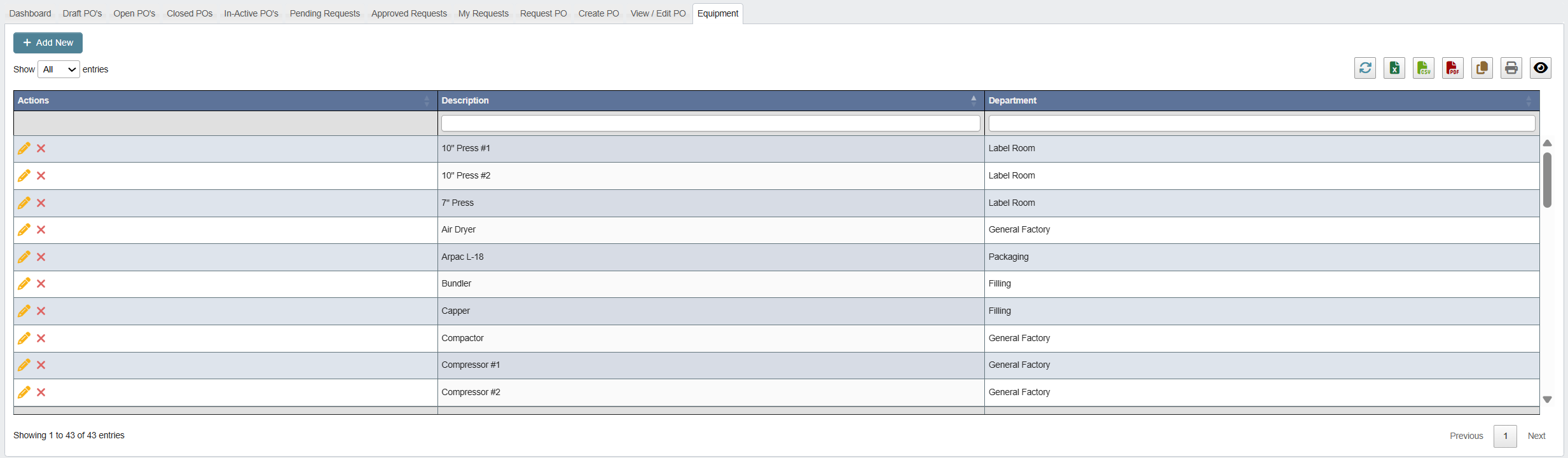 The **Equipment** tab shows a list of equipment used in the factory or production areas.
Each row shows a piece of equipment, its description, and which department it belongs to.
* You can add new equipment, edit existing entries, or remove ones that are no longer needed.
* This list helps tie purchases and requests back to relevant machines or areas of the plant.
The **Equipment** tab shows a list of equipment used in the factory or production areas.
Each row shows a piece of equipment, its description, and which department it belongs to.
* You can add new equipment, edit existing entries, or remove ones that are no longer needed.
* This list helps tie purchases and requests back to relevant machines or areas of the plant.