> ## Documentation Index
> Fetch the complete documentation index at: https://docs.decoart.com/llms.txt
> Use this file to discover all available pages before exploring further.
# Purchase Orders - Purchase Orders Reference
## PO Toolbar
 * `Edit`: Access the Edit Purchase Order Toolbar.
* `Deactivate (Delete) PO`: Deactivate or delete the PO.
* `Generate PDF`: Generate a PDF of the PO.
* `Copy`: Creates a new Request PO with the PO information copied over.
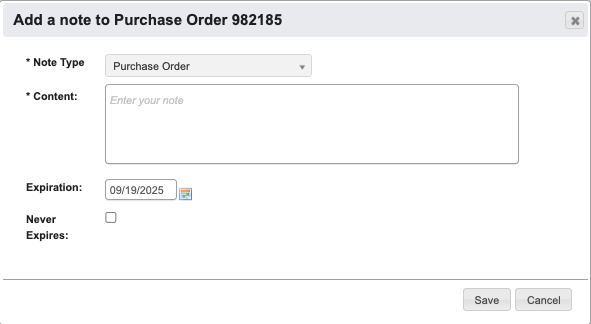
* `Add Note`: Attaches a note to the PO. You can optionally choose an expiration date for the note.
* `Edit`: Access the Edit Purchase Order Toolbar.
* `Deactivate (Delete) PO`: Deactivate or delete the PO.
* `Generate PDF`: Generate a PDF of the PO.
* `Copy`: Creates a new Request PO with the PO information copied over.
* `Add Note`: Attaches a note to the PO. You can optionally choose an expiration date for the note.
 ## Edit Purchase Order Toolbar
 * `Cancel Editing`: Cancel editing.
* `Draft`: Save the changes the the PO as a draft.
* `Submit`: Submit the PO for approval.
* `Clear`: Clear all information from the PO.
* `Save Only`: Save the PO, but not submit it for approval.
## Other PO Toolbars
Some POs may have different toolbars. Here are a few you may see depending on your role.
* Deactivated PO: No buttons show up because this PO is closed. You may be able to `Copy` to create a new PO request with the same information, but otherwise you can not edit this PO.
* `Cancel Editing`: Cancel editing.
* `Draft`: Save the changes the the PO as a draft.
* `Submit`: Submit the PO for approval.
* `Clear`: Clear all information from the PO.
* `Save Only`: Save the PO, but not submit it for approval.
## Other PO Toolbars
Some POs may have different toolbars. Here are a few you may see depending on your role.
* Deactivated PO: No buttons show up because this PO is closed. You may be able to `Copy` to create a new PO request with the same information, but otherwise you can not edit this PO.
 * RUSH ORDER PO: A PO that is labeled as a rush order.
 * Open PO that can be resent or closed.
 * `Close PO`: Close the PO.
* `Re-send`: Re-send the PO to the vendor.
* Request Purchase Order: You will only see these if you are in a role that can approve or reject POs.
* `Close PO`: Close the PO.
* `Re-send`: Re-send the PO to the vendor.
* Request Purchase Order: You will only see these if you are in a role that can approve or reject POs.
 * `Approve`: Approve the PO.
* `Reject`: Reject the PO.
* `Add Approver`: Add another person as an approver of this PO.
## PO Vendor Information
* `Approve`: Approve the PO.
* `Reject`: Reject the PO.
* `Add Approver`: Add another person as an approver of this PO.
## PO Vendor Information
 ### General Information
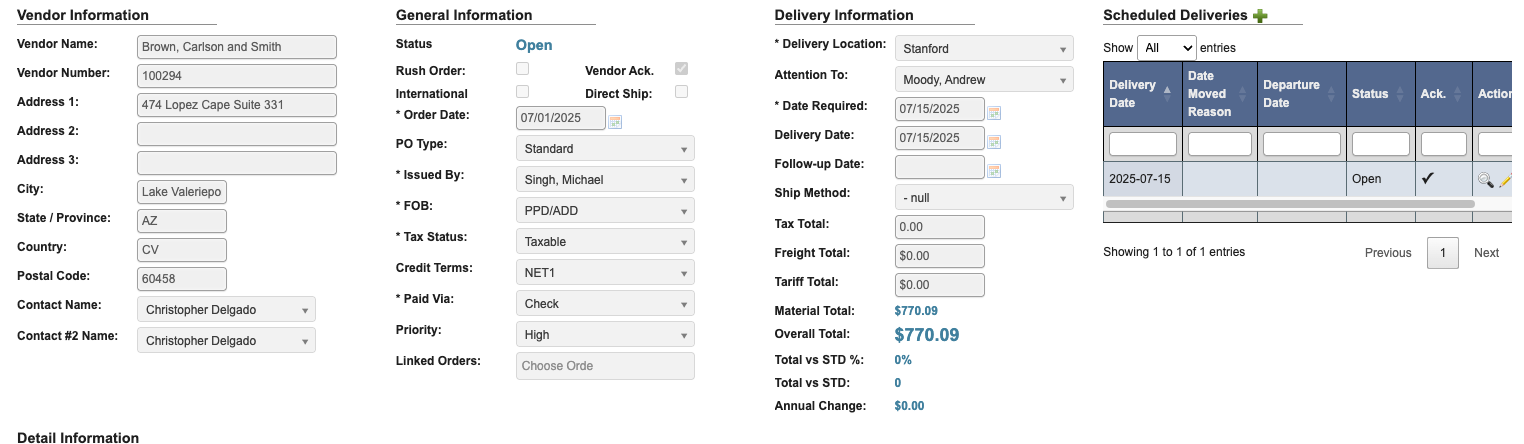
The following fields are below General Information and can be edited if needed:
* `Status`: Shows the current PO status.
* `Rush Order` (Optional): Check the box if the PO should be a rush order.
* `Vendor Ack` (Optional): Check the box if the vender has received and confirmed the PO details.
* `International` (Optional): Check box for international shipments.
* `Direct Ship` (Optional): Check box for direct shipments.
* `Order Date`: Defaults to the date you began creating the PO.
* `PO Type` (Optional): Choose either **Service** or **Standard**.
* `Issued By`: Autofills with the PO creator (you).
* `FOB`: Autofills with the Part’s Free On Board (FOB) point, where ownership and liability transfer.
* `Tax Status`: Choose either **Exempt** or **Taxable**.
* `Credit Terms`: Autofills with terms set by the vendor.
* `Paid via`: Choose the PO’s payment method.
* `Priority` (Optional): Signals this PO as Low, Medium, High, or Urgent priority. This provides visibility for other teams to prioritize or track processing accordingly.
* `Linked Orders` (Optional): Choose PO’s to link.
### Delivery Information
* `Delivery Location`: Choose a PO delivery location from the list of available options.
* `Attention to` (Optional): Input the direct recipient’s name, if applicable.
* `Date Required`: Input the requested delivery date.
* `Delivery Date` (Optional): The expected date for the PO’s delivery. Autofills from Date Required.
* `Follow-up Date` (Optional): Choose a date for reviewing the PO’s status, used for tracking on PO detail reports.
* `Ship Method` (Optional): Choose freight method if needed
* Example FOB: PPD/NC = Prepaid, no charge (no shipping method required).
* `Tax Total`: Total tax paid for this PO. Autofills based on vendor details.
* `Freight Total`: Total freight costs paid for this PO. When the selected vendor has a Delivery Fee, this field preloads with that base fee and can still be edited or cleared before saving.
* `Tariff Total`: Total tariffs paid for this PO. Autofills based on line items.
* `Material Total`: Total material cost (all ordered items) for this PO.
* `Overal Total`: Sum of Tax + Freight + Tariff + Material totals.
* `Total vs STD %`: % difference from the standard total (year-to-date).
* `Total vs STD`: \$ difference from the standard total (year-to-date).
* `Annual Change`: Yearly variance in overall total.
### General Information
The following fields are below General Information and can be edited if needed:
* `Status`: Shows the current PO status.
* `Rush Order` (Optional): Check the box if the PO should be a rush order.
* `Vendor Ack` (Optional): Check the box if the vender has received and confirmed the PO details.
* `International` (Optional): Check box for international shipments.
* `Direct Ship` (Optional): Check box for direct shipments.
* `Order Date`: Defaults to the date you began creating the PO.
* `PO Type` (Optional): Choose either **Service** or **Standard**.
* `Issued By`: Autofills with the PO creator (you).
* `FOB`: Autofills with the Part’s Free On Board (FOB) point, where ownership and liability transfer.
* `Tax Status`: Choose either **Exempt** or **Taxable**.
* `Credit Terms`: Autofills with terms set by the vendor.
* `Paid via`: Choose the PO’s payment method.
* `Priority` (Optional): Signals this PO as Low, Medium, High, or Urgent priority. This provides visibility for other teams to prioritize or track processing accordingly.
* `Linked Orders` (Optional): Choose PO’s to link.
### Delivery Information
* `Delivery Location`: Choose a PO delivery location from the list of available options.
* `Attention to` (Optional): Input the direct recipient’s name, if applicable.
* `Date Required`: Input the requested delivery date.
* `Delivery Date` (Optional): The expected date for the PO’s delivery. Autofills from Date Required.
* `Follow-up Date` (Optional): Choose a date for reviewing the PO’s status, used for tracking on PO detail reports.
* `Ship Method` (Optional): Choose freight method if needed
* Example FOB: PPD/NC = Prepaid, no charge (no shipping method required).
* `Tax Total`: Total tax paid for this PO. Autofills based on vendor details.
* `Freight Total`: Total freight costs paid for this PO. When the selected vendor has a Delivery Fee, this field preloads with that base fee and can still be edited or cleared before saving.
* `Tariff Total`: Total tariffs paid for this PO. Autofills based on line items.
* `Material Total`: Total material cost (all ordered items) for this PO.
* `Overal Total`: Sum of Tax + Freight + Tariff + Material totals.
* `Total vs STD %`: % difference from the standard total (year-to-date).
* `Total vs STD`: \$ difference from the standard total (year-to-date).
* `Annual Change`: Yearly variance in overall total.