> ## Documentation Index
> Fetch the complete documentation index at: https://docs.decoart.com/llms.txt
> Use this file to discover all available pages before exploring further.
# Purchase Orders - Tutorial: View / Edit a Purchase Order (PO)
## Overview
This tutorial helps you view and edit an existing Purchase Order (PO) in the DASH **Purchase Order → Manage Purchase Orders** submodule.
Viewing a PO allows you to check vendor details, order items, approval status, receiving history, and reconciliation records. Editing a PO lets you update information, adjust quantities or prices, add/remove items, or cancel the order if it has not yet been processed.
Use this page when you need to confirm what was ordered, make changes before vendor dispatch, manually close completed PO lines after receiving adjustments, or reopen lines that still need attention.
## View / Edit a Purchase Order
From within the `View / Edit PO` tab, you can explore and manage existing POs.
## View a PO
1. From the Purchase Order → Manage Purchase Orders submodule, click on the `View / Edit PO` tab.
 2. Click the dropdown menu next to the `PO#` field.
3. Enter the PO number or name of the vender you’re looking for, then click to select it.
2. Click the dropdown menu next to the `PO#` field.
3. Enter the PO number or name of the vender you’re looking for, then click to select it.
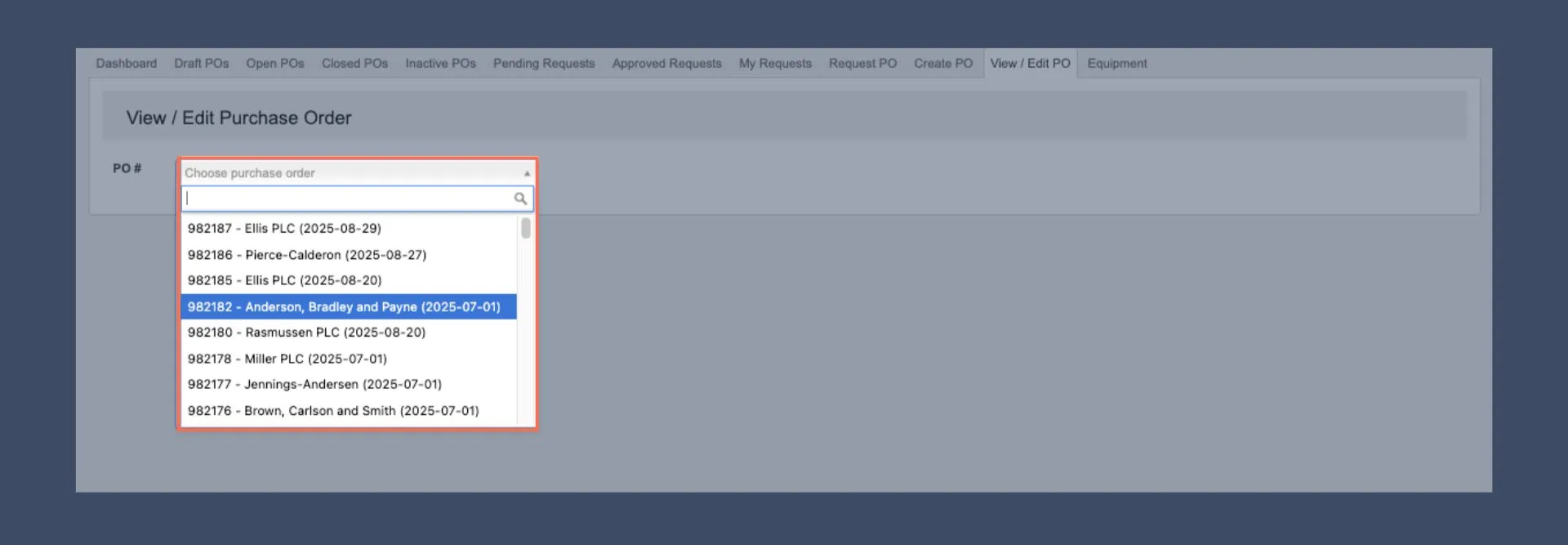 4. You can now view the PO details, including shipping, invoices, audits, and other important information.
 ## Use the toolbar to manage a PO
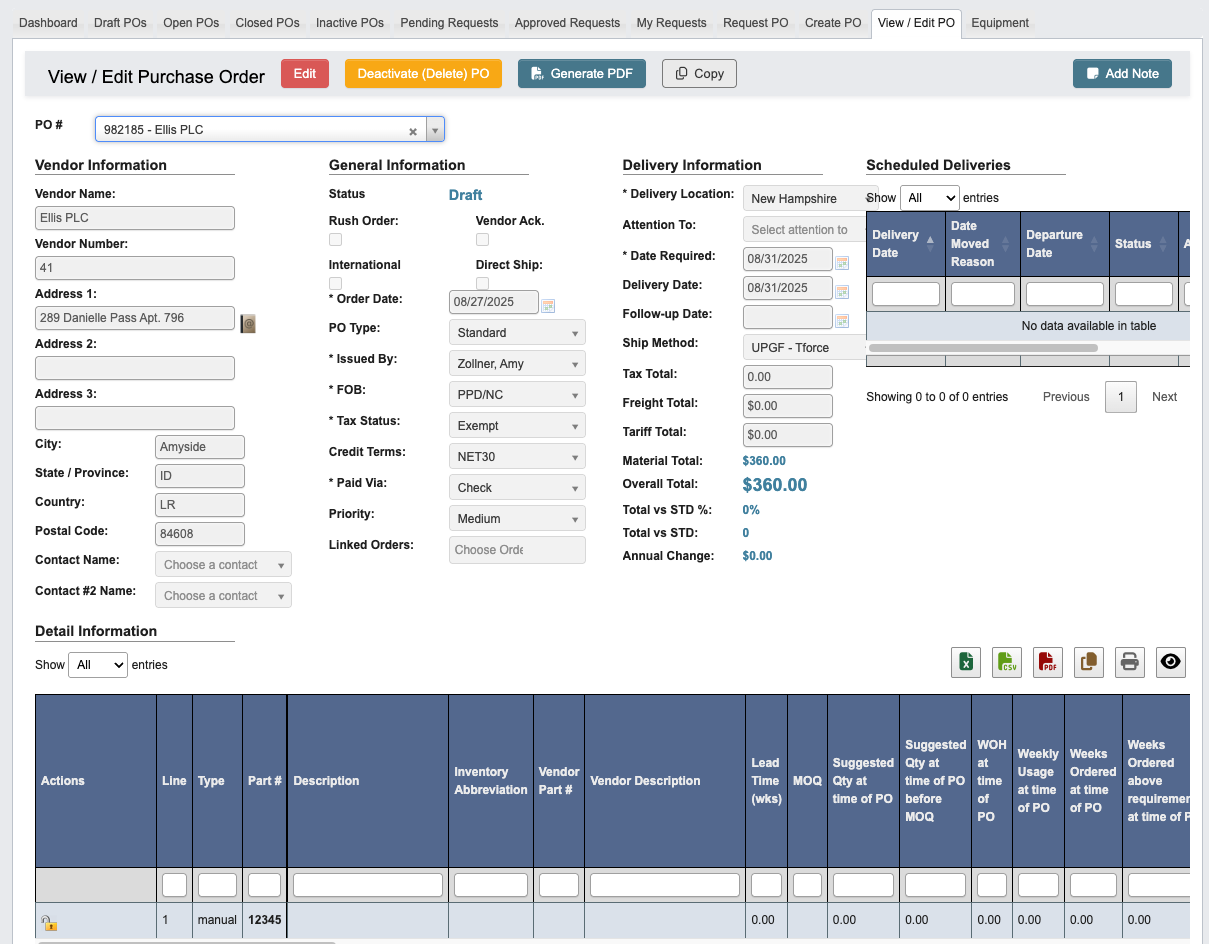
Once you’ve pulled up a PO, you can manage the information with the following features located in the toolbar:
## Use the toolbar to manage a PO
Once you’ve pulled up a PO, you can manage the information with the following features located in the toolbar:
 * `Edit`: Edit the PO.
 * Once in the edit view:
* `Cancel Editing`: Cancel editing.
* `Draft`: Save the changes the the PO as a draft.
* `Submit`: Submit the PO for approval.
* `Clear`: Clear all information from the PO.
* `Save Only`: Save the PO, but not submit it for approval.
* `Deactivate (Delete) PO`: Deactivate or delete the PO.
* `Generate PDF`: Generate a PDF of the PO.
* `Copy`: Creates a new Request PO with the PO information copied over.
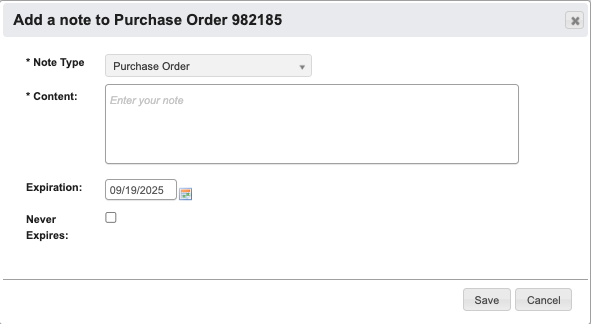
* `Add Note`: Attaches a note to the PO. You can optionally choose an expiration date for the note.
* Once in the edit view:
* `Cancel Editing`: Cancel editing.
* `Draft`: Save the changes the the PO as a draft.
* `Submit`: Submit the PO for approval.
* `Clear`: Clear all information from the PO.
* `Save Only`: Save the PO, but not submit it for approval.
* `Deactivate (Delete) PO`: Deactivate or delete the PO.
* `Generate PDF`: Generate a PDF of the PO.
* `Copy`: Creates a new Request PO with the PO information copied over.
* `Add Note`: Attaches a note to the PO. You can optionally choose an expiration date for the note.
 ## Vendor Information
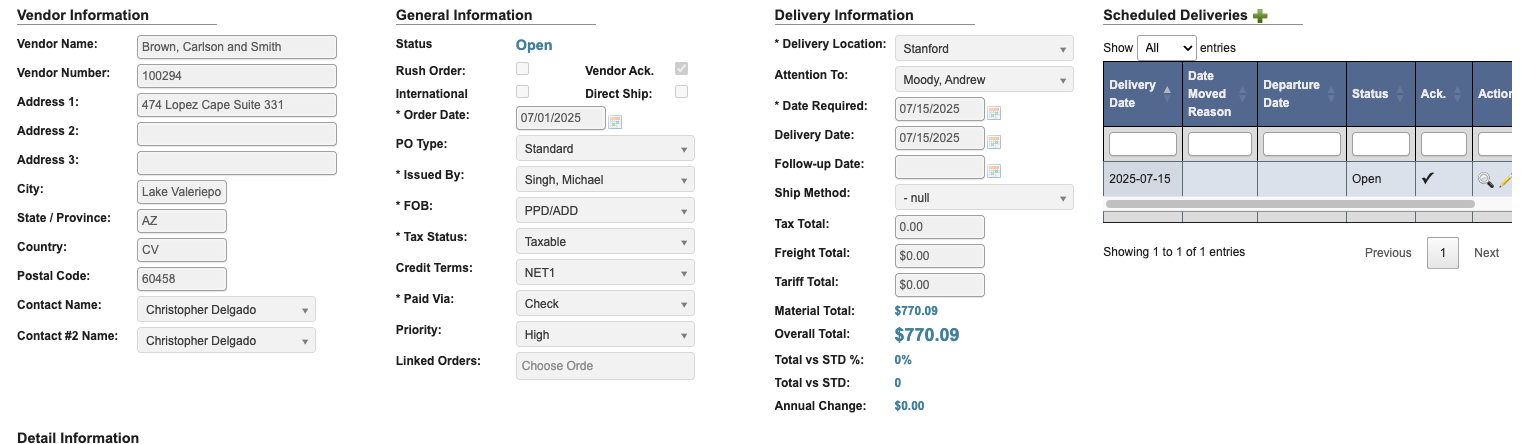 This section displays the core identity and compliance information for a vendor. The vendor information cannot be edited here. For instructions on editing vendor details, see [Tutorial: View / Edit Vendor](/purchase-orders/purchase-orders-tutorial-view-edit-vendor).
### Select Vendor Contacts
1. Use the `Contact Name` dropdown to select the primary contact who will receive the PO after approval.
2. If possible, select a `Contact #2` as backup, in case the primary is unavailable.
## Scheduled Deliveries
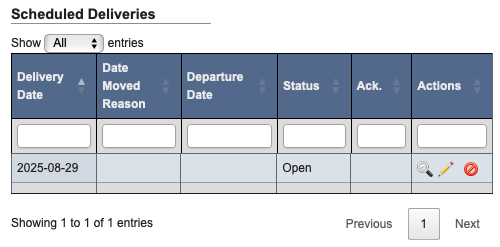
This section shows any scheduled deliveries. Once the PO is fully submitted by the purchasing team, it automatically creates a base delivery schedule for all items on the PO based on the Delivery Date listed in Delivery Information section.
* Click on the `View` / `Edit` buttons for a delivery line item to view/manage delivery schedule details, such as the Delivery Date, Parts and Quantities, and Departure Date. If you change the delivery date, you should include a Reason (Delivery Date Moved).
* Click on the `Delete` button to remove the scheduled delivery.
This section displays the core identity and compliance information for a vendor. The vendor information cannot be edited here. For instructions on editing vendor details, see [Tutorial: View / Edit Vendor](/purchase-orders/purchase-orders-tutorial-view-edit-vendor).
### Select Vendor Contacts
1. Use the `Contact Name` dropdown to select the primary contact who will receive the PO after approval.
2. If possible, select a `Contact #2` as backup, in case the primary is unavailable.
## Scheduled Deliveries
This section shows any scheduled deliveries. Once the PO is fully submitted by the purchasing team, it automatically creates a base delivery schedule for all items on the PO based on the Delivery Date listed in Delivery Information section.
* Click on the `View` / `Edit` buttons for a delivery line item to view/manage delivery schedule details, such as the Delivery Date, Parts and Quantities, and Departure Date. If you change the delivery date, you should include a Reason (Delivery Date Moved).
* Click on the `Delete` button to remove the scheduled delivery.
 ## Detail Information
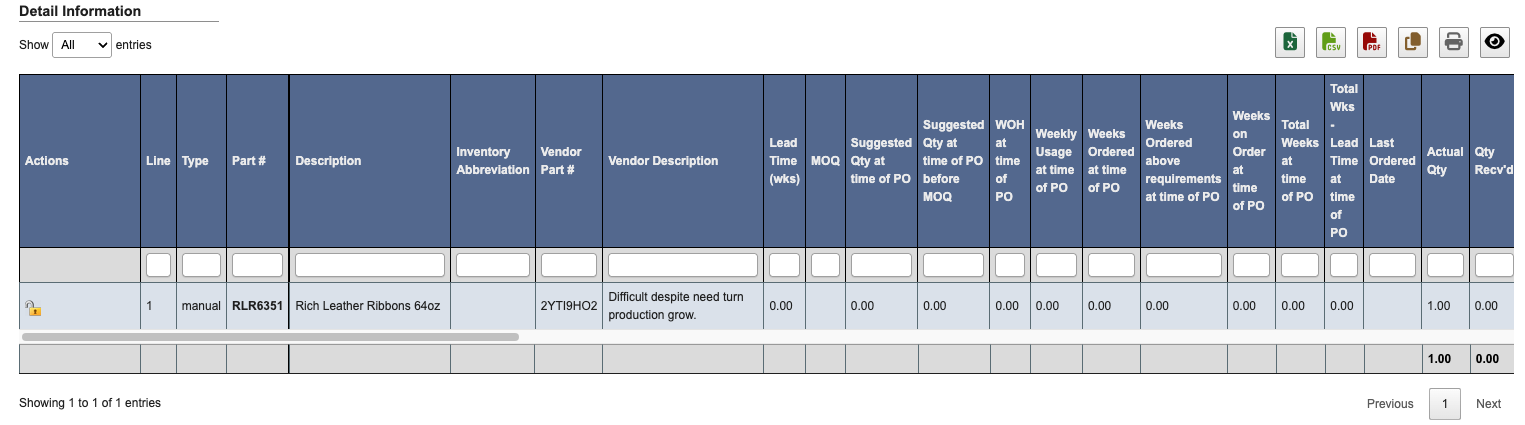
This section contains a table that will show line items for the PO. Viewing the PO you will see the detail table like this:
## Detail Information
This section contains a table that will show line items for the PO. Viewing the PO you will see the detail table like this:
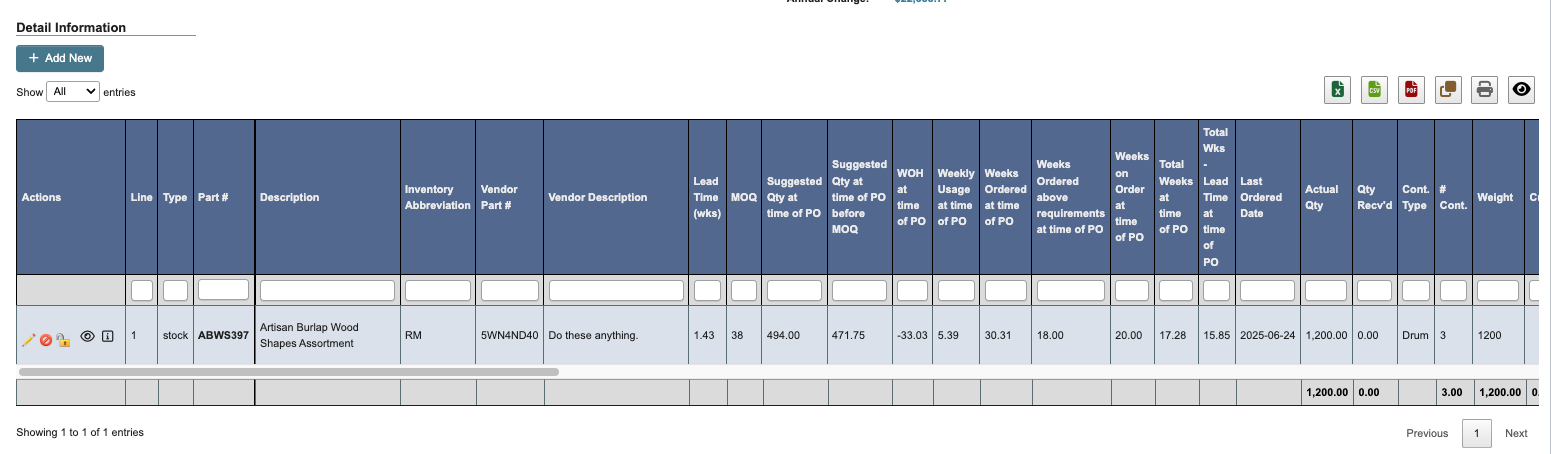
 However, if you are editing the PO you can add new line items with the `+ Add New` button. Steps to add parts to a PO can be found as a part of [Tutorial: Request a Purchase Order: Step 2 Add Parts](/purchase-orders/purchase-orders-tutorial-request-a-purchase-order#step-2:-add-parts-to-po).
 ### Bulk close or reopen PO lines
When the PO status is `Open`, the Detail Information table adds a checkbox column and a `Lock / Unlock selected line items` action in the table toolbar. Use this when Receiving adjustments leave some lines complete and others still open.
### Bulk close or reopen PO lines
When the PO status is `Open`, the Detail Information table adds a checkbox column and a `Lock / Unlock selected line items` action in the table toolbar. Use this when Receiving adjustments leave some lines complete and others still open.
 1. Open the PO from **Purchase Orders → Manage Purchase Orders → View / Edit PO**.
2. In **Detail Information**, select one or more line items with the checkbox column.
3. Click the `Lock / Unlock selected line items` button in the table toolbar.
4. Review the confirmation dialog, then click `YES, continue`.
1. Open the PO from **Purchase Orders → Manage Purchase Orders → View / Edit PO**.
2. In **Detail Information**, select one or more line items with the checkbox column.
3. Click the `Lock / Unlock selected line items` button in the table toolbar.
4. Review the confirmation dialog, then click `YES, continue`.
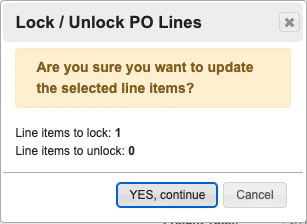 DASH updates the selected lines based on their current status:
* `Open` and `Pending Approval` lines are changed to `Closed`.
* `Closed` and `Partially Invoiced` lines are changed to `Open`.
## Files
DASH updates the selected lines based on their current status:
* `Open` and `Pending Approval` lines are changed to `Closed`.
* `Closed` and `Partially Invoiced` lines are changed to `Open`.
## Files
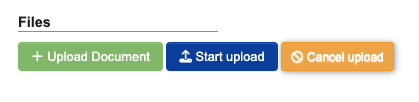 If you need to upload supporting document to a PO, you can do that in the “Files” section. Here you can attach relevant documents to the PO, such as vendor quotes or email correspondence. Uploaded documents will appear on the PO.
* Click `+ Upload Document` under “Files” to open a file browser and select the document you want to attach.
* Click `Start upload` to begin uploading.
* Click `Cancel upload` if you need to cancel the upload.
## Approvals
This sections shows any approvals submitted for this PO.
If you need to upload supporting document to a PO, you can do that in the “Files” section. Here you can attach relevant documents to the PO, such as vendor quotes or email correspondence. Uploaded documents will appear on the PO.
* Click `+ Upload Document` under “Files” to open a file browser and select the document you want to attach.
* Click `Start upload` to begin uploading.
* Click `Cancel upload` if you need to cancel the upload.
## Approvals
This sections shows any approvals submitted for this PO.
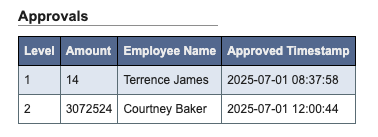 All approvals are required to happen, before purchasing can release the PO to the vendor.
## Shipping Information
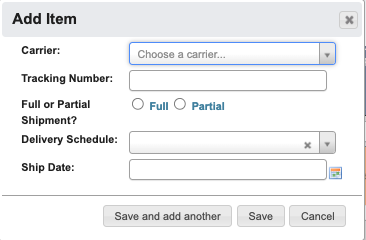
This section contains a table that will shipping information for the PO.
All approvals are required to happen, before purchasing can release the PO to the vendor.
## Shipping Information
This section contains a table that will shipping information for the PO.
 If you need to add shipping information to the PO, click the `+ Add New` button.
 ## A/P Invoices
This section shows accounts payable invoices tied to the PO.
## A/P Invoices
This section shows accounts payable invoices tied to the PO.
 ## Debit / Credit Memos
This section lists A/P debit and credit memos whose lines are linked to this PO's invoices, including the memo type, status, reason, linked invoice, vendor invoice number, and amounts.
## Debit / Credit Memos
This section lists A/P debit and credit memos whose lines are linked to this PO's invoices, including the memo type, status, reason, linked invoice, vendor invoice number, and amounts.
 * Click a `Memo #` to open the memo.
* Click an `Invoice #` link to open the related A/P invoice.
**This section is useful for:** Seeing vendor pricing and quantity adjustments in the PO's A/P history when investigating issues or assembling audit documentation.
## Audit Transactions
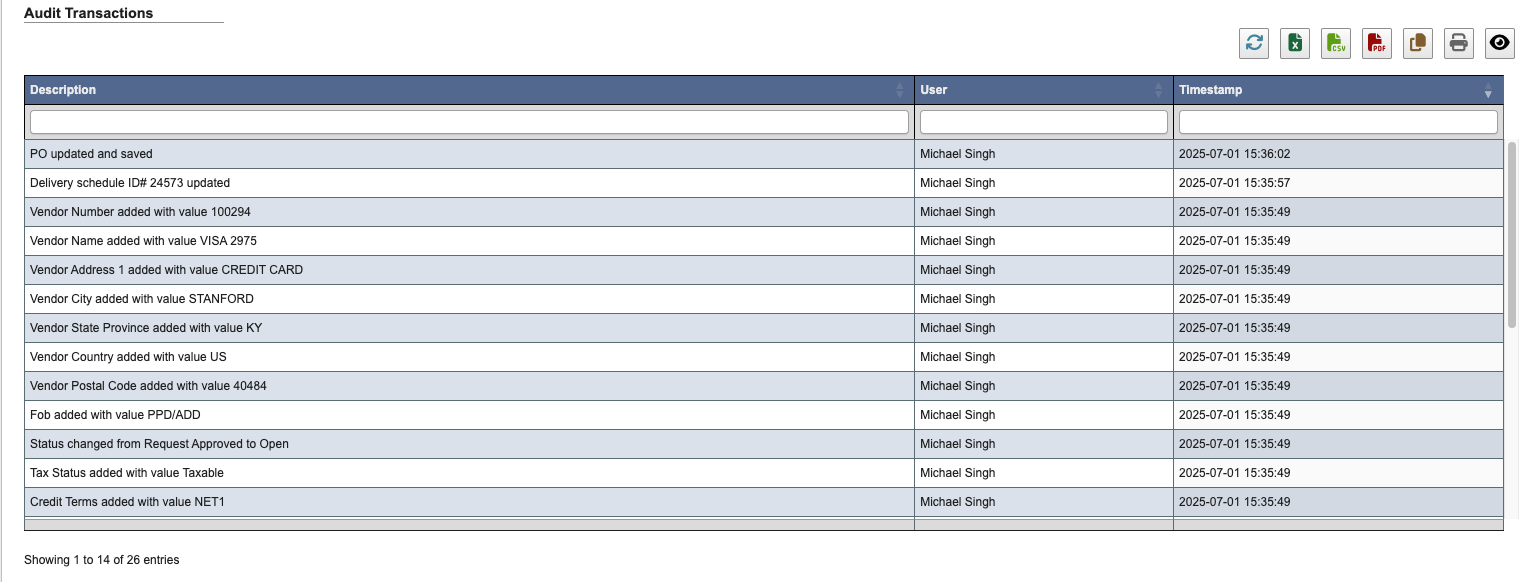
The section shows all changes, who made them, and when.
* Click a `Memo #` to open the memo.
* Click an `Invoice #` link to open the related A/P invoice.
**This section is useful for:** Seeing vendor pricing and quantity adjustments in the PO's A/P history when investigating issues or assembling audit documentation.
## Audit Transactions
The section shows all changes, who made them, and when.