> ## Documentation Index
> Fetch the complete documentation index at: https://docs.decoart.com/llms.txt
> Use this file to discover all available pages before exploring further.
# Work Order Reports Submodule
## Overview
The **Work Orders → Reports** submodule helps you monitor daily production activity, end-of-shift results, costs, and variances.
Supervisors, planners, and finance teams use these reports to validate work order execution, identify issues, and track production costs versus standards. Together, the reports help answer questions like:
* “What was produced today?”
* “How did this shift perform?”
* “What did it cost to run this order?”
* “Where are there usage or cost variances?”
## How to Generate a Report
The Work Order reports provide different views into production activity and cost tracking. The five main report tabs are:
* **Daily Work Orders:** A production summary by day, with optional grouping by work order.
* **Work Order EOS (End of Shift):** A shift-level view of work order activity.
* **Work Order Cost of Production:** A financial view of cost rolled up by order.
* **Work Order Usage / Sub Variance:** Highlights material usage and cost variances.
* **Label Production Variance:** Tracks label consumption versus standards.
Each report has its own scope - daily, shift-based, cost, or variance tracking. Together, they provide a complete picture of production activity and efficiency.
## Daily Work Orders
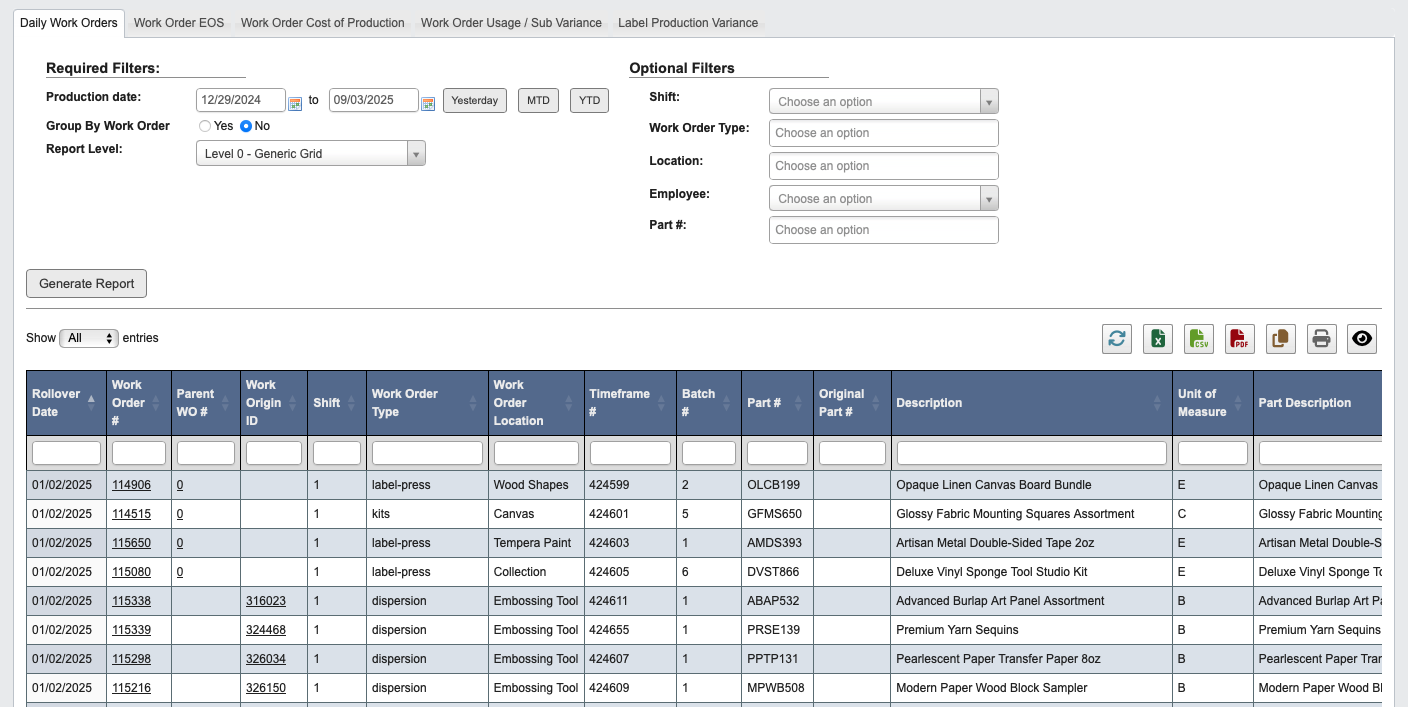 Use the **Daily Work Orders** tab to see all work orders for a given date or range. You can group the output by order and adjust the report level for more detail.
**This report is useful for:** Supervisors monitoring daily work completion and planners reviewing production totals.
1. Click the `Daily Work Orders` tab.
2. Enter the **Production date** (single day or range).
3. Choose whether to **Group By Work Order**.
4. Select a **Report Level** (Level 0 = generic grid, higher levels = more detail).
5. (Optional) Narrow scope by **Shift**, **Work Order Type**, **Location**, **Employee**, and **Part #**.
6. Click `Generate Report`.
## Work Order EOS
Use the **Daily Work Orders** tab to see all work orders for a given date or range. You can group the output by order and adjust the report level for more detail.
**This report is useful for:** Supervisors monitoring daily work completion and planners reviewing production totals.
1. Click the `Daily Work Orders` tab.
2. Enter the **Production date** (single day or range).
3. Choose whether to **Group By Work Order**.
4. Select a **Report Level** (Level 0 = generic grid, higher levels = more detail).
5. (Optional) Narrow scope by **Shift**, **Work Order Type**, **Location**, **Employee**, and **Part #**.
6. Click `Generate Report`.
## Work Order EOS
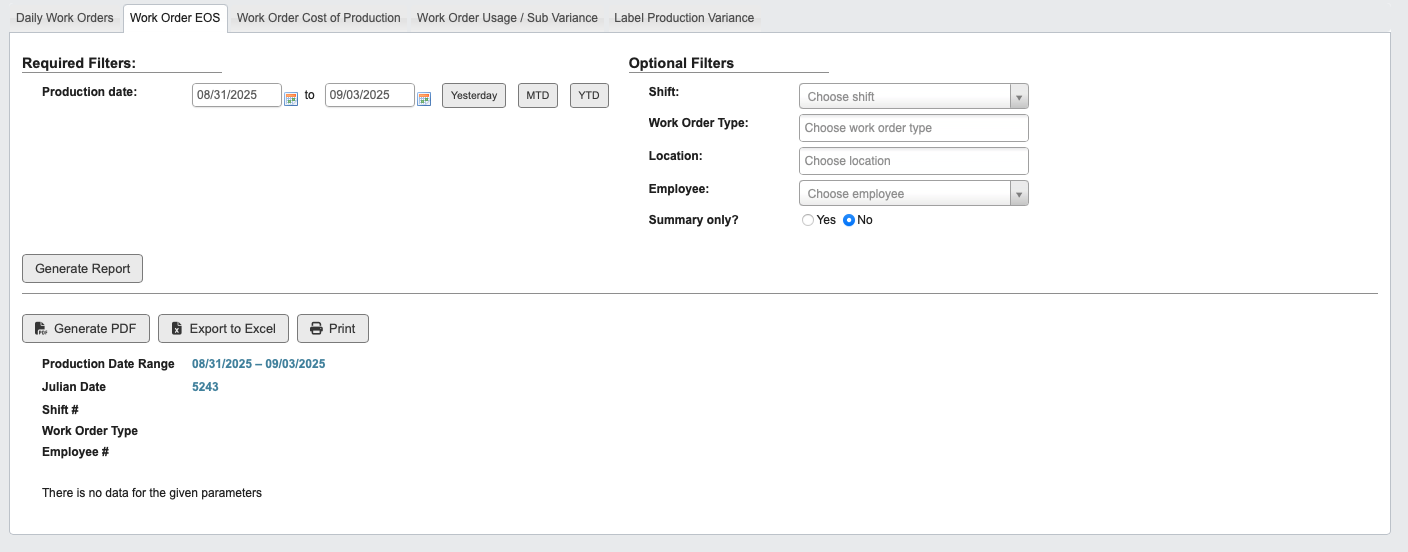 Use the **Work Order EOS** tab to review shift-level performance at the end of shift (EOS).
**This report is useful for:** Shift leads and supervisors validating actual production against targets for their shift.
1. Click the `Work Order EOS` tab.
2. Set the **Production Date** range.
3. (Optional) Filter by **Shift, Work Order Type, Location, Employee**.
4. Choose whether to show **Summary Only.**
5. Click `Generate Report`.
## Work Order Cost of Production
Use the **Work Order EOS** tab to review shift-level performance at the end of shift (EOS).
**This report is useful for:** Shift leads and supervisors validating actual production against targets for their shift.
1. Click the `Work Order EOS` tab.
2. Set the **Production Date** range.
3. (Optional) Filter by **Shift, Work Order Type, Location, Employee**.
4. Choose whether to show **Summary Only.**
5. Click `Generate Report`.
## Work Order Cost of Production
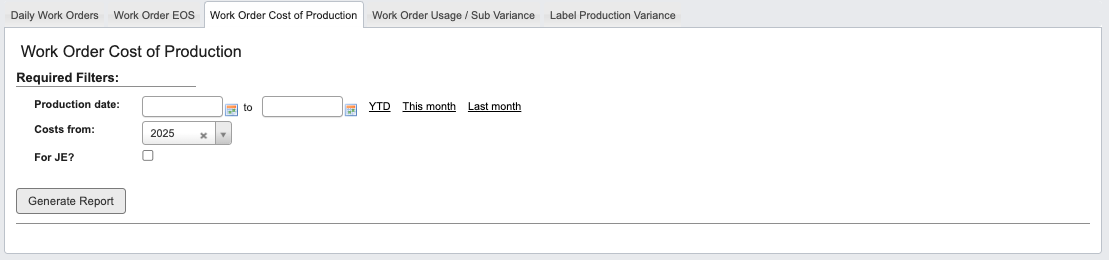 Use the **Work Order Cost of Production** tab to review total production costs by work order. This report rolls up labor, material, and overhead costs to show the full cost of completing each order.
**This report is useful for:** Finance and operations teams analyzing actual production costs versus standards, and identifying orders with higher-than-expected expenses.
1. Click the `Work Order Cost of Production` tab.
2. Enter the **Production Date** range.
3. Select the **Costs From** period (e.g., fiscal year).
4. Select For JE? if applicable.
5. Click `Generate Report`.
# Work Order Usage / Sub Variance
Use the **Work Order Cost of Production** tab to review total production costs by work order. This report rolls up labor, material, and overhead costs to show the full cost of completing each order.
**This report is useful for:** Finance and operations teams analyzing actual production costs versus standards, and identifying orders with higher-than-expected expenses.
1. Click the `Work Order Cost of Production` tab.
2. Enter the **Production Date** range.
3. Select the **Costs From** period (e.g., fiscal year).
4. Select For JE? if applicable.
5. Click `Generate Report`.
# Work Order Usage / Sub Variance
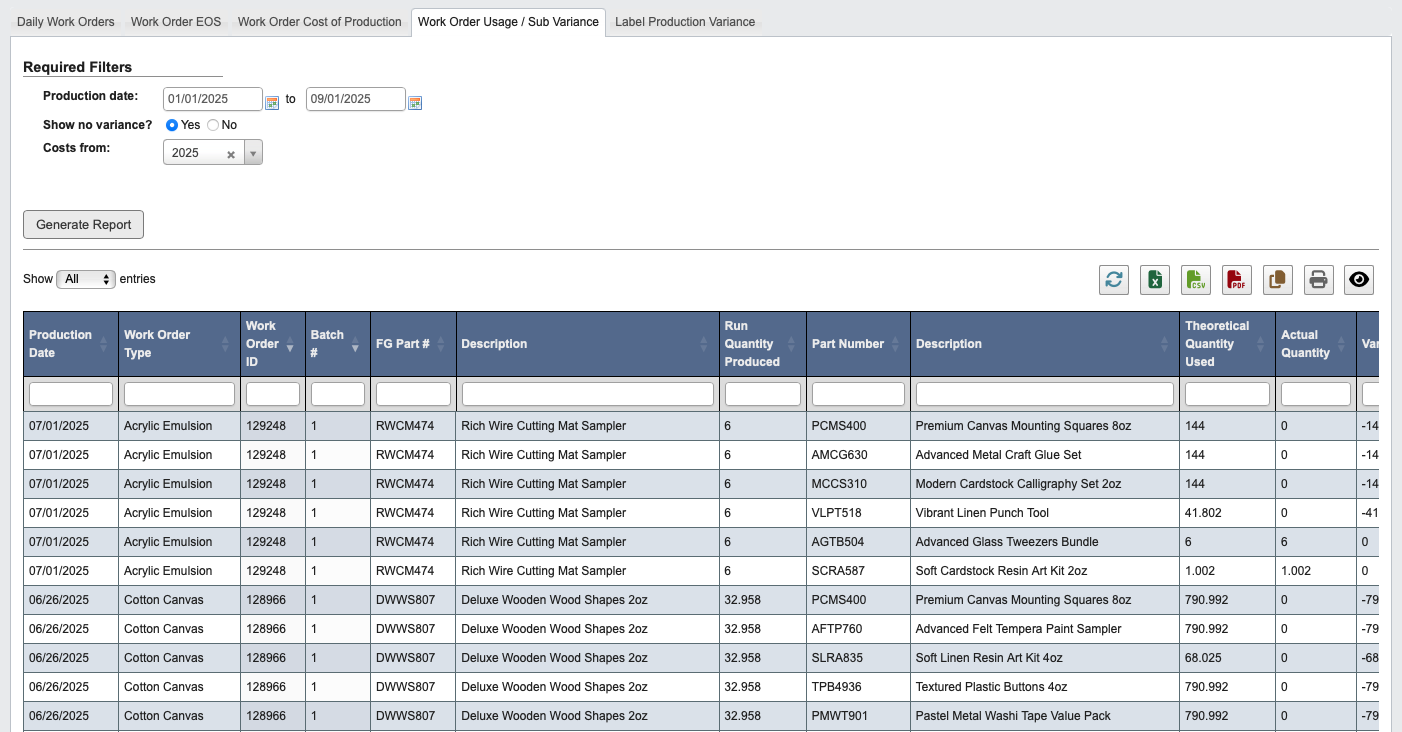 Use the **Work Order Usage / Sub Variance** tab to identify material usage and sub-variance.
**This report is useful for:** Operations and finance teams tracking whether actual usage matched standards, and investigating variances.
1. Click the `Work Order Usage / Sub Variance` tab.
2. Enter the **Production Date** range.
3. Choose whether to **Show No Variance**.
4. Select the **Costs From** period (e.g., fiscal year).
5. Click `Generate Report`.
## Label Production Variance
Use the **Work Order Usage / Sub Variance** tab to identify material usage and sub-variance.
**This report is useful for:** Operations and finance teams tracking whether actual usage matched standards, and investigating variances.
1. Click the `Work Order Usage / Sub Variance` tab.
2. Enter the **Production Date** range.
3. Choose whether to **Show No Variance**.
4. Select the **Costs From** period (e.g., fiscal year).
5. Click `Generate Report`.
## Label Production Variance
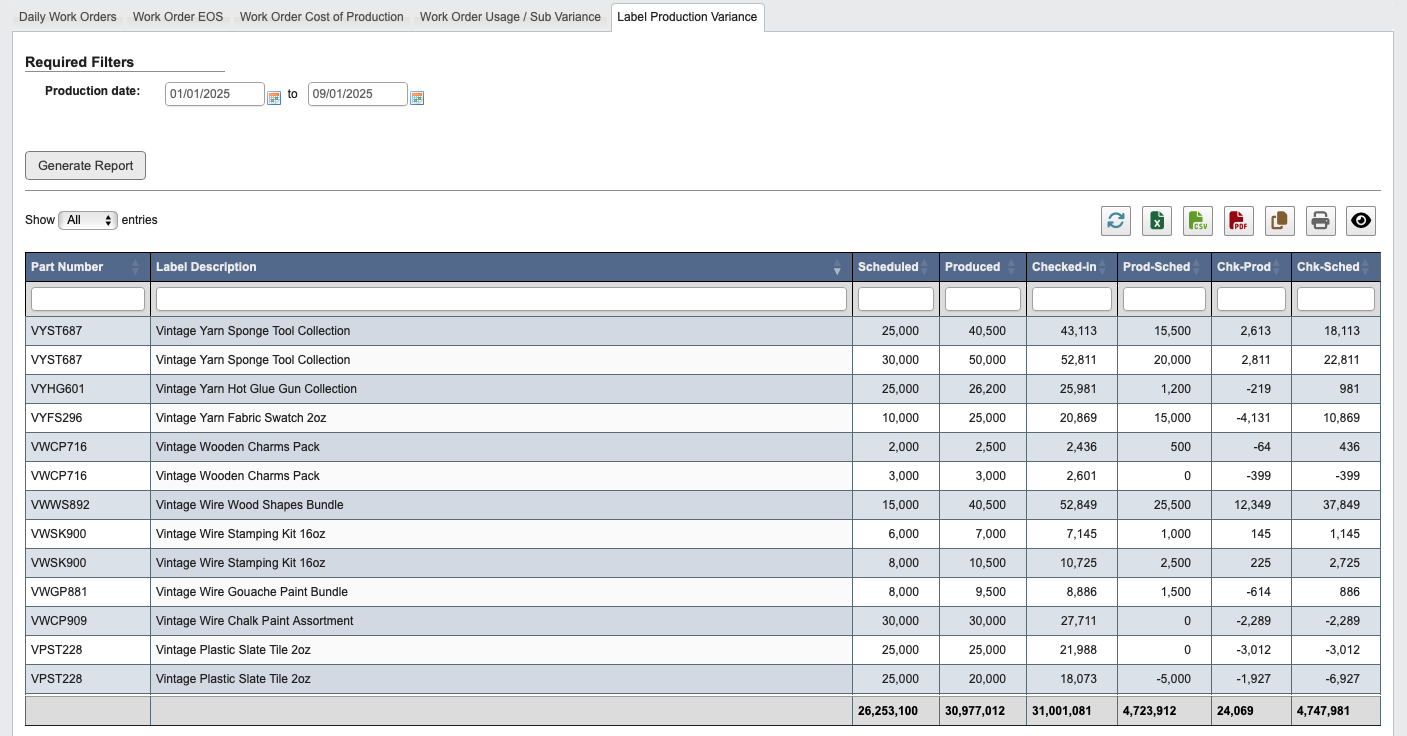 The **Label Production Variance** tab tracks consumption of labels against standard expectations.
**This report is useful for:** Quality and operations staff ensuring label usage aligns with production output.
1. Click the `Label Production Variance` tab.
2. Enter the **Production Date** range.
3. Click `Generate Report`.
The **Label Production Variance** tab tracks consumption of labels against standard expectations.
**This report is useful for:** Quality and operations staff ensuring label usage aligns with production output.
1. Click the `Label Production Variance` tab.
2. Enter the **Production Date** range.
3. Click `Generate Report`.