Overview
This guide outlines the common user interface elements available throughout many DASH pages and helps you quickly navigate, customize, and export data across modules.Sidebar
What you see in DASH depends on your role:
- If you have an administrative or back-office role (e.g., accounting, sales, customer service), you’ll see the Dashboard and sidebar with access to your assigned modules.
- If you have a production floor role (e.g., order selector, material handler, work order operator), you’ll see a different interface designed for your handheld device. You won’t see the sidebar.
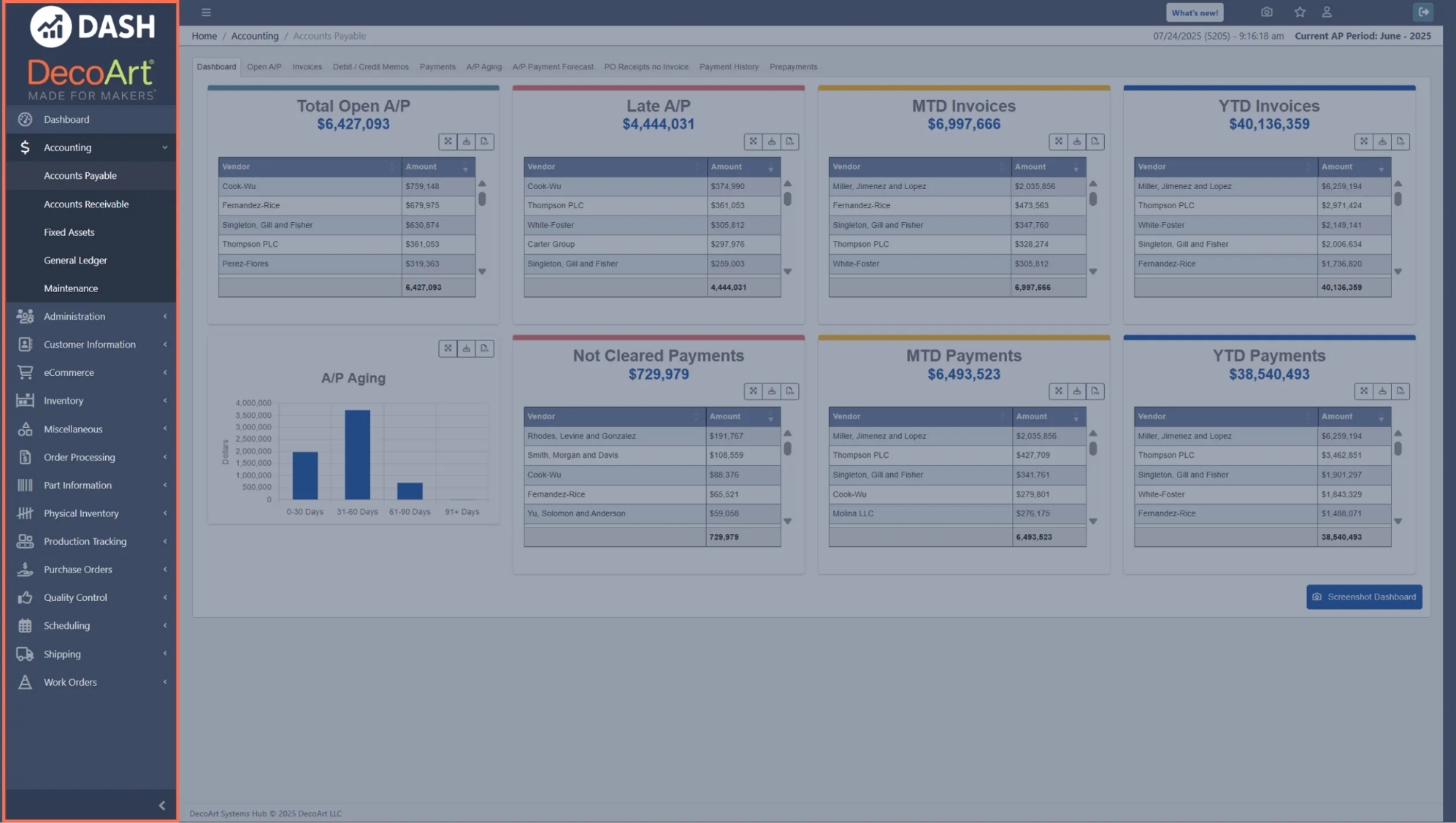
- DASH Icon: Go to your Dashboard.
- Your Company Icon: Change what company’s DASH instance you are viewing. You will likely only have access to one DASH instance.
-
Dashboard: Go to your Dashboard. -
Click on any module (such as
Accounting) to view its submodules (such asAccounts Payable). Click on a submodule to view its interface. -

-

Topbar
The topbar is located at the top of the DASH interface, and gives you access to several Support Center options, useful buttons like Screenshot and Favorite, and your profile information.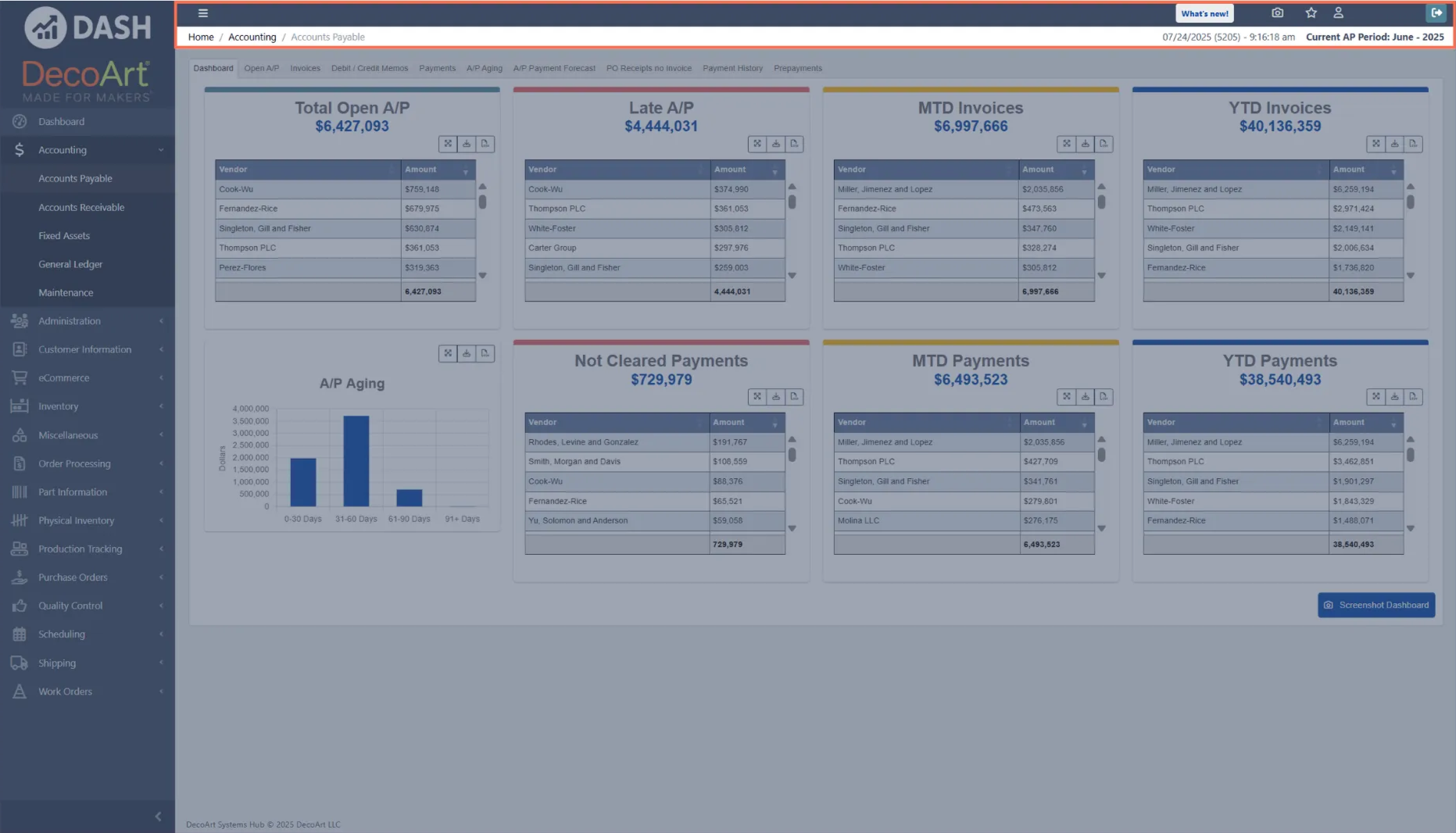
-
-
What’s new!: Explore new DASH features. -

-

Favorite→+ Add Current Page. -

-

Signing In Temporarily on Another Device
Use a temporary sign-in when you need your own DASH account on a device that is set up for someone else, such as a bottling line tablet, or on a computer that has not been through Device Setup. A temporary sign-in does not register or change the device. To start a temporary sign-in, use any of the following:- On the logged-out page, click
Sign in temporarily on this device. - On the Device Setup page, click
Sign in temporarilyinstead of choosing Corporate Login or Production Login. - Go to
/login?temporary=1in the browser’s address bar.
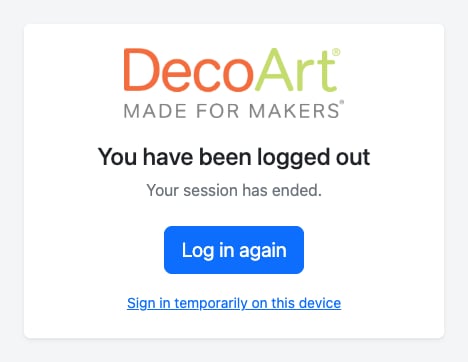

Log out in the banner or the Logout icon. The device returns to its normal behavior, so a production tablet goes back to its work order screen.
Logging out of DASH does not sign you out of Microsoft in that browser. On a shared device, also sign out of any other Microsoft sites you opened.
Dashboard Interface
Your DASH dashboard contains a customized set of widgets showing data from across your DASH modules. They give you a high level view of what’s happening in your company.Widgets are customized during your DASH setup by DecoArt; your interface may look different than the following example.
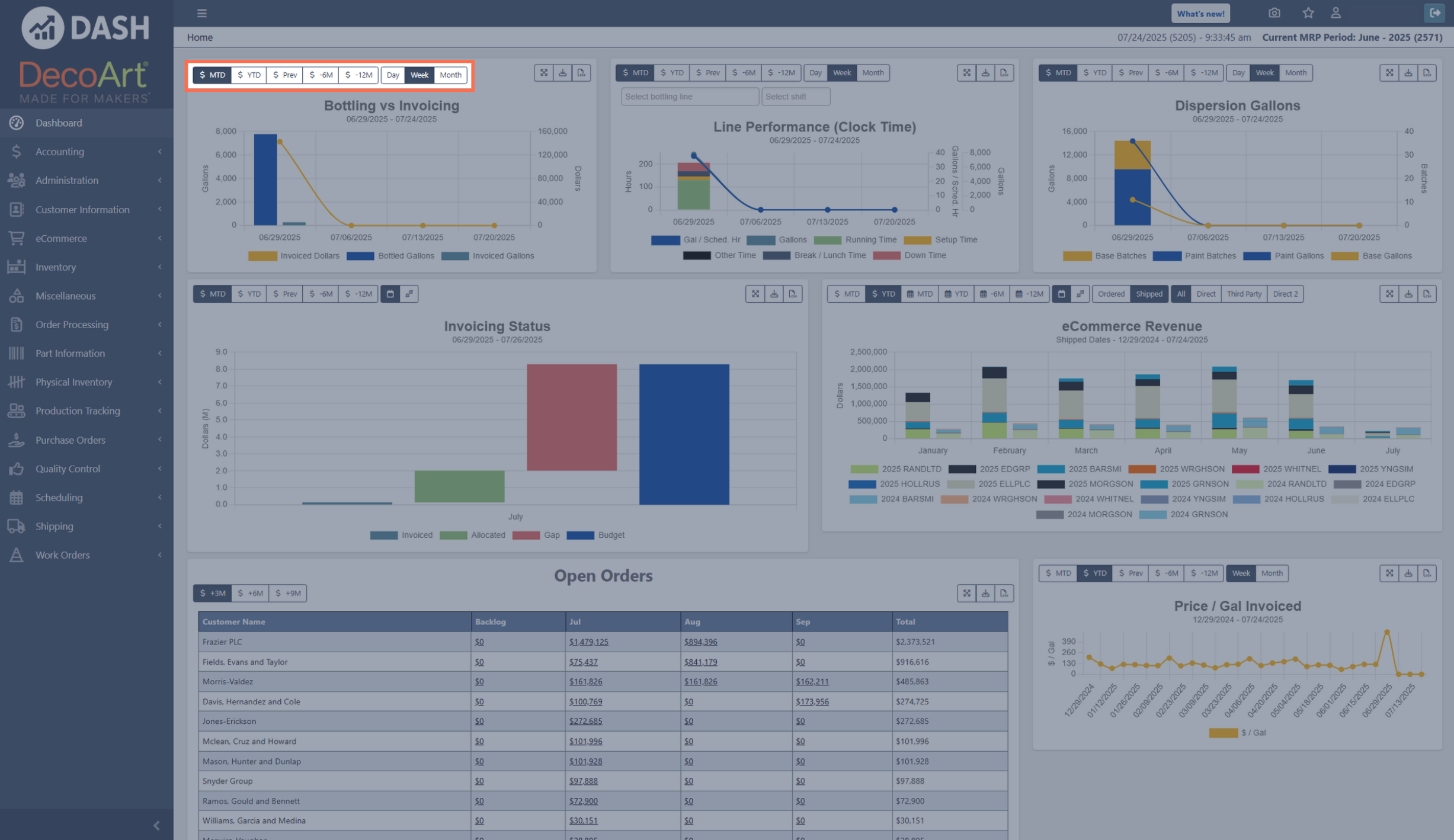

$ MTD/$ YTD/$ Prev/$ -6M/$ -12M: Filters the data shown to a specific time period, such as:- Month-to-date (MTD)
- Year-to-date (YTD)
- The previous month (Prev)
- The previous six months (-6M)
- The previous year (-12M)

- The dollar sign ($) icon in front of
MTDorYTDindicates fiscal time periods. For example, clicking on$ MTDwill filter the data by your accounting month-to-date. Fiscal periods could be different between companies and don’t necessarily match up with a calendar month. - The calendar icon shows standard calendar time periods.
$ -18M: Filters the data to the previous 18 months. Because the range spans more than one year, each month label includes its year.$ YTD vs PY: Shows the current fiscal year-to-date alongside the same period from the previous year, so you can compare this year’s invoicing against last year’s.

Day/Week/Month: Groups data shown by day/week/month.- Expand icon: Expands the widget across your Dashboard.
- Download icon: Downloads the widget. Chart widgets download as a PNG image of the chart, and table widgets download as an Excel file of the table’s data.
- CSV icon: Exports the widget’s data as a CSV file.
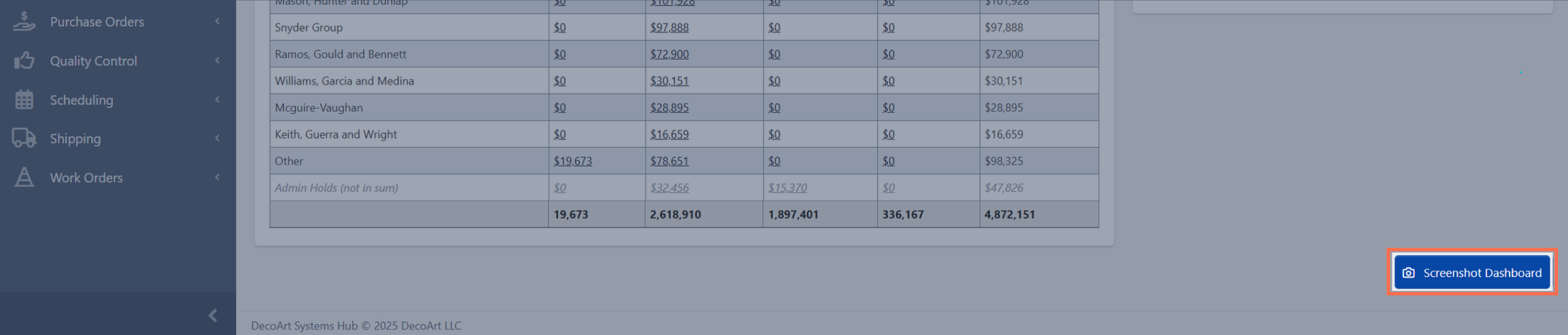
Screenshot Dashboard button: Take a screenshot of your Dashboard.
Submodule Interface
Each submodule has a custom interface depending on its functionality. You can explore each submodule and its specific interface at: Overview of DASH Modules However, many submodules share common interface features. The following example uses theAccounting → Accounts Payable submodule to explain these features.
Submodule Tabs
Some submodules contain various tabs, located under the topbar. Tabs offer a wide range of functionality within submodules, and can contain submodule dashboards, database views, add/create/manage options, and much more. The tab you’re currently viewing is highlighted. Click on another tab to view that one instead.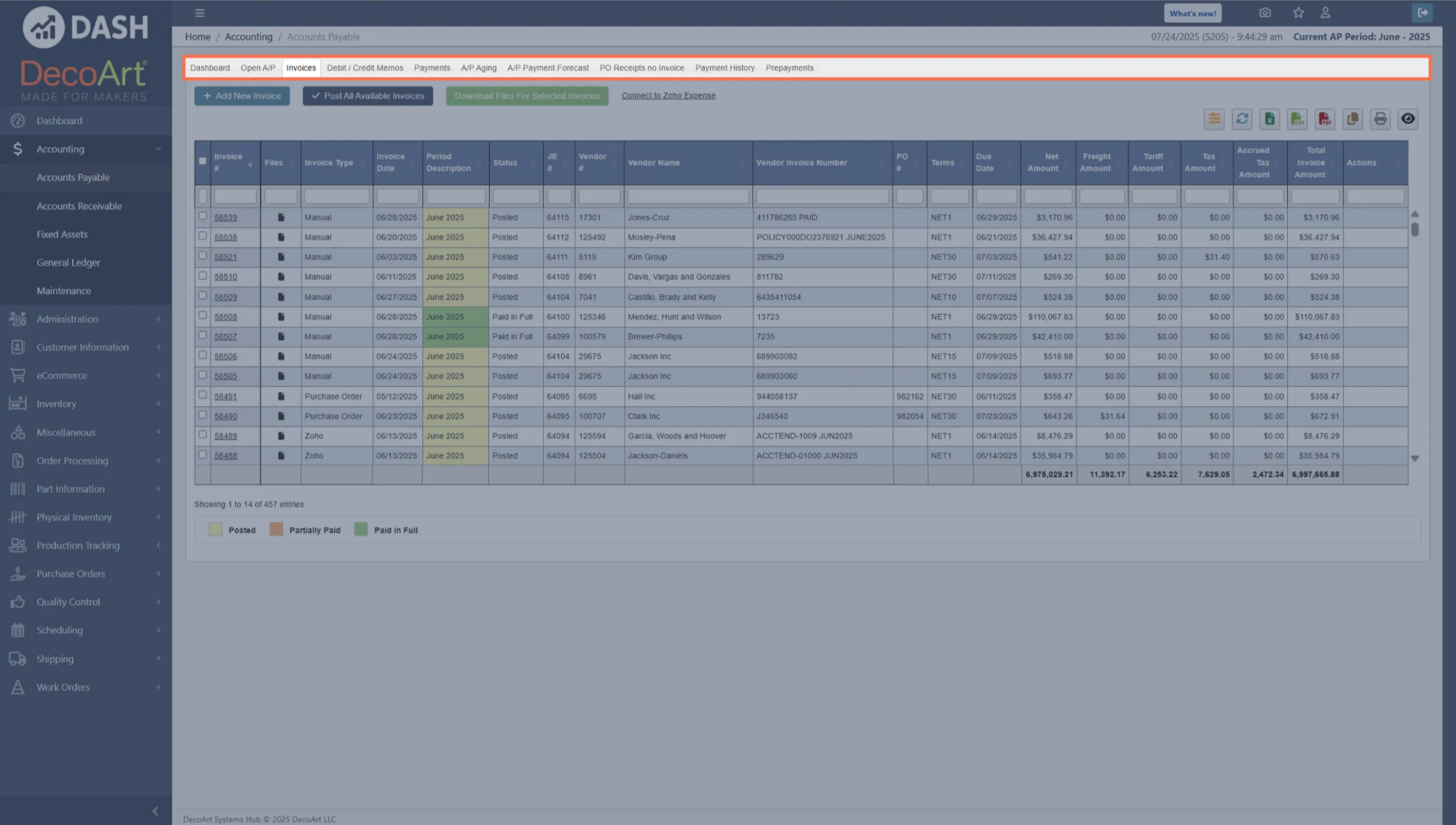
Accounts Payable example, you can create an Invoice in the Invoices tab, then manage payments for that invoice in the Payments tab, and view forecasted payments in the A/P Payment Forecast tab.
Submodule Toolbar
Many submodule tabs have a toolbar that offers useful functions for completing key tasks.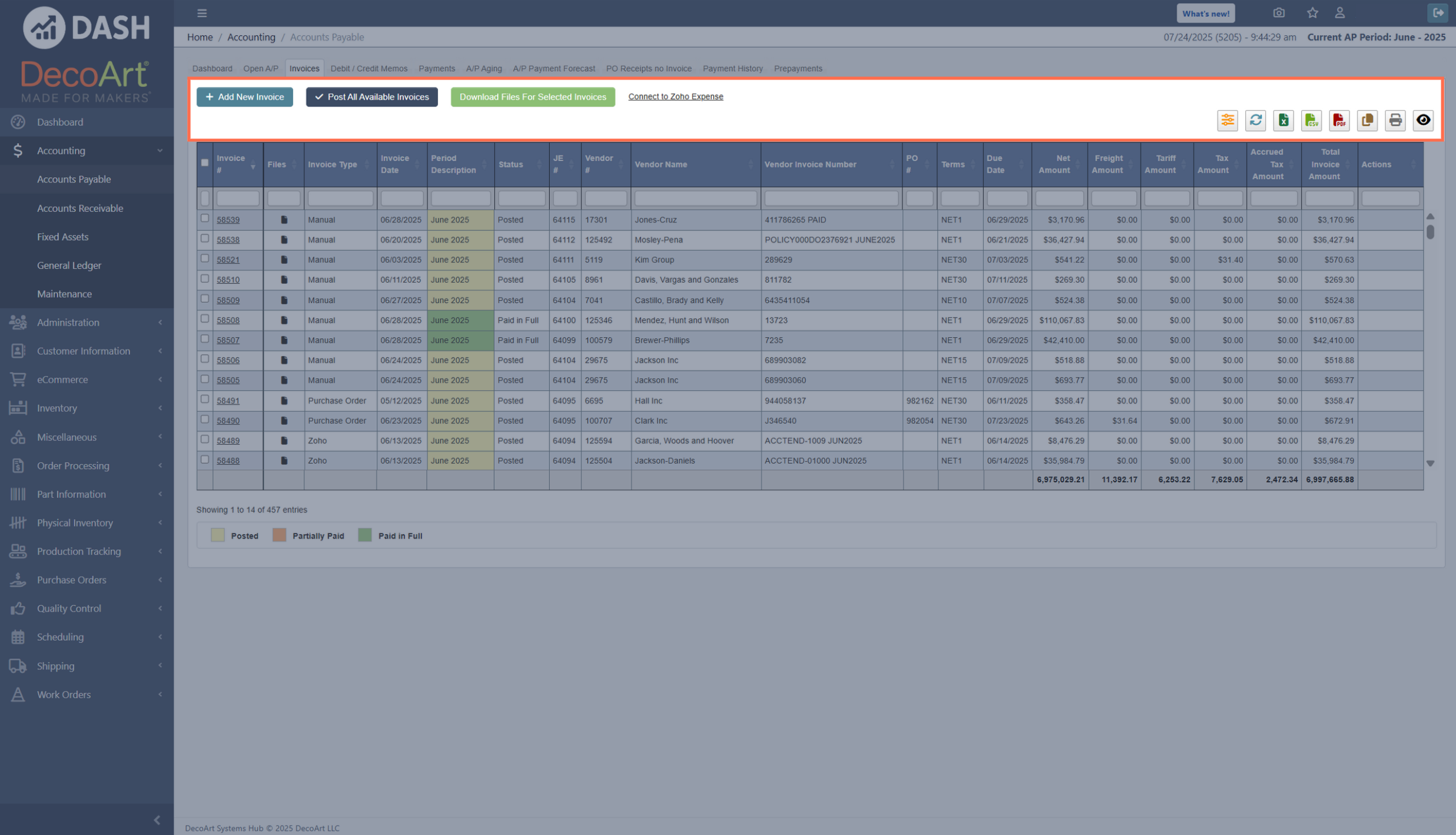
+ Add New Invoice: Create a new invoice.Post All Available Invoices: Post available invoices to the ledger.Download Files for Selected Invoice: Download all content associated with a chosen invoice.Connect to Zoho Expense: Sign into your Zoho account to integrate it with DASH.

Refresh: Refreshes the table’s data, which is useful if the data seems out of date.Export to Excel: Exports and downloads the table’s data in Excel format.Export to CSV: Exports and downloads the table’s data in CSV format.Export to PDF: Exports and downloads the table’s data in PDF format.Copy to Clipboard: Copy the table’s data to your clipboard.Print: Prints the current table view.Show/Hide Columns(Eye icon): Toggle which table columns you can view and hide.
Submodule Content
Each submodule contains content in the center of the page, which can include:- Table views, allowing you to view, manage, and download specific data.
- Information input pages, allowing you to create/add/manage discrete items, such as Invoices, Parts, Work Orders, and more.
- Submodule dashboards, showing you a high level view of your submodule data.
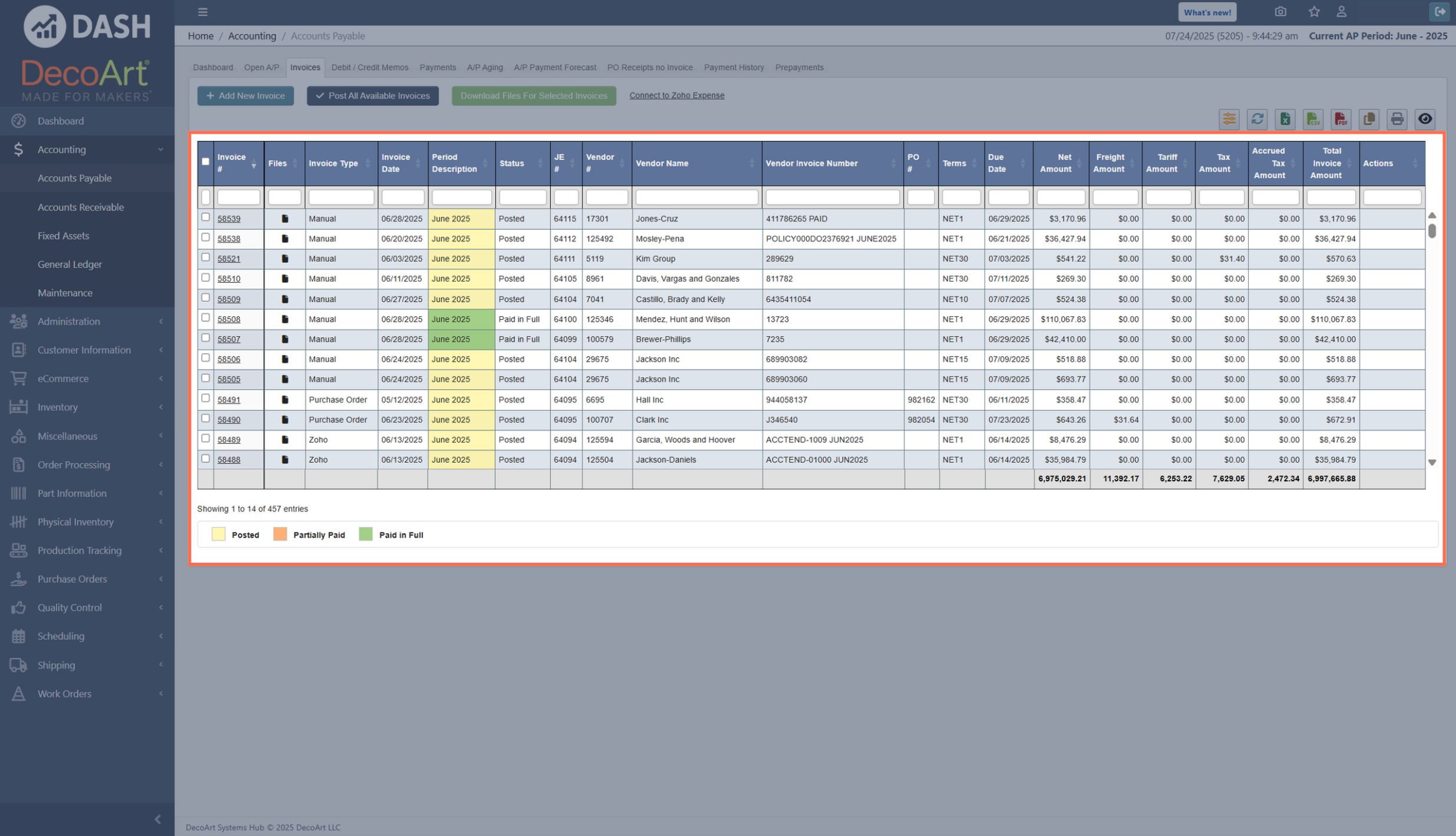
Table Interface
You’ll also see many tables across different submodules.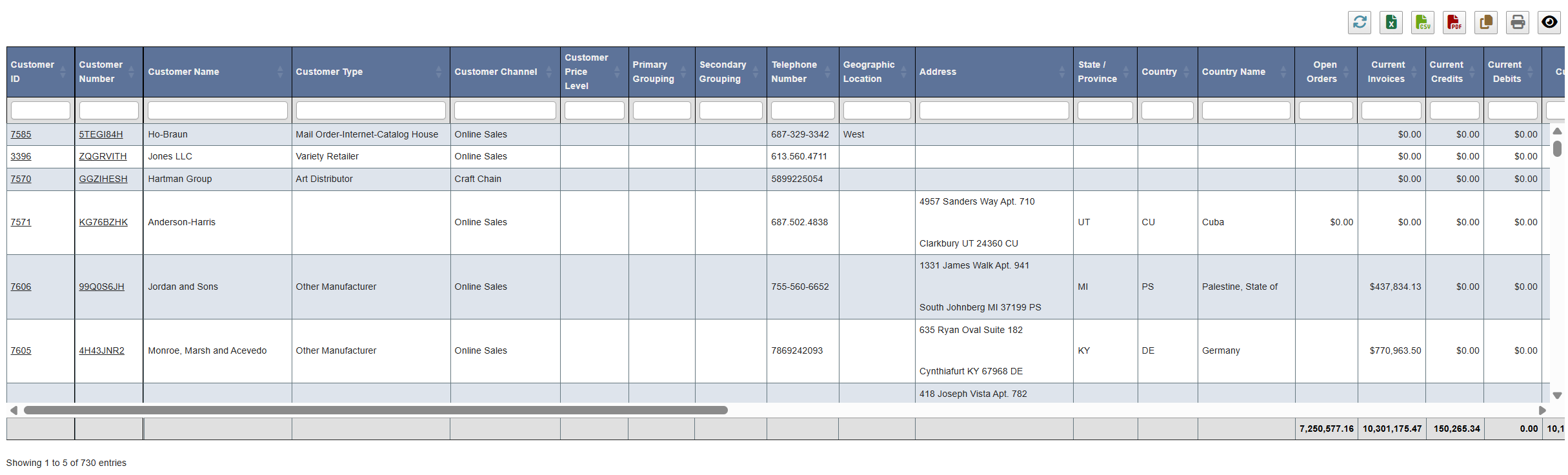
- Sorting: Click a column header to sort.
-
Multiple column sorting: Hold
Shiftand click several column headers. -
Shift-clicking shows multiple sort arrows across columns. Clicking without Shift returns to sorting by one column.
 The screenshot shows an example of Multiple column sorting, with 3 columns’ arrows lighting up.If you’re sorting by one column, only that column’s arrow will light up.
 -
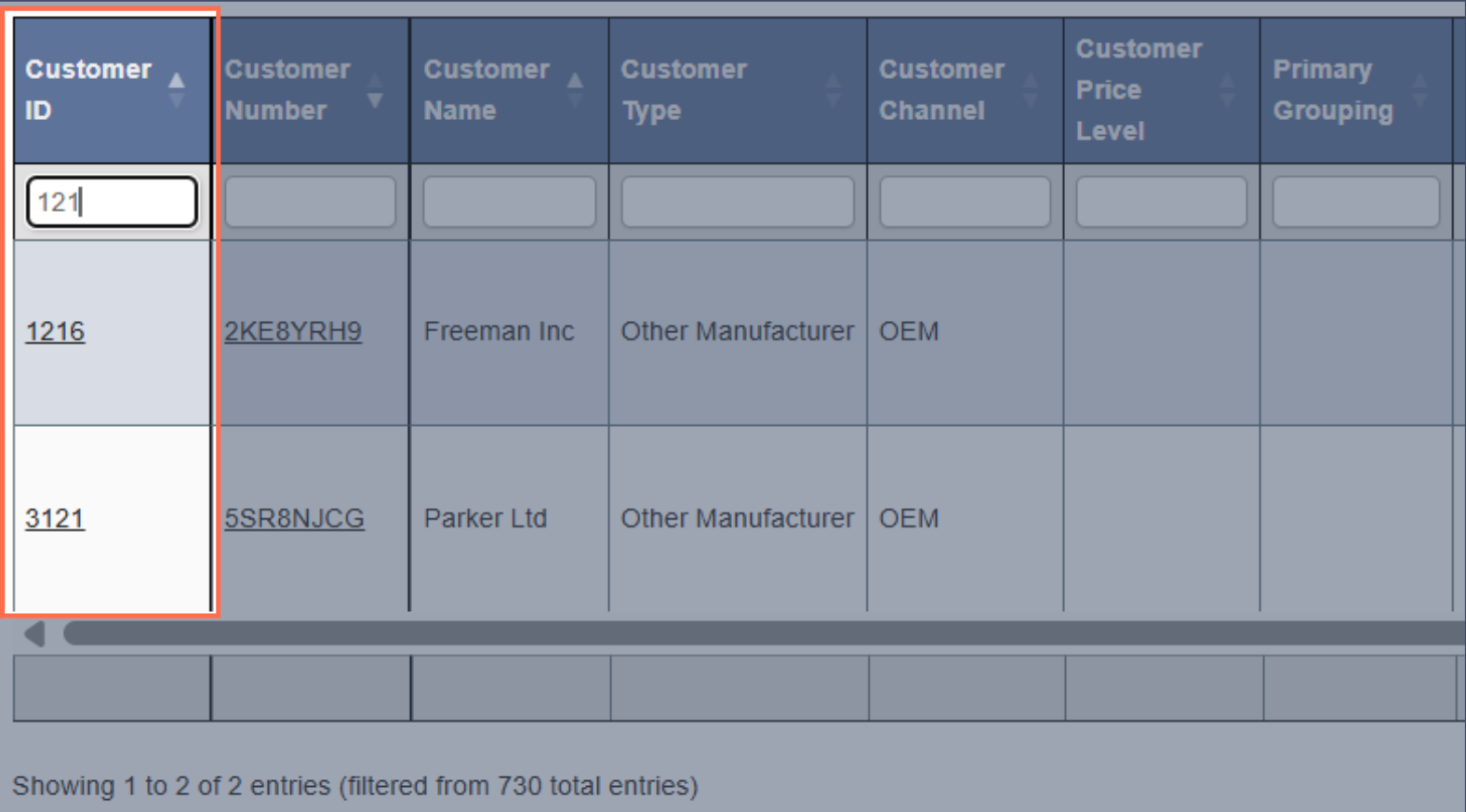
Searching: Type in the empty fields under column headers to filter your results (e.g., typing “121” under Customer ID would show you all customer IDs that include “121”).
-
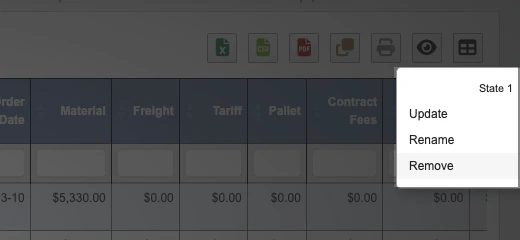
Saved States: Many tables include a
Saved Statebutton in the upper-right toolbar. Use it to save table views you want to return to later.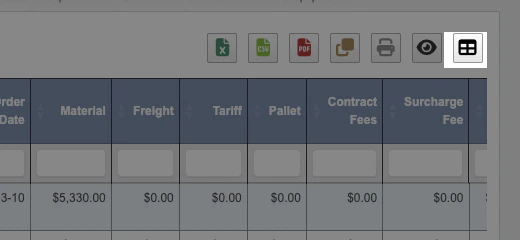
- Set up the table the way you want it.
- Click the
Saved Statebutton. - Click
Create Stateto save the current table view. - Click a saved state name later to switch the table back to that saved view.
- Click the arrow beside a saved state to manage it.
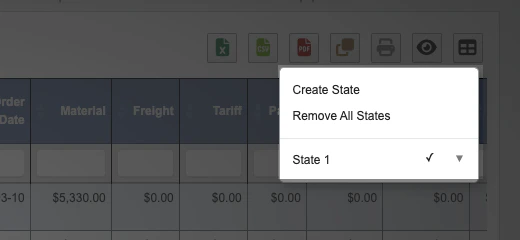
Update: Save your current table setup into that existing state.Rename: Change the saved state’s name.Remove: Delete that one saved state.Remove All States: Delete every saved state for that table.
-
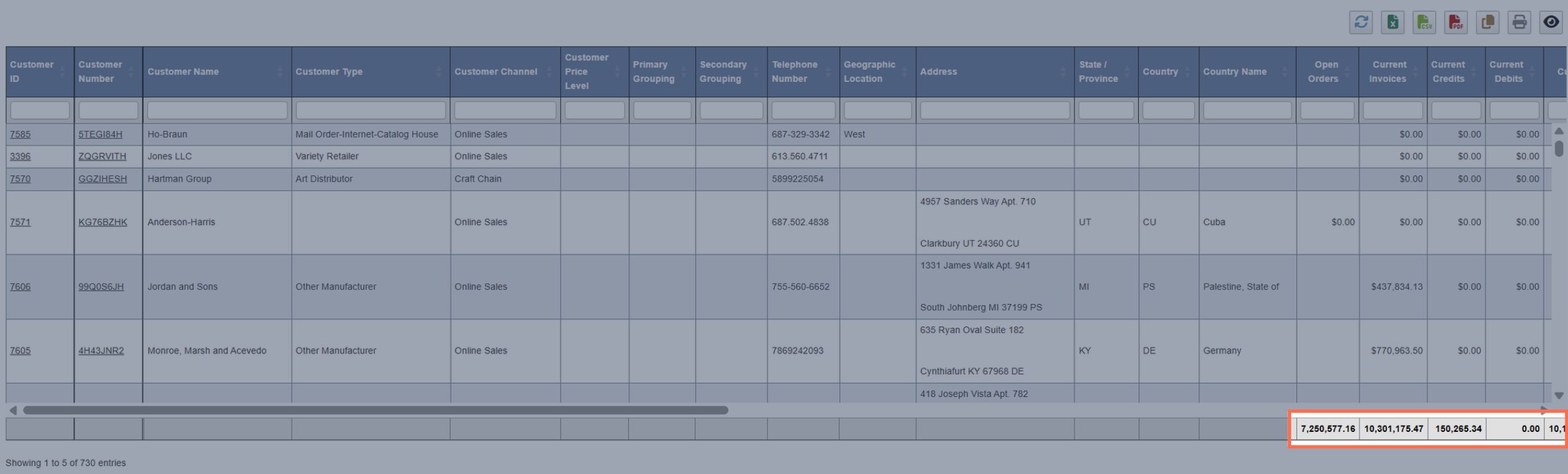
Summation Rows: Numeric columns often include totals at the bottom of the table.
-
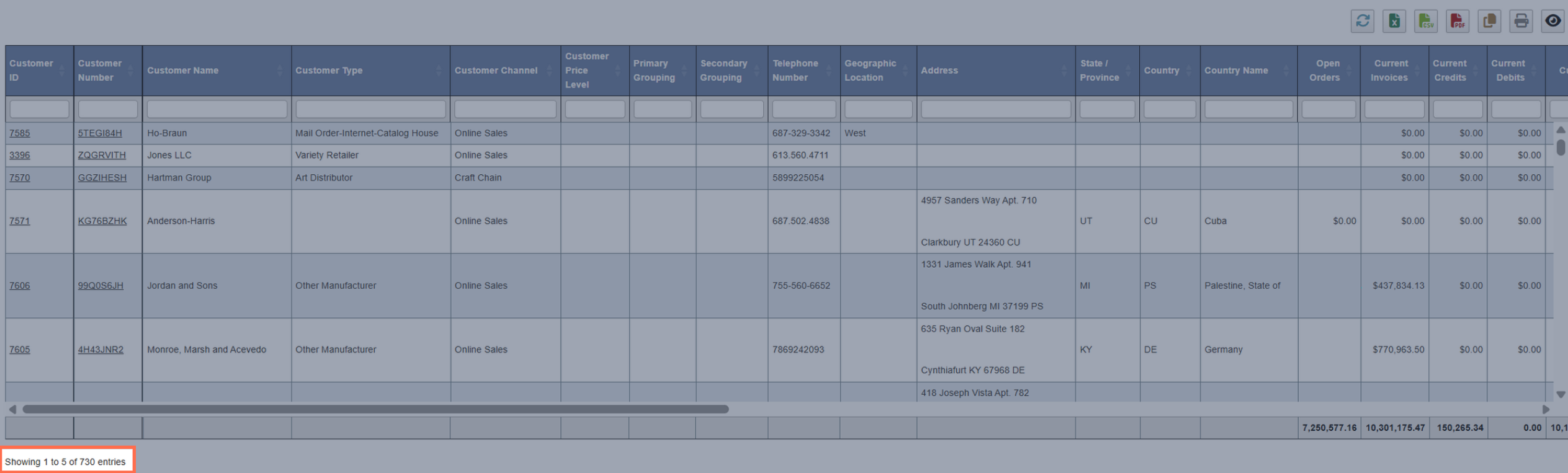
Result Count: Bottom-left corner shows the number of results and which ones you’re viewing (e.g., 39 of 457 entries).
-
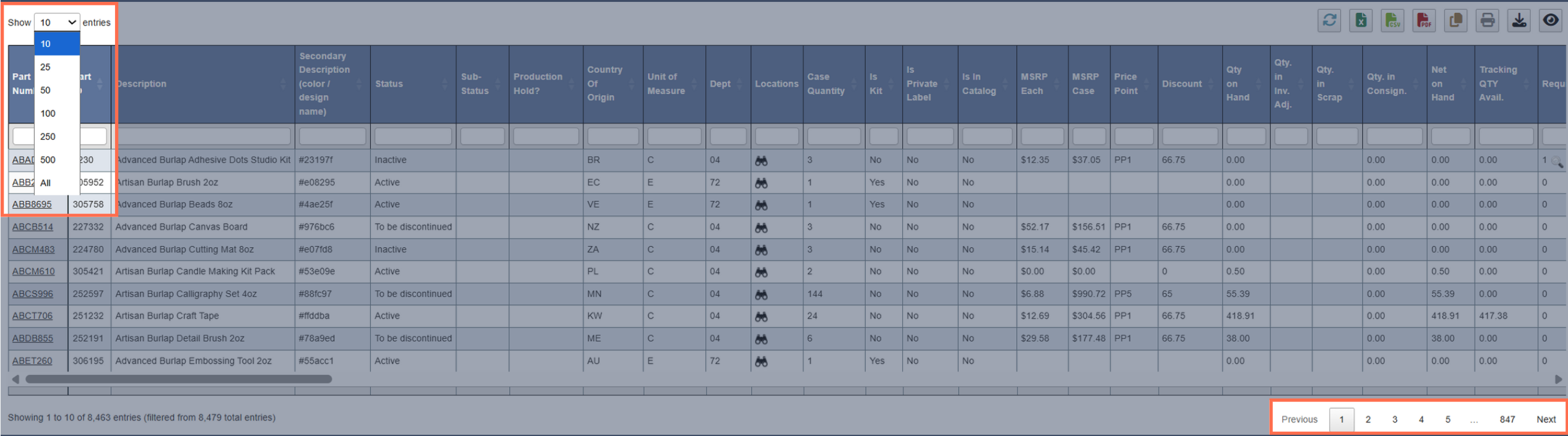
Pagination: Large datasets (like Finished Goods) load in batches of 10 by default for performance.
- You can use the page selector at the bottom to navigate to the next pages, or the last page.
- You can also choose to load in batches of 25, 50, 100, or show all items.
-
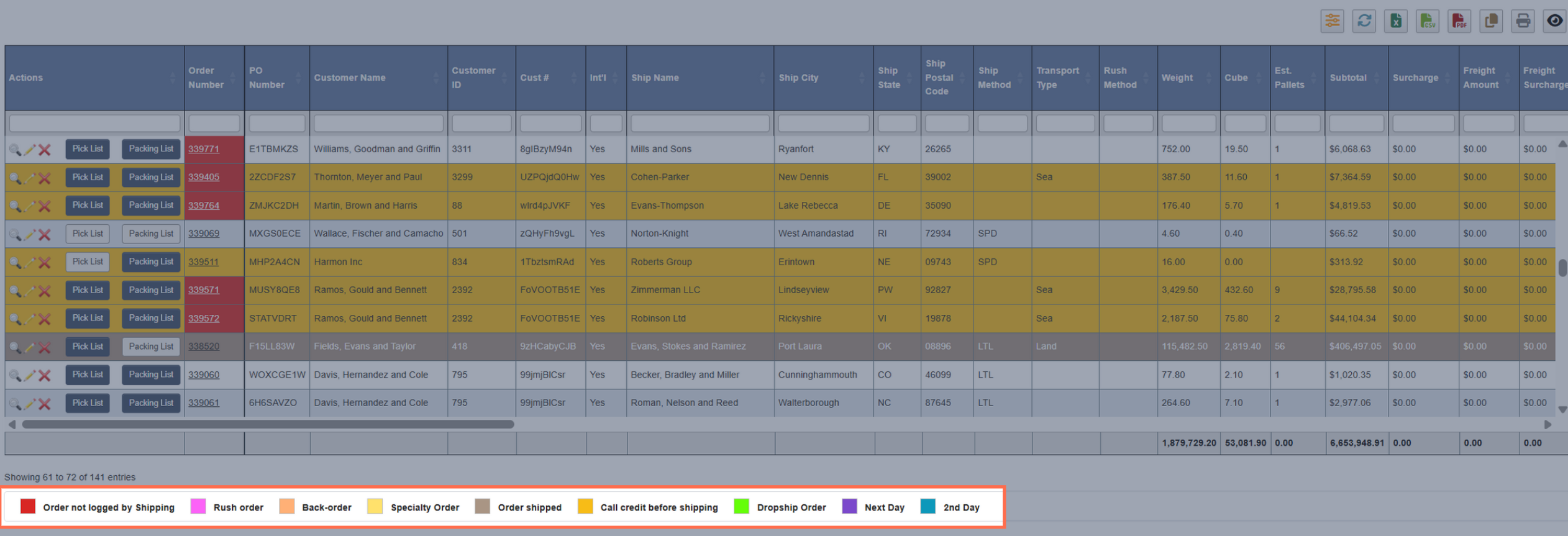
Color Legend: Some tables use color coding (e.g., open orders) for items. You can find a legend at the bottom to explain the colors.
-
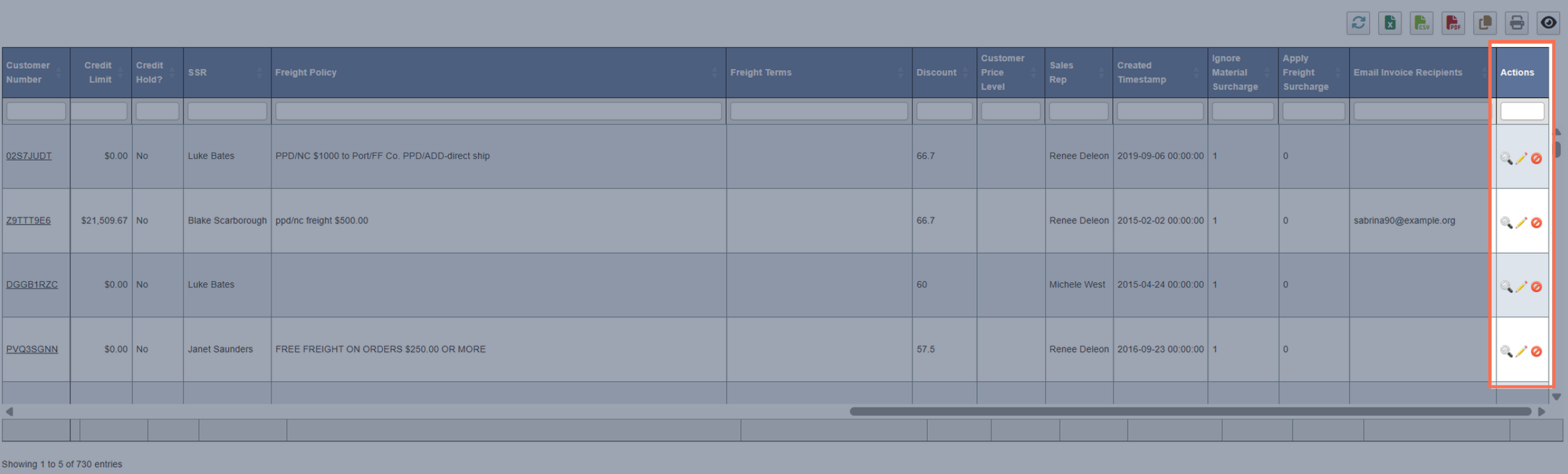
Action Column: Buttons for row-specific actions (edit, delete, activate, deactive, etc.) appear either in the first or last column.
Next Steps
- Explore each DASH module from the Overview of DASH Modules page.