Overview
The eCommerce → Reports submodule helps you see how your ecommerce business is performing across all sales channels. This module is especially useful for accounting teams, eCommerce managers, and operations staff who need to reconcile invoices and shipping totals, track performance, and monitor key metrics like order value, profit margin, and shipping time.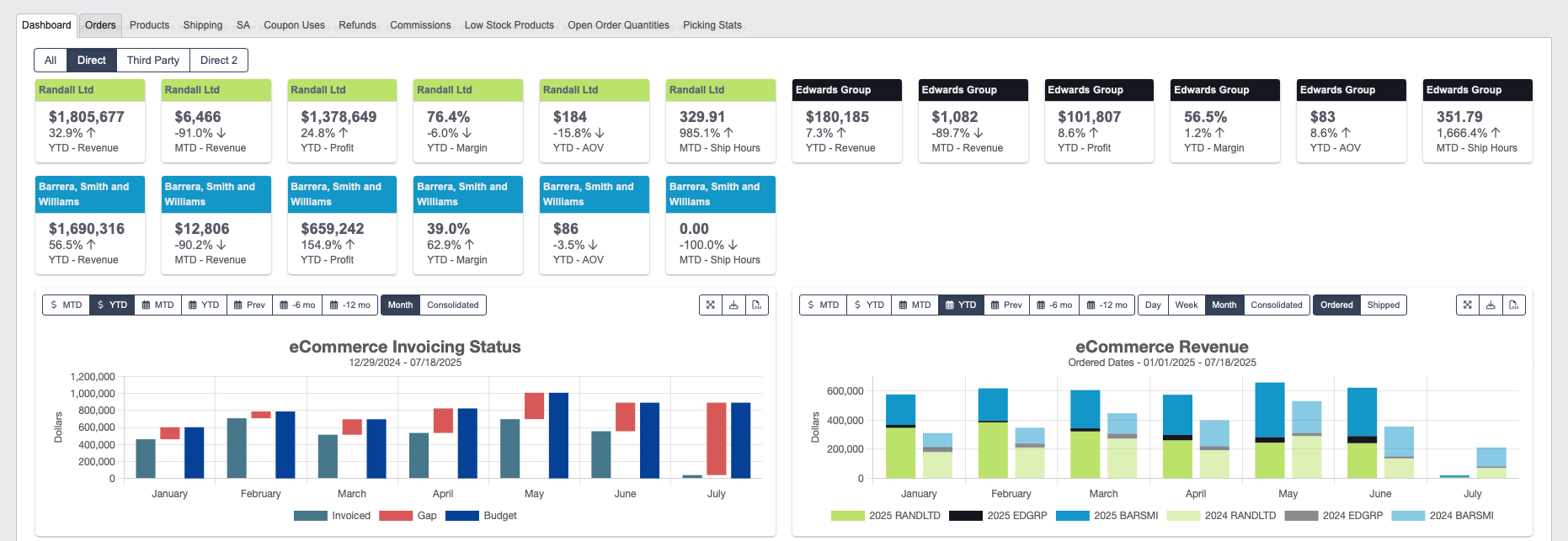
Dashboard
TheDashboard tab provides a high-level view of key performance indicators (KPIs).
Widgets display revenue, profit, margin, and average order value (AOV) for both month-to-date (MTD) and year-to-date (YTD) periods.
- The dollar sign ($) icon in front of
MTDorYTDindicates fiscal time periods. For example, clicking on$ MTDwill filter the data by your accounting month-to-date. Fiscal periods could be different between companies and don’t necessarily match up with a calendar month. - The calendar icon shows standard calendar time periods.
Top Products and Shorted Products download as Excel files.
Generate Reports
The other tabs let you display information onOrders, Products, and more, filtered by attributes like customer, date, and status.
To display information on Orders for example:
- Click on the
Orderstab. - Choose a
Channel, usually corresponding to a vendor or customer. - Filter orders by
StartandEnddates, or choose a pre-set time period such as month-to-date (MTD). - Choose the
data typeto filter for. - Click
Generate Reportto view the filtered data in a table. - You can choose to perform the following actions on the table:
a. Click on an
Order IDorOrder Numberto view detailed order information. b. Click on a column header to sort the table by that attribute. c. Use the table’s toolbar to download or print the table’s data.
Company Division Columns
TheOrders tab ends with one % column per company division, such as % DecoArt and % Retique It. A division is the top level (first two digits) of a part’s product class, so the columns follow how your parts are already classified — there is nothing extra to set up, and a new division gets its own column as soon as parts are classified into it.
Each cell is that division’s share of the order’s product dollars. An order that sold only Retique It products reads 100.00% under % Retique It; an order that mixed divisions is split across them.
The totals row at the bottom is the most useful part of these columns: it weights every order on screen by its product total, so it shows the division mix for the whole filtered period rather than for one order.
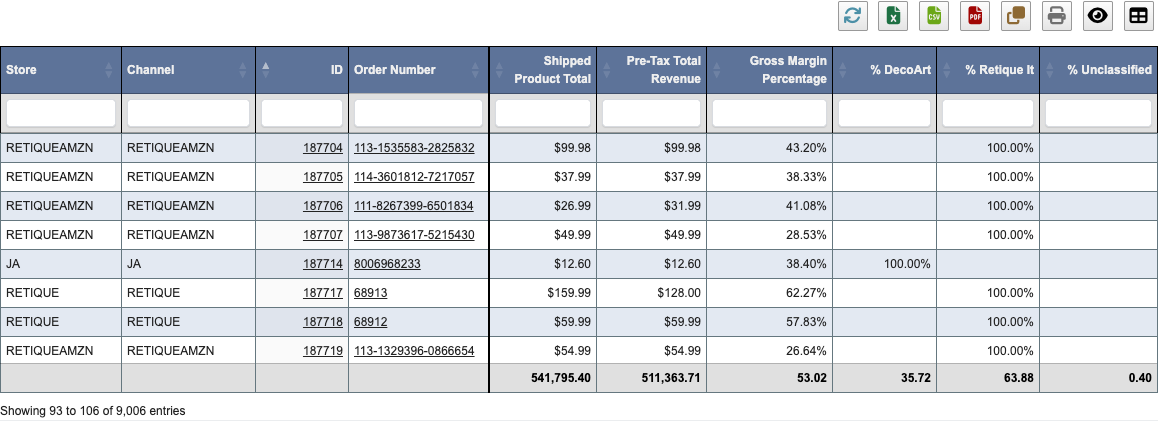
- Only divisions that actually sold in the selected period get a visible column. The rest stay hidden, and you can re-show them from the table’s column visibility menu.
% Unclassifiedcovers product dollars that could not be tied to a division — usually a line with no part record behind it, or a part that has not been given a product class yet. If this column is larger than you expect, it points at parts that need their product class filled in.
Order reports can measure shipping time two ways. Actual counts every calendar day between order and ship. Working counts only working days: it skips weekends and any company closures recorded on the Manage Companies → Holidays tab. Because the figure is recalculated each time the report runs, adding a closure after the fact updates the working days to ship for the orders it covers.
The Payment Provider column on the Orders report is filled in from the Shopify payment capture, which Shopify completes shortly after the order ships. DASH records it in the nightly scheduled tasks, so Shopify orders show Payment Pending on the day they ship and the provider the next morning. An order that still has no payment recorded the morning after shipping is listed in an alert email to the DASH administrators.