Overview
The Miscellaneous → IT Functions submodule provides system administrators and IT staff with tools for testing and managing various hardware components, monitoring system replication, executing administrative scripts, and performing recurring maintenance tasks within the DASH environment.Test Printers
The Test Printers tab allows IT staff to test and configure different types of printers used throughout the facility.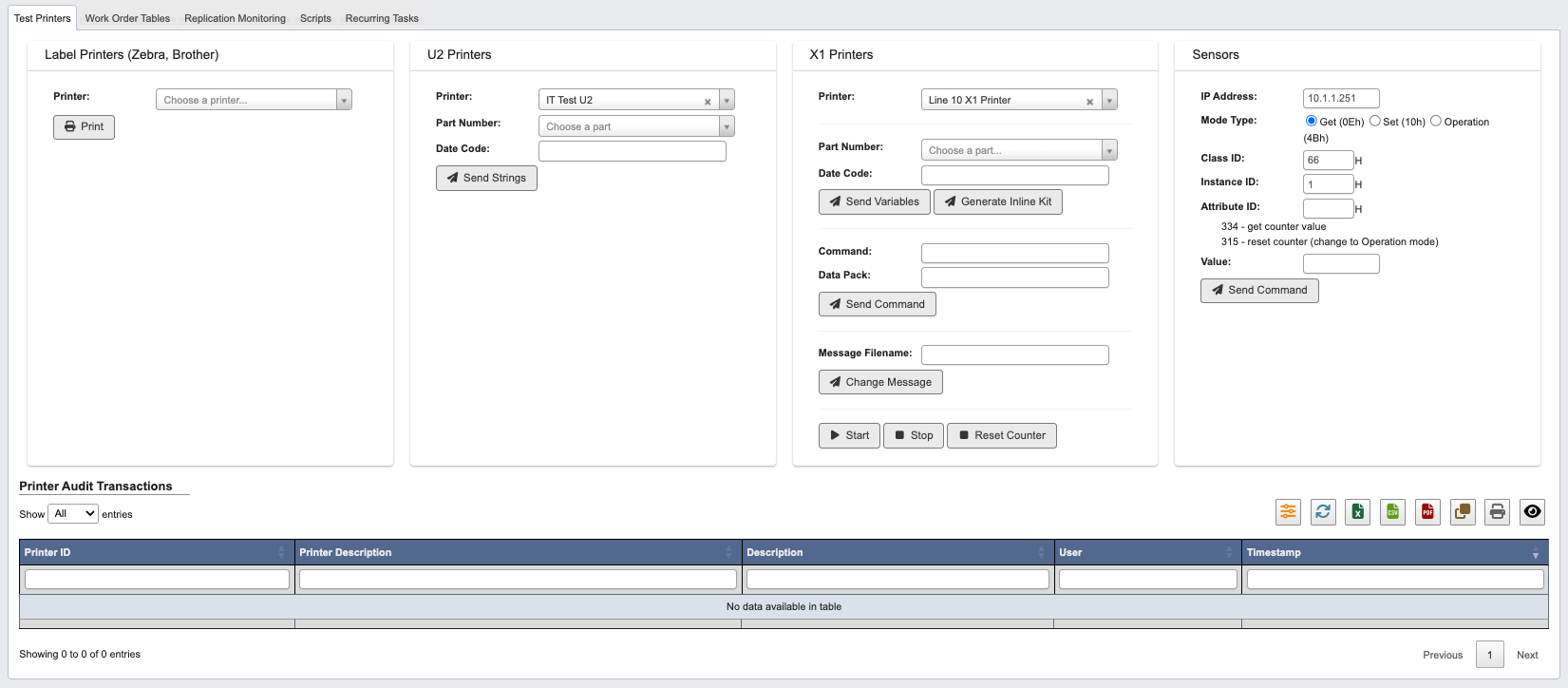
Label Printers (Zebra, Brother)
Test basic label printer functionality:- Choose the target
Printerfrom the dropdown menu. - Click the
Printbutton to send a test print job.
U2 Printers
Test U2 printer functionality with part-specific data:- Choose the target
Printerfrom the dropdown menu. - Choose a
Part Numberfrom the dropdown (must enter at least 2 characters to search). - Enter the
Data Codefor the test. - Click
Send Stringsto transmit the test data to the printer.
X1 Printers
Test X1 printer functionality with advanced controls:- Choose the target
Printerfrom the dropdown. - Choose a
Part Numberfrom the dropdown. - Enter the
Data Codefor the test. - Click
Send Variablesto send variable data orGenerate Inline Kitfor kit generation. - For command testing:
- Enter the
Commandto execute. - Enter the
Data Packinformation. - Click
Send Commandto execute.
- Enter the
- For message management:
- Enter the
Message Filename. - Click
Change Messageto update the message file.
- Enter the
- Use control buttons:
Start: Begin printer operations.Stop: Halt printer operations.Reset Counter: Reset the printer’s internal counter.
Sensors
Test and configure sensor communications:- Enter the sensor’s
IP Address. - Select the
Mode Type:Get (0Eh): Retrieve sensor data.Set (10h): Configure sensor settings.Operation (4Bh): Execute sensor operations.
- Configure sensor parameters:
Class ID: Enter the class identifier (hexadecimal).Instance ID: Enter the instance identifier (hexadecimal).Attribute ID: Enter the attribute identifier (hexadecimal).
- Enter the
Valueif setting parameters. - Click
Send Commandto execute the sensor command.
Printer Audit Transactions
View a table of printer audit transactions that tracks all printer-related activities and communications for troubleshooting and monitoring purposes.Work Order Tables
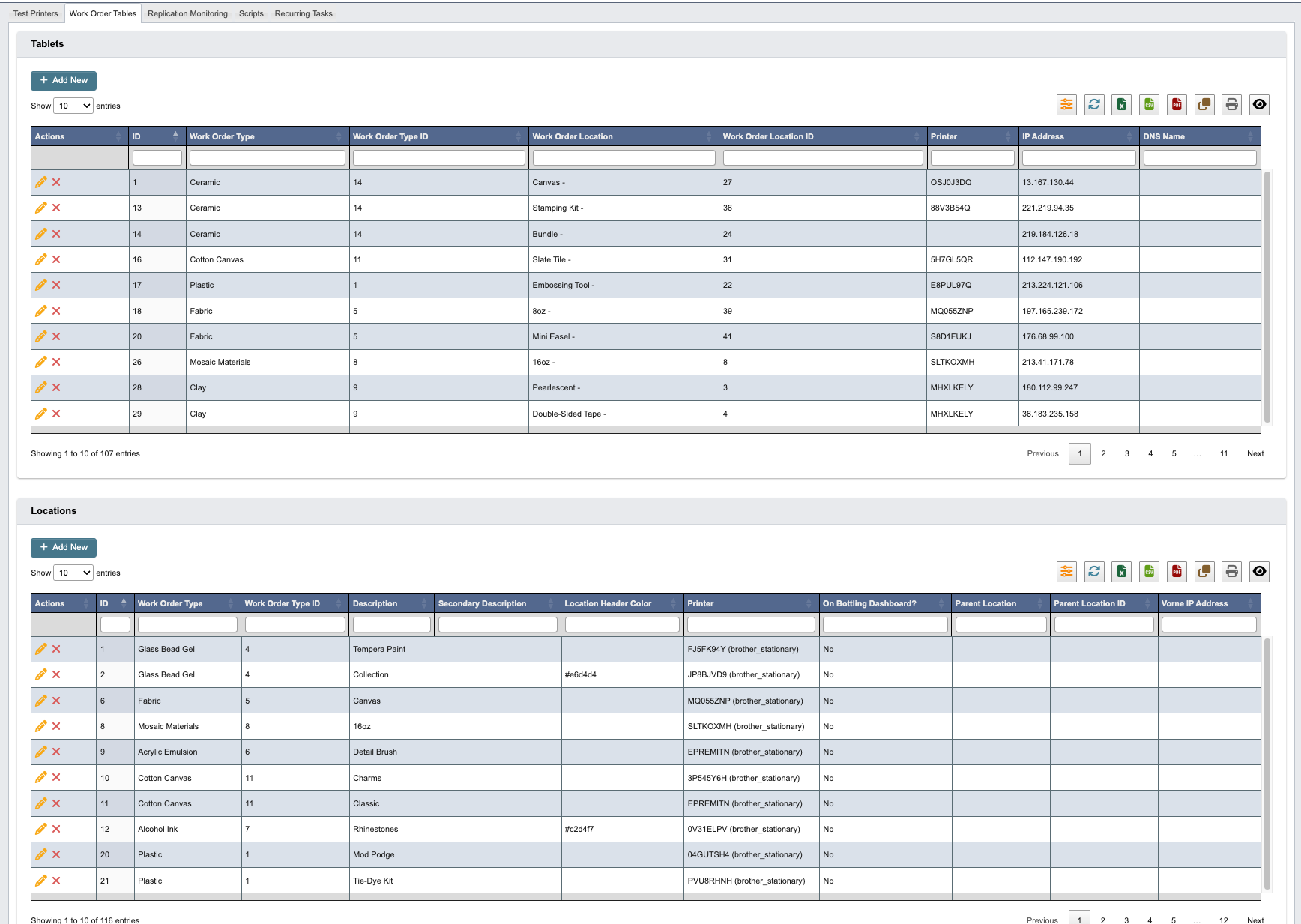
Add Tablet
To add a new tablet device to the system:-
Click
+ Add Newto create a new tablet entry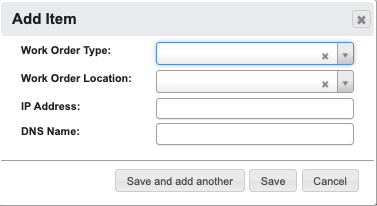
-
Fill in the tablet configuration details:
Work Order Type: Select the type of work orders this tablet will handle.Work Order Location: Assign the physical location where this tablet is installed.IP Address: Enter the tablet’s network IP address.DNS Name: Enter the tablet’s DNS hostname.
-
When you have filled in the details, click:
Save and add anotherto add another tablet.Saveto save the details and return to the table.Cancelto close the window and return to the table.
Add Location
To add a new work order location to the system:-
Click
+ Add Newto create a new location entry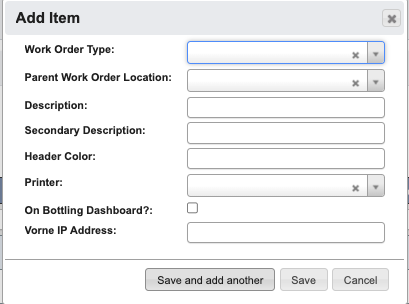
-
Fill in the location configuration details:
Work Order Type: Select the type of work orders for this location.Parent Work Order Location: Select the parent location if this is a sub-location.Description: Enter the primary description of the location.Secondary Description: Enter additional location details.Header Color: Choose the color scheme for this location’s interface.Printer: Assign the default printer for this location.On Bottling Dashboard?: Check if this location should appear on the bottling dashboard.Vorne IP Address: Enter the IP address for Vorne system integration.
-
When you have filled in the details, click:
Save and add anotherto add another location.Saveto save the details and return to the table.Cancelto close the window and return to the table.
Replication Monitoring

Generate Reports to create a database replication status report.
The generated report includes the following columns:
Table: Database table name being monitoredMySQL1 Checksum: Checksum value from the first MySQL serverMySQL2 Checksum: Checksum value from the second MySQL serverMySQL3 Checksum: Checksum value from the third MySQL serverMatch 1 to 2?: Indicates whether MySQL1 and MySQL2 checksums matchMatch 2 to 3?: Indicates whether MySQL2 and MySQL3 checksums match
Scripts

Resume ZD420 Print Jobs
Resume paused print jobs on ZD420 printers:- Click
Add Argumentto specify printer parameters:Prefix: Enter the argument prefix.Argument: Enter the specific argument value.
- Click the printer icon
Resumeto resume print jobs.
Torque Reading
Retrieve torque readings from specified computers:- Configure the argument:
Prefix: Computer (Prefilled).Argument: Enter the target computer name.
- Click
Add Argumentto add another parameter. - Click
Executeto run the torque reading script.
WSUS Single Computer
Execute Windows Server Update Services operations on a single computer:- Configure the argument:
Prefix: Computer (Prefilled).Argument: Enter the target computer name.
- Click
Add Argumentto add another parameter. - Click
Executeto run the WSUS script.
Check Users Password Change Date
Check when a user’s password was last changed:- Configure the argument:
Prefix: User (Prefilled).Argument: Enter the username to check.
- Click
Add Argumentto add another parameter. - Click
Executeto run the password check script.
Sync AD to Azure
Synchronize Active Directory with Azure Active Directory:- Click
Executeto run the AD to Azure synchronization script.
Add Users to Local Admin Group on Computer
Add users to the local administrator group on specified computers:- The following arguments are prefilled:
Computer: Target computer name.User: Target username to add to the admin group.
- Click
Add Argumentto add another parameter. - Click
Executeto run the user administration script.
Recurring Tasks

Discontinue SKUs for Customer
- Fill in the recurring tasks details:
Skip Rows: Specify how many header rows to skip in the uploaded file.Part # Column (zero-based): Enter the column number containing part numbers (starting from 0).Customer: Select the customer for whom SKUs will be discontinued.
-
Click the
Discontinue SKUs for customerbutton to upload the discontinuation file.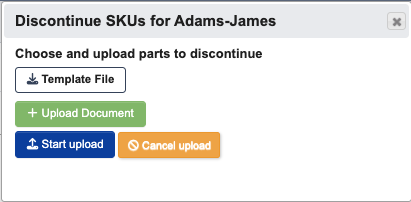
- Click
Template Fileto download the proper file format. - Click
+ Upload Documentto select your prepared file. - Click
Start uploadto begin processing the discontinuation. - Click
Cancel uploadto cancel the upload process.
- Click