Overview
The Miscellaneous → Manage Freight Carriers submodule lets you view and manage freight carrier records used for shipping and logistics operations. This submodule helps maintain carrier information, contact details, and addresses for coordinating shipments and freight services.Active Freight Carriers
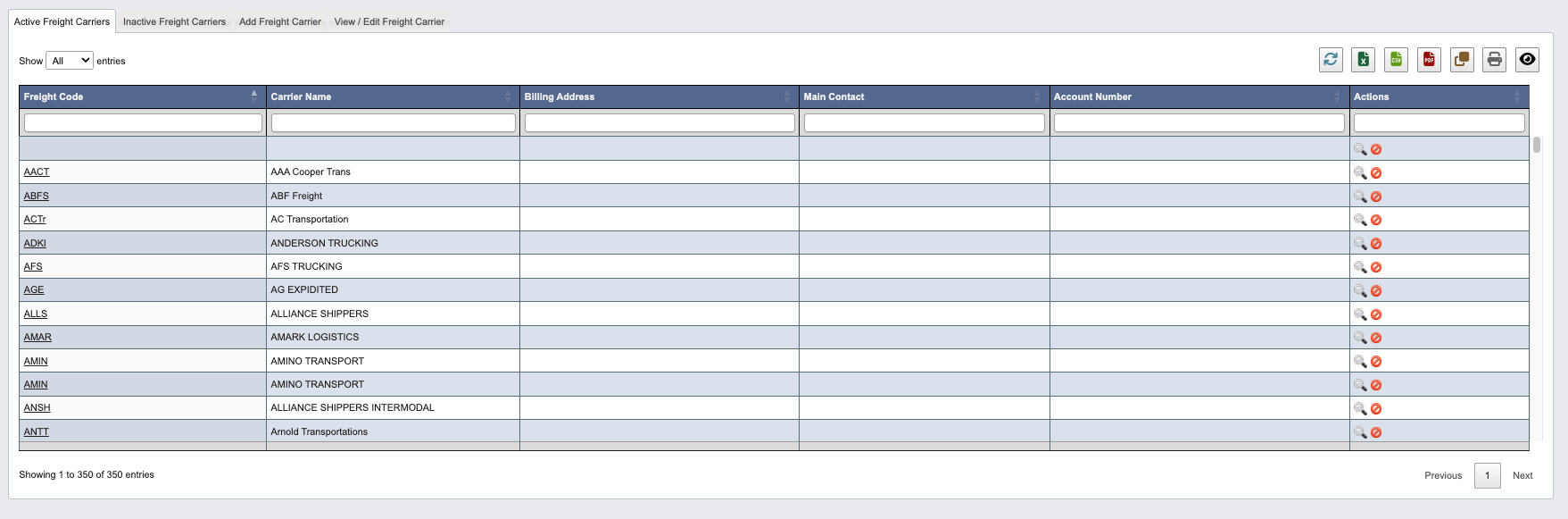
- Click on column headers to sort the data in ascending or descending order.
- Use the Actions column to view or deactivate freight carriers:
View(magnifying glass icon): View detailed freight carrier informationDeactivate(red “no” button): Mark the freight carrier as inactive.
Inactive Freight Carriers
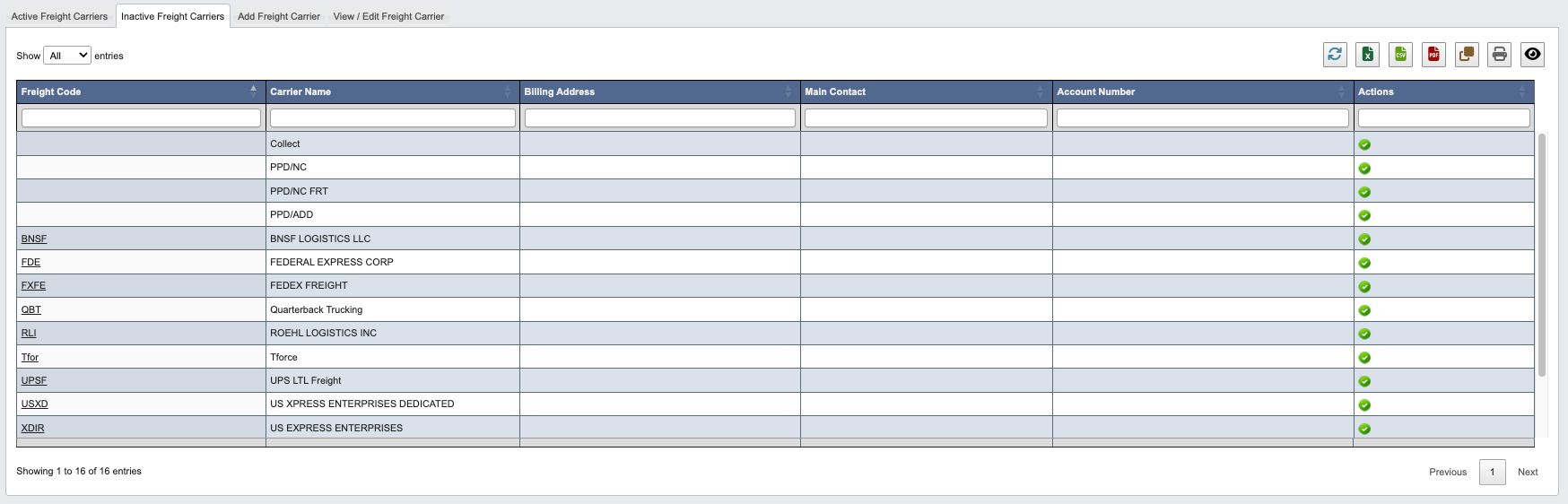
- Click on column headers to sort the data in ascending or descending order.
- Use the Actions column to reactivate freight carriers:
Reactivate(green check button): Mark the freight carrier as active again.
Add Freight Carrier

- Fill in the required freight carrier details:
Freight Code: Freight Carriers standard SCAC code.Description: Enter the freight carrier’s company name or description.Account Number: Enter your account number with this freight carrier.
- Click
Saveto create the new freight carrier record, which will be added to theActive FreightCarriers table.
View / Edit Freight Carrier
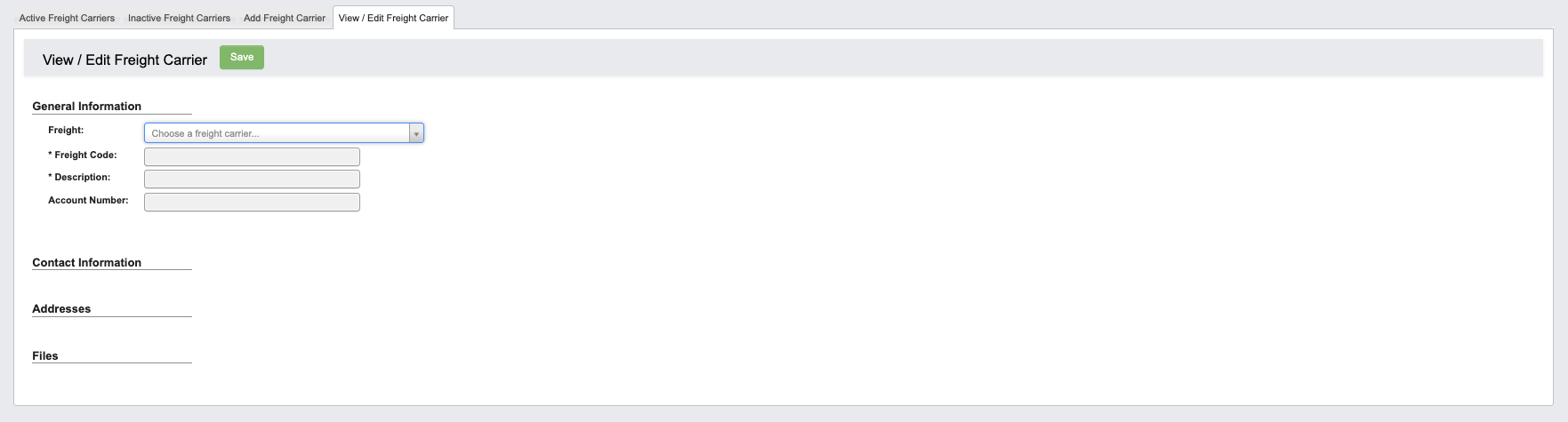
Step 1: Select a Freight Carrier
- Choose a
Freightcarrier from the dropdown menu. - The freight carrier’s information will be displayed.
Step 2: Edit Freight Carrier Information
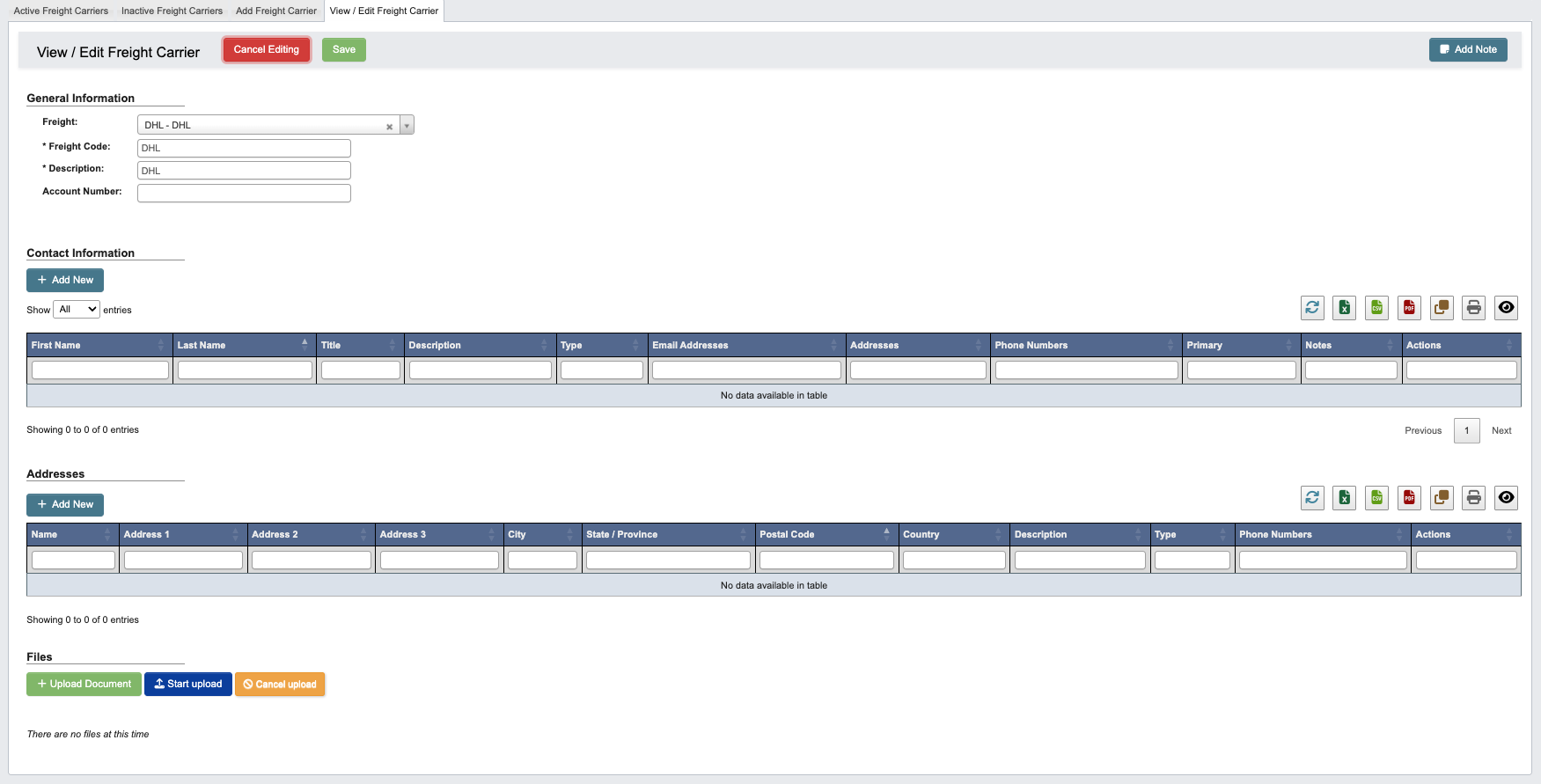
Edit: Enter edit mode and modify freight carrier details.- Once in edit view the following buttons will be available:
Cancel Editing: Cancel editing.Save: Save your changes.
- Once in edit view the following buttons will be available:
- Click
Add Noteto attach comments or notes to the freight carrier record. You can optionally choose an expiration date for the note.
Add Contact Information
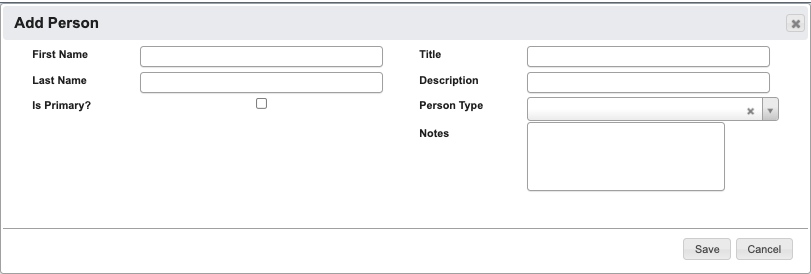
- Click
+ Add newbutton in the Contact Information section. - Fill in the required and optional fields in the form. For a full list of field definitions, see the Vendor Fields reference page.
- Click
Saveto add the contact orCancelto discard
Add Address
To add address information for the freight carrier: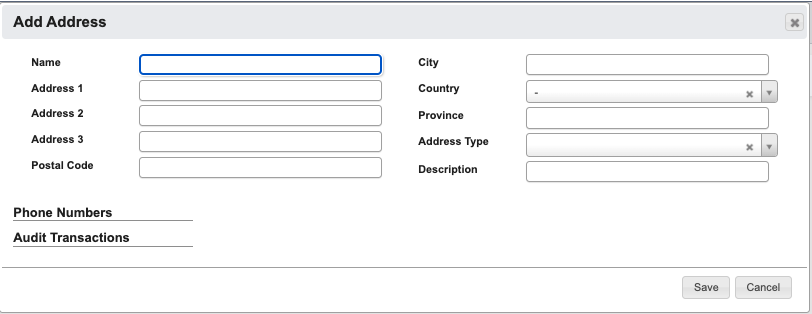
- Click
+ Add newin the Addresses section - Fill in the required and optional fields in the form. For a full list of field definitions, see the Vendor Fields reference page.
- Click
Saveto add the address orCancelto discard
File Management
The File section allows you to manage documents associated with the freight carrier:- Click
+ Upload Documentunder “Files” to open a file browser and select the document you want to attach. - Click
Start uploadto begin uploading. - Click
Cancel uploadif you need to cancel the upload.