Overview
The Scheduling → Manage Schedules submodule provides a centralized workspace for viewing, organizing, and managing all active production and logistics schedules in DASH. It lets schedulers and operations staff monitor progress across multiple departments, adjust timelines, and ensure that manufacturing, packaging, and shipping workflows remain aligned. The system supports real-time status tracking, drag-and-drop scheduling, and integration with external planning tools for comprehensive production management. The submodule contains the following tabs:- Work Orders Schedule: Upload and manage prioritized batch schedules with real-time status tracking and integration with external Excel-based planning tools.
- LTL Schedule: Track less-than-truckload shipments and coordinate readiness with outbound logistics across production categories.
- Small Batch Schedule: Manage smaller production runs and specialty formulations with completion tracking and linked batch references.
- Dispersion Schedule: Coordinate base batch production and tinting operations across multiple dispersion lines with QC integration.
- Bottling Schedule: Assign and balance workload across 12 production lines configured for specific container sizes with real-time status monitoring.
- Label Rewind Checkout Schedule: Track label inventory readiness and coordinate with Generate Requirements reports for packaging operations.
Interface Features for Schedule Tabs:
- Drag-and-Drop Management: Orders can be moved between columns to update ownership or production stage.
- Sorting Options: Click on a column heading (either Line # or Priority #) to sort ascending/descending.
- Export Capabilities: The toolbar includes export options to Excel.
- Label Rewind Checkout also includes export options to CSV and PDF.
- Real-time Updates: Reflects current label inventory status and production requirements.
- Upload Functionality: Import prioritized batch schedules from Excel spreadsheets using the upload feature.
- Column Management: Columns can be collapsed and expanded by clicking on their headings.
Work Orders Schedule
From the Scheduling → Manage Schedules submodule, click on theWork Orders Schedule tab. Select the Part Type, to view the entire work order schedule for associated Parts.

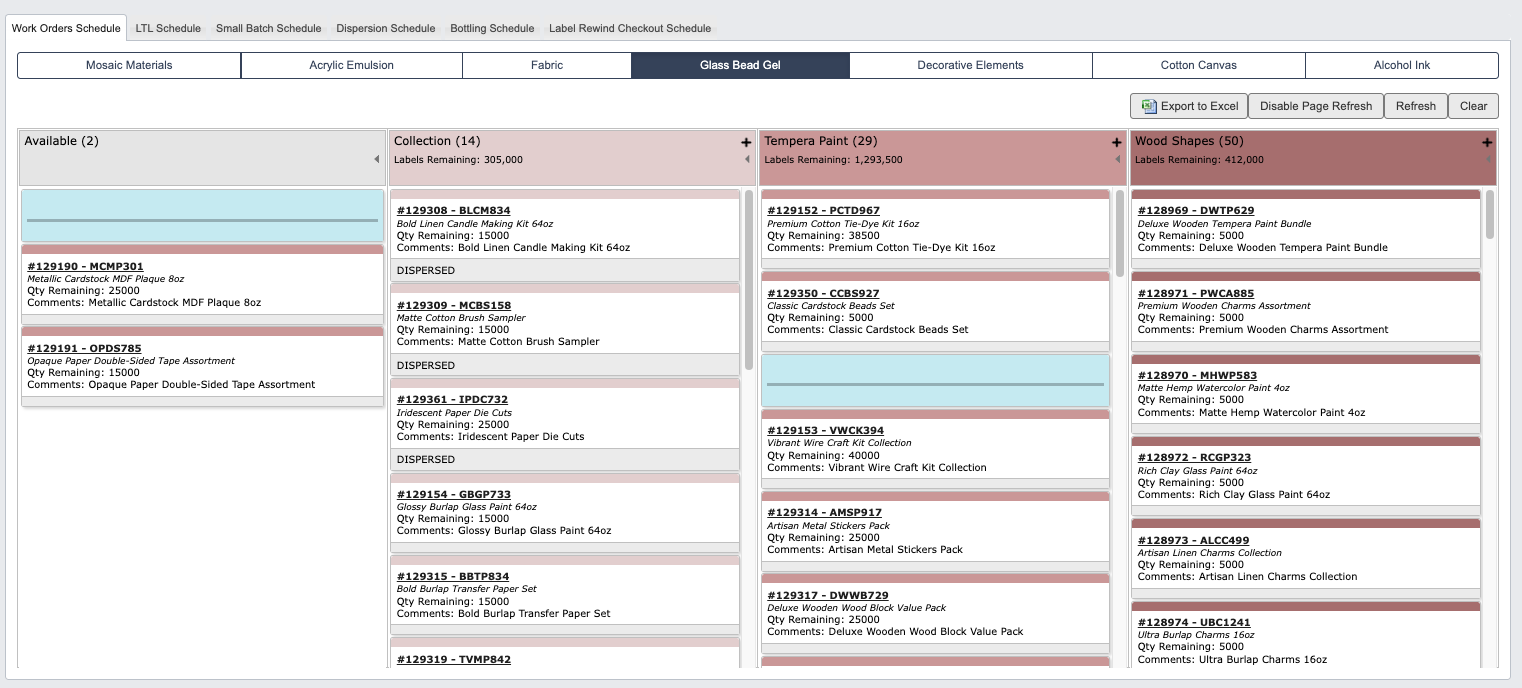
- Reorder work orders based on customer shipping schedules and weekly coordination meetings.
- Upload batch numbers from external scheduling tools to populate the work order system.
- Clear and repopulate schedules as needed to maintain current priorities.
- Click the
+ iconin a column header to add a new Work Order for that Part Type.
LTL Schedule
From the Scheduling → Manage Schedules submodule, click on theLTL Schedule tab. This focuses on less-than-truckload shipments, tracking readiness and coordination with outbound logistics. Each column represents a production category or selector, showing active Work Orders. The page will auto-refresh every 5 minutes.
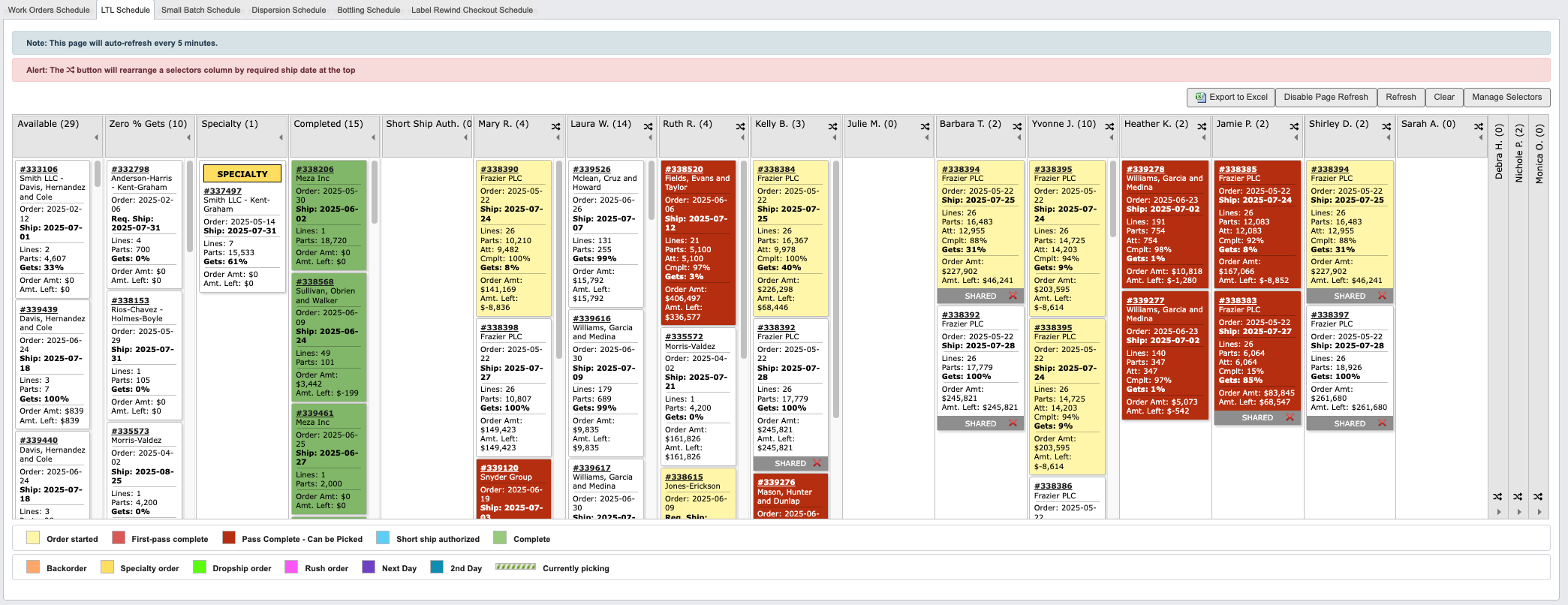
- Selectors appearing as columns can be edited with the
Manage Selectorsbutton in the toolbar. - The 🔀 button rearranges a selector’s column by required ship date, placing the earliest dates at the top.
- A legend at the bottom of the page defines the significance of each color.
Small Batch Schedule
From the Scheduling → Manage Schedules submodule, click on theSmall Batch Schedule tab. This displays and manages smaller production runs or specialty formulations. Each column represents a production category or selector, showing active Work Orders, completion percentages, and required ship dates. The page will auto-refresh every 5 minutes.
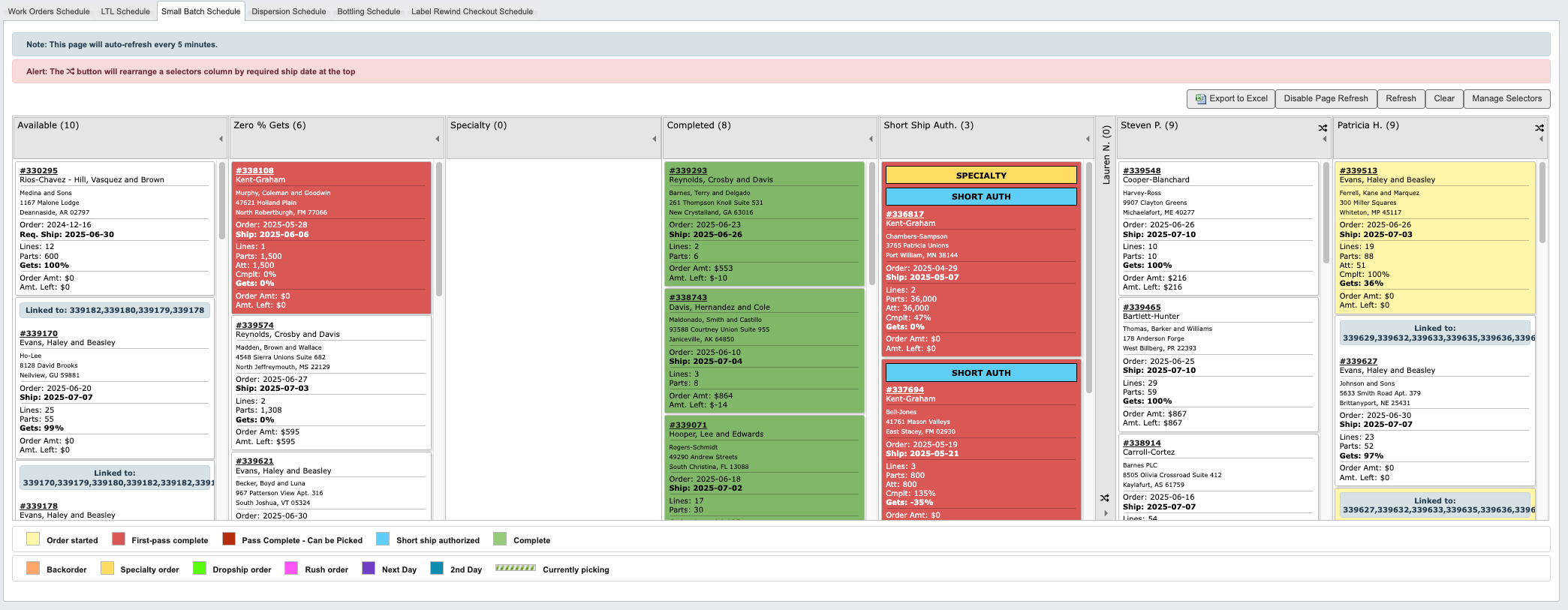
- Orders linked to larger batches or kits will display Linked To references at the bottom of the order card.
- Selectors appearing as columns can be edited with the
Manage Selectorsbutton in the toolbar. - The 🔀 button rearranges a selector’s column by required ship date, placing the earliest dates at the top.
- A legend at the bottom of the page defines the significance of each color.
Dispersion Schedule
From the Scheduling → Manage Schedules submodule, click on theDispersion Schedule tab. This is used to manage base batch production, where batches are displayed in columns labelled by stage. This schedule coordinates the production of both base paints and tinted batches across multiple dispersion lines.

- Orders flagged with
Short Componentsindicate missing materials required to begin batching. - The toolbar allows importing batch tickets via
Import Batch Ticketor downloading a Template File for new entries. To upload a Template File, use the+ Uploadbutton. - Batches can be filtered or exported for review.
Bottling Schedule
From the Scheduling → Manage Schedules submodule, click on theBottling Schedule tab. This coordinates bottling line assignments and status across all production lines. Each column represents a bottling line or holding area, such as Line #, Off-line, or On Hold.

- Lines are configured for specific container sizes, requiring proper batch-to-line matching.
- Orders show quantities remaining, earliest ship dates, and bottling line notes.
- Jobs marked
LABELS CHECKED OUT,WAITING ON REMAINING BATCHES, orQC REJECTED****highlight bottlenecks or quality issues. - Completed dispersion batches appear in “Available Jobs” for assignment to appropriate lines.
- Visual priority markers help identify critical orders requiring immediate attention.
- Jobs automatically disappear upon completion and inventory update.
- Drag-and-drop interface allows manual balancing of workload across lines based on gallons to be bottled.
- System prevents assignment of batches to incompatible lines (e.g., 4oz batches to 2oz-only lines).
- Columns can be scrolled horizontally to view all active lines.
Label Rewind Checkout Schedule
From the Scheduling → Manage Schedules submodule, click on theLabel Rewind Checkout Schedule tab. This tracks label rewind and checkout progress, and supports quality control for packaging operations. Use this schedule to monitor label inventory readiness and final packaging flow. This schedule coordinates with the Generate Requirements reports to ensure labels are available before bottling begins.

- Displays production lines by Priority 1–8, each representing a queue of label rewind tasks.
- Click on a column heading (either Line # or Priority #) to sort ascending/descending.
- The toolbar includes export options to Excel, CSV, and PDF, along with print and refresh functions.
- Coordinates with Generate Requirements reports to identify upcoming label needs.
- Highlights labels that need to be printed or rewound before production can proceed.