Overview
The Work Order Production submodule provides a live, interactive view of all scheduled work orders by type and location. Production staff use this tool to select, start, pause, and complete work orders directly from the production floor. This submodule is primarily used by manufacturing operators and floor supervisors to track progress, assign employees, and record production data in real time.For definitions of these fields, see Work Order Reference.
Work Order Types
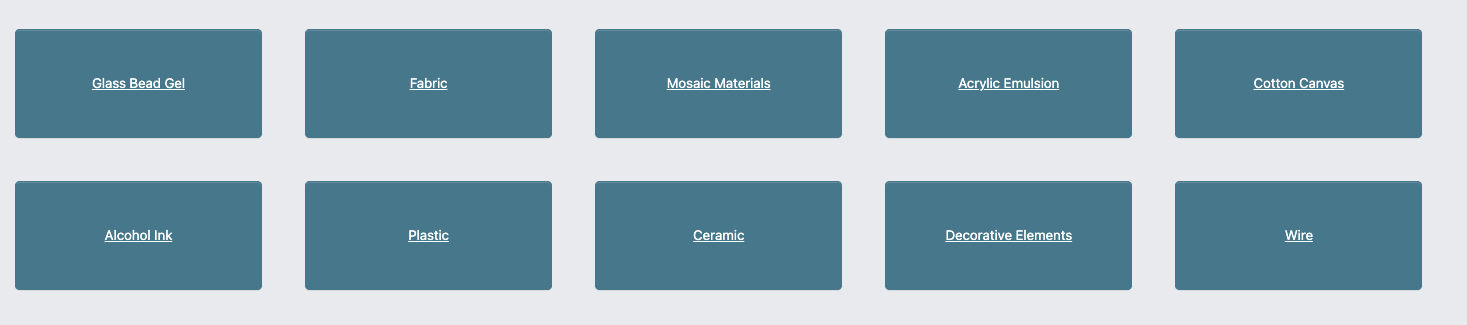
When you open the Work Order Production submodule, you’ll see a tile view of all active Work Order Types configured for your site.These Work Order Types are customizable through the backend. Your list may vary based on your implementation.
-
Click a Work Order Type to see all Scheduled Work Orders that category and your current location.
-
On the job selection screen, you can either:
- Click a scheduled Work Order card, or
- Scan a child work order license plate in the
Or Scan Child License Platefield to automatically load the scheduled parent job for that station.
-
You’ll see a list of scheduled Work Orders displayed as cards. Each card represents a work order and when clicked on contains the following information:
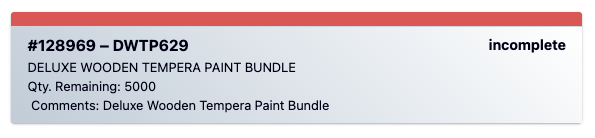
Color-coded Top Bar:Red indicates which should be completed first.Work Order ID-Part Number: A unique identifier for the work order, paired with the associated part number.Status: Current status of the work order. (incomplete or created)Part Description: Name or description of the item being produced.Quantity (Qty) Remaining: The number of units that are still left to be produced.Comments: Additional information or internal notes related to the work order.
Parent WO, it will not appear on the production selection screen until that parent work order has been completed.
If no work orders are currently scheduled, a message will appear stating that none are available.When no listed scheduled Work Order has child work orders, DASH hides the child license plate scan field and the header only tells you to select a scheduled Work Order.If the scanned child license plate does not belong to a scheduled parent job for the current station, DASH shows an error and keeps you on the selection screen.
Assign a Work Order
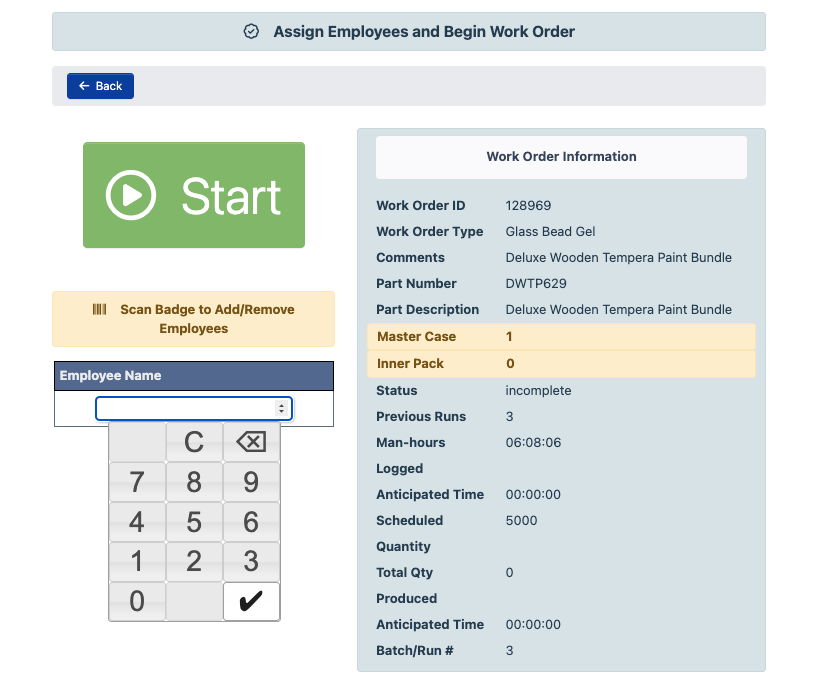
- Click on a Work Order card to open it.
- In the Assign Employee section:
- Enter an Employee ID manually using the number pad, or
- Scan an employee badge with a barcode reader.
- Scan the same badge again to remove the employee.
- Once at least one contributor is assigned, click Start to initiate the run.
You can add or remove employees at any point during the production run.There must always be at least 1 person assigned to an in-progress Work Order. If you need to remove the only employee assigned, you must assign another employee to the Work Order.
Manage Active Work Orders
While a Work Order is in progress, you can perform several key actions directly from the main screen:Pausing for breaks or downtime
To pause a Work Order for breaks, lunch, or other downtime events:- Click on the Stop button.
- Select the downtime option. Choose the appropriate downtime option from the available selections.
- Recording the downtime reason, when the downtime option is selected, a dropdown menu will appear. Select the option that aligns with your reason for stopping.
- To restart the Work Order:
- For Breaks or Lunch: Click Start to resume.
- For Equipment Malfunction, Adjustments, General Downtime or Audit Time: Enter the specific cause of your downtime, then click Start.
Stopping an Incomplete Work Order
If production stops before completion (e.g., end of shift, lack of materials, reassignment):- Click the Stop button.
- Select the reason for the stop by selecting Stop Run (Incomplete).
- Enter a reason and any the relevant information when prompted.
- Click the Stop Run (Incomplete) button to finalize.
Depending on the type of Work Order, reason options and additional text fields provided may differ.If multiple employees are assigned, the employee stopping the run must scan or enter their badge number.
Add Quantity Produced
- Clicking the Add to Qty. Produced button.
- Scan the pallet tag for the pallet the item is being added to.
- For Paint, Paper, Pick pack, Production, Woodshop, and Label Press Work Orders:
- Enter the number of new units produced in the New Units Produced field.
- Scan the License Plate for the pallet the item is being added to.
- Click the Add button.
- The perpetual inventory for the produced part.
- The tracking and perpetual inventory for components used in the Work Order Bill of Materials check list.
Complete a Work Order
Once production for the required quantity is completed:- Click the Stop button.
- When prompted, confirm that all pallets are accounted for:
- Select Yes to close the order, or
- Select No to enter additional quantity details and continue production.
- If more than 10% over the target quantity is produced, a reason for the variance will be required.
- Click the Complete Work Order button to finalize.