Overview
The Work Orders → Reports submodule helps you monitor daily production activity, end-of-shift results, costs, and variances. Supervisors, planners, and finance teams use these reports to validate work order execution, identify issues, and track production costs versus standards. Together, the reports help answer questions like:- “What was produced today?”
- “How did this shift perform?”
- “What did it cost to run this order?”
- “Where are there usage or cost variances?”
How to Generate a Report
The Work Order reports provide different views into production activity and cost tracking. The five main report tabs are:- Daily Work Orders: A production summary by day, with optional grouping by work order.
- Work Order EOS (End of Shift): A shift-level view of work order activity.
- Work Order Cost of Production: A financial view of cost rolled up by order.
- Work Order Usage / Sub Variance: Highlights material usage and cost variances.
- Label Production Variance: Tracks label consumption versus standards.
Each report has its own scope - daily, shift-based, cost, or variance tracking. Together, they provide a complete picture of production activity and efficiency.
Daily Work Orders
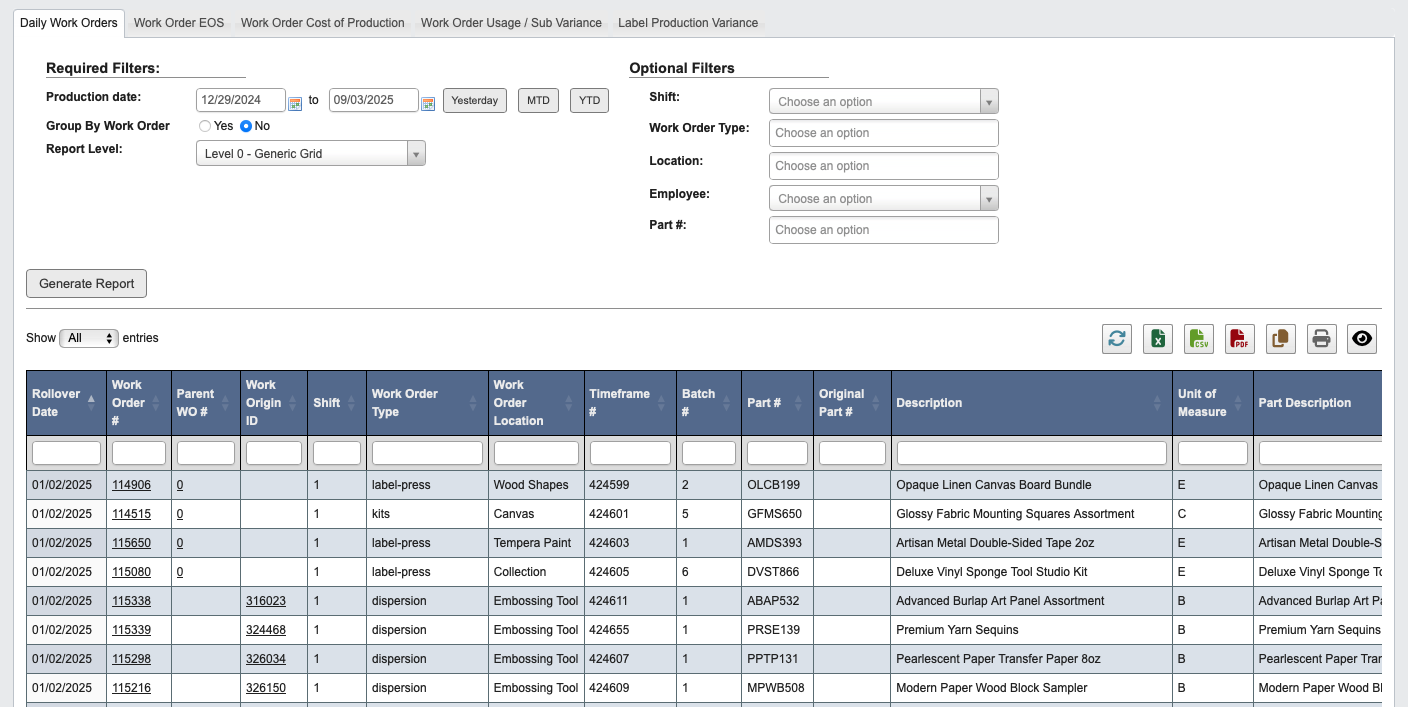
- Click the
Daily Work Orderstab. - Enter the Production date (single day or range).
- Choose whether to Group By Work Order.
- Select a Report Level (Level 0 = generic grid, higher levels = more detail).
- (Optional) Narrow scope by Shift, Work Order Type, Location, Employee, and Part #.
- Click
Generate Report.
Work Order EOS
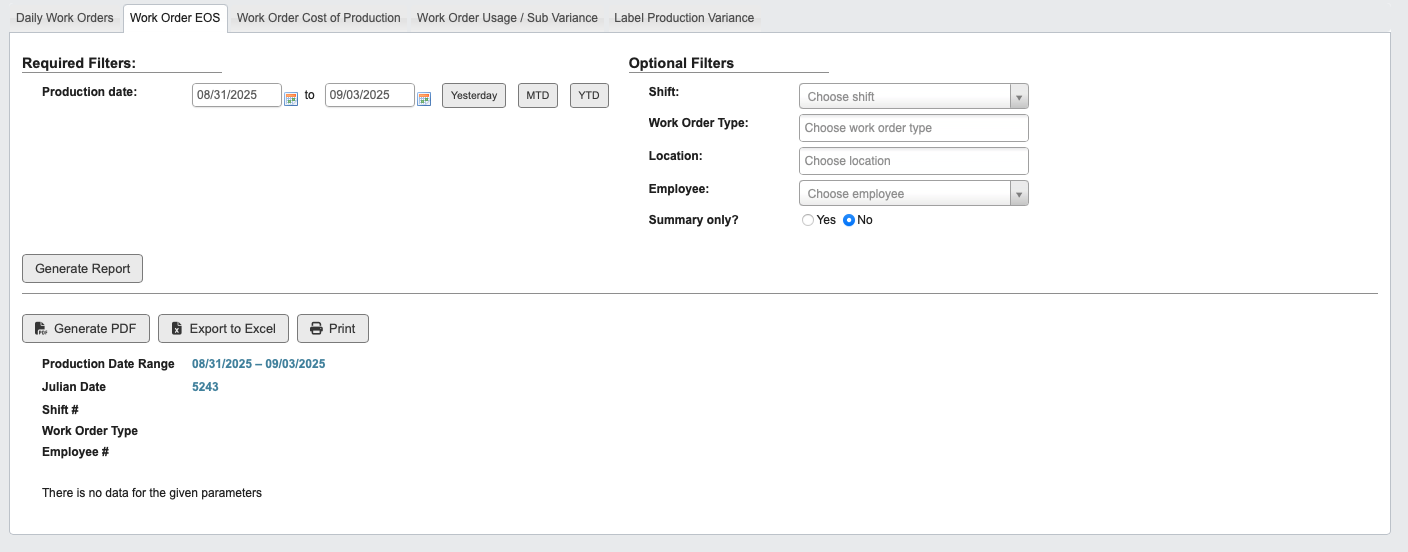
- Click the
Work Order EOStab. - Set the Production Date range.
- (Optional) Filter by Shift, Work Order Type, Location, Employee.
- Choose whether to show Summary Only.
- Click
Generate Report.
Work Order Cost of Production
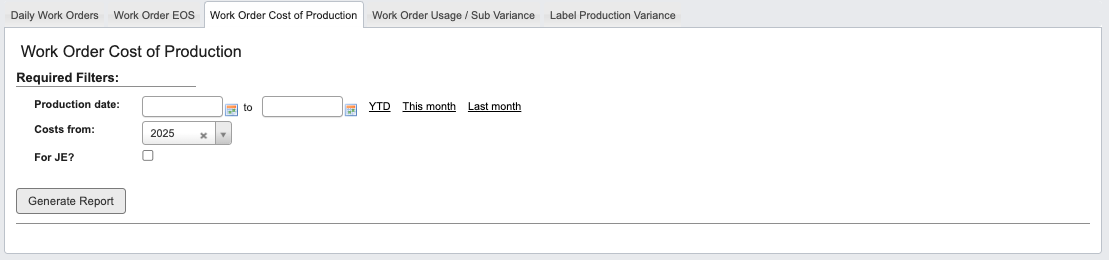
- Click the
Work Order Cost of Productiontab. - Enter the Production Date range.
- Select the Costs From period (e.g., fiscal year).
- Select For JE? if applicable.
- Click
Generate Report.
Work Order Usage / Sub Variance
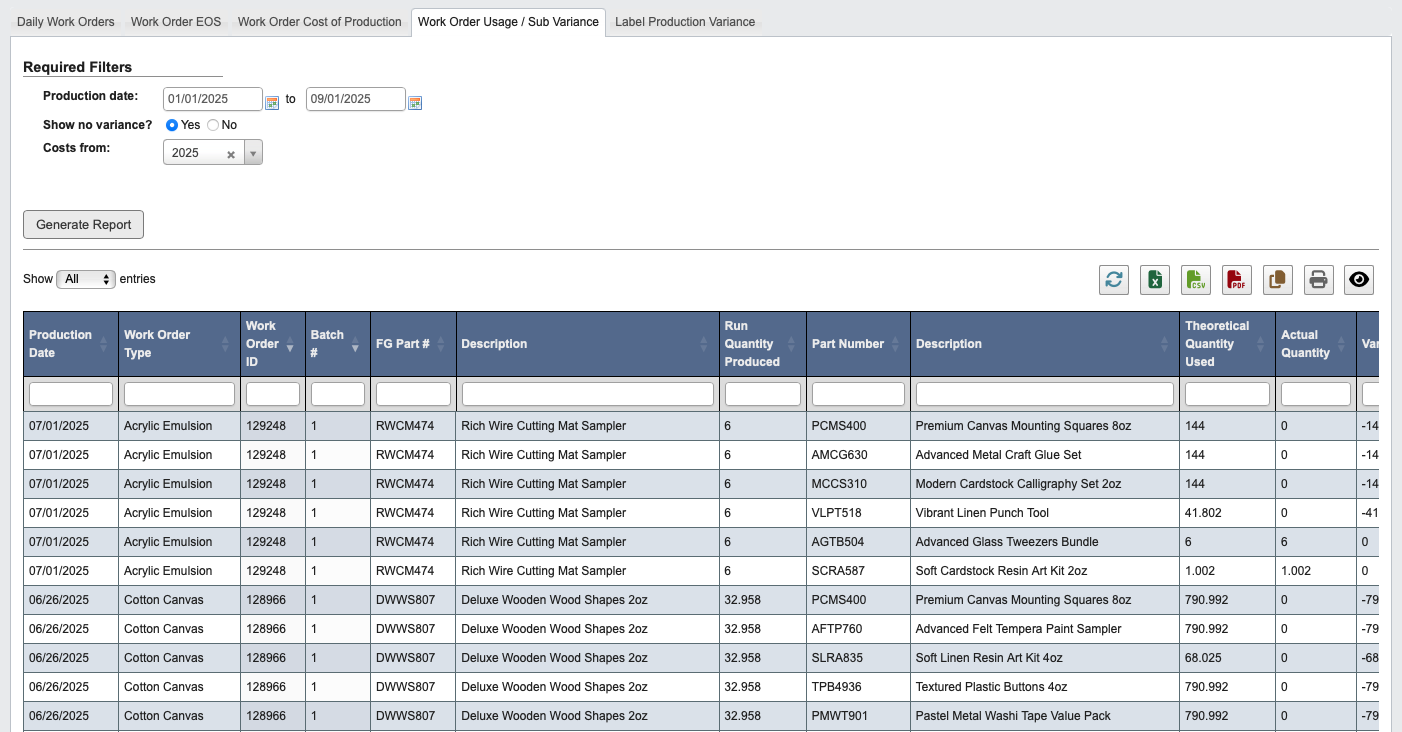
- Click the
Work Order Usage / Sub Variancetab. - Enter the Production Date range.
- Choose whether to Show No Variance.
- Select the Costs From period (e.g., fiscal year).
- Click
Generate Report.
Label Production Variance
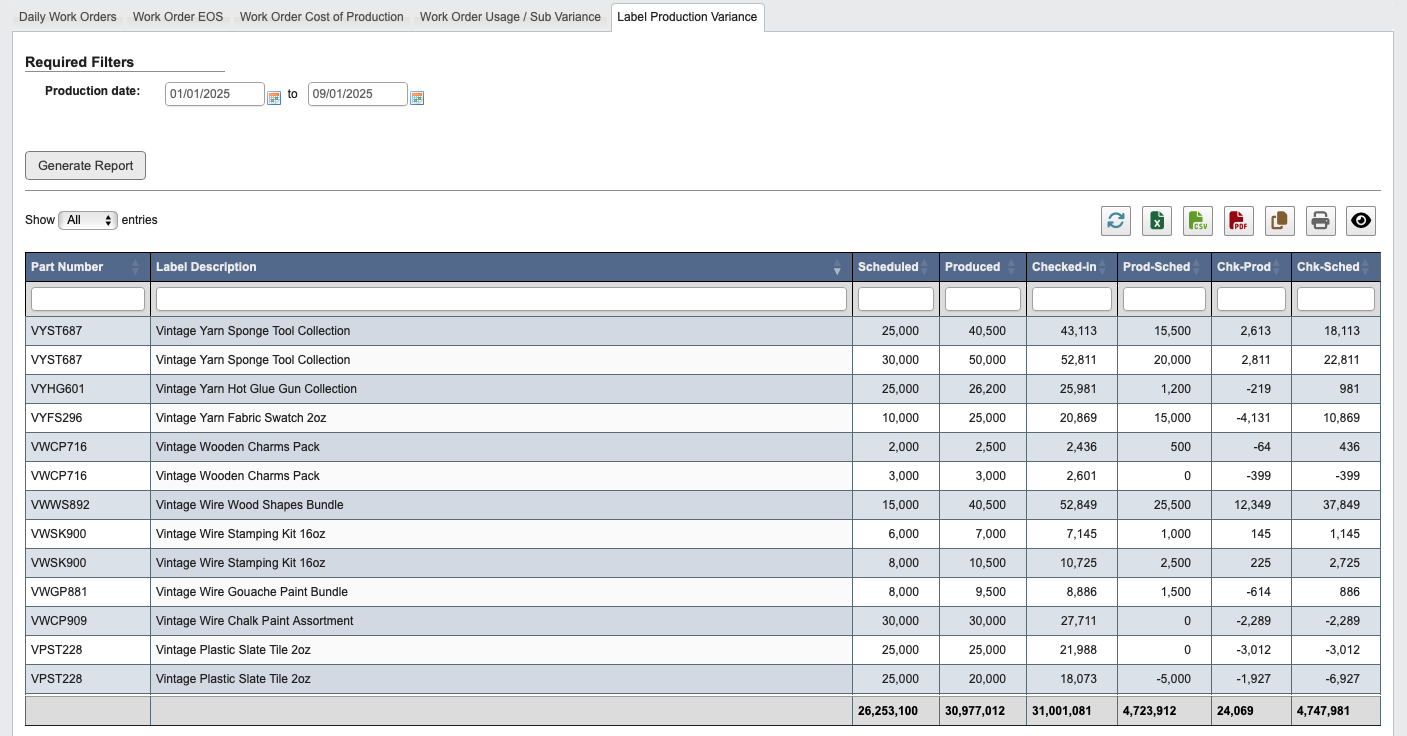
- Click the
Label Production Variancetab. - Enter the Production Date range.
- Click
Generate Report.