Overview
The Administration → Manage Navigation submodule is used to define and organize the pages (URLs) that appear within DASH. Administrators can create navigation entries, nest them under parent categories, and structure them across different hierarchy levels. This page also provides visibility into which companies and users currently have access to each navigation item.Navigation Tab
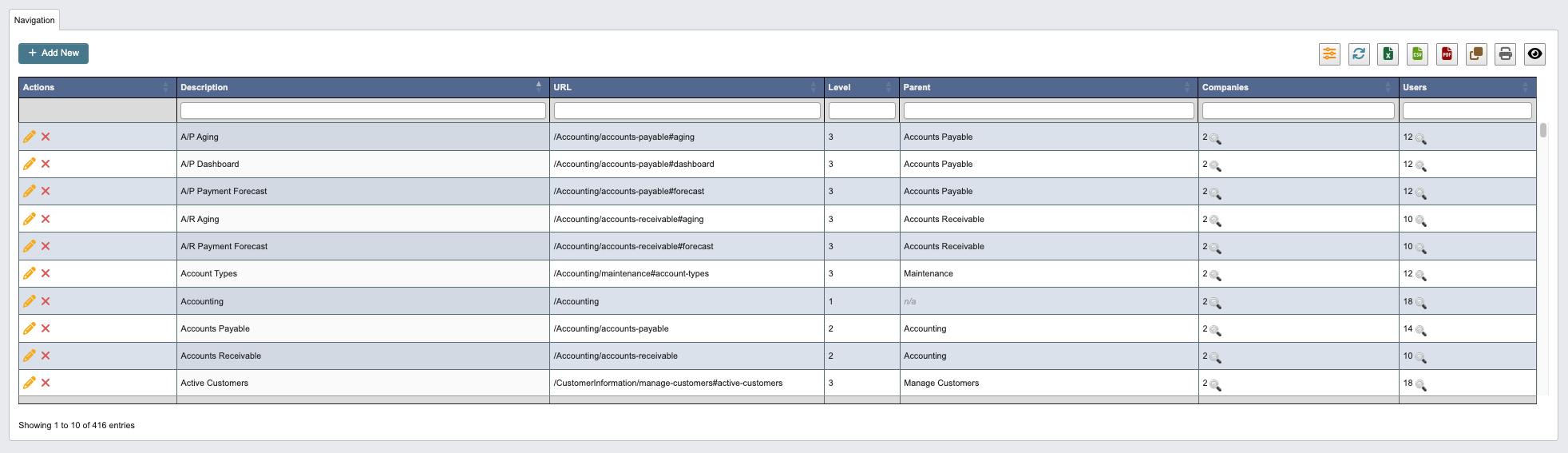
- Level 1 (Main Modules): Accounting, Administration, Order Processing, Part Information, Work Orders
- Level 2 (Submodules): Accounts Payable, Manage Companies, Manage Orders, Manage Parts, Manage Work Orders
- Level 3 (Specific Pages): A/P Dashboard, Add Customer, Add Order, Add Part, Active Work Orders
Navigation-Based Access Enforcement
Navigation assignments control more than menu visibility. For the Accounting module, the backend also refuses to serve data or perform actions for users whose navigation does not include the related page or tab:- A user with no Accounting navigation items cannot retrieve any Accounting data (Accounts Payable, Accounts Receivable, General Ledger, Maintenance, or Fixed Assets), even by calling the underlying endpoints directly.
- Access follows the navigation hierarchy: holding any tab under a page (for example, any Accounts Payable tab) grants access to that page’s data. Some sensitive actions require the specific tab — recording a manual journal entry requires the General Ledger → Journal Entries tab.
- Super Admins (role 1) are never restricted. All other roles, including Admins, are checked against their per-company navigation assignments.
- Changes to a user’s navigation assignments take effect immediately for backend access; the sidebar menu itself refreshes on the next page load.
Add New Navigation
-
Click
+ Add Newto create a new Navigation. -
Enter the following Navigation details:
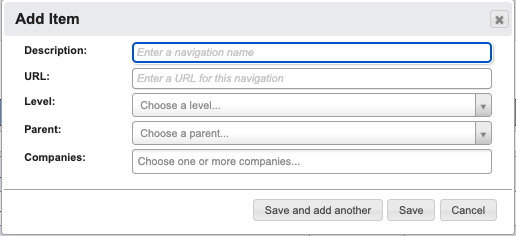
Description: Enter a descriptive name for the navigation item.URL: Enter the URL path for this navigation item.Level: Select the hierarchy level.Parent: Select the parent navigation item for levels 2 and 3.Companies: Choose one or more companies that should have access to this navigation item.
-
When you have filled in the details, click:
Save and add anotherto add another Navigation.Saveto save the details and go back to the table.Cancelto close the window and go back to the table.