Overview
This tutorial helps you manage inventory tied to a specific Part or Location in the DASH Inventory → Material Handler submodule. You can choose whether to lookup:- A specific Part, and its associated location, license plate information, and quantity.
- From here you can manage license plate information or start an inventory cycle count.
- A specific Location and all its Parts, license plate information, and quantities.
- From here you can manage license plate information or mass move license plates to a new location.
What Is a Cycle Count?
A Cycle Count is a manual inventory validation step used to confirm whether the system’s recorded quantities match what’s physically available. When a cycle count is completed, any discrepancies between recorded and actual values will trigger an inventory adjustment in the system to create the correction transaction. Cycle counts must touch every license plate in the table before they can be completed.Lookup a Part
-
From the Inventory → Material Handler submodule, click on the
Part Lookupbutton.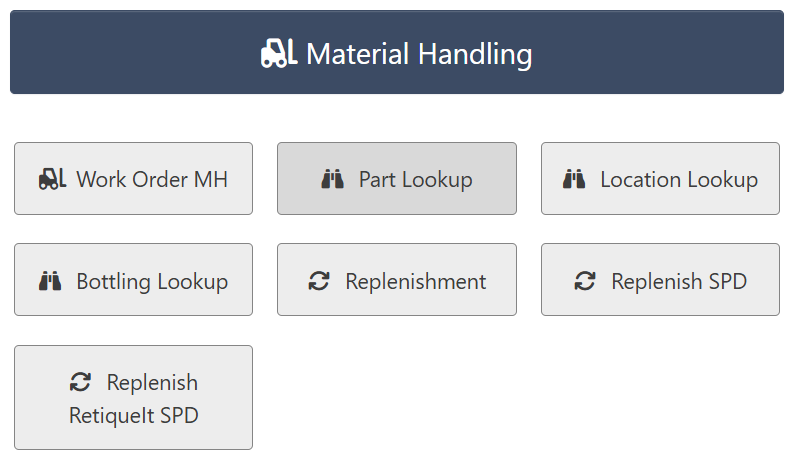
-
Choose whether to lookup by
Part NumberorLicense Plate.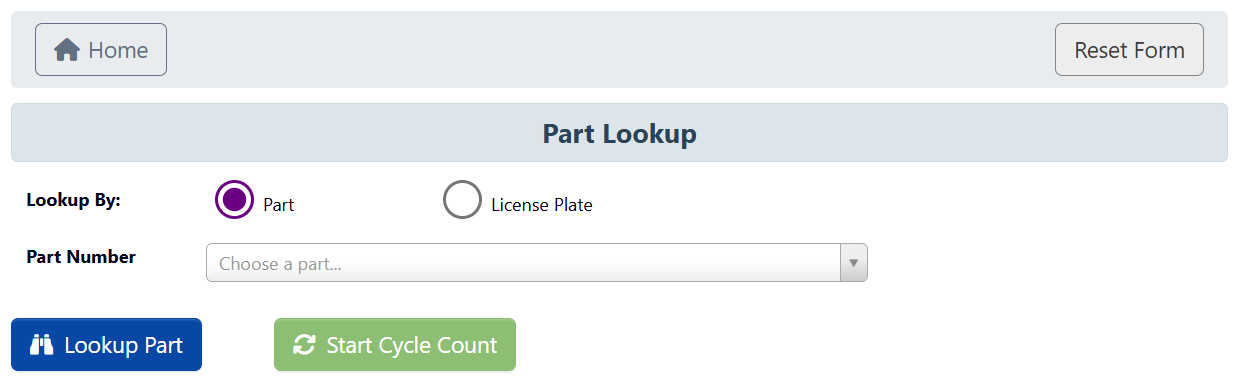
-
If Part Number: Choose a Part in the dropdown menu and click
Lookup Part. -
If License Plate: Scan the
License Plate #(or enter manually) and clickLookup Part. NOTE: This will lookup all instances of the Part associated with that license plate, even Part instances with different license plates.
-
If Part Number: Choose a Part in the dropdown menu and click
-
You should see a table of all information pertaining to that Part appear. From here you have the following features available:
-
Plate: Click this for a specific license plate to go to the License Info page.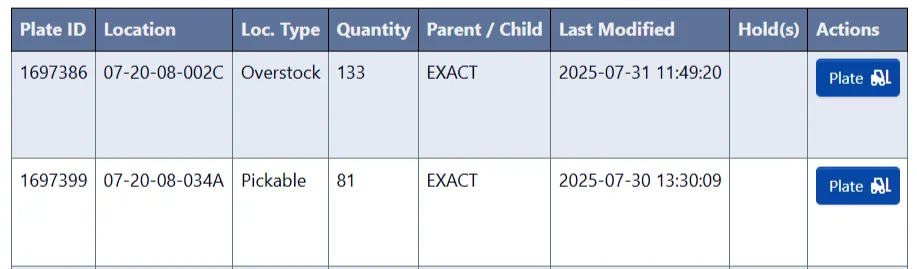
- Follow Tutorial: Manage a License Plate (skipping the prerequisite step) to learn how to manage specific license plates.
-
Start Cycle Count: Initiate a manual inventory count for that part:-
Click
Start Cycle Count, then confirm by clickingYES, start inventory countin the popup.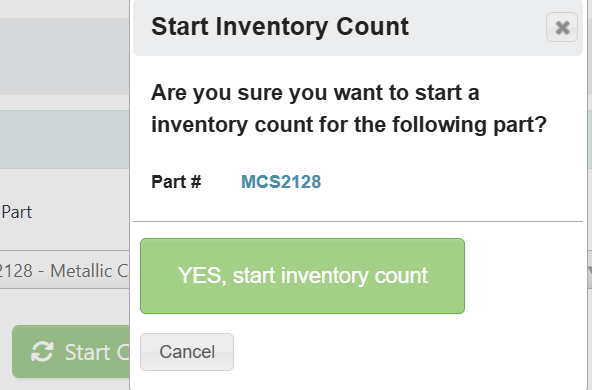
- The table will display each license plate and its expected quantity.
-
For each row:
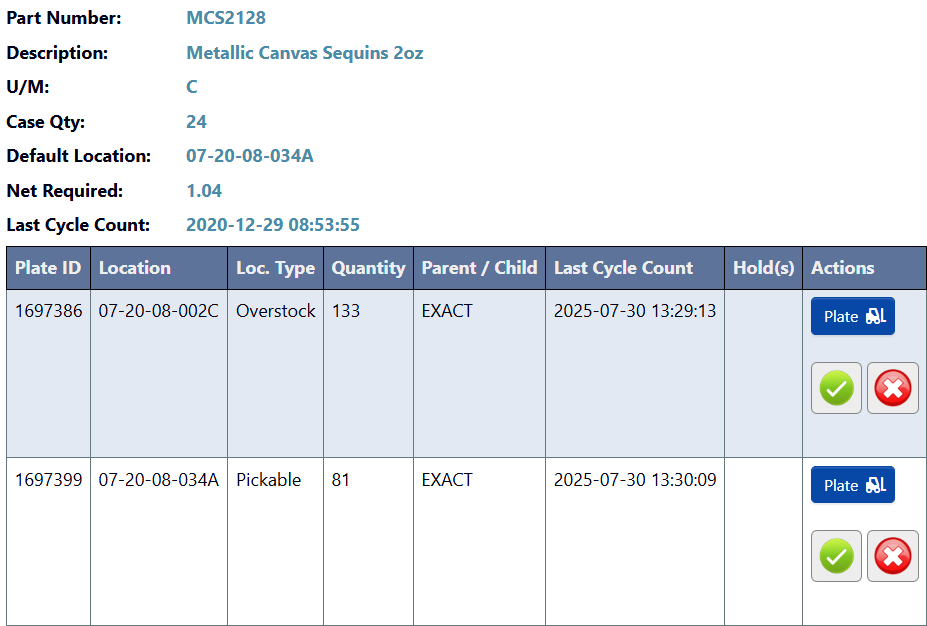
- If the quantity is correct, click the
✓(checkmark) button, then confirm withYes. - If the quantity is incorrect, click the
Xbutton, enter the corrected quantity, and clickYes.
- If the quantity is correct, click the
- Repeat for all rows - you must respond to each license plate.
-
When all plates are addressed, click End Cycle Count. This finalizes the count and triggers any necessary inventory adjustment transactions.

-
Click
-
Lookup a Location
-
From the Inventory → Material Handler submodule, click on the
Location Lookupbutton.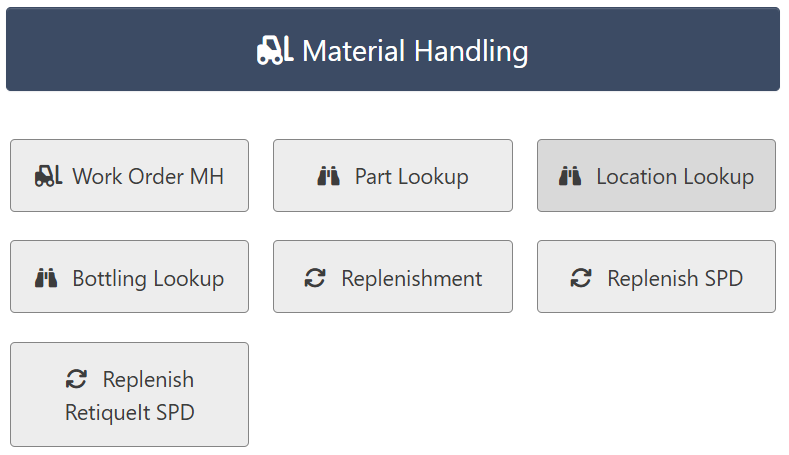
-
Scan or enter the alphanumeric
Location IDand clickLookup Location.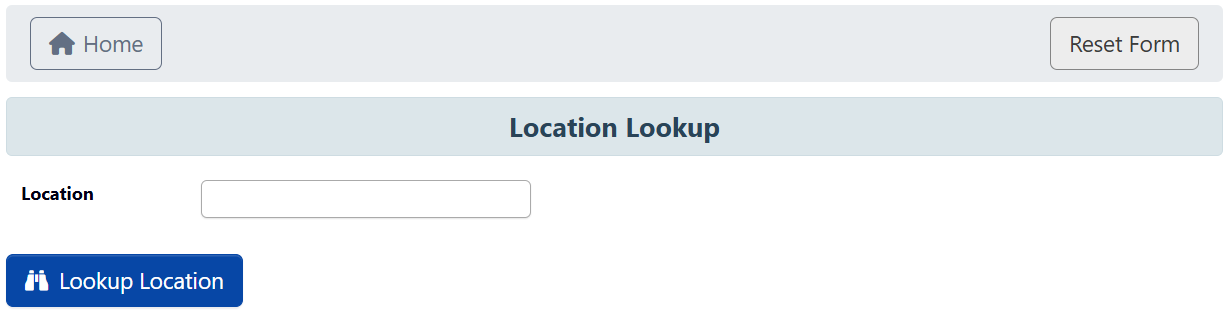
-
You should see a table of all information pertaining to that Part appear. From here you have the following features available:
-
Plate: Click this for a specific license plate to go to the License Info page.
- Follow Tutorial: Manage a License Plate (skipping the prerequisite step) to learn how to manage specific license plates.
-
Mass Move: Use this to move several license plates at once to a new location.-
First, select all License Plates you want to Mass Move (or click
Select Allto highlight all of them).
-
Click
Mass Move, then scan or enter the new Location ID that you want to move all the highlighted license plate information to.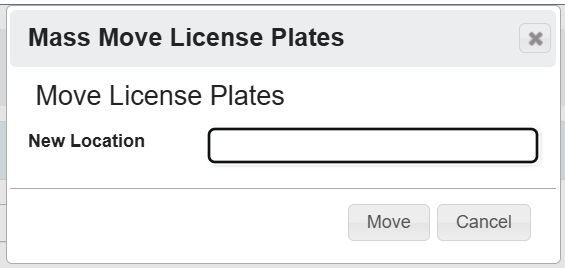
-
Click
Moveto confirm the move.
-
First, select all License Plates you want to Mass Move (or click
-