Overview
This tutorial helps you replenish inventory using the DASH Inventory → Material Handler submodule.For Standard Location-Based Replenishment:
Step 1: Pull up all inventory at a specific location
-
From the Inventory → Material Handler submodule, click on the
Replenishmentbutton.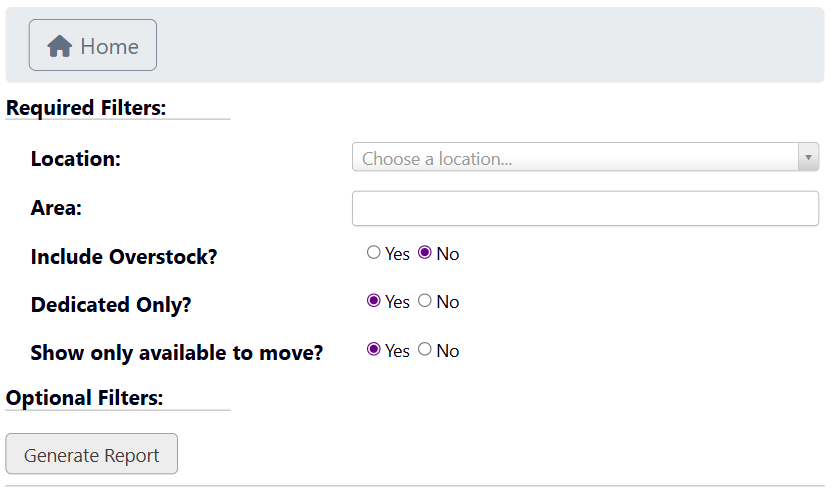
-
Select the
LocationandAreayou want to replenish from the dropdown menus.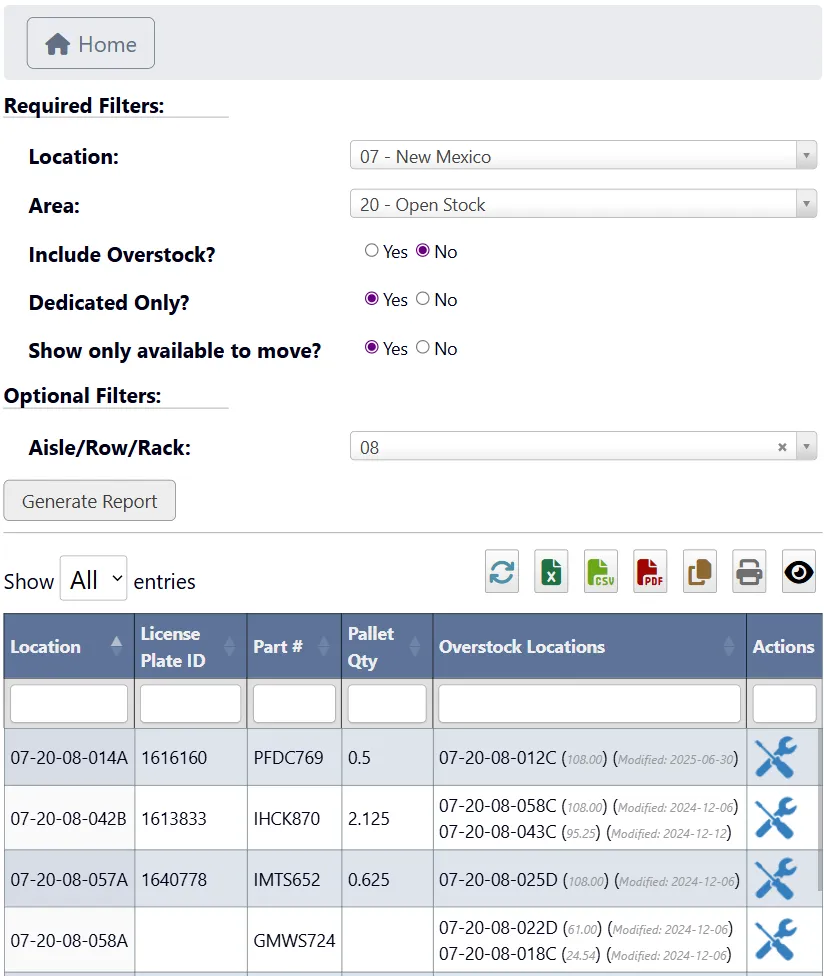
-
Toggle the following options:
Include Overstock?: Shows backstocked inventory along with primary inventory.Dedicated Only?: Only shows items in fixed/dedicated bins.Show only available to move?: Only shows items that can be picked/relocated immediately.
-
Optionally, select an
Aisle/Row/Rackto filter by. -
Click
Generate Reportto view a table of all inventory at that location, including pallet quantity and overstock history. -
From this table, you have the following features:
- Use the toolbar to refresh, export, print, or filter the table data.
- Click on a table heading to sort by that attribute.
- Use the search bars below each attribute heading to search by that attribute.
Step 2: Replenish inventory for a license plate
-
Click the
Crossed Toolsicon for a specific license plate to go to the License Info page and modify its inventory quantity.
-
Follow this tutorial (skipping the prerequisite step) to learn how to manage specific license plates from the License Info page: Tutorial: Manage a License Plate
Some inventory moves or updates may be restricted based on part status (e.g., on hold) or location rules. If a move isn’t allowed, DASH will prevent the action.
For eCommerce Picking Area Replenishment (SPD):
In addition to standard replenishment, DASH also supports the replenishment of eCommerce picking areas, such as Small Package Delivery (SPD) zones. These areas have dedicated replenishment buttons within the Inventory → Material Handler submodule, likeReplenish SPD or Replenish RetiqueIt SPD.
These are controlled at the eCommerce channel level, and in theory, there could be more, depending on how many eCommerce areas are set up in the system.
These replenishment pages work a bit differently:
- SPD = Small Package Delivery.
- They are based on a min/max/restock level system and will suggest replenishment quantities based on that logic.
- Once you choose a license plate and a location in the warehouse to replenish from, the system automatically executes the update process.
The exact names of these buttons may vary depending on how your organization has named the eCommerce areas in DASH.
Step 1: Go to the eCommerce picking area replenishment screen
-
From the Inventory → Material Handler submodule, click on a replenishment button for an eCommerce picking area (these buttons may look something like
Replenish SPD).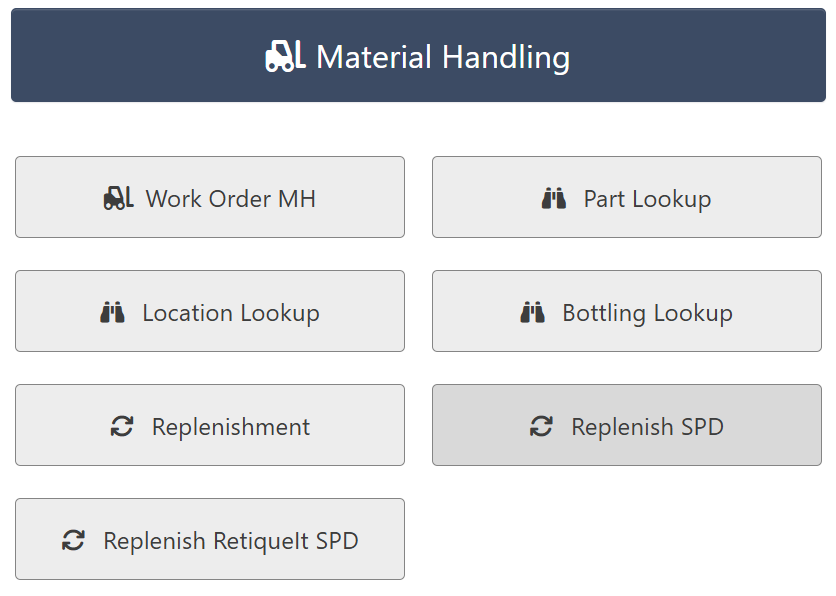
-
You’ll see a table that shows all recommended restocks for the selected eCommerce picking area.
Each row includes:
- The current location of the inventory
- The part number
- The suggested restock quantity
- One or more locations where the part is currently available and can be picked from
-
An Actions column with a
Crossed Toolsicon to complete the replenishmentThe number in parentheses next to each location shows the current quantity on the license plate at that location.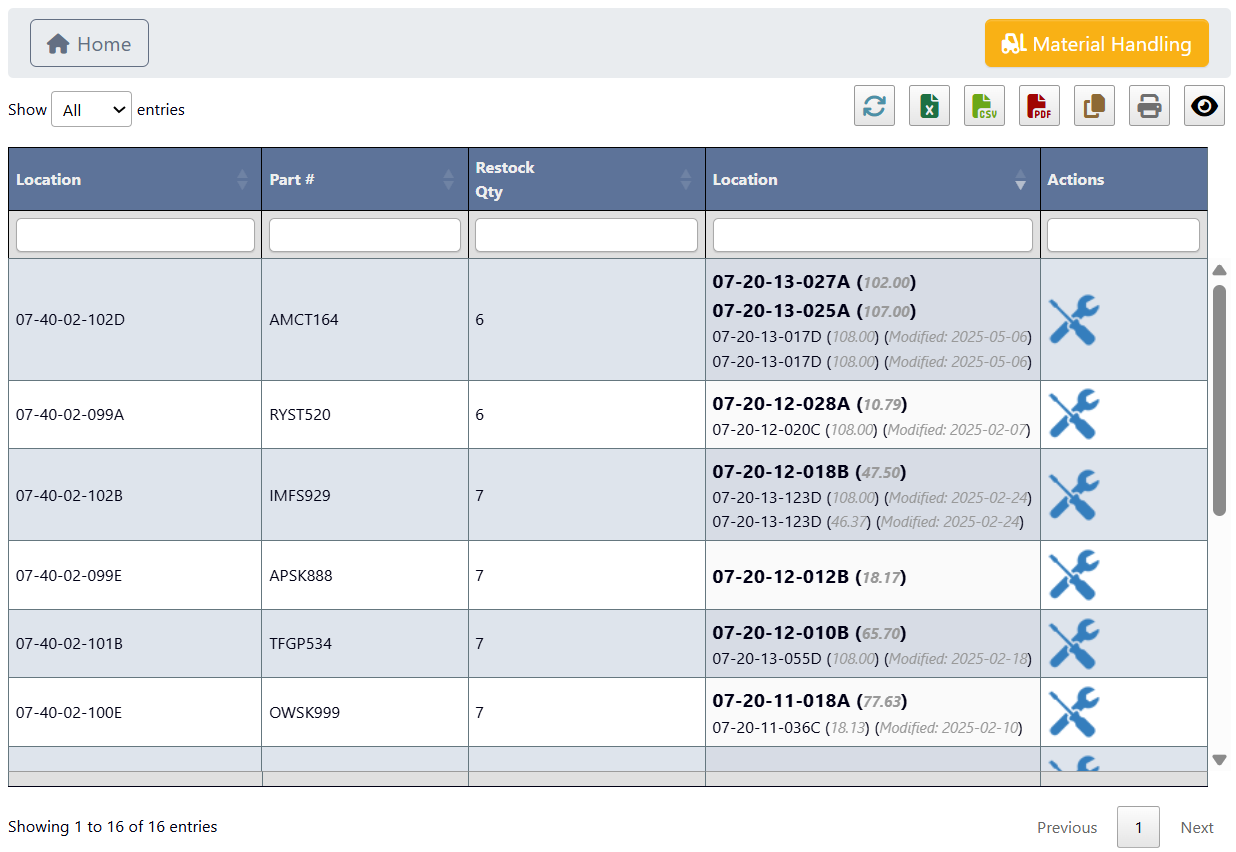
Step 2: Replenish inventory
-
In the suggested replenishment list, click the
Crossed Toolsicon next to an item to open the Restock SPD window. -
From here, scan the Plate # using a scan gun (recommended), or manually enter the ID if needed.
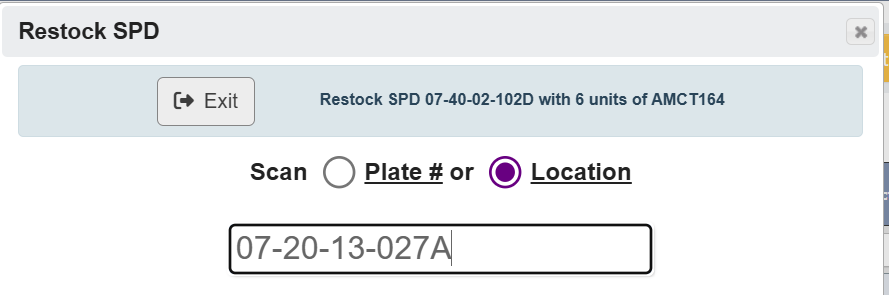
-
The Restock SPD window will now show additional information:
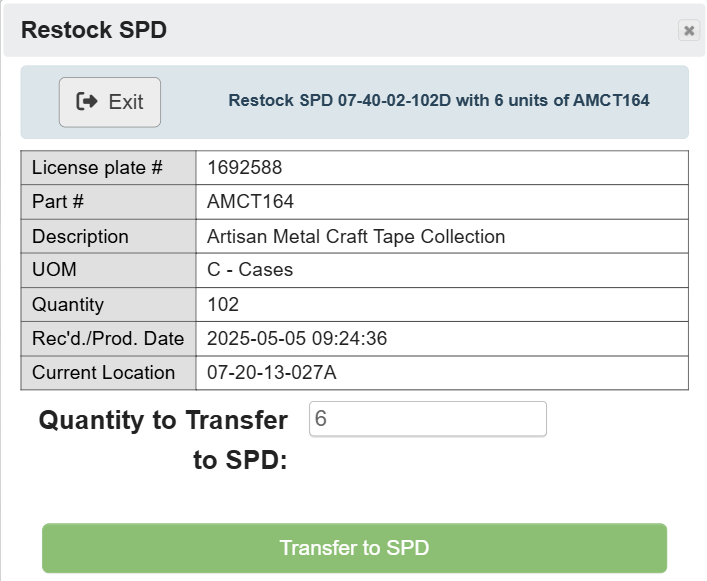
- License plate number
- Part number and description
- UOM (unit of measure)
- Total quantity associated with that license plate
- Received/production date
- Current location
- Suggested restock quantity
-
Confirm or edit the Quantity to Transfer to SPD, then click
Transfer to SPDto complete the transaction.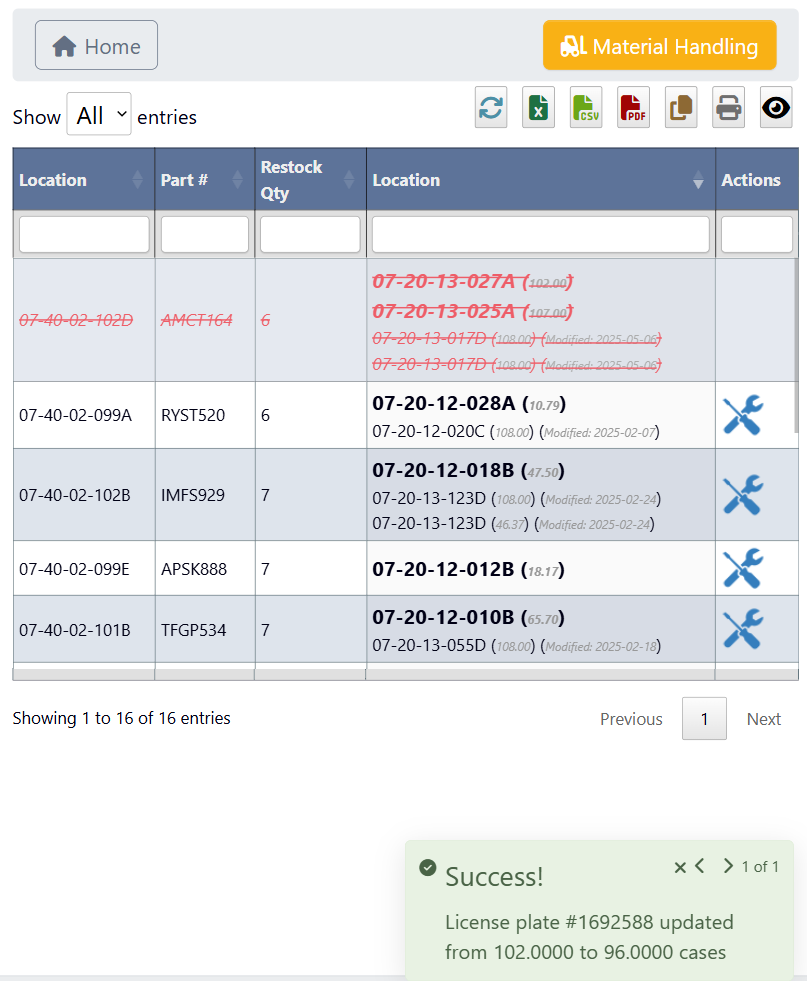
- After submitting, the row for that item will appear crossed out, indicating the replenishment has been processed.
- A success notification will confirm the update. For example: “Success! License plate #1692588 updated from 102.0000 to 96.0000 cases.”
- The first number reflects the original quantity on the license plate, and the second number reflects the remaining quantity after the transfer. In this example, 6 cases were transferred to SPD:
102.00 - 6 = 96.00.