Overview
The Accounting → Fixed Assets submodule provides comprehensive tools for managing company assets, depreciation schedules, and asset lifecycle tracking within DASH. The system supports various depreciation methods and integrates with general ledger accounts for proper financial statement presentation. This submodule is used by accounting personnel, finance managers, operations staff, and auditors who need to track capital expenditures, manage asset depreciation, and maintain compliance with accounting standards and tax regulations. The Fixed Assets submodule provides several tabs for managing asset operations:- Fixed Assets: Record and manage individual assets with depreciation tracking.
- Asset Groups: Organize assets into logical groupings for reporting and management.
- Asset Types: Define categories of assets with specific characteristics.
Fixed Assets
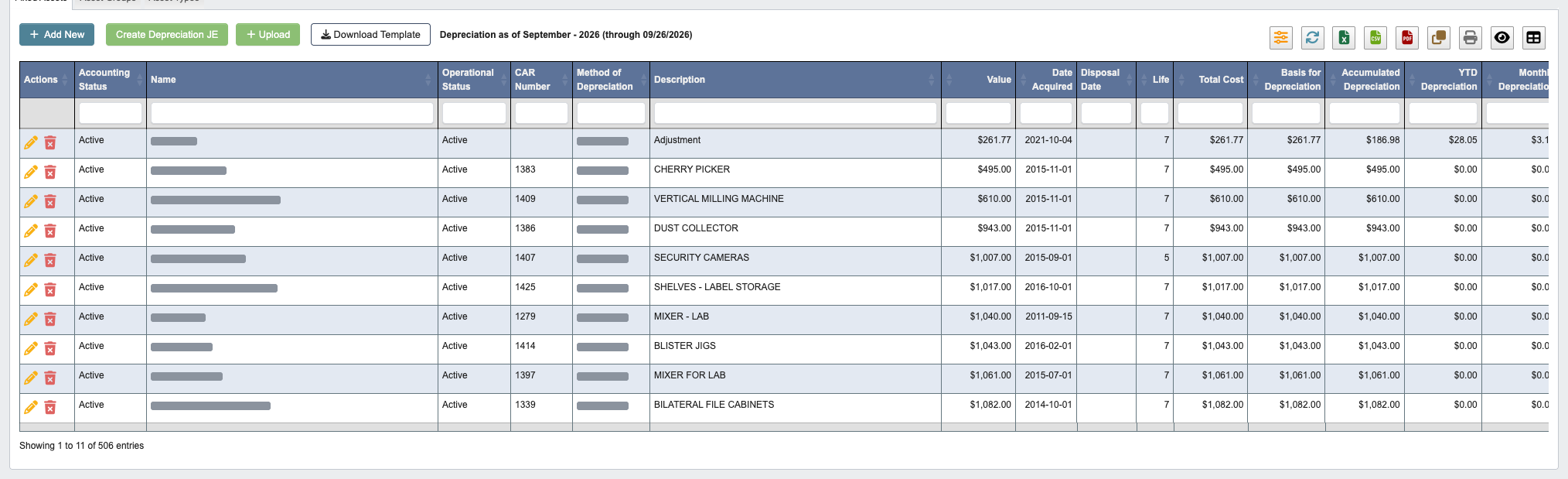
- Click
+ Uploadto import multiple assets from a spreadsheet. - Click
Download Templateto get the proper format for bulk asset uploads. - Click
Create Depreciation JEto post the depreciation journal entry for the period selected in the table filter (the current GL period by default). DASH refuses to post a second depreciation entry for the same period.
Depreciation Columns
Depreciation is calculated by DASH rather than stored on the asset, using straight-line depreciation over the asset’sLife in years. Depreciation starts in the month the asset is acquired and, for disposed assets, stops in the month of the disposal date. An asset marked Fully Depreciated (override) is treated as fully depreciated regardless of its life, for example when it was expensed early.
Accumulated Depreciation: Depreciation taken from the acquisition month through the selected period.YTD Depreciation: Depreciation taken in the selected period’s fiscal year.Monthly Depreciation: The charge for the selected period. It is zero once the asset is fully depreciated or disposed.Remaining Depreciation: Basis for depreciation less accumulated depreciation.Fully Depreciated?:Yesonce the asset has depreciated for its full life as of the selected period, or when it is markedFully Depreciated (override).
Filtering the Grid
Click the orange filter icon in the table toolbar to open the table filter.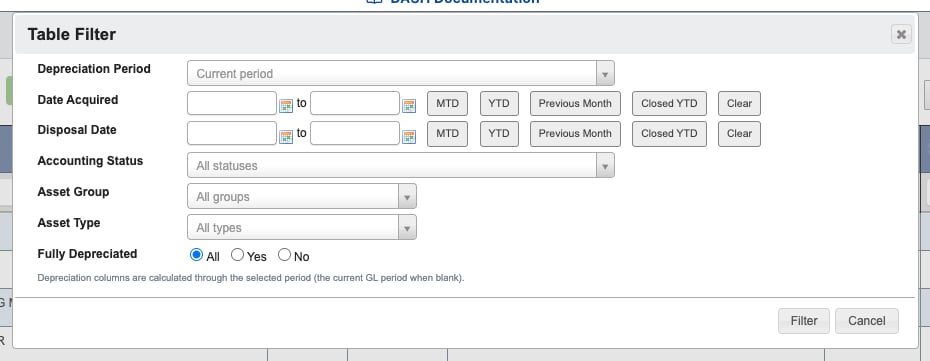
Depreciation Period: The GL period the depreciation columns are calculated through. Leave it blank for the current period.Date AcquiredandDisposal Date: Date ranges that limit which assets are listed. UseMTD,YTD,Previous Month, andClosed YTDto fill a range from the accounting periods, orClearto remove it.Accounting Status,Asset Group, andAsset Type: Limit the grid to matching assets.Fully Depreciated: Show all assets, only fully depreciated assets, or only assets that are still depreciating as of the selected period.
Filter to reload the grid. Exports use the same filtered rows and calculated columns.
Pending Assets from Completed CAR Numbers
When a CAR number receives anActual Completion date on the Accounting Maintenance screen, DASH automatically creates a fixed asset entry for it with a Pending accounting status and posts the CAR’s capital projects Journal Entry in the same step. The entry starts with the CAR’s description, GL code, completion date (as the date acquired), and actual expense (as the total cost, using the manually adjusted amount when one was entered on the CAR).

Accounting Status from Pending when the asset is ready to depreciate.
Adding New Assets
-
Click
+ Add Newto create a new fixed asset record.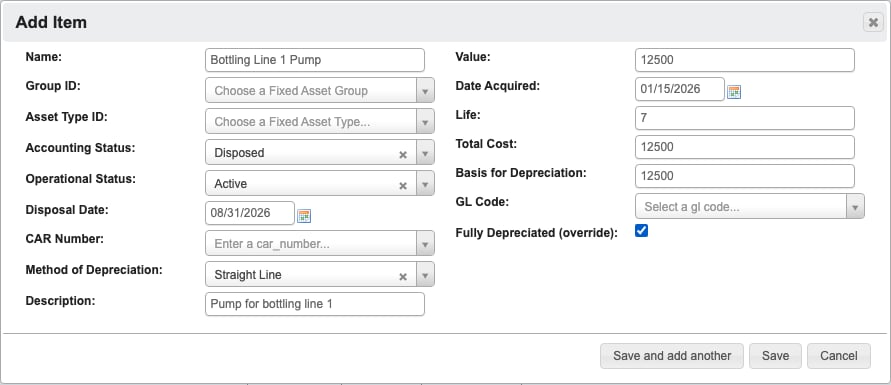
-
Complete the asset information form with the following required and optional fields:
Name: Descriptive name for the asset.Group ID: Select the appropriate asset group for organizational purposes.Asset Type ID: Choose the asset type that defines the asset category.Accounting Status: Whether the asset accounting status is pending, active, or disposed.Operational Status: Whether the asset operational status is active or inactive.Disposal Date: Appears when the accounting status isDisposedand is required. Depreciation stops in the disposal month.CAR Number: Enter the Capital Appropriation Request number.Method of Depreciation: Choose from available depreciation methods.Description: Detailed description of the asset.Value: Asset value.Date Acquired: Date when the asset was purchased or placed in service.Life: Expected useful life of the asset in years.Total Cost: Original acquisition cost including all setup expenses.Basis for Depreciation: Amount subject to depreciation.GL Code: General ledger account code for proper financial statement classification.Fully Depreciated (override): Check to treat the asset as fully depreciated before its life ends. It then shows its full basis as accumulated depreciation and is left out of the monthly depreciation Journal Entry.
-
Choose your save option:
- Click
Save and add anotherto save the current asset and immediately create another. - Click
Saveto save the asset and return to the main list. - Click
Cancelto discard changes.
- Click
Asset Groups
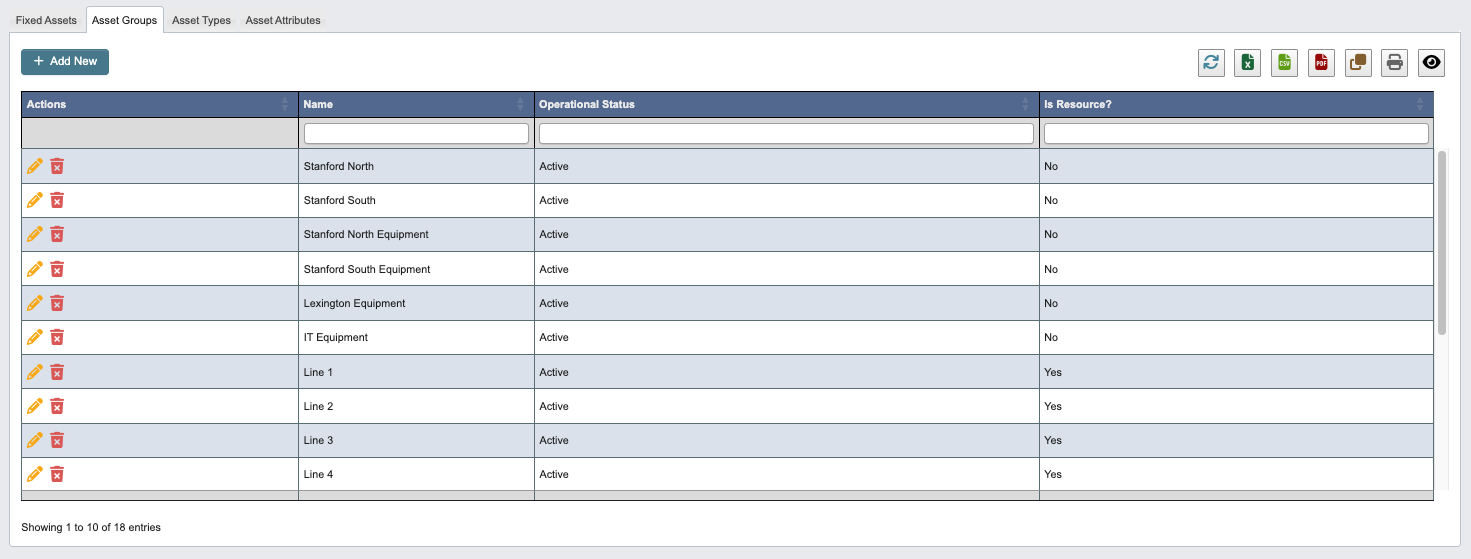
Creating New Asset Groups
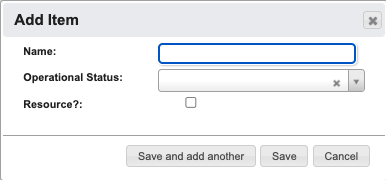
- Click
+ Add Newto create a new asset group - Configure the group settings:
Name: Descriptive name for the asset group.Operational Status: Choose active or Inactive.Resource?: Indicate if assets in this group are considered operational resources.
- Choose your save option:
- Click
Save and add anotherto save the current group and create another. - Click
Saveto save the group and return to the main list. - Click
Cancelto discard changes.
- Click
Asset Types
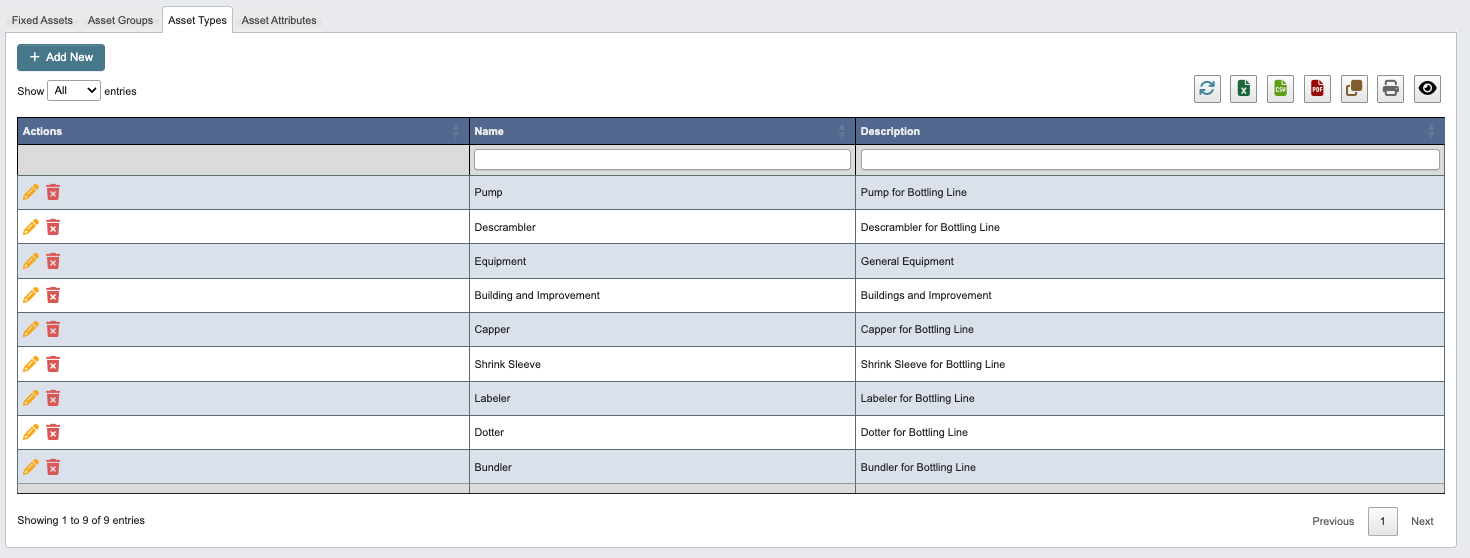
Creating New Asset Types
-
Click
+ Add Newto create a new asset type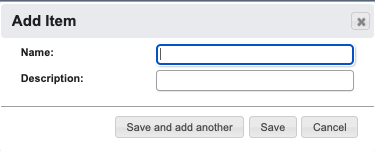
-
Define the asset type:
Name: Asset type name.Description: Detailed description of what assets belong to this type.
-
Choose your save option:
- Click
Save and add anotherto save the current type and create another - Click
Saveto save the type and return to the main list - Click
Cancelto discard changes
- Click