Overview
The Accounting → Maintenance submodule provides comprehensive tools for configuring and maintaining the foundational elements of the accounting system within DASH. The maintenance functions ensure proper system configuration and support accurate financial reporting and transaction processing. This submodule is used by accounting administrators, system administrators, controllers, and finance managers who need to configure accounting system parameters, maintain the chart of accounts, and ensure proper integration between accounting functions and operational processes. The Maintenance submodule provides several tabs for configuring accounting system parameters:- Chart of Accounts: Manage the complete chart of accounts structure.
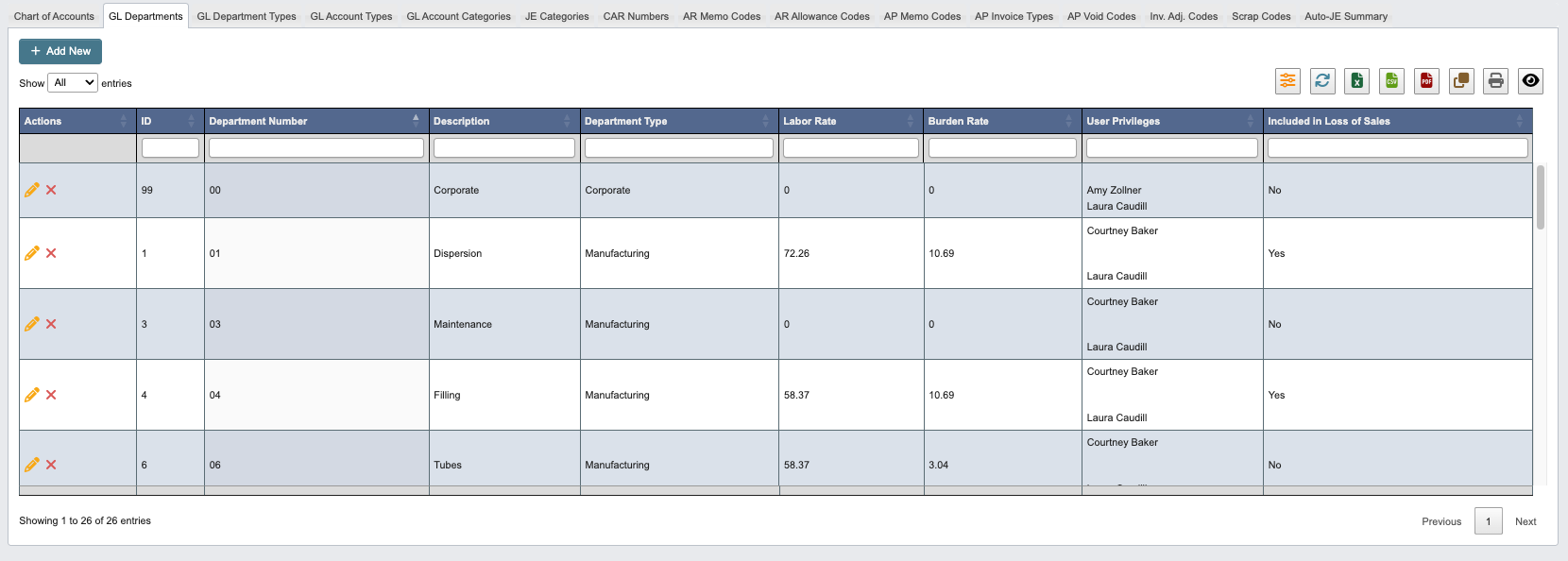
- GL Departments: Configure departments for cost center reporting.
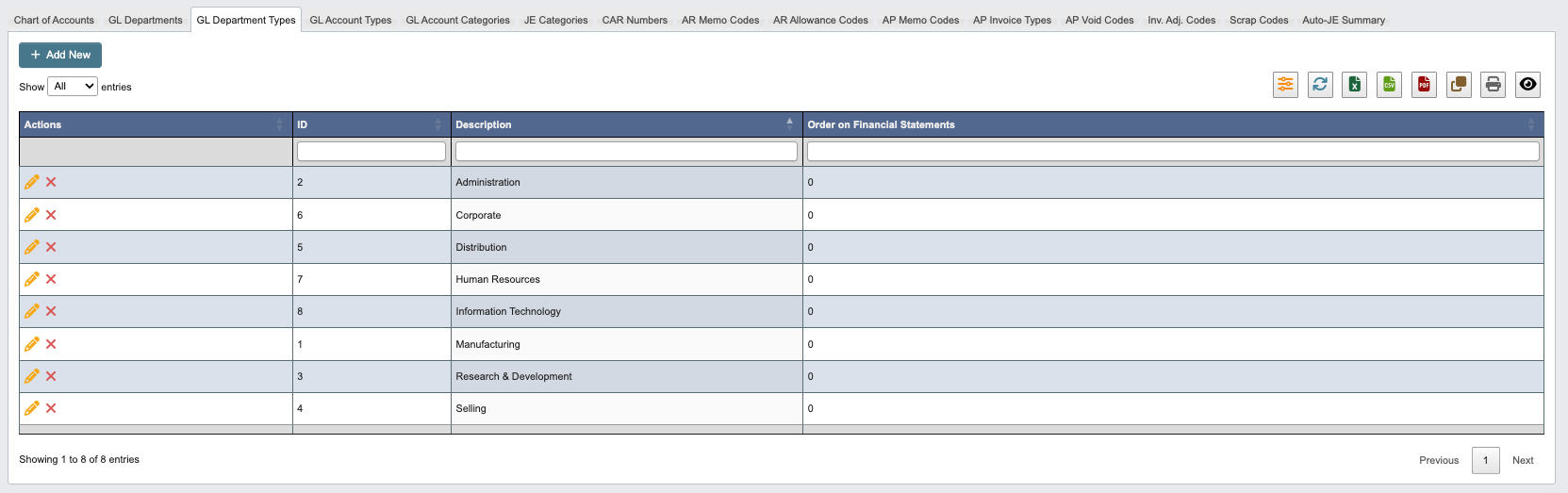
- GL Department Types: Define department categories and classifications.
- GL Account Types: Set up account type hierarchies for financial statements.
- GL Account Categories: Organize accounts into reporting categories.
- JE Categories: Define journal entry (JE) categories for classification.
- CAR Numbers: Manage Capital Asset Request tracking numbers.
- AR/AP Memo Codes: Configure codes for receivable and payable adjustments.
- AR Allowance Codes: Set up customer allowance and discount codes.
- AP Invoice Types: Define vendor invoice classifications.
- AP Void Codes: Configure codes for voided transactions.
- Inventory Adjustment Codes: Set up codes for inventory adjustments.
- Scrap Codes: Define codes for scrap and waste tracking.
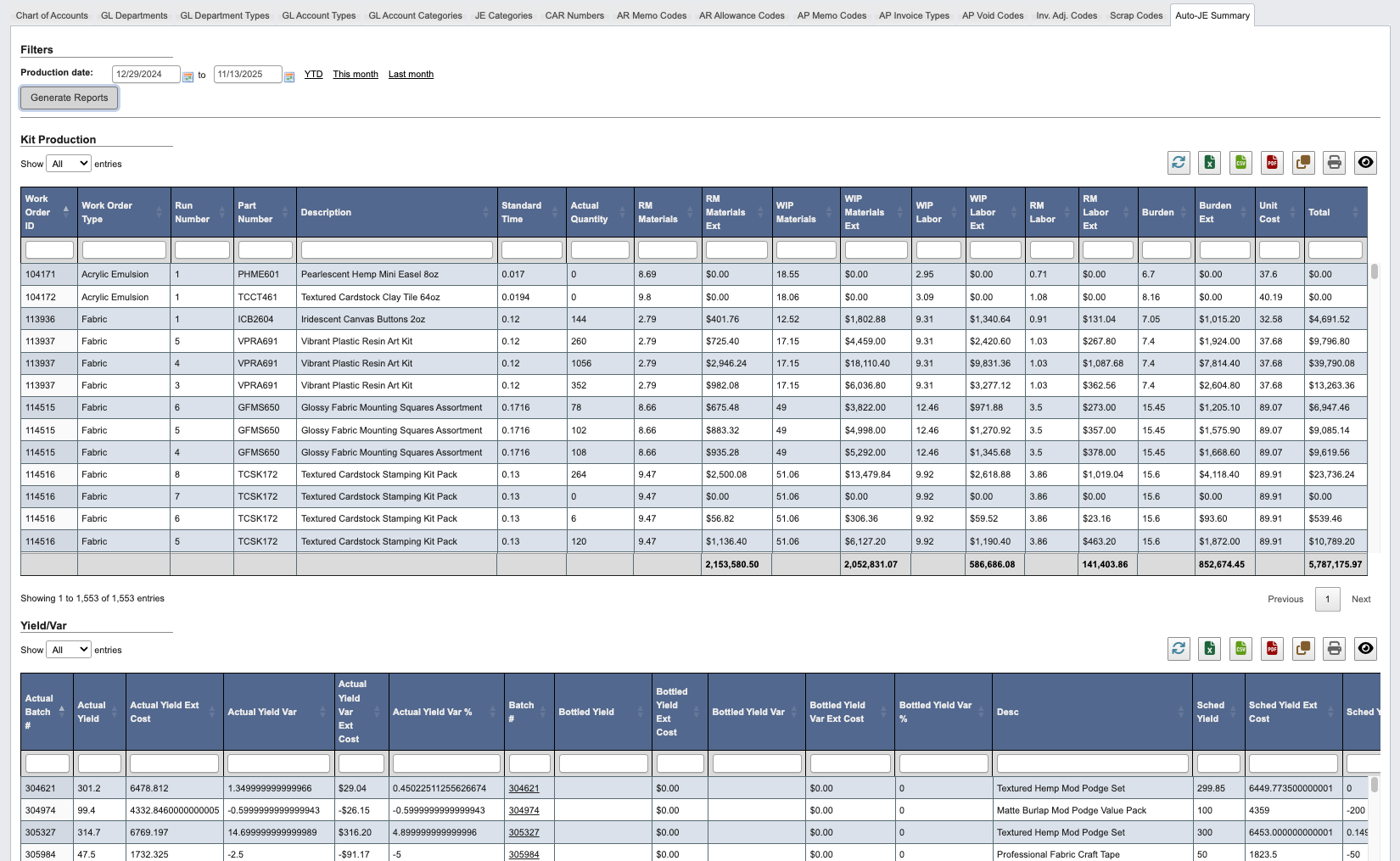
- Auto-JE Summary: Generate automatic journal entry (JE) reports.
Chart of Accounts
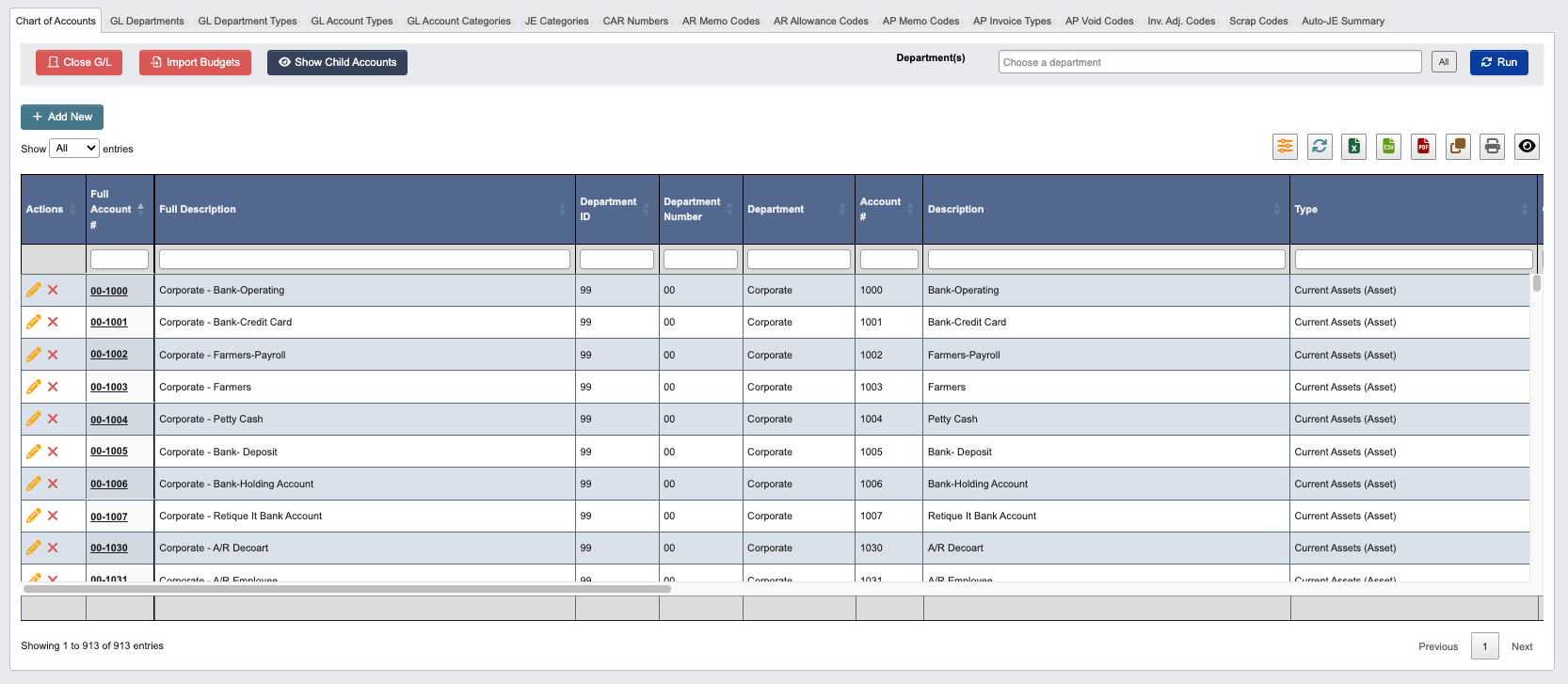

- Click
Close G/Lto close general ledger periods for month-end processing. - Click
Import Budgetsto upload budget data for accounts. Requires theCan Manage Budgets & Forecastsspecial privilege. Validation runs before anything is written: amounts must be plain numbers, the month columns must state the year being imported, and DASH warns when accounts that currently hold a budget are missing from the file, since importing would zero them. - Click
Manage Sales Budgetsto upload and manage the sales budgets the Sales Analysis report compares against. Requires theCan Manage Budgets & Forecastsspecial privilege. See Manage sales budgets. - Click
Manage Forecaststo upload and manage budget forecasts. Requires theCan Manage Budgets & Forecastsspecial privilege. See Budget Forecasts. - Toggle
Show Child Accountsto display child accounts.- Toggle back with
Show Parent Accounts Onlyto display the parent accounts.
- Toggle back with
- Select
Department(s)from the drop down or clickAllto filter accounts by department. - Click
Runto generate the chart of accounts display.
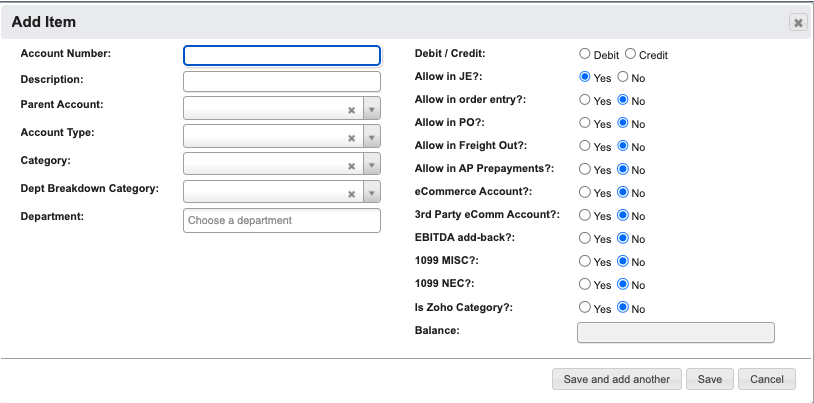
Adding New Accounts
-
Click
+ Add Newto create a new account. -
Enter the account details. See Accounting Reference for definitions.
-
When you have filled in the details, click:
Save and add anotherto add another account.Saveto save the details and go back to the table.Cancelto close the window and go back to the table.
Budget Forecasts
When the budget becomes outdated partway through the year, finance can upload named forecasts (for exampleForecast 3+9 or Forecast 6+6) without touching the original budget. The General Ledger financial reports can then compare actuals against any forecast through their Compare To filter option.
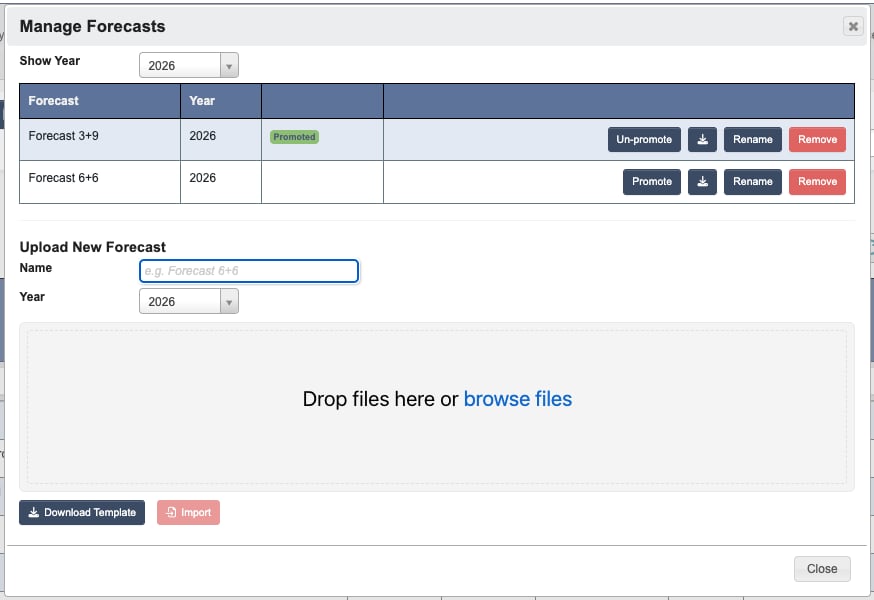
Click Manage Forecasts on the Chart of Accounts tab (requires the Can Manage Budgets & Forecasts special privilege). The dialog lists the current year’s forecasts; use Show Year to review other years.
- Click
Download Templateto get a spreadsheet for the selected year, pre-filled with that year’s budget in the same layout as the budget import workbook. - Adjust the monthly amounts, enter a
Name, select theYear, and drop the file on the uploader (or clickbrowse files). DASH validates the file as soon as it uploads: every account id is checked against the chart of accounts, the month columns must state and match the selected year, amounts must be plain numbers, and a parent total that does not equal the sum of its child rows is rejected. Changing theYearafter an upload invalidates it, so upload the file again to revalidate. - When validation passes, click
Import. The forecast becomes available immediately in the reportCompare Toselectors.
-
Promotemarks one forecast per year as the active one — promoting clears any previously promoted forecast for that year. The Invoicing Status dashboard widgets compare against the promoted forecast: theirForecast/Budgettoggle only appears when a promoted forecast covers the widget’s range, it defaults toForecast, and the comparison bars change color so a forecast is never mistaken for the budget. Financial reports always default to the budget and select a forecast per run.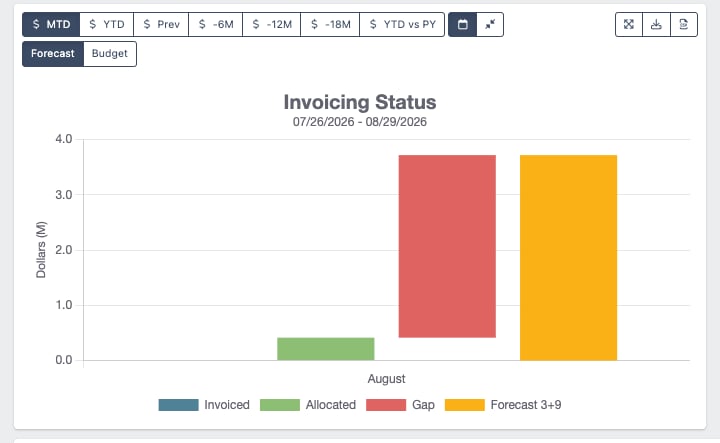
- The download button on each row exports that forecast’s amounts in the same workbook format the upload accepts.
-
RenameandRemovemaintain the list. Removing a forecast takes it out of the report selectors without touching its underlying data or the budget.
Import Budgets flow remains the only way to change budget numbers.
GL Departments
Adding New Departments
-
Click
+ Add Newto create a new department. -
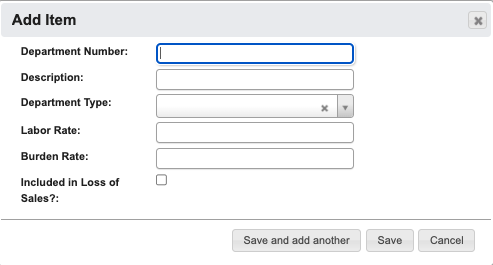
Enter the department details. See Accounting Reference for definitions.
-
When you have filled in the details, click:
Save and add anotherto add another department.Saveto save the details and go back to the table.Cancelto close the window and go back to the table.
GL Department Types
Adding New Department Types
-
Click
+ Add Newto create a new department type. -
Enter the following department type details:
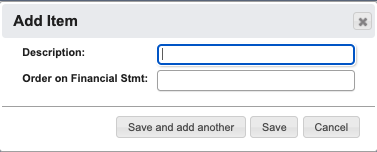
Description: Name for the department type.Order on Financial Stmt: Sequence for financial statement presentation.
-
When you have filled in the details, click:
Save and add anotherto add another department type.Saveto save the details and go back to the table.Cancelto close the window and go back to the table.
GL Account Types
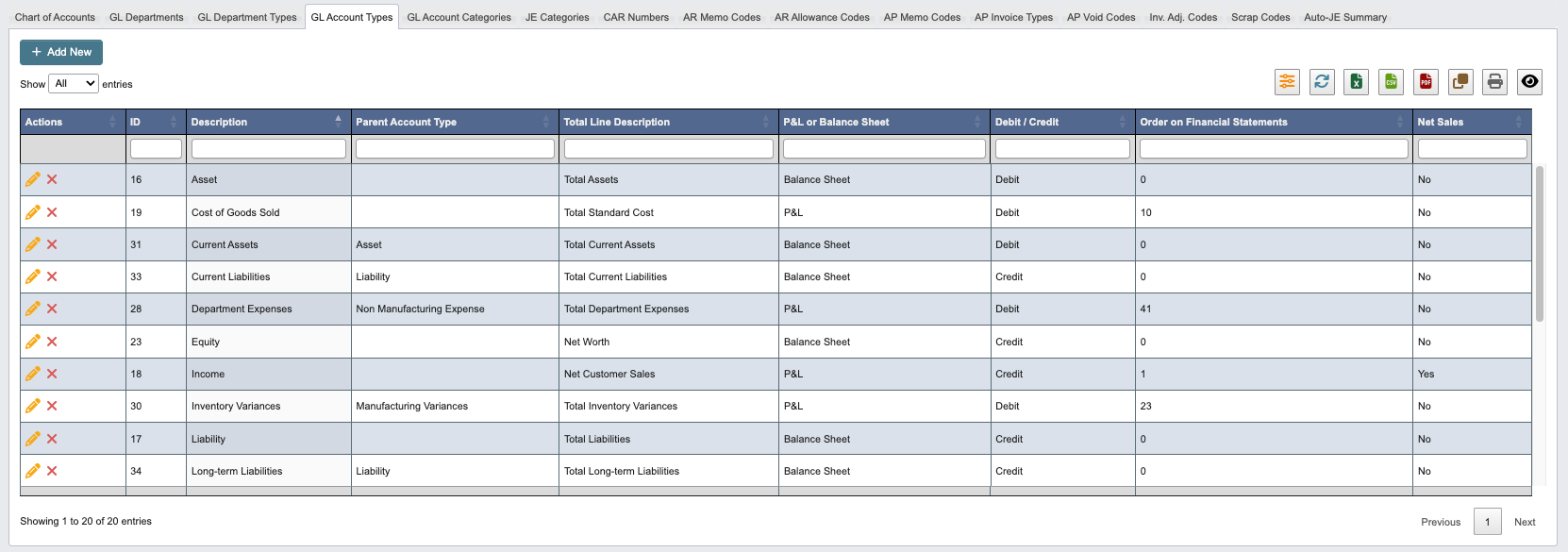
Adding New Account Types
-
Click
+ Add Newto create a new account type -
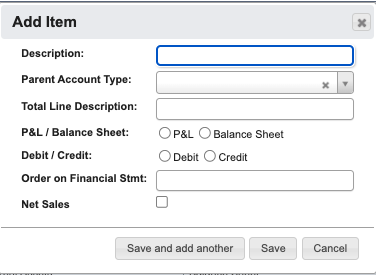
Enter the account type details. See Accounting Reference for definitions.
-
When you have filled in the details, click:
Save and add anotherto add another account type.Saveto save the details and go back to the table.Cancelto close the window and go back to the table.
GL Account Categories
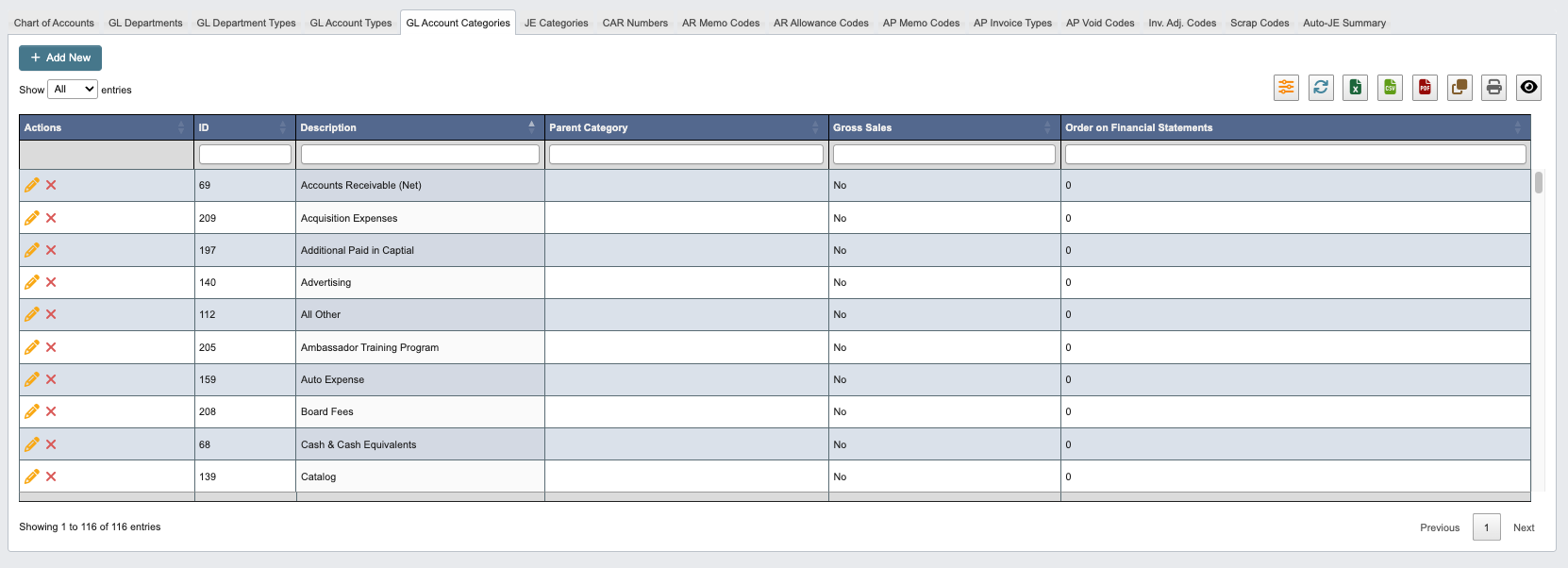
Adding New Account Categories
-
Click
+ Add Newto create a new category. -
Enter the following account category details:
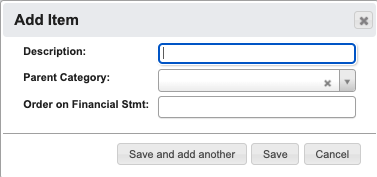
Description: Name for the category.Parent Category: Select the parent category.Order on Financial Stmt: Set presentation sequence.
-
When you have filled in the details, click:
Save and add anotherto add another account category.Saveto save the details and go back to the table.Cancelto close the window and go back to the table.
JE Categories
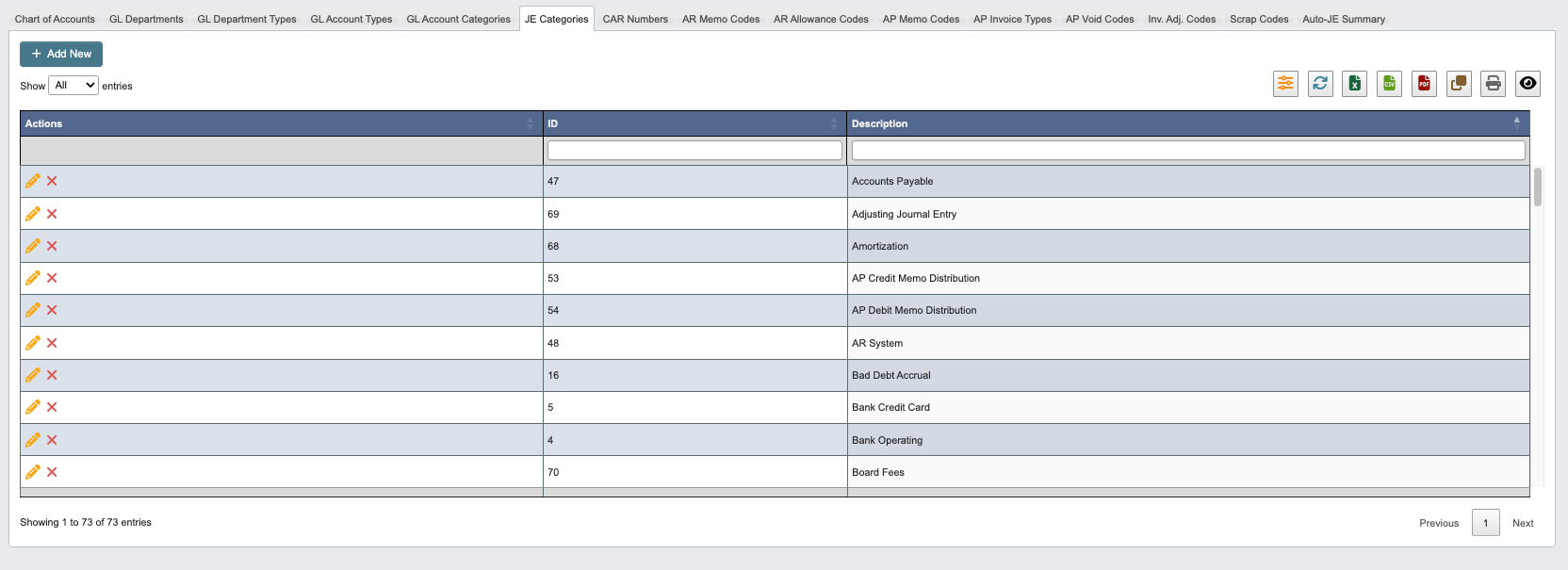
Adding New JE Categories
-
Click
+ Add Newto create a new journal entry category. -
Enter the
Descriptionfor the category.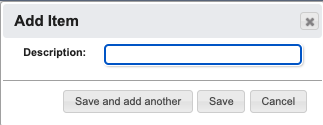
-
When you have filled in the details, click:
Save and add anotherto add another JE category.Saveto save the details and go back to the table.Cancelto close the window and go back to the table.
CAR Numbers
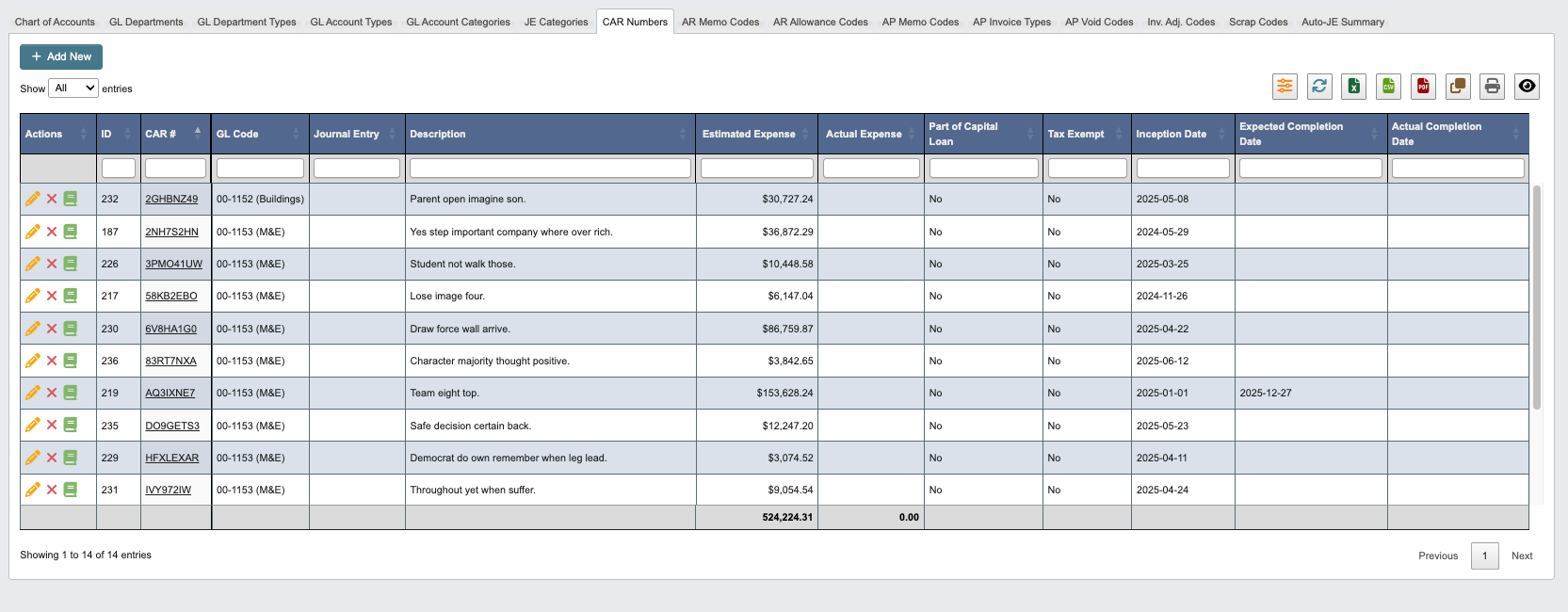
Adding New CAR Numbers
-
Click
+ Add Newto create a new CAR number. -
Enter the CAR number details. See Accounting Reference for definitions.
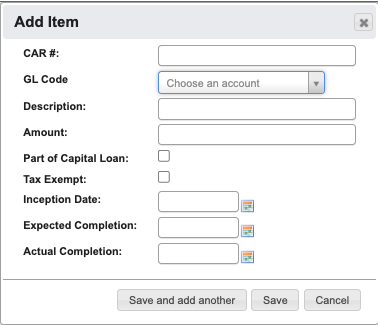
-
When you have filled in the details, click:
Save and add anotherto add another CAR number category.Saveto save the details and go back to the table.Cancelto close the window and go back to the table.
Completing a CAR Number
When a CAR project is finished, edit the CAR number and enter itsActual Completion date. Saving a completed CAR performs both closing steps automatically in one save:
- It creates a pending Fixed Asset entry so the asset can be finished out on the Fixed Assets screen.
- It posts the capital projects Journal Entry, moving the CAR’s accumulated expense out of Capital Projects in Progress and into the CAR’s fixed asset GL account. The JE is dated with the
Actual Completiondate, so that accounting period must still be open.
- Click the pencil icon to edit the CAR number.
-
Review the
Actual Expenseamount. It is pre-filled with the DASH-calculated total from the CAR’s AP invoices, and you can adjust it up or down - for example, to include CC transactions or journal entries that were coded to Capital Projects in Progress without a CAR #. Any difference between your entered amount and the DASH-calculated amount posts as a separatemanual adjustmentline item on the same Journal Entry, between the CAR’s fixed asset GL account and the capital projects expense account configured by thegl_account_id_capital_projects_expensescompany attribute. -
Enter the
Actual Completiondate. An alert appears listing exactly what will happen when you save.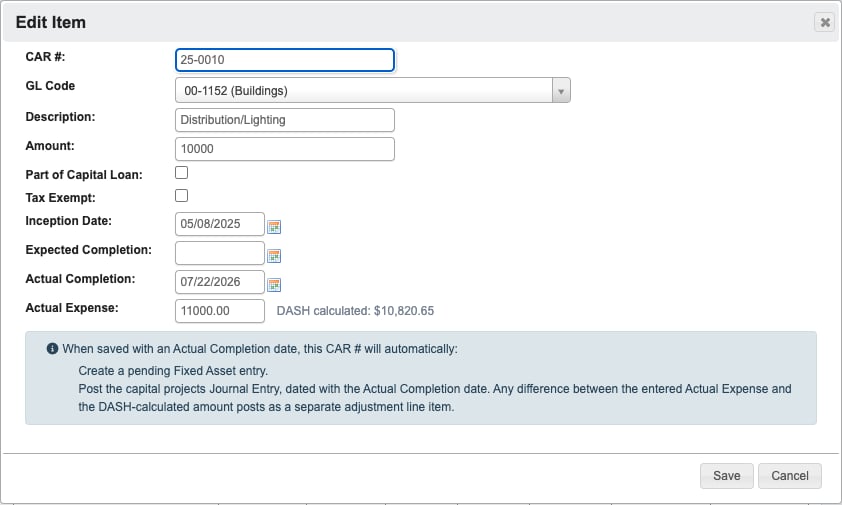
-
Click
Save. The confirmation message notes that the pending Fixed Asset entry was created and links to the posted Journal Entry.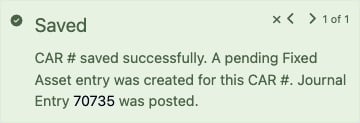
Pending accounting status and copies the CAR’s description, GL code, completion date (as the date acquired), and actual expense (as the total cost, using your adjusted amount when one was entered). Open the Fixed Assets screen to fill in the remaining details, such as the asset group, type, and depreciation settings.
Each step only ever happens once per CAR number: re-saving a completed CAR that already has an active fixed asset and a Journal Entry does not create duplicates. If the Journal Entry cannot be posted - for example, when the completion date falls in a closed accounting period or no GL Code is selected - the CAR and fixed asset still save, a notification explains why the JE was skipped, and the JE posts on the next save once the issue is fixed.
AR Memo Codes
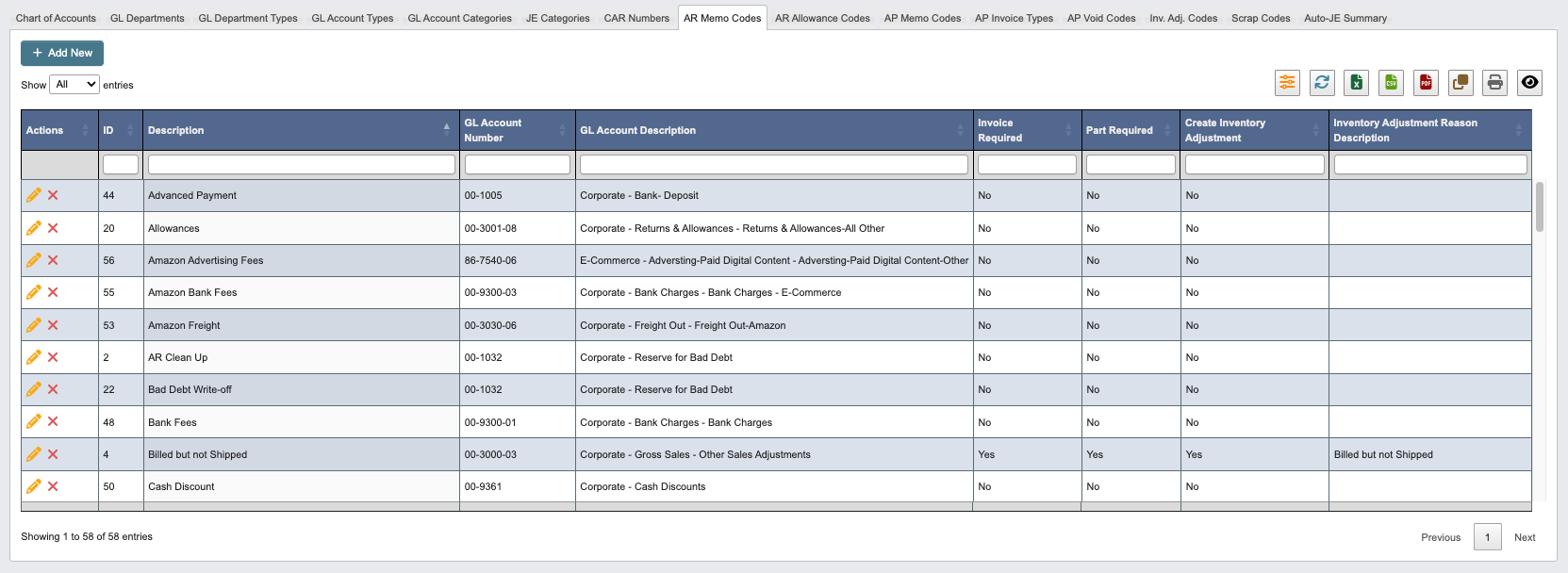
Adding New AR Memo Codes
-
Click
+ Add Newto create a new AR memo code. -
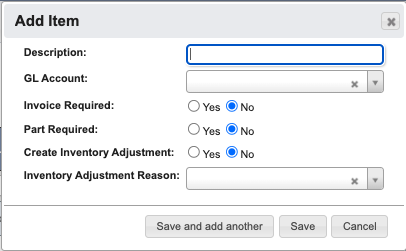
Enter the AR memo code details. See Accounting Reference for definitions.
-
When you have filled in the details, click:
Save and add anotherto add another AR memo code.Saveto save the details and go back to the table.Cancelto close the window and go back to the table.
AR Allowance Codes
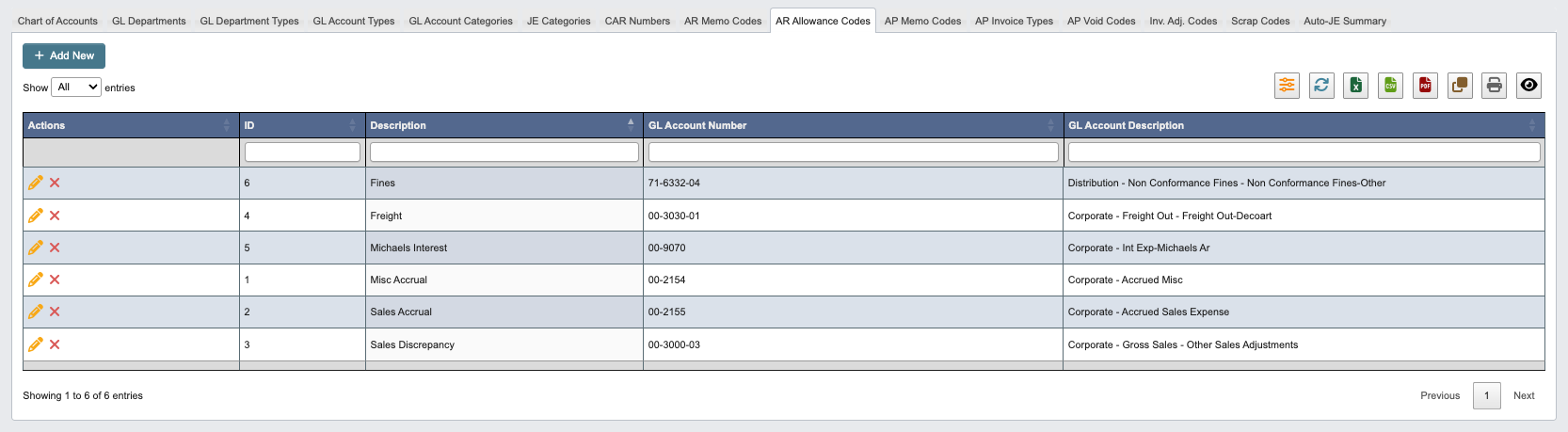
Adding New AR Allowance Codes
-
Click
+ Add Newto create a new allowance code. -
Enter the following AR allowance code details:
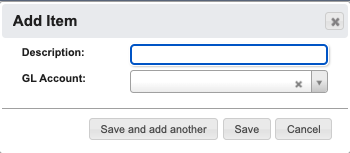
Description: Description of the allowance code.GL Account: Associated general ledger account.
-
When you have filled in the details, click:
Save and add anotherto add another AR allowance code.Saveto save the details and go back to the table.Cancelto close the window and go back to the table.
AP Memo Codes
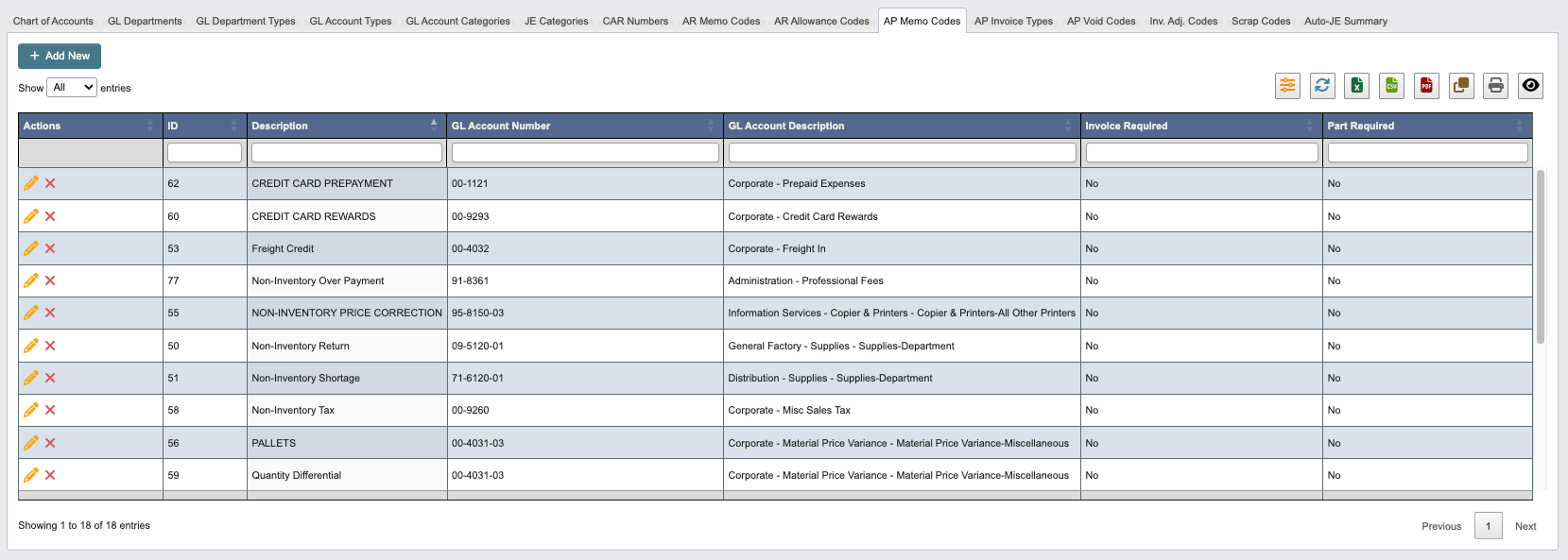
Adding New AP Memo Codes
-
Click
+ Add Newto create a new AP memo code.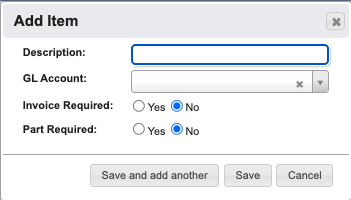
-
Enter the following AP memo code details:
Description: Description of the memo code.GL Account: Associated general ledger account.Invoice Required(Yes/No): Require invoice reference.Part Required(Yes/No): Require part number reference.
-
When you have filled in the details, click:
Save and add anotherto add another AP memo code.Saveto save the details and go back to the table.Cancelto close the window and go back to the table.
AP Invoice Types
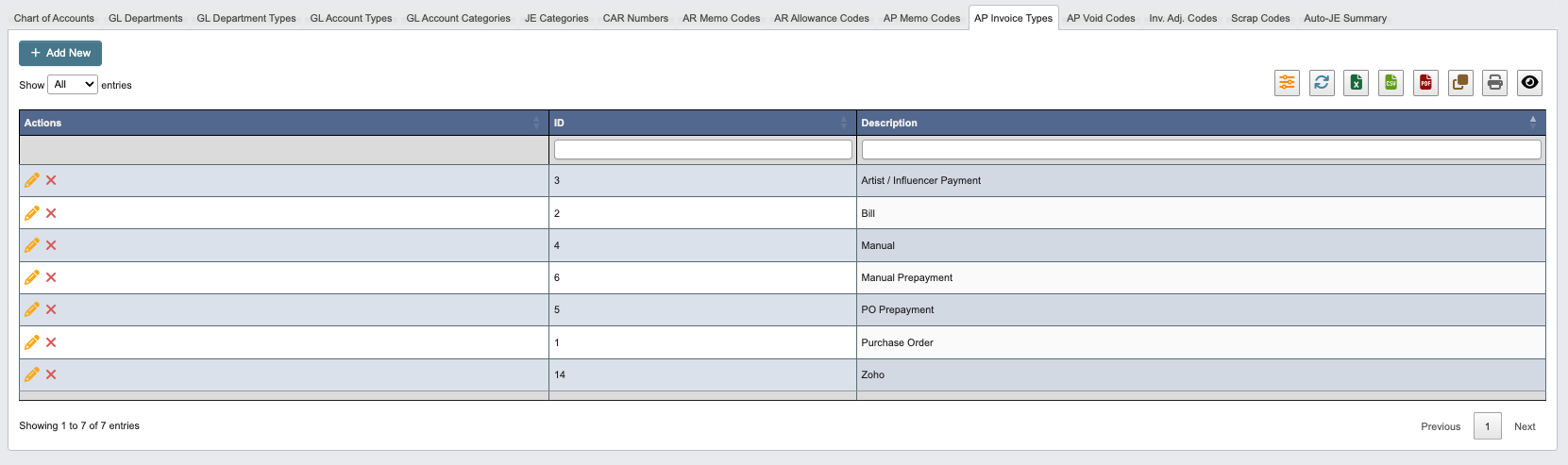
Adding New AP Invoice Types
-
Click
+ Add Newto create a new invoice type. -
Enter a
Descriptionof the invoice type.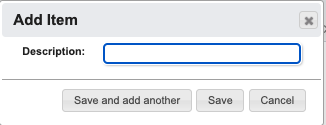
-
When you have filled in the details, click:
Save and add anotherto add another AP invoice type.Saveto save the details and go back to the table.Cancelto close the window and go back to the table.
AP Void Codes
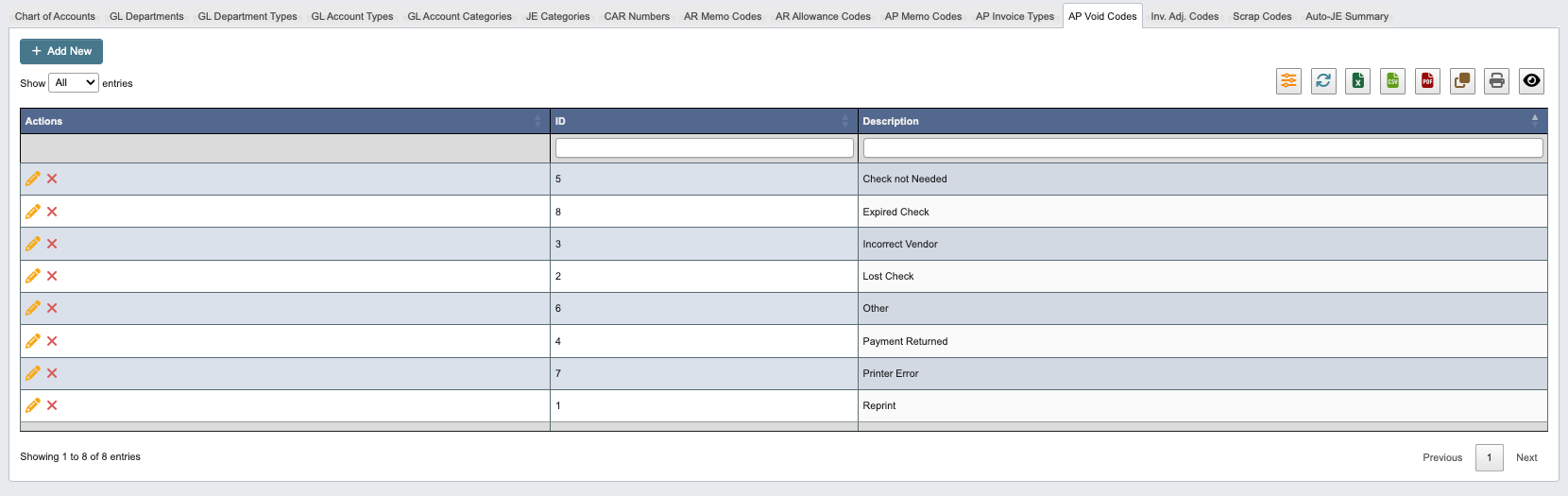
Adding New AP Void Codes
-
Click
+ Add Newto create a new void code. -
Enter a
Descriptionof the void code.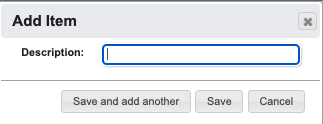
-
When you have filled in the details, click:
Save and add anotherto add another AP void code.Saveto save the details and go back to the table.Cancelto close the window and go back to the table.
Inv. Adj. Codes
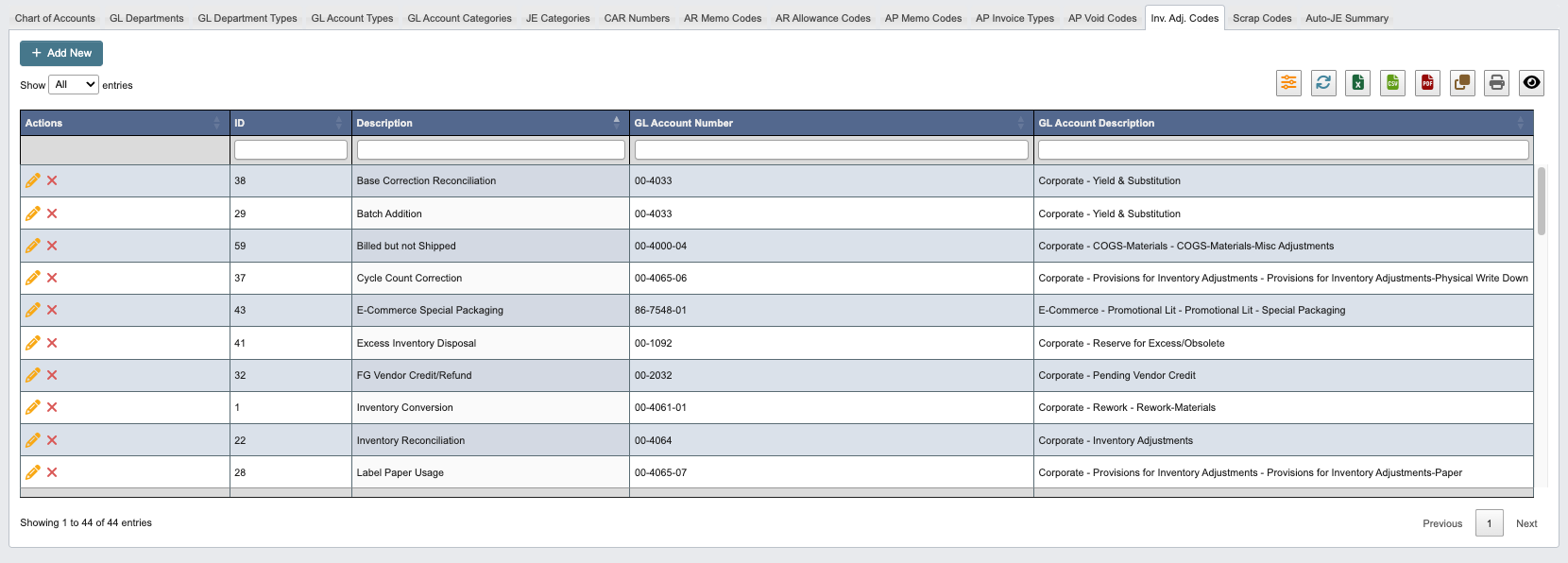
Adding New Inventory Adjustment Codes
-
Click
+ Add Newto create a new adjustment code. -
Enter the following inventory adjustment code fields:
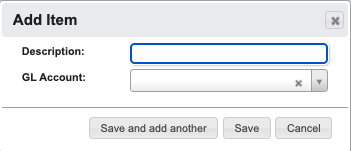
Description: Description of the adjustment code.GL Account: Associated general ledger account for the adjustment.
-
When you have filled in the details, click:
Save and add anotherto add another inventory adjustment code.Saveto save the details and go back to the table.Cancelto close the window and go back to the table.
Scrap Codes
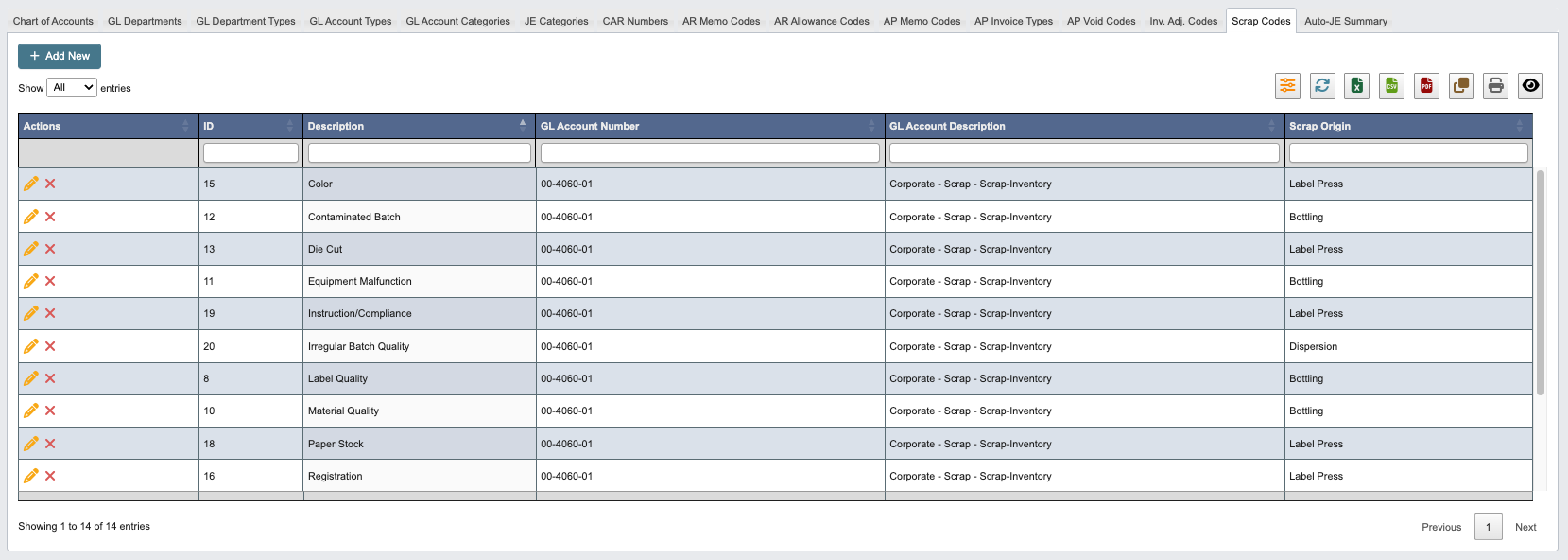
Adding New Scrap Codes
-
Click
+ Add Newto create a new scrap code. -
Enter the following scrap code fields:
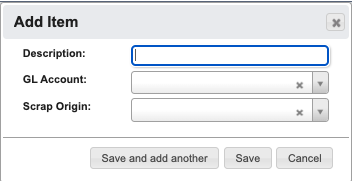
Description: Description of the scrap code.GL Account: Associated general ledger account.Scrap Origin: Source or cause of the scrap.
-
When you have filled in the details, click:
Save and add anotherto add another scrap code.Saveto save the details and go back to the table.Cancelto close the window and go back to the table.
Auto-JE Summary

Generating Auto-JE Reports
-
Select the
Production datefor the journal entries. -
Set the required fields:
Kit Production: Journal entries for kit assembly activities.Yield/Var: Yield variance entries for production efficiency.Bottling Usage Sub Var: Bottling material usage variances.Dispersion Usage: Material usage in dispersion processes.Gross Variance: Overall production variances.COP WIP: Cost of production for work-in-process.COP FG: Cost of production for finished goods.
-
Click
Generate Reportsto create automatic journal entries.