Overview
The Accounting → General Ledger submodule provides comprehensive tools for managing the chart of accounts, processing journal entries, and generating financial statements within DASH. The system serves as the central repository for all financial transactions and supports detailed financial analysis and reporting. This submodule is used by accounting personnel, finance managers, controllers, and auditors who need to process journal entries, prepare financial statements, analyze departmental performance, and maintain accurate general ledger records for financial reporting and compliance purposes. The General Ledger submodule provides several tabs for managing GL operations:- Journal Entry: Record manual journal entries with supporting documentation.
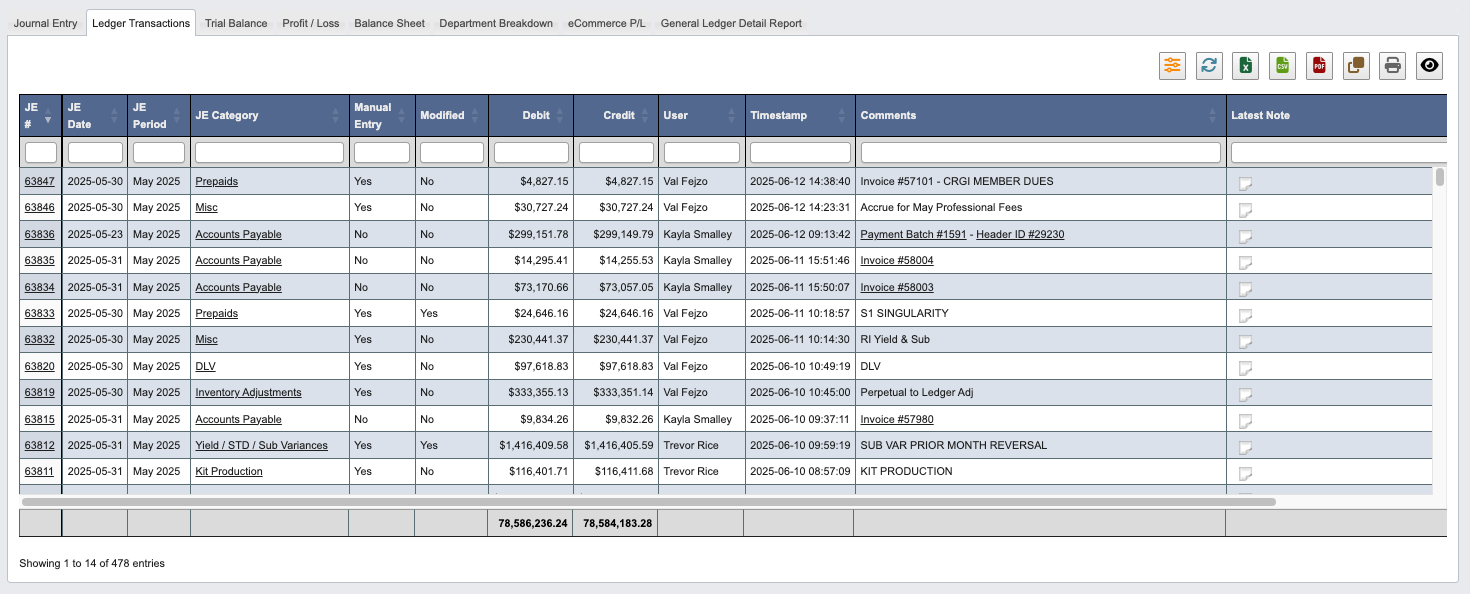
- Ledger Transactions: Review and analyze all general ledger transactions.
- Trial Balance: Generate trial balances to verify account balances.
- Profit/Loss: Produce detailed profit and loss statements.
- Balance Sheet: Generate balance sheet reports.
- Department Breakdown: Analyze financial performance by department.
- eCommerce P/L: Specialized profit and loss reporting for eCommerce operations.
- General Ledger Detail Report: Detailed transaction-level reporting.
Some General Ledger pages have a toolbar with the following buttons:
- Click
Filterto set date ranges and account filters. - Click
Refreshto update the report with current data. - Click
Excelto export the report to Excel format. - Click
PDFto generate a PDF version of the report. - Click
Copyto copy report data to clipboard. - Click
Expand Allto show all account details. - Click
Collapse Allto show summary levels only.
Journal Entry
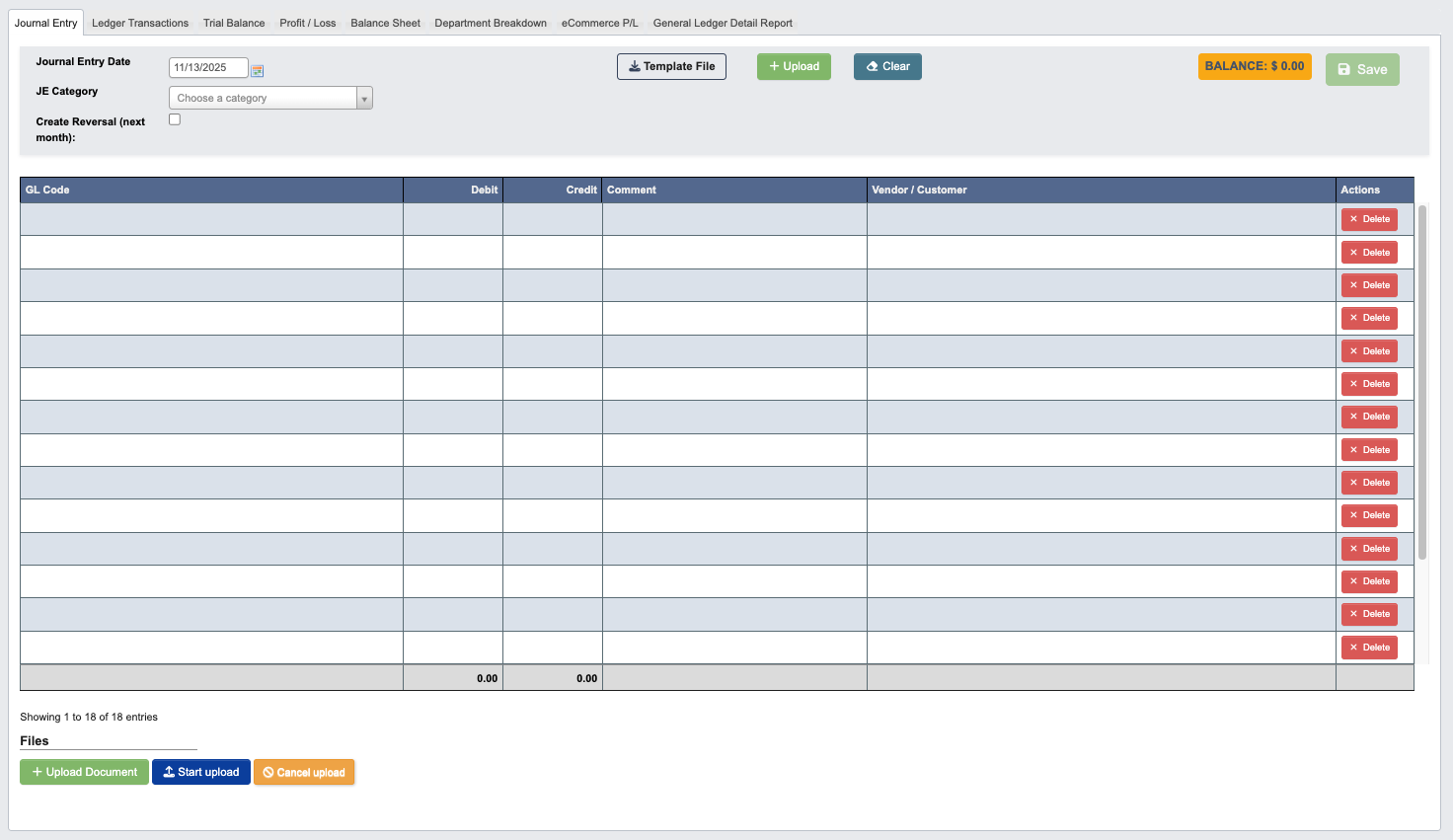
Creating Journal Entries
- Click the
Journal Entrytab. - Set enter the Parameters for the JE:
Journal Entry Date: Select the date for the journal entry.JE Category: Choose the appropriate journal entry category for classification.Create Reversal (next month): Check this option if the entry should automatically reverse in the following month.
- Enter line details in the grid. After choosing a
GL Code, theCommentfield opens a suggestion list below the text box with comments already entered on this journal entry’s other lines for the same account, plus comments entered manually on saved journal entries for that account within the past 18 months (system-generated comments are not suggested). Click a suggestion — or highlight it with the arrow keys and pressEnter— to fill the line and move to the next one. Typing filters the list; keep typing to enter a new comment instead.

Template File to download the journal entry template, then use + Upload to import completed entries.
5. Upload supporting documents to the JE.
- Click
+ Upload Documentsunder “Files” to open a file browser and select the document you want to attach. - Click
Start uploadto begin uploading. - Click
Cancel uploadif you need to cancel the upload.
- Click
Saveto save the JE orClearto reset the form and start over.
Ledger Transactions
Trial Balance
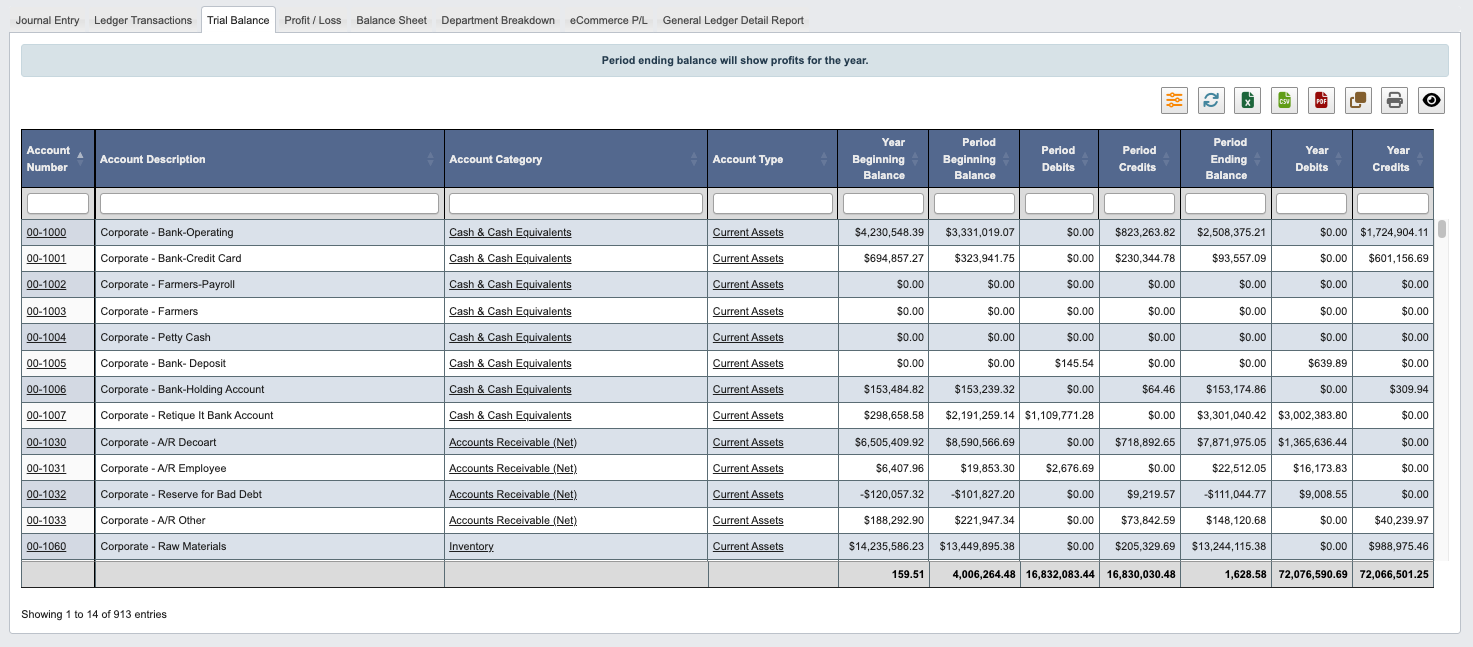
Filter button to set the reporting period and adjust how accounts are displayed:
Show Child Accounts: When set toNo(the default), each parent account’s balance is rolled up to include its child accounts. When set toYes, child accounts are listed on their own rows, and the parent rows of accounts that have children are hidden for that period so their balances are not double-counted in the totals. Accounts without children are always shown. Parenthood is evaluated per period, so an account that only gained child accounts in a later period still shows its own balance in earlier periods.Show Differences Only: Nets each account’s debits and credits into a single balance column.Show Trend: Adds a month-by-month breakdown for the year, optionally split into separate debit and credit columns.
Parent/Child Reconciliation
The Parent/Child Reconciliation tab lists parent accounts whose activity does not equal the combined activity of their child accounts for a given period. When every parent reconciles, the report is empty. For each period in the selected range, the report shows the parent account’s own activity, the summed activity of its child accounts, and the difference between them. Open periods use the current running balance; closed periods use the period’s net change. Only parent accounts that do not reconcile are listed.Generate the report
- Click the
Parent/Child Reconciliationtab. The report defaults to the current period. - To review other periods, set the
Date Range(or use theCurrent Period, quarter,YTD, orClosed YTDshortcuts) and clickRun. - Any parent account whose activity does not match its children appears with the difference highlighted. Click an account number to open its account details.
Profit / Loss
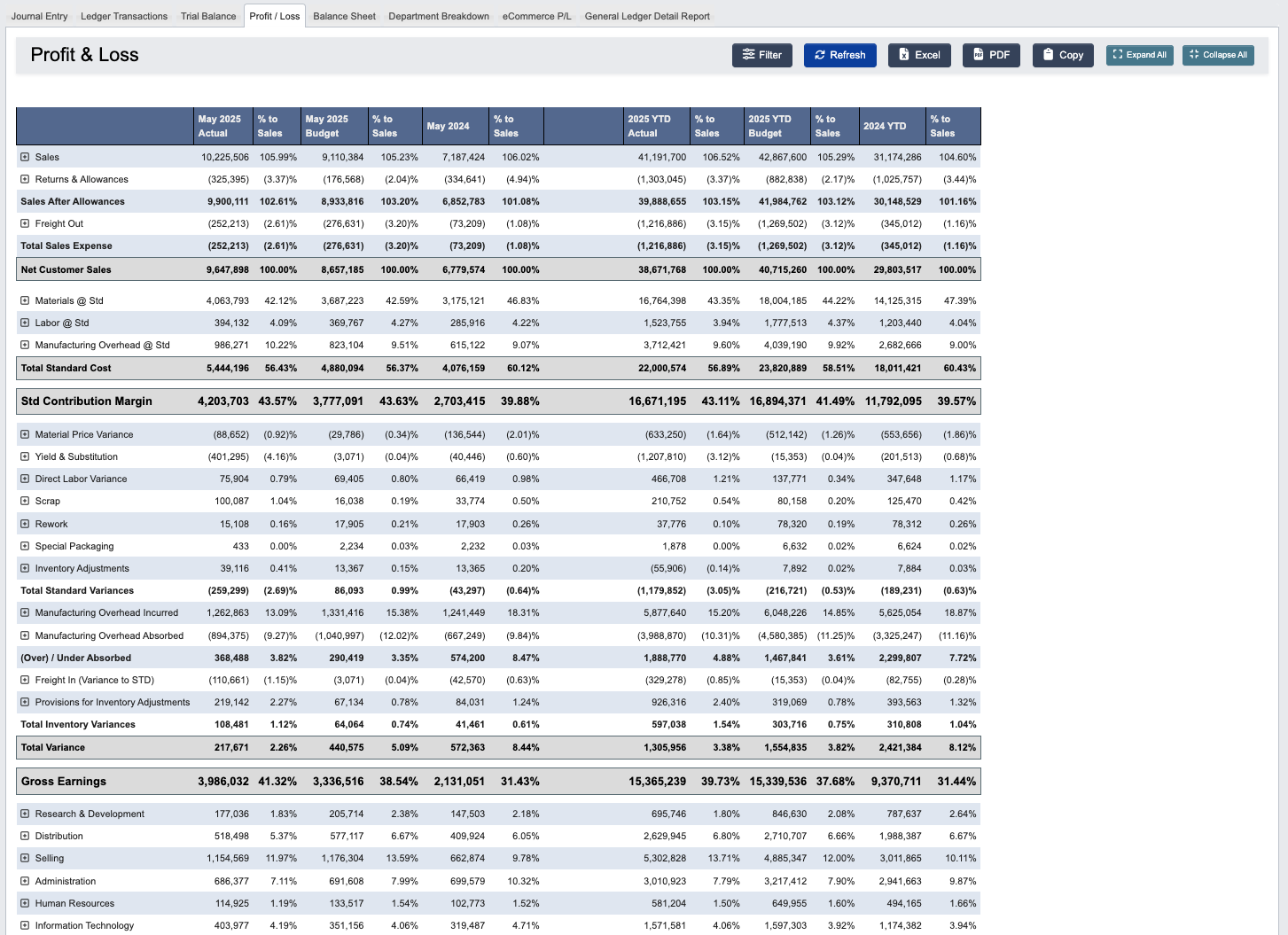
Compare against a budget or forecast
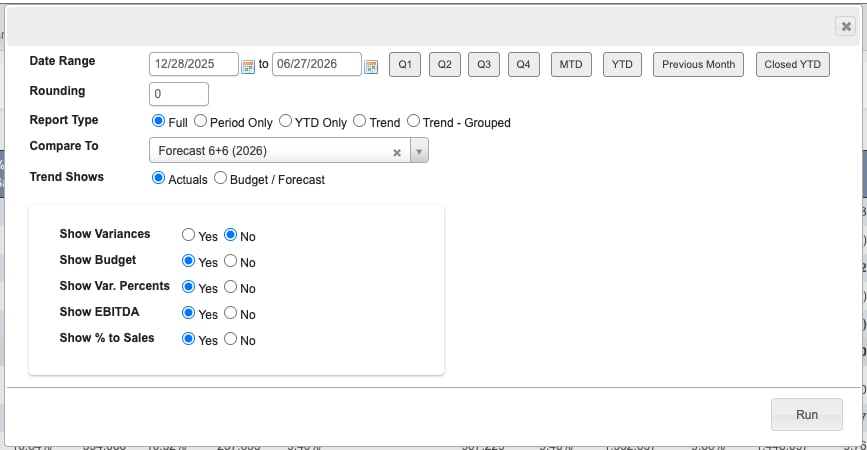
Filter button to control what the report compares actuals against:
Compare To: Choose a forecast, labeled by name and year (for exampleForecast 6+6 (2026)), or clear the selection to compare against the budget (the default). Every budget column, variance column, and % to Sales calculation then uses the selected forecast instead of the budget, and the column headers are relabeled to match. If the selected forecast’s year is outside the report’s date range, the report says so instead of showing empty comparison columns. Forecasts are uploaded and managed from Accounting Maintenance.Trend Shows: Applies to theTrendandTrend - Groupedreport types.Actuals(the default) shows monthly actuals;Budget / Forecastlays out the full year of the selected comparison month by month, so you can view the entire budget or a forecast in P&L format without any actuals.
Balance Sheet
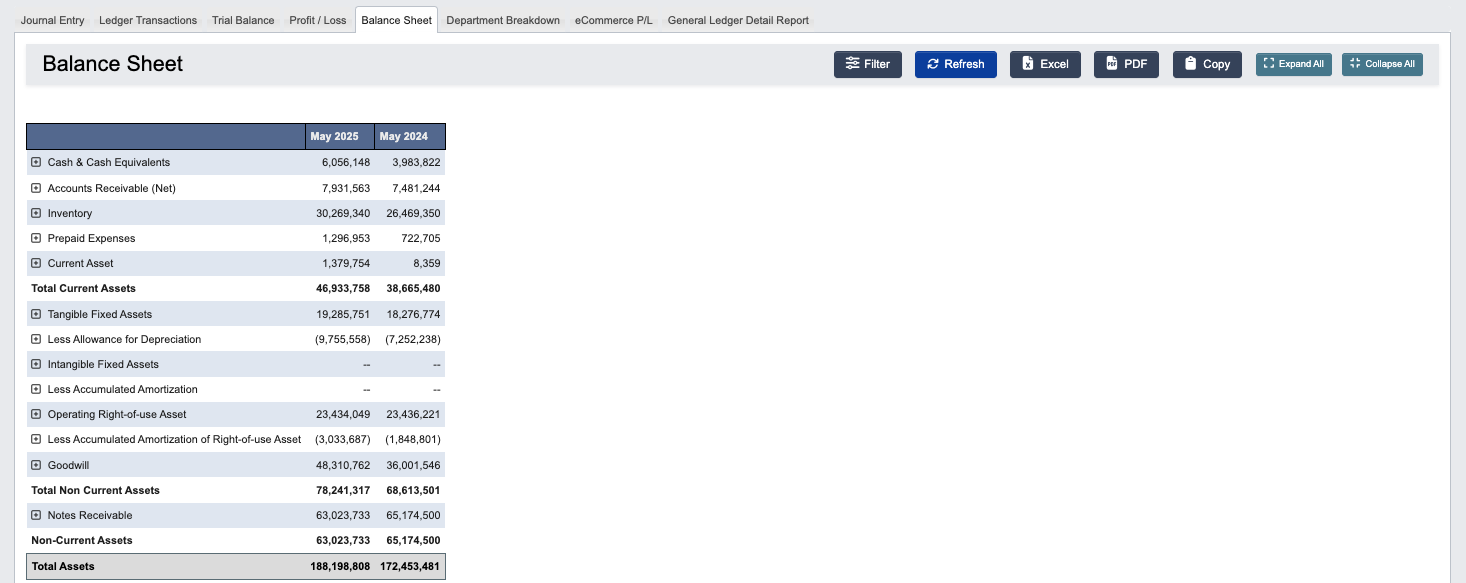
Compare To option switches the budget and variance columns between the budget and any uploaded forecast.
This report is useful for: Financial statement preparation, loan applications, investor reporting, and compliance with accounting standards.
Department Breakdown
The Department Breakdown tab provides detailed financial analysis by department or cost center. This report is useful for: Departmental performance analysis, cost center management, budget variance analysis, and operational decision-making.Generate the report
-
Click the
Department Breakdowntab. -
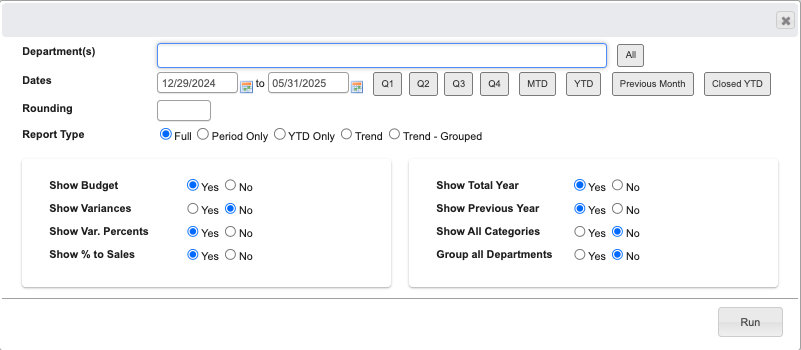
You will get the following pop-up window:
-
Set the desired report parameters:
Department(s): Select specific departments or all departments.Dates: Set the reporting period.Rounding: Choose rounding precision for amounts.Report Type: Choose a report type (Full, Period Only, YTD Only, Trend, Trend - Grouped).Compare To: Compare actuals against the budget (default) or any uploaded forecast; all budget and variance columns follow the selection.Trend Shows: For trend report types, show monthly actuals or the selected budget/forecast month by month.Show Budget(Yes/No): Include budget comparisonsShow Variances(Yes/No): Display budget vs. actual variancesShow Var. Percents(Yes/No): Show variance percentagesShow % to Sales(Yes/No): Display percentages relative to salesShow Total Year(Yes/No): Include full year projectionsShow Previous Year(Yes/No): Add prior year comparisonsShow All Categories(Yes/No): Include all account categoriesGroup all Departments(Yes/No): Consolidate department data
-
Click
Runto generate the department breakdown report.
eCommerce P/L
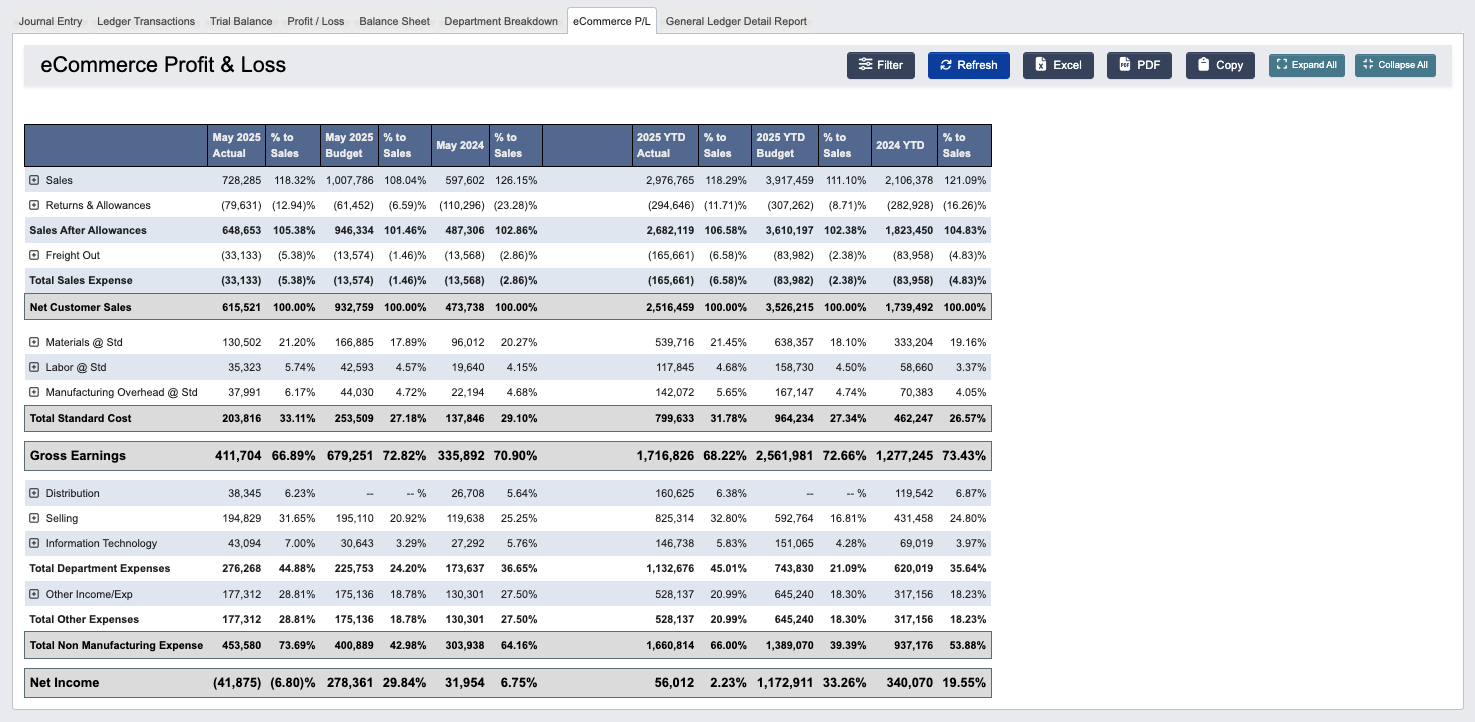
Compare To and Trend Shows options as the Profit / Loss report for comparing against a budget or uploaded forecast.
This report is useful for: eCommerce channel analysis, online sales performance evaluation, and digital marketing ROI assessment.
General Ledger Detail Report

Generating Detail Reports
-
Click the
General Ledger Detail Reporttab. -
Click
Filterto access report parameters.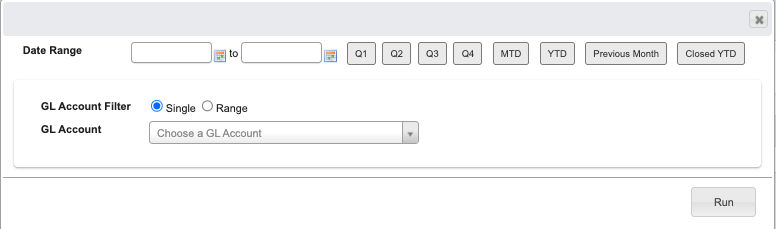
-
Set the desired report filters:
Date Range: Select the period for transaction detail.GL Account Filter: Choose between Single account or Range of accounts.GL Account (Required): Specify the account(s) to include in the report.
-
Click
Runto generate the detailed transaction report.