PO Toolbar

-
Edit: Access the Edit Purchase Order Toolbar. -
Deactivate (Delete) PO: Deactivate or delete the PO. -
Generate PDF: Generate a PDF of the PO. -
Copy: Creates a new Request PO with the PO information copied over. -
Add Note: Attaches a note to the PO. You can optionally choose an expiration date for the note.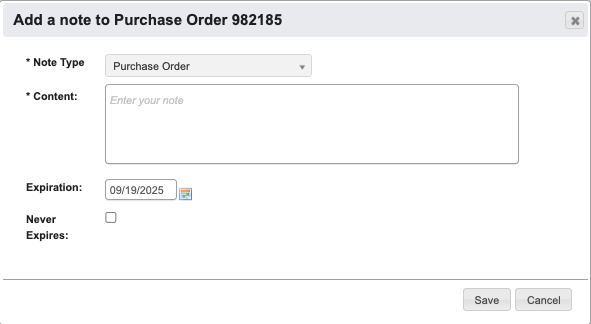
Edit Purchase Order Toolbar

Cancel Editing: Cancel editing.Draft: Save the changes the the PO as a draft.Submit: Submit the PO for approval.Clear: Clear all information from the PO.Save Only: Save the PO, but not submit it for approval.
Other PO Toolbars
Some POs may have different toolbars. Here are a few you may see depending on your role.-
Deactivated PO: No buttons show up because this PO is closed. You may be able to
Copyto create a new PO request with the same information, but otherwise you can not edit this PO.
-
RUSH ORDER PO: A PO that is labeled as a rush order.

-
Open PO that can be resent or closed.

Close PO: Close the PO.Re-send: Re-send the PO to the vendor.
-
Request Purchase Order: You will only see these if you are in a role that can approve or reject POs.

Approve: Approve the PO.Reject: Reject the PO.Add Approver: Add another person as an approver of this PO.
PO Vendor Information
General Information
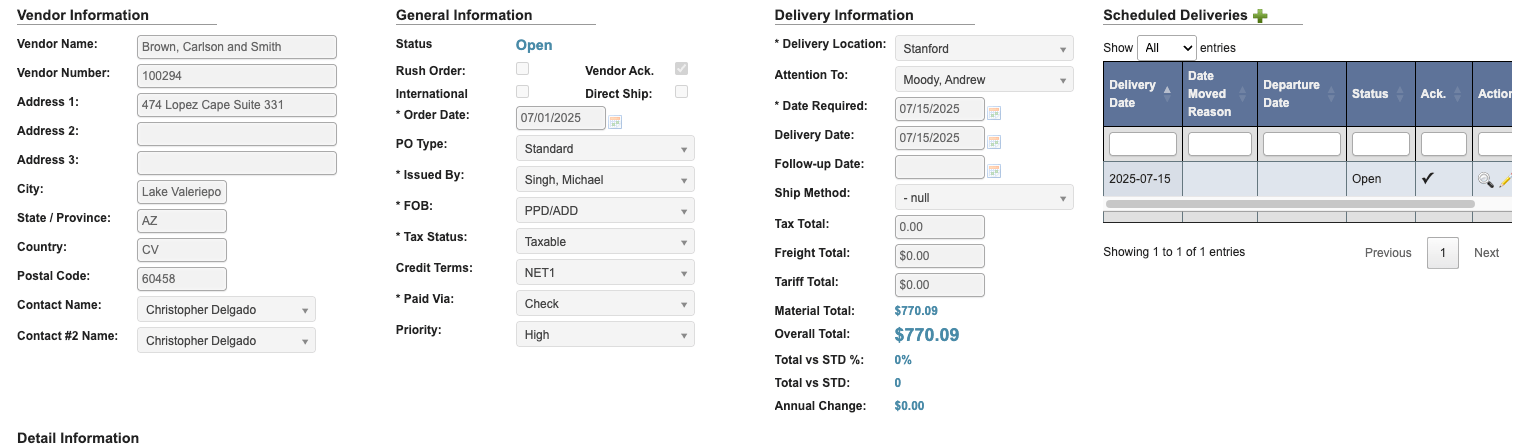
The following fields are below General Information and can be edited if needed:Status: Shows the current PO status.Rush Order(Optional): Check the box if the PO should be a rush order.Vendor Ack(Optional): Check the box if the vender has received and confirmed the PO details.International(Optional): Check box for international shipments.Direct Ship(Optional): Check box for direct shipments.Order Date: Defaults to the date you began creating the PO.PO Type(Optional): Choose either Service or Standard.Issued By: Autofills with the PO creator (you).FOB: Autofills with the Part’s Free On Board (FOB) point, where ownership and liability transfer.Tax Status: Choose either Exempt or Taxable.Credit Terms: Autofills with terms set by the vendor.Paid via: Choose the PO’s payment method.Priority(Optional): Signals this PO as Low, Medium, High, or Urgent priority. This provides visibility for other teams to prioritize or track processing accordingly.
Delivery Information
Delivery Location: Choose a PO delivery location from the list of available options.Attention to(Optional): Input the direct recipient’s name, if applicable.Date Required: Input the requested delivery date.Delivery Date(Optional): The expected date for the PO’s delivery. Autofills from Date Required.Follow-up Date(Optional): Choose a date for reviewing the PO’s status, used for tracking on PO detail reports.Ship Method(Optional): Choose freight method if needed- Example FOB: PPD/NC = Prepaid, no charge (no shipping method required).
Tax Total: Total tax paid for this PO. Autofills based on vendor details.Freight Total: Total freight costs paid for this PO. When the selected vendor has a Delivery Fee, this field preloads with that base fee and can still be edited or cleared before saving.Tariff Total: Total tariffs paid for this PO. Autofills based on line items.Material Total: Total material cost (all ordered items) for this PO.Overal Total: Sum of Tax + Freight + Tariff + Material totals.Total vs STD %: % difference from the standard total (year-to-date).Total vs STD: $ difference from the standard total (year-to-date).Annual Change: Yearly variance in overall total.