Overview
The Purchase Orders → Manage Purchase Orders submodule is where buyers and requesters create, review, approve, send, and track purchase orders (POs). It supports two common flows:- Raw materials on a BOM (buyers create a PO directly here).
- Expense items (requesters submit a Request PO for approval, then Purchasing reviews/approves).
Dashboard (Analysis & Trends)
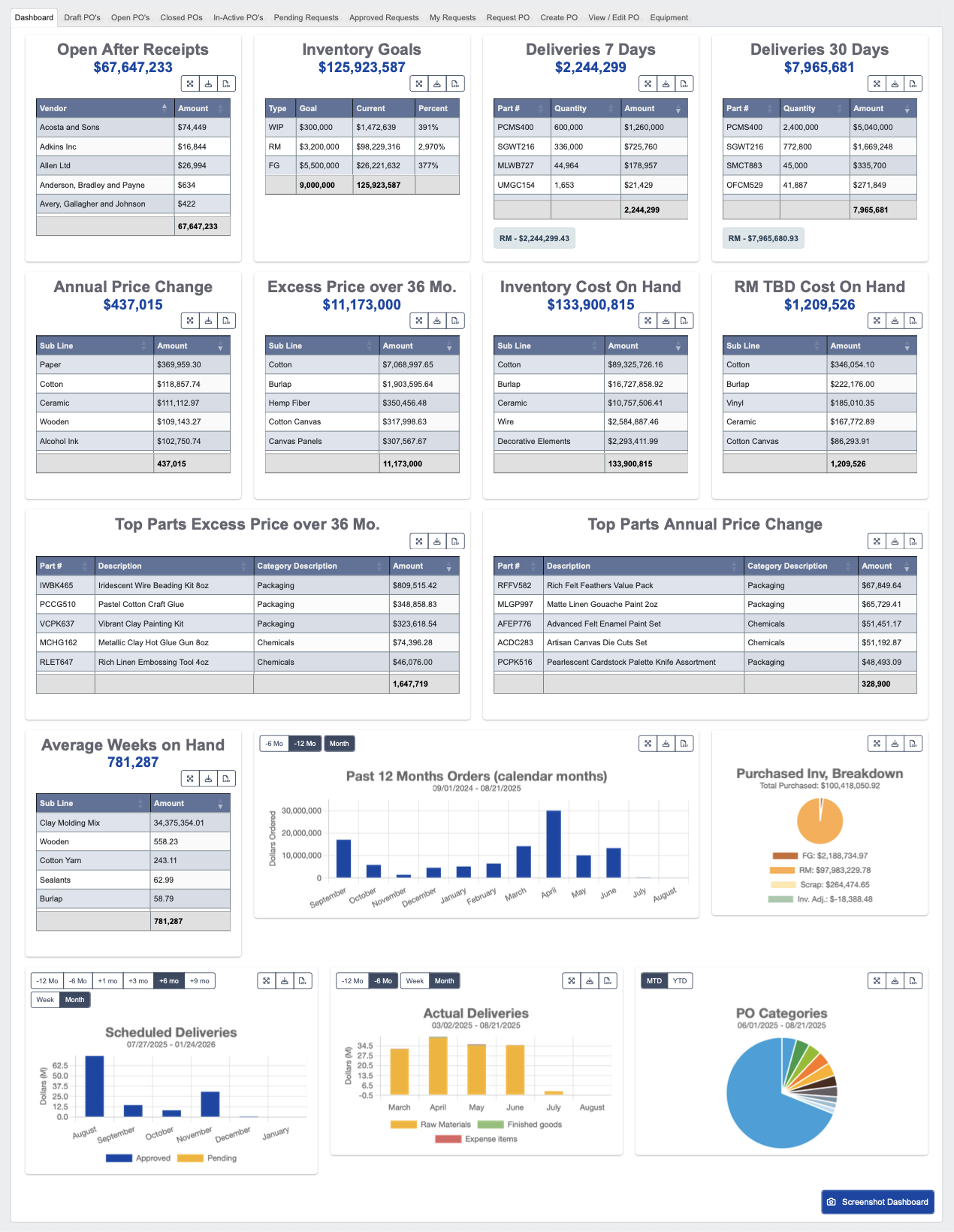
Table Widgets
- Open After Receipts: Shows the value of purchase orders that are still open after some items have already been received.
- This is a quick way to see what you still need to follow up on with the vendor.
- Inventory Goals: Shows overall inventory goals.
- This is mostly a reference point, not something you’ll use every day.
- Deliveries 7 Days: Shows what is scheduled to be delivered in the next week, including dollar amounts and material types.
- This is useful when deciding which orders to push through faster or hold off on.
- Deliveries 30 Days: Shows what is expected to arrive in the next 30 days.
- This gives you a good view of near-term inbound inventory.
- Annual Price Change: Shows how prices have changed over the past year by category.
- Use this to spot large increases and understand which areas may need attention in future purchases.
- Excess Price over 36 Mo.: Highlights items that have created extra cost over the last three years.
- This is helpful for identifying where savings opportunities may exist.
- Inventory Cost on Hand: Shows where your current inventory dollars are sitting, broken down by area or category.
- This helps you see where the money is tied up.
- RM TBD Cost on Hand: Shows how many dollars are tied up in raw materials marked “to be discontinued.” These items cannot be reordered until they are re-activated.
- Top Parts Excess Price over 36 Mo.: Lists the specific parts that are driving the excess cost shown in the 36-month chart.
- Top Parts Annual Price Change: Shows the parts that have had the biggest annual price changes.
- This is useful for deciding whether to renegotiate pricing or look for substitutes.
- Average Weeks on Hand: Shows how many weeks of supply you have on hand, broken out by sub line.
Chart Widgets
- Past 12 Months Orders (calendar months): Shows what was purchased each month over the last year.
- This is useful for spotting buying patterns or spikes.
- Purchased Inv, Breakdown: Shows a pie breakdown of your purchased spend, split into categories like raw materials, finished goods, scrap, and adjustments.
- This helps you see where most of your money is going.
- Scheduled Deliveries: Shows future deliveries by week or month. Approved deliveries show in blue, pending deliveries show in yellow.
- Use this to see what’s coming in over the lead-time period.
- Actual Deliveries: Shows what has actually been received over time.
- Use this to compare received deliveries against scheduled deliveries, and check if things came in as expected.
- PO Categories: This chart shows the mix of purchase orders by type or material. It’s a quick view of where orders are concentrated.
Navigation
Navigating the Manage Purchase Orders Dashboard is similar to navigating the overall Dash Dashboard: Navigate the DASH Interface-
All widgets let you expand their size, download the widget, or export data as a CSV. Chart widgets download as a PNG image, and table widgets download as an Excel file.
-
Some let you filter by time period:

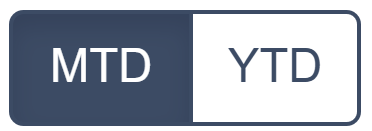
-12 Mo- past 12 months-6 Mo- past 6 months+1 mo- upcoming month+3 mo- upcoming 3 months+6 mo- upcoming 6 months+9 mo- upcoming 9 monthsMTD- month-to-dateYTD- year-to-date
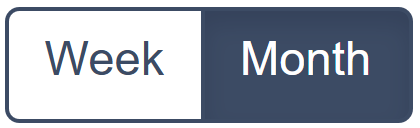
Week- view data week-by-weekMonth- view data month-by-month
What You Can Do
The Manage Purchase Orders submodule contains several other tabs that let you manage POs and related information throughout their lifecycle.Draft PO’s

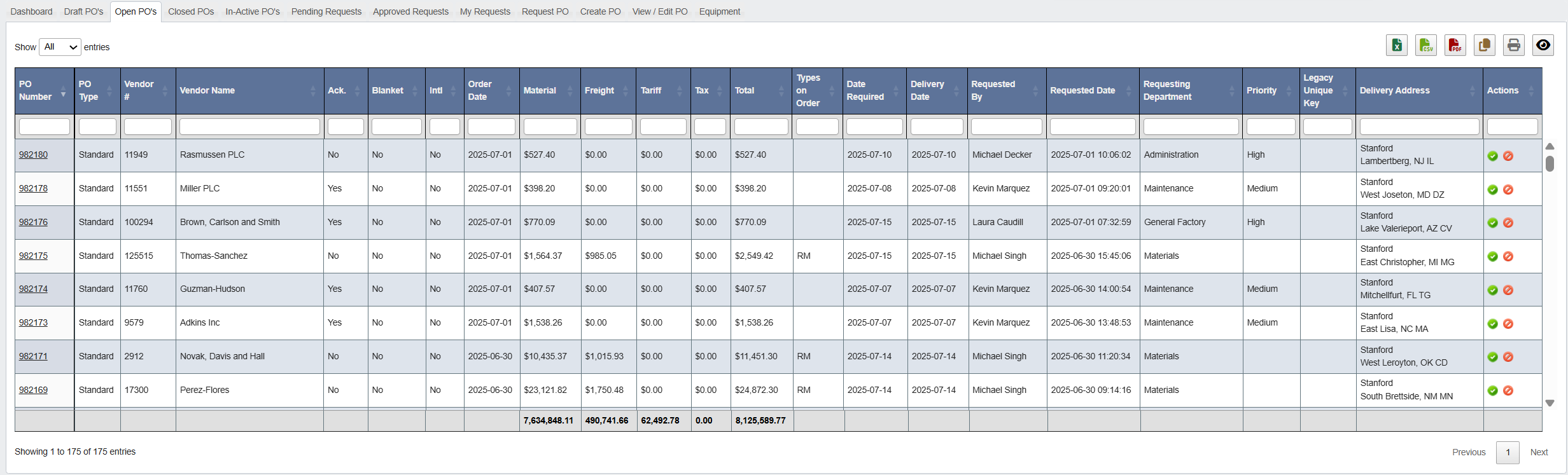
Open PO’s
-
Click on a
PO number. -
Click
Edit.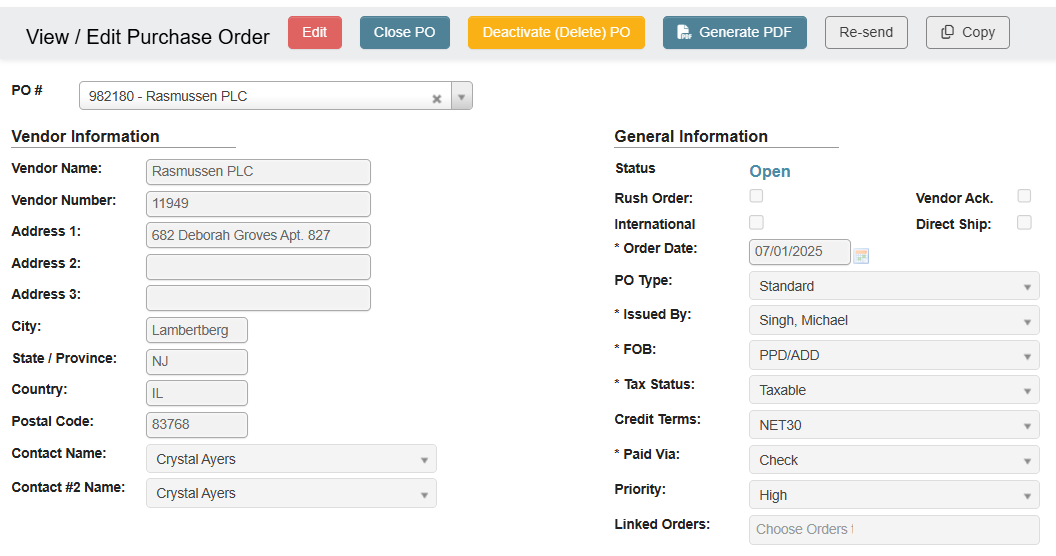
-
Check the box under
Vendor Ack..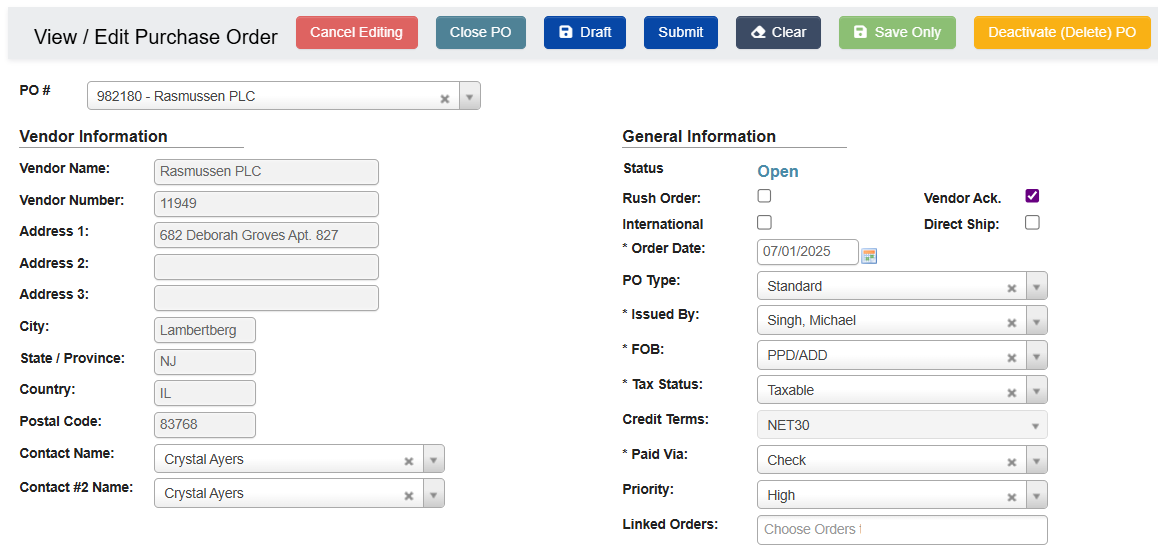
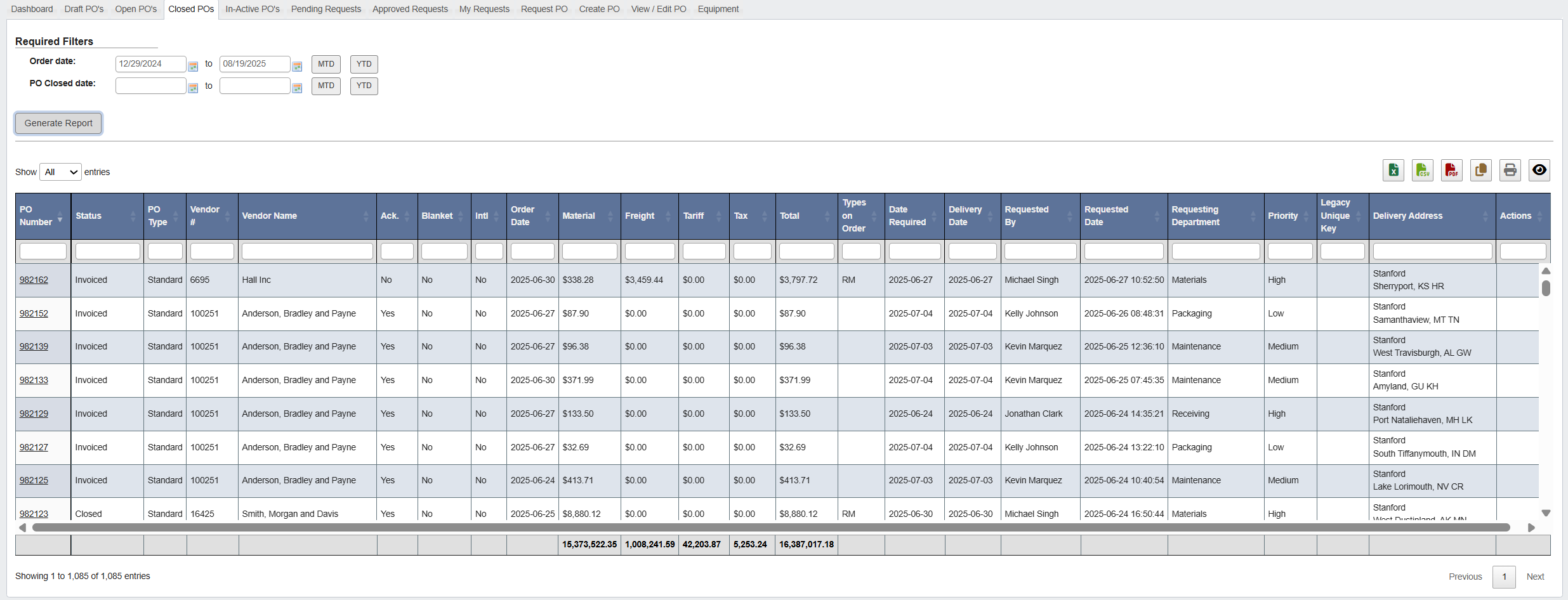
Closed POs
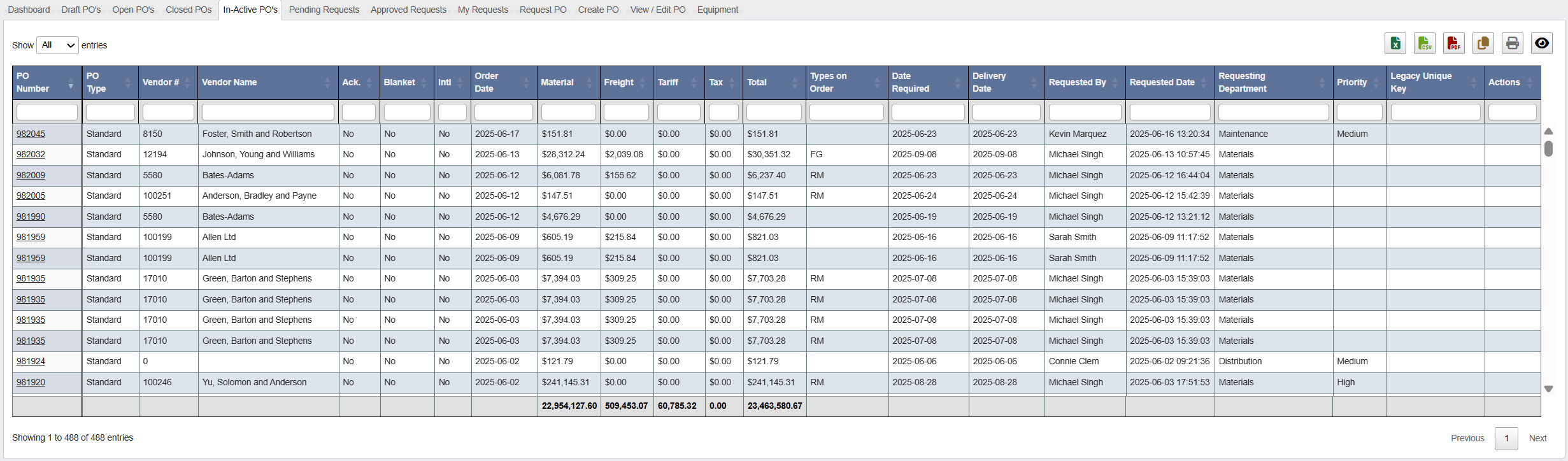
Inactive PO’s
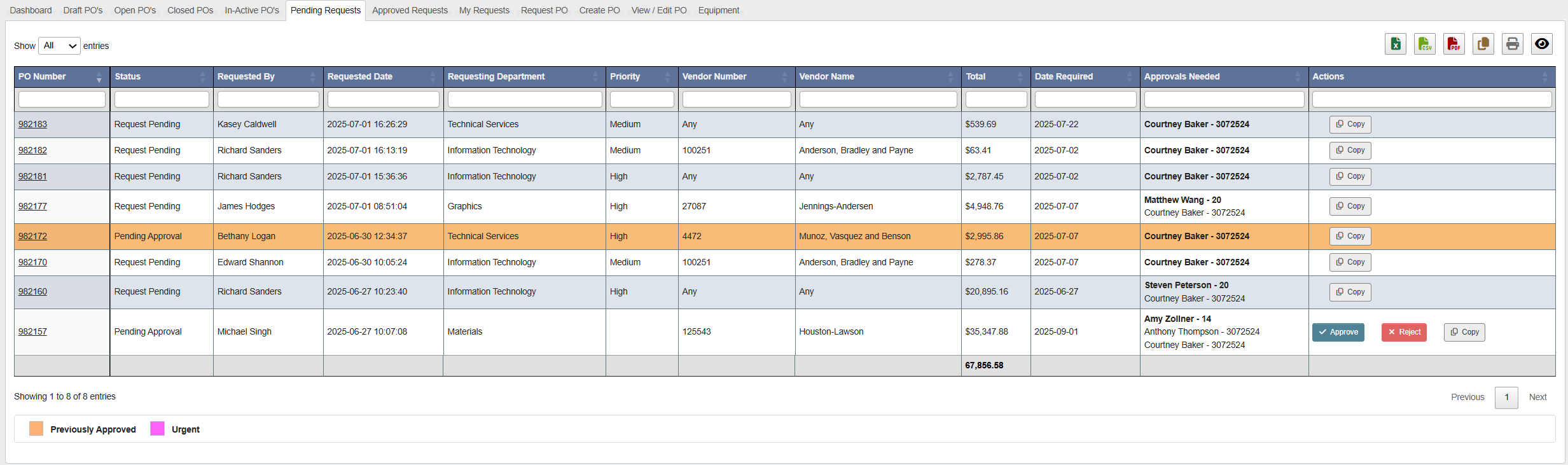
Pending Requests
Approved Requests

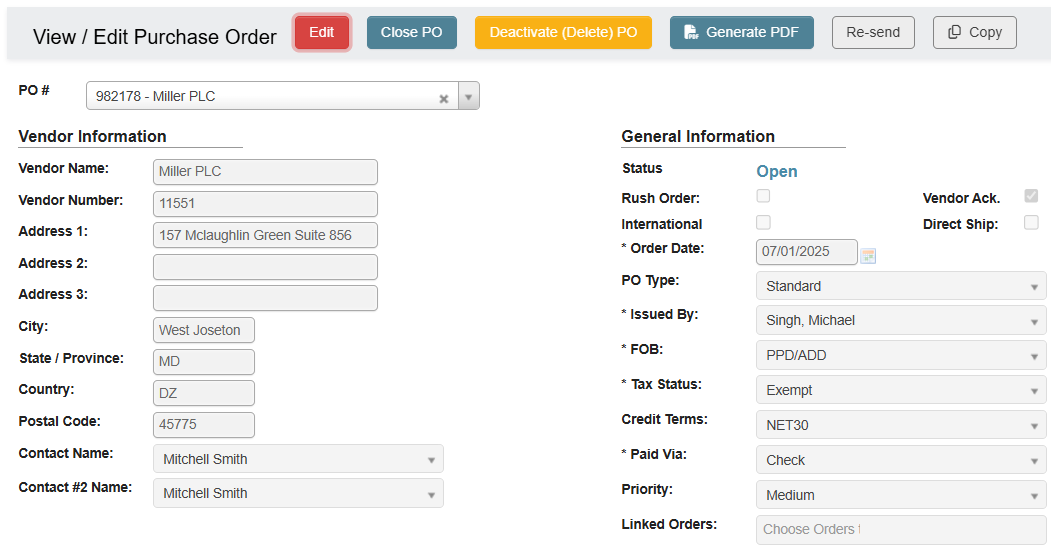
- Click on the PO Number to open the PO.
-
Click Edit.
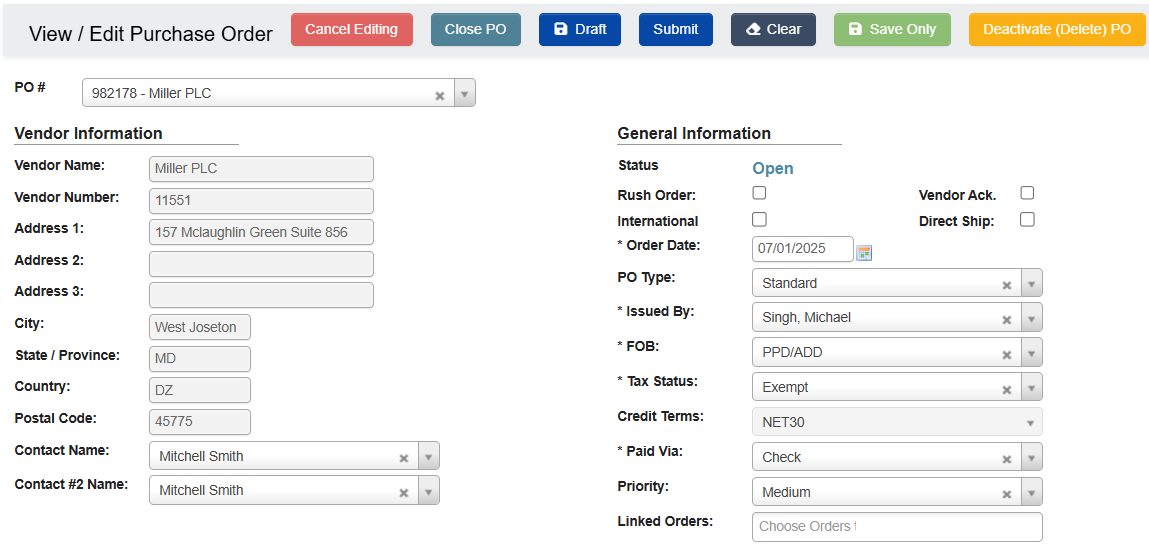
-
Click Submit.
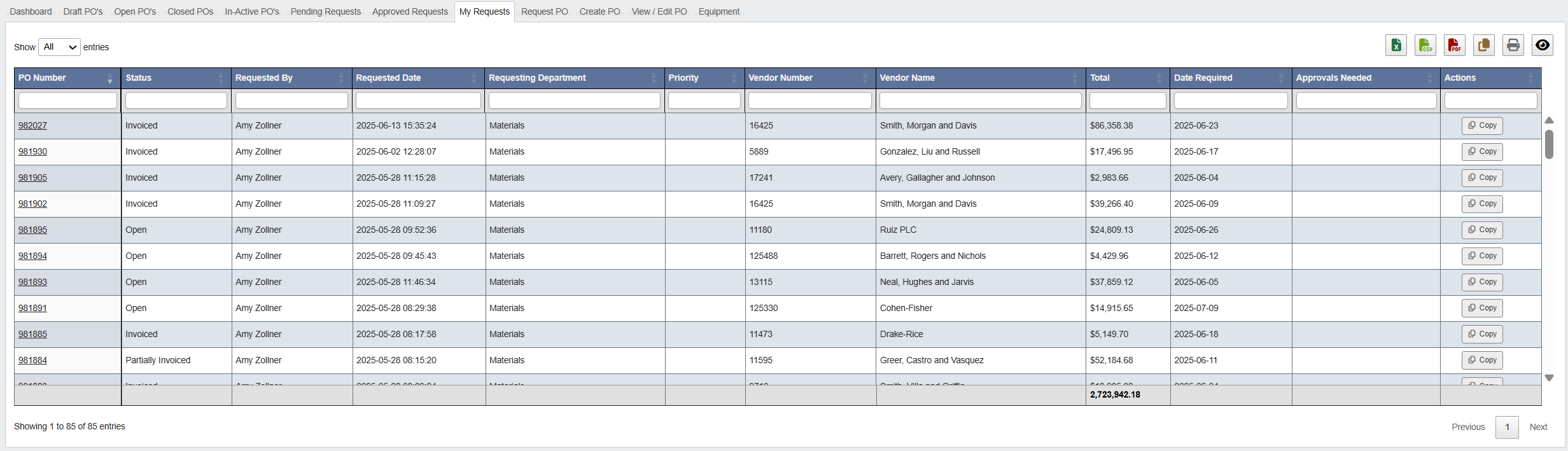
My Requests
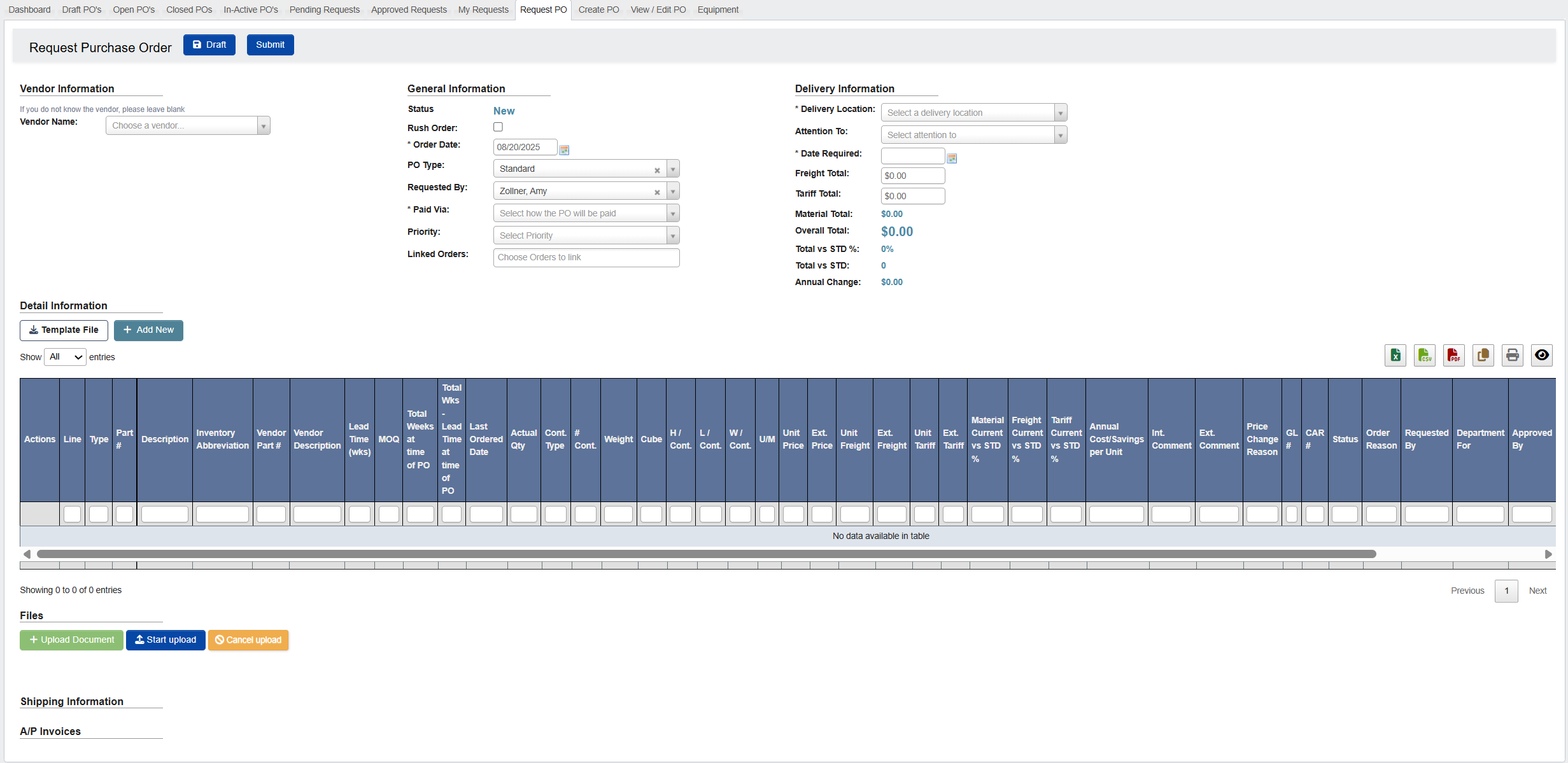
Request PO (expense items)
Create PO
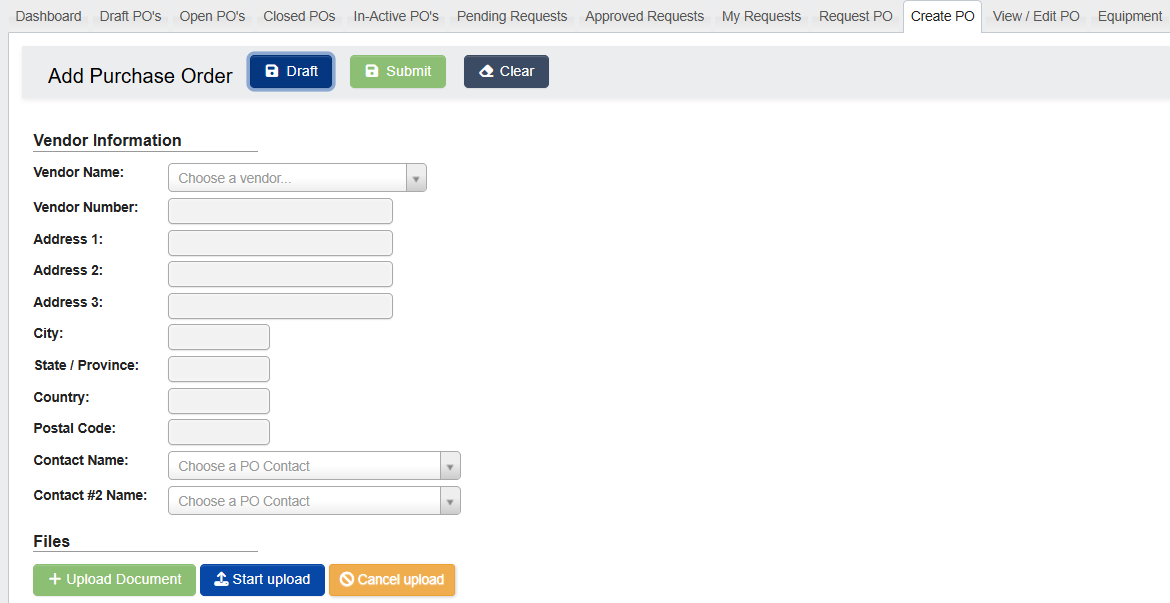
Follow this tutorial to create a PO: Purchase Orders - Tutorial: Create a Purchase Order (PO)
View / Edit PO
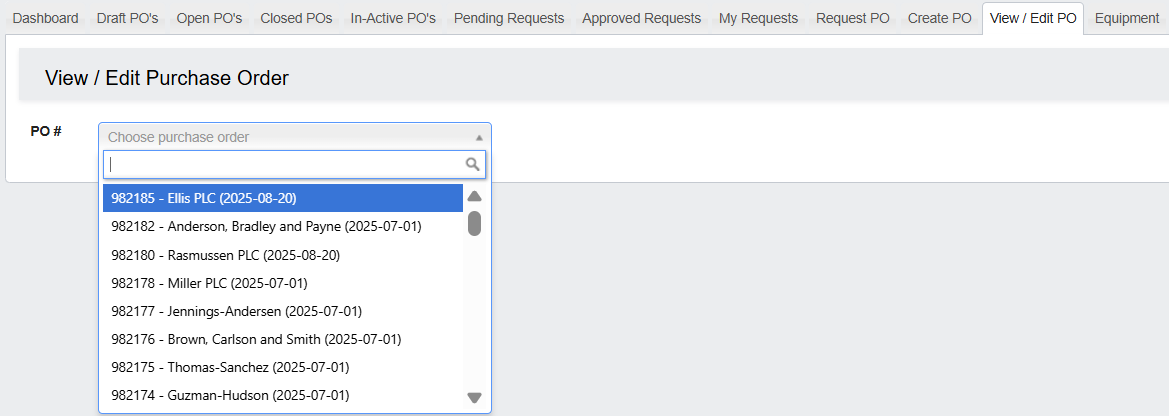
Follow this tutorial to view/edit a PO: Purchase Orders - Tutorial: View / Edit a Purchase Order
Equipment
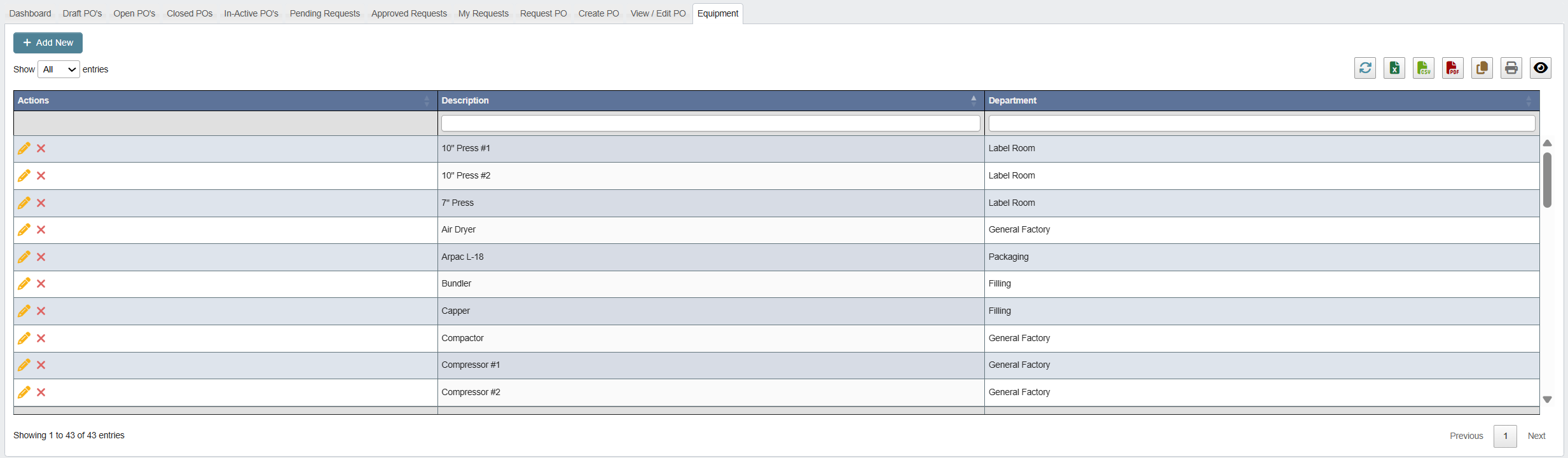
- You can add new equipment, edit existing entries, or remove ones that are no longer needed.
- This list helps tie purchases and requests back to relevant machines or areas of the plant.