Overview
This tutorial helps you view and edit an existing Purchase Order (PO) in the DASH Purchase Order → Manage Purchase Orders submodule. Viewing a PO allows you to check vendor details, order items, approval status, receiving history, and reconciliation records. Editing a PO lets you update information, adjust quantities or prices, add/remove items, or cancel the order if it has not yet been processed. Use this page when you need to confirm what was ordered, make changes before vendor dispatch, manually close completed PO lines after receiving adjustments, or reopen lines that still need attention.View / Edit a Purchase Order
From within theView / Edit PO tab, you can explore and manage existing POs.
View a PO
-
From the Purchase Order → Manage Purchase Orders submodule, click on the
View / Edit POtab.
-
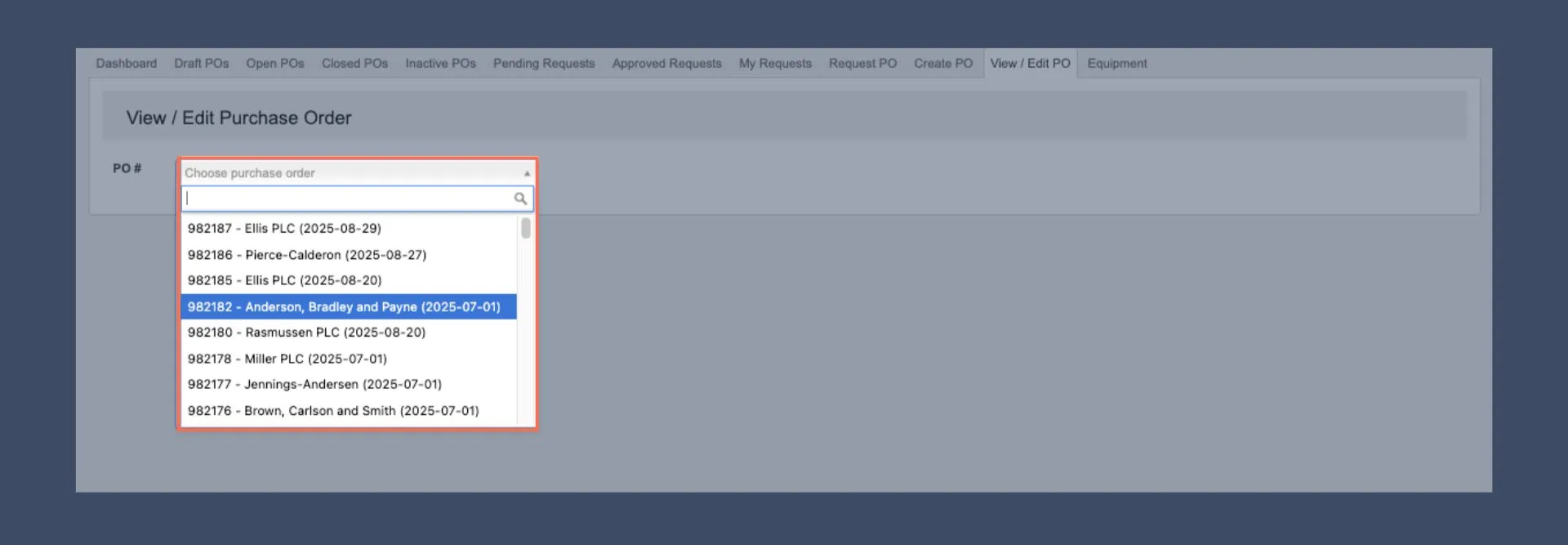
Click the dropdown menu next to the
PO#field. -
Enter the PO number or name of the vender you’re looking for, then click to select it.
-
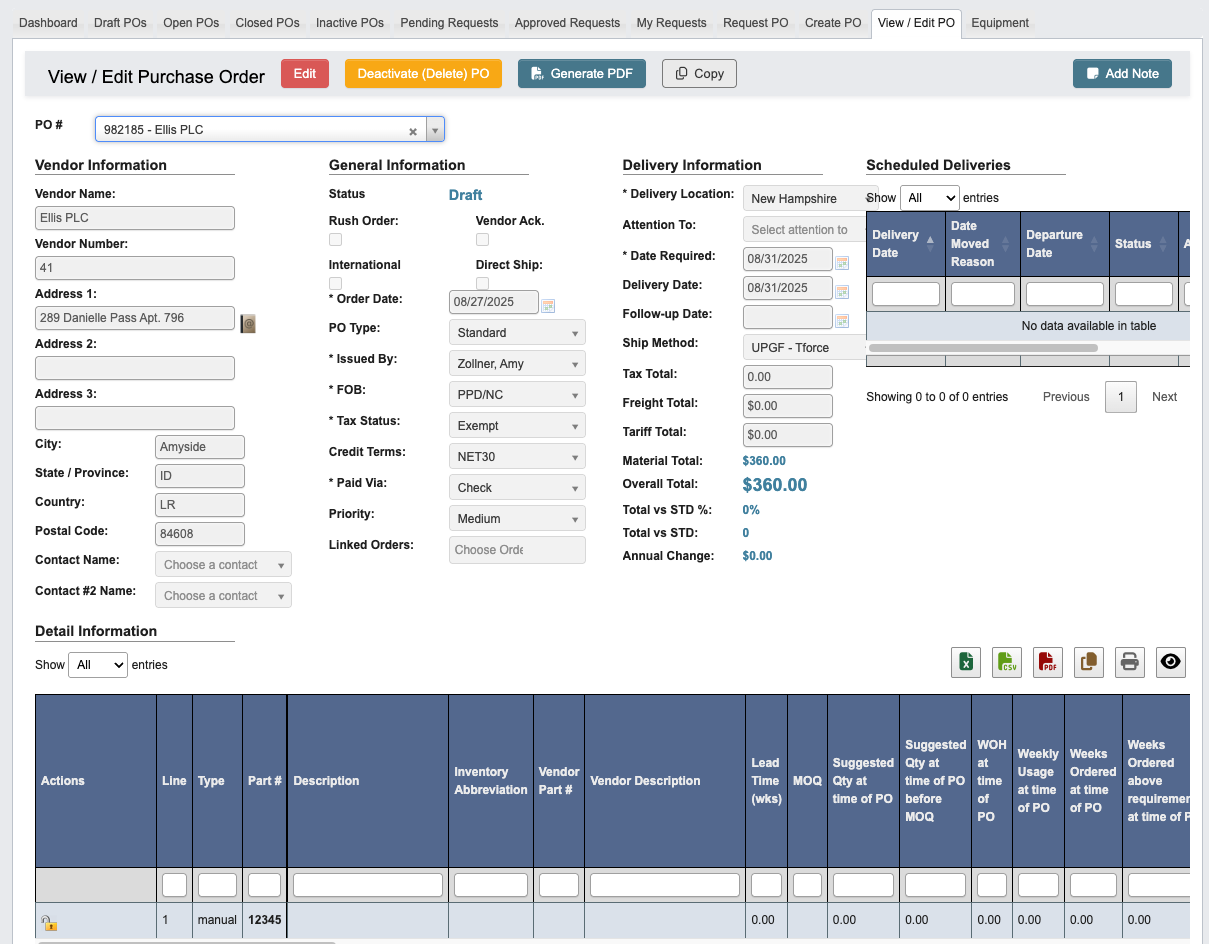
You can now view the PO details, including shipping, invoices, audits, and other important information.
Use the toolbar to manage a PO
Once you’ve pulled up a PO, you can manage the information with the following features located in the toolbar:
-
Edit: Edit the PO.
- Once in the edit view:
Cancel Editing: Cancel editing.Draft: Save the changes the the PO as a draft.Submit: Submit the PO for approval.Clear: Clear all information from the PO.Save Only: Save the PO, but not submit it for approval.
- Once in the edit view:
-
Deactivate (Delete) PO: Deactivate or delete the PO. -
Generate PDF: Generate a PDF of the PO. -
Copy: Creates a new Request PO with the PO information copied over. -
Add Note: Attaches a note to the PO. You can optionally choose an expiration date for the note.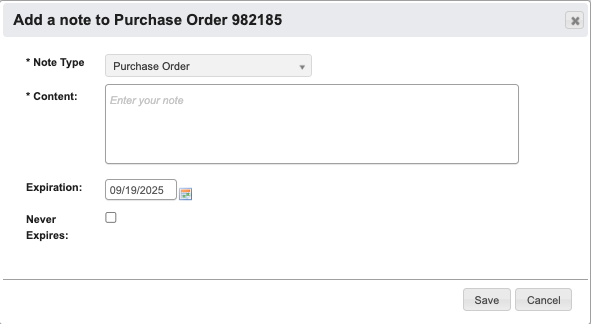
Vendor Information
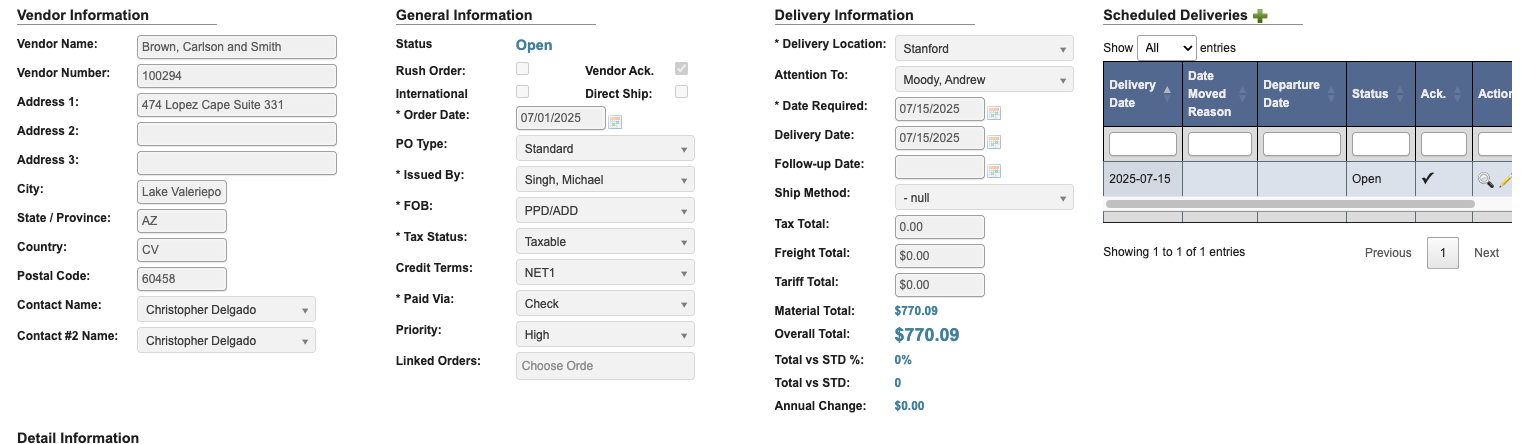
Select Vendor Contacts
- Use the
Contact Namedropdown to select the primary contact who will receive the PO after approval. - If possible, select a
Contact #2as backup, in case the primary is unavailable.
Scheduled Deliveries
This section shows any scheduled deliveries. Once the PO is fully submitted by the purchasing team, it automatically creates a base delivery schedule for all items on the PO based on the Delivery Date listed in Delivery Information section.-
Click on the
View/Editbuttons for a delivery line item to view/manage delivery schedule details, such as the Delivery Date, Parts and Quantities, and Departure Date. If you change the delivery date, you should include a Reason (Delivery Date Moved). -
Click on the
Deletebutton to remove the scheduled delivery.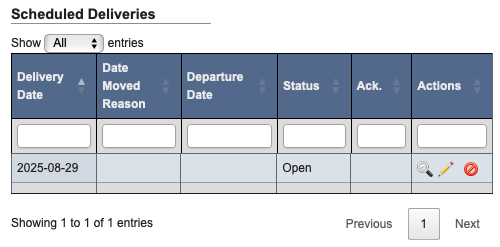
Detail Information
This section contains a table that will show line items for the PO. Viewing the PO you will see the detail table like this: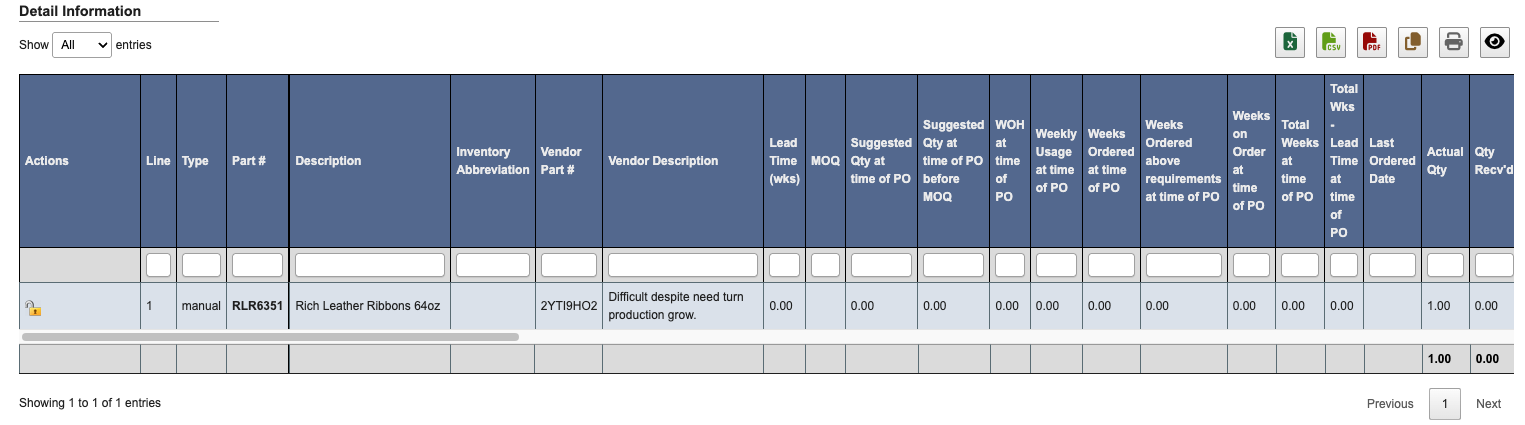
+ Add New button. Steps to add parts to a PO can be found as a part of Tutorial: Request a Purchase Order: Step 2 Add Parts.
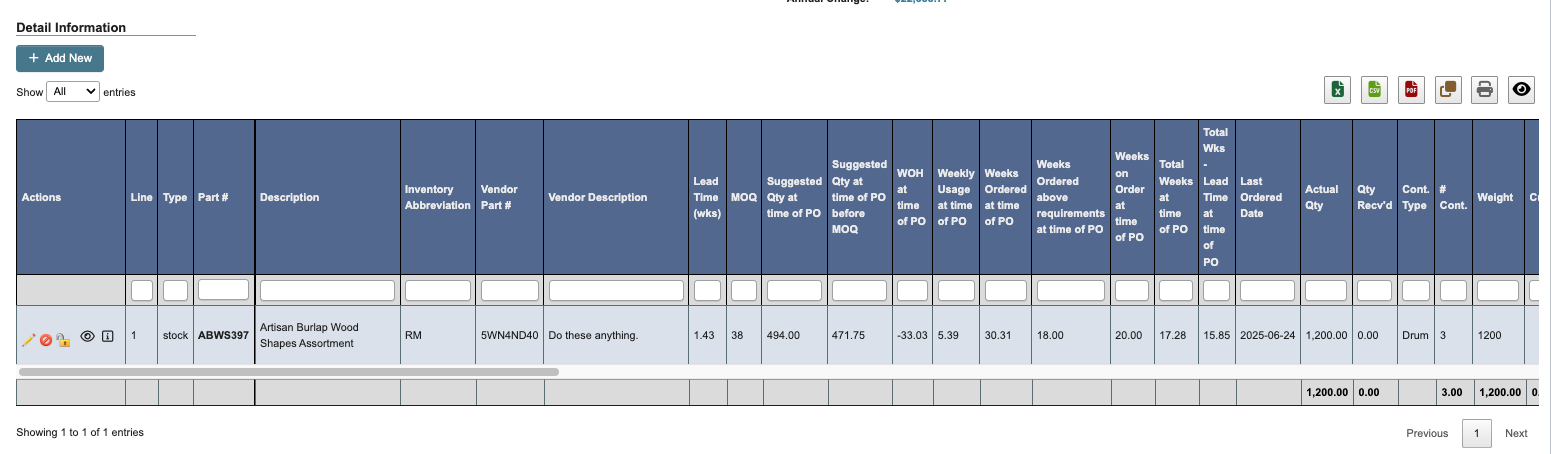
Bulk close or reopen PO lines
When the PO status isOpen, the Detail Information table adds a checkbox column and a Lock / Unlock selected line items action in the table toolbar. Use this when Receiving adjustments leave some lines complete and others still open.

- Open the PO from Purchase Orders → Manage Purchase Orders → View / Edit PO.
- In Detail Information, select one or more line items with the checkbox column.
- Click the
Lock / Unlock selected line itemsbutton in the table toolbar. - Review the confirmation dialog, then click
YES, continue.
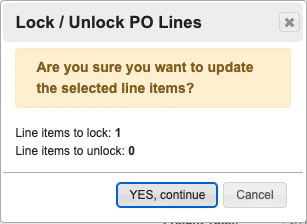
OpenandPending Approvallines are changed toClosed.ClosedandPartially Invoicedlines are changed toOpen.
Files
- Click
+ Upload Documentunder “Files” to open a file browser and select the document you want to attach. - Click
Start uploadto begin uploading. - Click
Cancel uploadif you need to cancel the upload.
Approvals
This sections shows any approvals submitted for this PO.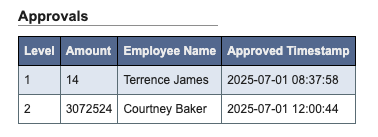
All approvals are required to happen, before purchasing can release the PO to the vendor.
Edits that send an approved PO back for approval
Editing a line item on an approved PO only restarts the approval process when you change the part number, unit of measure, quantity, or one of the price fields (unit price, freight, tariff, pallet, contract fee, or surcharge). DASH then re-checks the line against the suggested PO quantity and the excess stock threshold, and sets it back toPending Approval if it exceeds either one.
Every other line item field — including the internal and external comments, GL account, requesting department, requested by, order reason, and CAR number — leaves the PO approved.
Changing prices can still send a PO back for approval on its own: if the edit raises the PO’s overall total past the allowed variance, or changes the total on a capital PO at all, the whole PO returns to Pending Approval.
Shipping Information
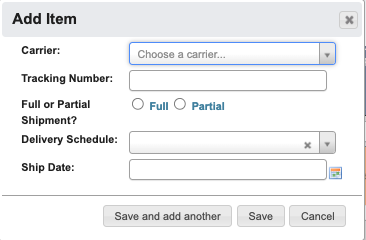
This section contains a table that will shipping information for the PO.
+ Add New button.
A/P Invoices
This section shows accounts payable invoices tied to the PO.
Debit / Credit Memos
This section lists A/P debit and credit memos whose lines are linked to this PO’s invoices, including the memo type, status, reason, linked invoice, vendor invoice number, and amounts.
- Click a
Memo #to open the memo. - Click an
Invoice #link to open the related A/P invoice.
Audit Transactions
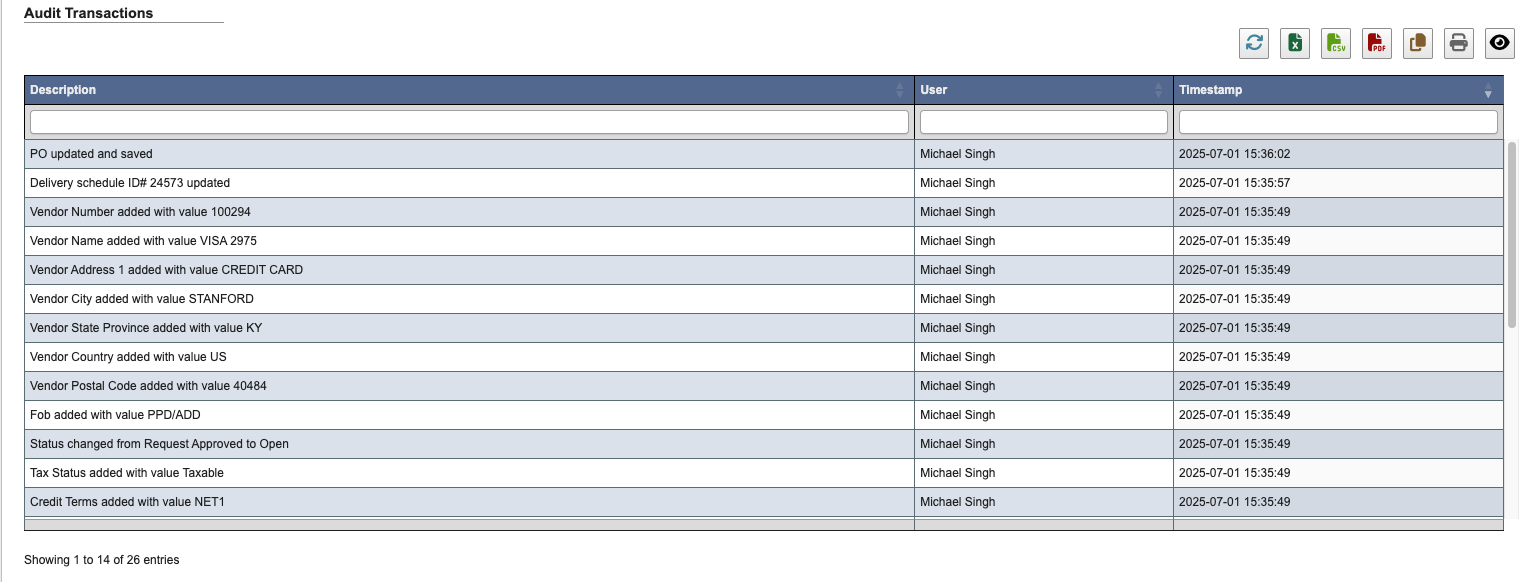
The section shows all changes, who made them, and when.