Overview
The Purchase Orders → Reports submodule helps you track what’s open and when it’s due, spot late/missing dates, and plan upcoming buys using recent usage. Buyers use these reports frequently to triage risk (expedite, push out, or follow up on unacknowledged lines), and to prepare for approvals.How to Generate a Report
The Purchase Order reports give you different ways to look at open and past purchase activity. Here are the main report tabs you’ll see in this module:- PO Detail Info: The most detailed view. This report shows all open or closed PO lines with full information and color-coded status indicators. Buyers use this report to monitor past-due deliveries, missing dates, and follow-up items.
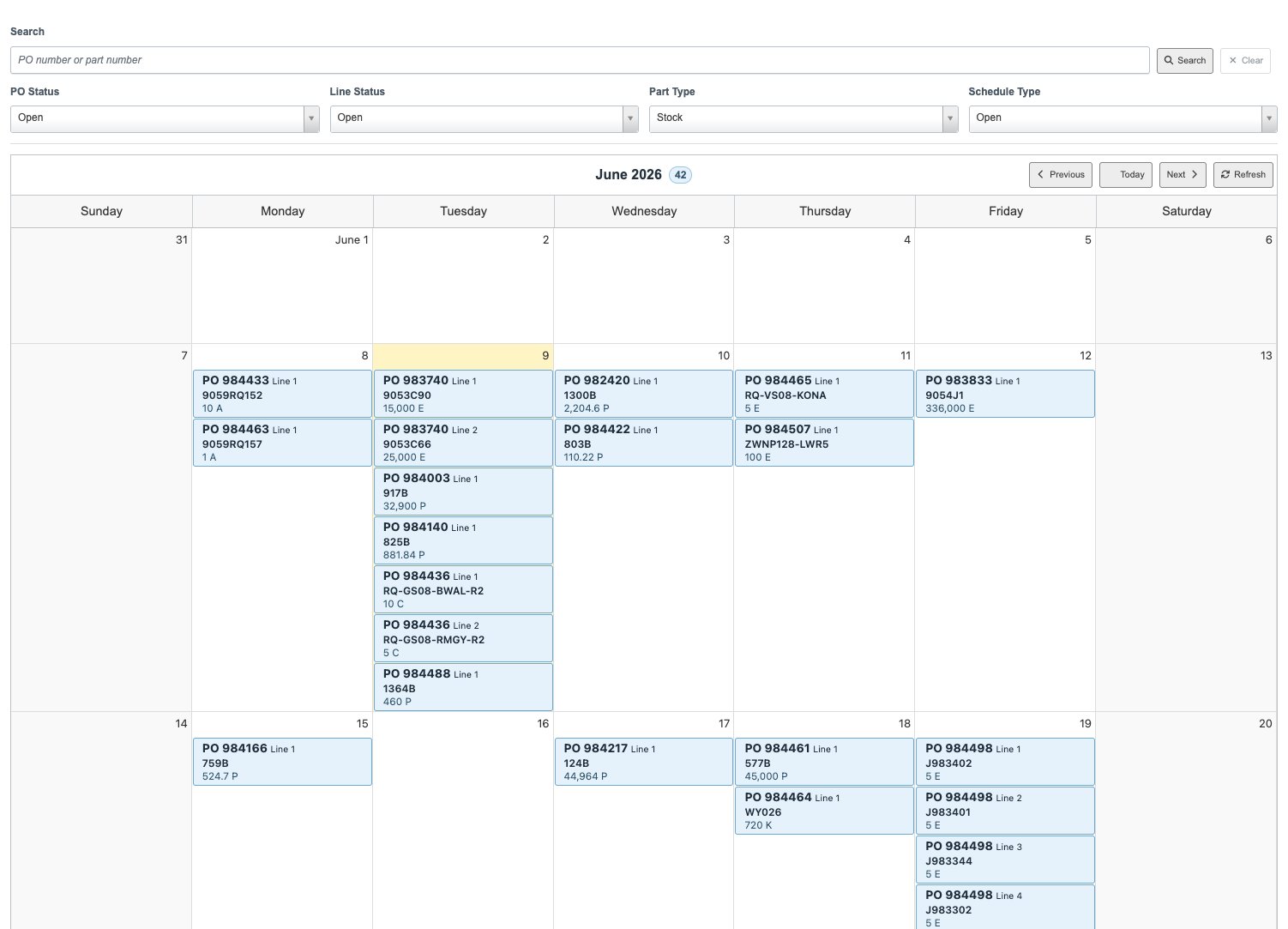
- Delivery Calendar: A month calendar of acknowledged scheduled delivery dates. Buyers use it to see acknowledged stock-part PO deliveries by day without exporting the PO Detail report into another calendar.
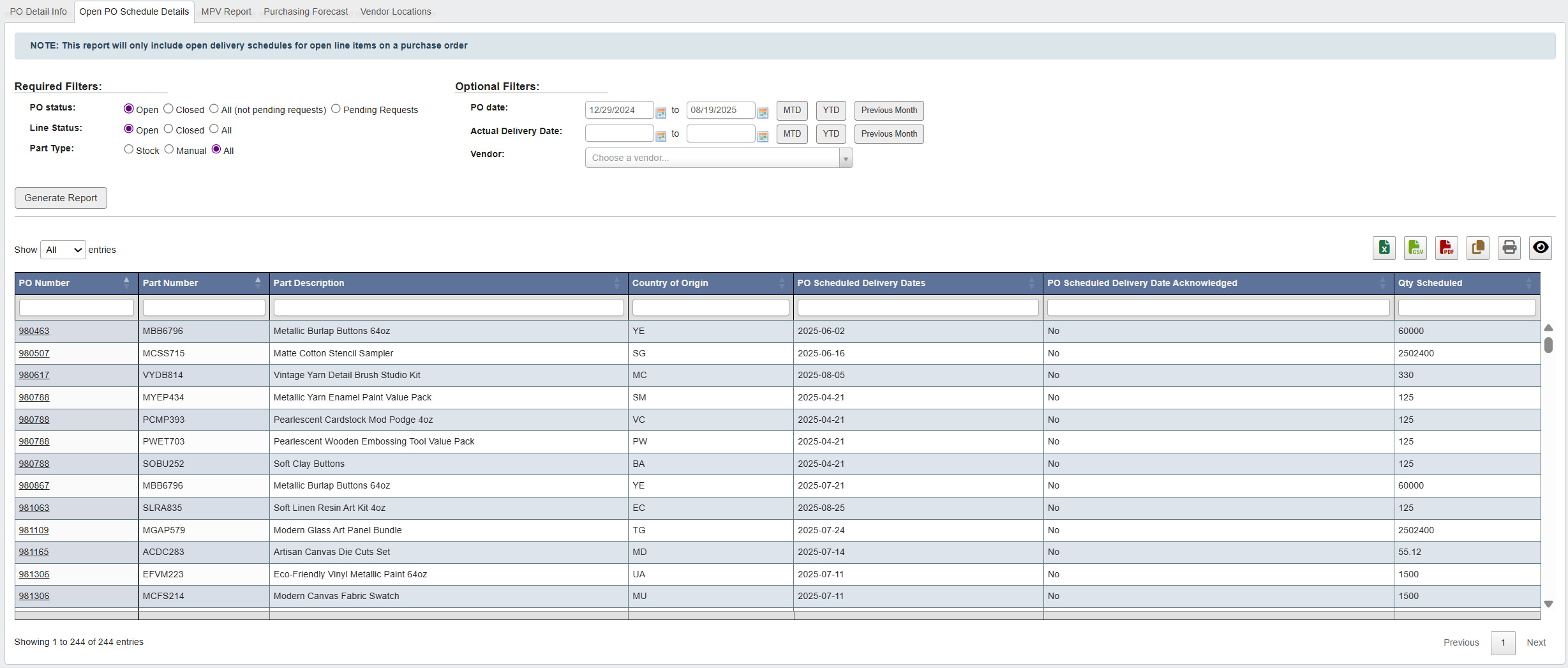
- Open PO Schedule Details: A more condensed version of the PO schedule. It has fewer columns and is easier to scan and share with teams outside of Purchasing who just need a simple status update on upcoming receipts.
- MPV Report: (Material Price Variance) A financial view of purchase price variance. It shows where costs are higher or lower than standard, helping Finance and Purchasing understand savings, increases, and variance across the year.
- Purchasing Forecast: A report that combines incoming POs with usage history. It helps you see when supply will arrive, how much you’ll consume, and when you might run out. This supports planning the timing and size of your next order.
- Vendor Locations: A quick lookup of vendor addresses and ship-from locations. Useful when you need to confirm where a supplier is shipping from or identify alternatives for urgent orders.
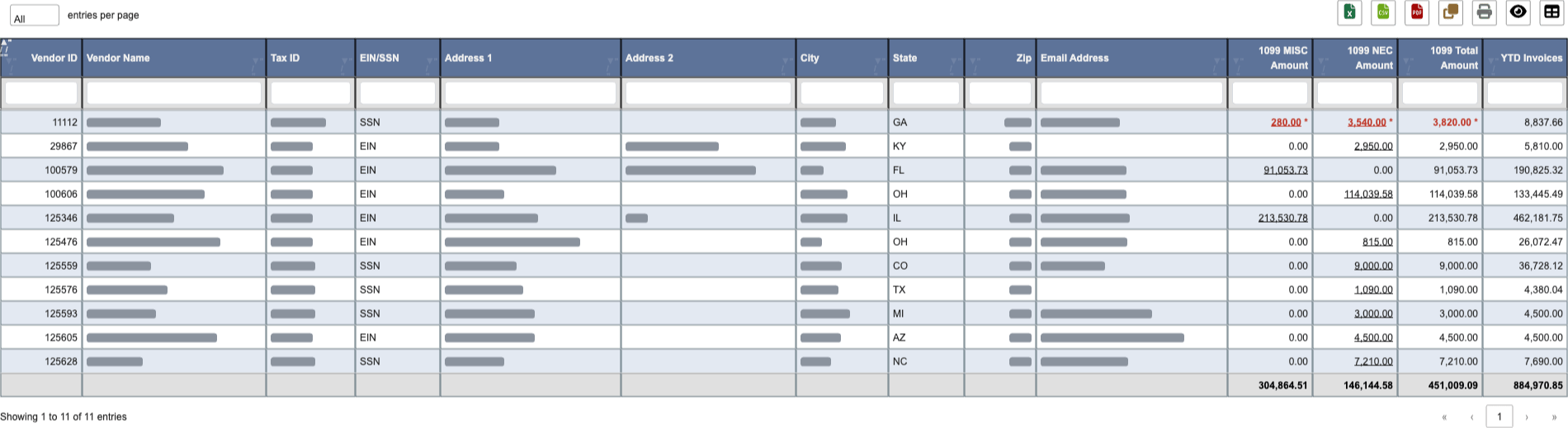
- Vendor 1099: A year-end summary of 1099-reportable payments by vendor, used to prepare 1099-MISC and 1099-NEC filings. It totals only the payments that posted to 1099-flagged expense accounts, excludes voided payments, and lets you review and fine-tune each vendor’s detail before exporting.
Each report is designed for a slightly different audience or need. Together, they help you answer questions such as “What’s outstanding?”, “What’s late?”, “When will we run out?”, and “Are we paying more or less than expected?”.
PO Detail Info
- Click the
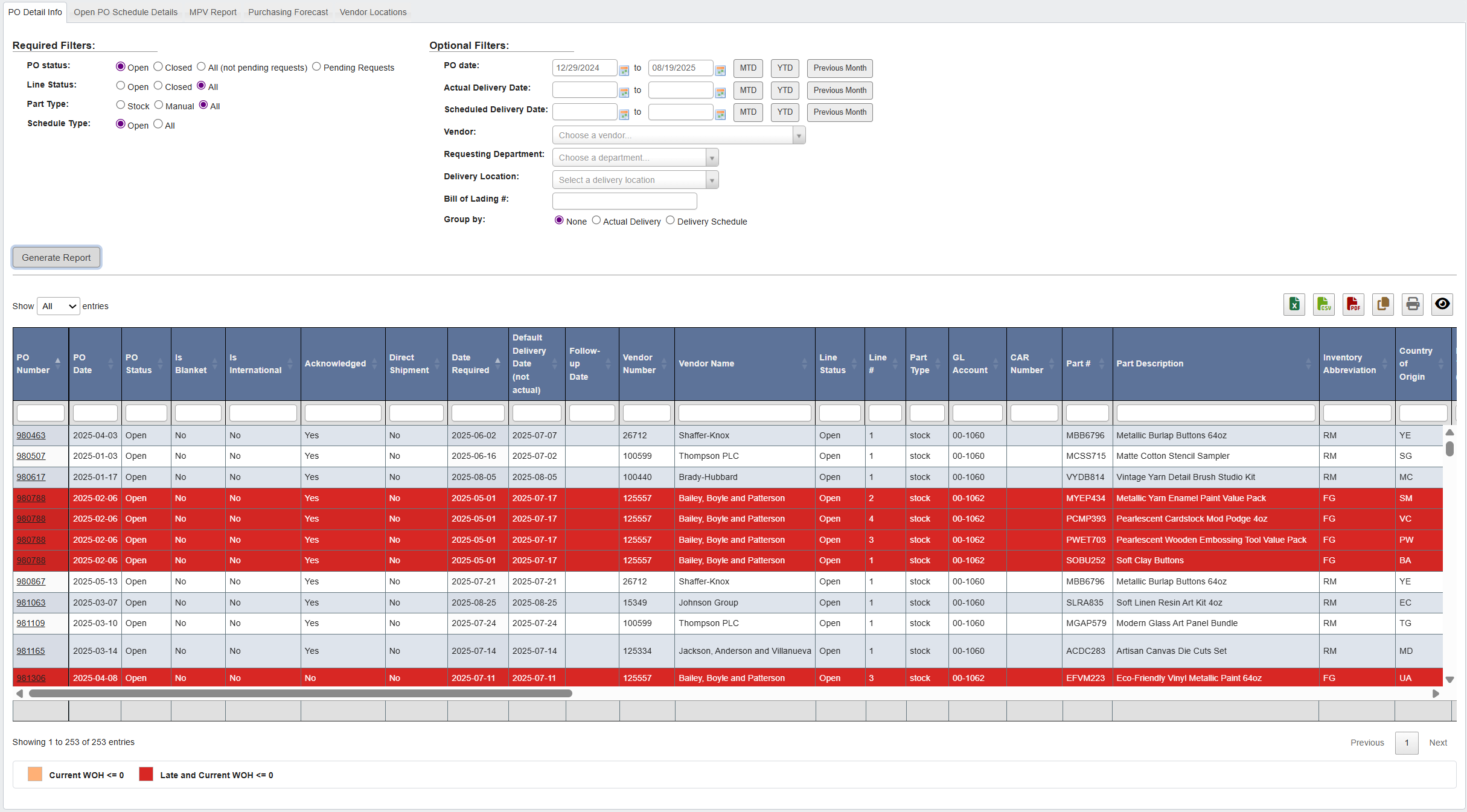
PO Detail Infotab. - Set PO Status/Line Status/Part Type/Schedule Type (buyers typically use Open / Open / All / Open).
- Add any date filters (PO Date / Actual Delivery Date / Scheduled Delivery Date).
- (Optional) Narrow scope by Vendor, Department, Delivery Location, or Bill of Lading #.
- Choose Group By → Delivery Schedule (the date you expect receipt).
- Click
Generate Report. - Review the grid and take action:
- Look for missing Scheduled Delivery Dates.
- Use the color legend at the bottom: Red = Late & current WOH ≤ 0; Orange = current WOH ≤ 0.
- Use Follow-up Date to drive daily check-ins.
- If needed, verify Acknowledged or flag Rush Order (adds “Urgent—please expedite” on the vendor PDF).
Delivery Calendar
- Click the
Delivery Calendartab. - Use
Previous,Today, andNextto move between months. - Search by PO number or part number to jump to the first matching delivery. If there are multiple matches, use the match controls to move through them.
- Adjust PO Status, Line Status, Part Type, or Schedule Type if you need to widen or narrow the calendar. The calendar defaults to Open / Open / Stock / Open.
- Click a PO delivery on the calendar to open the purchase order.
Open PO Schedule Details
- Click the
Open PO Schedule Detailstab. - Set the same high-level filters you use for PO Detail (buyers commonly use Open / Open / All).
- Click
Generate Report.
MPV Report
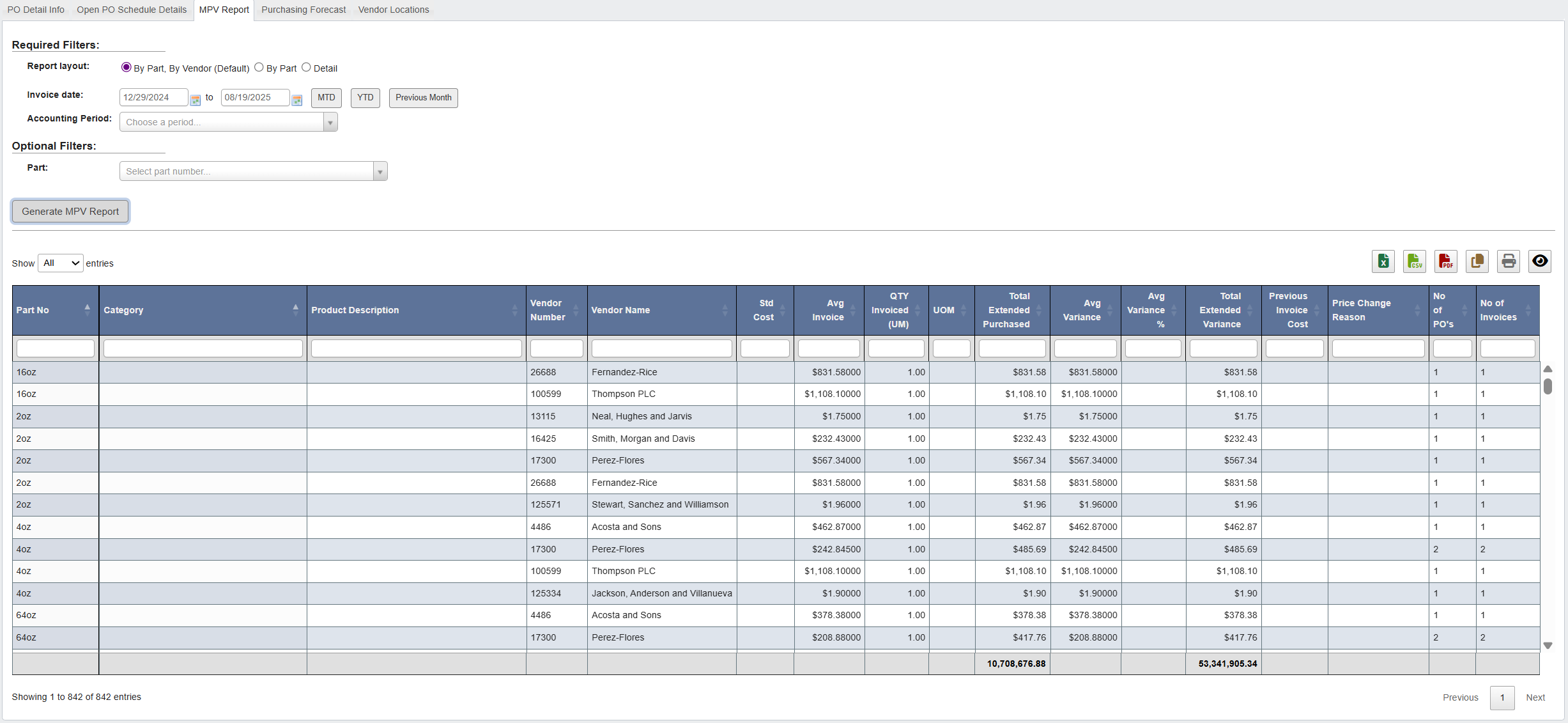
- Click the
MPV Reporttab. - Choose a Report Layout:
- By Part, By Vendor (Default): Groups parts under each vendor for a balanced view.
- By Part: Focuses on part-level variance across all vendors.
- By Vendor: Focuses on vendor-level totals across all purchased parts.
- Detail: Full line-level detail for audits.
- Set the Invoice Date range (use MTD/YTD/Previous Month shortcuts for quick selection).
- (Optional) Select an Accounting Period or filter for a specific Part.
- Click
Generate MPV Report. - Review the grid columns, which show:
- Std Cost vs. Avg Invoice Cost: highlights price differences.
- Total Extended Purchased and Total Extended Variance: impact across volume.
- Previous Invoice Cost: last cost baseline for comparison.
- Price Change Reason (if logged): why cost changed.
- No. of POs / Invoices: how widespread the variance is.
- Use the totals at the bottom to see overall variance impact (positive = cost higher than standard, negative = savings).
Purchasing Forecast
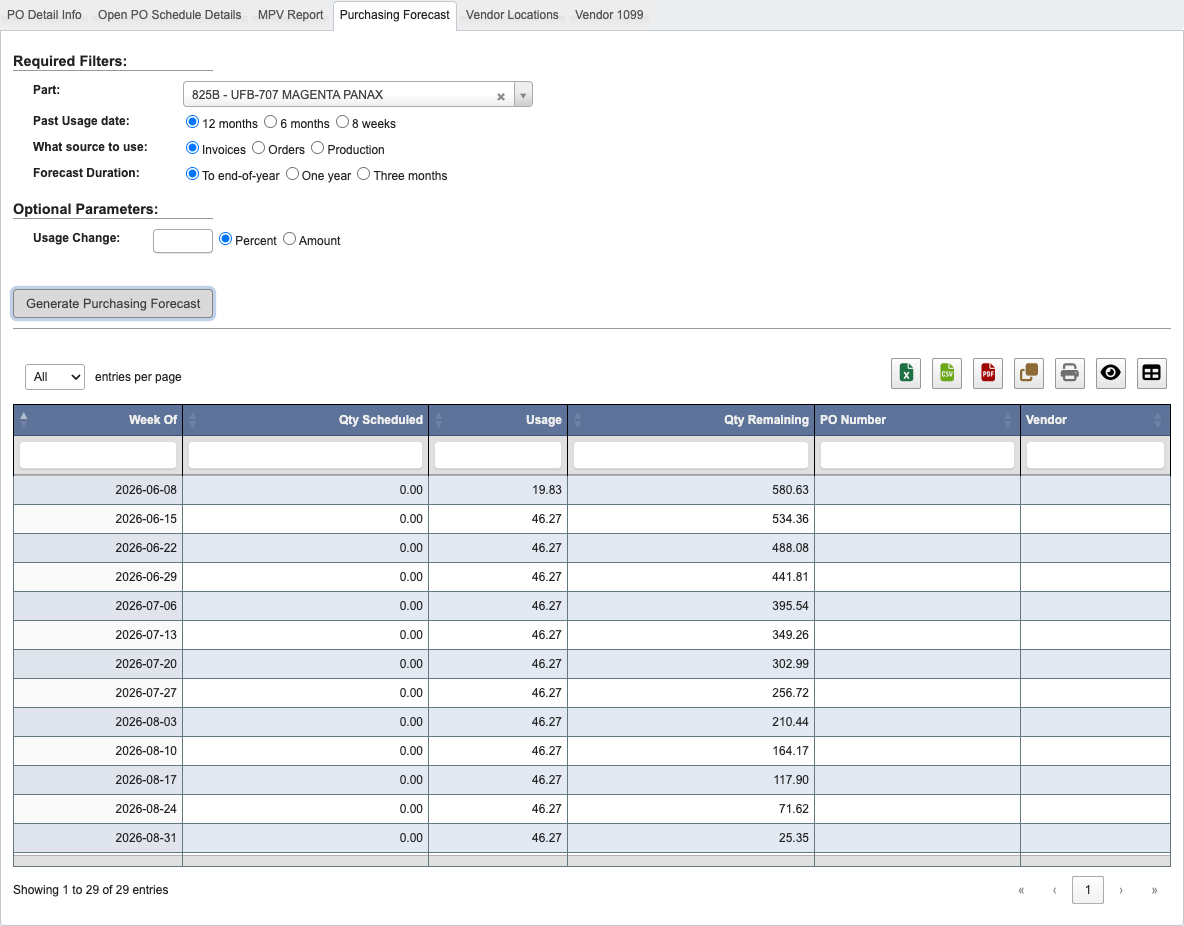
- Click the
Purchasing Forecasttab. - Select the Part from the dropdown; scroll or type in the dropdown to find.
- Choose Past Usage window: 12 months / 6 months / 8 weeks.
- Choose What source to use for usage: Invoices (default), Orders, or Production. This controls which usage history drives the projected weekly consumption.
- Click
Generate Purchasing Forecast. - Read the grid: Week Of, Qty Scheduled, Usage, Qty Remaining, PO Number, Vendor.
- Interpret Usage: for an 8-week view, usage is evenly prorated across the eight weeks (consistent fill).
- Decide the next order week/quantity (e.g., “we’ll need another PO the week of 10/27”).
Vendor Locations
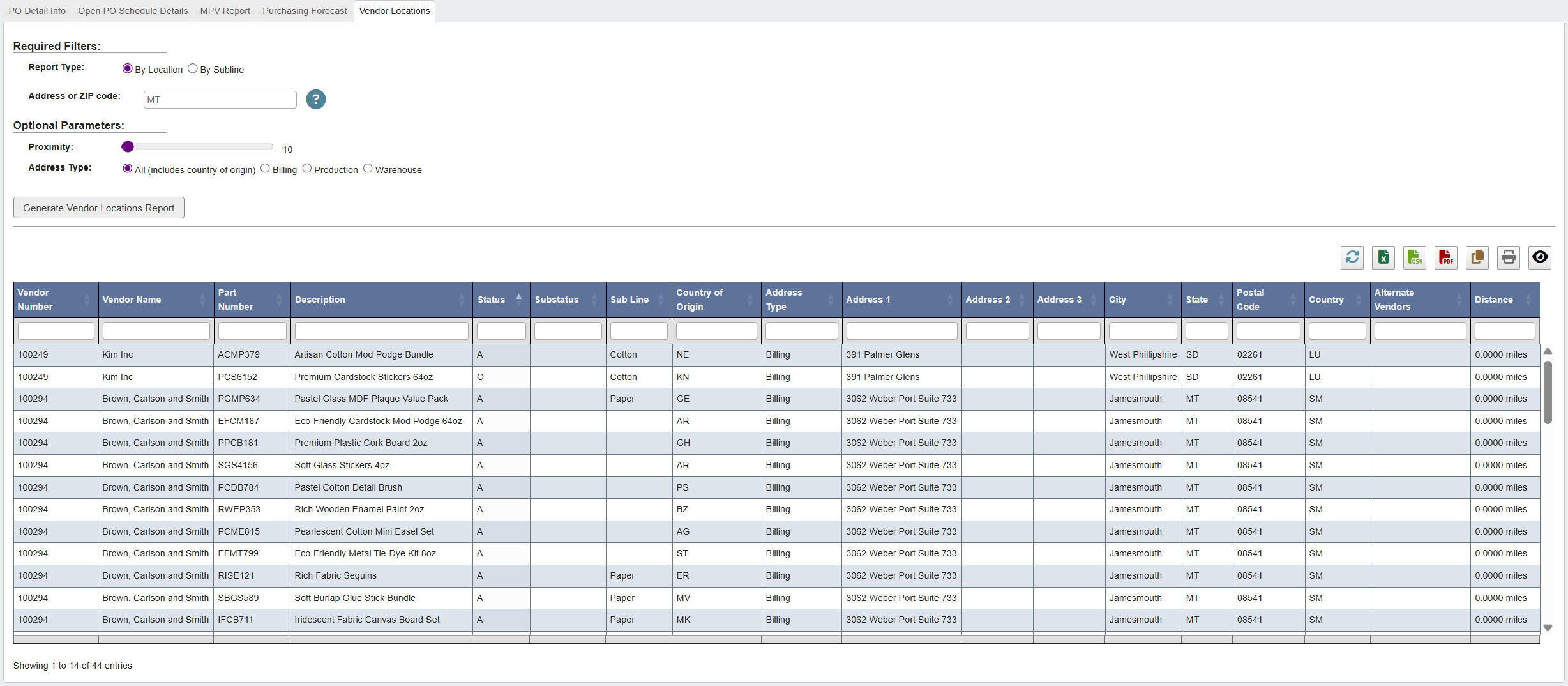
- Click the
Vendor Locationstab. - Choose a Report Type:
- By Location: Shows vendors by address/ZIP.
- By Subline: Groups vendors by part subline.
- Enter an Address or ZIP code to anchor your search.
- (Optional) Adjust search parameters:
- Proximity: Set a mileage radius around the entered address/ZIP.
- Address Type: Show All addresses (includes country of origin) or limit to Billing, Production, or Warehouse.
- Click
Generate Vendor Locations Report. - Review the results, which display:
- Vendor names and numbers.
- Associated parts and descriptions.
- Subline, country of origin, and address type.
- Full address details (street, city, state, postal code, country).
- Alternate vendors and distance from the entered address/ZIP.
Vendor 1099
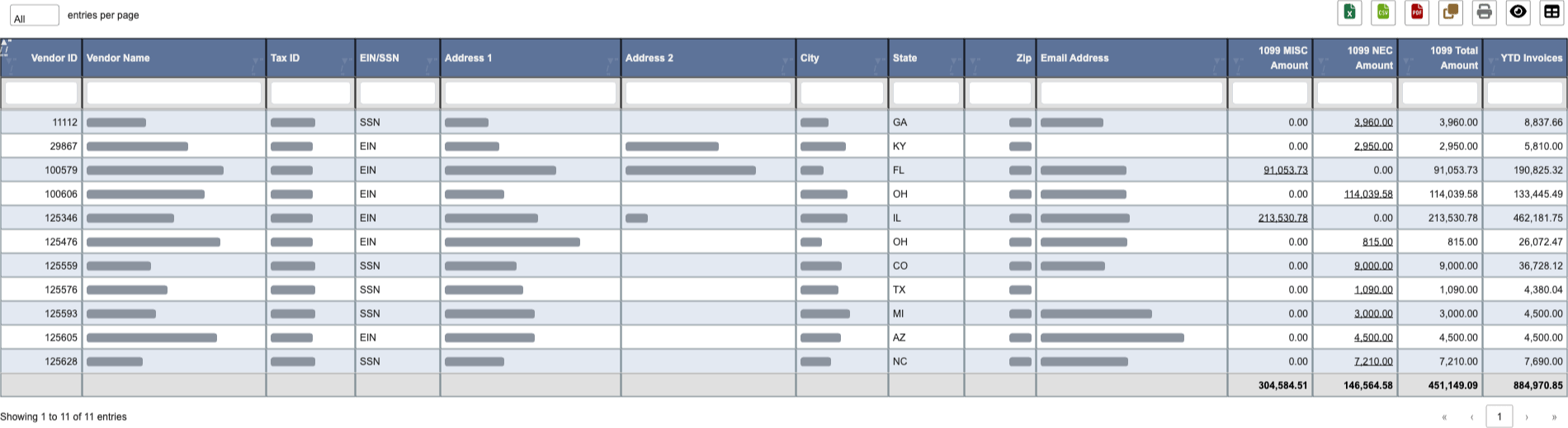
- Click the
Vendor 1099tab. - Select the Year (the tax year, based on each payment’s check date).
- Choose a Type: All shows every vendor with both amount columns. 1099-MISC or 1099-NEC shows only vendors with that type of payment and only that amount column. You can switch Type after generating; the report is not re-run, so any lines you unchecked or moved stay as they are.
- Click
Generate Vendor 1099 Report. - Review the grid. Each row is one 1099 vendor and includes:
- Tax ID and an EIN/SSN indicator showing which kind of number it is.
- Mailing Address and Email Address (the vendor’s remittance email, for emailing 1099s).
- 1099 MISC Amount, 1099 NEC Amount, and 1099 Total Amount (the MISC and NEC amounts combined).
- YTD Invoices: everything the vendor invoiced during the selected calendar year, by invoice date. Compare it to the 1099 Total Amount as a sanity check; for a vendor whose work is all 1099-reportable the two should be close, and a large gap usually means an expense account is not flagged for 1099. Because invoices are counted by invoice date and 1099 amounts by check date, an invoice dated in December and paid in January lands in different years on the two columns. The vendor record’s own YTD Invoices figure follows the accounting calendar, so the two can differ by invoices dated in the last few days of the year.
Review and adjust a vendor’s detail
Click any underlined 1099 MISC or 1099 NEC amount to open the payment detail behind it.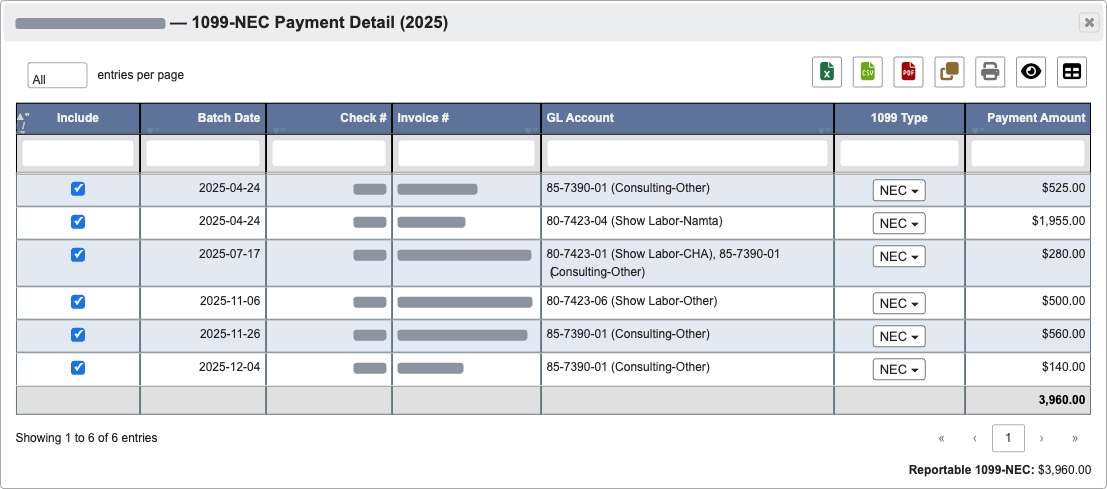
- Uncheck the Include box on any line to leave it out of the vendor’s reported total; the Reportable total updates immediately.
- Re-checking a line adds it back.
- Change a line’s 1099 Type to move it to the other box. This is for payments coded to an account whose 1099 type does not fit every line, such as rent posted to Prepaid Expense that belongs on 1099-MISC rather than 1099-NEC. The line leaves this dialog, the vendor’s MISC and NEC amounts on the report shift accordingly, and the line now appears when you open the other amount, where you can move it back. A line you had unchecked counts again once you move it.
Excluding and moving lines are temporary, on-screen adjustments for the current session — they change the totals you see and export, but are not saved. Re-running the report resets every vendor to its full amounts.