Overview
The Shipping → Advanced Shipping Notices (ASNs) submodule is used to communicate shipment details to customers. Once an order is ready to ship, an ASN is sent to EDI-enabled customers the same day, giving them an electronic record of every item they should expect in that shipment. This tool ensures customers receive timely, accurate shipment information and supports smooth receiving on their end.Pending ASN’s
This tab displays ASNs that are waiting to be processed. These represent customer shipments that are ready, or nearly ready that need to be shipped.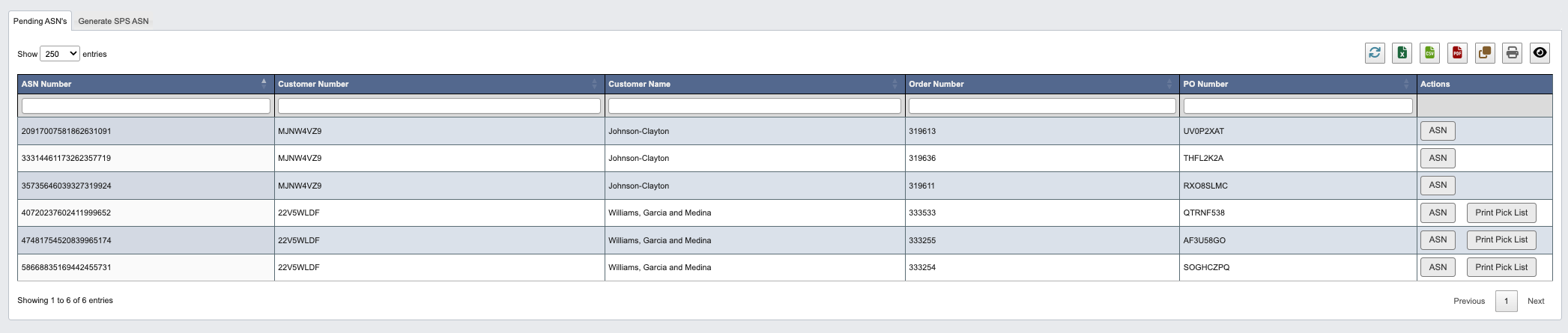
- In the Actions column, click the
ASNbutton to open the selected record in theGenerate SPS ASNpage. - Click the
Print Pick Listbutton to generate a printable pick list for order fulfillment.
Generate SPS ASN
This tab is used to update and configure ASNs for customer orders.-
To generate an ASN, click the
ASNbutton on thePending ASNstab. If no ASN is selected, you’ll see the following message:
-
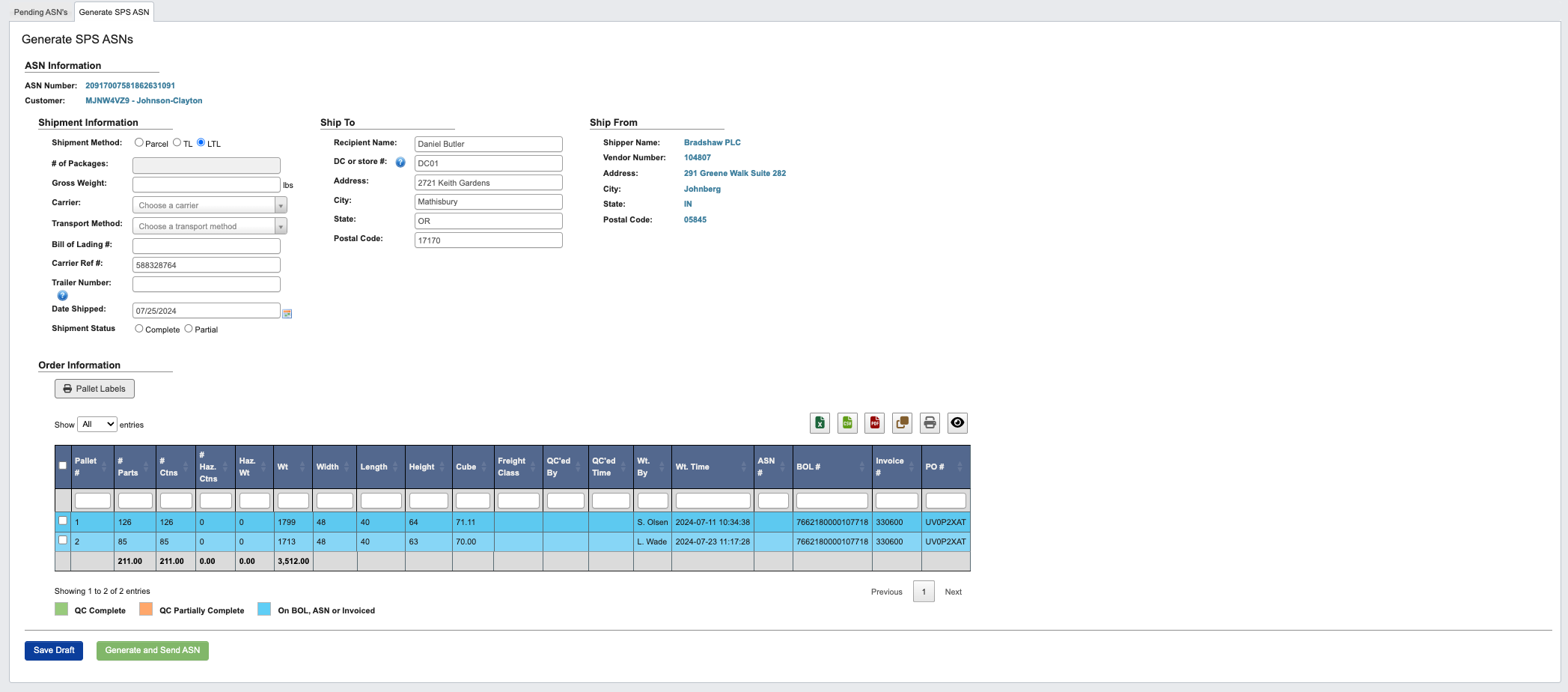
After you have selected and ASN, you can review and edit its Information. The fields are defined below.
ASN Information
ASN Number: System-generated unique identifier.Customer: Customer name pulled from order data.
Shipment Information
Enter or verify shipping details. These fields help track the shipment between facilities and through the carrier.Shipment Method: Parcel, TL (Truckload), or LTL (Less Than Truckload).# of Packages: Total number of packages.Gross Weight (lbs): Total shipment weight in pounds.Carrier: Select from available carriers.Transport Method: Select method of transportation.Bill of Lading #: BOL reference number.Carrier Ref #: Carrier reference number (auto-filled).Trailer Number: Trailer number, required for TL/LTL shipments.Date Shipped: Shipping date (auto-filled).Shipment Status: Mark as Complete or Partial.
Ship To
Destination details pulled from the customer order.Recipient Name: Auto-filled.DC or store #: Distribution center or store number, varies by shipment type:- Direct-to-store or DC shipments list the final destination.
- DC hybrid orders list the cross-dock DC.
- U.S. vendor shipping to Canadian store, shipments always list the cross-dock DC.
Address,City,State,Postal Code: Auto-filled.
Ship From
Origin facility information for the shipment.Shipper Name: Auto-filled.Vendor Number: Vendor number (auto-filled).Address,City,State,Postal Code: Auto-filled.
Order Information
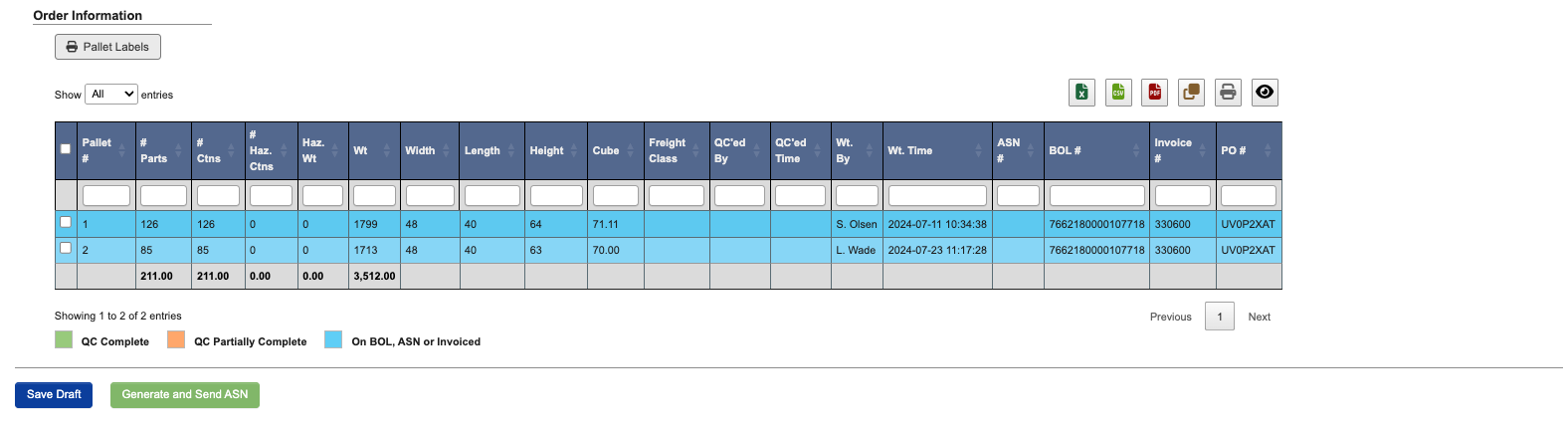
This section lists order-specific details and pallet information. Rows are color-coded based on QC status:- Green: QC Complete
- Orange: QC PartiallyComplete
- Blue: On BOL, ASN or Invoiced
Order Information Actions
-
Pallet LabelsButton: Click to open label printing popup.- Choose a printer and select label size (2” x 4” or 4” x 6”).
-
Click
Printto generate pallet labels orCloseto return to the previous window.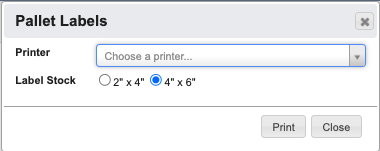
-
Save DraftButton: Save the current ASN configuration as a draft for later completion and processing. -
Generate and Send ASNButton: Finalize and transmit the ASN will be sent electronically to SPSCommerce.