Overview
The Shipping → Print Shipping Documents submodule helps you generate essential shipping documentation including packing lists, pick lists, pallet labels, and customer-specific labels. These documents support the order fulfillment process and ensure accurate shipment preparation. Shipping coordinators, warehouse selectors, and logistics personnel use these document generation tools frequently to prepare orders for shipment, create picking instructions, and generate customer-required labeling for major accounts.How to Generate Shipping Documents
The Print Shipping Documents submodule gives you different ways to create the documentation needed for order fulfillment. Here are the five main document types you can generate:- Packing Lists: Generate comprehensive packing documentation that details order contents for customer shipments. These documents accompany shipments and provide detailed product information.
- Pick Lists: Create picking instructions for warehouse selectors to efficiently gather products for customer orders. These lists guide the physical picking process in the warehouse.
- Pallet Labels: Generate labels for palletized inventory that coordinate with the pallets created on the order during picking.
- Michaels Carton Labels: Create customer-specific labels for Michaels orders with specialized formatting, event codes, and tracking information required by this major customer.
- SPS PTS Documents: Generate specialized documentation for SPS (SPSCommerce an EDI partner) and PTS (Pick to Store) requirements for specific customer compliance.
Packing Lists

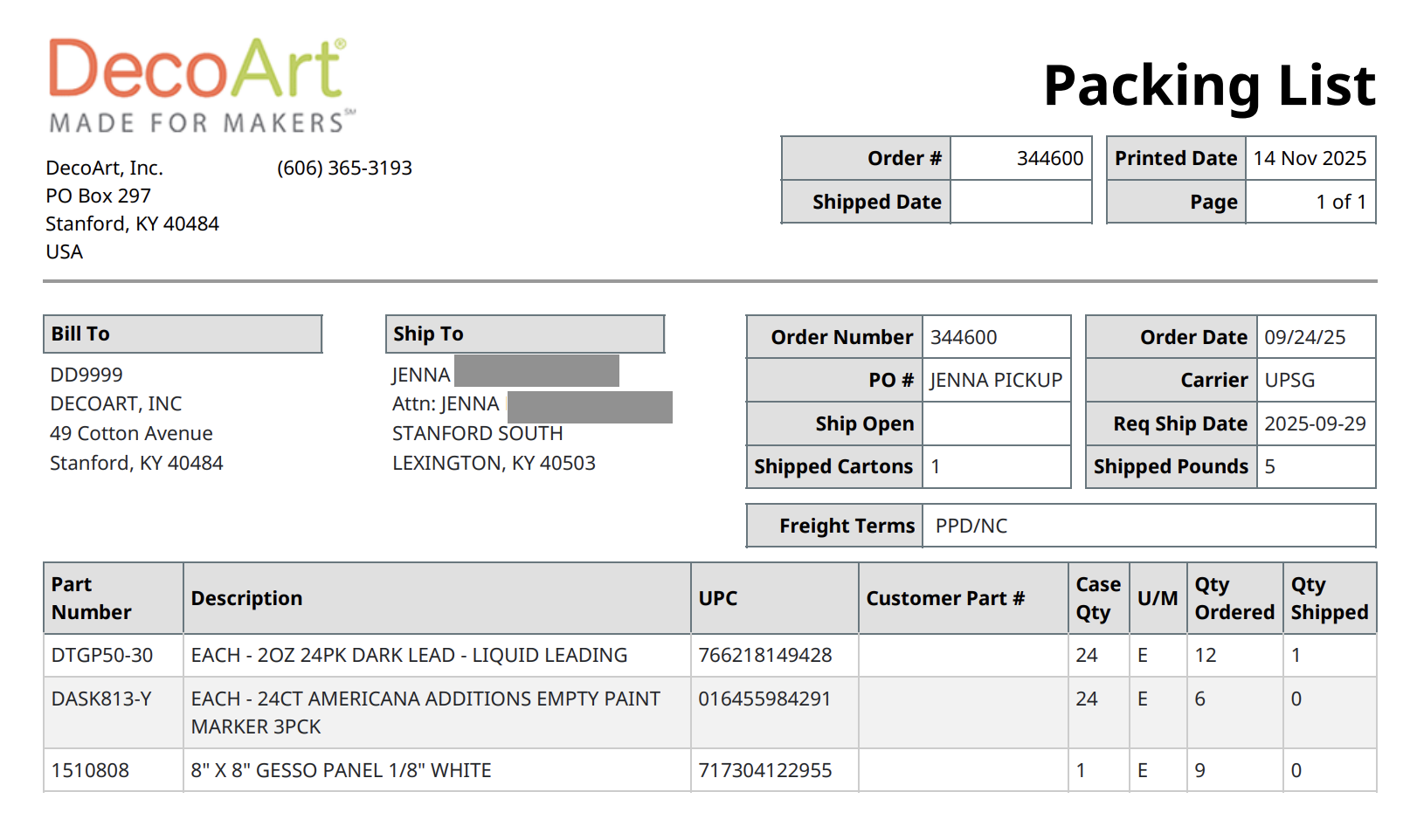
Packing Lists tab to generate comprehensive packing documentation that details order contents for customer shipments.
-
Click the
Packing Liststab. -
Select
Order Number(s)from the dropdown (you can select one or multiple orders). -
Click
Generate Packing Lists. - Allow a few seconds for generation once the button has been clicked.
-
The system will open a PDF document in a new tab containing the packing list details.
Pick Lists

Pick Lists tab to create picking instructions for warehouse selectors to efficiently gather products for customer orders.
- Click the
Pick Liststab. - Select
Order Number(s)from the dropdown (you can select one or multiple orders). - Click
Generate Pick Lists. - Allow a few seconds for generation once the button has been clicked.
- The system will generate a PDF document in a new tab containing the pick list.
Pallet Labels

Pallet Labels tab to generate labels for palletized inventory that coordinate with the tracking system.
- Click the
Pallet Labelstab. - Select
Order Number(s)from the dropdown (you can select one or multiple orders). - Click
Generate Pallet Labels. - Allow a few seconds for generation once the button has been clicked.
- The system will create pallet labels that integrate with DASH’s pallet tracking system.
Michaels Carton Labels

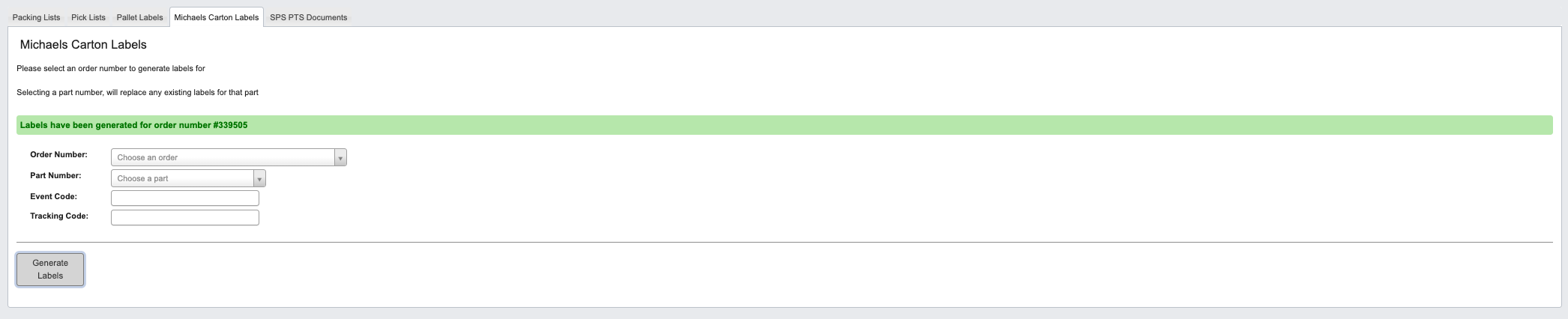
Michaels Carton Labels tab to create customer-specific labels for Michaels orders with specialized formatting and tracking requirements.
-
Click the
Michaels Carton Labelstab. -
Select
Order Numberfrom the dropdown (this will make Part Number options available). -
Select
Part Numberfrom the dropdown.- Note: Selecting a part number will replace any existing labels for that part.
-
Enter
Event Codeas required. -
Enter
Tracking Codeas required. -
Click
Generate Michaels Labels. -
Allow a few seconds for generation once the button has been clicked.
SPS PTS Documents

SPS PTS Documents tab to generate specialized documentation for SPS (SPSCommerce an EDI partner) and PTS (Pick to Store) compliance requirements.
- Click the
SPS PTS Documentstab. - Select
Order Number(s)from the dropdown (you can select one or multiple orders). - Click
Generate SPS PTS Documents. - Allow a few seconds for generation once the button has been clicked.
- The system will open a PDF document in a new tab containing the SPS PTS documents.