Overview
The Shipping → Selector and Shipping → SPD submodules provide warehouse personnel with tools for order picking, inventory lookups, license plate management, and material handling. While both interfaces support core picking and shipping workflows, the SPD submodule includes a specialized option tailored to Small Packet Delivery operations. These tools help ensure accurate, efficient order fulfillment across all shipping areas.How the Interface Works
The submodules provide a centralized dashboard with quick access to all shipping-related activities. At the top of the Selector submodule a toolbar displays summary metrics and navigation buttons, the SPD submodule does not show these metrics.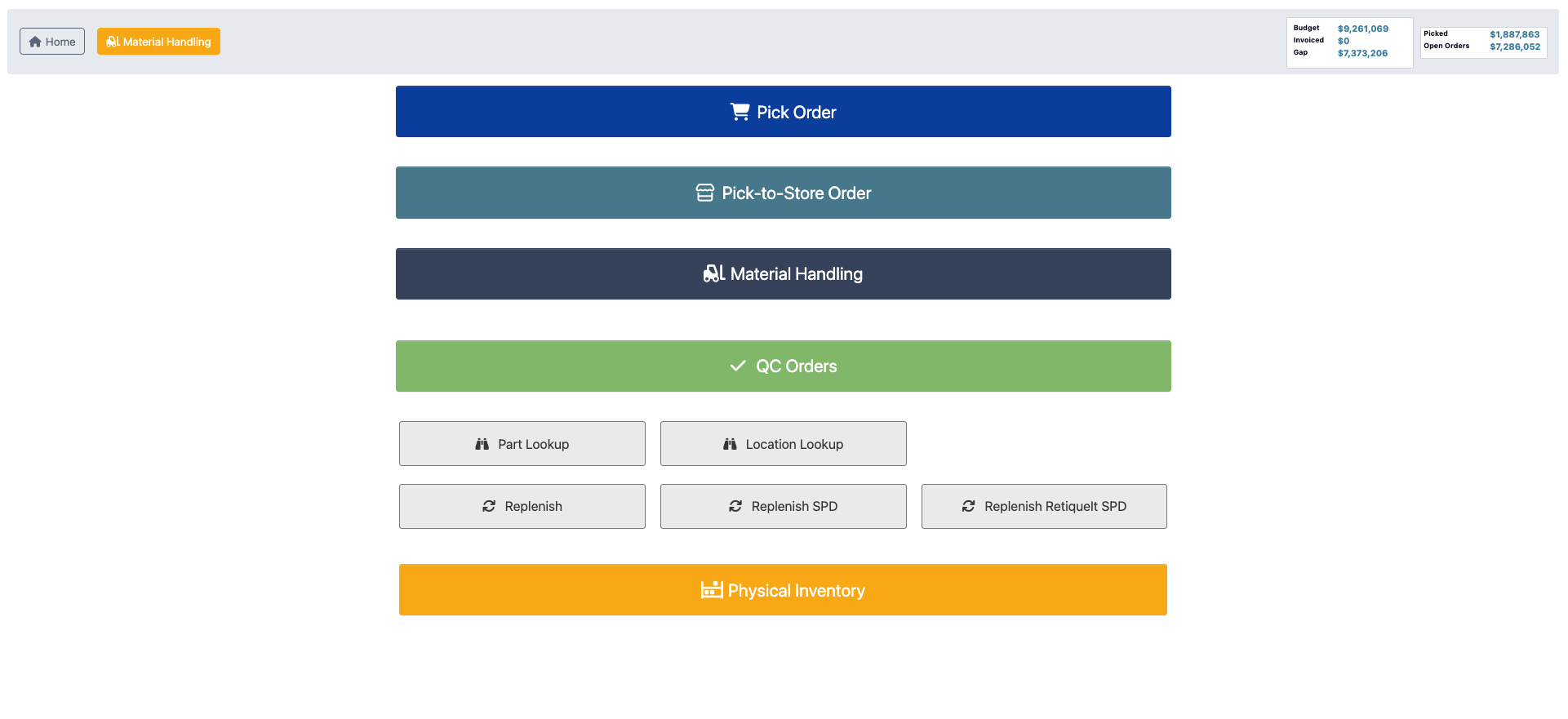
Toolbar Buttons
Home: Returns to the main dashboard.Material Handling: Opens a License Plate Section popup where you can search by:- Scanning Plate #: Use barcode scanner to quickly locate license plates.
- Location: Search by warehouse location code.
Selector Toolbar Metrics
The toolbar also displays high-level operational metrics:- Budget: Financial tracking.
- Invoices: Invoice totals and processing status.
- Gap: Dollar value of inventory gaps.
- Picked: Dollar value of picked orders.
- Open Orders: Dollar value of orders awaiting fulfillment.
Pick Order
The Pick Order feature allows personnel to process standard customer orders for fulfillment. ClickPick Order to access the order picking interface where you can select and fulfill customer orders according to shipping priorities and schedules. See Order Picking for more information.
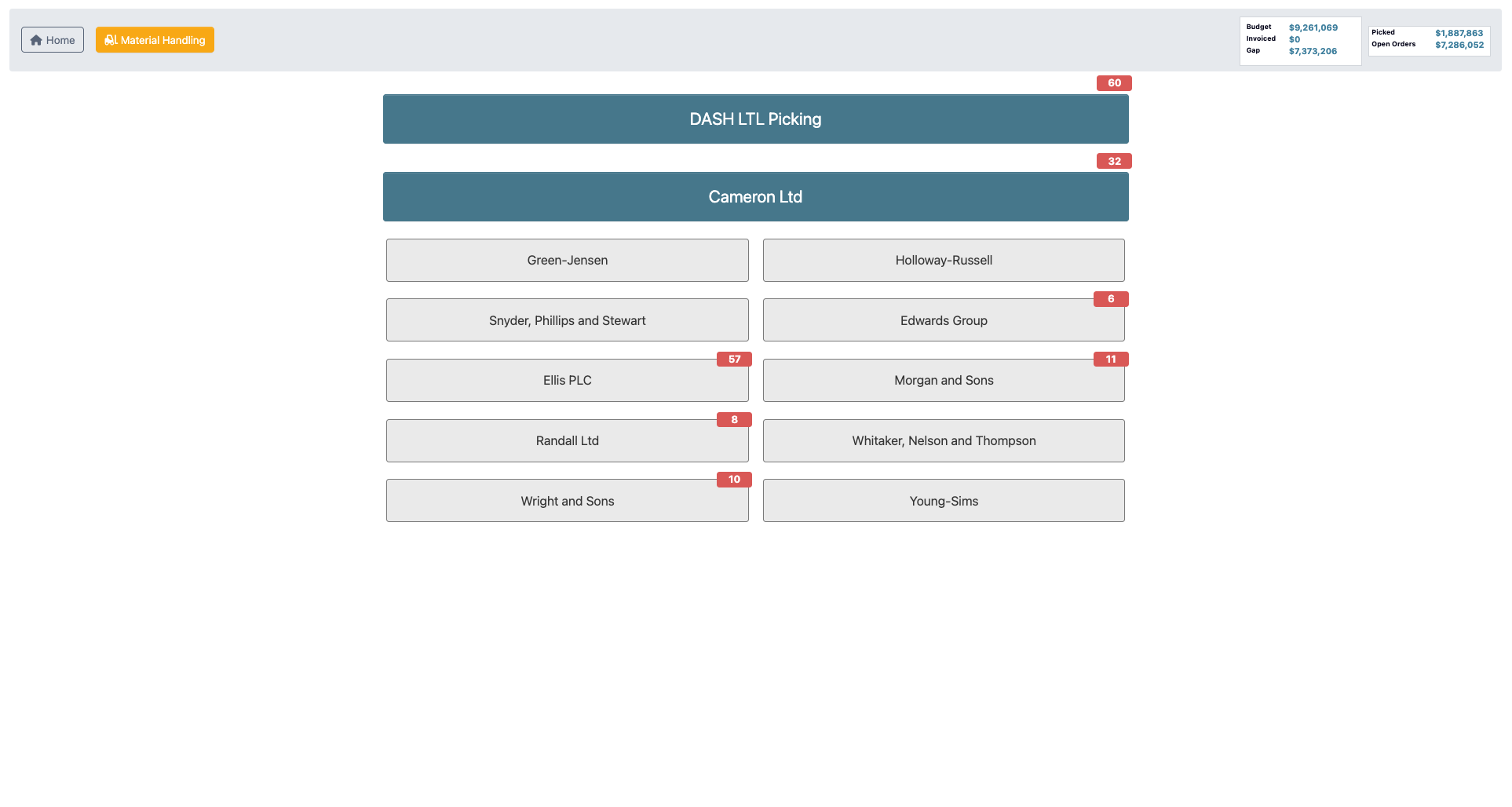
SPD picking can include case-pack and each-scan instructions on the pick screen. See Pick Small Package Delivery (SPD) for the detailed scanning workflow.
Pick-to-Store Order
The Pick-to-Store Order feature handles specialized store fulfillment orders. This is commonly used when shipping to customers that require cross-dock functionality. ClickPick-to-Store Order to access the Order Processing → Order Picking page, which provides specialized functionality for store-specific order fulfillment requirements.
Material Handling
The Material Handling feature provides access to inventory management functions within the interface. ClickMaterial Handling to access the Inventory → Material Handling page, where you can manage license plates, move inventory, and perform material handling activities.
Qc Orders
The QC Orders feature connects personnel with quality control processes to ensure product quality before shipment. ClickQC Orders to access the Order Processing → QC Orders page, where you can review orders that require quality control verification before shipping.
Lookups
The Selector submodule provides comprehensive lookup capabilities to help personnel locate parts, license plates, and warehouse locations efficiently. See Material Handler Tutorial: Lookup a part or location.Replenishment
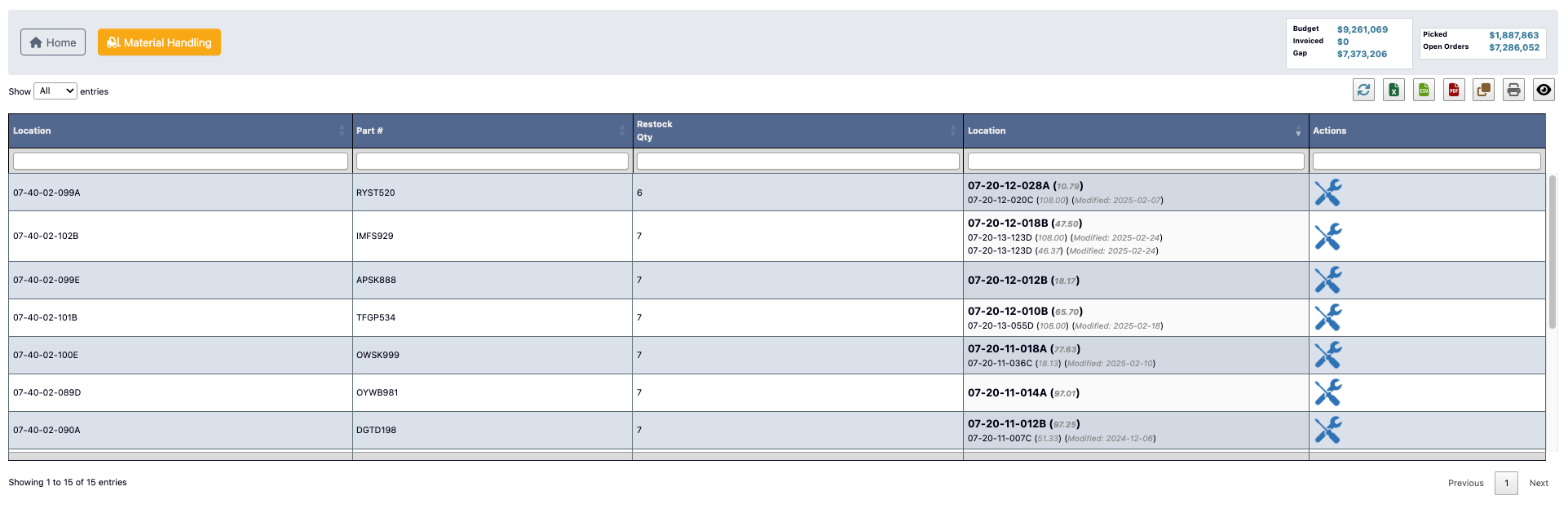
The submodules provides multiple replenishment options to maintain proper inventory levels across different warehouse areas.Replenish
Replenish SPD
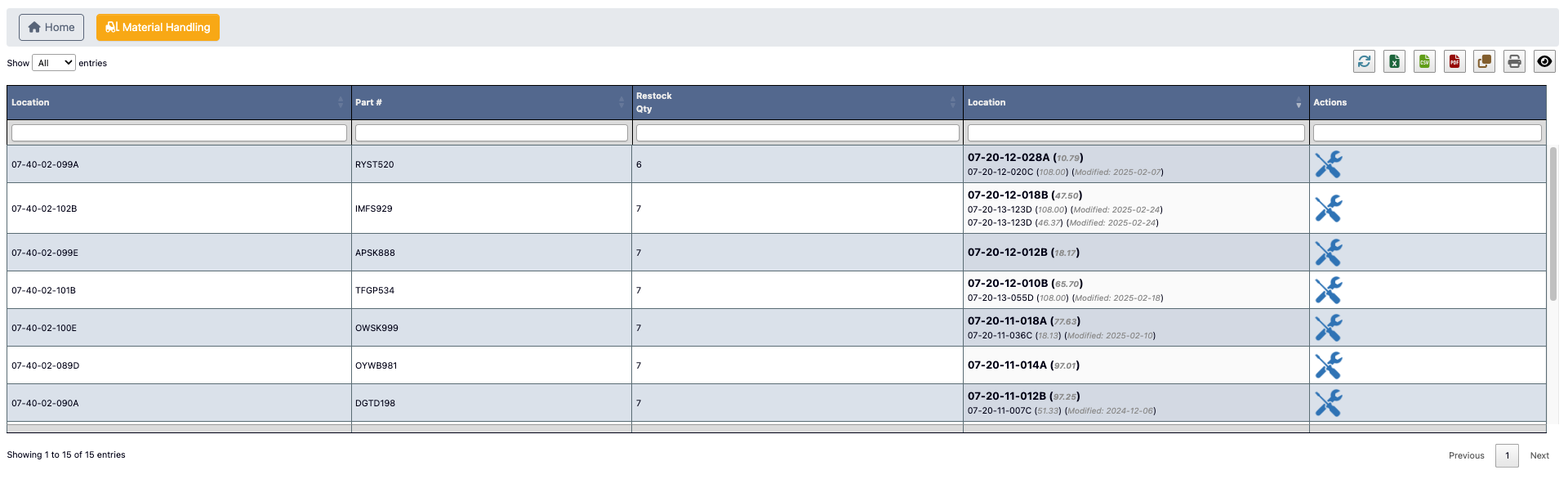
Your system may display one or more Replenish SPD tabs depending on how many e-commerce or SPD areas are configured. To learn more about this see Material Handler Tutorial.
Physical Inventory
The Physical Inventory feature connects personnel to comprehensive inventory counting and auditing processes. This button only appears when a physical inventory is currently open. ClickPhysical Inventory to access the Physical Inventory → Record Inventory page, where you can participate in physical inventory counts and maintain accurate inventory records.