Overview
The Production Tracking → Batch Tickets submodule provides comprehensive management of batch production orders throughout their entire lifecycle. From initial creation through quality control to final completion, this system tracks every stage of batch processing with detailed status monitoring and workflow management. Batch tickets serve as the foundation of production scheduling, containing all necessary information for manufacturing including formulas, yields, special instructions, and production timing. The system automatically integrates with inventory management, quality control processes, and bottling operations to ensure seamless production flow. The submodule contains the following tabs:- Bulk Batch Functions: Perform operations on multiple batch tickets simultaneously.
- Create Batch Tickets: Generate new batch production orders.
- Tickets Before QC: Monitor batches in pre-quality control stages.
- Tickets in QC: Track batches currently undergoing quality control.
- Tickets After QC: Manage batches that have passed quality control.
- Not Complete: View all incomplete batch tickets.
- Search: Find specific batch tickets using various filters.
- View: Display batch ticket details by batch number.
Understand Batch Tickets
Batch tickets represent individual production orders that move through a defined workflow from creation to completion. Each ticket contains critical manufacturing information and tracks progress through multiple production stages.Bulk Batch Functions
The Bulk Batch Functions tab allows you to perform operations on multiple batch tickets simultaneously, improving efficiency when managing large production schedules.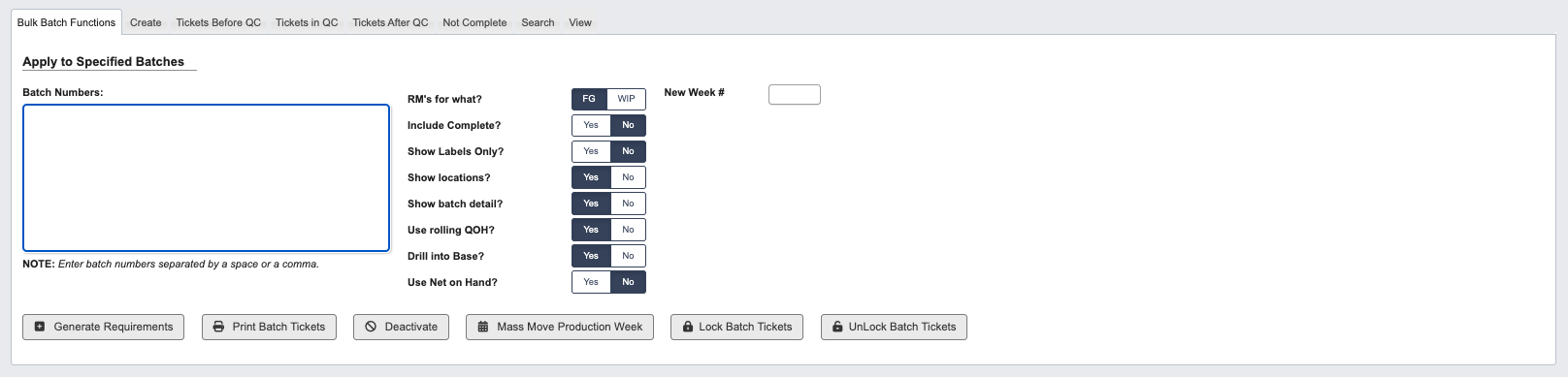
Apply to Specified Batches:
Configure bulk operations by setting parameters, for a full list of operation definitions and buttons, see the Production Tracking Reference page.Create Batch Tickets
Generate new batch production orders by specifying production requirements and scheduling parameters.
Step 1: Select WIP Part Number
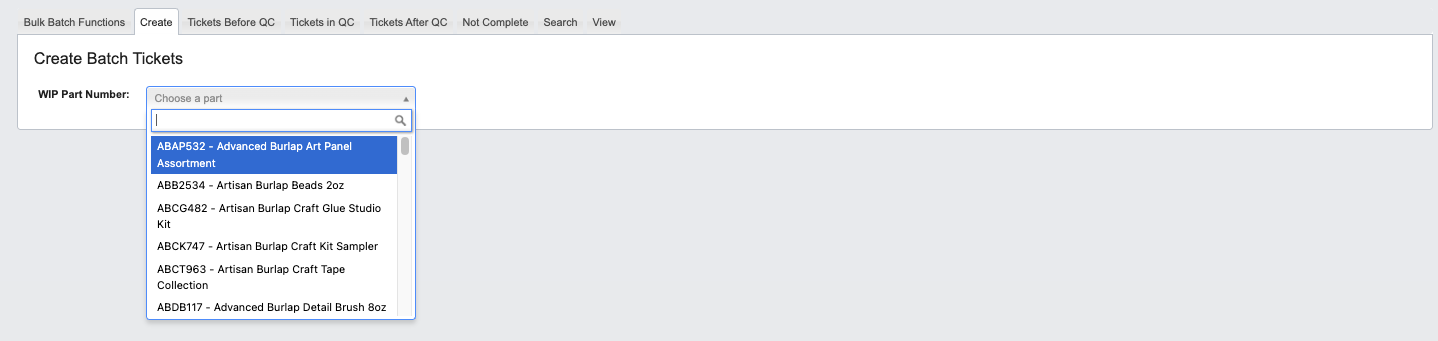
Unit of Measure: Based on part information.Standard Yield: Default expected output from part data.
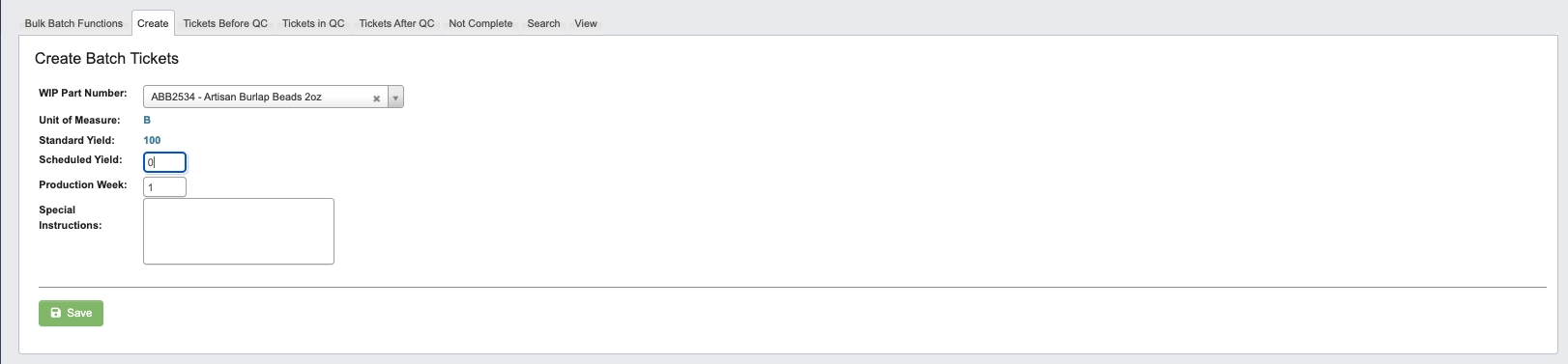
Step 2: Configure Production Parameters
Scheduled Yield: Enter the planned production quantity.Production Week: Enter the target production timeframe.Special Instructions: Add any custom manufacturing notes or requirements.
Step 3: Save the Batch Ticket
ClickSave to create the new batch ticket and add it to the production schedule.
Tickets Before QC
Monitor batch tickets in pre-quality control stages. Click status buttons to view batches in each stage:
Scheduled
Batches that have been created and scheduled for production but not yet started.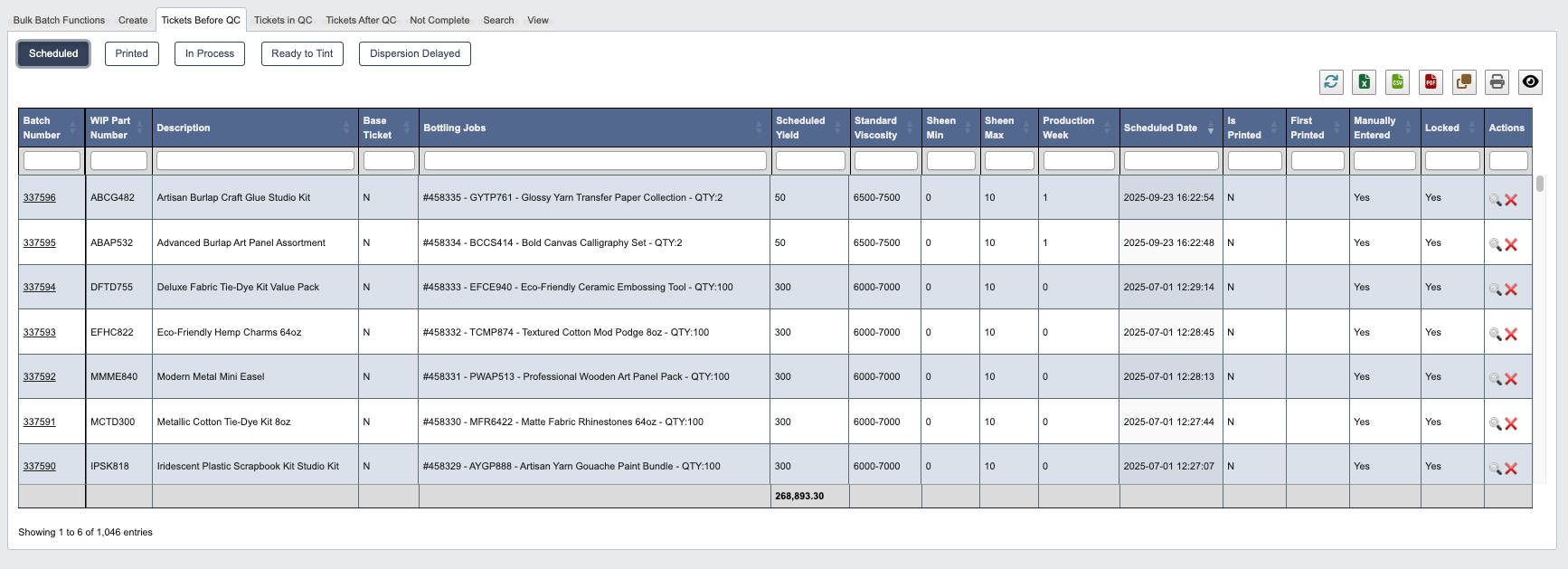
Printed
Batch tickets that have been printed for production floor use.
In Process
Batches currently being manufactured in the dispersion department.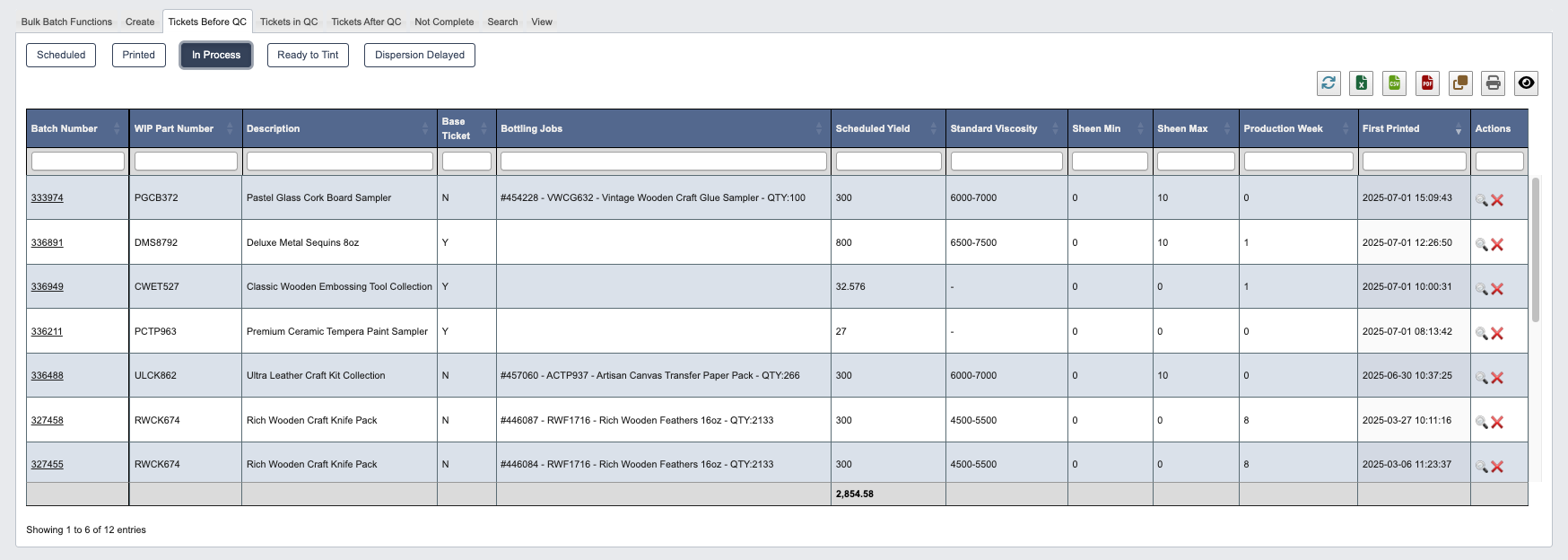
Ready to Tint
Batches that have completed base production and are ready for color tinting.
Dispersion Delayed
Batches experiencing delays in the dispersion production process.
Tickets in QC
Track batches currently in the quality control process. Monitor these critical QC stages:Pending QC
Batches awaiting quality control testing and approval.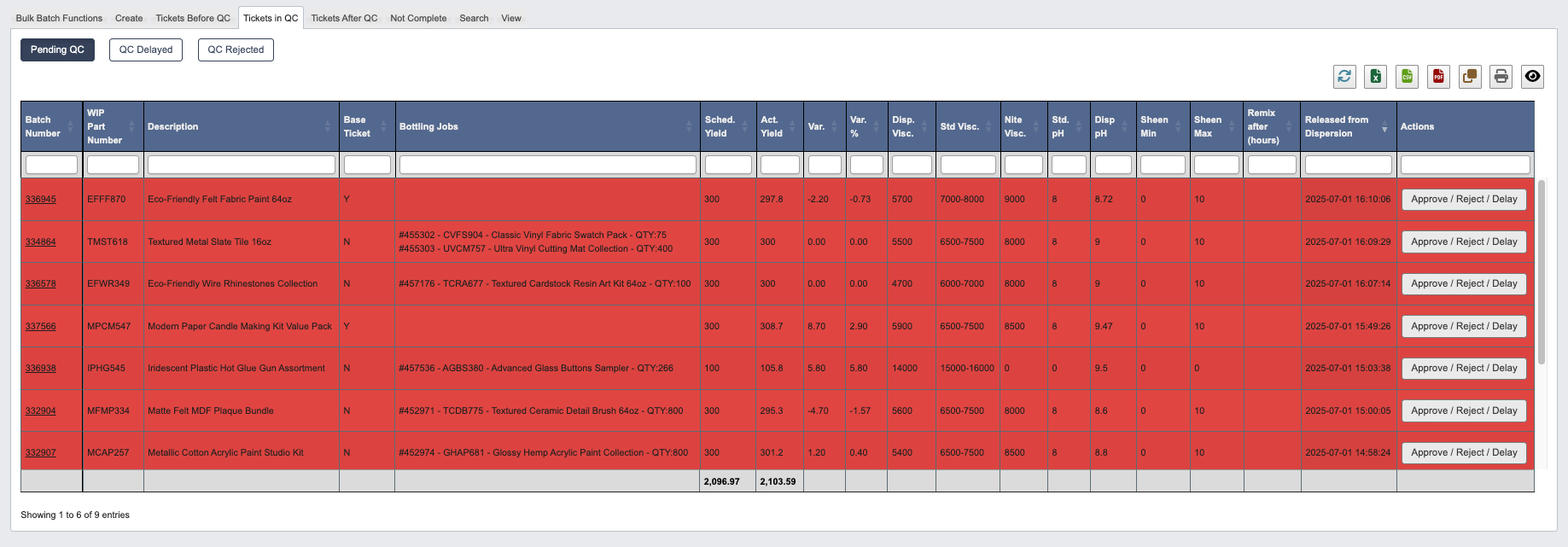
QC Delay Color Coding
- Grey: Waiting period between production and QC, item cannot be approved or rejected until the waiting period has passed.
- Pink: Item has been waiting for QC for over 30 minutes and requires fast approval.
- Red: Item has been waiting for QC for over 60 minutes.
QC Delayed
Batches experiencing delays in the quality control testing process.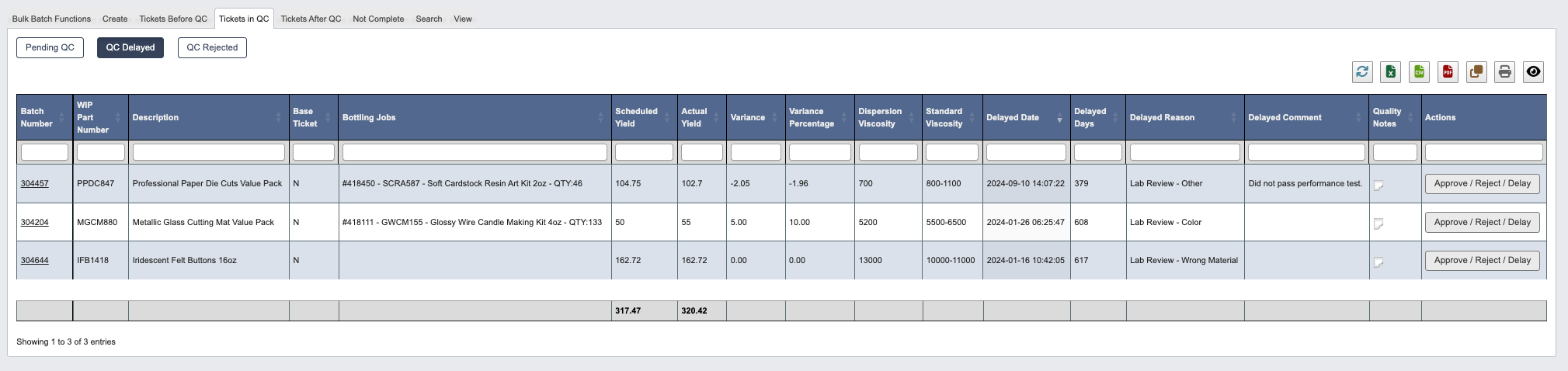
QC Rejected
Batches that failed quality control standards and require rework or disposal.
Tickets After QC
Manage batches that have successfully passed quality control and are moving toward completion:Dispersed
Batches that have completed dispersion and quality control, ready for bottling operations.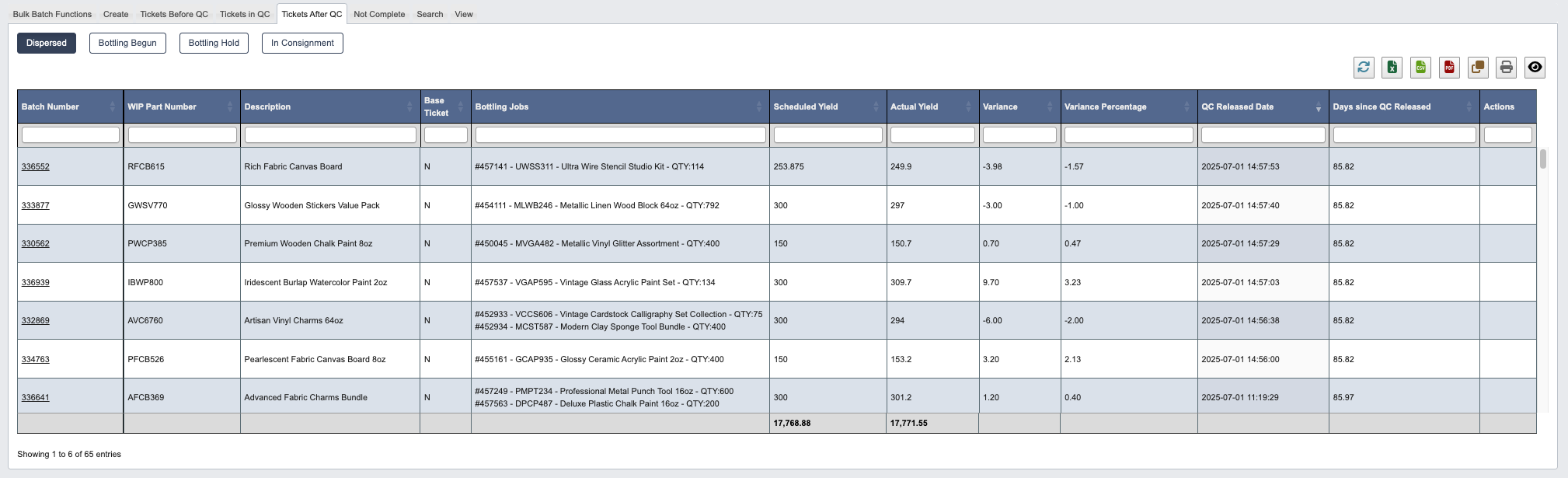
Bottling Begun
Batches currently in the bottling production process.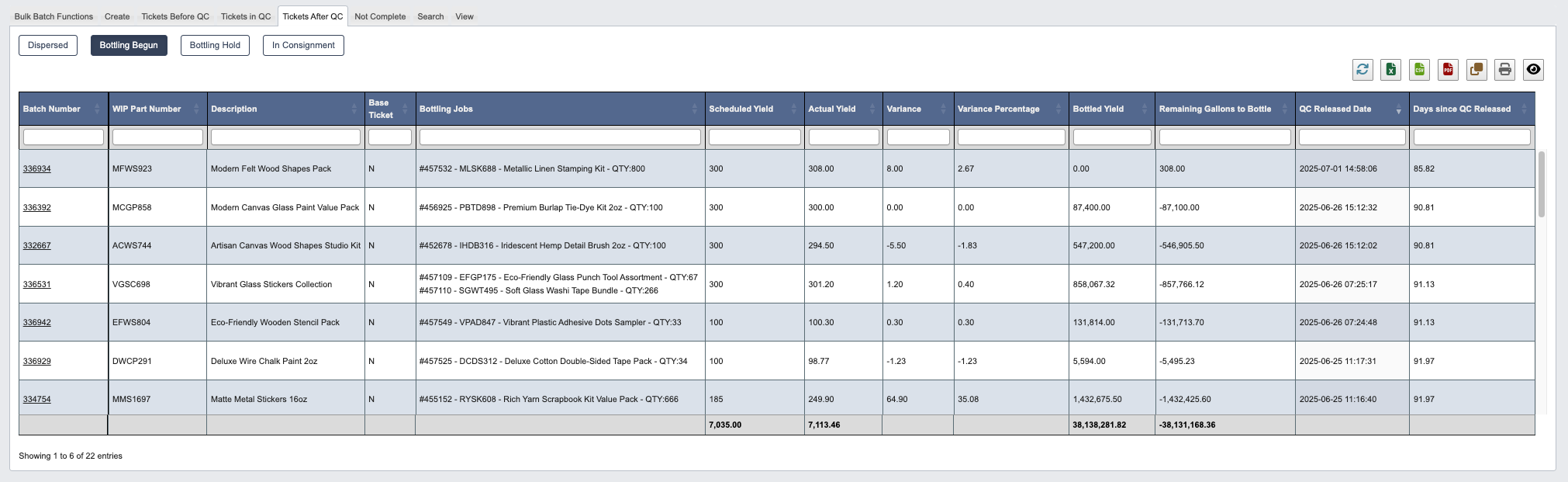
Bottling Hold
Batches temporarily on hold during bottling operations due to equipment issues, scheduling conflicts, or other production constraints.
In Consignment
Batches in consignment status, typically for special customer arrangements or inventory management purposes.
Not Complete
View a comprehensive table of all batch tickets that have not reached completion status. This provides a centralized view of active production across all stages, helping identify bottlenecks and manage overall production flow.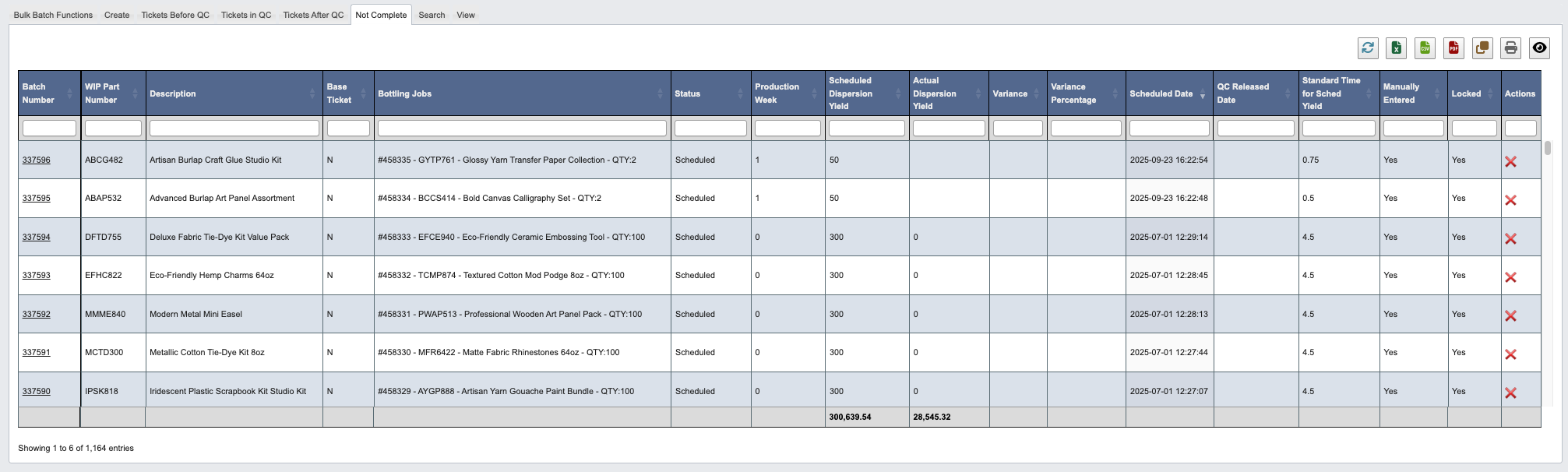
Search
Find specific batch tickets using comprehensive filtering options, see Production Tracking Reference for filter definitions.
Generate Search Results
ClickGenerate Report to display filtered results based on your selected criteria.
View
Display detailed batch ticket information by entering specific batch numbers:
Available Filters
Batch Number: Enter the specific batch number to view.Show Locations(Yes/No): Choose whether to display location information.