Overview
The Production Tracking → Production Reports submodule provides comprehensive reporting capabilities for manufacturing operations, cost analysis, and production performance monitoring. These reports help you track bottling and dispersion operations, analyze production costs, monitor quality metrics, and identify operational inefficiencies. Production reports answer critical manufacturing questions such as:- “How did our bottling lines perform today?”
- “Are we meeting our yield targets for this batch?”
- “Where are the biggest cost variances in production?”
- “Which batches were rejected and why?”
- “How efficient was the dispersion department this shift?”
Report Options
- Daily Bottling: Track daily bottling production output, including quantities produced, line efficiency, and product mix across all bottling lines.
- Bottling EOS: End-of-shift bottling reports showing production totals, downtime incidents, and shift performance metrics.
- Bottling Summary: Comprehensive overview of bottling operations over specified time periods, including throughput analysis and capacity utilization.
- Bottling Scorecard: Performance dashboard showing key bottling metrics, quality indicators, and operational efficiency scores.
- Label Summary: Summary of label usage and inventory across production operations, tracking consumption patterns and stock levels.
- Dispersion Summary: Overview of dispersion department activities, including batch completion rates, material consumption, and production schedules.
- Cost of Production: Detailed cost breakdown for production runs, including material costs, labor expenses, and overhead allocation.
- Usage / Sub. Variance: Analysis of material usage variances and substitutions, comparing actual consumption against standard requirements.
- Yield Variance: Track production yield performance against expected outputs, identifying efficiency gains or losses.
- Yield/Sub Accrual: Accrual reports for yield variances and material substitutions, supporting accurate cost accounting.
- Gross Variance: Overall variance analysis combining material, labor, and overhead variances for comprehensive cost control.
- Dispersion Labor: Labor utilization and productivity reports for dispersion operations, tracking employee efficiency and shift performance.
- Bottling Downtime: Detailed analysis of bottling line downtime events, including duration, causes, and impact on production schedules.
- Rejected Batches: Reports on batch rejections, including rejection reasons, quantities affected, and corrective actions taken.
- Transactions: Detailed transaction logs for production activities, material movements, and inventory adjustments related to manufacturing operations.
- Dispersion Delayed: Reports on delayed dispersion batches, identifying bottlenecks and scheduling issues that impact production flow.
- QC Report: Quality control reports showing inspection results, defect rates, and compliance metrics across production operations.
How to Generate a Report
Generate a Daily Bottling report

- Click the
Daily Bottlingtab. - Enter the Production date (single day or range).
- Choose whether to Ignore 97/98/99.
- Choose whether to Group By Part.
- Select a Report Level (Level 0 = generic grid, higher levels = more detail).
- (Optional) Narrow scope by Shift, Line, Part, Batch Number, Product Class and Ounce Size.
- Click
Generate Report.
Generate a Bottling EOS report

- Click the
Bottling EOStab. - Enter the Production date (single day or range).
- Choose whether to Ignore 97/98/99.
- (Optional) Narrow scope by Shift, Line, and Employee.
- Choose whether to show Summary Only.
- Click
Generate Report.
Generate a Bottling Summary report

- Click the
Bottling Summarytab. - Set the required filters:
- Report Metric: Choose measurement(s) to show in the report (Gallons, Dollars, Bottles, Efficiency).
- Group by Line or Shift: Break down results by production line or by work shift.
- Group by Week or Day: Choose whether results are aggregated daily or summarized weekly.
- Production date: Single day or range.
- Choose whether to Ignore 97/98/99.
- Click
Generate Report.
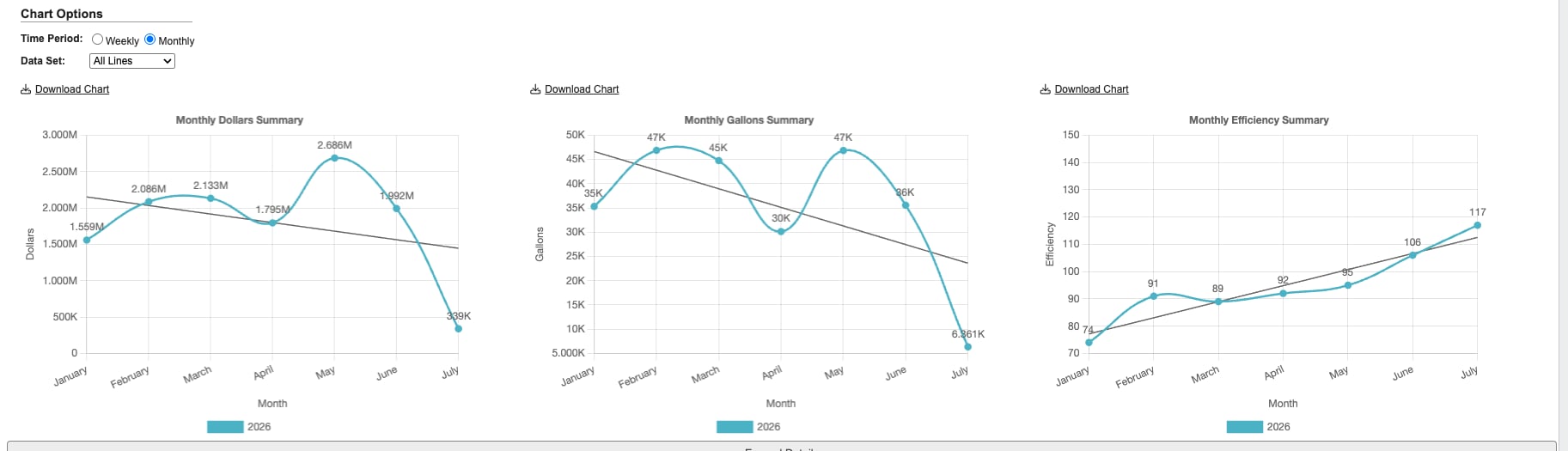
- Time Period: Switch the charts between
WeeklyandMonthlyviews. - Data Set: Chart all production lines together or focus on a single line.
- Download Chart: Save any chart as an image file.
Generate a Bottling Scorecard report

- Click the
Bottling Scorecardtab. - Set the required filters:
- Production date: Single day or range.
- Operator: Choose from an operator from the drop down menu.
- # of Shifts: Choose what day range of shifts to cover in the report (30, 60, 90, 120, 1 year).
- There are additional options to see operators from the day before, 2 days before or 3 days before.
- Click
Generate Report.
Generate a Label Summary report

- Click the
Label Summarytab. - Set the required filters:
- Report Metric: Choose the values in the report (Dollars, Labels).
- Production date: Single day or range.
- Click
Generate Report.
Generate a Dispersion Summary report
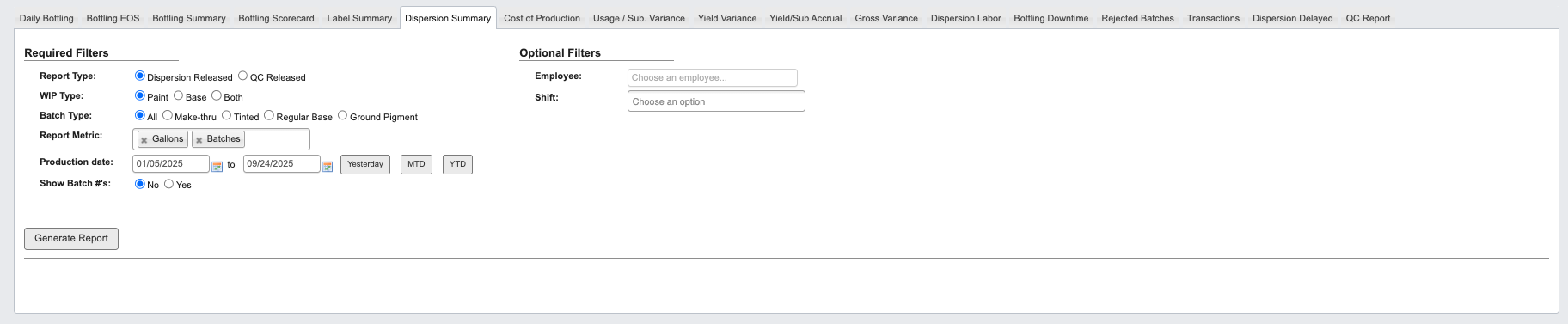
- Click the
Dispersion Summarytab. - Set the required filters:
- Report Type: Choose Dispersion Released or QC Released.
- WIP Type: Choose Paint, Base or Both.
- Batch Type: Choose All, Make-thru, Tinted, Regular Base or Ground Pigment.
- Report Metric: Choose measurement(s) to show in the report (Gallons, Batches).
- Production date: Single day or range.
- Show Batch #‘s: Choose to show the batch numbers.
- (Optional) Narrow scope by Employee or Shift.
- Click
Generate Report.
Generate a Cost of Production report

- Click the
Cost of Productiontab. - Set the required filters:
- Production date: Single day or range.
- Part type: Choose WIP only, FG only or All.
- Costs from: Choose a year.
- Click
Generate Report.
Generate a Usage / Sub. Variance report

- Click the
Usage / Sub. Variancetab. - Set the required filters:
- Production type: Choose Dispersion or Bottling.
- Part type: Choose RM only, WIP only or All.
- Open Batches Only: Check the checkbox to show.
- QC released date: Date range OR Choose to filter by Initial dispersion date: Date range.
- Show no variance? Choose Yes No.
- Costs from: Choose a year.
- Click
Generate Report.
Generate a Yield Variance report

- Click the
Yield Variancetab. - Set the required filters:
- Completed date: Date range.
- Batch type: Choose WIP only, Bases only or All.
- Costs from: Choose a year.
- Click
Generate Report.
Generate a Yield / Sub Accrual report
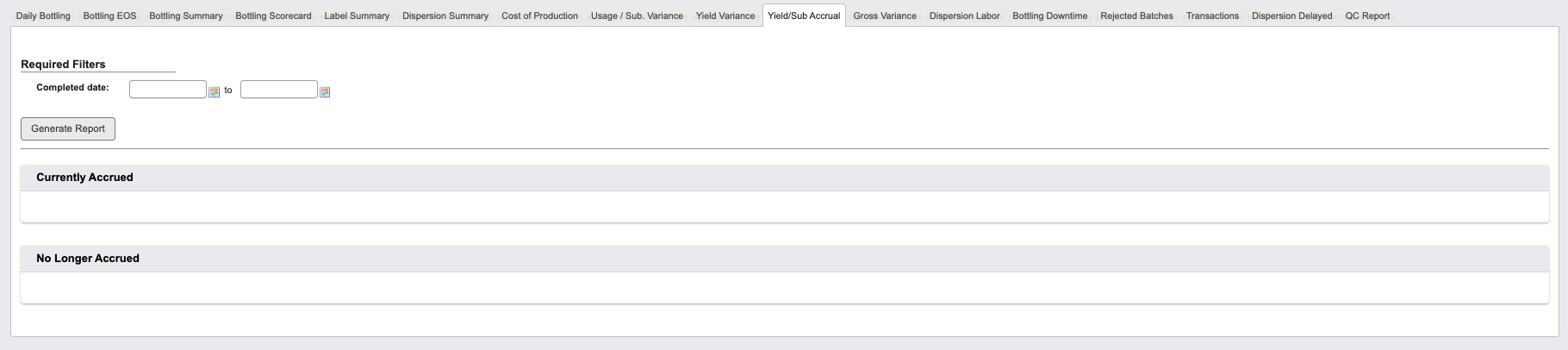
- Click the
Yield / Sub Accrualtab. - Enter the Completed date range.
- Click
Generate Report.
Generate a Gross Variance report

- Click the
Gross Variancetab. - Set the required filters:
- Production / QC Released Date: Select the date range.
- Batch type: Choose WIP only, FG only or All.
- Costs from: Choose year.
- Click
Generate Report.
Generate a Dispersion Labor report

- Click the
Dispersion Labortab. - Set the required filters:
- Production / QC Released Date: Select the date range.
- Costs from: Choose year.
- Click
Generate Report.
Generate a Bottling Downtime report

- Click the
Bottling Downtimetab. - Set the required filters:
- Production date: Select the date range.
- Show raw data?: Choose to show raw data.
- (Optional) Narrow scope by Shift(s), Line(s), Reason(s), Equipment.
- Click
Generate Report.
Generate a Rejected Batches report

-
Click the
Rejected Batchestab. -
Choose to see a Detailed View or Summary View
-
Detailed View, set the required filters:
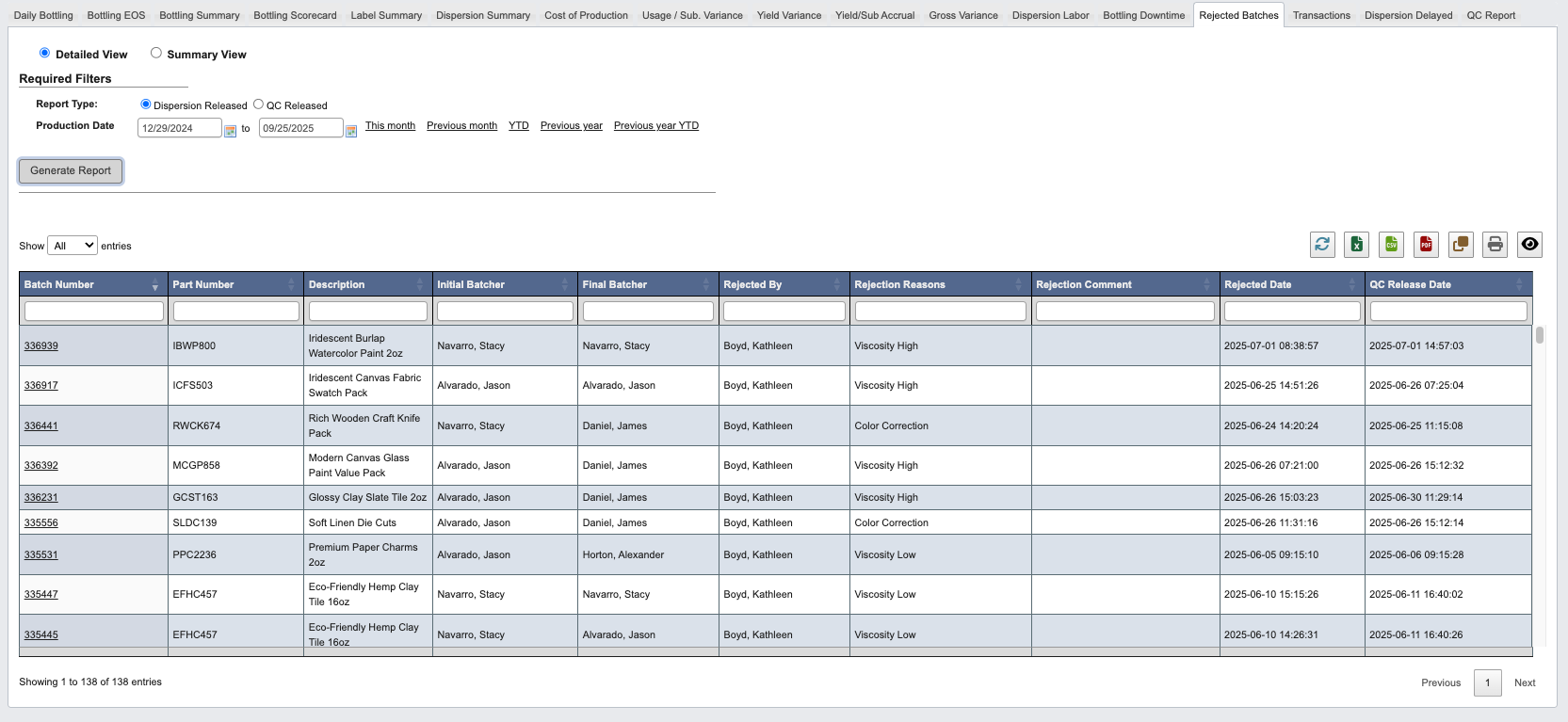
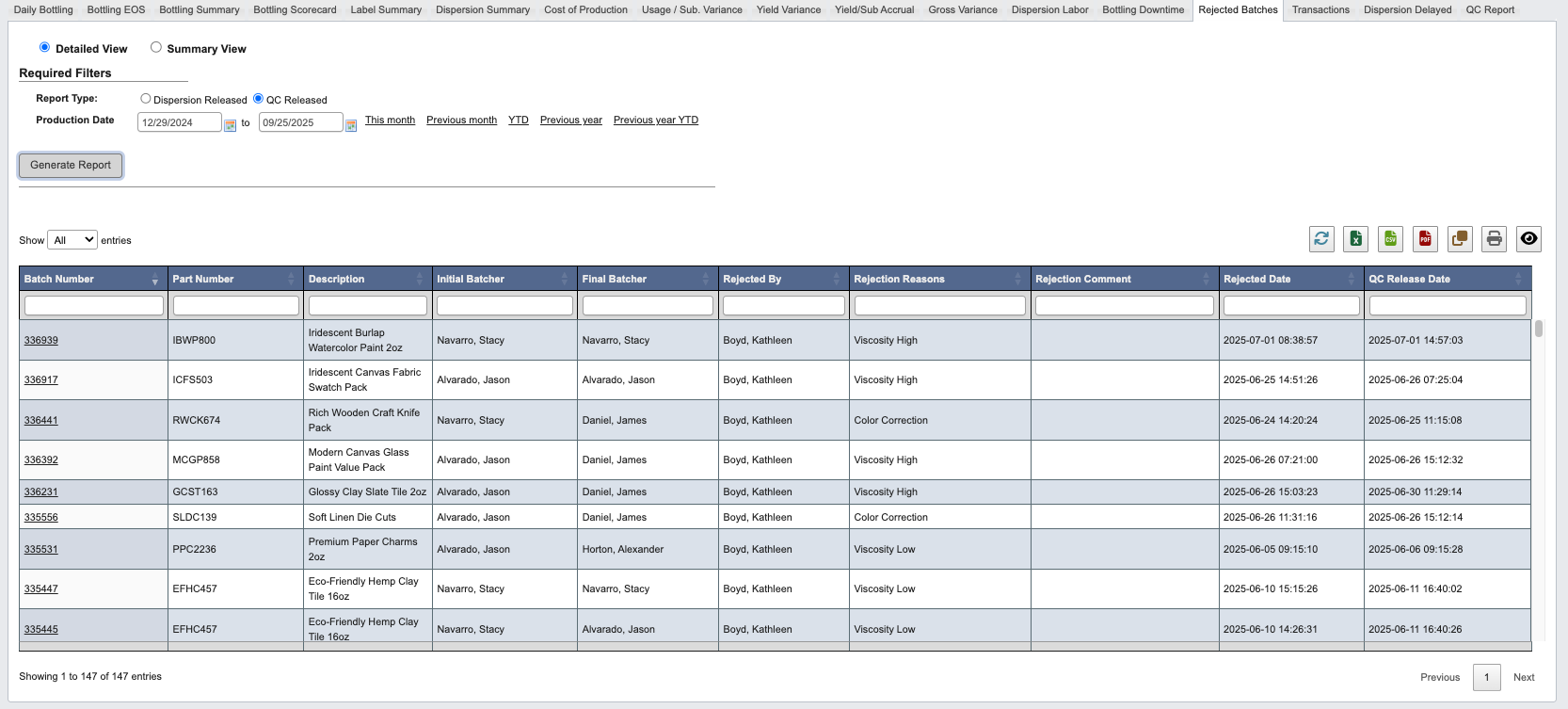
- Report Type: Choose Dispersion Released or QC Released.
- Production Date: Select the date range.
-
Summary View, enter the Production Date.
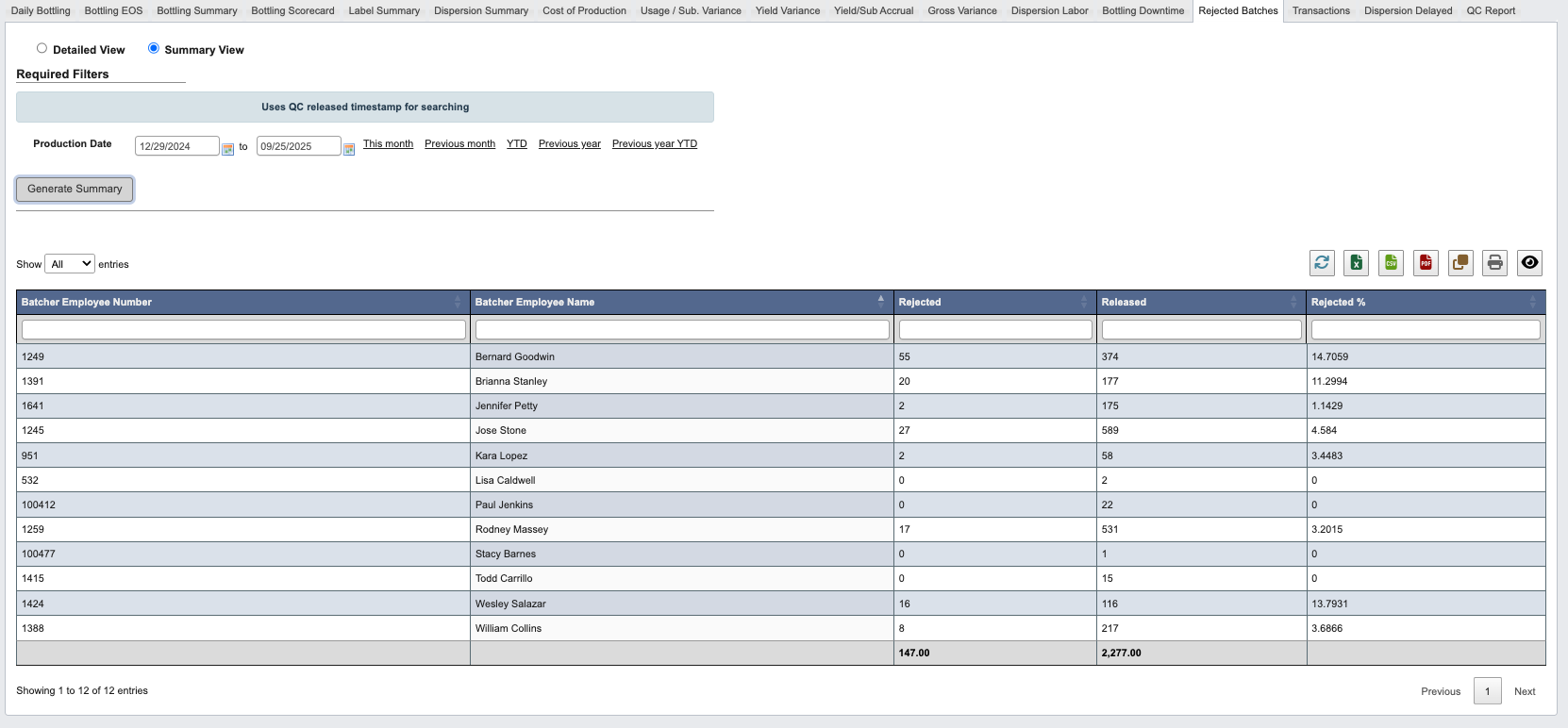
-
Detailed View, set the required filters:
-
Click
Generate Report.
Generate a Transactions report

- Click the
Transactionstab. - Set the required filters:
- Transactions Type: Choose Batch Tickets or Bottling Jobs.
- Transaction Date: Select the date range.
- Click
Generate Report.
Generate a Dispersion Delayed report

- Click the
Dispersion Delayedtab. - Enter the Delayed Date range.
- Click
Generate Report.
Generate a QC report

- Click the
QC Reporttab. - Set the required filters:
- WIP Part #: Choose the WIP Part number.
- Batch Type: Choose Paint, Base or Both.
- QC Released Date: Select the date range.
- Click
Generate Report.