Overview
This tutorial explains how to use the Production Tracking → Bottling Jobs → Production Capture interface for recording daily production activities. Production line workers use this system to log their work, track materials, and maintain production records. The production capture interface ensures accurate tracking of labor, materials, and production output for quality control and inventory management. Use this tutorial when you need to:- Start a new production shift and log employee information
- Set up a bottling job for production
- Record production activities and track time
- Handle downtime periods during production
- Perform line changeovers between different products
When to Use Production Capture
Various production roles use this interface throughout their shifts:- Production Line Operators: Log into shifts, set up bottling jobs, and track production progress
- Packers: Record their participation in production activities
- Line Supervisors: Monitor production activities and handle changeovers
- Quality Control: Review production records for traceability and compliance
Record Production Activities
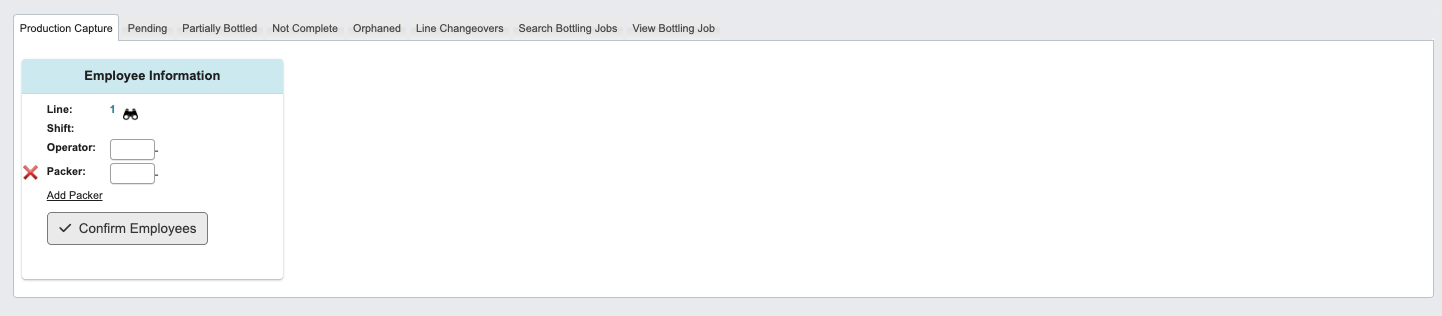
Step 1: Set Up Employee Information
- Go to Production Tracking → Bottling Jobs → Production Capture.
- Complete the Employee Information Card by entering employee details:
Operator: Enter the employee ID number for the operator.Packer: Enter the employee ID number for the packer.- Click
Add Packerto include additional packers if needed. - Click the
Remove Packer(red “x”) button to remove packers.
- Click
Confirm Employeesto proceed to the next step.
Use the binoculars icon next to the
Line field to view available inventory at your production line location. This shows what pallets are currently available for production.Step 2: Configure Bottling Job
-
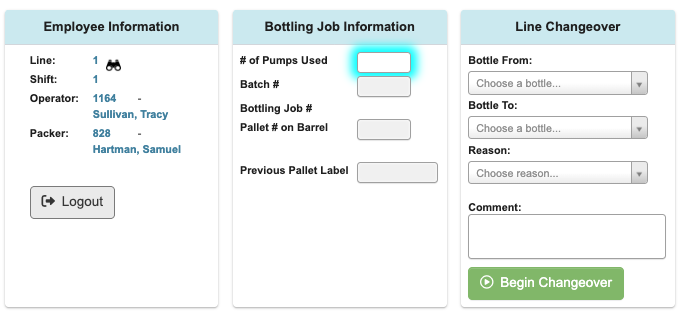
After confirming employees, the Employee Information Card will display a
Logoutbutton (use this to end your production tracking session). -
Complete the Bottling Job Information Card following the highlighted boxes.
# of Pumps Used: Enter the number of pumps for this bottling job.Batch #: Enter the batch number from your production schedule.
-
After entering a
Batch #, a popup will display available bottling jobs. Click the appropriate job card to select it. This will fill inBottling Job #.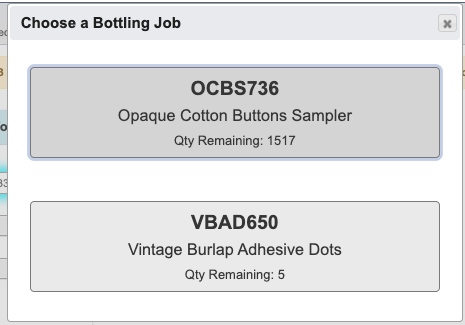
-
Select
Confirm - GO TO SETUP TIMEto continue normal production setup.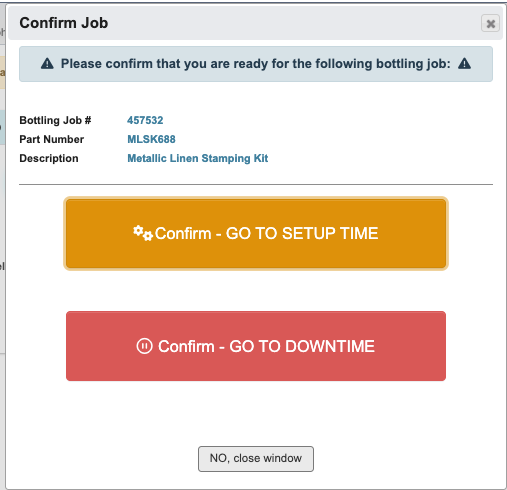
- Additional Options:
- Select
Confirm - Go to Downtimeto record downtime before production. - Select
NO, close windowto cancel the bottling job.
- Select
- Additional Options:
-
The page will update and you are now in the setup phase. Enter the
Pallet # on Barrelin the highlighted box.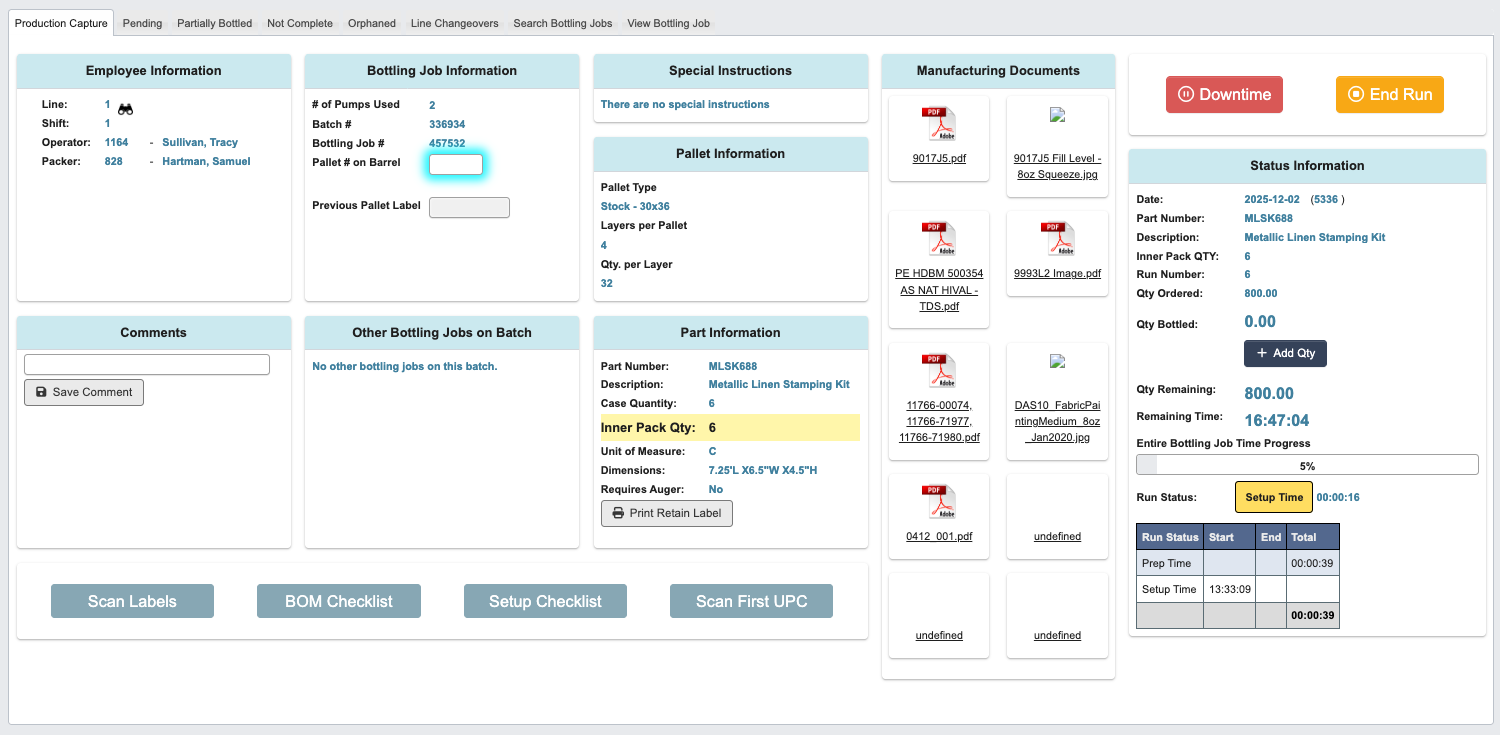
-
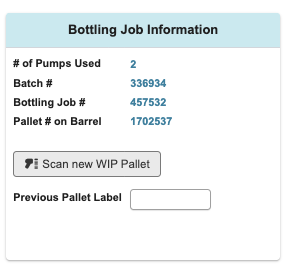
Use
Scan new WIP Palletto add additional WIP pallets to the bottling job as needed.
Step 3: Complete Setup Activities

-
Scan Labels:
- Click
Scan Labelsat the bottom of the interface. - Use
Scan new labelsto add label rolls to the job. - Check
Have all rolls of labels been scanned?when all labels are scanned.
All label rolls used during the production run must be scanned. If additional labels are needed during a partial batch run, scan them when you gather them. - Click
-
Complete BOM Checklist:
Scan BOM: Scan bill of materials items.Remove Pallet: Remove pallets as needed.Print Line Location: Print location labels.Show Approvers: View approval information.- Check
All BOM Checkedwhen complete. - Use red x buttons to remove a material from the checklist.
- Use arrow buttons to add materials to the checklist.
-
Complete Setup Checklist (initial each item):
- Verify Inner Pack Qty: Enter the number.
- Are there special instructions attached to this job? (Yes/No)
- Are inner pack labels required for this job? (standard) (Yes/No)
- Are master carton labels required for this job? (standard) (Yes/No)
- Is box print required for this job? (Yes/No)
- Note any problems in the comment box.
- Scan First UPC: Scan the first UPC code to begin production tracking.
Line Changeover (When Needed)
When switching production from one product to another: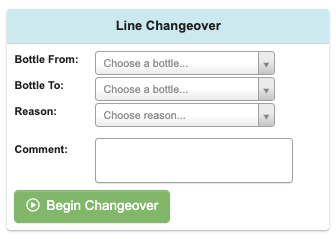
- Complete the Line Changeover Card:
Bottle From: Select the current product being producedBottle To: Select the next product to be producedReason: Choose the changeover reason from the dropdownComment: Add notes about the changeover process
- Click
Begin Changeoverto initiate the changeover process