Employee Information Card
Line: This field is automatically populated based on your physical production line location.Shift: Automatically populated with the current shift number.Operator: Enter the employee ID number for the operator.Packer: Enter the employee ID number for the packer.- Click
Add Packerto include additional packers if needed. - Use the
Remove Packer(red “x”) button to remove packers as needed.
Employee Card: Binoculars Icon
Click thebinoculars icon next to the Line field to view license plates by location.
- This shows what pallets are currently at your production line.
-
Use
Select Allor click individual checkboxes to select plates. -
Click the white boxes in the
Mass Movecolumn to relocate selectedPlate #to aNew Location.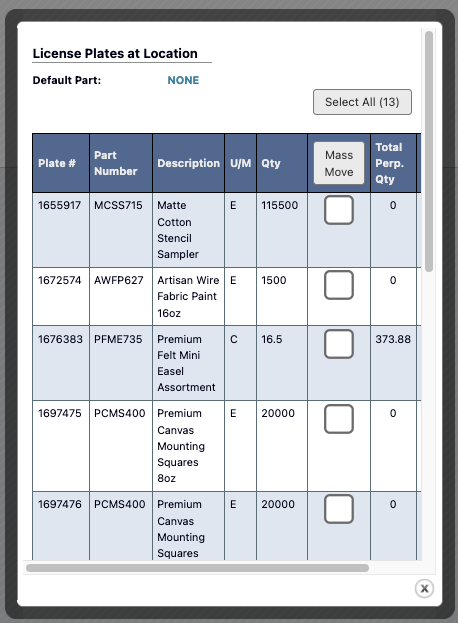
Bottling Job Information Card
# of Pumps Used: Number of pumps for bottling job.Batch #: Batch number from production schedule, triggers bottling job popup.Bottling Job #: Specific job selection, auto-populated after batch number entry.Pallet # on Barrel: Pallet identification.Scan new WIP Pallet: Click to add additional WIP pallets to the job.Previous Pallet Label: Previous pallet reference, optional entry for continuity tracking.
Setup Time
During the setup time, the following activities and information are available:- Comments: Leave notes about the bottling job.
- Other Bottling Jobs on Batch: View other bottling jobs for the current batch.
- Special Instructions: Access job-specific instructions.
- Pallet Information: Review pallet details.
- Part Information: Access part specifications and details.
- Manufacturing Documents: View relevant manufacturing documents.
- Status Information: Monitor current job status.
- Production Quantities: Use
+ Add Qtyto add quantities as bottles are completed. - Time Tracking: Monitor time spent on bottling job activities.
- Production Quantities: Use
- Use the
Downtimebutton to record downtime. - Use the
End Runbutton to end the production run.
Periodic Checks
Once a run is in running time, thePeriodic Checks card records lid torque readings along with fill level, date code, and label height. The Time until next check countdown shows when the next routine check is due: 15 minutes after the run starts, then once per hour.
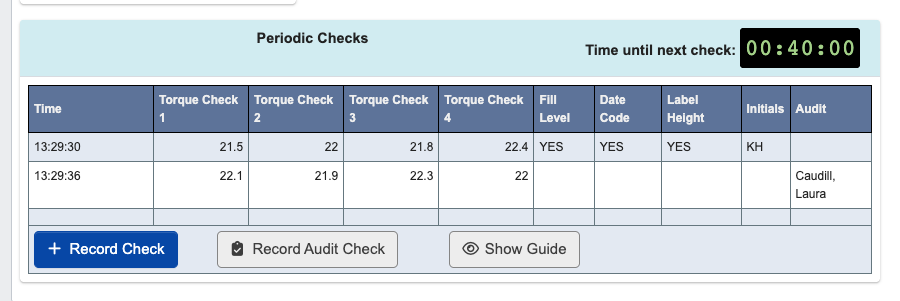
Record Check
ClickRecord Check to record the operator’s routine check. This is the scheduled check the countdown tracks, and it can only be opened within 20 minutes of the next due time.
- Enter all four
Torque Valuereadings. - Confirm
Fill level,Date Code, andLabel Heightmatch the standard. If any of these is not checked, a comment explaining why is required. - Scan the label UPC when the part has one.
- Enter the initials of a logged-in employee on the run.
Record Audit Check
ClickRecord Audit Check to record a lid torque spot check outside the routine schedule. Use this when a supervisor or coordinator audits the line rather than the operator performing their scheduled check.
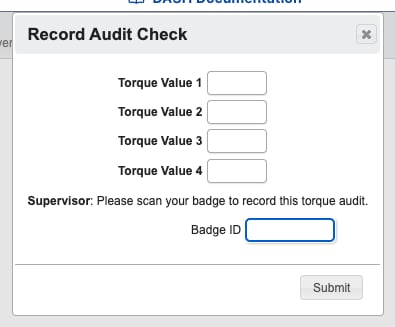
- An audit can be recorded at any time; it is not restricted by the countdown.
- Only the four
Torque Valuereadings are captured. Fill level, date code, and label height are not part of an audit and stay blank on the recorded row. - The auditor scans their
Badge IDinstead of entering initials. Only employees with the bottling line supervisor privilege are accepted; any other badge is rejected with an authorization error. Once accepted, the dialog showsAudited bywith the auditor’s name.
Periodic Checks table with the auditor’s name in the Audit column, both during the run and on the View Bottling Job run detail.
A passing audit does not reset the operator’s countdown, so the routine check is still due at its scheduled time. If an audit records a torque reading below the requirement, the line is forced into an immediate re-check just as a failed routine check would be.
Downtime Recording
The downtime phase captures non-productive time with detailed categorization.-
Click
Downtimeto record periods when production is not active, including reasons for downtime and duration.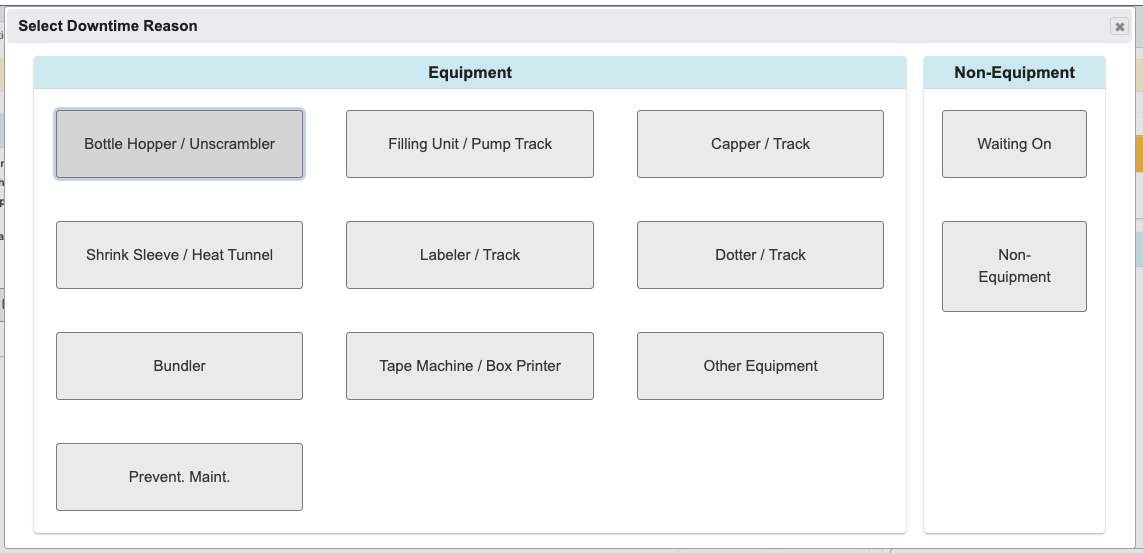
-
Choose a downtime reason. All options allow you to add comments for additional detail:
- Equipment: Select this if the downtime is caused by an equipment issue. Choose the specific reason and add comments as needed.
- Non-Equipment: Select this if the downtime is not equipment-related.
- Waiting On: Use this when production is paused due to other personnel, materials, or dependencies.
- Non-Equipment: Use this for breaks, cleanup, clearing tables, lunch, meetings, spills, or other non-equipment activities.