Overview
The Order Processing → Loss of Sales submodule shows where and why revenue was lost when orders couldn’t be fulfilled. Accounting, operations, and purchasing teams use it to see missed or unfilled orders, spot trends, and measure the impact by cause, customer, material, and vendor.What You Can Do
Dashboard (analysis & trends)
Use the Dashboard to review losses at a glance and drill into patterns. On most widgets, you can filter the data by time period: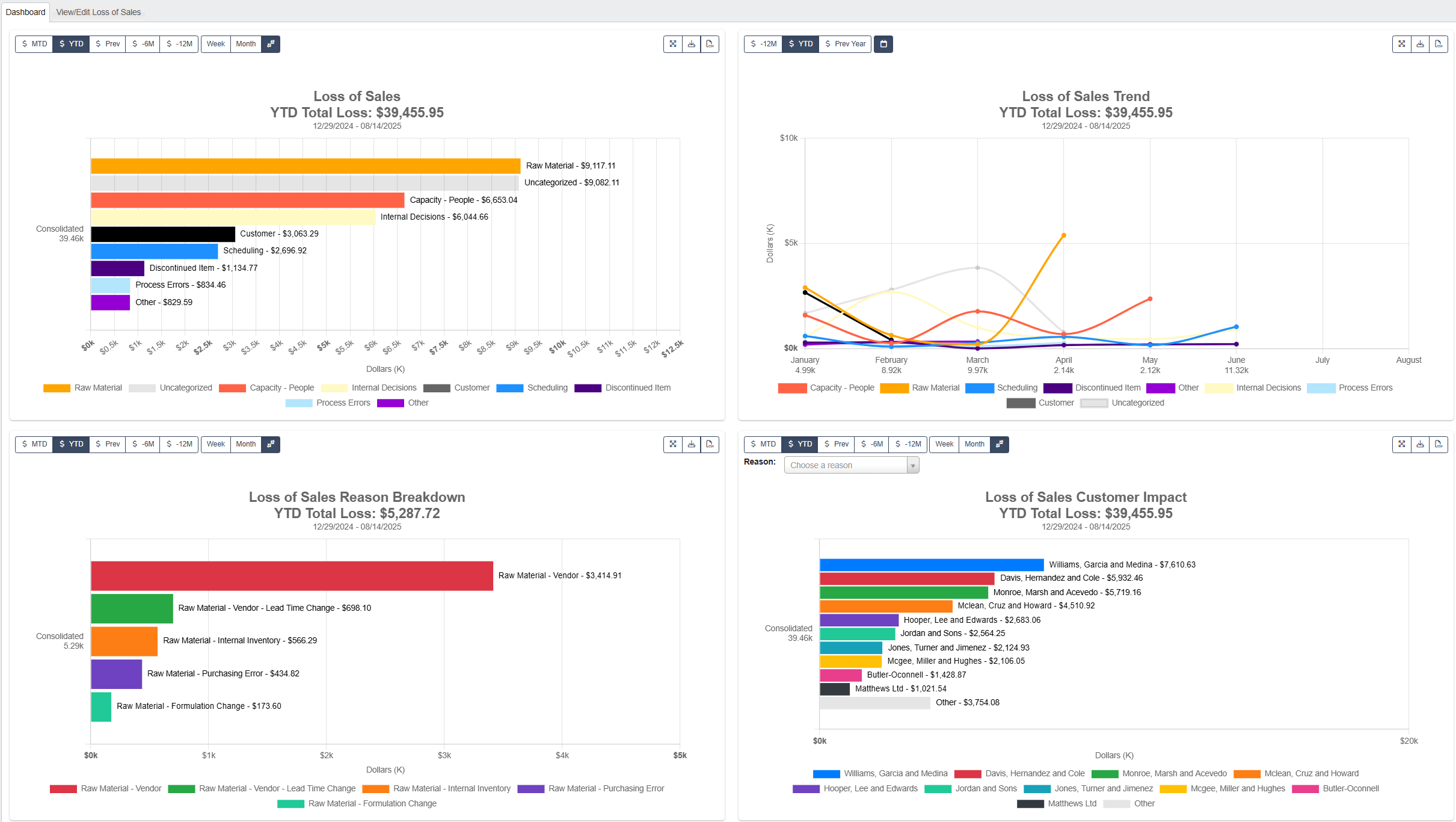
month for Loss of Sales and week for Loss of Sales Reason Breakdown.
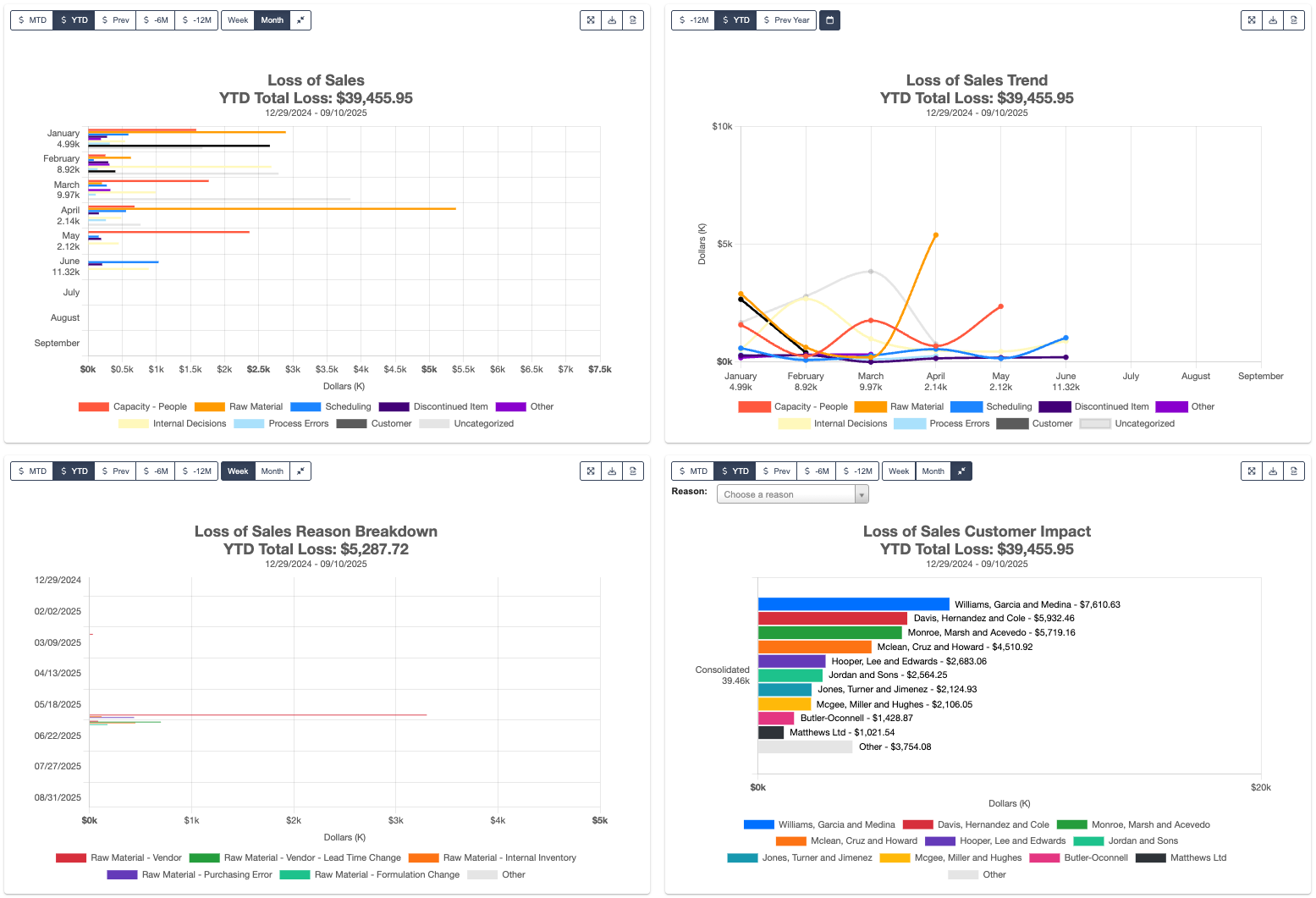
All timeframe options here use fiscal periods (shown with the dollar sign
$ icon). Fiscal periods may differ from calendar months and years, depending on your company’s accounting setup.Filter options (availability varies by widget):
Time period filter:
MTD- month-to-dateYTD- year-to-datePrev- the previous fiscal period6M- last 6 months12M- last 12 monthsPrev Year- the previous year
Week- view data week-by-weekMonth- view data month-by-month
-
Expandicon: Expands the widget across your Dashboard. -
Downloadicon: Downloads a.PNGfile of the widget. -
CSVicon: Exports the widget’s data as a CSV file. -
You can hide or show any series in the chart by clicking its name in the legend.
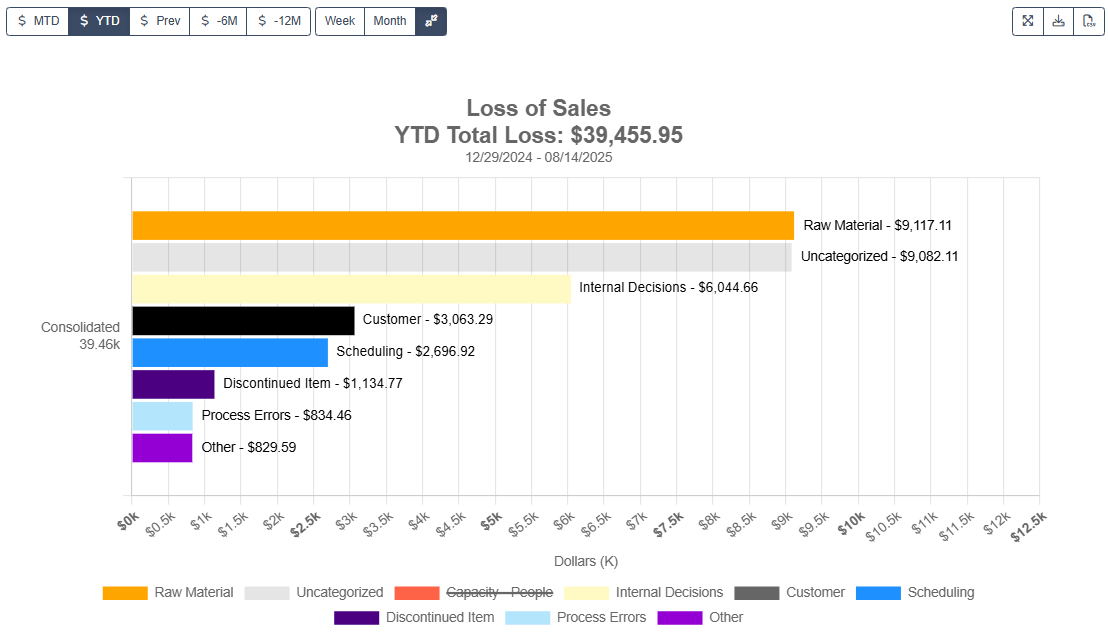
- Click once to cross it out and remove it from the view.
- Click again to restore it.
-
On some charts, you can narrow the data to one specific loss reason (e.g., Discontinued Item, Internal Inventory Error, Process Errors).
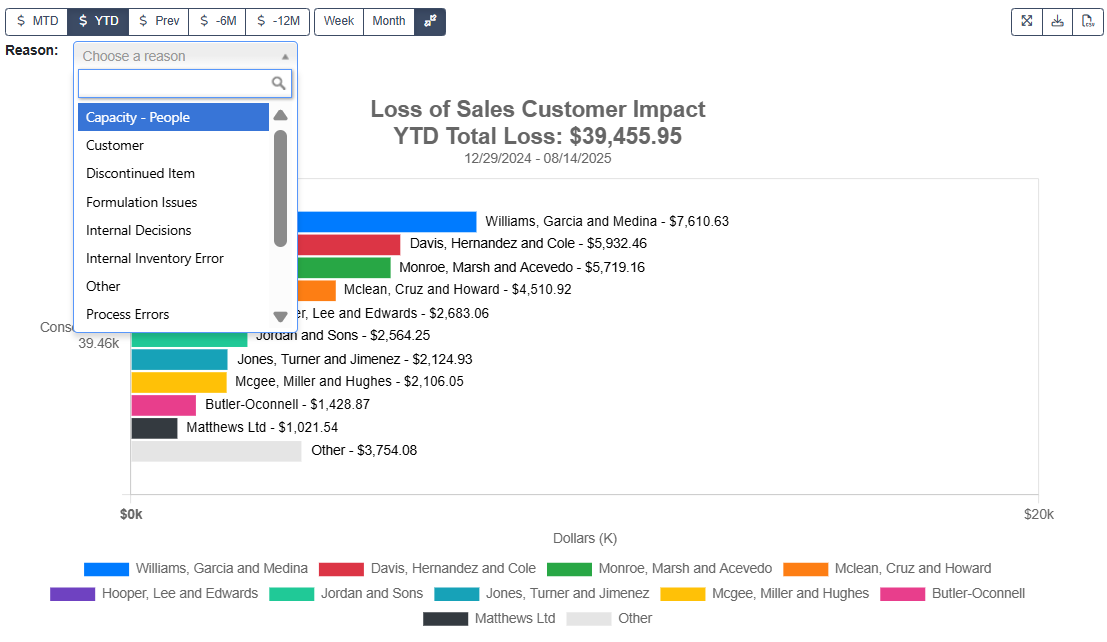
- Click the Reason dropdown.
- Select a reason to update the chart with only that reason’s data.
- Use the search bar in the dropdown to quickly find a reason by name.
Widgets you can see:
-
Loss of Sales:
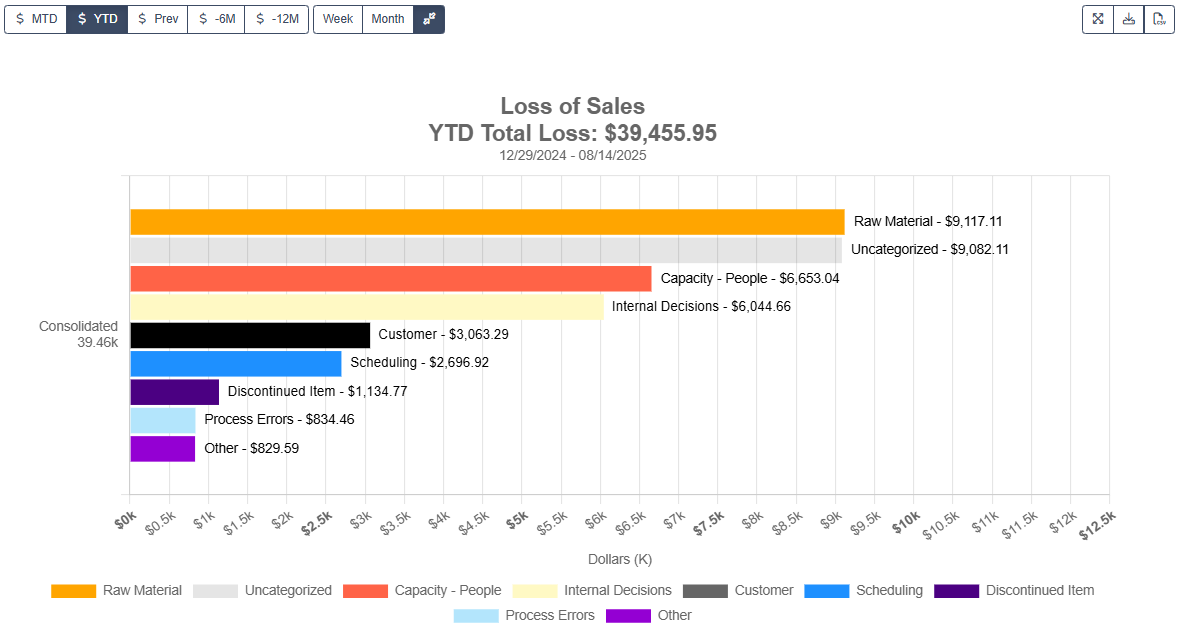
-
Loss of Sales Trend:
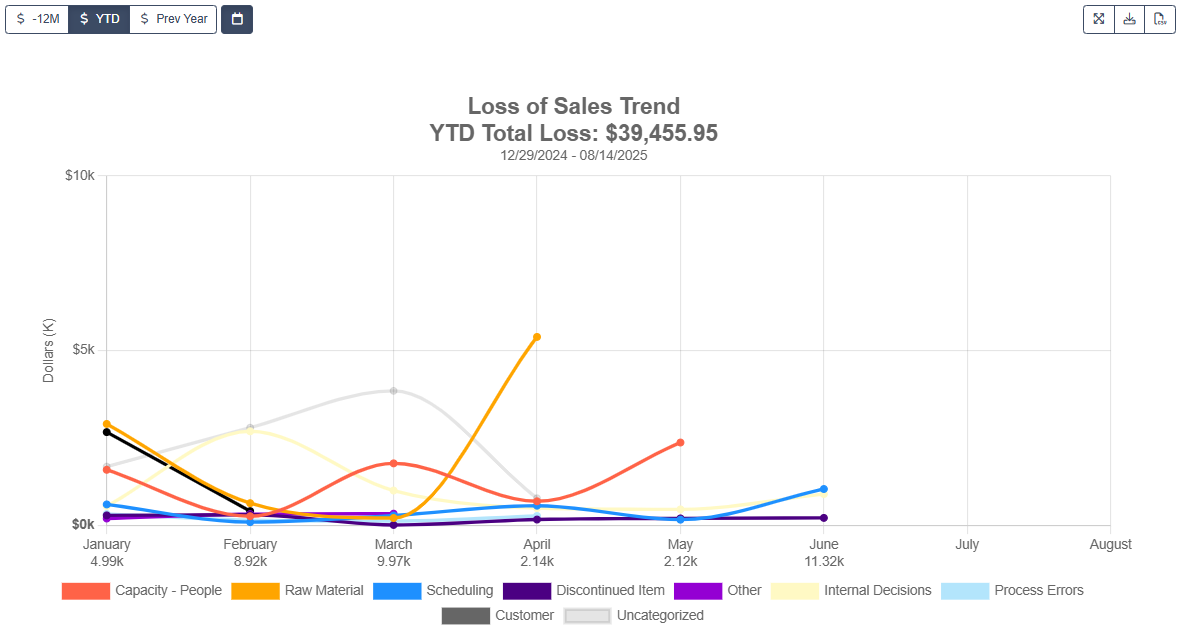
-
Loss of Sales Reason Breakdown:
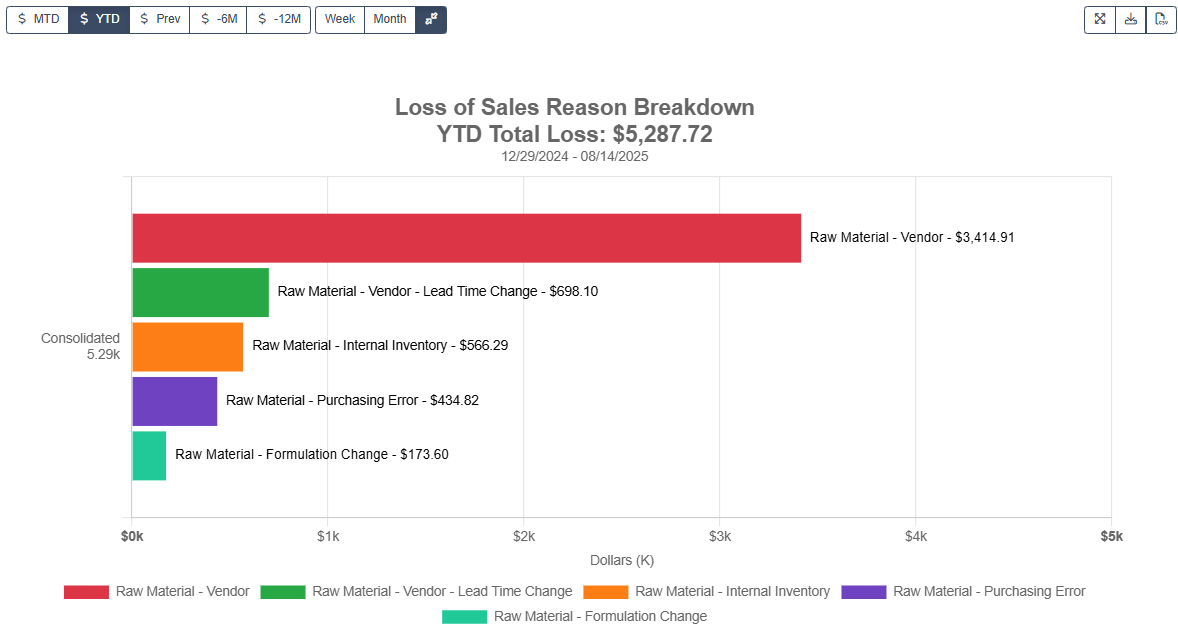
-
Loss of Sales Customer Impact:
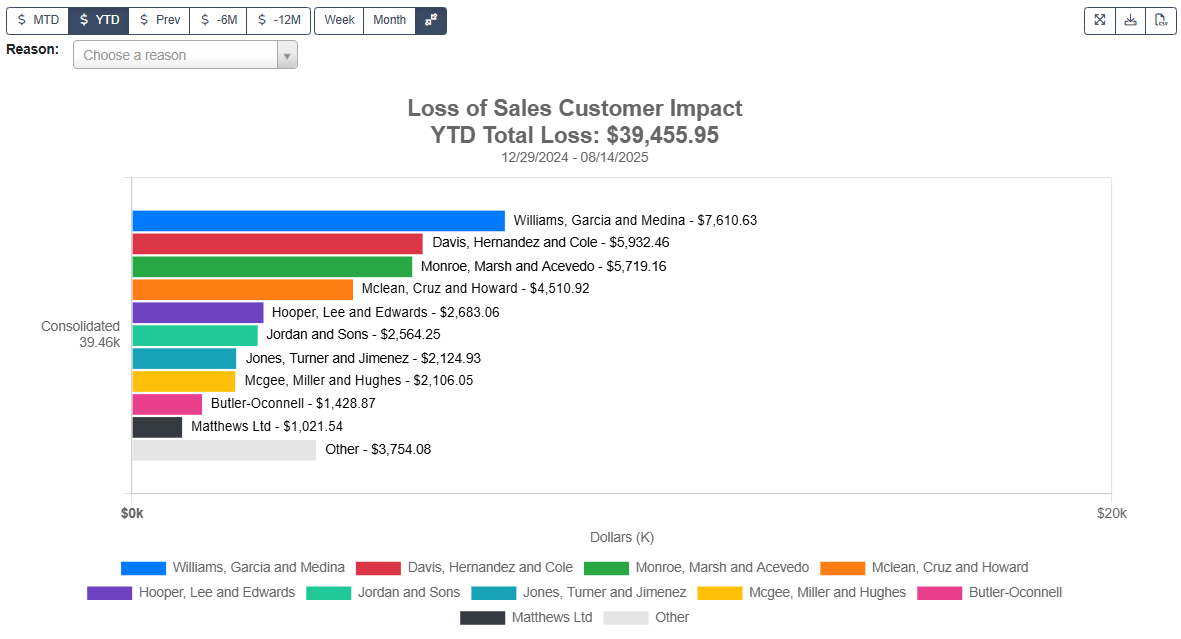
-
Loss of Sales by Purchased Material:
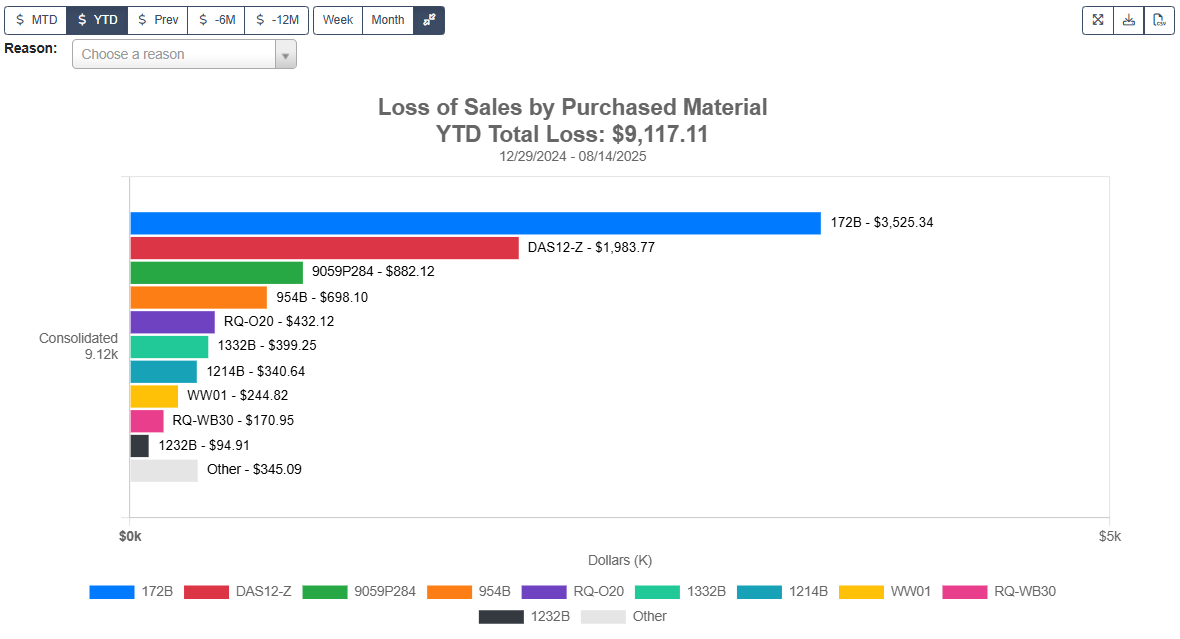
-
Loss of Sales by Purchased Material Vendor:

-
Loss of Sales by Purchased Finished Goods (FG):
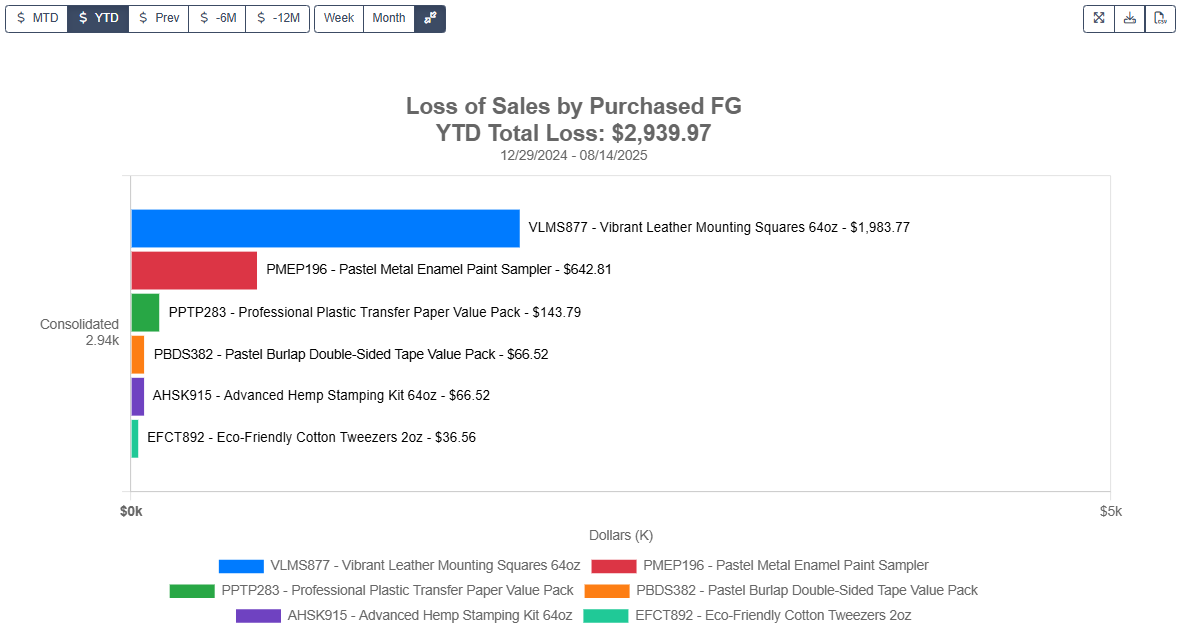
-
Loss of Sales Manufactured SKU Breakdown:
-
Loss of Sales RM Trend:
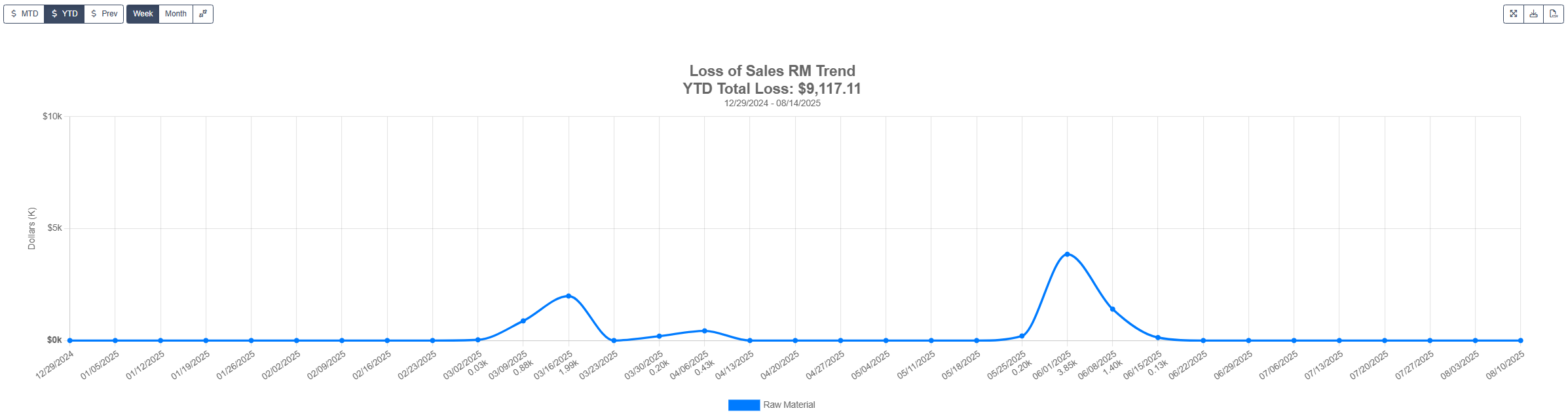
View / Edit Loss of Sales
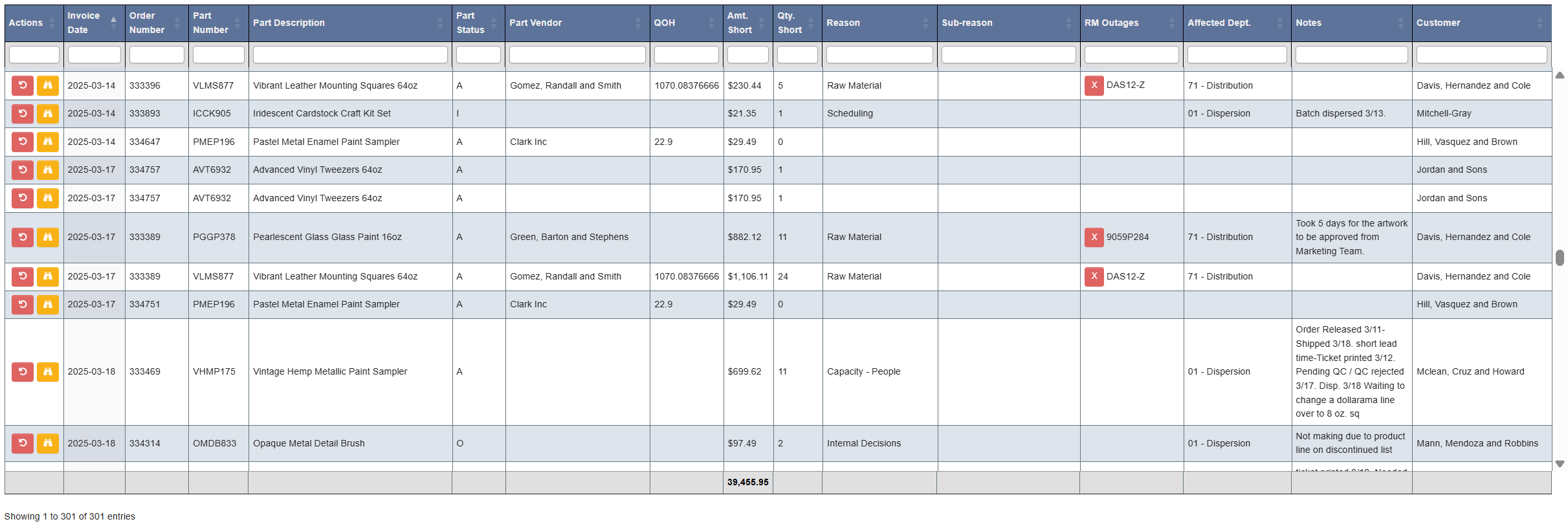
Use this tab to view the data behind the dashboard charts in depth. Here, you can filter, review, and update individual loss records.
Filters
-
(Required) Invoice Date: must be set before running a search.
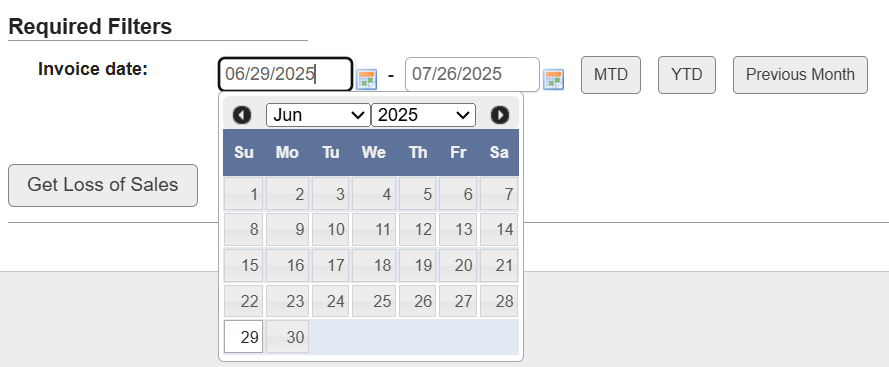
- Manually choose start and end dates from the date pickers, or
- Use a quick-select button:
MTD: month-to-dateYTD: year-to-datePrevious Month: previous calendar month
-
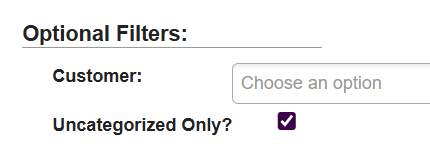
(Optional) Customer: multi-select dropdown. Scroll to browse or type to search. You can select more than one.
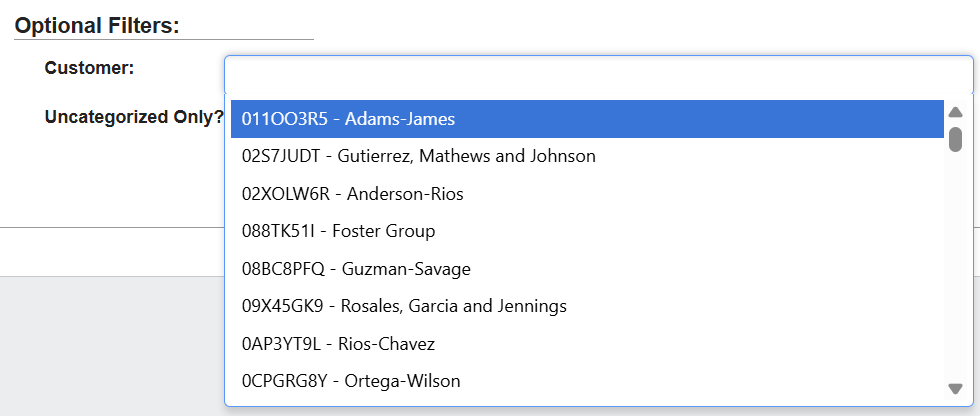
-
(Optional) Uncategorized Only: checkbox to limit results to rows without a Reason/Sub-reason assigned.
Report
Action Buttons
-
Yellow binoculars icon: Opens a Shortage Information pop-up with two sections:
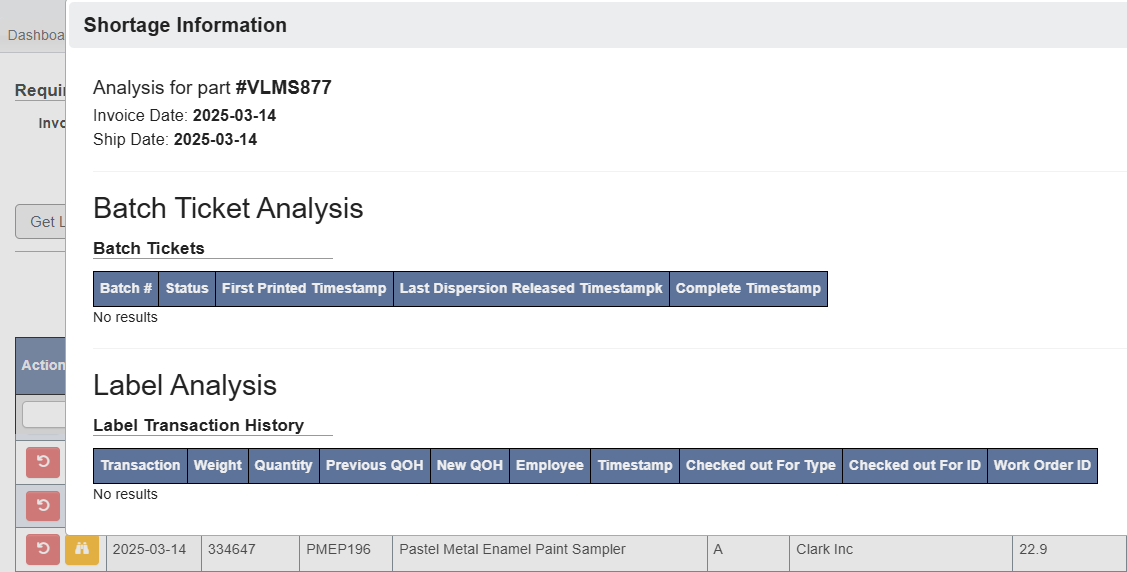
- Batch Ticket Analysis: batch numbers, statuses, and timestamps for printing, release, and completion.
- Label Analysis: transaction history showing weights, quantities, QOH changes, employees, timestamps, and work order IDs.
- Red reload/refresh icon: Clears the Reason, Sub-reason, and Affected Dept. for that row, making it uncategorized.
Clearing Field Values
-
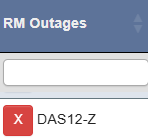
Red X icon in RM Outages: clears the part number in that row.
Editing Records
Most columns are editable so you can categorize, correct, or add details. How to edit:- Click in the field you want to change.
-
For list-based fields, a dropdown appears. Scroll or type to search, then click to select.
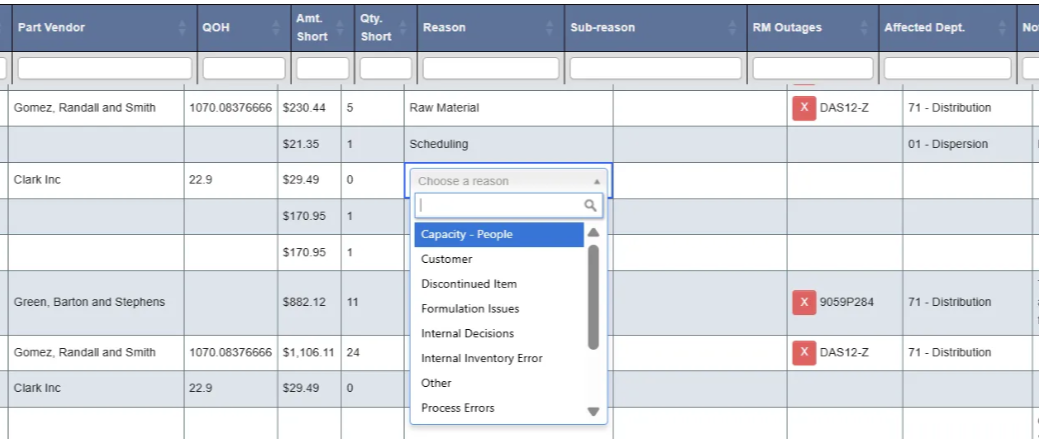
-
For text-based fields (like Notes), a text box appears for direct entry.
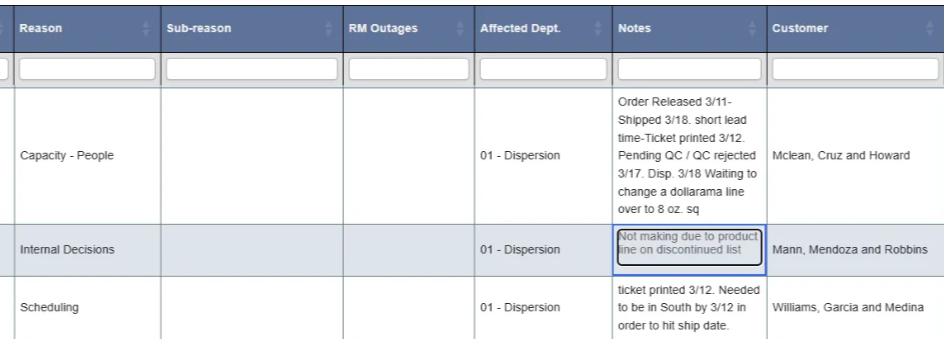
- Changes save automatically when you click outside the field.
- Part Vendor: dropdown of vendors; scroll or search.
- Reason: dropdown of top-level loss reasons.
- Sub-reason: dropdown tied to the selected Reason (may be empty if no sub-reasons exist).
- RM Outages: dropdown of raw material part numbers.
- Affected Dept.: dropdown of department codes/names.
- Notes: free-text field for explaining what happened.