Overview
The Order Processing → Manage Orders submodule is where you can create, view, and edit orders. Orders can also be moved from various holds here into queues for picking and shipping.What You Can Do
Depending on your role and permissions, you may not see all of these tabs.
Administrative Holds
A hold for orders that have not yet been approved. While here, orders are not released for fulfillment and you can still freely edit before submitting. Think of these as draft orders - you can continue making changes until they are ready for approval and release. Keep new orders here while you:- Upload customer documents
- Confirm pricing or no-charge status
- Add approval notes before releasing
No-Charge Holds
Captures orders with zero-dollar items, like samples or replacements, that require manager approval before release. Orders enter this hold automatically if priced at zero. You must select a reason (e.g., “Samples”, “Replacement Order”) and add an explanation.If a line item is entered for $0, you must also enter a Freight Out GL Code at the order level and a GL # for each no-charge line item.
Price-Override Holds
Flags orders with manual price adjustments that differ from standard pricing and need accounting approval. When you override the system-calculated prices on an order, such as applying a special discount, the order is held for review. You must select a reason (e.g., “Extra Discount for Sales Manager”) and provide an explanation. Once approved, the SSR gets an email to proceed.Credit Holds
Keeps orders placed by customers with overdue balances, which cannot be released until accounting clears them. If a customer has past-due invoices, their order automatically enters this hold after release from Administrative Hold. Approval is required before the SSR can finalize and submit the order.All Open Orders
A comprehensive view of orders that have been submitted and are still in progress, either being picked, packed, or waiting to ship. You can use this tab to:- View the status of any submitted, unshipped order
- Track where an order is in the fulfillment process
- Search by order number, customer, or ship-to name
- Confirm if an order has moved beyond the editable stage
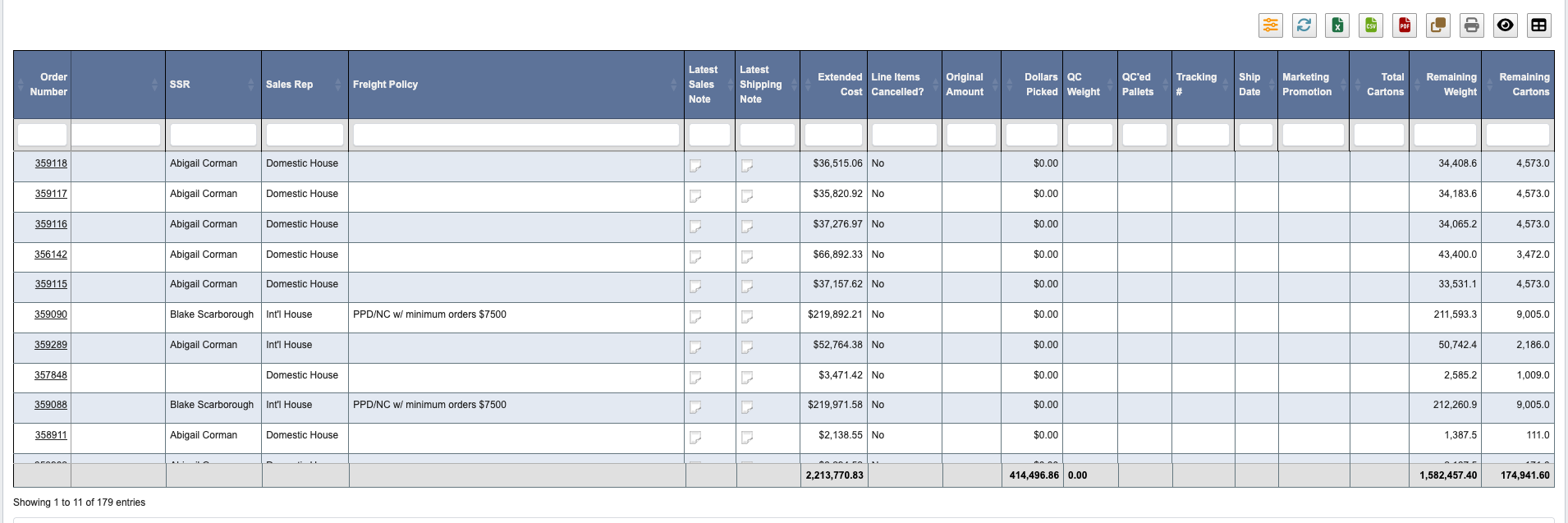
- See how much of each order still needs to ship: the Amount Remaining on Order, Remaining Weight, and Remaining Cartons columns cover the product that has not been invoiced yet and update as shipments are picked and invoiced, with grid footer totals across all open orders
All Orders
A full historical list of all submitted orders, including both open and completed shipments, searchable by multiple criteria such as order number, customer, or ship-to name. Here, you can:- Search all past and current orders by customer, order number, or ship-to name
- View order details regardless of fulfillment status
- Reopen or duplicate past orders as a starting point for new ones
- Access a complete audit trail of order activity for reference or troubleshooting
Add Order
This is where you can manually enter new orders and:- Search for and select the correct customer
- Enter ship-to information and required ship dates
- Add item quantities and pricing (or overrides, if needed)
- Choose freight terms, order type, and customer PO info
- Save the order to Administrative Hold for further review, or submit it directly (if ready)
View / Edit Order
Here is where you can edit submitted or in-progress orders, with limited editability depending on pick/ship status.- You can view full order details, edit orders that haven’t been picked, update shipping info, add notes, or cancel the order if it’s still eligible.
- Once an order is picked or shipped, most fields become read-only.
Pending Invoices
This tab lists shipped orders that are awaiting invoice finalization and cannot yet be posted to customer accounts.- You can search, export, review, and edit pending invoices directly.
- If you choose to delete an invoice, it is permanently erased and must be fully recreated if needed.
Forecast Upload
Use this tab to upload customer forecast files that reflect projected future orders for planning purposes only. Download the provided template, populate it with the customer number, weekly dates, alternate part numbers, and forecasted quantities, then upload it to DASH. These forecasts do not generate fulfillable orders but are used for visibility and production planning.Special Privileges
Some actions require special user privileges.
- Can Cancel Order: Users with this privilege can cancel an order. In Orders tables, they will see a red X in the Actions column to initiate cancellation.
- Can Edit Order Information After Release: Users can edit parts of an order after it’s released from a hold. A Pencil icon appears in Orders tables; clicking it opens a modal to edit order details.
- Can Invoice Order: Users can create invoices for orders. In the Invoicing section, they’ll see an Add New Invoice button that opens a side panel to create the invoice.
- Can Short Ship Order: Users can authorize shipping with partial quantities. On an order’s Shipping section, an Authorize Short Shipment button is available.
- No-Charge Approval Levels (B, C, D, E): Users can approve no-charge orders or orders with no-charge items. Level B approves the lowest threshold; Level E approves the highest.
- Can Submit Forecast Orders: Users can submit forecast orders directly into the Open Orders pipeline. (Other users can only place forecast orders onto Administrative Holds.)
Special Privileges (Manage Orders - individual sections)
- Credit Approval (Credit Holds tab): Users can approve orders on Credit Hold. Only these users see the Release button in the Credit Holds table.
- Price Override Approval (Price Override Orders): Users can act on price-override holds. In the Price Override Orders table, they see Release and Reject in the Actions column.
- Can Edit Order Pallet (View Order): Users can manage pallet data on the order view. They see New Pallet, Resequence Pallets, Rebuild Shortages, Recalculate Cartons, and a Pencil icon in the pallets table to edit a pallet.
- Can Edit Order Credit Terms (All Open Orders): Within the Edit Order Information modal (opened via the Pencil icon on All Open Orders), users can change the order’s Credit Terms from the dropdown.
Next Steps
- Learn how to Add an Order.
- See how to view picking progress from the Picking Status Submodule.