Overview
This page explains how to use the Order Processing → Order Picking submodule to pick and fulfill customer orders. Pick/pack teams use this interface to see which orders are ready to pull, monitor progress, and handle different types of orders. The order picking interface provides a prioritized view of orders ready for fulfillment, with color-coded status indicators to help selectors efficiently manage their picking workflow. For detailed interface information and field definitions, see the Order Picking Reference.When to Use Order Picking
Various warehouse and shipping roles use this interface throughout their operations:- Pick/Pack Teams: Primary users who pull orders from inventory and prepare them for shipment.
- Warehouse Selectors: Responsible for efficiently picking orders based on priority and location.
- Shipping Staff: Review picked orders and coordinate with carriers for delivery.
- Sales Staff: Monitor picking progress for their customer orders and handle special requests.
- Supervisors: Oversee picking operations and address issues that require attention.
Pick Small Package Delivery (SPD)
-
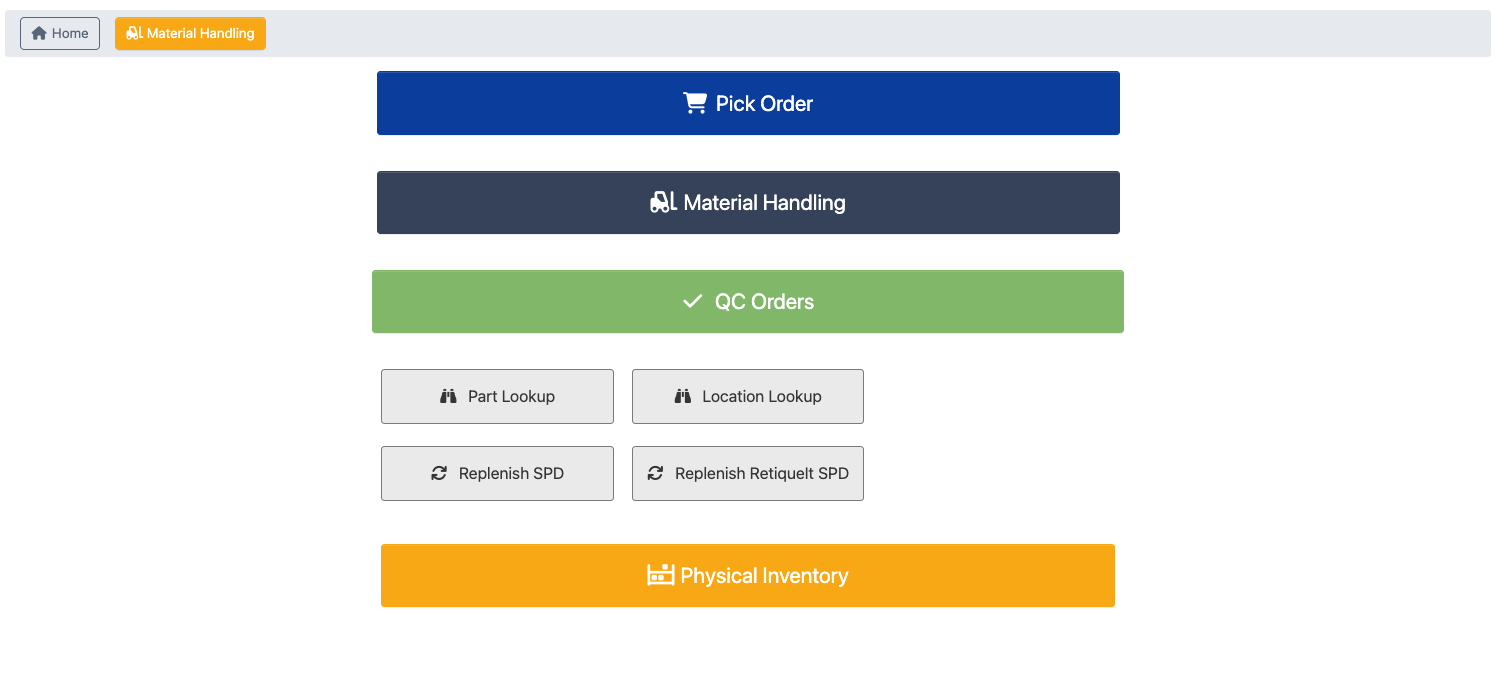
Go to Shipping → SPD.
-
Click
Pick Order. -
Select your selling channel, a red bubble with a number shows how many orders are ready to pick.
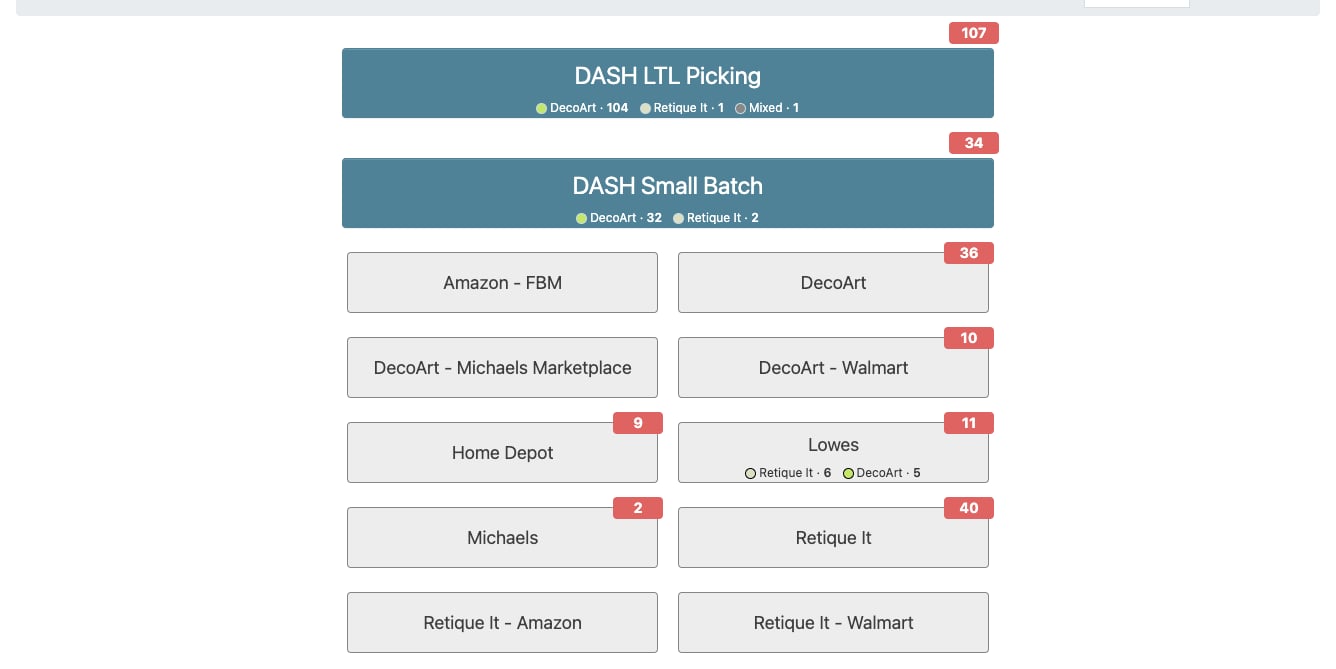 When a channel’s open orders span more than one brand, the button also shows an order count for each brand. A top-level product class counts as a brand when it has a Brand Color set in the Manage Product Classes submodule. Orders with parts from multiple brands are counted once under a “Mixed” chip. Orders with no brand-classed parts (raw material orders, for example) are not chipped, so the chips can total less than the red bubble.
Step 2: Select Orders to Pick
-
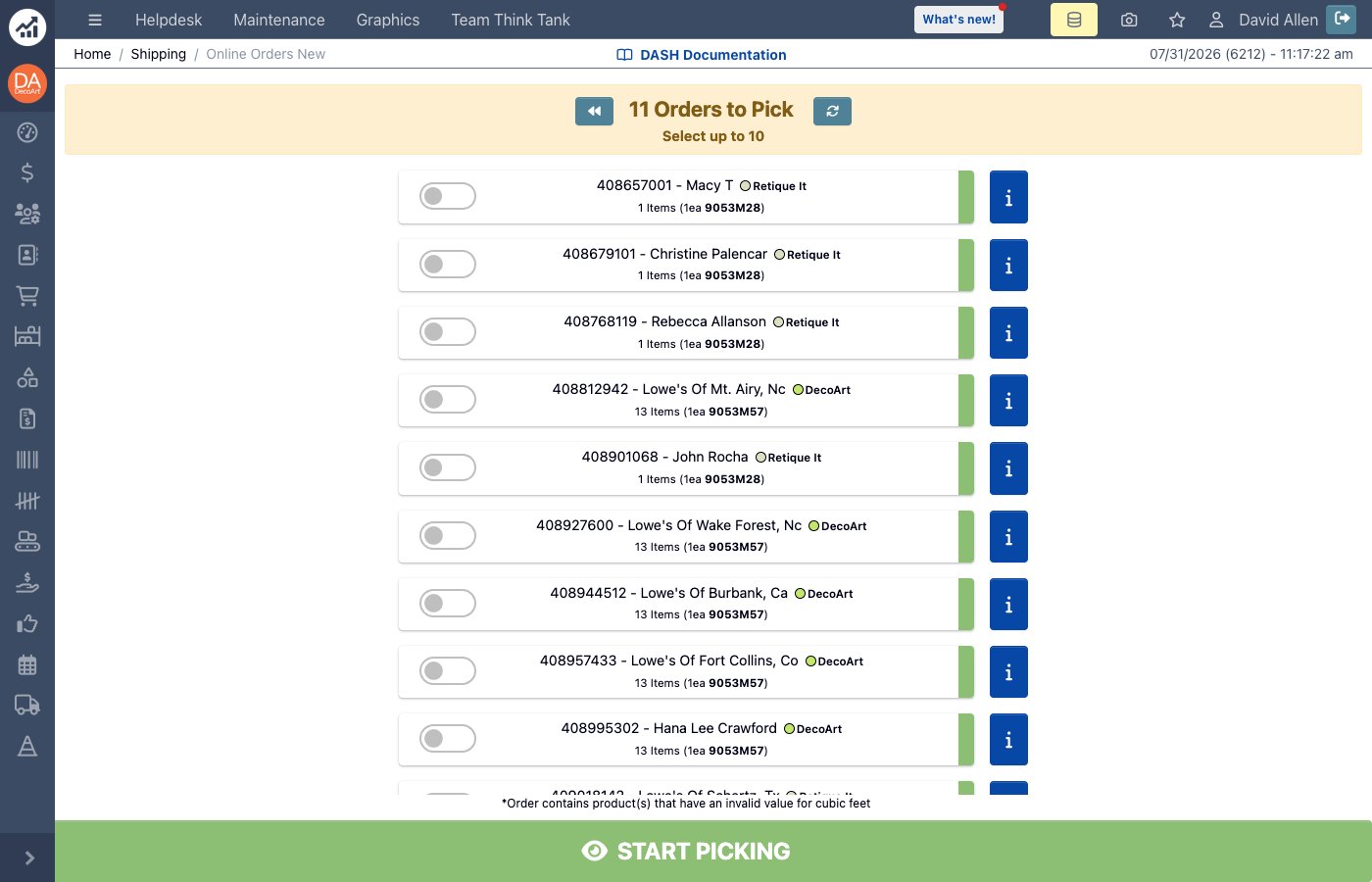
The Order Picking interface will display a list of orders ready for fulfillment. Each order includes:
- Item count: The total number of items that need to be picked.
- Information for estimated shipping box: The quantity and part number are shown in parentheses. This information helps determine the box size based on the order’s cubic volume.
- Status indicator: A colored tab showing the current status of the order:
- Green: The order is new and has not be started.
- Blue: The order has already been started by someone else.
- Pink: The order is a rush order.
- Dark grey: The order is being picked by someone else.
- Information icon: Click to see order information.
- Brand: When a channel’s orders span more than one brand, each order also shows its brand with the brand color.
-
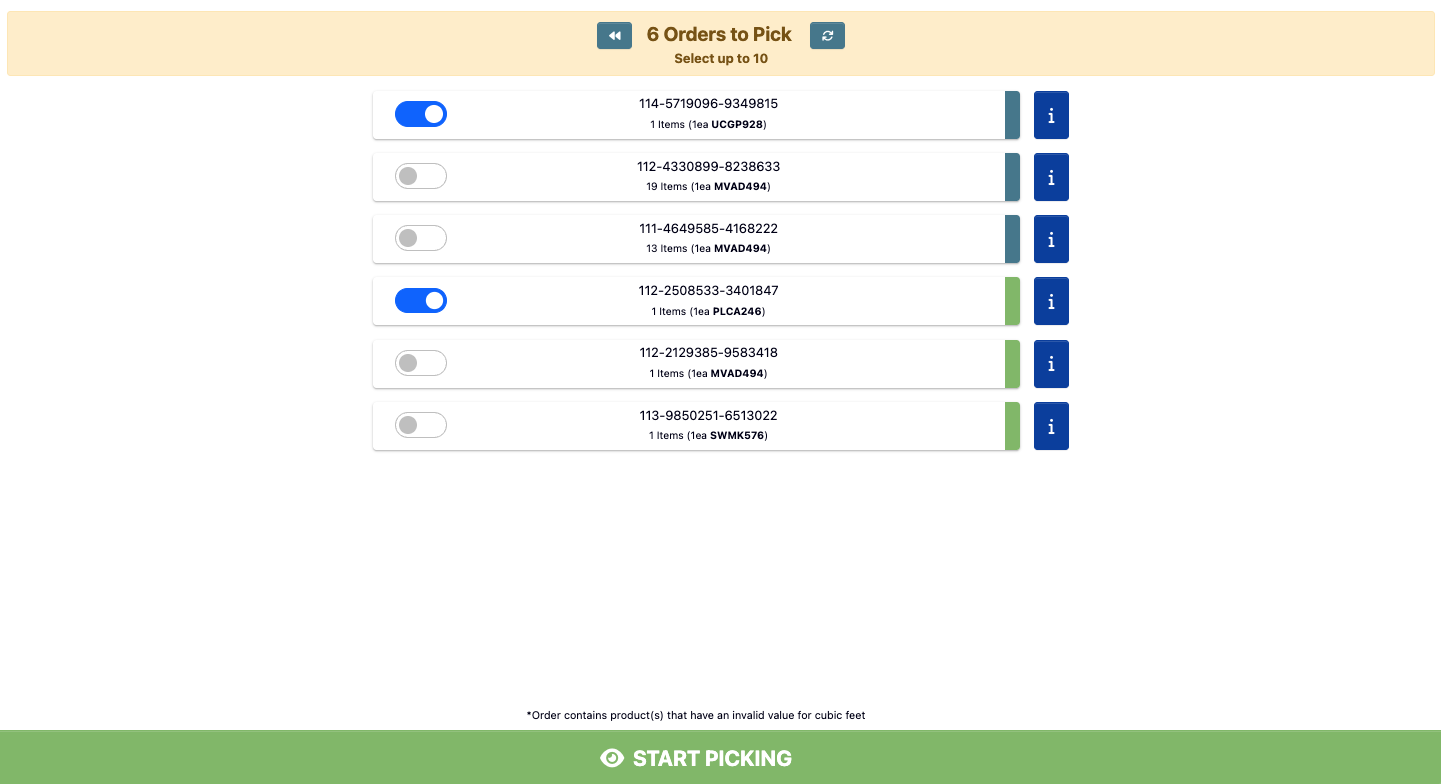
Click the toggle buttons to select the order(s) you want to pick. You can select multiple orders to pick in a single batch.
-
Click
Start Pickingto begin the picking process. After clicking, your printer will print a barcode label for each order.
Step 3: Picking the Order
Before you begin, use the image below to familiarize yourself with the elements on the screen.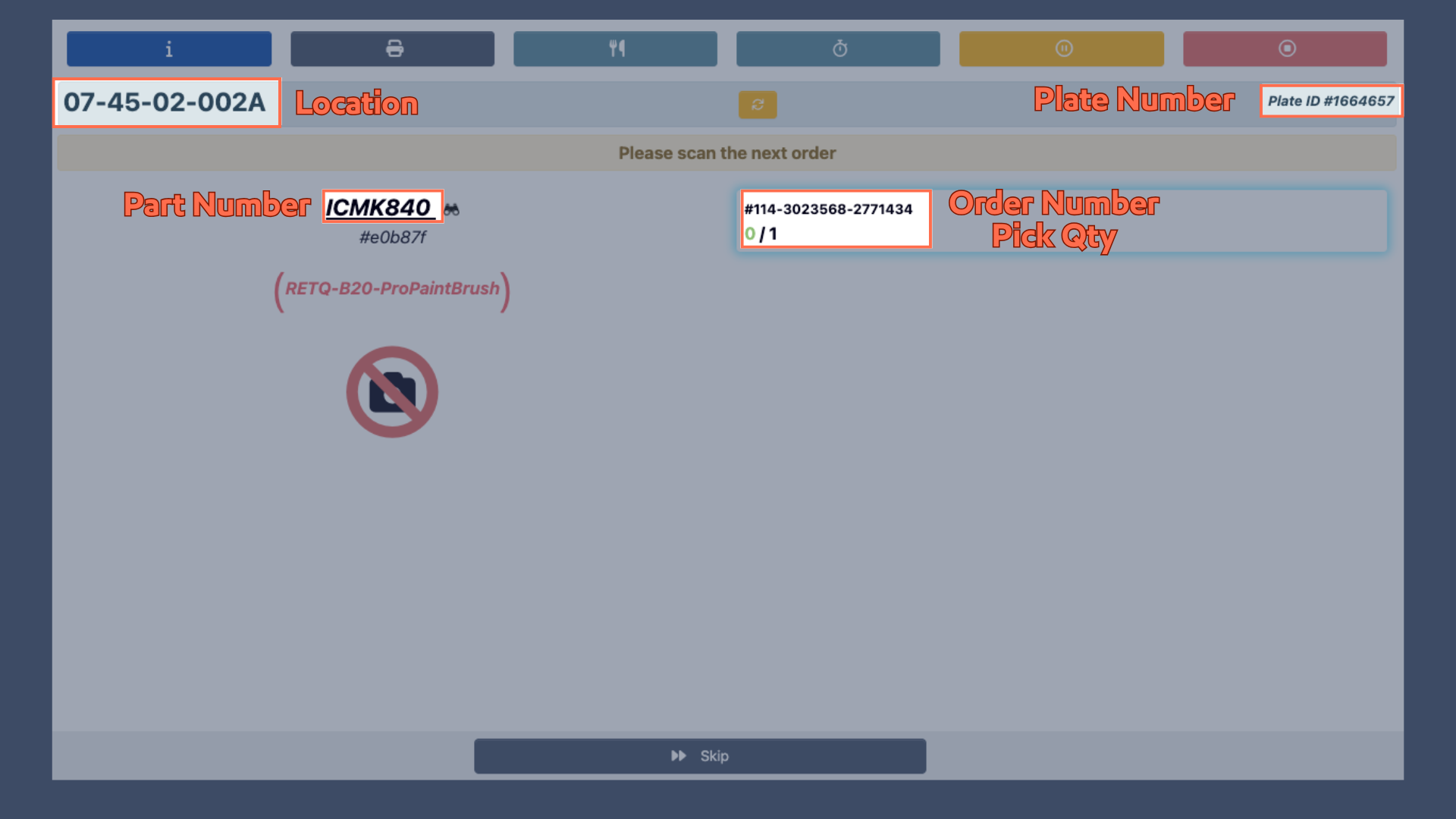
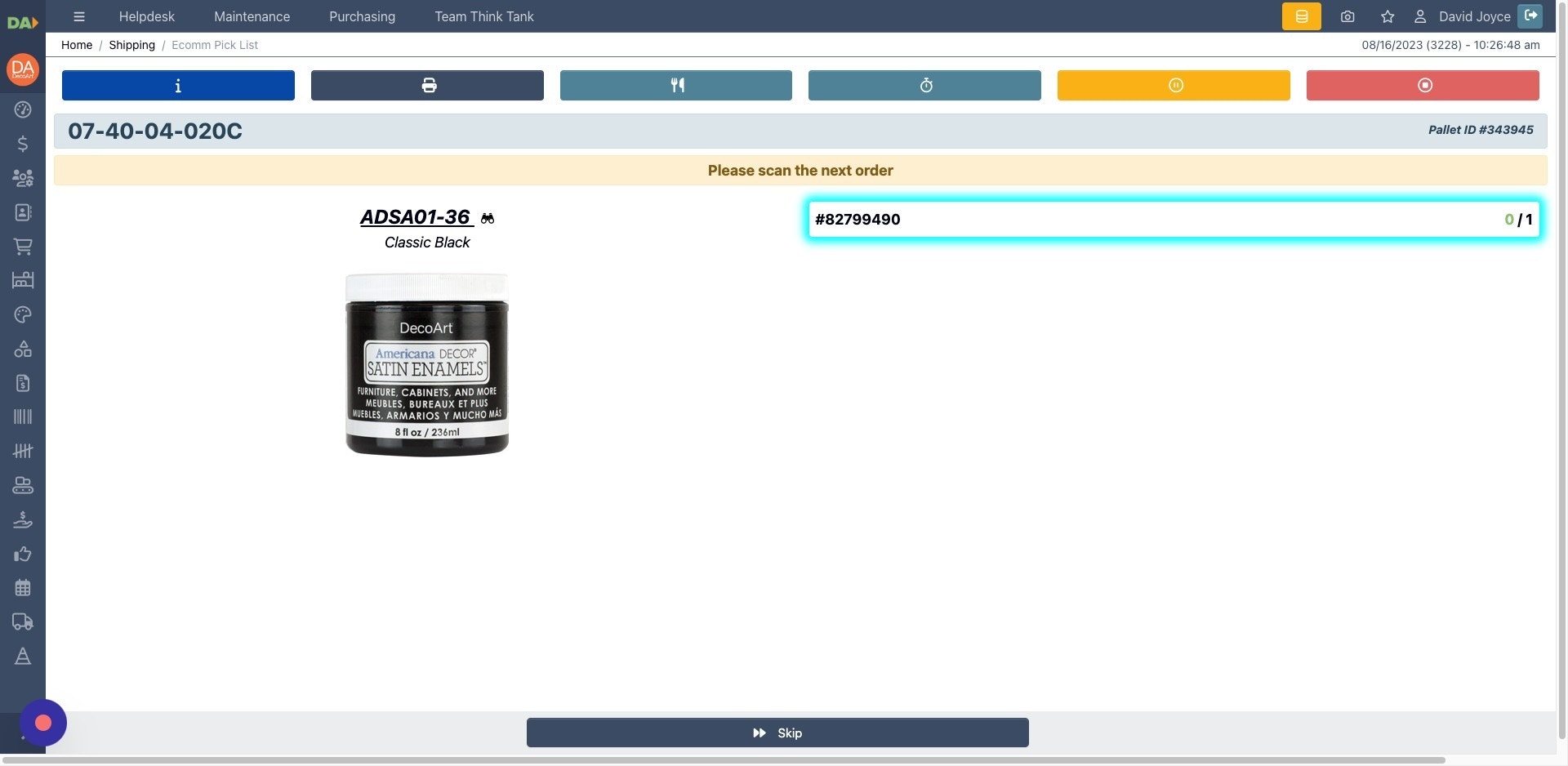
- Begin picking your order by scanning the order barcode.
-
After scanning, the order number will highlight in blue to confirm it has been recognized.
-
Next, scan the product barcode for the item you are picking.
.jpeg?fit=max&auto=format&n=dx_LHZrXqBgnC_EY&q=85&s=130f384cea2f6441c993e4c8121628a0)
-
Read the pick instruction on the order card before scanning the product. DASH shows whether the next accepted product scan will pick a case or an each:
-
Pick CASE: scan the product once for one full case. -
Pick CASE, then EACH: scan the product once for the case quantity, then scan the remaining eaches one at a time.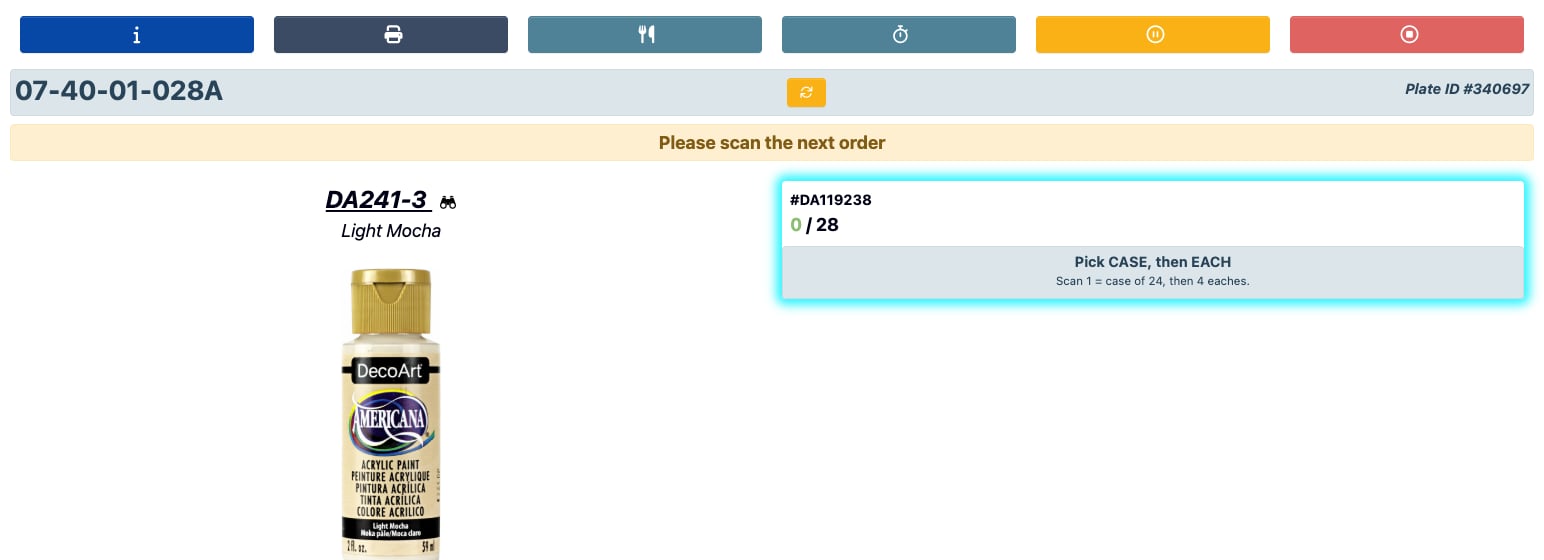
-
Pick EACH: scan each individual unit.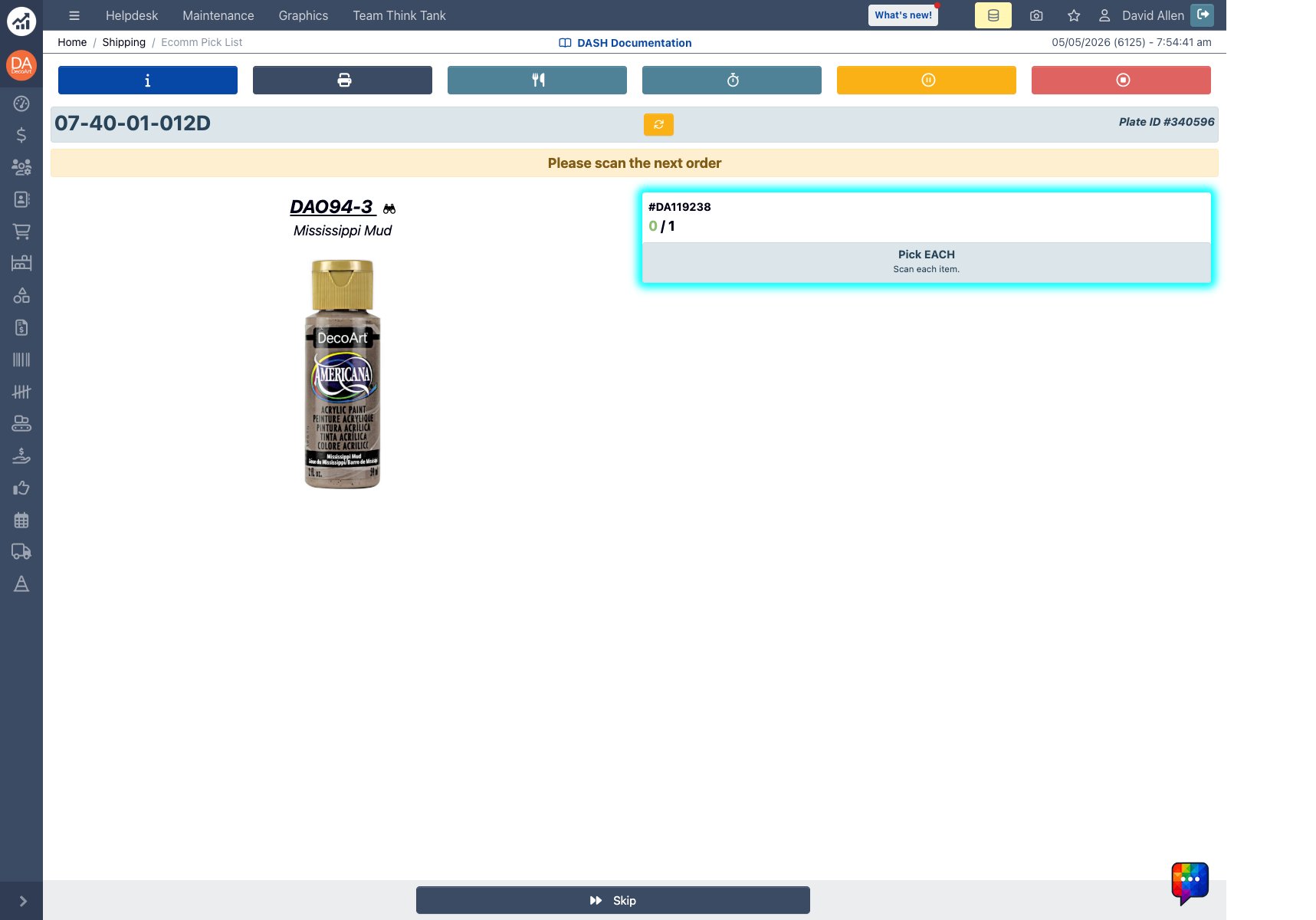
DA119238includedDA241-3, which required one case scan and then four each scans. The next line,DAO94-3, required one each scan, andDA174-3required four each scans. -
- Continue scanning the order and product barcodes until all items have been picked. The page will advance to the next part after the required case or each scans are complete.
- For detailed interface information on each interface button, see the Order Picking Reference.
Pick-to-Store Orders
Pick-to-Store orders ship to one customer distribution center but are packed per store, so DASH tracks picks and boxes for each store separately. Open them from Shipping → Selector by clickingPick-to-Store Order, then choose the order to see its store list.
Selecting Stores
- Review the order info, then tap the stores you want to pick. You can pick one store at a time or select up to 10 stores to pick together as a batch.
-
Click
Pick Store(orPick Storesfor a batch). DASH re-checks every store in your selection against the live store list before it asks you to confirm:- A store that is already closed is removed from the selection.
- A store that another selector currently has open is removed from the selection. DASH tells you which stores were removed and why, and the confirm dialog only lists the stores you can actually pick.
-
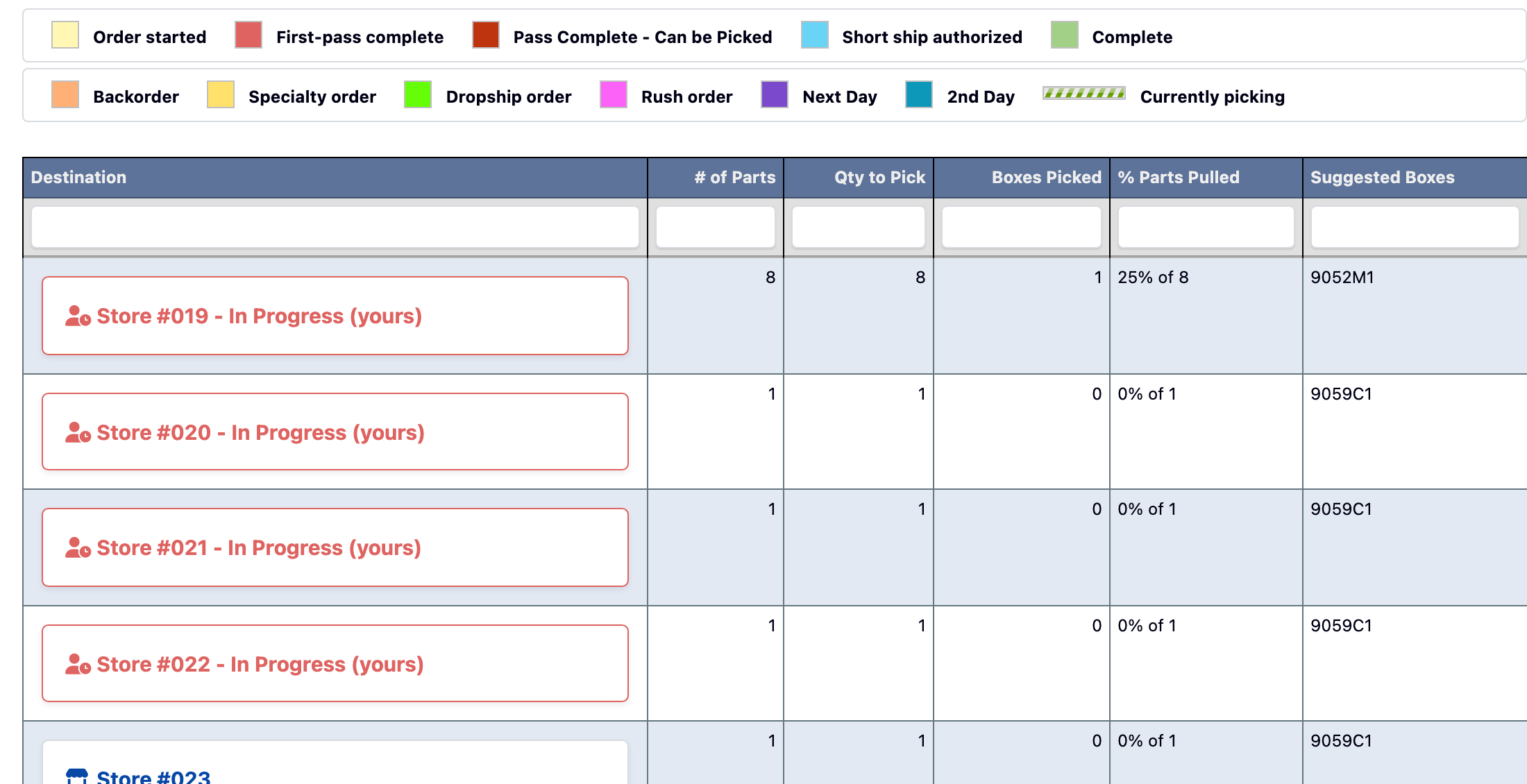
Confirm the selection to start picking. A store already in progress under your own badge shows as
In Progress (yours)and can be selected on its own or together with other stores, so a second tablet can pick up part of a batch. If a store in your selection is already in progress under your own badge, the confirm dialog turns into a redResume pick already in progresswarning: you are resuming a pick that was started earlier, possibly on another tablet, and scans from every tablet count toward the same store and box. Read it before choosingYes, resume. If another selector opens one of your stores between the confirm dialog and the start, DASH starts the batch with the stores it could claim and tells you which ones were left out and who has them.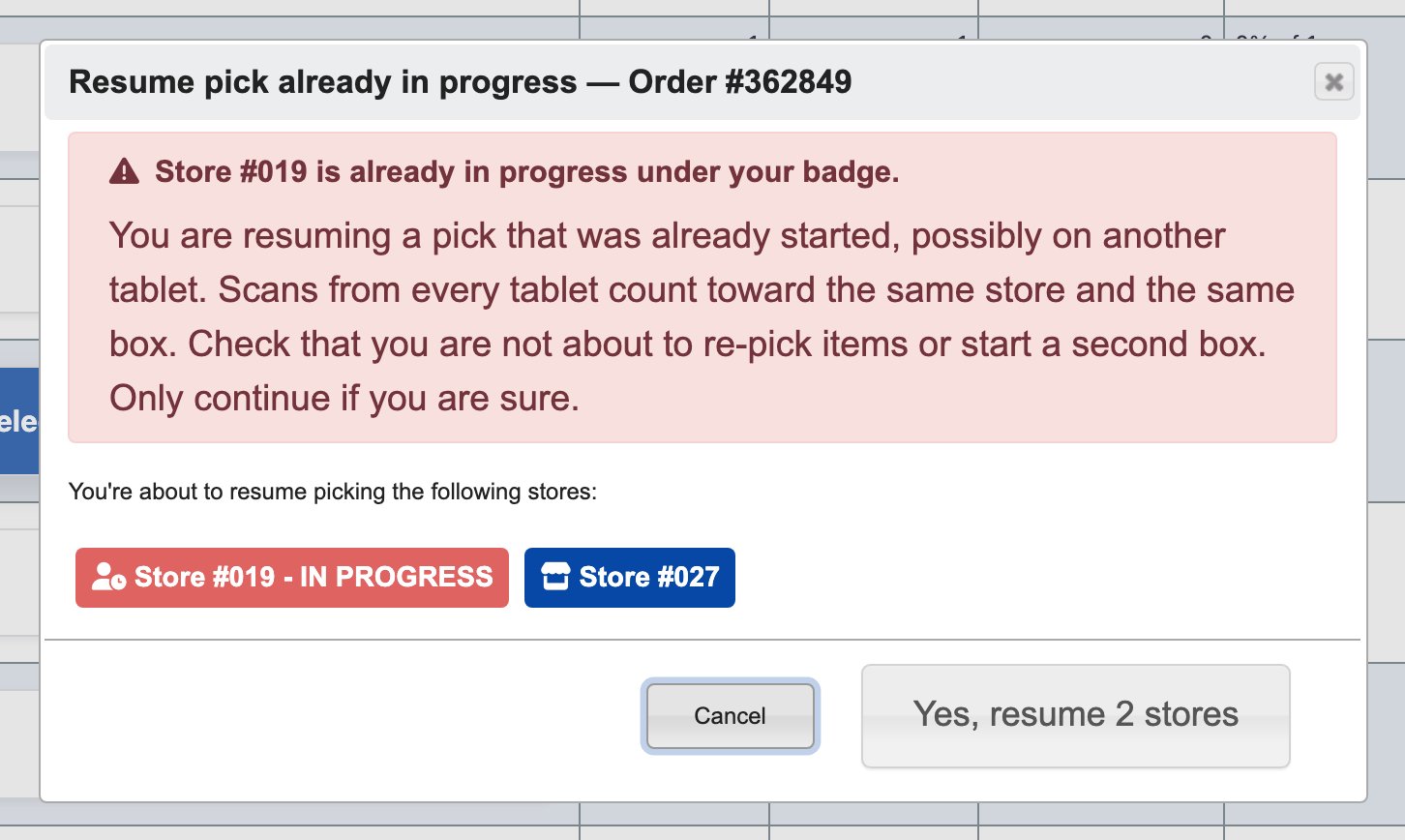
A store can only be open for one selector at a time, and DASH enforces this in the database, so two tablets cannot claim the same store even when they tap at the same moment. Starting a new store or batch does not close the picks you still have open on the same order.
Stop only closes the stores the tablet you are on was picking. If you are working a batch on one tablet and resume one of its stores on a second tablet, stopping on the second tablet leaves the other stores open on the first.When a Store Selection Is Refused
If every store in your selection is open for someone else, DASH shows who has each store and lists any stores from your selection that still have items left to pick, with the item count. Use that list to go back into the stores that still need work rather than assuming they are complete.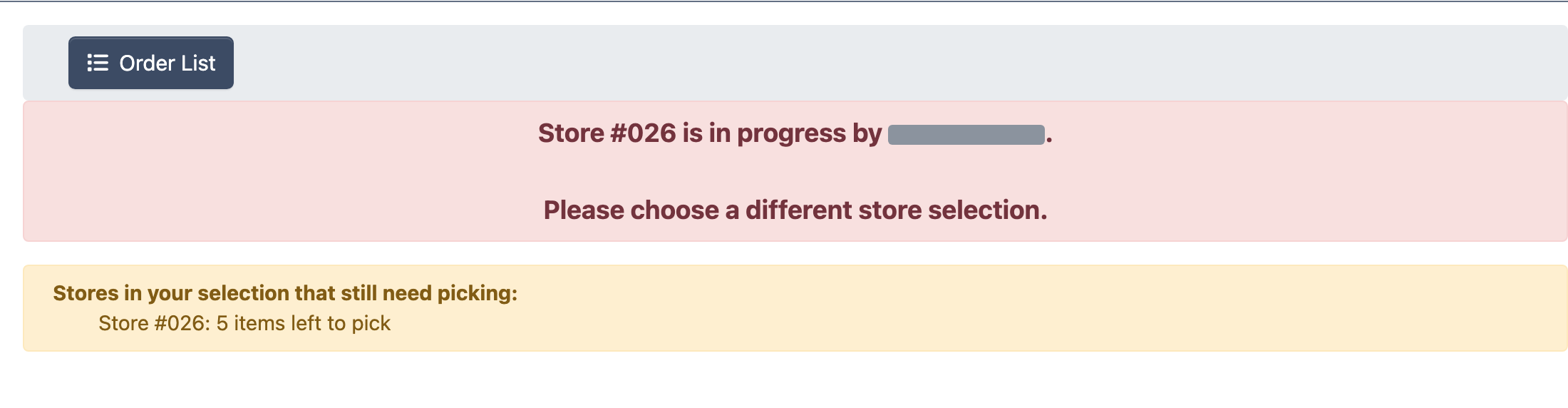
Scanning Past a Store’s Quantity
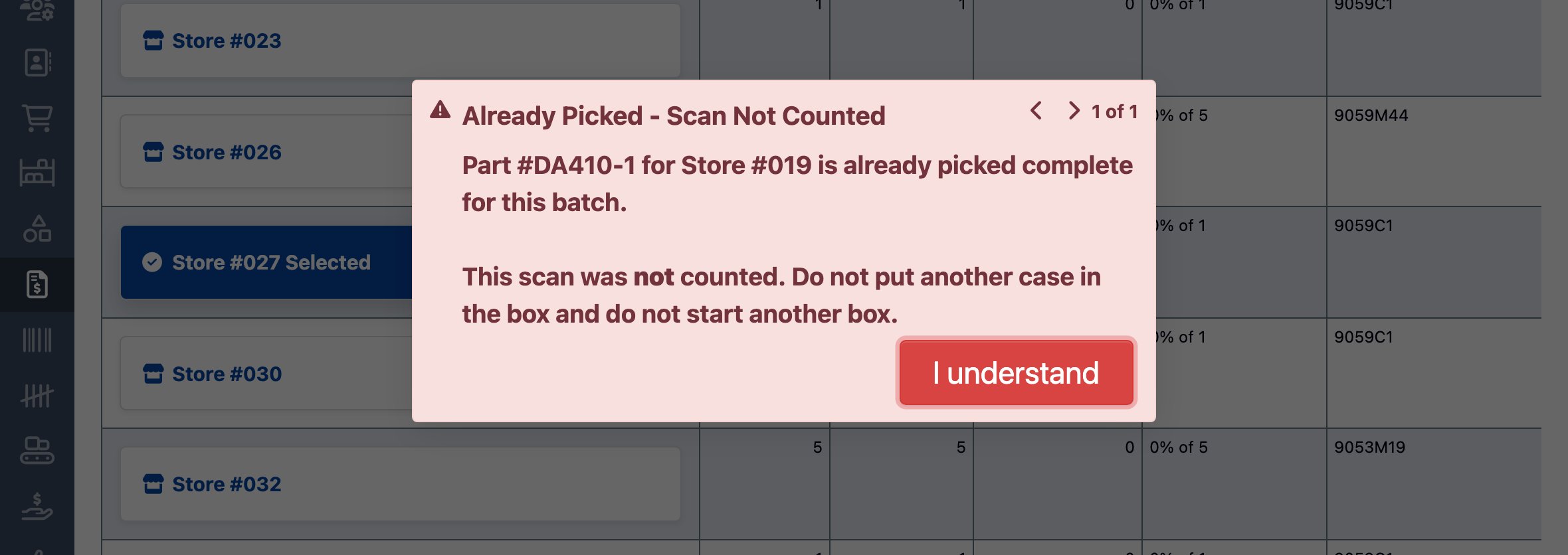
DASH counts every scan against the store’s ordered quantity in the database, not against what the tablet last showed. If a scan would take an item past what the store ordered, for example when the same store is open on two tablets or a scan is repeated, DASH refuses it with anAlready Picked - Scan Not Counted warning in the middle of the screen that blocks the page until you acknowledge it, then refreshes the screen to the real count. Do not put another case in the box or start another box when you see it. No extra cases are recorded.
If Your Pick Was Closed in the Background
If a pick you are working on was closed while you were scanning, DASH reopens it automatically on your next scan and shows aPick Reopened notice, so the scan still counts against the right store. If another selector took the store over in the meantime, DASH ends your pick on it, tells you who has it, and returns you to the store list.
Pick DASH LTL Orders
Step 1: Access DASH LTL Order Picking
- Go to Shipping → Selector.
-
Click
Pick Orderto pick. -
Select
DASH LTL Pickingto see a listing of Order numbers. -
Click on an
Order #to open the Pick Order page.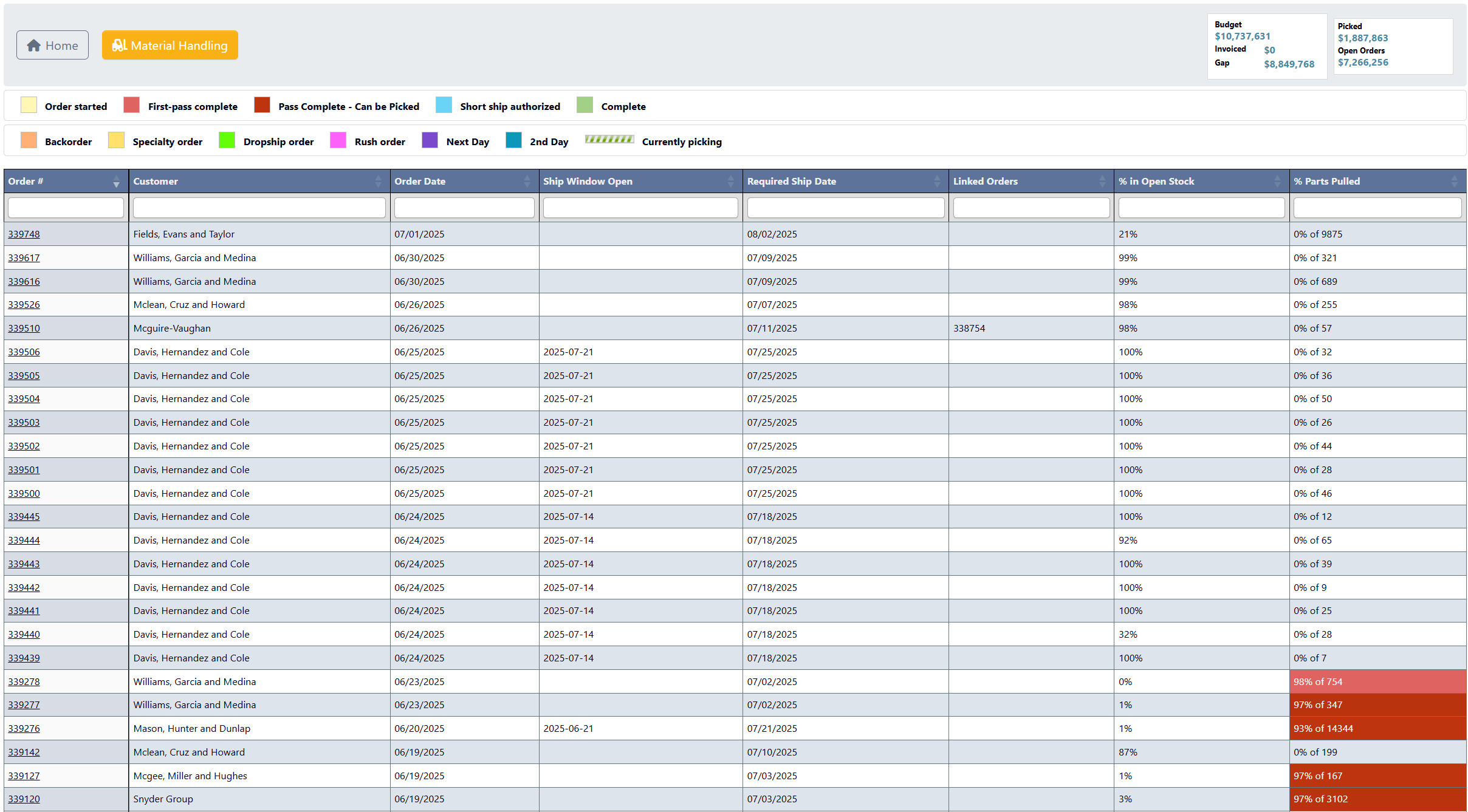
Step 2: Review Order Information
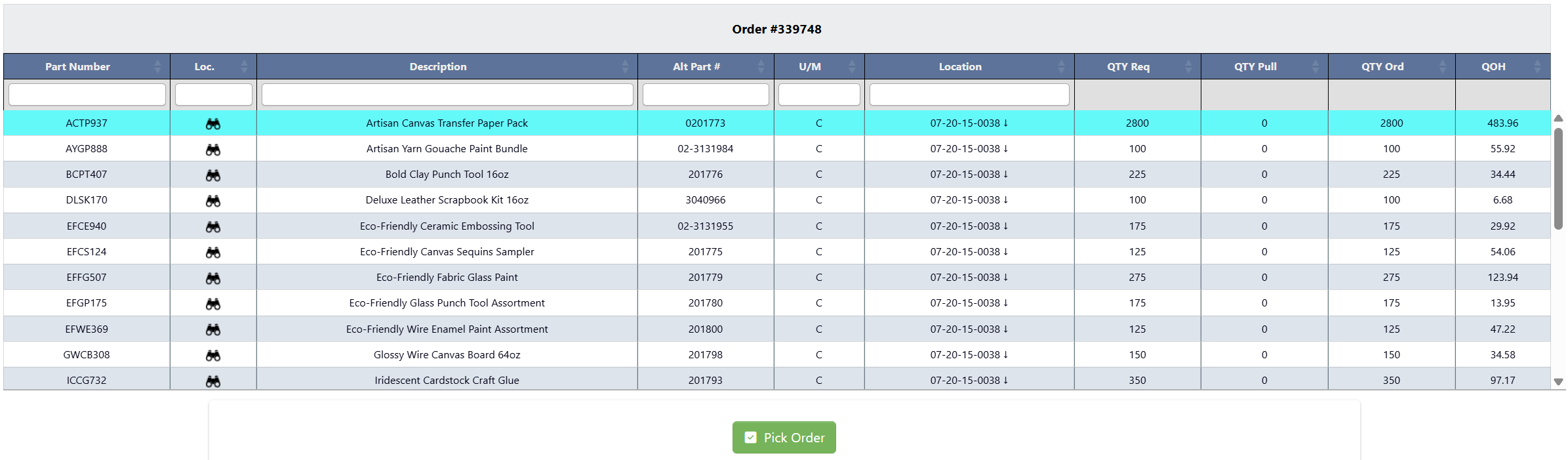
-
Click
Review Order Info Before Picking Order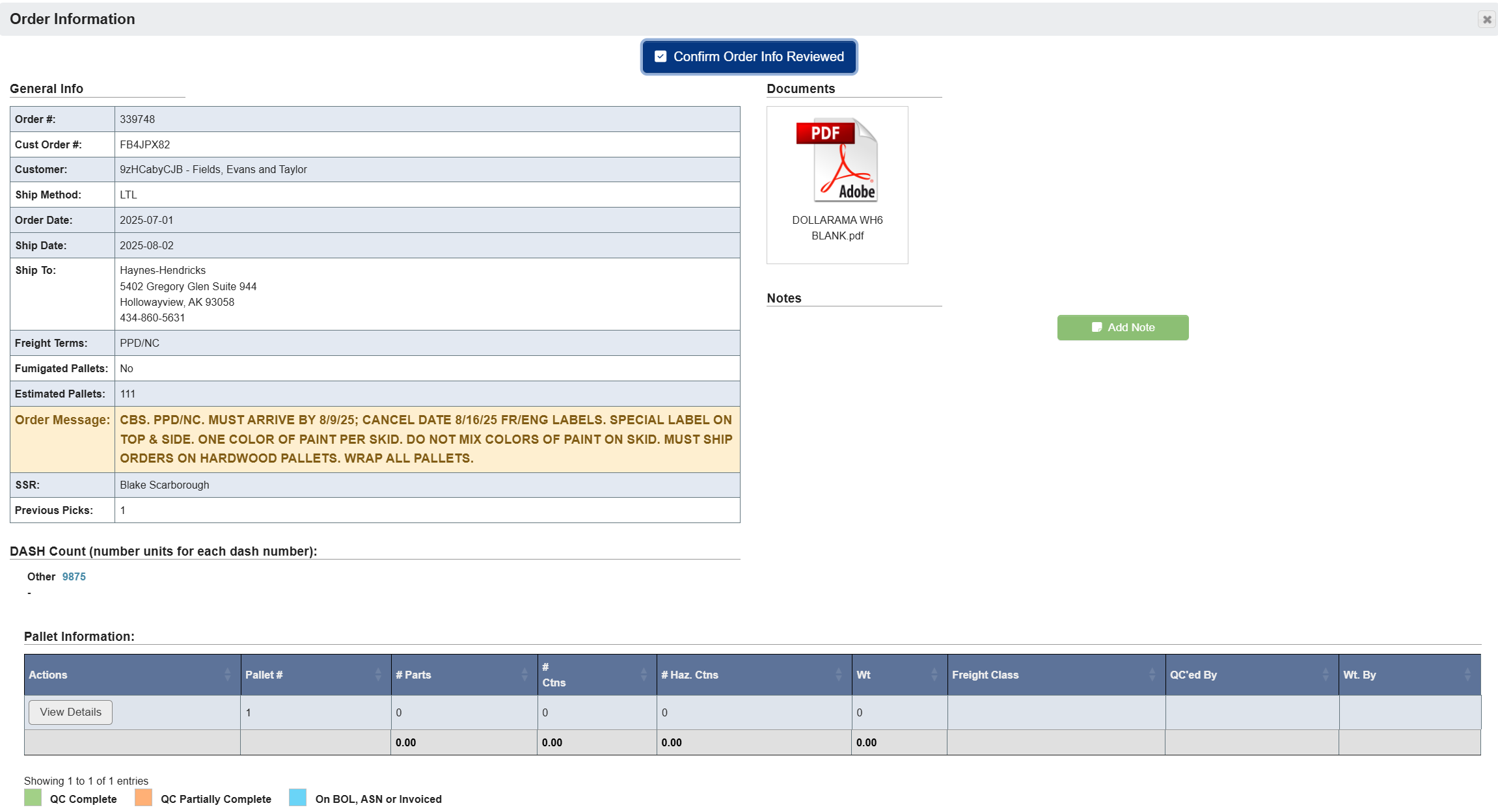
- Pay attention to any special instructions or requirements.
- Note any special handling requirements.
-
Click
Confirm Order Info Reviewedafter reviewing all requirements. -
Click
Pick Orderto being the picking process.
Step 3: Picking the Order
-
In the Choose Stating Pallet pop-up, click
Confirm.
-
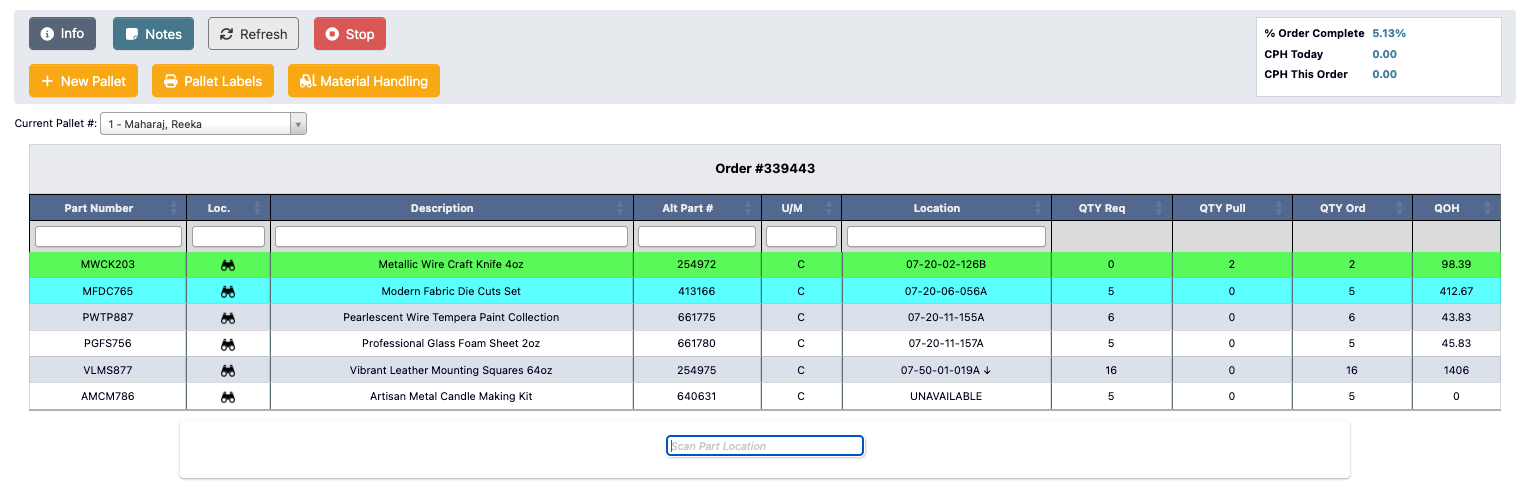
Begin picking your order by scanning the
Part Location. For detailed interface information on each interface button, see the Order Picking Reference.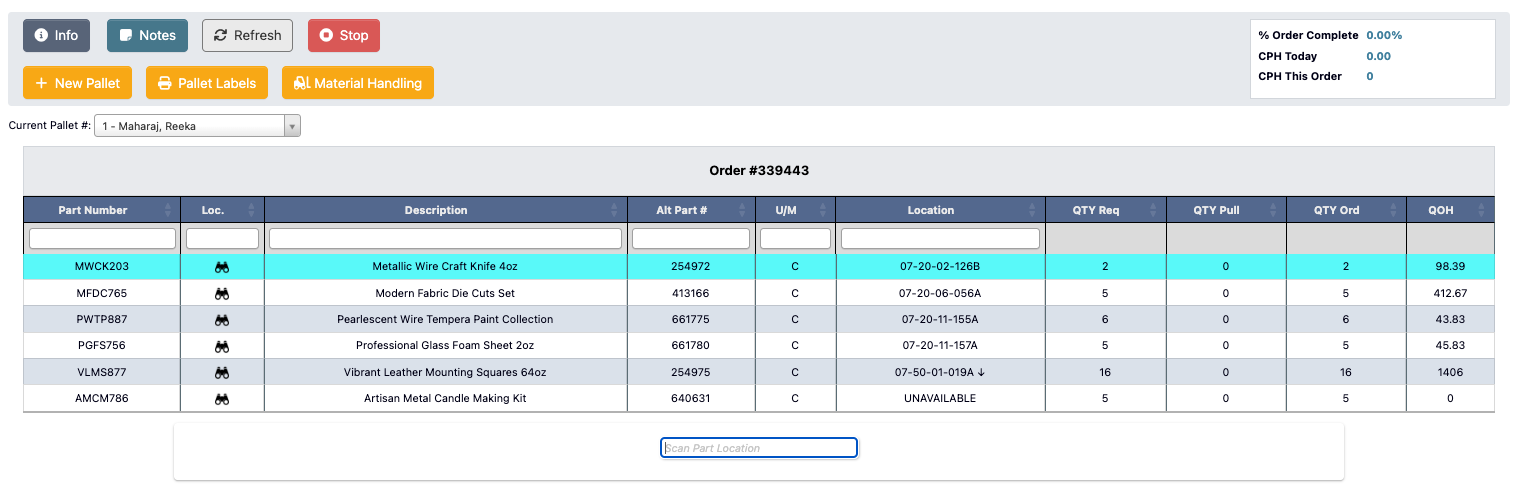
-
Enter the
Qty Pickedand# Cartonsmanually, or click theQuick Pickbutton to autofill with the required quantities.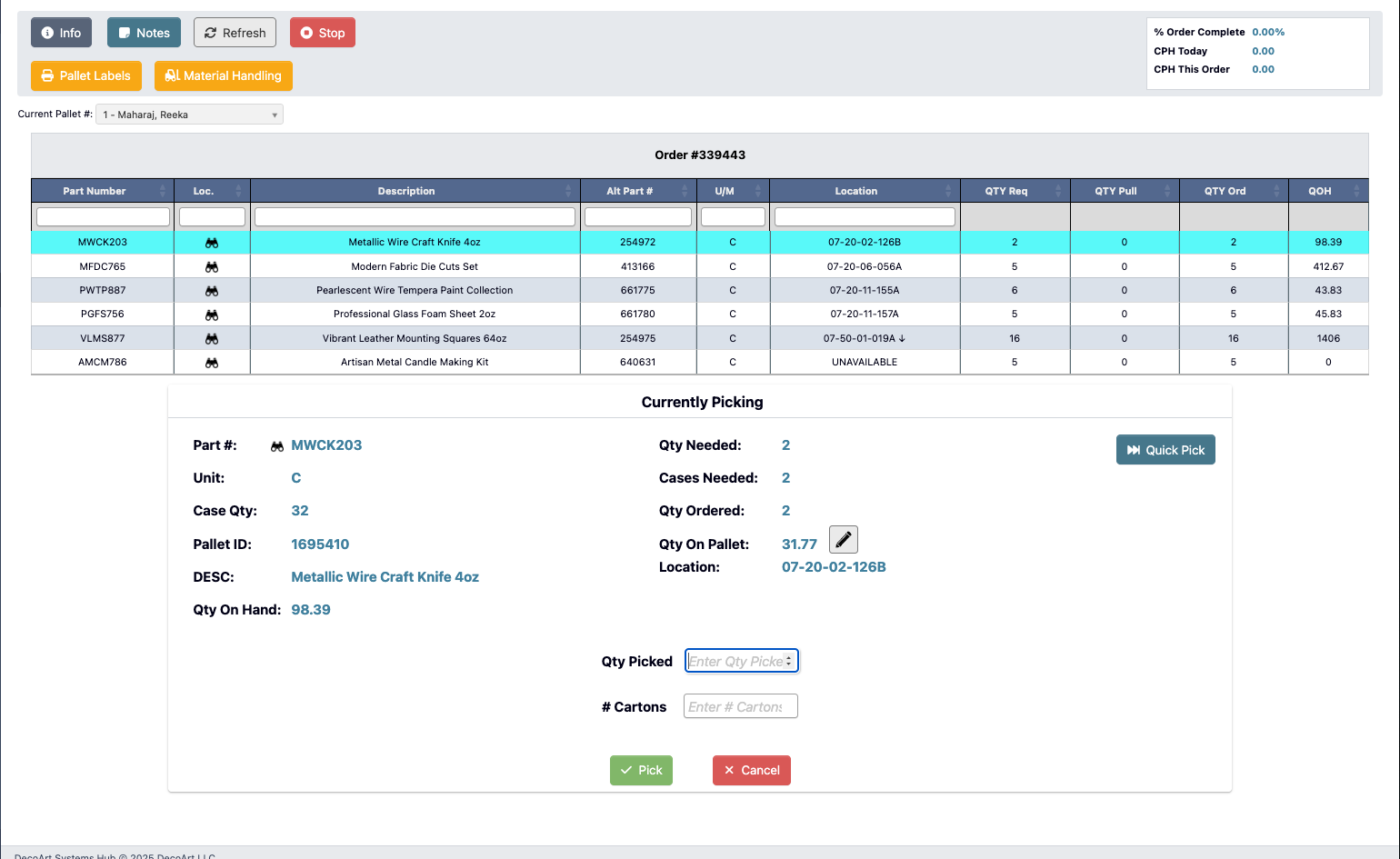
-
Click
Pickto record the pick for this part number, or clickCancelto discard changes. -
Once the line is picked, it will turn green indicating completion.
Step 4: Complete Picking
-
After all items are picked, the
Stopbutton changes to aOrder Complete. Click it to complete the pallet. -
A confirmation window will appear.
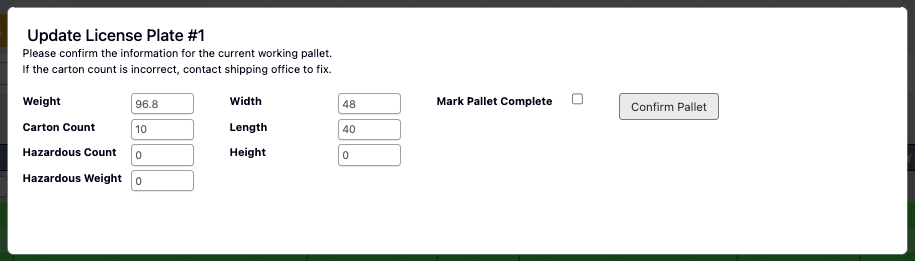
- Select
Mark Pallet Complete. - Click
Confirm Palletto complete the order.
- Select
-
You’ll be prompted to enter remarks:
- Click
YES, mark order completeto finish the order. - Click
NO, close windowto return to the picking screen.
- Click