Overview
This tutorial helps you view and edit an existing order using the DASH Order Processing → Manage Orders submodule. Use this page as a guide for what to input within each order information field, or editing order errors encountered during fulfillment.When You Can Edit
You should edit orders early in their fulfillment, since edit permissions become increasingly restricted when orders are submitted and pulled:- Before Submit (Admin Hold): You can add items; change quantities; edit prices (with override reason); and modify shipping info.
- This is the primary stage for making changes and capturing approvals.
- After Submit (Open Orders): Edits become more constrained as warehouse work proceeds. Some fields may still be adjustable depending on status and holds.
- After Order Completely Pulled: You cannot manipulate fields - the order is effectively read-only except for printing.
View and Edit An Order
Step 1: Pull up an order
- From Order Processing → Manage Orders, click on the All Orders tab and find your order. You can also use the All Open Orders tab if you’re looking for an order in a later picking stage, or that have already shipped.
- Here are some helpful tips for finding and identifying your order quickly:
- You can filter by SSR, order number, customer, ship-to, and more. You can also use the grid search, or click on column headings to sort data, to make your search easier.
- Headers include attributes such as Order #, Status, Customer Order #, and key flags such as Rush, Specialty, Backorder, and Dropship indicators.
- If the order is in a credit-risk state, you’ll see a bright orange legend callout “Call credit before shipping.” This indicates the customer has exceeded their credit limit and credit must be contacted before shipment.
- In the orders grids, the Picking Status column shows pass/percentages so you can quickly gauge progress and whether the order is ready or still short.
- Click the order’s
Order Numberto open the View / Edit Order window.- Alternatively, you can click on the
View / Edit Ordertab and “choose an order” from theOrderdropdown menu.
- Alternatively, you can click on the
- The window will populate with the chosen order’s information.
Step 2: Use the toolbar to manage an order
Once you’ve opened an order in the View / Edit Order tab, use the on-page actions to control editing and updates. Some of these actions may be restricted depending on the order’s status. For example, the Edit button may not appear if the order has been completely pulled, or certain fields may be greyed out and uneditable.

- Click
Editto begin updating line items, prices, shipping info, and remarks.- Note that several toolbar options become available in Edit mode, including Submit and Clear, whereas others such as PF w/Shortages become unavailable.
Special action: Delete All Full Shorts
Once a first pass has been completed and shortages recorded on the order, the Delete All Full Shorts button appears under Order Detail. Clicking it deletes all fully shorted line items from the order. Shortages become visible after the selector shorts items during pass complete, which is when this action is relevant.Changing the net price on this screen affects only this specific order. It does not change the customer’s stored pricing. To make a permanent change, update customer discounts in Customer Information → Manage Customers.
Step 3: Review and edit key sections
Here are common edits you may want to make across the various panels in the View / Edit Order tab:Shipping Information
- Ship Window Open / Required Ship Date / Customer Revised Ship Date are visible and editable (with appropriate controls). Transportation type (Land/Air) is displayed, and ShipStation export appears when applicable.
Other Order Information
- This is a rush / specialty / backorder / dropship order: These indicators show special handling. Hover over the help icon to see an explanation for Specialty Orders (made-to-order items not in inventory).
- Remarks: Click the
Editicon to adjust remarks and related info.
Forwarder Information
Forwarder name/address and related fields are displayed, with Edit / Save controls in this card.Order Detail - Line Items
- Click
Turn ON additional discount/Re-calculate extension(when enabled in edit) to quickly apply a uniform percent discount to all lines, then recalc totals. Note that reversing a discount across lines isn’t currently supported. - The line items grid supports editing (in edit mode), exporting, column show/hide, and multi-column sorting.
- Price override: If a line’s net price differs from system pricing, a red flag appears in the grid. Releasing from Admin Hold will route the order to Price Override Hold for Accounting review. Add a note (e.g., “one-time 10% off”) in the message field to speed approval.
- Legend badges you may see under lines: Line Item Cancelled and Line Item Suspended.
- Click
Export / Printto export line items (CSV/Excel/PDF) or print from the line items grid actions.
- Red flag under Order Detail: “This price has been overridden from the original price of $____.” (Indicates a price override on that line.)
- Yellow flag: “The entered item number has a status of I.”
- Grey flag: “The entered item number has a status of T.”
Totals
Before/After Discount and other computed totals are displayed in this card. For orders that ship in multiple shipments, the card also shows what is still left to ship: Remaining $, Remaining Weight, and Remaining Cartons cover the product that has not been invoiced yet and update as shipments are invoiced.
Shortage Information
These are line item quantities that you may not be able to pick for this order: they are currently short and would not be shipped. Shortages become visible after a selector completes a pass and shorts the lines; that first pass is what exposes shortage details for CSRs and ops to work.Pallet Information
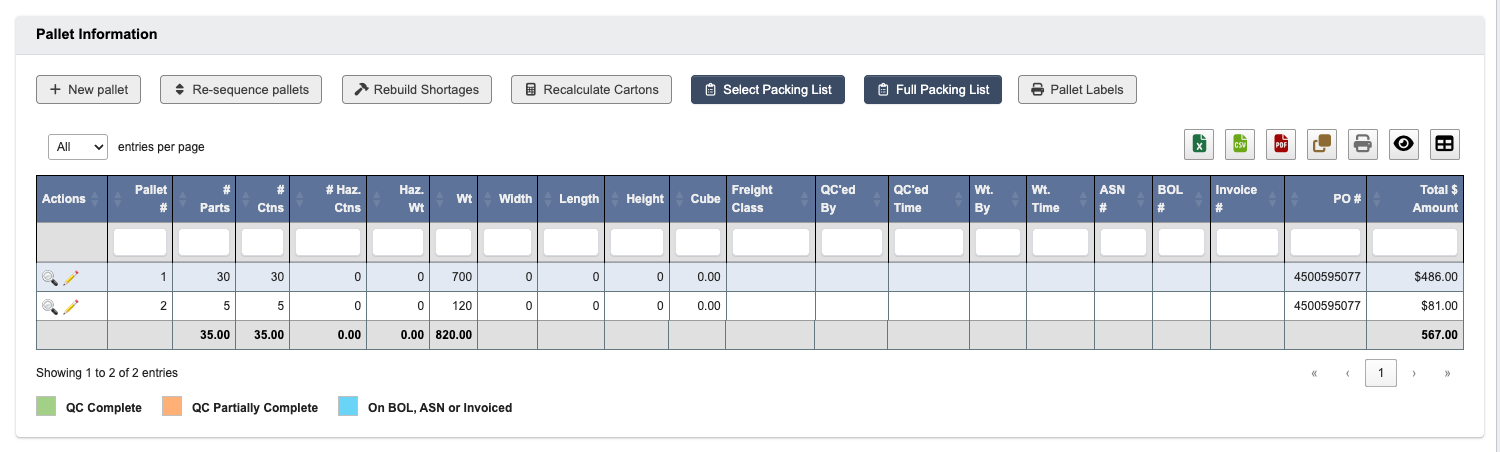
The Pallet Information card tracks all pallets and their contents associated with this order.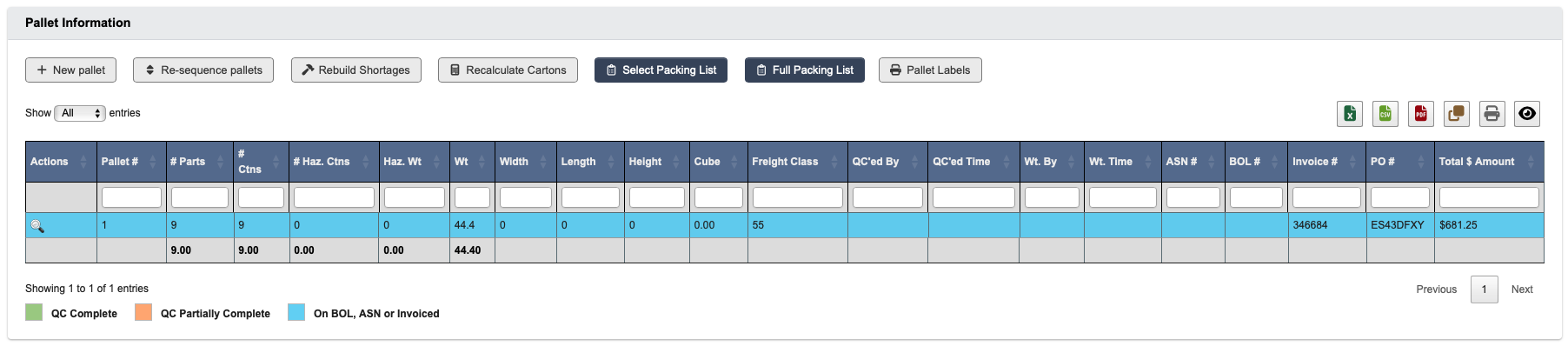
-
Click the
View/Editbuttons beside a Pallet line item to view/manage its Part contents. For example, you may choose to edit associated weights and dimensions, or remove Parts from a particular Pallet.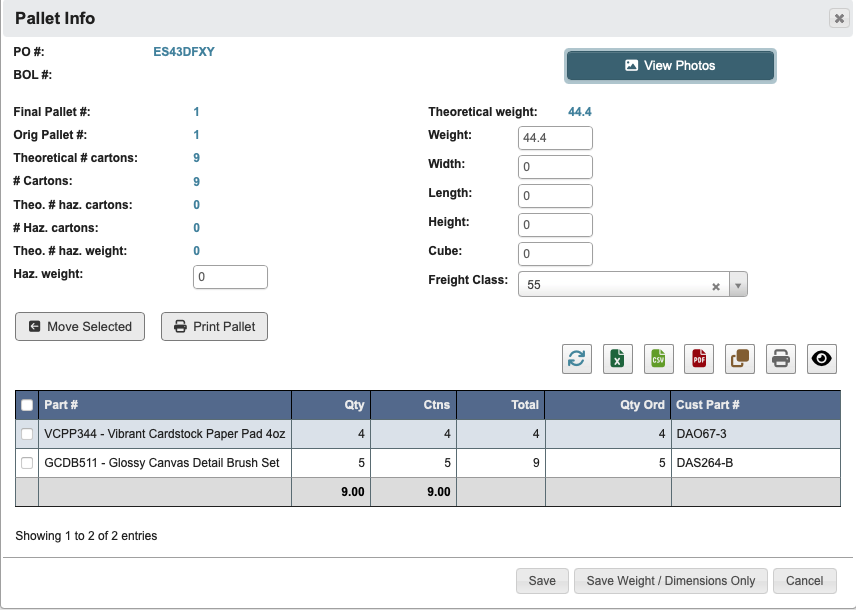
-
Each pallet row shows a Total $ Amount — the value of the product picked onto that pallet — and the grid footer sums the dollars picked across all pallets on the order.
Part Picks
If the order hasn’t been picked, you’ll see “This order has not been picked yet.” Otherwise, this will show who picked what, when, and from where, letting you keep track of current or historical picking progress.Step 4: Place on hold or resubmit
- If you want to exit without saving, click
Cancel Editing. - Choose whether to put the order on
Admin Hold. While on Admin Hold you can add items, change quantities, edit shipping, and override prices. - Otherwise, click
Submitwhen finished editing to release the order to the warehouse. After submitting, edits become progressively limited (see “When you can edit” above).