How the Interface Works
The Order Picking submodule provides a table view of all orders ready for fulfillment. The interface displays orders in a prioritized list with color-coded status indicators to help selectors efficiently manage their picking workflow.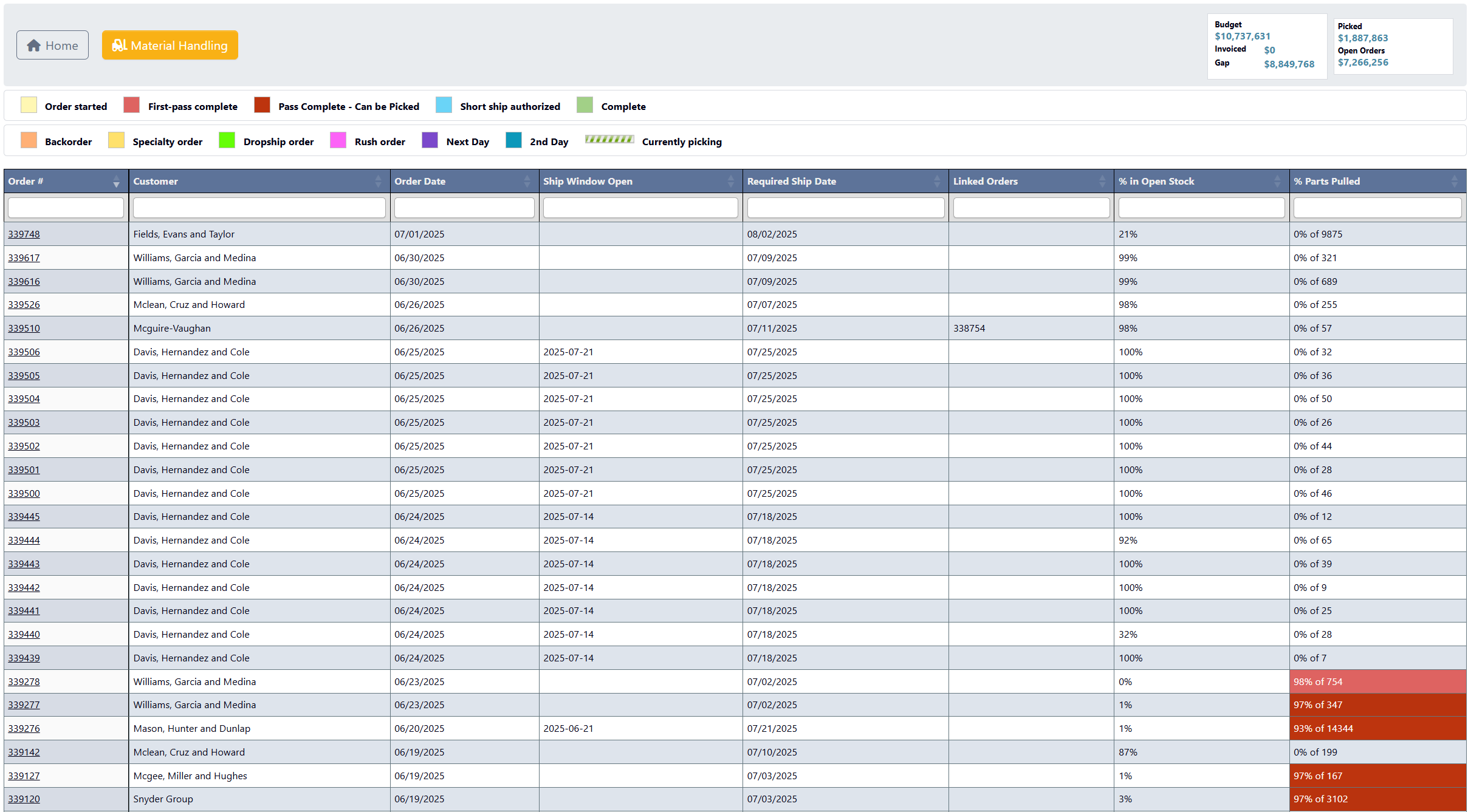
Toolbar Buttons
Home: Takes you to Shipping Selector.Material Handling: Opens a License Plate Section popup where you can search by:- Scanning Plate #: Use barcode scanner to quickly locate license plates.
- Location: Search by warehouse location code.
- Learn more Material Handler.
Toolbar Metrics
The toolbar displays high-level operational metrics:- Budget: Financial tracking.
- Invoices: Invoice totals and processing status.
- Gap: The gap between what has been invoiced and the budget
- Picked: Dollar value of picked orders.
- Open Orders: Dollar value of orders awaiting fulfillment.
Color Status Key
 The interface includes a color-coded key showing what the colors in the
 % Parts Pulled column mean, helping selectors quickly identify order status at a glance.
Order List
The main interface displays a table of open orders to pick, organized by priority and shipping requirements.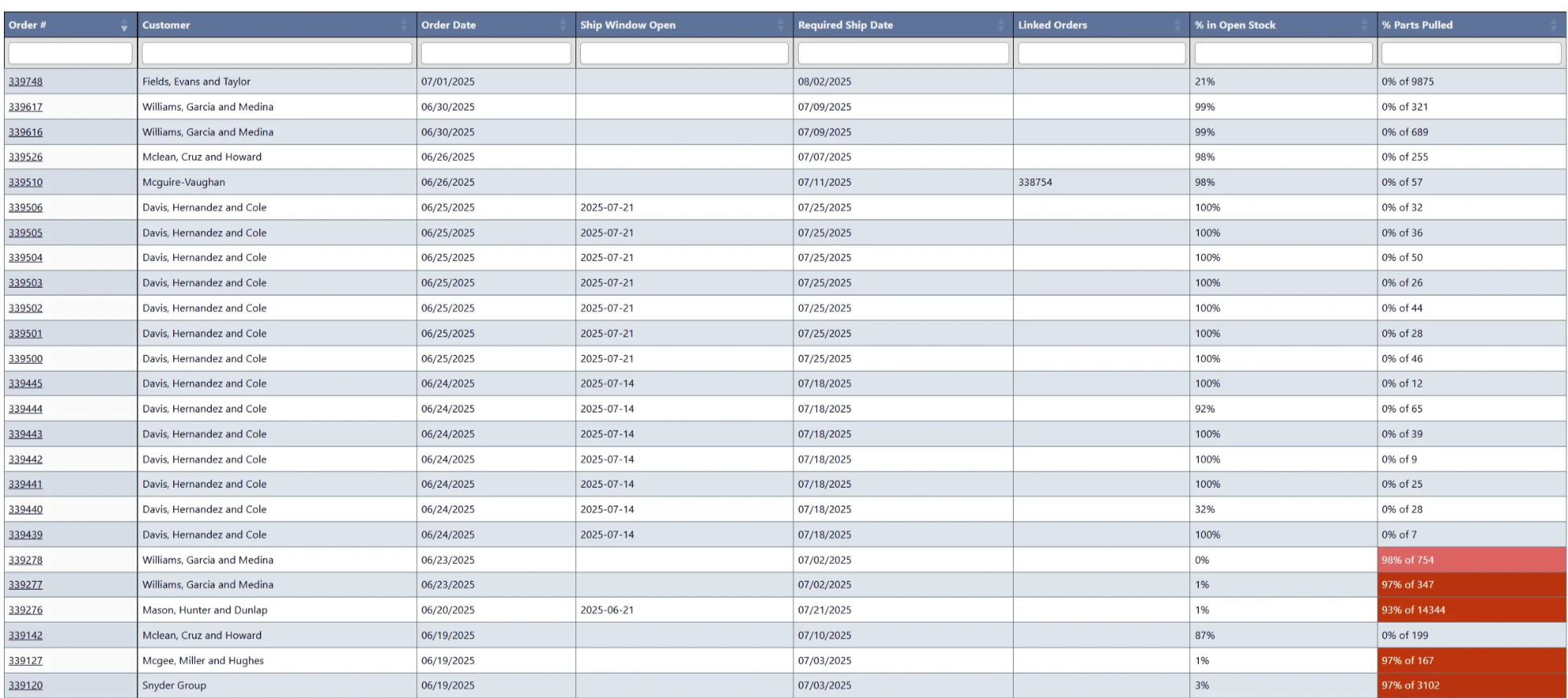
Order Picking List Interface
When you click an order number from the Order Picking list, you’re taken to the Pick Order Interface. This screen shows all line items for that order, with tools to search, filter, and drill into details before you start picking.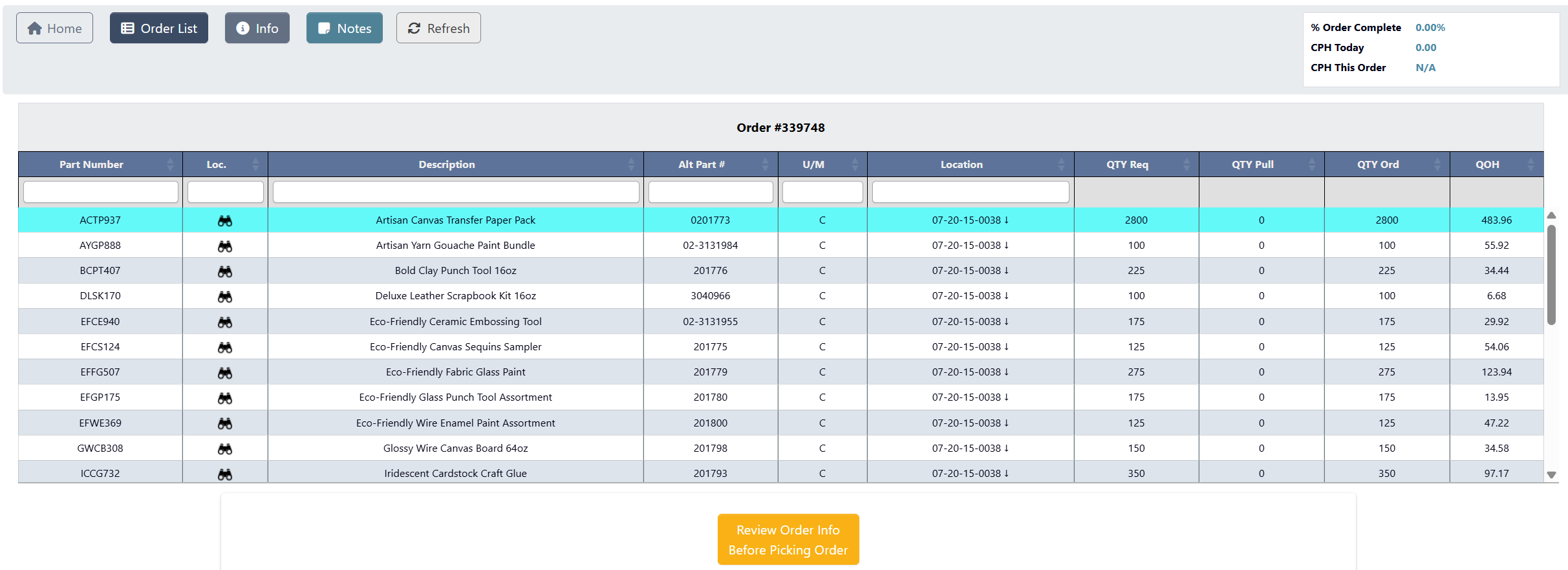
Toolbar Buttons

Home: Takes you to Shipping Selector.Order List: Takes you to Order Picking Page.Info: Opens the Order Information pop-up with shipping details, customer instructions, and attached documents.Notes: Opens the Add Note pop-up to add remarks about the order.Refresh: Reloads the current view with the latest data.
Progress Panel Metrics
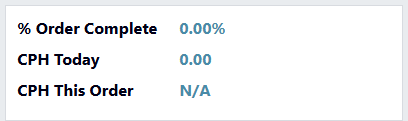 The interface displays real-time performance metrics:
- % Order Complete: How much of the order has been picked.
- CPH Today: Cartons picked per hour today.
- CPH This Order: Cartons per hour for this specific order.
Order Information
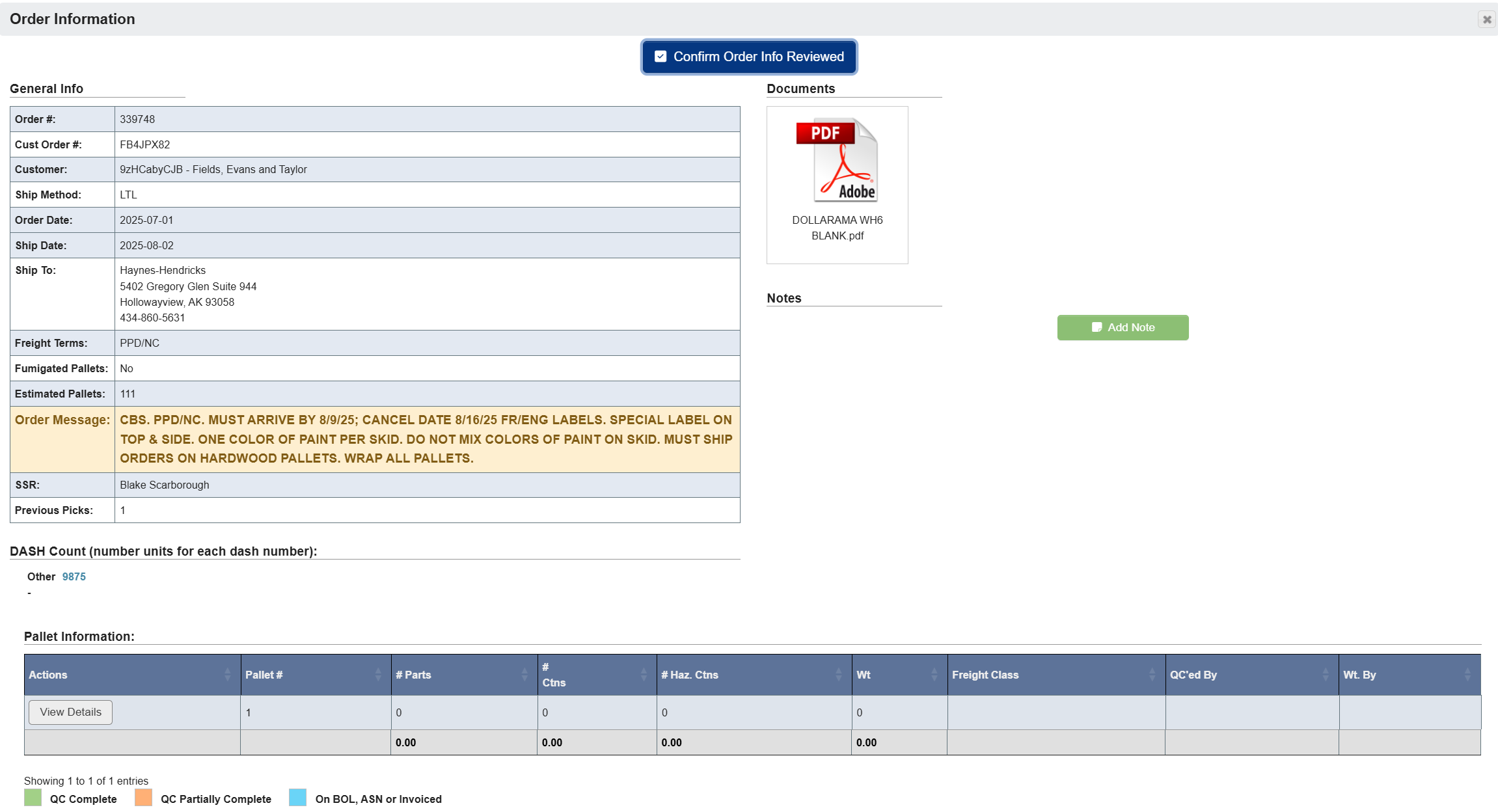 The Order Information popup displays:
- General order details: Dates, ship-to, freight terms, estimated pallets
- Selector Message: Pick-specific instructions such as heat treated pallet requirements, labeling requirements, and label size. Shipping details are kept in the order’s separate Shipping Message, which this popup only includes during QC review.
- Attached documents: PDFs, labels, etc.
- Notes: For adding or viewing comments
SPD Order Picking Buttons
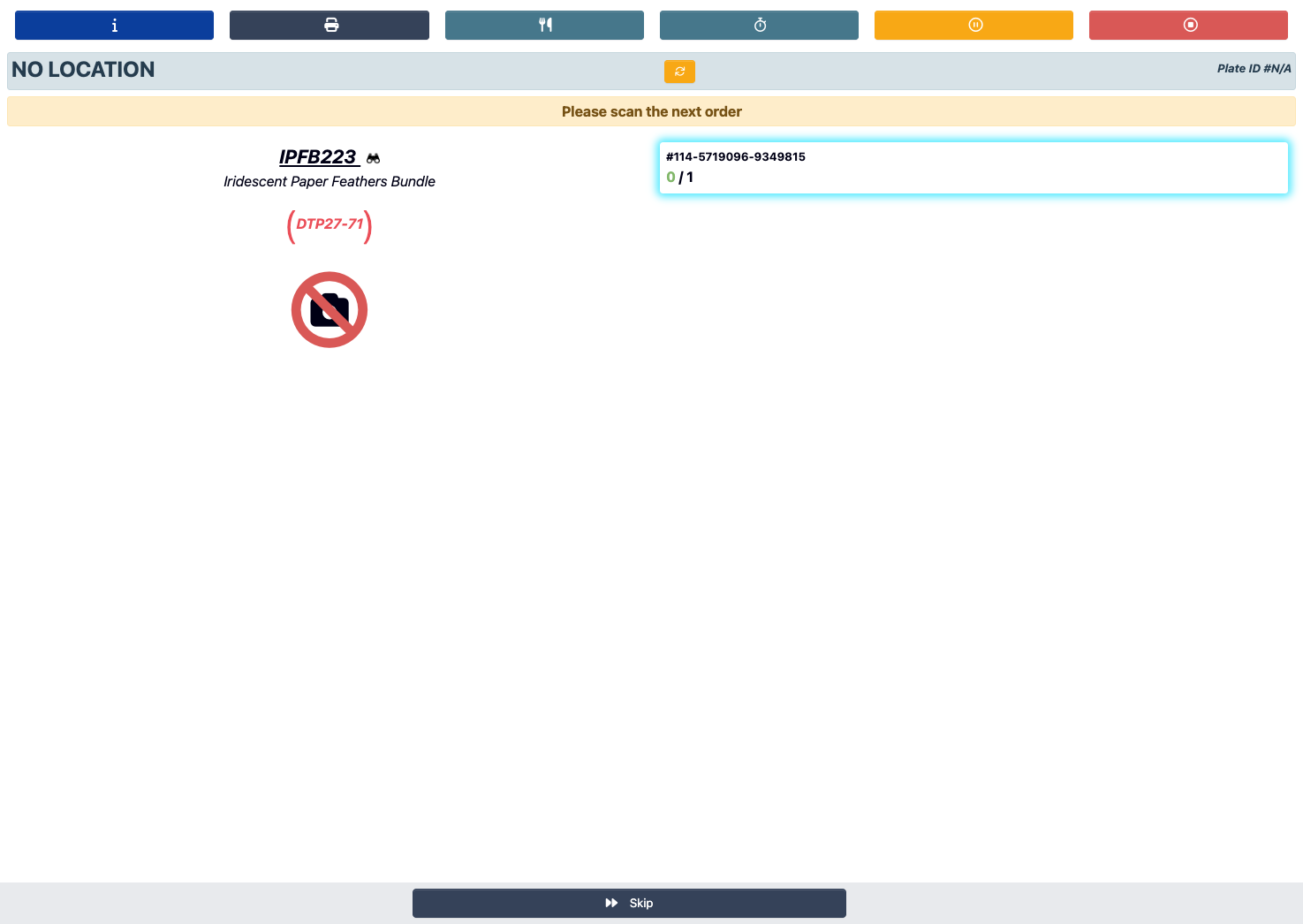
-
Information: Opens an order information pop-up with financial, shipping and item information. -
Print: Allows you to print order labels. -
Lunch: Pauses the order picking process until you clickContinue Picking. -
Stopwatch: Pauses the order picking process until you clickContinue Picking. -
Pause: Pauses the order picking process until you clickContinue Picking. -
Stop: Stop the picking process. -
Refresh: Reloads the current view with the latest data. -
Skip: Allows you to skip to the next item and return to pick this item last. -
Short: Short a product (Will show up after scanning order).jpeg?fit=max&auto=format&n=dx_LHZrXqBgnC_EY&q=85&s=643c37920bf976c6f43dc8c5720aa8c3)
LTL Order Picking Buttons
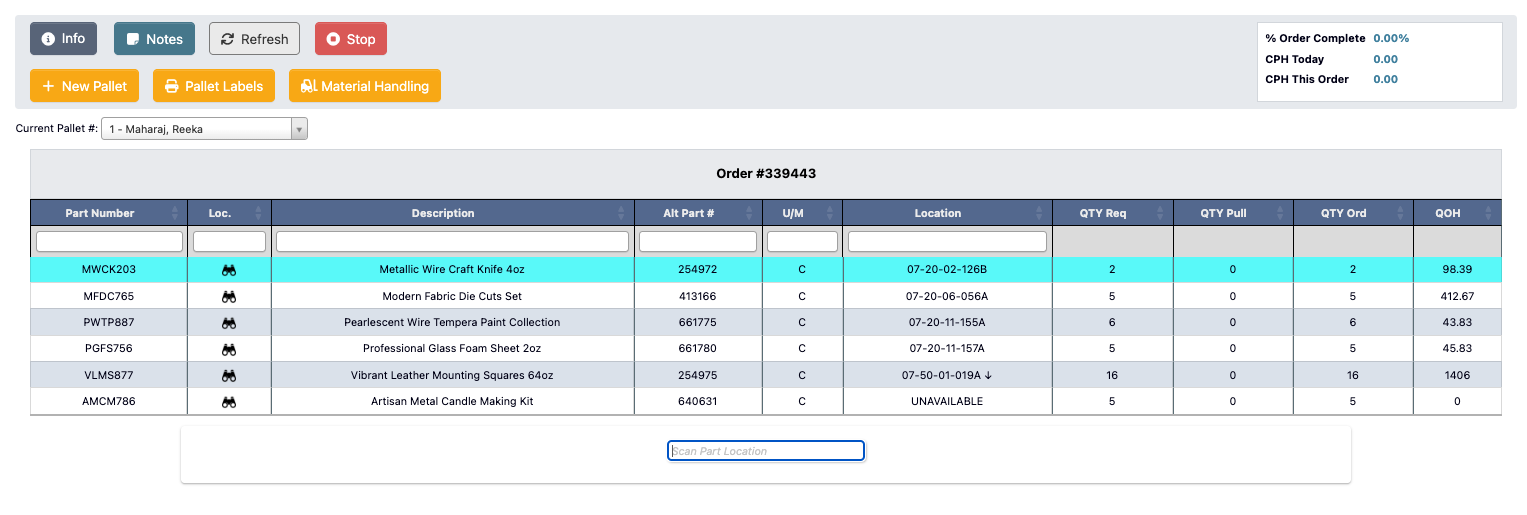
Info: Opens an order information pop-up with shipping details, customer instructions, and attached documents.Notes: Opens an add note pop-up to add remarks about the order.Refresh: Reloads the current view with the latest data.Stop: Stop the picking process.Pallet Labels: Print pallet labels.Material Handling: Opens a license plate section popup where you can search by plate number or location. Learn more Material Handler.
Pallet Detail Find Item
When you open a pallet detail dialog in QC mode, theFind Item control appears beside Add New.
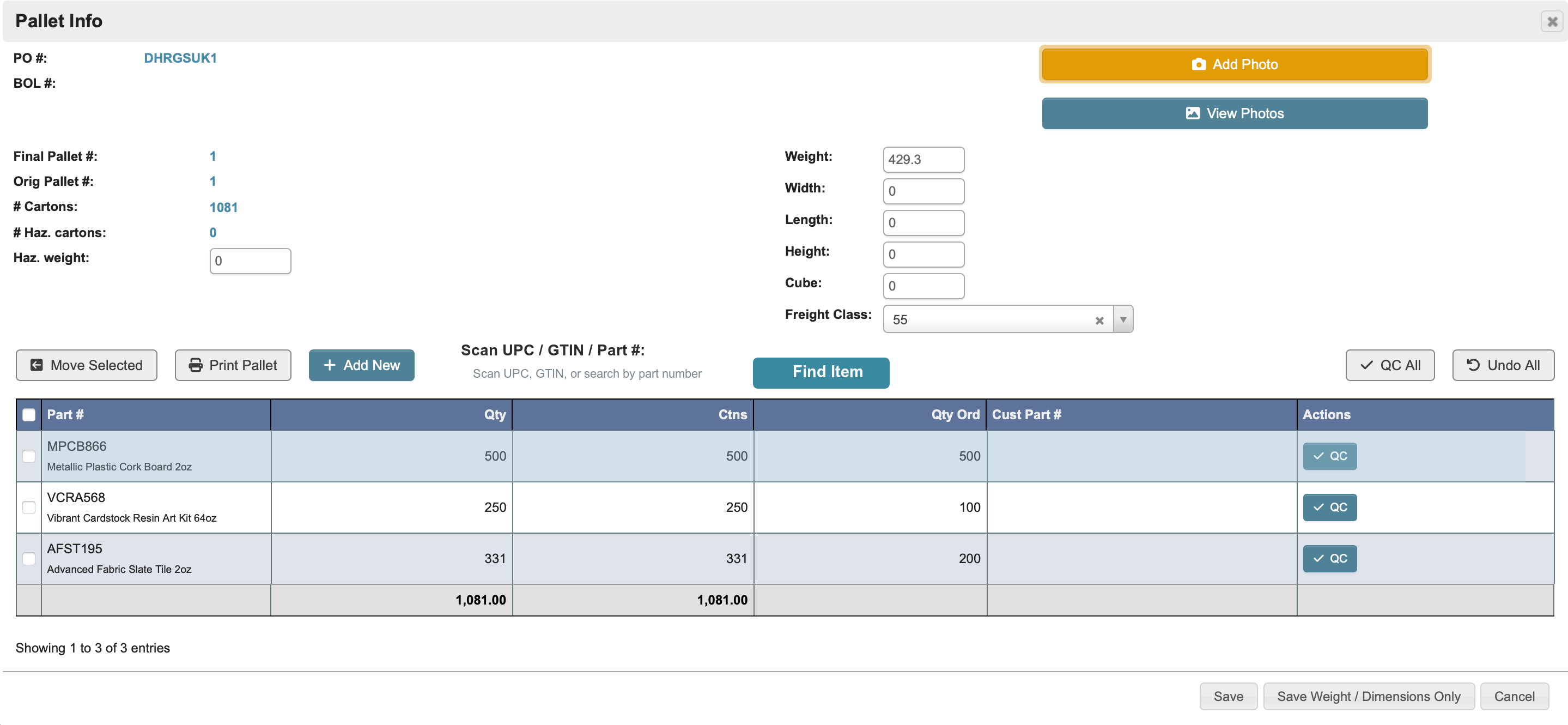
- Use it to jump directly to a pallet line by scanning a
UPC,GTIN, or entering aPart #. - DASH scrolls the pallet detail table to the first matching line and shows a notification confirming the result.