Overview
The Order Processing → Picking Status submodule shows picking progress and shortages for submitted orders. Use it to scan order completion, see where shortages occurred, and jump into an order to take the next step (e.g., short-ship authorization in View / Edit Order).What do “shortages” and “short-ships” mean?
- Shortages are items on an order that could not be picked when the selector tried. This may be because there’s not enough inventory, inventory is in the wrong location, or it has not yet been received or produced. If shortages aren’t resolved, the customer will not receive these parts.
- A short-ship is when an order is shipped without all of its originally ordered items, usually because those items are unavailable or delayed. It requires SSR authorization in DASH before the order can proceed.
What You Can Do
Picking Summary
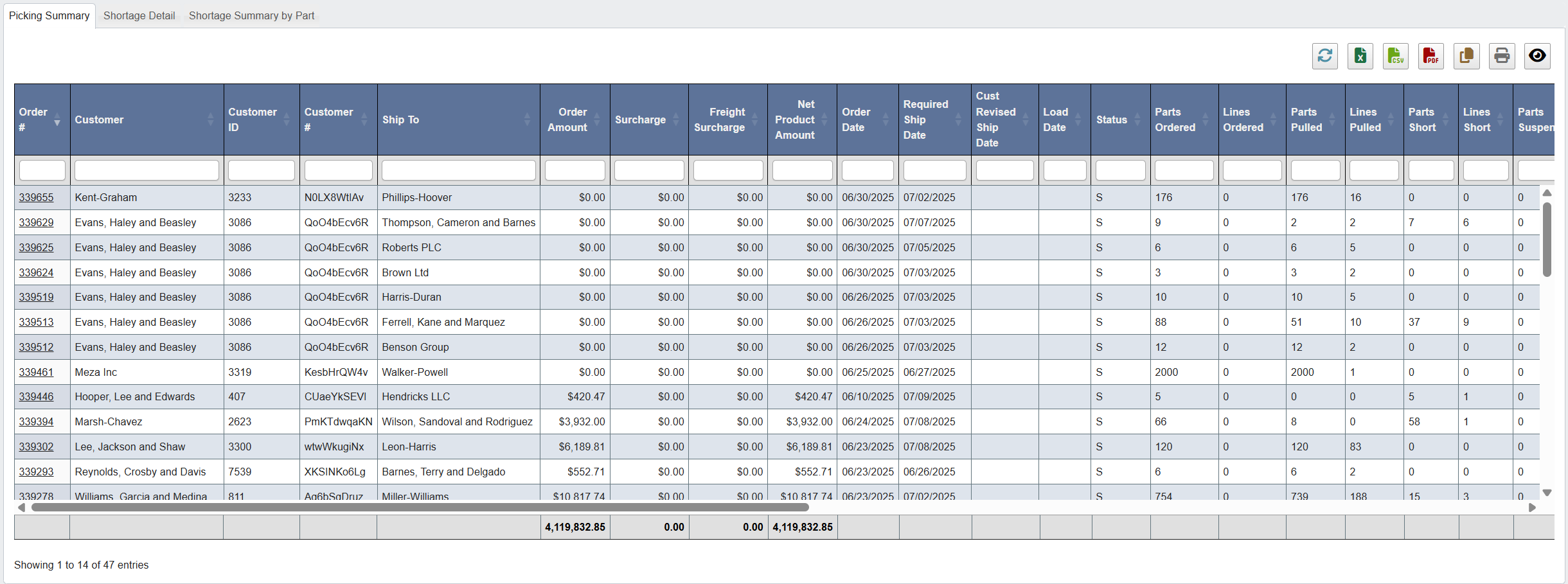
- This tab gives you a table showing the picking progress of each order, including completion %, dollars impacted, and whether a short-ship has been authorized. Use it to spot what’s ready and what needs additional attention.
- What to scan:
- Required Ship Date / Load Date: time sensitivity.
- % Parts Complete / % Lines Complete: overall progress.
- Dollars Short / Dollars Suspended: financial impact.
- Parts Short / Lines Short: where picking failed.
- Short Ship Auth.: shows if a short-ship has already been approved (e.g.,
Y – 07/01/2025 – <note>). - SSR: who owns the order; filter by your name when triaging your queue.
- Remarks: quick history stamps (e.g.,
SHT-06/28,CMPLT-07/01).
- Open an order by clicking its Order #.
Shortage Detail
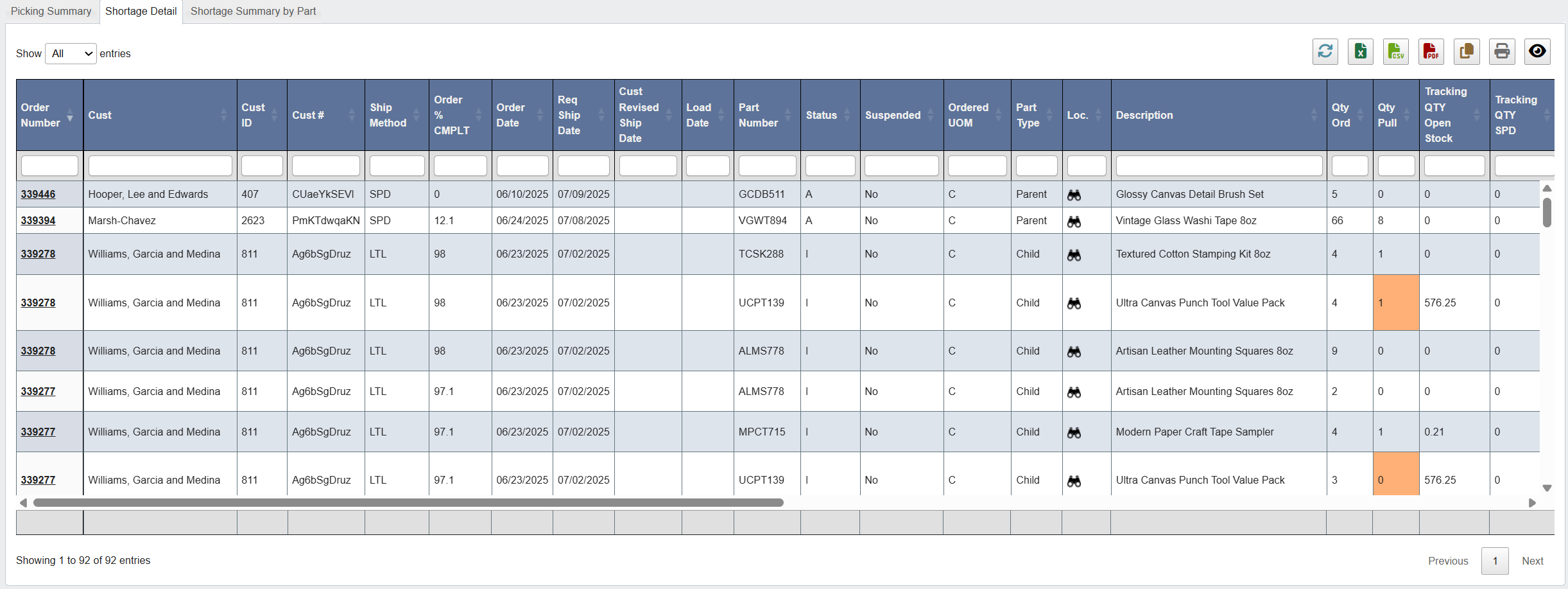
- A line-level view of what was shorted, where it was expected from, and related tracking/context. Each row is a shorted part/line; the same Order Number can appear on multiple rows when an order has several shorted parts. Use it to see why orders have shortages and decide on next steps (e.g., authorizing a short-ship, selecting a substitution).
- Start with:
- Qty Ord vs Qty Pull to see the gap on the line.
- Status / Suspended to see if the line is blocked.
- Shortage Messages for the latest reason/timestamp.
- Tracking QTY Open Stock / SPD + Perp QOH to gauge what’s actually available and where.
- Alternate Part Configs (Required / QOH / YTD Sales) for quick substitution options.
-
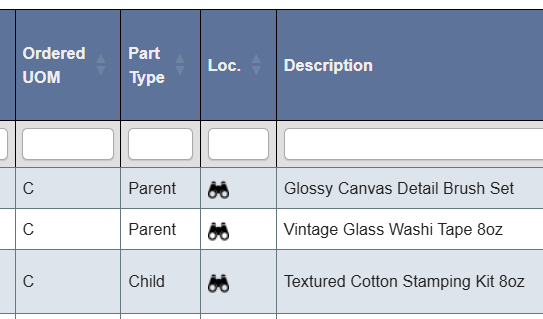
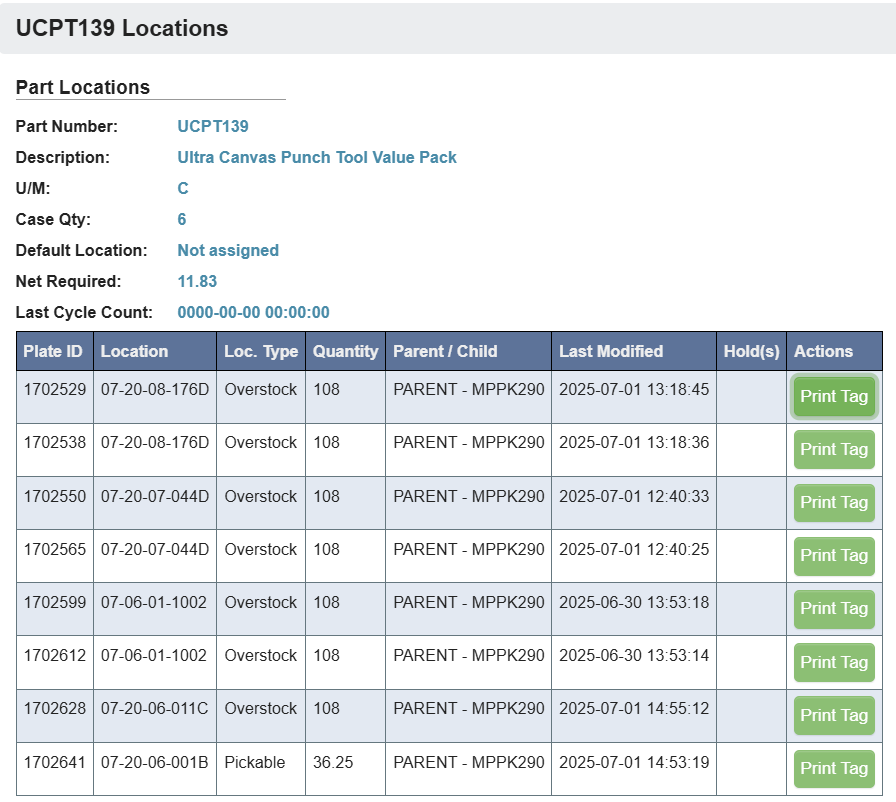
Loc. (Binoculars icon): click to view current inventory locations for the shorted part. This helps confirm stock status or identify overstock that could be pulled.
Shortage Summary by Part
- A part-focused summary of shortages within a time window.
-
How to use it:
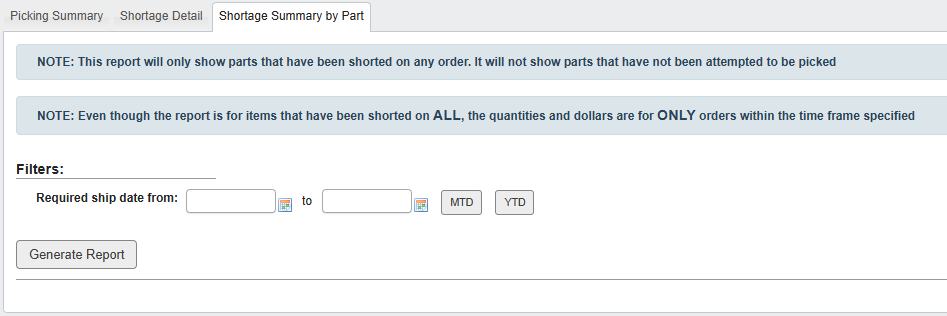
- Select a timeframe: select dates from the calendar dropdown, or click
MTDorYTDto set the time to month-to-date or year-to-date. - Click
Generate Report. - View shorted parts and their dollar impact in the selected window.
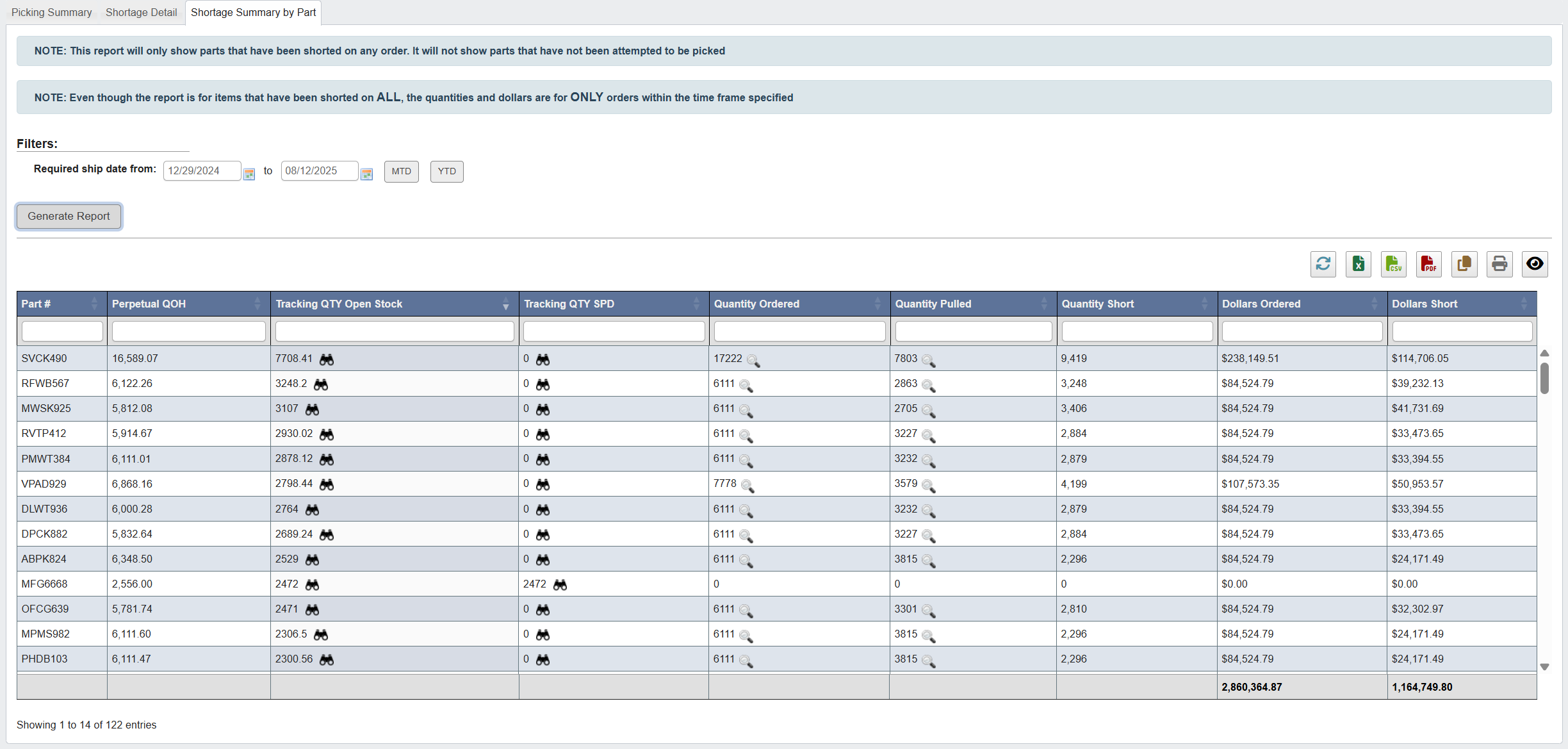
- Select a timeframe: select dates from the calendar dropdown, or click