Overview
The Order Reports submodule lets you analyze orders, drilling into information such as what’s open (and where), what’s been short-shipped or cancelled, and how today’s activity compares to prior periods. It’s useful for daily operations (picking, expediting), customer service (promising ship dates), and finance (invoicing/shortage review). Several reports here also tie directly into loss-of-sales analysis and shortage tracking that teams review regularly.Report Options
Each tab shows a different slice of order data and supports required/optional filters:- Cancelled: List of cancelled orders.
- Backorders: List of open backorders.
- Price Overrides: Orders with price changes.
- History: Order history by order/release/ship/invoice dates.
- Comp. Summary: Compare orders released between two date ranges.
- Part Summary: Line items from Invoiced or Open Orders.
- Invoiced Short: Invoiced orders shipped short.
- Open Orders w/ Locations: Open orders in a ship date window with locations.
- Manufacturing Requirements: Component needs from open orders.
- Purchasing Requirements: Buy list for open orders.
- Open Orders by Part: Open demand lines by part.
- Inv. Summary: Invoicing totals for a selected period.
- Sales Analysis: Sales comparisons by customer/channel/product.
- Forecast Accuracy: Forecast vs. actual orders by period.
How to Generate a Report
Some reports contain both Required Filters and Optional Filters. A report will not generate until you fill in all required filters.
Generate a Cancelled report
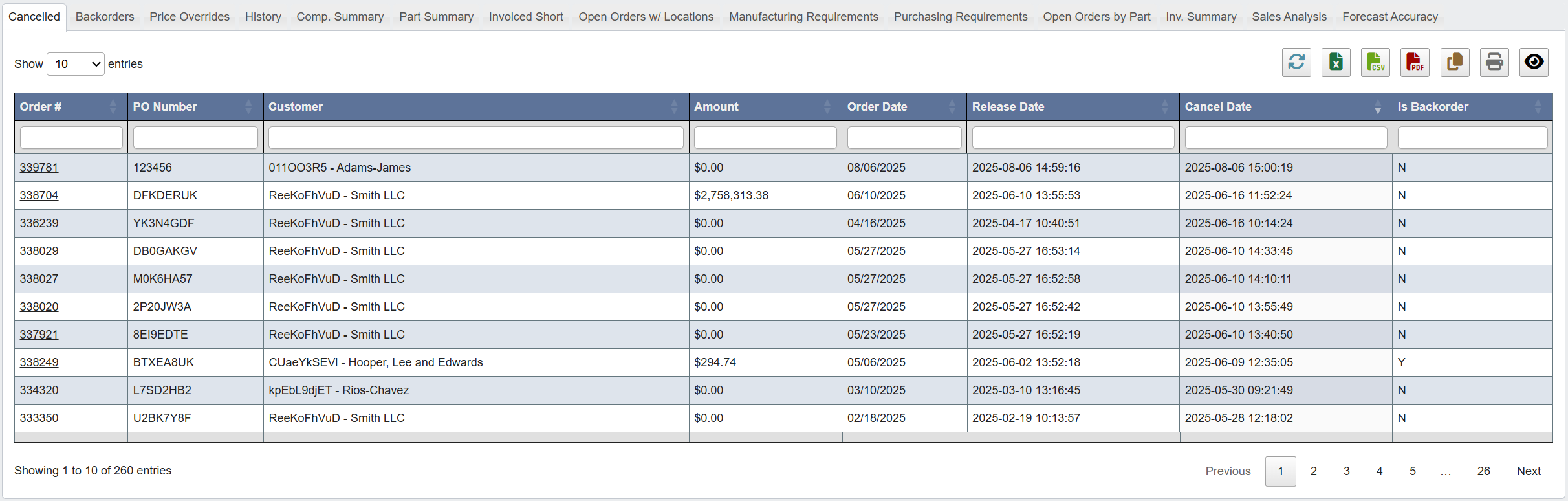
-
Click the
Cancelledtab. - Set the required filters: Column Filters: Enter values under each header to narrow results, or leave blank to view all.
- (Optional): Sort by Cancel Date or Amount.
-
Click
Generate Report.
Generate a Backorders report
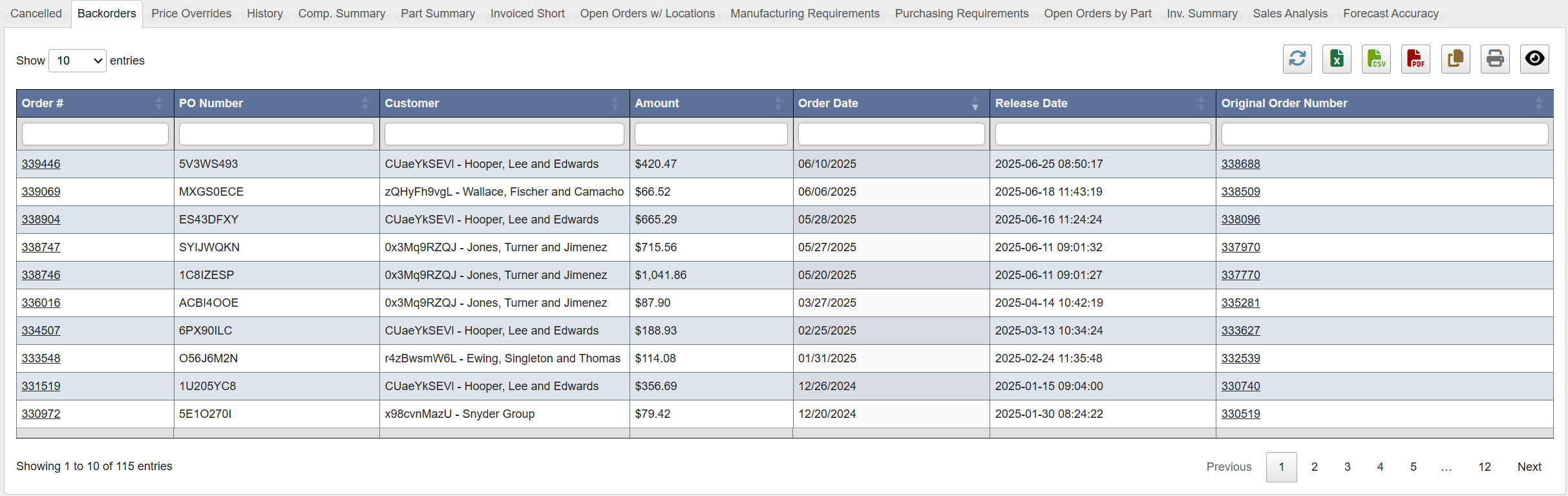
-
Click the
Backorderstab. - Set the required filters: Customer: Select or enter customer name PO: Enter purchase order number Order #: Enter order number
- (Optional): Sort by Release Date or Amount.
-
Click
Generate Report.
Generate a Price Overrides report
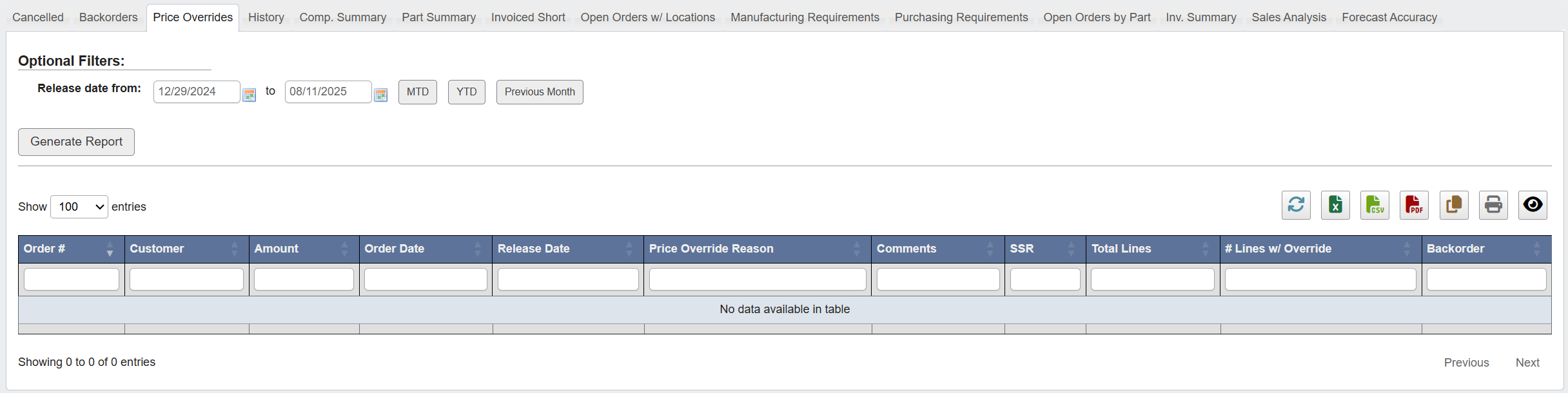
-
Click the
Price Overridestab. - Set the required filters: Release Date From/To: Select a date range (quick options: MTD, YTD, Previous Month).
-
Click
Generate Report.
Generate a History report
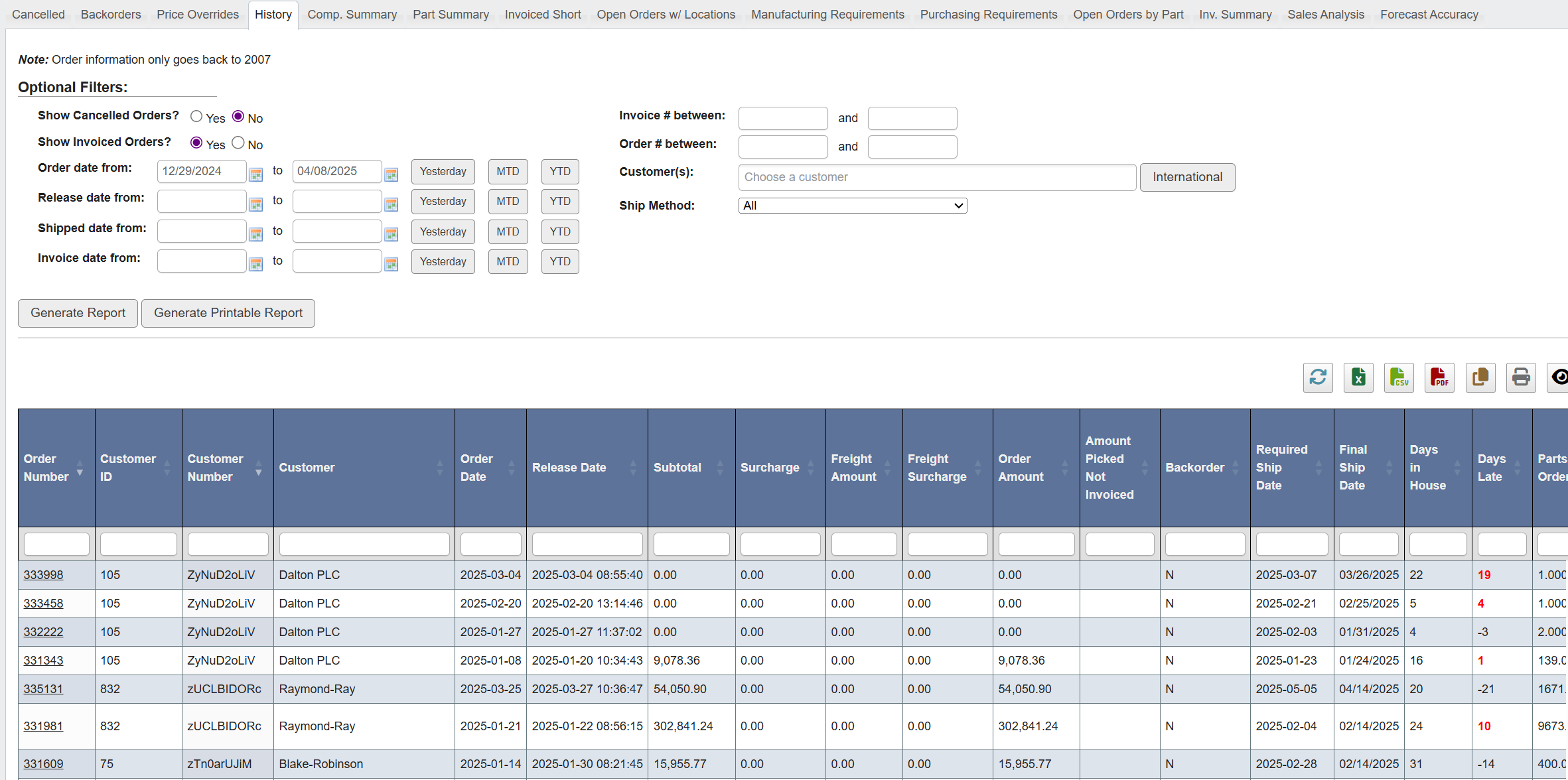
-
Click the
Historytab. - Set the required filters: Show Cancelled Orders: Yes/No Show Invoiced Orders: Yes/No Order/Release/Shipped/Invoice Date From/To: Enter date ranges or use quick options (Yesterday, MTD, YTD)
- (Optional): Filter by Customer(s), Ship Method, Invoice # Between, Order # Between.
-
Click
Generate Report.
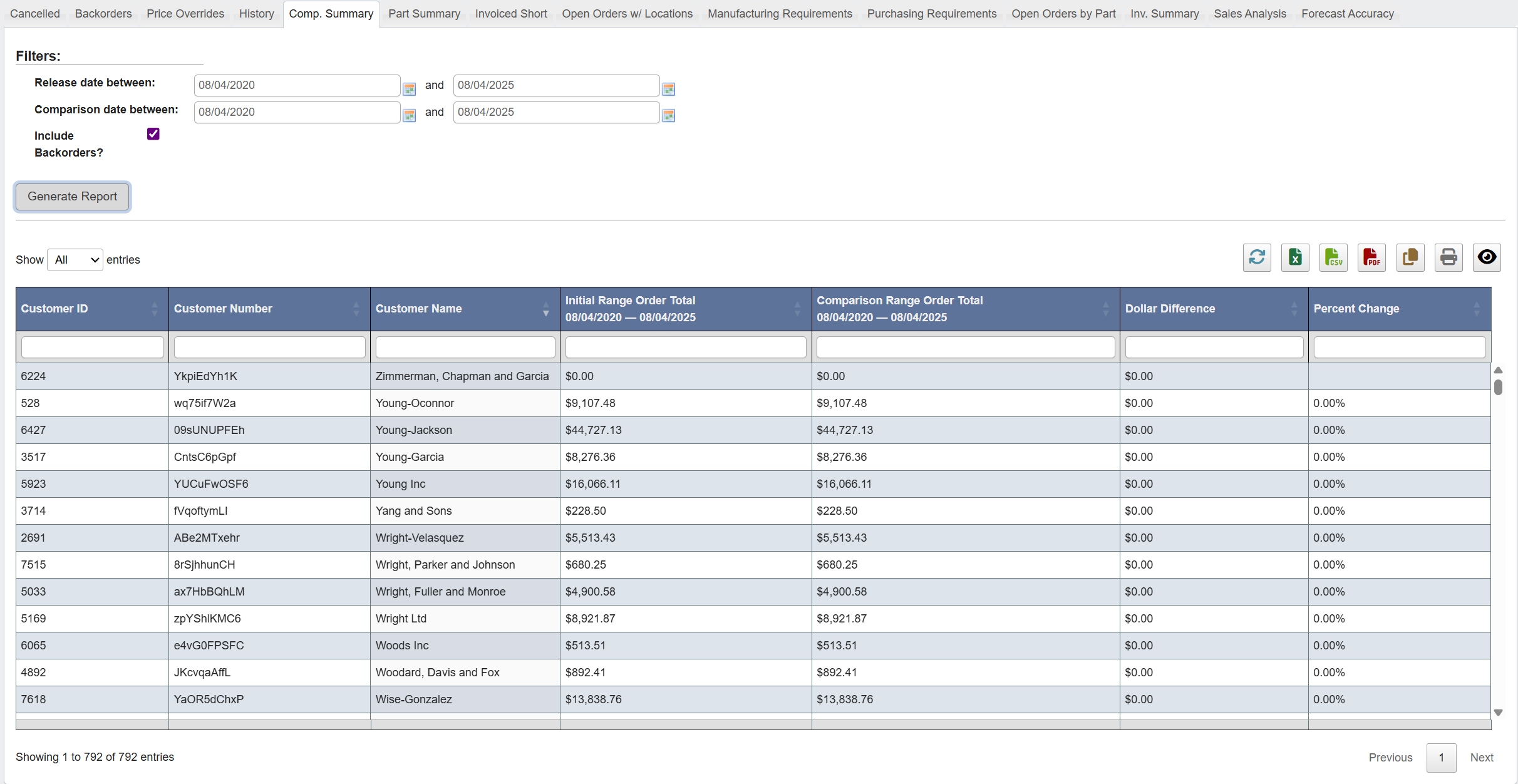
Generate a Comp. Summary (Comparative Order Summary) report
-
Click the
Comp. Summarytab. - Set the required filters: Release Date Between: Primary date range Comparison Date Between: Comparison date range
- (Optional): Select Include Backorders.
-
Click
Generate Report.
Generate a Part Summary report
- Click the
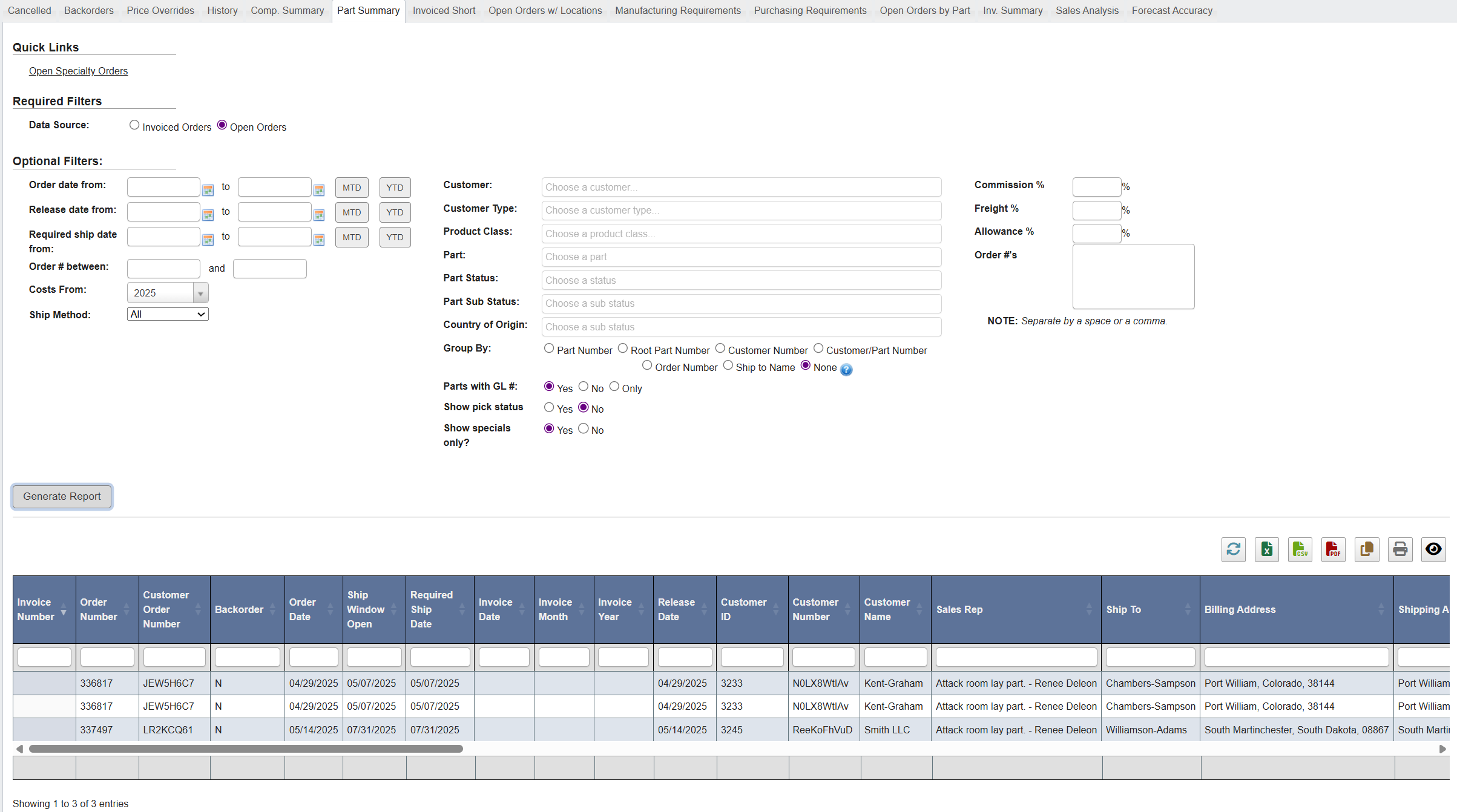
Part Summarytab. - Pick Data Source: Choose either Invoiced Orders (for post-shipment analysis) or Open Orders (for current pipeline).
- (Optional) Add any date filters (Order/Release/Invoice/Required ship date) using MTD/YTD shortcuts.
- (Optional) Choose Group By: This feature filters and organizes your report based on a specific attribute, significantly changing the output. The options are:
Part Number: Groups lines by individual part number.Root Part Number: Consolidates by the parent/root part, combining WIP or variant part numbers under one root.Customer Number: Groups all lines by customer number, aggregating all their orders.Customer/Part Number: Breaks down by customer and part, showing exactly what each customer ordered per part.Order Number: Displays each order as a group, with order details and shipment status.Ship to Name: Groups by the delivery location or name where goods are shipped.None: Shows every order line individually, ungrouped. Useful for detailed line-level analysis.
- (Optional) Narrow scope by filling in the following attributes:
- Customer, Product, and Part information: These fields are located on the right side of “Optional Filters” and include:
Customer: Select a specific customer account.Customer Type: Filter by type (e.g., distributor, OEM).Product Class: Restrict to a product family or category.Part: Choose a specific part number.Part Status, Sub-status: Filter by lifecycle status (e.g., active, obsolete) and sub-status.Country of Origin: Filter by manufacturing origin.
- Order ID information: These fields include
Order #s: Copy and paste in the list of Order #s you want to report on. Located at the bottom of the screen.Invoice # between: Located on the left side of “Optional Filters”.Order # between: Located on the left side of “Optional Filters”.
- Percentage Cost information, located at the bottom of screen, such as:
Commission %: Apply commission factor for margin analysis.Freight %: Add freight cost as a percent.Allowance %: Apply discount/allowance factor.
- Additional fields such as
Costs From(year) andShip Method, located on the left side of “Optional Filters”
- Customer, Product, and Part information: These fields are located on the right side of “Optional Filters” and include:
- (Optional) Set additional report parameters such as:
Parts with GL #(Yes/No/Only): Include/exclude or limit to parts tied to GL accounts.
Roll up backorders & multiple invoices: Consolidates quantities and invoices into one line.Show pick status: Adds whether lines have been picked in warehouse.Show specials only: Filters to show only promotional/special order lines.
- Click
Generate Report.
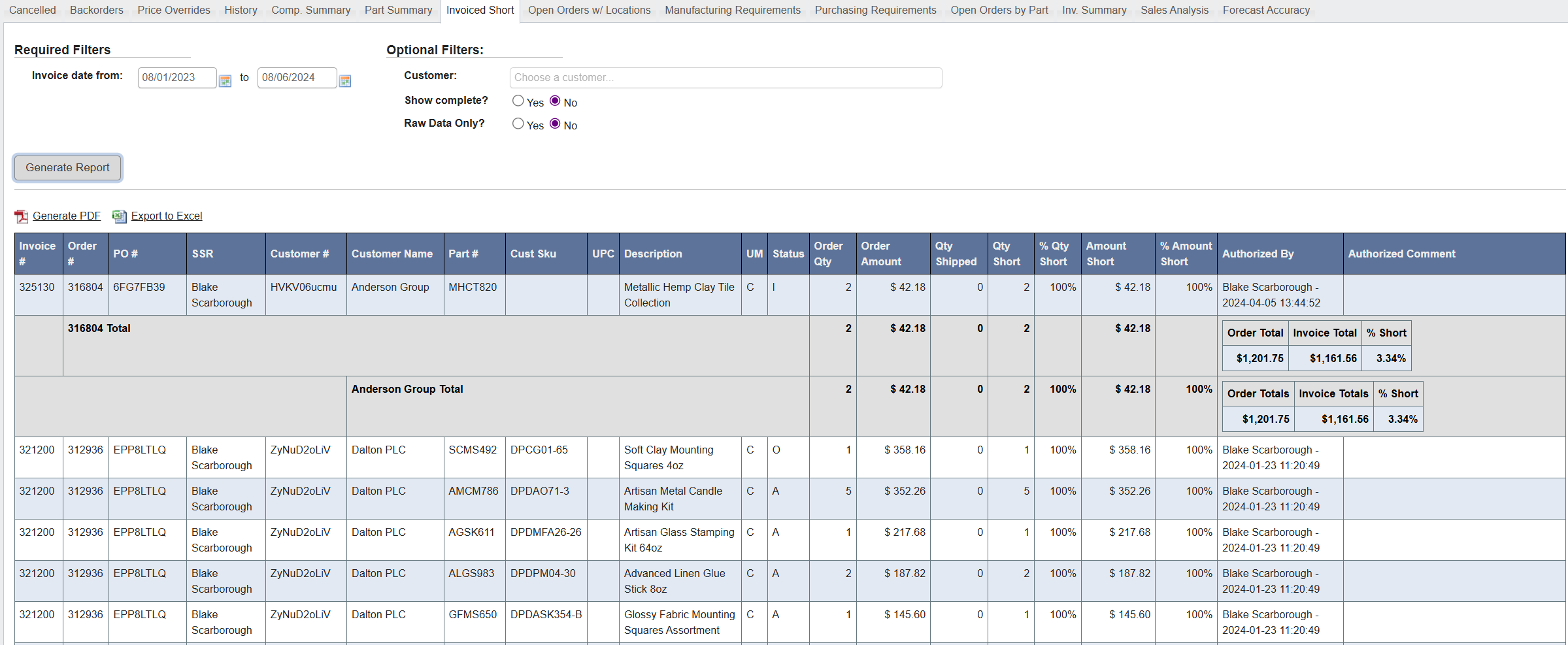
Generate an Invoiced Short report
-
Click the
Invoiced Shorttab. - Set the required filters: Invoice Date From/To: Select date range
- (Optional): Customer, Show Complete?, Raw Data Only?
-
Click
Generate Report.
Generate an Open Orders w/ Locations report
- Click the
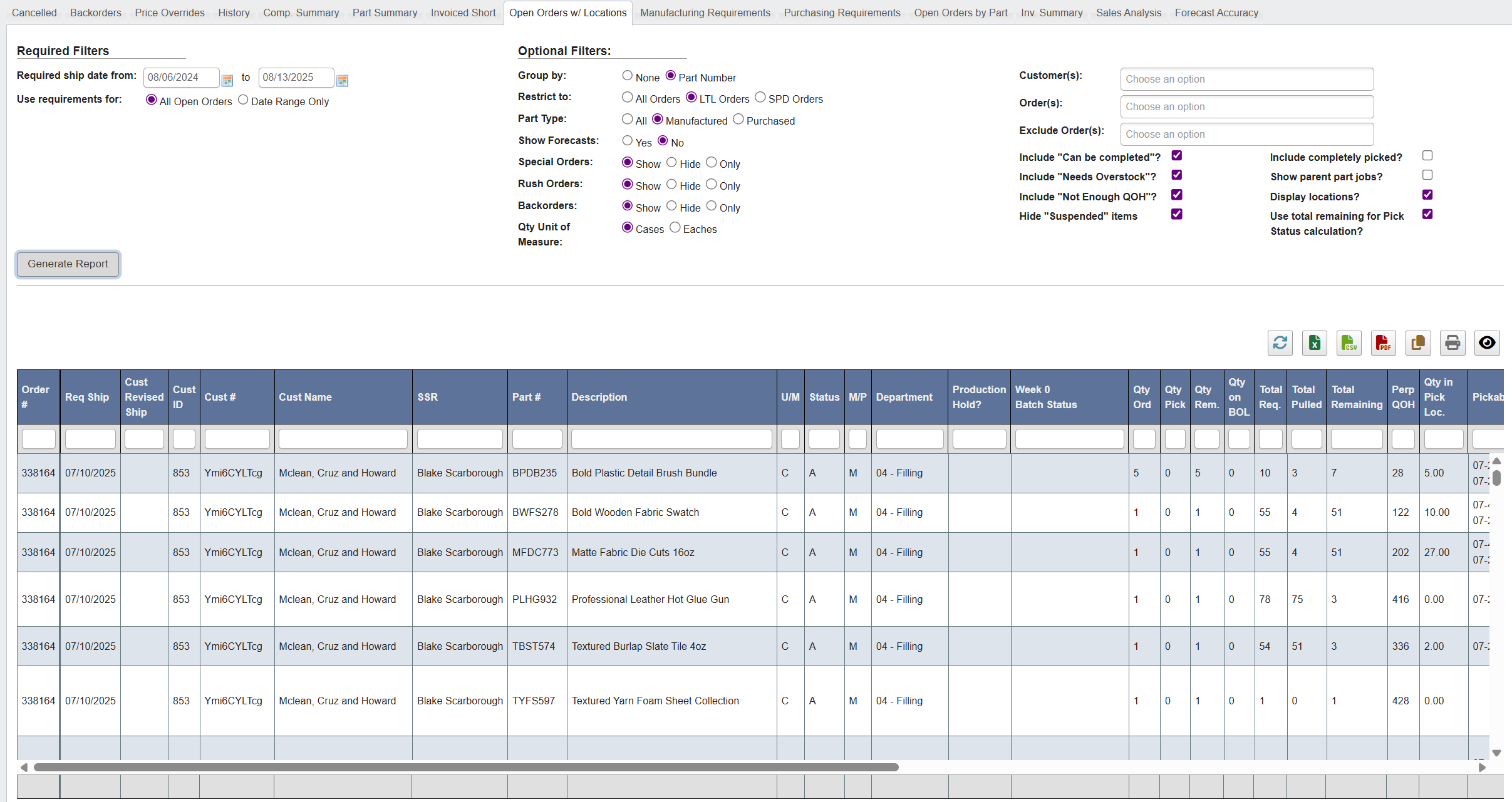
Open Orders w/ Locationstab. - Under Required Filters, set Required ship date from…to and choose Use requirements for:
- All Open Orders (full backlog) or Date Range Only (strict window).
- (Optional) Configure:
- Group by: None or Part Number.
- Restrict to: All Orders, LTL Orders, or SPD Orders.
- Part Type: All / Manufactured / Purchased.
- Show Forecasts: Yes/No.
- Special Orders / Rush Orders / Backorders: Show / Hide / Only.
- Qty Unit of Measure: Cases / Eaches.
- Right-hand options: limit by Customer(s) or Order(s), Exclude Order(s); include flags like “Can be completed?”, “Needs Overstock?”, “Not Enough QOH?”; hide “Suspended”; and toggles for Include completely picked?, Show parent part jobs?, Display locations?, Use total remaining for Pick Status calculation?
- Click
Generate Report.
Generate a Manufacturing Requirements report
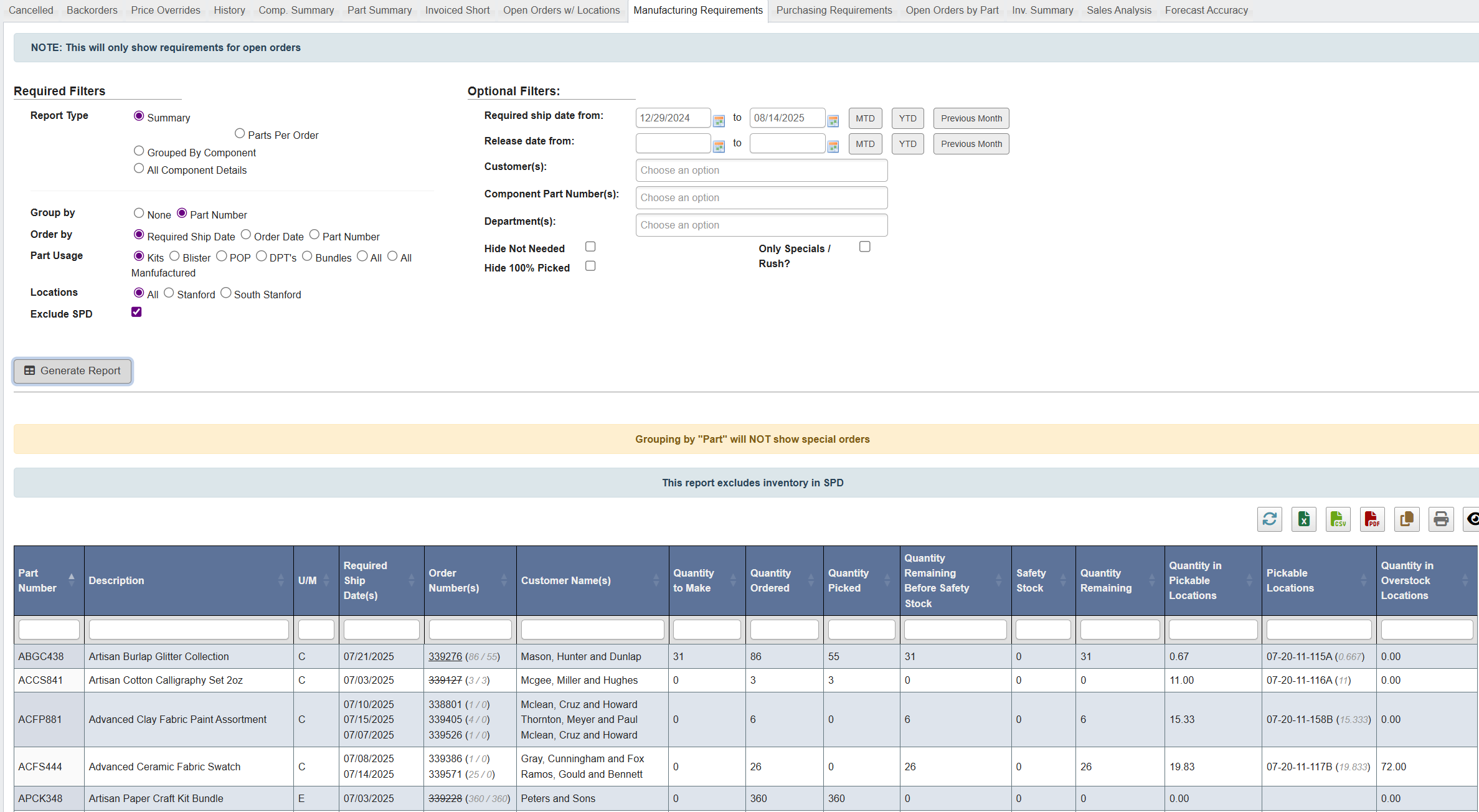
- Click the
Manufacturing Requirementstab. - Choose Report Type:
- Summary,
- Parts Per Order,
- Grouped By Component,
- All Component Details.
- (Optional) Group by (None / Part Number), Order by (Required Ship Date / Order Date / Part Number).
- Choose Part Usage (e.g., Kits, Blister, POP, DPT’s, Bundles, All).
- Limit Locations (All / Stanford / South Stanford); toggle Show Locations and Exclude SPD.
- Set Optional Filters: Required ship date and Release date ranges (with MTD/YTD/Previous Month shortcuts), Customer(s), Kit Part Number(s), Department(s); hide Not Needed and/or 100% Picked; Only Specials/Rush?
- Click
Generate Report.
Generate a Purchasing Requirements report
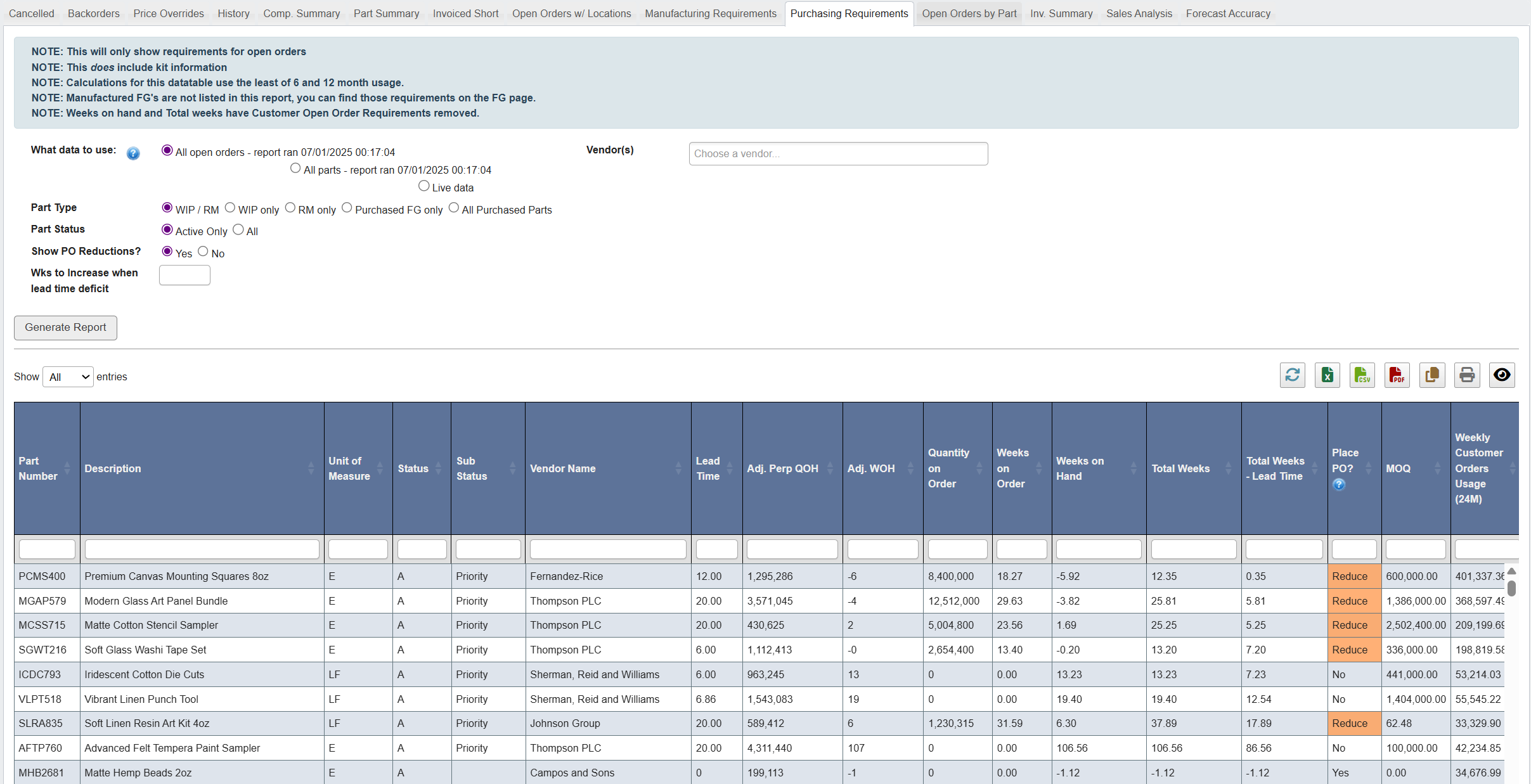
-
Click the
Purchasing Requirementstab. - Set the required filters: What Data to Use: All Open Orders, All Parts, or Live Data Part Type: WIP/RM, WIP Only, RM Only, Purchased FG Only, or All Purchased Parts Part Status: Active Only or All Show PO Reductions: Yes/No
- (Optional): Filter by Vendor(s) and enter Wks to Increase When Lead Time Deficit.
-
Click
Generate Report.
Generate an Open Orders by Part report
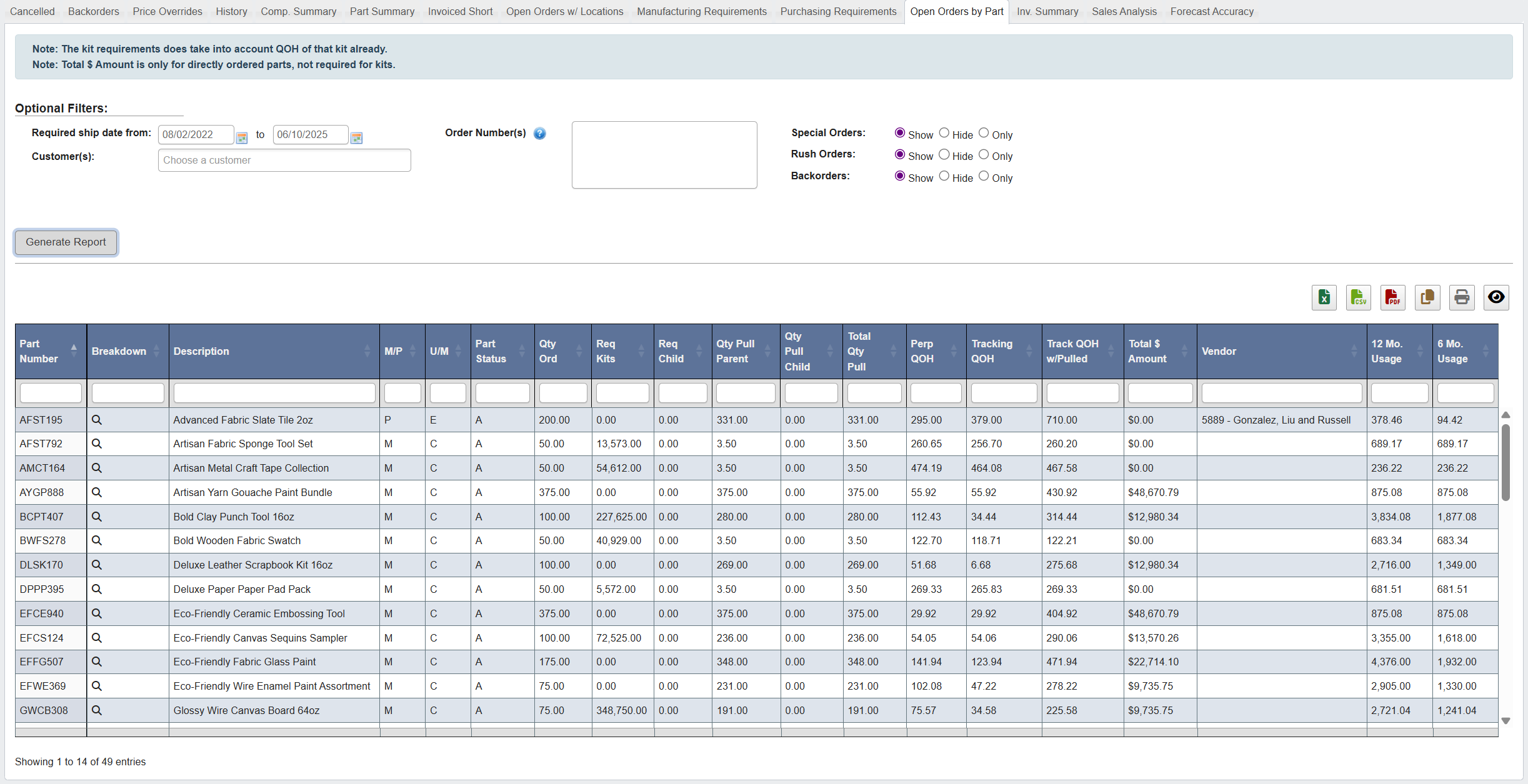
-
Click the
Open Orders by Parttab. - Set the required filters: Date Range: Required Ship Date or other relevant date
- (Optional): Filter by Customer or Part.
-
Click
Generate Report.
Generate an Invoice Summary report
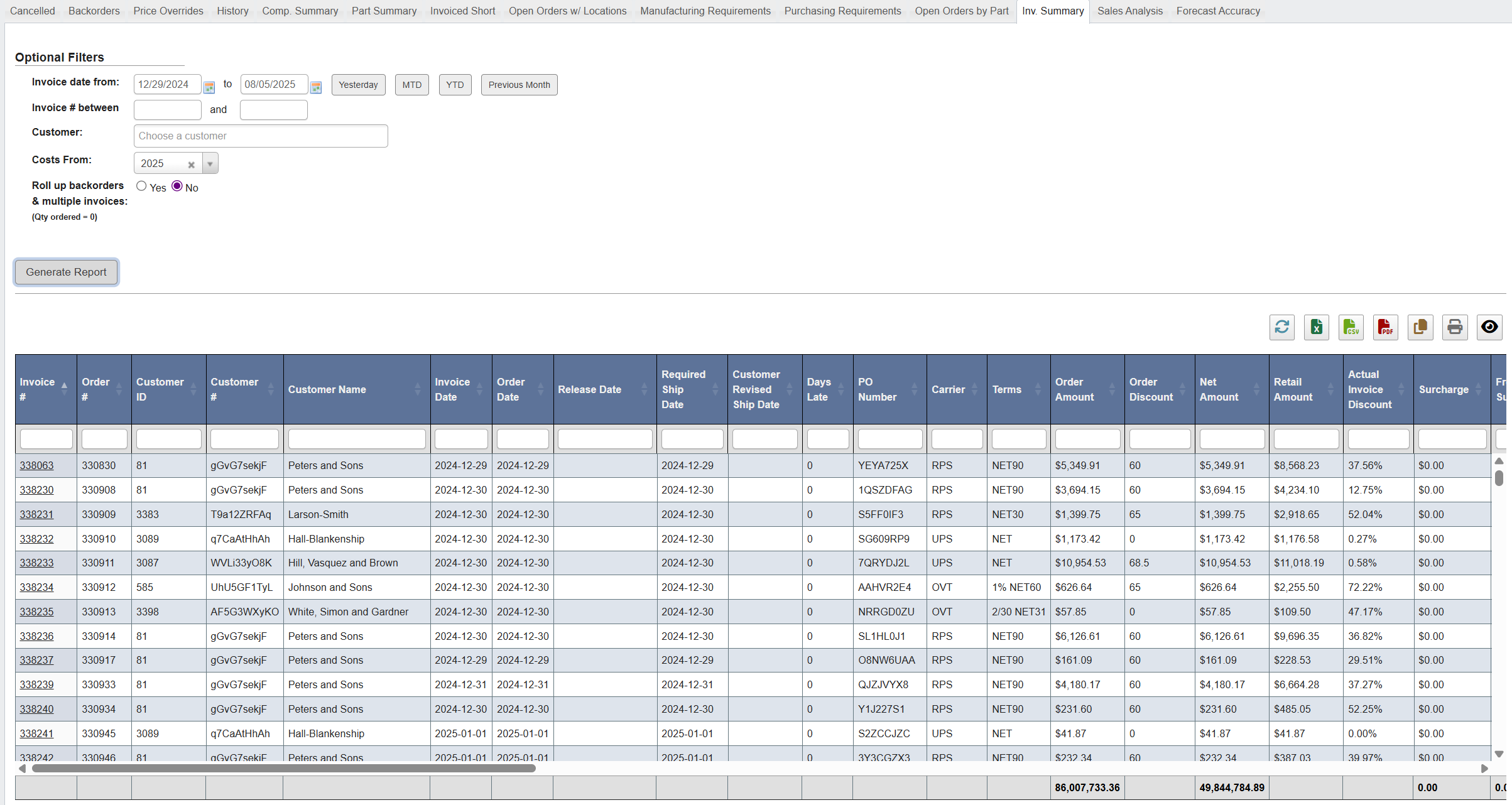
-
Click the
Invoice Summarytab. - Set the required filters: Invoice Date From/To: Select date range
- (Optional): Filter by Customer, toggle shortage views (Invoices with Shortages, Invoices with Shortages & QOH Available).
-
Click
Generate Report.
Generate a Sales Analysis report
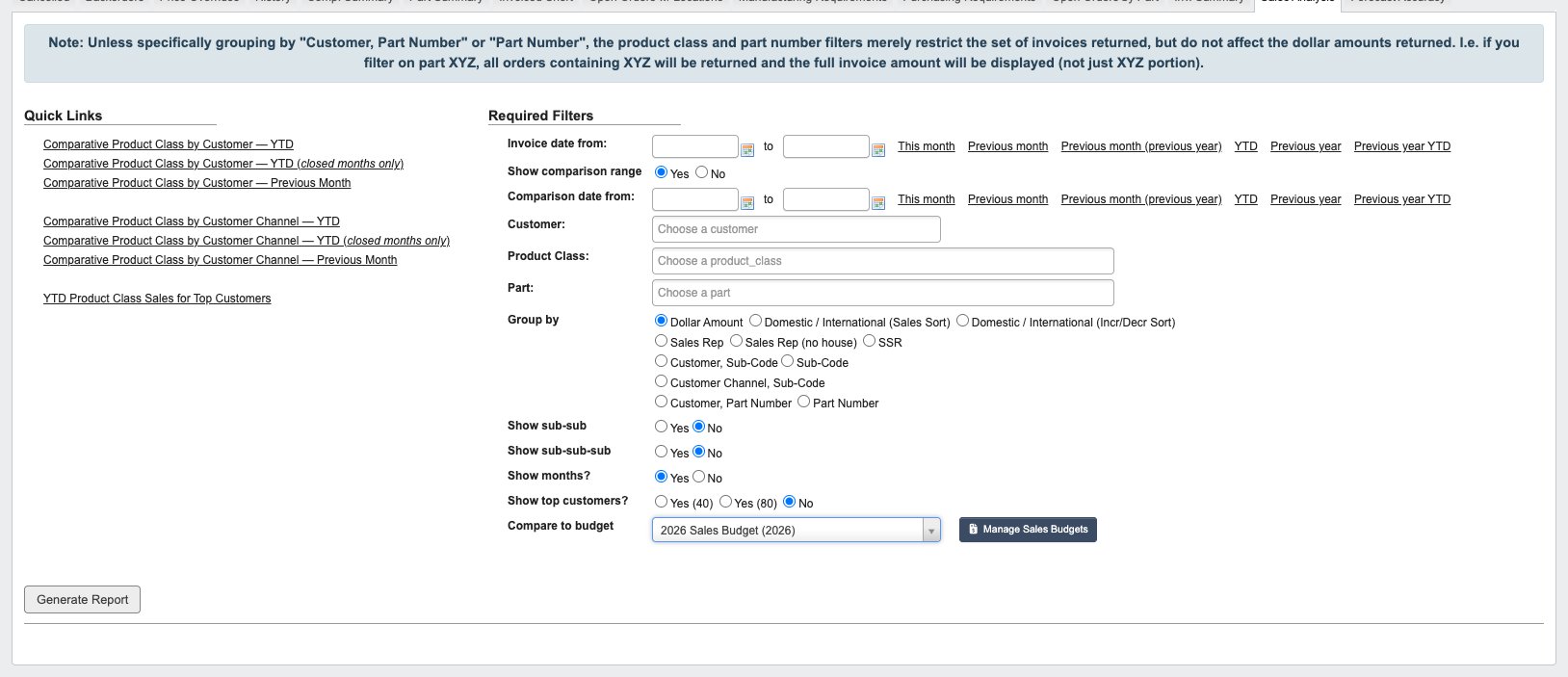
- Click the
Sales Analysistab. - Choose the Invoice Date Range using the
Invoice date from / tofields:- Shortcuts include This month, Previous month, Previous year, YTD, Previous year YTD, etc.
- (Optional) Toggle
Show comparison range: Benchmark one period against another by using Comparison date from / to plus shortcuts (This month, Previous month, YTD, etc.).
- Choose Group By: This significantly alters report structure by defining aggregation:
Dollar Amount: Groups orders by sale values (in ranges) in stacked tables.Domestic / International (Sales Sort): Groups results by domestic vs. international sales.Domestic / International (Incr/Decr Sort): Adds growth/decline logic, highlighting where sales are increasing or decreasing.Sales Rep: Groups by assigned sales representative.Sales Rep (no house): Same as above, but excludes house accounts.SSR: Groups by Senior Sales Rep or supervisory sales role.Customer, Sub-Code: Groups first by customer, then shows each corresponding product code’s sale activity over the period. This is useful for tracking a customer’s activity over time.Sub-Code: Groups first by product sub-code classification, and shows sale activity over the period.Customer Channel, Sub-Code: Groups first by customer channel, then shows each corresponding product code’s sale activity over the period.Customer, Part Number: Similar to Customer, Sub-Code, this groups first by customer, then shows each corresponding Part’s sale activity over the period.
- (Optional) Narrow scope using filters:
Customer: Select a specific customer account for focused reporting.Product Class: Restrict to a family/category of products.Part: Choose an individual part number if drilling into a single item.
- (Optional) Configure additional display parameters:
Show sub-sub: Expands the hierarchy to show one more level down in product classification.Show sub-sub-sub: Expands even further into detailed product classification levels.Show months?: Toggles monthly breakdowns across the report. Each invoice lands in its company’s own fiscal month, so a company whose fiscal periods are calendar months gets calendar-month columns.Show top customers?: Focus on key customers only. Options:- Yes (40): Top 40 customers.
- Yes (80): Top 80 customers.
- No: Include all customers.
- (Optional) Choose a sales budget in
Compare to budgetto add budget comparison columns. See Compare sales to a budget. - Click
Generate Reportto run the analysis.
Clicking on any of the Quick Links at the top will automatically populate the filters to match the link’s parameters (e.g., “YTD Product Class Sales for Top Customers” sets the date range and grouping automatically).
Compare sales to a budget
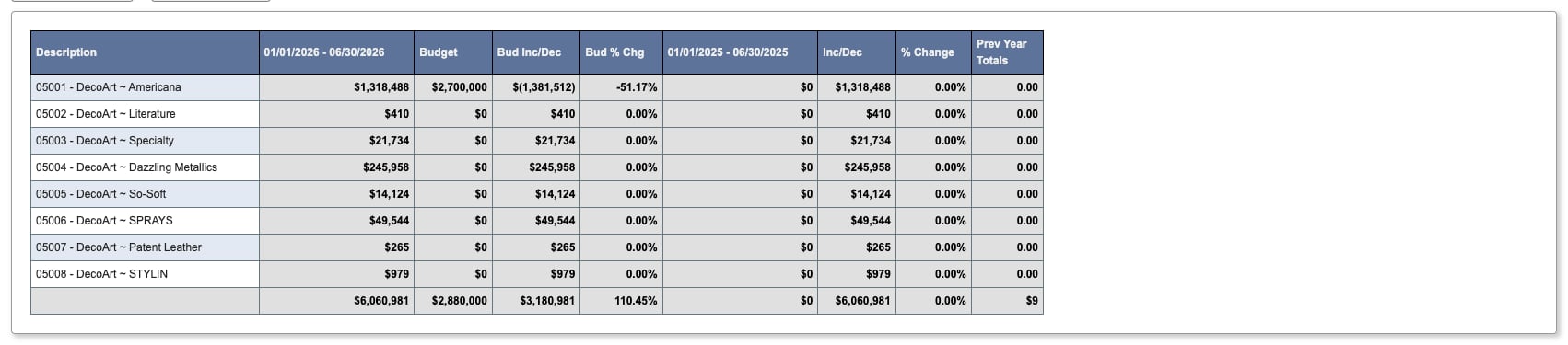
Compare to budget selector lists the uploaded sales budgets and is available for the Dollar Amount, Customer, Sub-Code, and Sub-Code groupings. Clearing it runs the report without budget columns. When a budget is selected, the report adds Budget, Bud Inc/Dec, and Bud % Chg columns beside the current range totals:
- Budget is the budget total for the accounting months the invoice date range covers in full, matched to the row’s customer, product class, or customer-and-class combination. Months the range only partly covers are excluded, and the report says how many of the months it touches are included.
- The budget honours the report’s Customer and Product Class filters, so a filtered run compares against those keys’ budget rather than the whole company’s. A Part filter has no budget equivalent, so the budget columns are withheld with a note explaining why.
- Budgets are stored against full product class codes and roll up automatically to the sub-code level the report is displaying.
- Bud Inc/Dec and Bud % Chg show how invoiced sales in the current range compare to that budget.
- Customers or product classes that have a budget but no sales in the range are added to the report with zero sales, so missed budgets stay visible.
- Each customer or class uses its own level of detail: one budgeted directly uses those rows, one budgeted only through customer-and-class rows uses their sum. If the budget holds no rows at all for the grouping you chose, the report says so instead of showing zeros.
Manage sales budgets
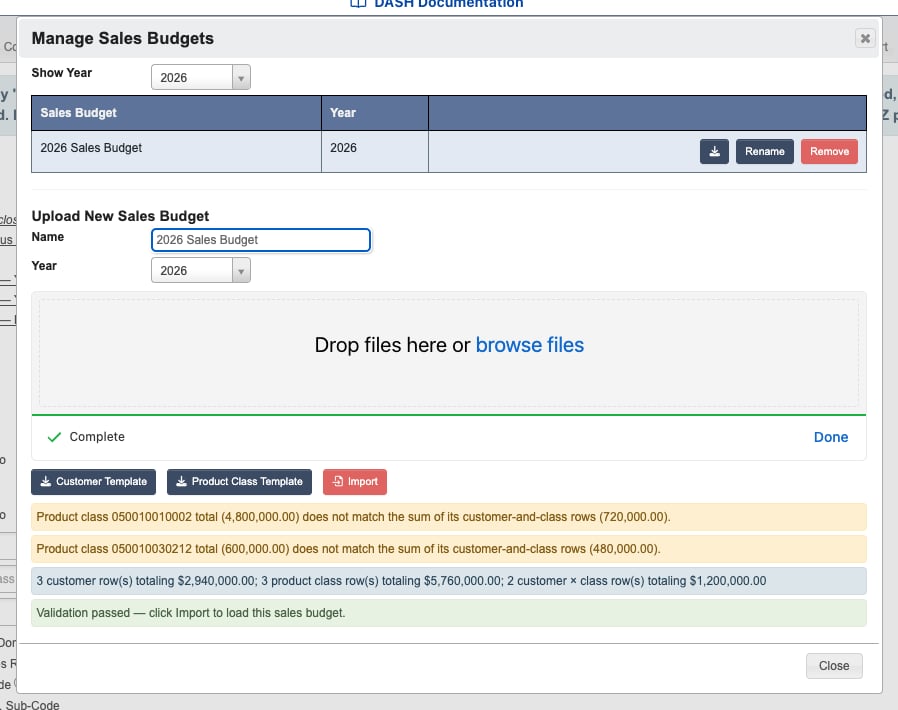
Can Manage Budgets & Forecasts special privilege see a Manage Sales Budgets button beside the budget selector. The same dialog is also available from the Chart of Accounts tab on Accounting → Maintenance, beside Import Budgets and Manage Forecasts. The dialog lists the uploaded budgets for a year with Download, Rename, and Remove actions, and uploads new budgets:
- Enter a Name (for example,
2026 Sales Budget) and choose the budget Year. - Click
Customer TemplateorProduct Class Templatefor an upload-ready workbook with zero amounts. The customer template lists every active customer; the product class template lists the full product class codes in use on finished goods. Templates are generated fresh on every download, so new customers and product classes appear automatically. - Drop the completed workbook (Excel or CSV) on the uploader. A file can carry a
Customer #column, aProduct Classcolumn, or both, followed by the twelve monthly amounts:- A row with only a customer number budgets that customer’s total sales.
- A row with only a product class budgets that class across all customers.
- A row with both key columns filled budgets that customer’s sales within that class.
- The file is validated immediately: unknown customer numbers or product class codes, duplicate rows, and month columns for the wrong year are rejected, and totals that do not match their customer-and-class breakdown rows are flagged as warnings. Product classes must be the full class code from the template, not a five-digit sub-code. Month columns must state their year (
Jan-26…Dec-26), and amounts must be plain numbers — a cell such as$1,234.56or(500.00)from an accounting-formatted export is reported rather than silently read as a different number. - Click
Importto load the budget. It is immediately available in theCompare to budgetselector.
Generate a Forecast Accuracy report
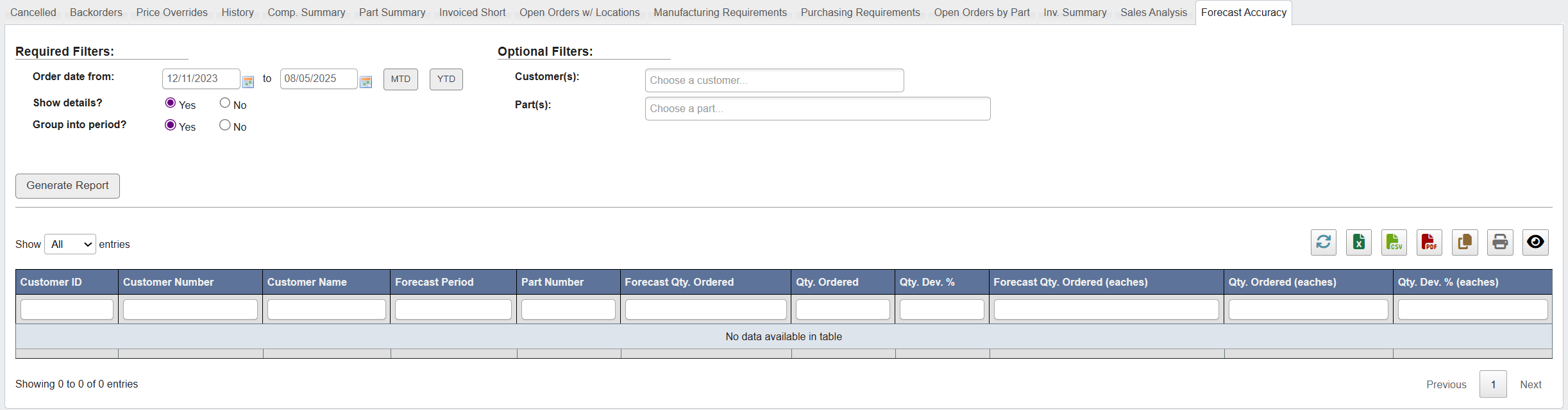
-
Click the
Forecast Accuracytab. - Set the required filters: Customer: Select customer Order Date From/To: Select date range
- (Optional): Toggle Show Details or Group Into Period.
-
Click
Generate Report.