Overview
The Part Information → Manage Holds submodule lets you view and manage quality holds on materials and finished goods. This page explains common hold information fields and provides tutorials for managing hold records. The submodule contains the following tabs:- View / Edit Hold: Manage existing hold information and release holds when quality issues are resolved.
- Add Hold: Create a new hold record when quality issues are identified.
- Active Holds: View holds currently preventing items from being used in the system.
- Expired Holds: View holds that have exceeded their intended duration and may need cleanup.
- Deactivated Holds: View historical hold records that have been resolved and released.
Understand Hold Information
Each hold record is broken into sections that group related information. Below is a guide to each section and some of the fields within it that have special behaviors or system-wide effects.Depending on your role and permissions, you may not see all of these tabs or have access to all hold management functions.
General Information
This section captures the core information about the quality issue and affected items.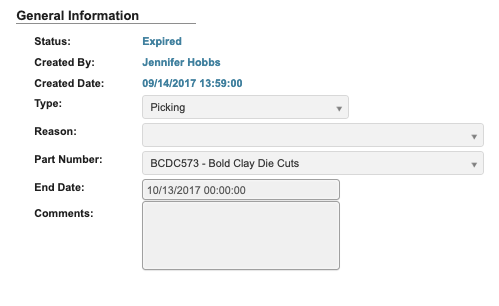
Status: Indicates whether the hold is Active, Expired or Deactivated. Active holds prevent the associated part or material from being used.Created By: The user who initiated the hold.Type: Defines the nature of the hold, such as Dispersion, FG Production, Order Entry, Picking, Purchasing, or Raw Material.Reason: Explains the issue prompting the hold, the reasons vary depending on theTypeof hold.Part Number: Identifies the specific part on hold.End Date: Operational expiration date for the hold, after this date the hold will appear in the Expired Holds tab for review.Comments: Additional notes or comments about this hold.
Customer Restrictions
This section defines whether the hold applies to all customers or only to specific groups.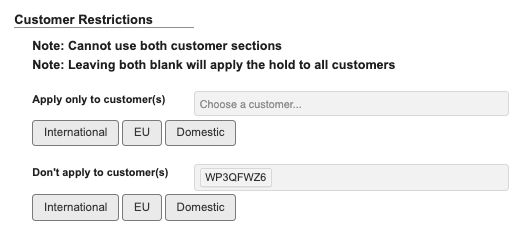
Apply only to customer(s): Restricts the hold so that it only applies to selected customers. All other customers can still receive or use the item.Don't apply to customer(s): Excludes selected customers from the hold, allowing their orders to proceed normally.
International: Adds all customers outside the U.S.EU: Adds all European Union customers.Domestic: Adds all U.S. based customers.
Pallet Restrictions
This section limits the hold to specific pallets.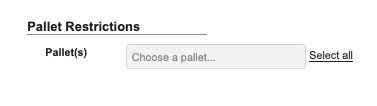
Transactions
The section shows all changes, who made them, and when.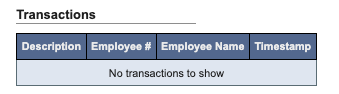
View / Edit Hold
From within the View / Edit Hold tab, you can explore and manage existing hold information.Step 1: Pull up a hold
- From the Part Information → Manage Holds submodule, click on the
View / Edit Holdtab. - Click the dropdown menu next to the Hold field.
- Enter the hold number you’re looking for, then click to select it.
- You can now view the hold details, including status, type, reason and part number.
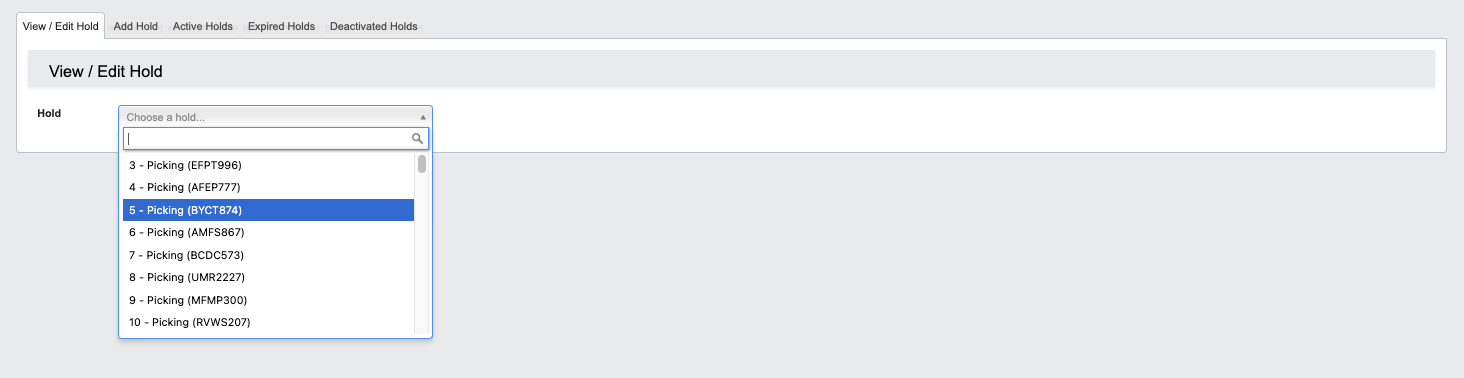
Step 2: Use the toolbar to manage a hold.
Once you’ve pulled up a hold, you can manage it with the following features located in the toolbar:
-
Edit: Edit the hold information.-
Once in the edit view:

-
Click
Cancel Editingto cancel editing. -
Click
Determine Impactto save your changes.
-
Once in the edit view:
-
Release Hold: Release the hold. -
Add Note: Attaches a comment to the hold. You can optionally choose an expiration date for the note.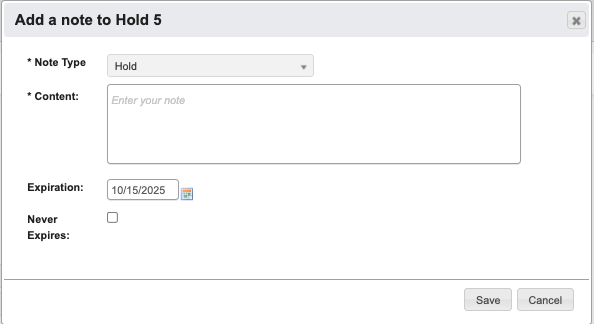
Add Hold
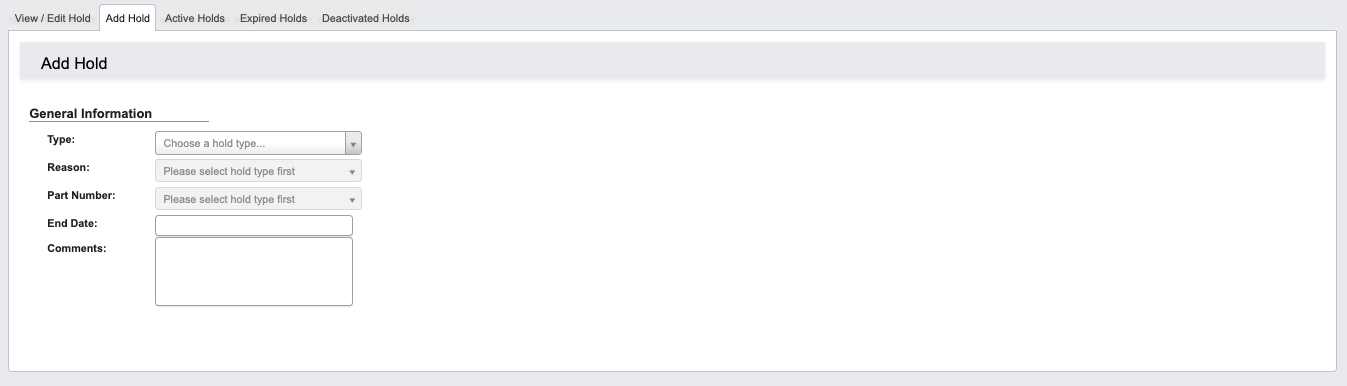
- From the Part Information → Manage Holds submodule, click on the
Add Holdtab. - Choose a
Typefrom the drop down. - Choose a
Reasonfrom the drop down. - Choose a
Part Numberfrom the drop down. - (Optional) Add an
End Date - Add a
Comment - Click
Determine Impactand thenSaveto create the hold.
The Determine Impact button analyzes where the affected part is currently used or referenced in the system. Depending on the Hold Type, this may include:
- Pallets containing the held material
- Bottling Jobs, Batch Tickets, or Work Orders that depend on the part
- Orders that may already be in process or picked
Active Holds
From the Part Information → Manage Holds submodule, click on theActive Holds tab. This contains a table of active holds.
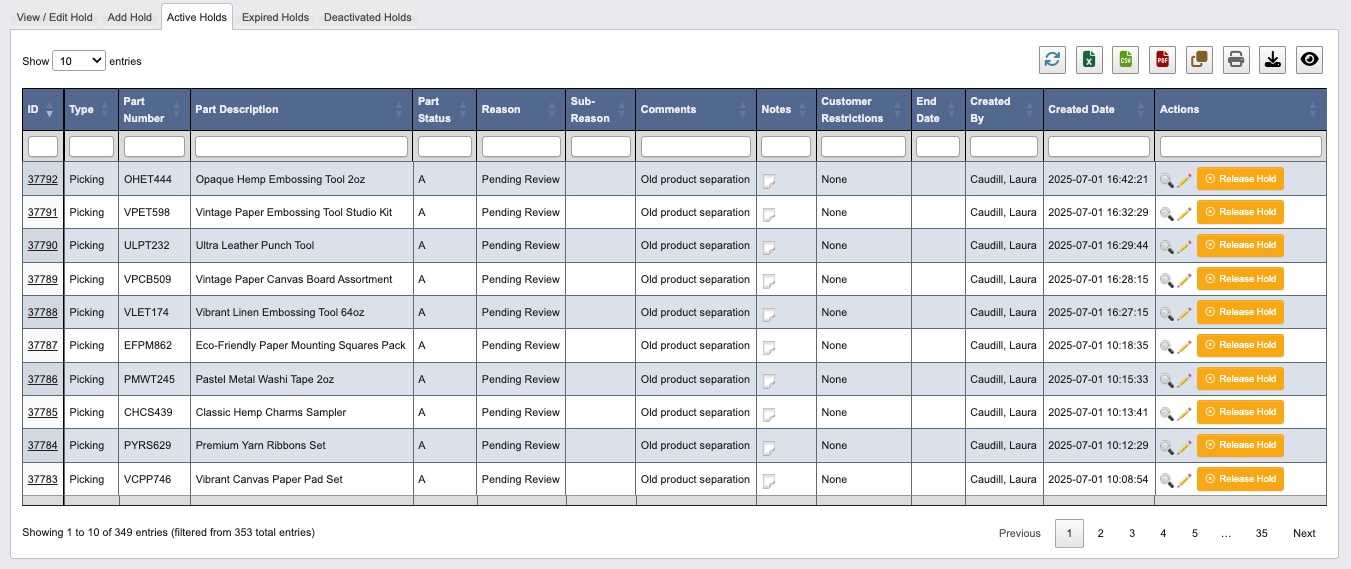
- Click on an attribute heading (such as ID) to sort in ascending order. Click again to sort in descending order.
- Click on a hold ID to view or manage the associated hold in the
View / Edit Holdtab. - Refresh, export, print, or filter data with the toolbar.
- Release holds
How to release a hold
- Scroll to the far right of the table and find the
Actionscolumn. - Click the
Release Holdbutton. - Click “YES, deactivate” when prompted.
Expired Holds

- Click the
Expired Holdstab. - Enter the Expired date from range.
- Click
Generate Report.
Deactivated Holds

- Click the
Deactivated Holdstab. - Enter the Deactivated date from range.
- Click
Generate Report.