Production Type
Purchased Parts
- Items bought from external vendors.
- Include raw materials, packaging components, and finished goods from suppliers.
- Feature Purchasing Information section with vendor details, lead times, and pricing.
Manufactured Parts
- Items produced in-house.
- Include finished goods and work-in-process items.
- Includes labor hours
Inventory Type
Raw Materials
- Chemical components, pigments, resins used in paint formulation.
- Packaging materials like bottles, lids, labels, cartons.
- Can be purchased parts with vendor information.
Finished Goods
- Completed products ready for sale.
- Can be manufactured (produced in-house) or purchased (from external suppliers).
- Include UPC codes, product classes, and pricing information.
- Feature customer pricing options and packaging details.
Work-in-Process (WIP)
- Intermediate products used in manufacturing steps.
- Paint batches from dispersion before bottling.
- Base materials that get further processed.
- Won’t have package information since the product is still being made
Packaging/Kits
- Assortments combining multiple finished goods.
- Special packaging configurations.
- Multi-item bundles for retail or promotional purposes.
All FG Parts Miscellaneous Section

- Hide Obsolete Parts: By default, the table hides obsolete parts. Uncheck this box to include obsolete parts in the view.
- Show only parts with required amount: Displays only parts that have a required quantity set.
- Show only parts with Perp QOH or Tracking QOH: Limits the view to parts that have perpetual or tracking quantities on hand.
- Show Perp QOH / Tracking QOH variance: Adds a variance column to compare perpetual and tracking quantities for inventory accuracy.
- Show master cases only: Filters results to display master case-level parts only.
- Show manufactured only: Displays only manufactured parts.
Available Action Buttons
Rebuild Required: Refreshes required part quantities based on current production schedules and order data.Close Month: Finalizes part data for the selected month to prevent further changes and lock inventory values.Rebuild YTD Sales: Recalculates year-to-date sales totals for accurate reporting.Rebuild YTD Ordered: Recalculates year-to-date ordered quantities for demand planning.Perform Bulk Status Change: Allows batch updates to part statuses across multiple items simultaneously.
Add Inventory Adjustment
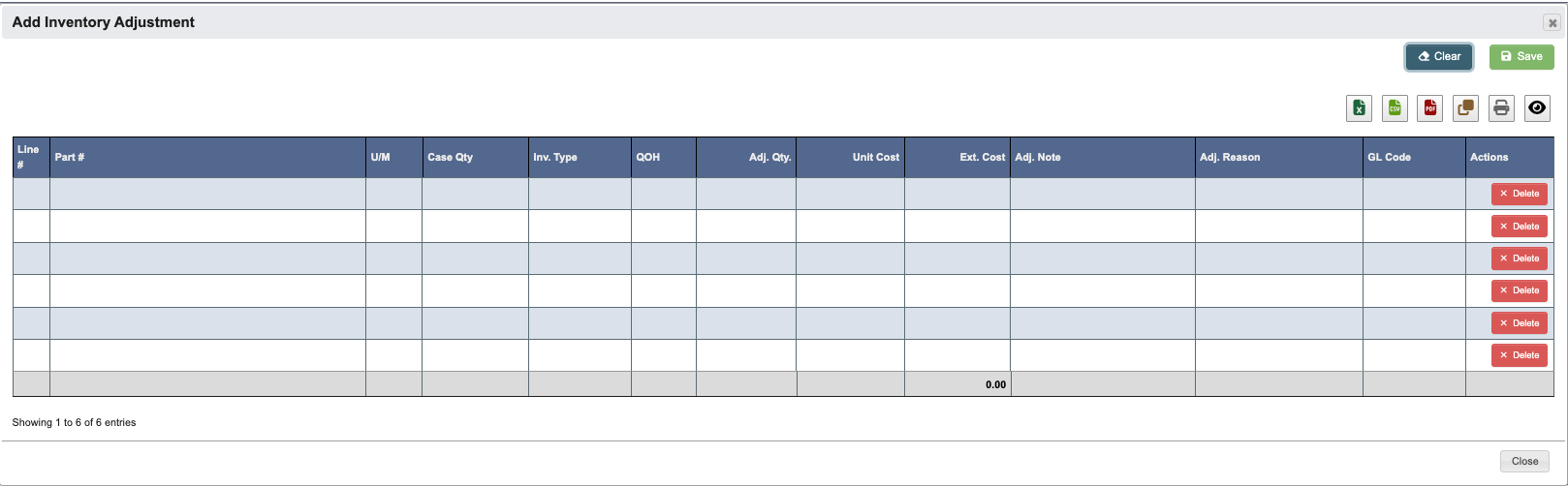
Part #(Required): Use dropdown to select the part number requiring adjustment.Adj. Qty.(Required): Enter the adjustment quantity (positive for increases, negative for decreases).Adj. Note(Required): Provide detailed notes explaining the reason for the adjustment.Adj. Reason(Required): Select from predefined adjustment reasons tracking and reporting.
Create a new inventory adjustment
- Click
+ Add Inventory Adjustment. - In the pop-up window, fill in the required fields as defined above.
- Click
Savein the top right corner to save. - Click
Cancelin the bottom right corner to discard changes.
Upload inventory adjustments in bulk
- Click
+ Uploadto upload multiple adjustments at once. - Click
Download Templateto get the Excel template format with proper column headers. - Fill in the template with adjustment data following the field requirements above.
- Upload the completed file and review before saving.
Add Scrap
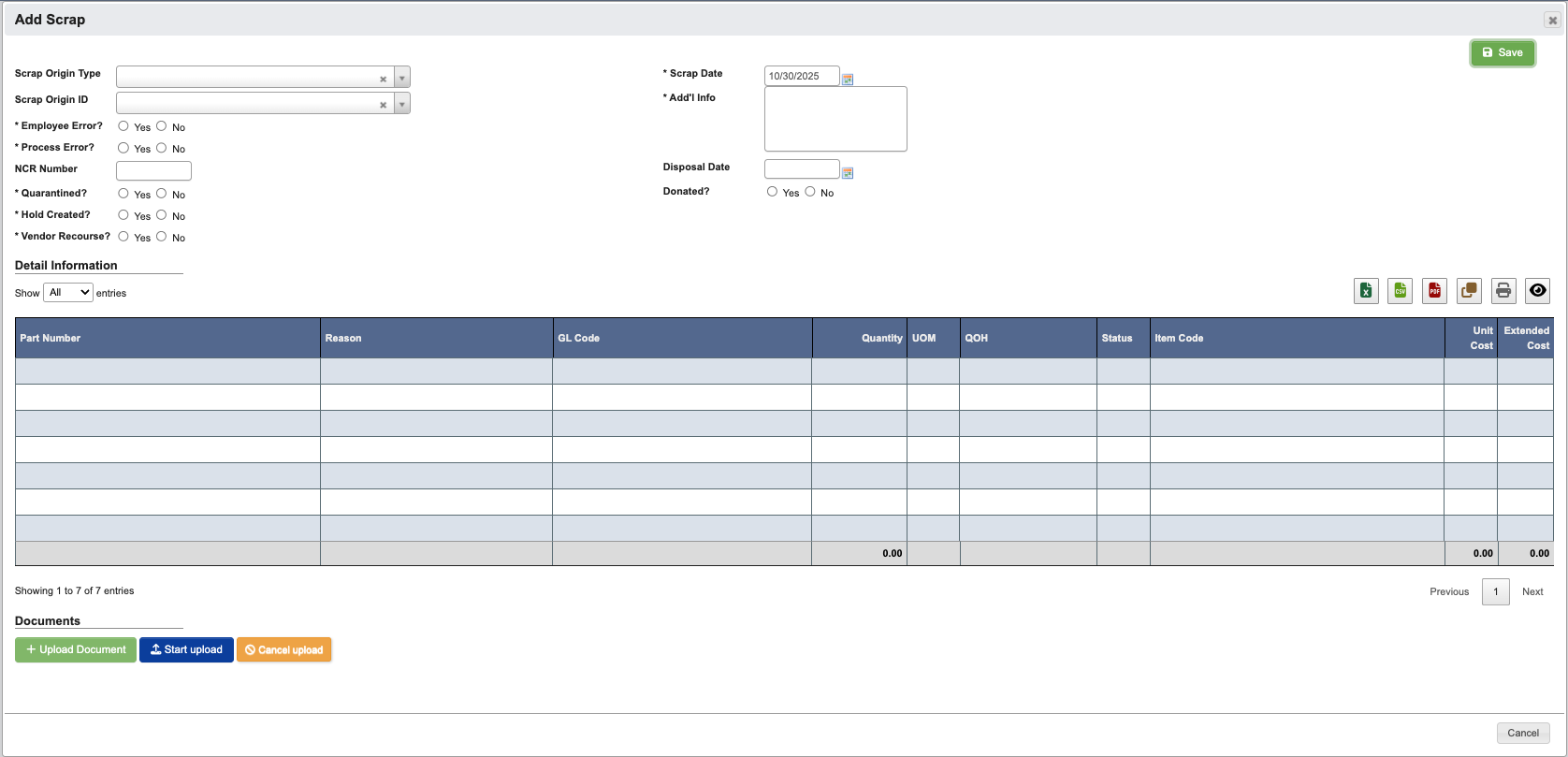
Scrap Origin Type(Required): Select from dropdown options:- Dispersion, Bottling, Shrink Wrap, Label Press, Kit, Purchasing, Blister, Rework, Inventory Conversion, Paint Pots, Half Gallon
Scrap Origin ID(Required): Select the specific work order, batch, or process identifier where the scrap originated.Employee Error?(Required): Indicates if the scrap was caused by employee error.Process Error?(Required): Indicates if the scrap was caused by a process or system failure.NCR Number: Non-Conformance Report number if applicable for quality tracking.Quarantined?(Required): Indicates if the material has been quarantined pending investigation.Hold Created?(Required): Indicates if a quality hold has been placed on related materials.Vendor Recourse?(Required): Indicates if the vendor may be responsible for reimbursement.Scrap Date(Required): Date when the scrap occurred (defaults to creation date).Add'l Info(Required): Detailed description of the scrap incident, root cause, and any corrective actions taken.Disposal Date: Date when the scrapped material was physically disposed of.Donated?: Indicates if the scrapped material was donated rather than disposed of.
Create a new scrap ticket
- Click
+ Add Scrap. - Fill in the required fields as defined above.
- Under
Documents, upload any related documents such as photos, NCR reports, or investigation findings.- Click
Upload Documentto select a file. - Click
Start uploadto attach the document. - Click
Cancel uploadto stop the upload process.
- Click
- Click
Savein the top right corner to save the scrap ticket. - Click
Cancelin the bottom right corner to discard the scrap ticket and return to the table.
Approve a scrap ticket
Scrap is approved by batch. Scrap recorded on production screens, such as bottling jobs and work orders, is grouped into one batch per week, and each ticket created with+ Add Scrap is its own batch.
- Locate the batch on the table, or open the link in the approval request email.
- Click the
Batch IDorWeek Begin Dateto open a pop-up window with the Scrap Details. - Click
Approvein the top right corner. The confirmation shows the batch’sTotal Cost,Your Approval Limit, and theAmount Remainingof your limit this week. - Click
YES, approveto finalize the approval, or clickCancelto return to the previous page.
- Only users with a scrap approval limit can approve. A DASH administrator assigns the limit.
- You can approve a batch if you have not approved it yet, or if it is waiting on you again as its next approver. Otherwise DASH shows an error and records nothing.
- Your approval covers up to your approval limit, minus the scrap you have already approved this week (weeks start on Sunday). DASH calculates this amount from the batch’s current total cost; it cannot be changed from the browser.
- If your approval covers the batch’s total cost, the batch is approved and its scrapped parts are removed from inventory. If not, DASH emails the approver with the next higher limit. If nobody has a higher limit, the batch waits on you instead, and you can approve the rest once your weekly amount allows. Users with the
Has Final Scrap Approval Privilegespecial privilege keep the batch the same way, unless it is already waiting on an approver with a higher limit. - A batch can be approved only while it is pending. If it was approved after you opened it, DASH shows an error and leaves inventory unchanged. If another approver is approving the same batch at that moment, DASH asks you to try again.
Add Tariff Code
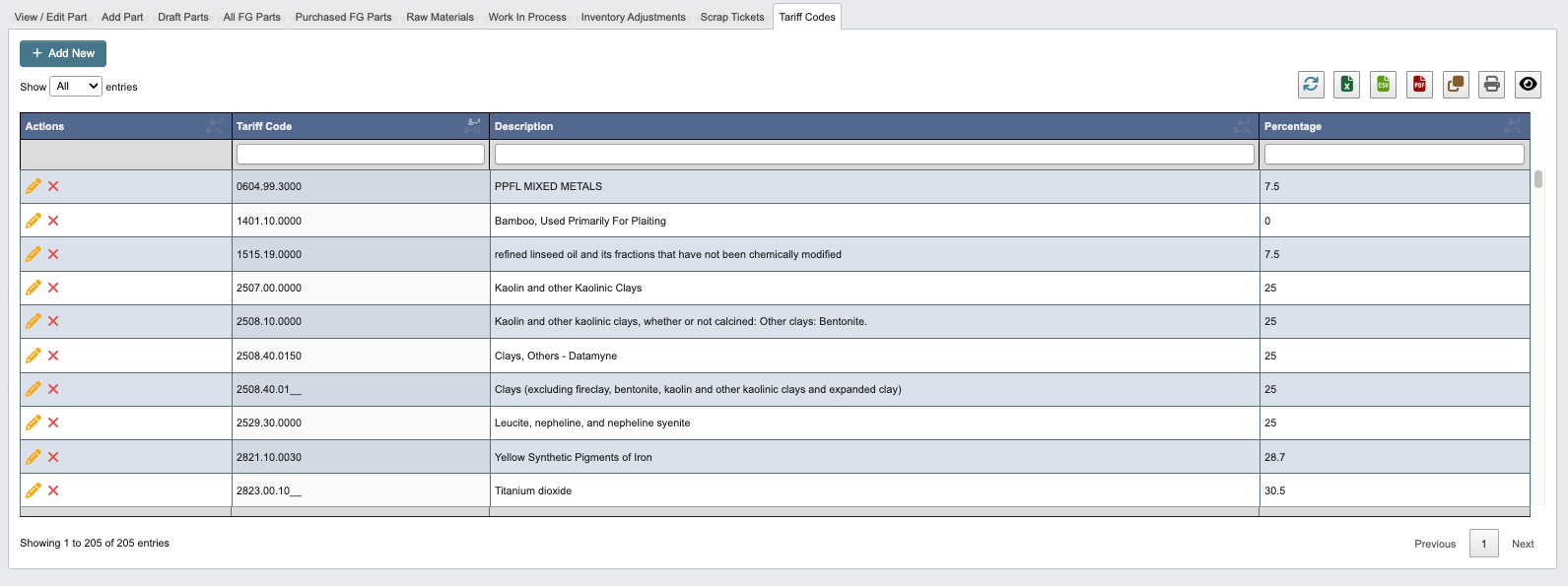
How to add a tariff code
-
Click
+ Add New. -
In the pop-up window, enter the following:
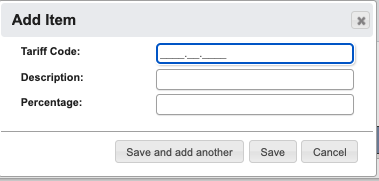
Tariff Code(Required): The official tariff code for the product category.Description(Required): Description of the products covered by this tariff code.Percentage: The tariff rate percentage applied to products under this code.
-
When you have filled in the details, click:
Save and add anotherto add another tariff code.Saveto save the details and go back to the table.Cancelto close the window and go back to the table.
How to edit or delete a tariff code
- Find the the
Actionscolumn on the left. - Click the
Edit(pencil icon) to make an edit to the tariff code, then click:Saveto save the changes and go back to the table.Cancelto close the window and go back to the table.
- Click the
Delete(red “x” icon) to delete the tariff code.YES, deleteto delete the tariff code.Cancelto close the window and go back to the table.