Overview
The Part Information → Manage Parts submodule is the central hub for creating, viewing, and managing all part records in the DASH system. This includes finished goods, raw materials, work-in-process (WIP) items, and purchased components used throughout DecoArt’s operations. The submodule contains the following tabs:- View / Edit Part: Access and modify existing part information, including bill of materials, pricing, and specifications.
- Add Part: Create new part records for finished goods, raw materials, or work-in-process items.
- Draft Parts: View parts that are in development but not yet active in the system.
- All FG Parts: Comprehensive view of all finished goods with inventory and costing data.
- Purchased FG Parts: View finished goods that are purchased rather than manufactured.
- Raw Materials: Manage raw material parts used in production.
- Work In Process: View WIP parts used in manufacturing processes.
- Inventory Adjustments: Make corrections to inventory quantities when discrepancies are found.
- Scrap Tickets: View scrap tickets for damaged or unusable materials.
- Tariff Codes: Maintain tariff classification codes for international shipping.
Depending on your role and permissions, you may not see all of these tabs or have access to all part management functions.
View / Edit Part
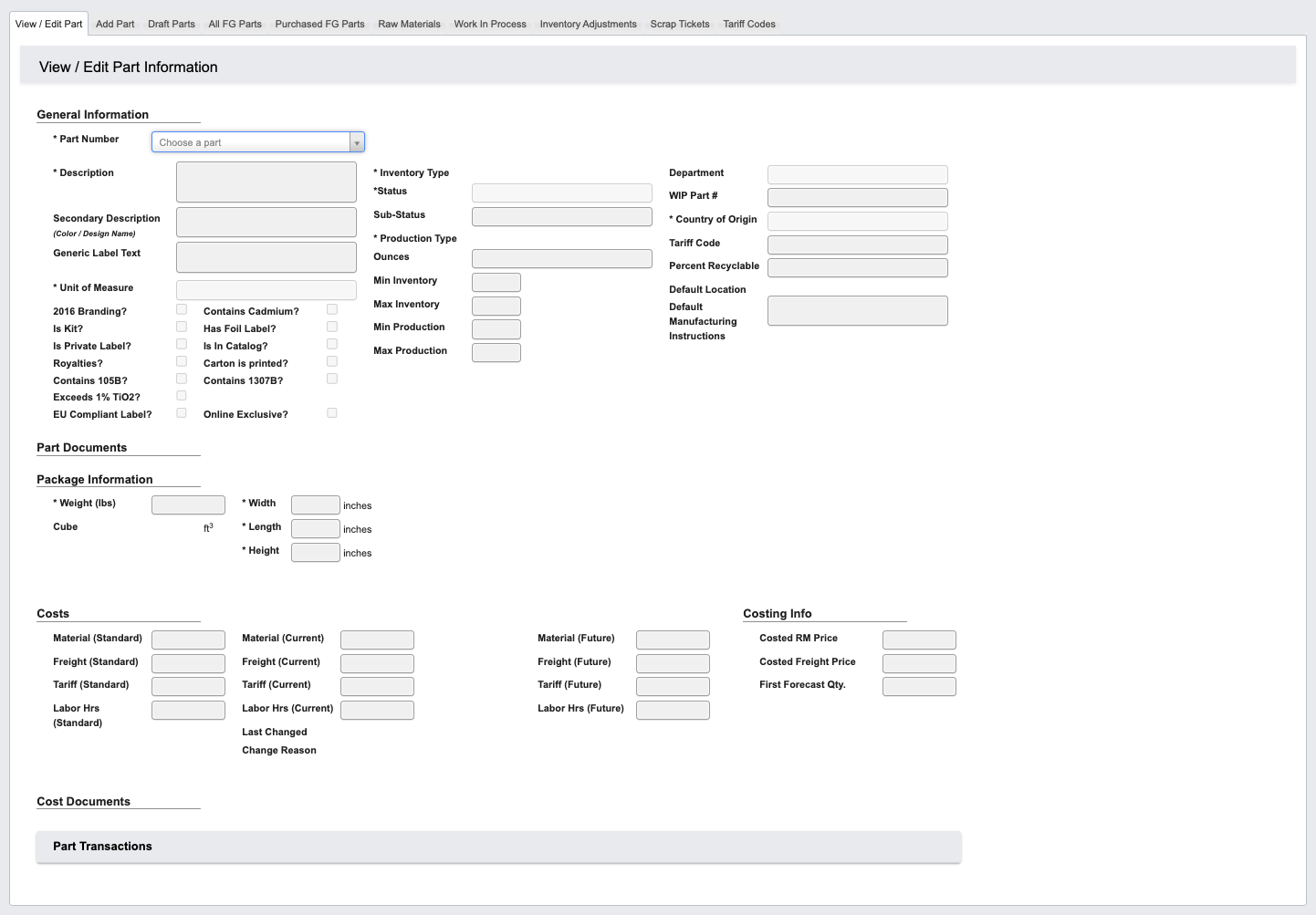
From the Part Information → Manage Parts submodule, click on theView / Edit Part tab. This tab allows you to view and edit existing Parts. Follow this tutorial to learn how to add a part Tutorial View / Edit Part.
Add Part
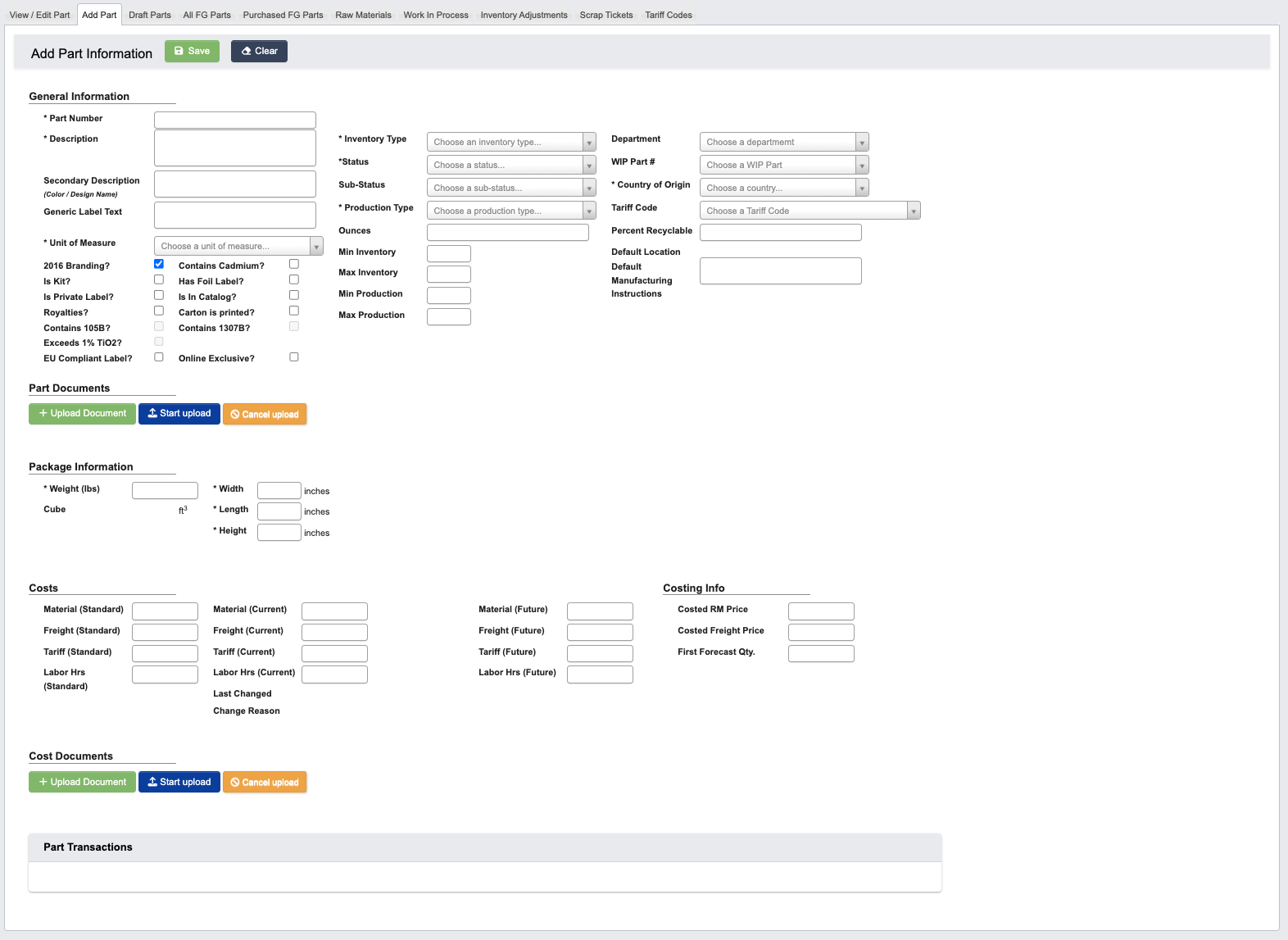
From the Part Information → Manage Parts submodule, click on theAdd Part tab. This tab is where you add a new part. Follow this tutorial to learn how to add a part Tutorial: Add a Part.
Draft Parts
From the Part Information → Manage Parts submodule, click on theDraft Parts tab. This tab shows parts that are in development but not yet active in the system.
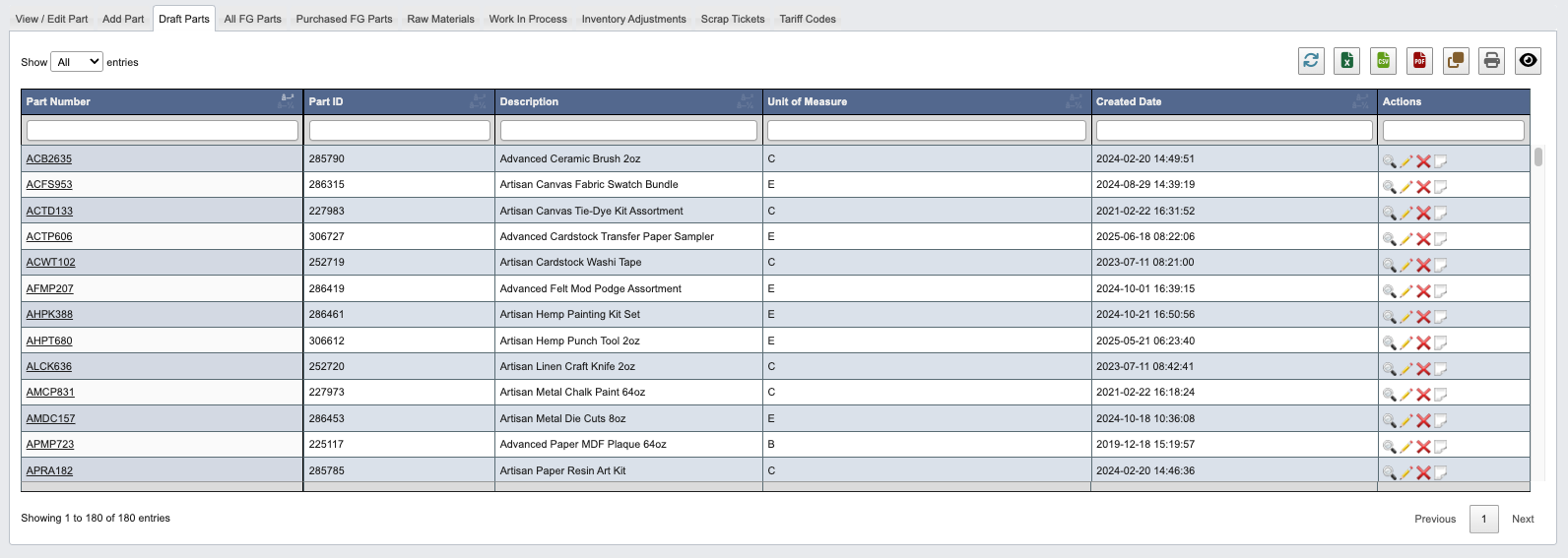
- Click on an attribute heading (such as Part Number) to sort in ascending order. Click again to sort in descending order.
- Click on a Part Number to view or manage the associated part records in the
View / Edit Parttab. - Refresh, export, print, or filter data with the toolbar.
How to edit or delete a draft part
- Find the the
Actionscolumn on the left. - Click the
View(magnifying glass icon) to view the draft part in theView / Edit Parttab. - Click the
Edit(pencil icon) to make an edit to the draft part in theView / Edit Parttab. Learn more about editing a draft part with the Tutorial View / Edit Part. - Click the
Deactivate(red “x” icon) to deactivate the draft part .Deactivate Partto deactivate the draft part.
- Click the
Note(paper icon) to add a new to the draft part.
All FG Parts
From the Part Information → Manage Parts submodule, click on theAll FG Parts tab. This tab provides a comprehensive view of all finished goods with inventory and costing data.
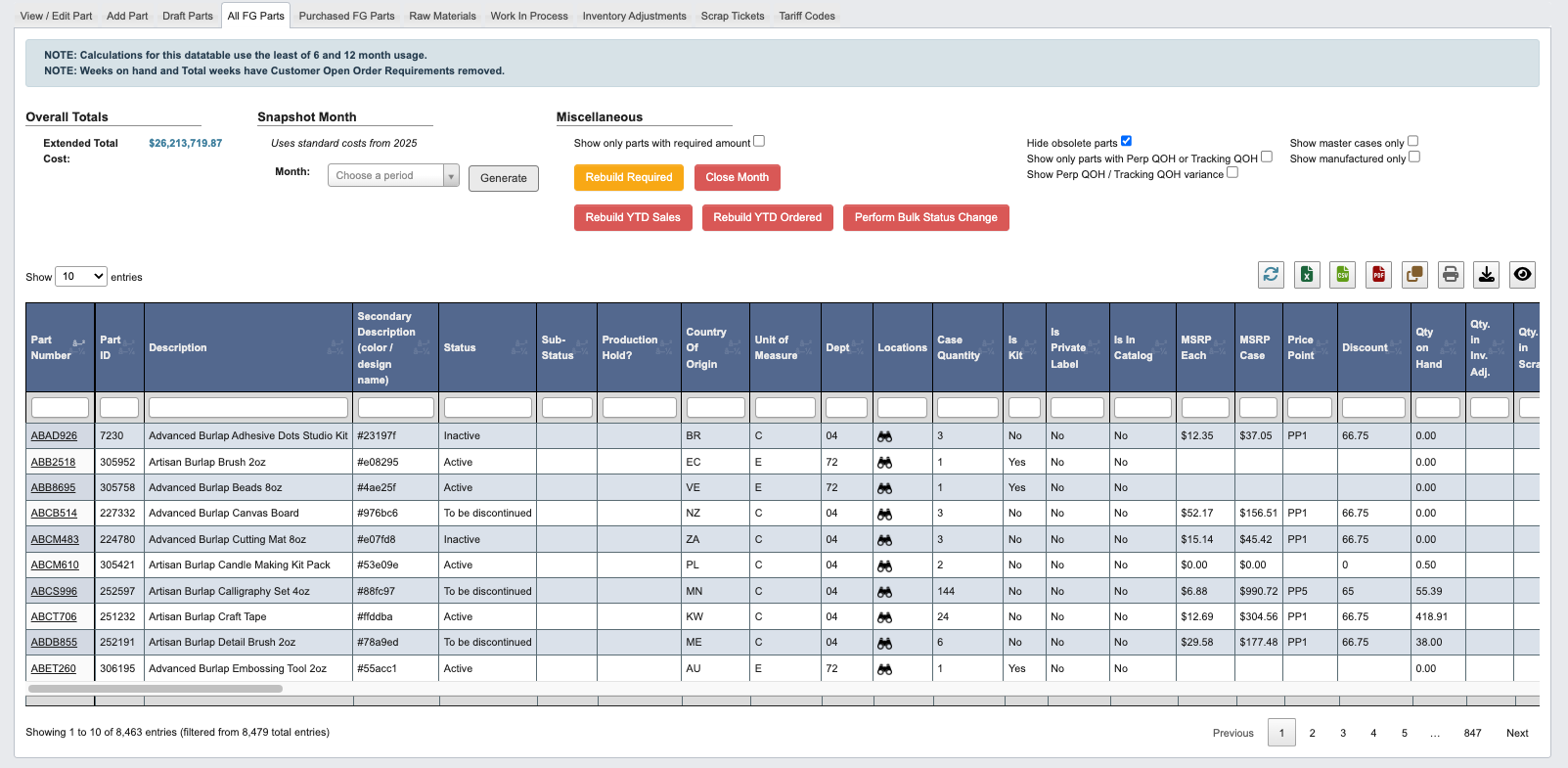
- Calculations for this data table use the least of 6 and 12 month usage.
- Weeks on hand and Total weeks have Customer Open Order Requirements removed.
- Click on an attribute heading (such as Part Number) to sort in ascending order. Click again to sort in descending order.
- Click on a Part Number to view or manage the associated part records in the
View / Edit Parttab. - Refresh, export, print, or filter data with the toolbar.
- View all FG parts and their status.
- View all FG parts extended total cost under Overall Totals.
- Generate monthly snapshot reports.
Miscellaneous Section
This section provides additional viewing and data management options for parts. See Manage Parts Reference for definitions.Generate monthly snapshots
These snapshots uses standard costs from 2025.
- Select the desired month from the Snapshot Month dropdown.
- Click
Generateto create the monthly snapshot report. - Review the generated data showing all FG part inventory levels and costs for the selected period.
Purchased FG Parts
From the Part Information → Manage Parts submodule, click on thePurchased FG Parts tab. This tab shows finished goods (FG) that are purchased rather than manufactured.
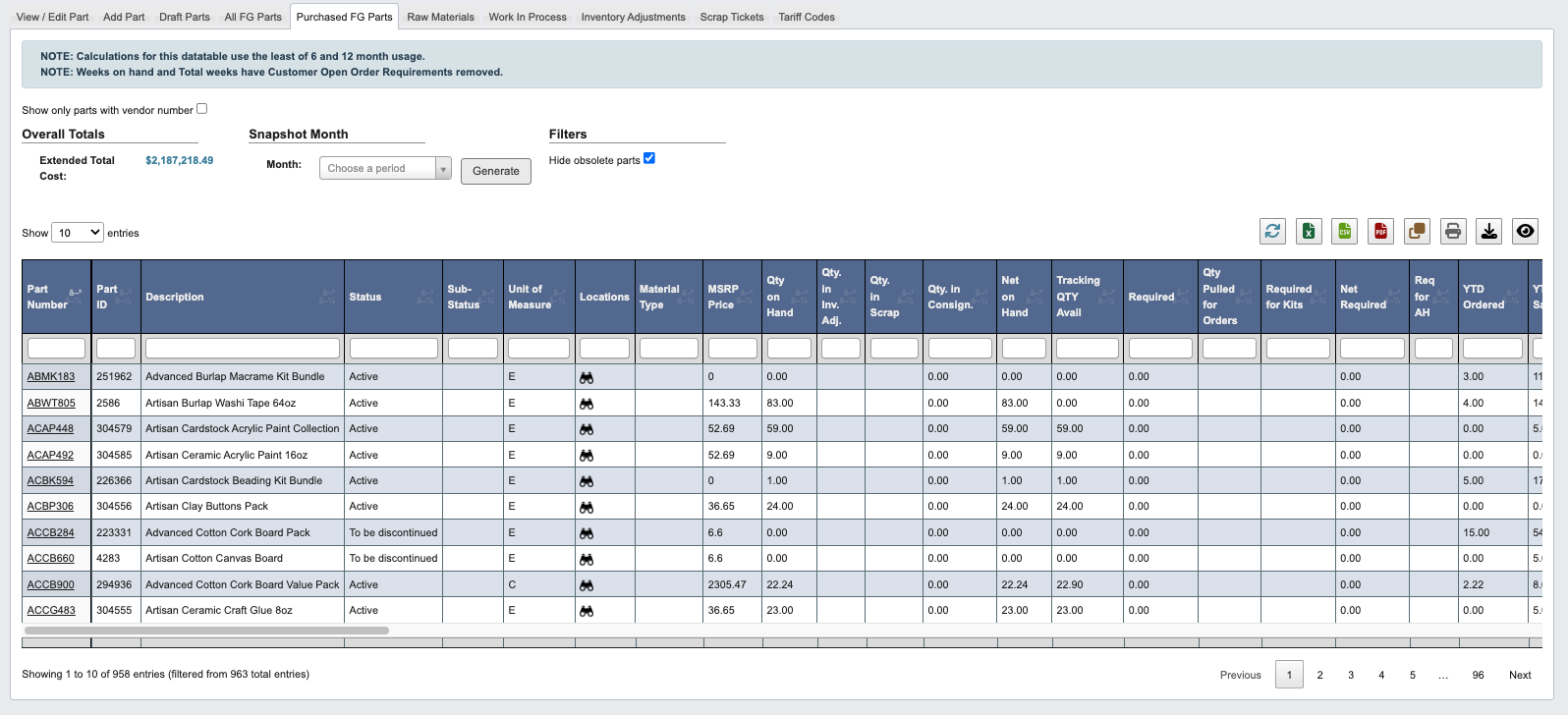
- Calculations for this data table use the least of 6 and 12 month usage.
- Weeks on hand and Total weeks have Customer Open Order Requirements removed.
- Click on an attribute heading (such as Part Number) to sort in ascending order. Click again to sort in descending order.
- Click on a Part Number to view or manage the associated part records in the
View / Edit Parttab. - Refresh, export, print, or filter data with the toolbar.
- View purchased FG and their status.
- View purchased FG extended total cost under Overall Totals.
- Generate monthly snapshot reports.
By default, the table will hide obsolete parts. Uncheck the box to see obsolete parts.
Generate monthly snapshots
- Select the desired month from the Snapshot Month dropdown.
- Click
Generateto create the monthly snapshot report. - Review the generated data showing all purchased FG inventory levels and costs for the selected period.
Raw Materials
From the Part Information → Manage Parts submodule, click on theRaw Materials tab. This tab shows raw material parts used in production.
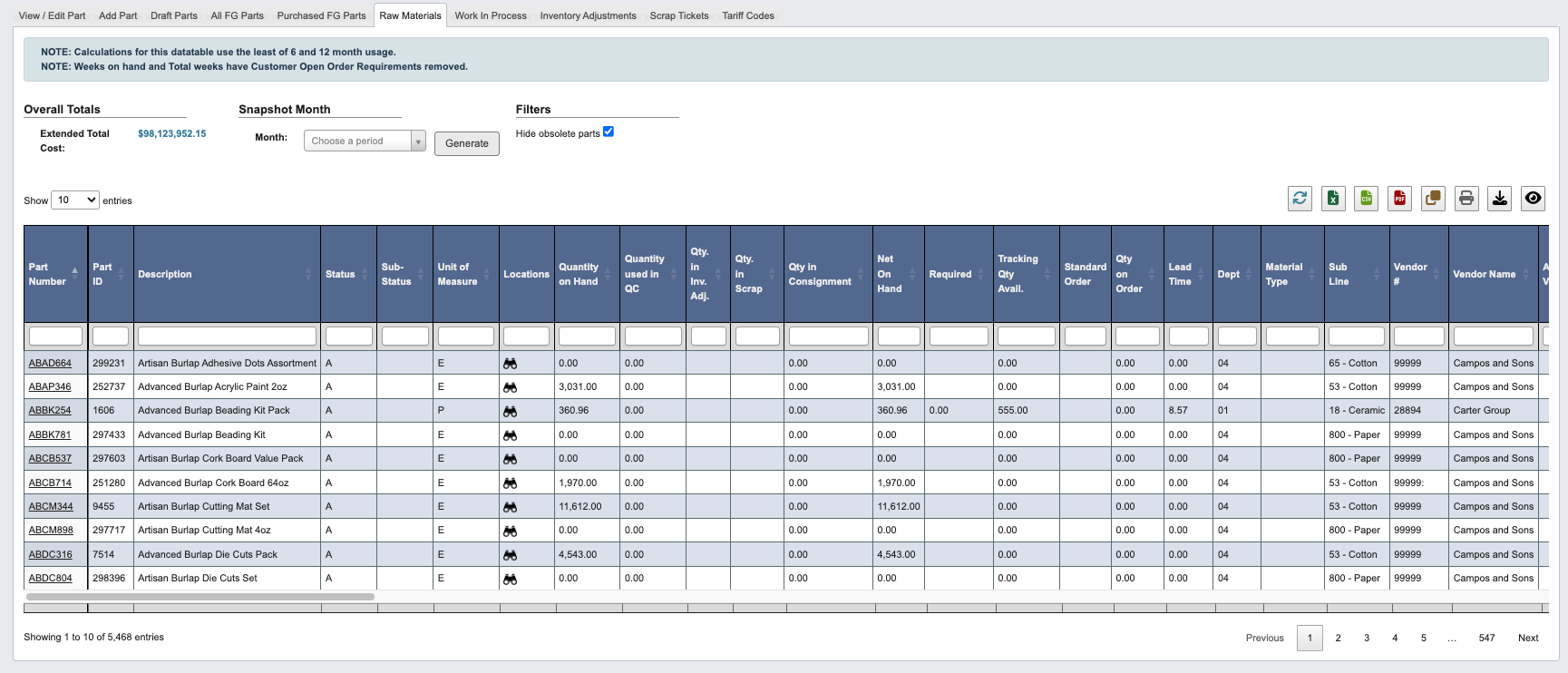
- Calculations for this data table use the least of 6 and 12 month usage.
- Weeks on hand and Total weeks have Customer Open Order Requirements removed.
- Click on an attribute heading (such as Part Number) to sort in ascending order. Click again to sort in descending order.
- Click on a Part Number to view or manage the associated part records in the
View / Edit Parttab. - Refresh, export, print, or filter data with the toolbar.
- View raw materials and their status.
- View raw materials extended total cost under Overall Totals.
- Generate monthly snapshot reports.
By default, the table will hide obsolete parts. Uncheck the box to see obsolete parts.
Generate monthly snapshots
- Select the desired month from the Snapshot Month dropdown.
- Click
Generateto create the monthly snapshot report. - Review the generated data showing raw materials inventory levels and costs for the selected period.
Work In Process
From the Part Information → Manage Parts submodule, click on theWork In Process tab. This tab shows Work in Process (WIP) parts used in manufacturing processes.
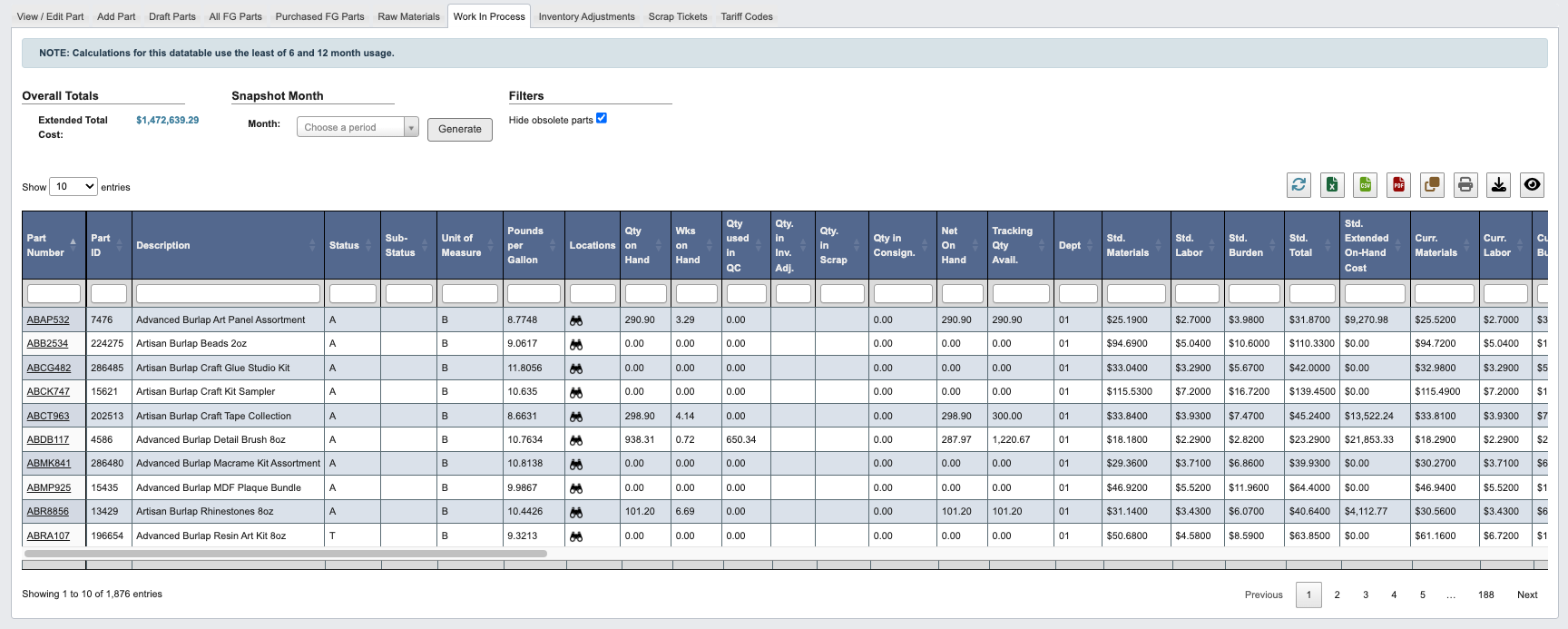
Calculations for this data table use the least of 6 and 12 month usage.
- Click on an attribute heading (such as Part Number) to sort in ascending order. Click again to sort in descending order.
- Click on a Part Number to view or manage the associated part records in the
View / Edit Parttab. - Refresh, export, print, or filter data with the toolbar.
- View WIP items and their status.
- View WIP extended total cost under Overall Totals.
- Generate monthly snapshot reports.
By default, the table will hide obsolete parts. Uncheck the box to see obsolete parts.
Generate monthly snapshots
- Select the desired month from the Snapshot Month dropdown.
- Click
Generateto create the monthly snapshot report. - Review the generated data showing WIP inventory levels and costs for the selected period.
Inventory Adjustments
From the Part Information → Manage Parts submodule, click on theInventory Adjustments tab. This tab allows you to make corrections to inventory quantities when discrepancies are found.
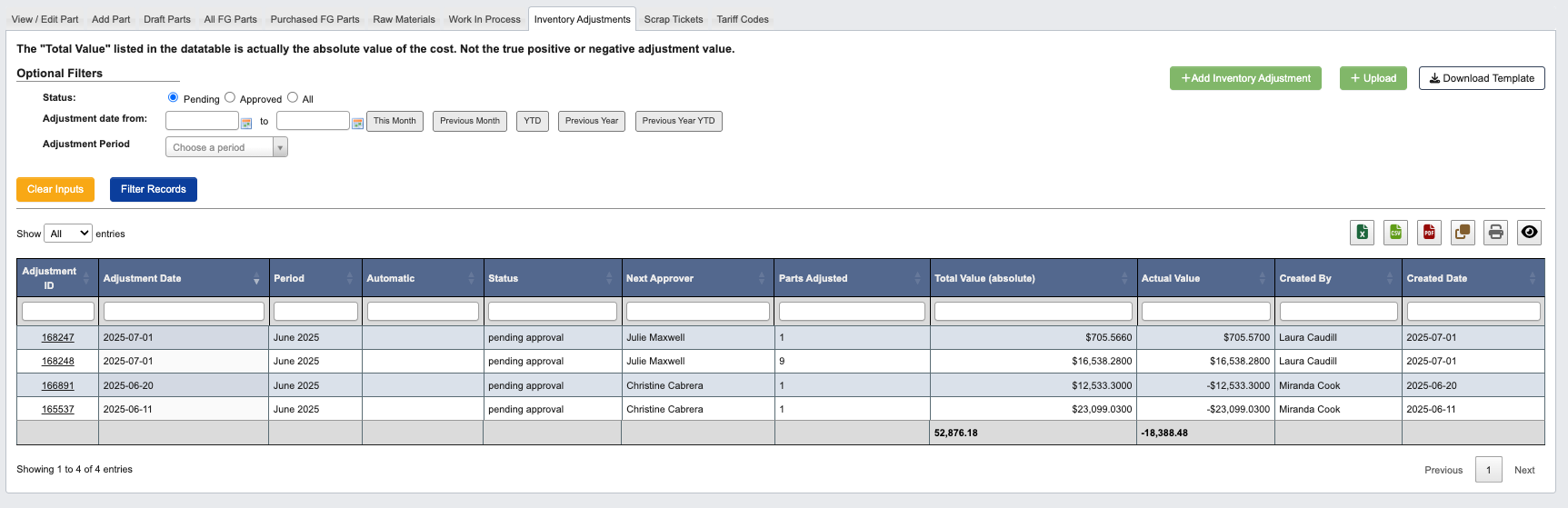
The “Total Value” listed in the data table is actually the absolute value of the cost. Not the true positive or negative adjustment value.
- Click on an attribute heading (such as Adjustment Date) to sort in ascending order. Click again to sort in descending order.
- Click on an Adjustment ID to review an inventory adjustment and deactivate if needed.
- Refresh, export, print, or filter data with the toolbar.
- Review pending and approved inventory adjustments.
- Create new inventory adjustments for discrepancies. See Manage Parts Reference for steps.
- Upload bulk adjustments using templates. See Manage Parts Reference for steps.
- Filter adjustments by status and date ranges.
Optional filters
Use the optional filters at the top of the page to narrow the list of displayed inventory adjustments.Status: Choose to show scrap tickets by status (Pending (default), Approved, All).Adjustment date from: Single day or range.Adjustment Period: Choose a period from the drop down, by month and year.- Use
Clear Inputsbutton to go back to default filters. - Use
Filter Recordsto generate the table using the filters.
Inventory Adjustment Types:
Different types of parts require different adjustment methods:
- Raw Materials: Use manual inventory adjustments.
- WIP Parts (Bases): Use material handler to remove tracking tags.
- Finished Goods: Depends on production method (bottling vs. kits).
Scrap Tickets
From the Part Information → Manage Parts submodule, click on theScrap Tickets tab. This tab shows the scrap tickets for damaged or unusable materials.
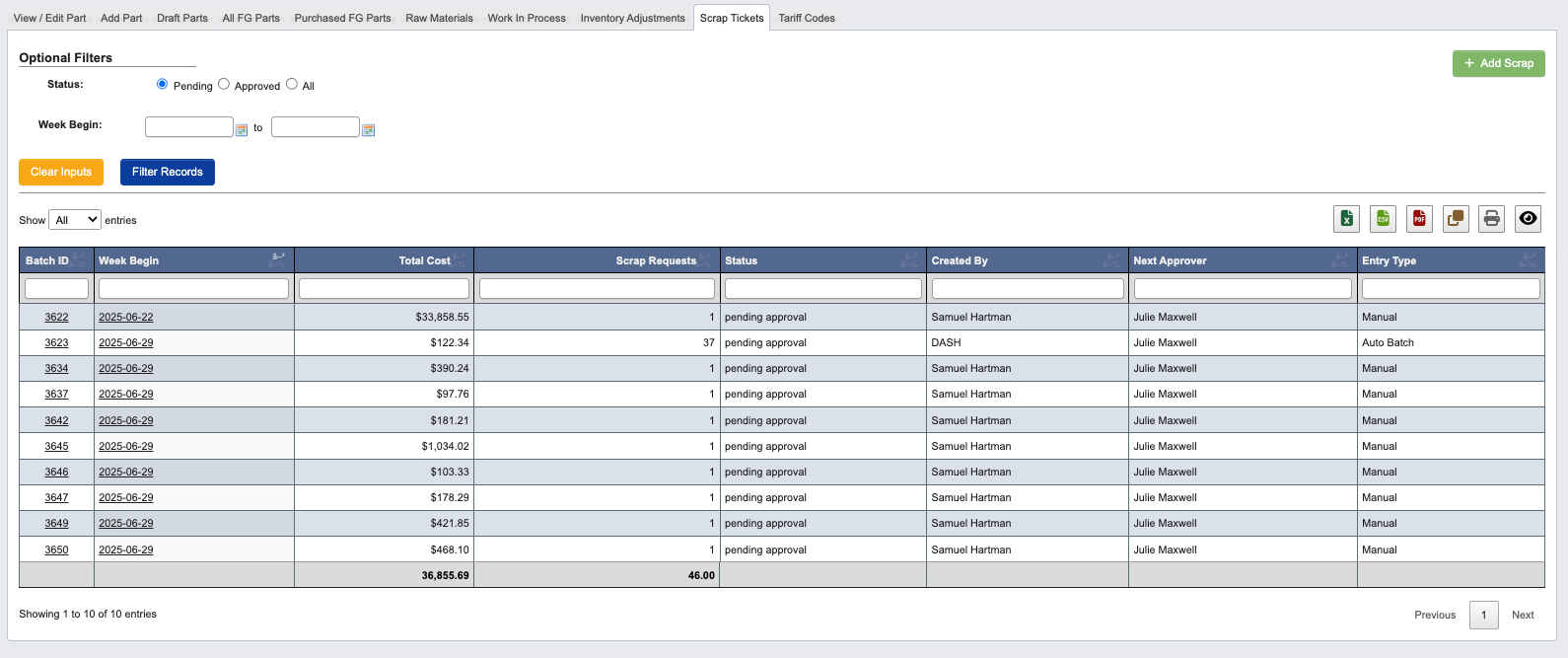
- Click on an attribute heading (such as Week Begin) to sort in ascending order. Click again to sort in descending order.
- Click on a Batch ID or Week Begin Date to review scrap tickets and approve if needed. See Approve a scrap ticket.
- Refresh, export, print, or filter data with the toolbar.
- Create new scrap tickets for damaged materials. See Manage Parts Reference for steps.
- Filter tickets by status and date ranges.
Optional filters
Use the optional filters at the top of the page to narrow the list of displayed scrap tickets.Status: Choose to show scrap tickets by status (Pending (default), Approved, All).Week Begin: Single day or range.- Use
Clear Inputsbutton to go back to default filters. - Use
Filter Recordsto generate the table using the filters.
Tariff Codes
From the Part Information → Manage Parts submodule, click on theTariff Codes tab. This tab shows tariff classification codes for international shipping.
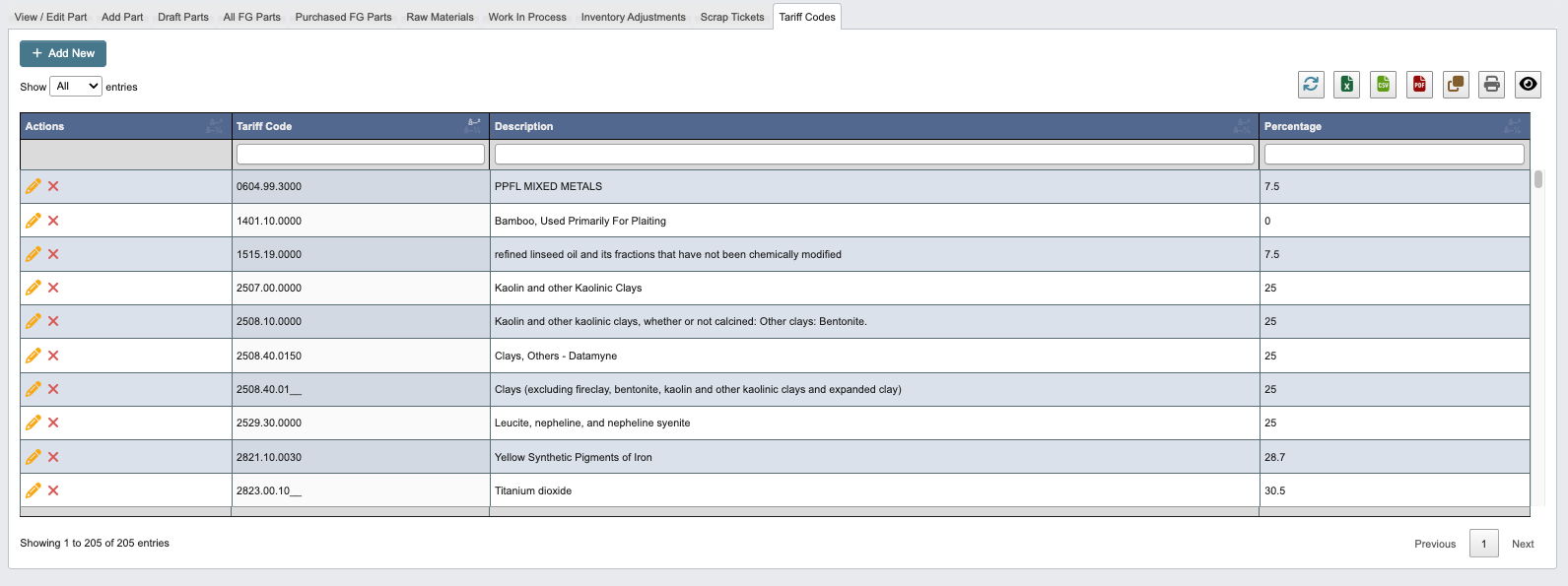
- Click on an attribute heading (such as Tariff Code) to sort in ascending order. Click again to sort in descending order.
- Review tariff codes, descriptions of codes and tariff code percentages.
- Refresh, export, print, or filter data with the toolbar.
- Edit or delete a tariff code. See Manage Parts Reference for steps.
- Add a tariff code. See Manage Parts Reference for steps.