Overview
This tutorial helps you view and edit existing parts in the DASH Part Information → Manage Parts submodule. Viewing a part allows you to review existing parts, check costs, shipping information. Editing parts enables you to modify parts and update specifications. Use this tutorial when you need to review existing parts or edit part information.View a Part
-
From the Parts Information → Manage Parts submodule, click on the
View / Edit Parttab.
-
Click the dropdown menu next to the
Part Numberfield. -
Enter the
Part Number, then click to select it.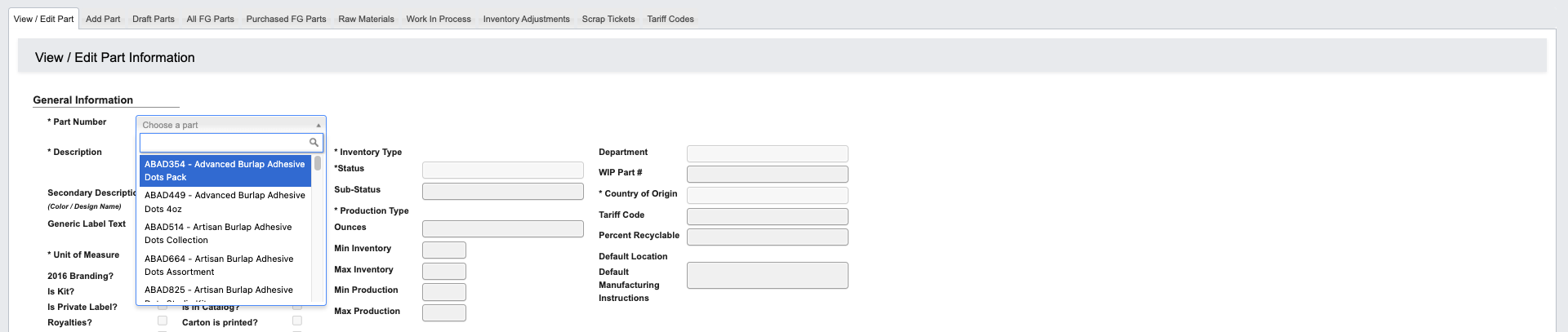
-
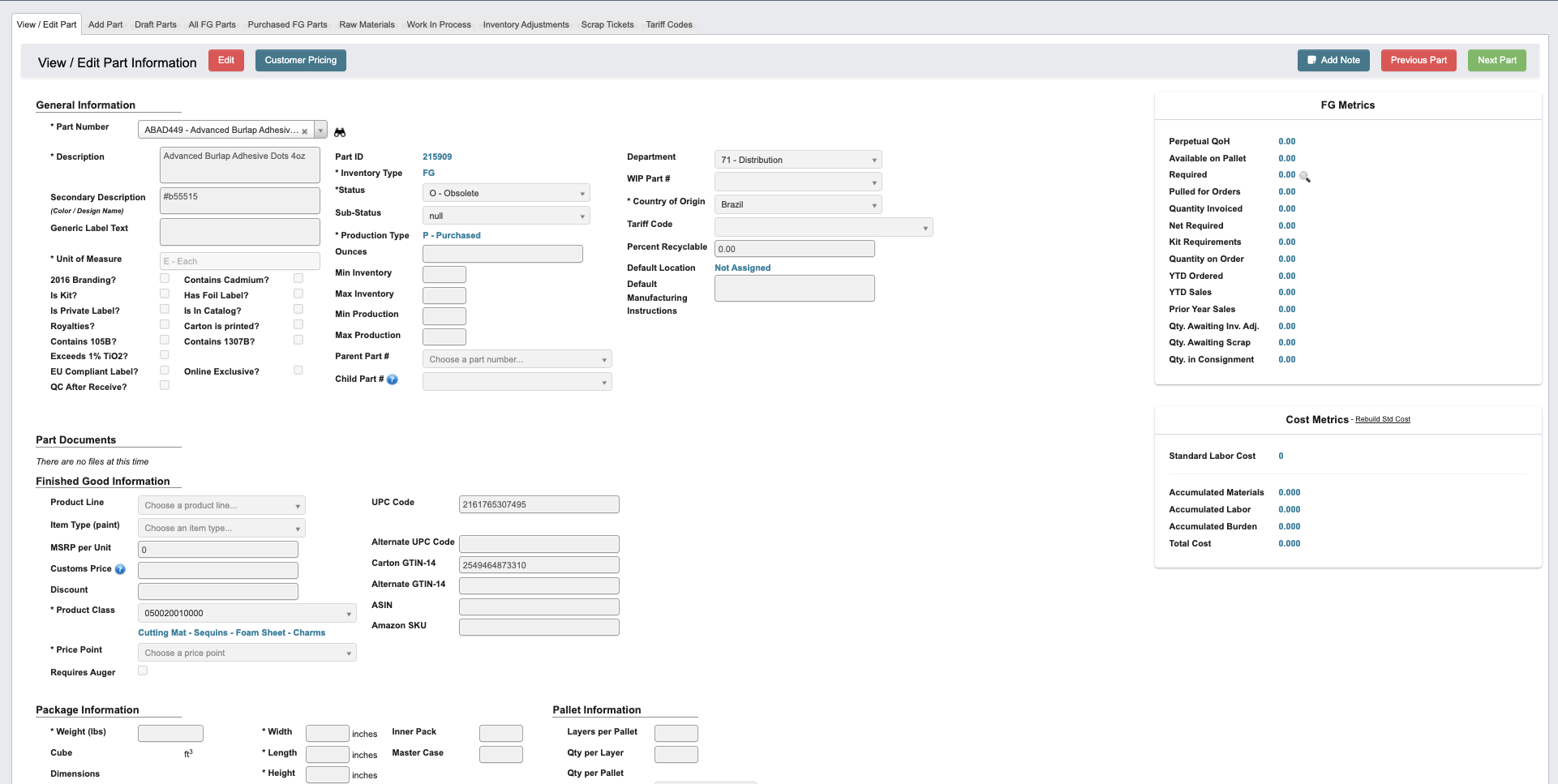
You can now view the Part details across multiple sections. Each section contains specific information about the Part. For detailed field definitions and comprehensive information about each section, refer to the View / Edit / Add Part Information Reference.
Edit a Part
- Click
Editin the toolbar to update or add information to the Part. When you enterEditmode, the toolbar buttons will change (see details below). - The
View / Edit Parttab includes the same sections asAdd Part. For detailed field definitions, refer to the View / Edit / Add Part Information Reference. - After a Part has been created, additional sections become available in
Editmode. This included the following editable sections:Material Requirements (MRP System)(Manufactured only): Defines materials management details for manufactured parts. See details below.Artist's Information: Contains technical and label properties for paint products. See details below.Approved Substitutions: Lists alternative parts that can be used in place of the primary one. See details below.
- To attach relevant documents, use the
Part DocumentsorCost Documentssections:- Click
+ Upload Documentunder “Files” to open a file browser and select the document you want to attach. - Click
Start uploadto begin uploading. - Click
Cancel uploadif you need to cancel the upload.
- Click
- Make any necessary edits to the form fields. For help understanding specific fields, see the View / Edit / Add Part Information Reference page.
- When finished, click
Saveat the top of the page.
Edit Toolbar Buttons

Cancel Editing: Cancel editing.Save: Save the changes to the Part.Clear: Clear all information from the Part.Delete Part: Delete the Part.Customer Pricing: View pricing by customer.Conformity Certificate: Generate compliance certificates based on toxicology reports and regulatory requirements. These certificates can be sent to customer when requested or required.Add Note: Attach a note to the Part. You can optionally choose an expiration date for the note.Note Type(Required): Choose from Purchasing, Production, or General.Content(Required): Field for note text.
Previous Part: Navigate to the previous Part by Part Number sequence.Next Part: Navigate to the next Part by Part Number sequence.
Material Requirements (MRP System)
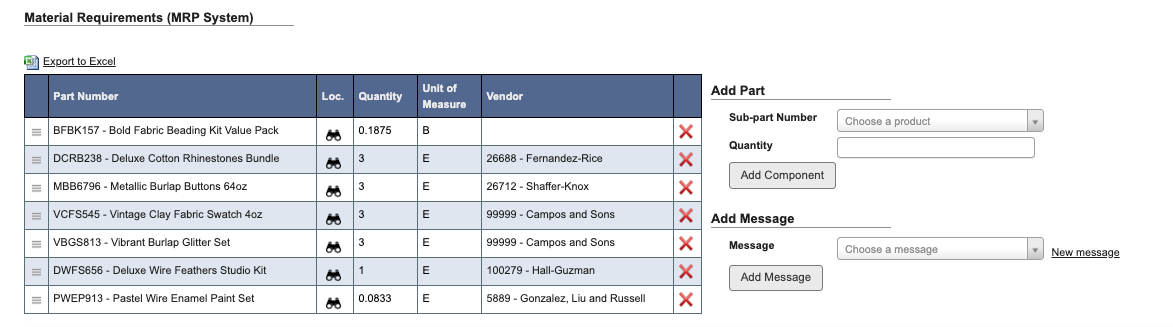
(Manufactured Only): The Materials Requirements Planning (MRP) system manages the component breakdown for manufactured parts. See more below. This section defines all raw materials and sub-components that go into making the finished part, including paint, bottles, lids, labels, shrink sleeves, shrink wrap, master cartons, and any special labeling requirements.
Edit the MRP System
- While in
Editview, you can add a part or a message to the MRP System. This allows you to link sub-parts and specify quantities or add planning notes or special instructions for production users. - Under
Add a Part, fill in the following fields:Sub-part number: Type two letters to search for and select a sub-part number.Quantity: Enter the required quantity of the sub-part.
- Click the
Add Componentbutton to add the component to the MRP System. - Under
Add Message, choose a message from the drop down.- If you want to create a new message, click the
New messagelink. - Enter the message in the pop-up window and click
YES, add messagewhen complete orCancelto go back to the previous window.
- If you want to create a new message, click the
- Click the
Add Messagebutton to add the message to the MRP System. - To delete a part from the MRP System, click the delete button (red “X”) at the end of the row. The confirm with
YES, delete componentorNO, close windowto return to the previous window.
Artist’s Information
Label information, including technical properties like light fastness, opacity, and sheen that artists need to know.
Add Artist’s Information

- In the
Editview, enter the artist information.Color Name: Name of the color as it will appear on labels.Hex Code: The digital color value (e.g., #E34234) representing the color.Lightfastness: The color’s resistance to fading or changing when exposed to light over time.Color Family: The general hue or category the color belongs to.Opacity: Describes how transparent or opaque the paint or pigment appears when applied.Sheen: Indicates the surface finish or gloss level of the product once dry.
- Click
Saveat the top theView / Edittab.
Approved Substitutions
Lists approved alternative parts that can be substituted for this Part when needed, including substitution rules and conditions.
Add a Substitution
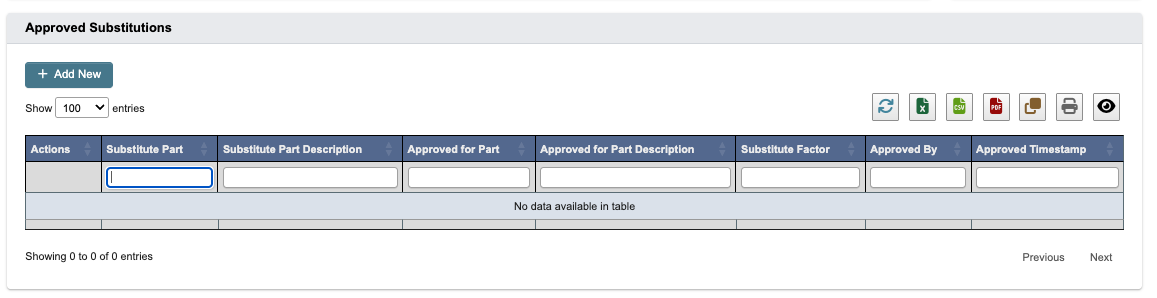
- Click
+ Add Newbutton. - Fill in the required and optional fields in the form.
- Click
Saveto confirm, orCancelto exit without saving.